Every organization needs accurate time tracking to improve productivity, manage projects, reduce overtime costs, allocate resources effectively, and measure employee performance. However, teams often depend on manual spreadsheets or disconnected reports that fail to capture real-time insights. This results in delays, inaccuracies, and poor decision-making.
A Time Tracking Dashboard in Power BI solves these challenges by bringing all time-related data into one dynamic, visual, and interactive reporting system. It helps organizations track project hours, billable work, overtime, revenue, manager performance, task rejections, and department-level insights—all within seconds.
This comprehensive article will walk you through the complete structure of the Time Tracking Dashboard in Power BI, explain how each page works, and highlight best practices and advantages.
Click to Purchases Time Tracking Dashboard in Power BI
What Is a Time Tracking Dashboard in Power BI?
A Time Tracking Dashboard in Power BI is a ready-to-use business intelligence solution designed to track, analyze, and compare performance across projects, departments, managers, and roles. It uses clean visualizations such as cards, charts, slicers, and trend graphs to simplify decision-making.
This dashboard helps you:
-
Analyze billable vs non-billable hours
-
Track rejected tasks
-
Monitor revenue by clients, roles, managers, and departments
-
Identify workload distribution
-
Review profit margins
-
Detect monthly trends
-
Improve resource allocation
Since Power BI updates instantly when new data is loaded, managers and leaders always have a clear view of performance.
Click to Purchases Time Tracking Dashboard in Power BI
Why Do Companies Need a Time Tracking Dashboard?
Organizations depend on accurate time utilization for productivity, profitability, and planning. However, time tracking data is often scattered across tools, sheets, and systems.
A dashboard solves this because:
-
It consolidates data in one place
-
It gives fast and accurate insights
-
It shows KPIs clearly with visual indicators
-
It enables real-time decision-making
-
It reveals inefficiencies that affect performance
-
It highlights areas where employees need support
This dashboard is essential for project-based companies, IT services, consulting firms, HR teams, and operations departments.
What Does the Time Tracking Dashboard in Power BI Include?
The dashboard contains 5 pages inside the Power BI file:
-
Overview Page
-
Department Analysis
-
Manager Analysis
-
Role Analysis
-
Monthly Trends
Let’s explore each page in detail.
1. Overview Page
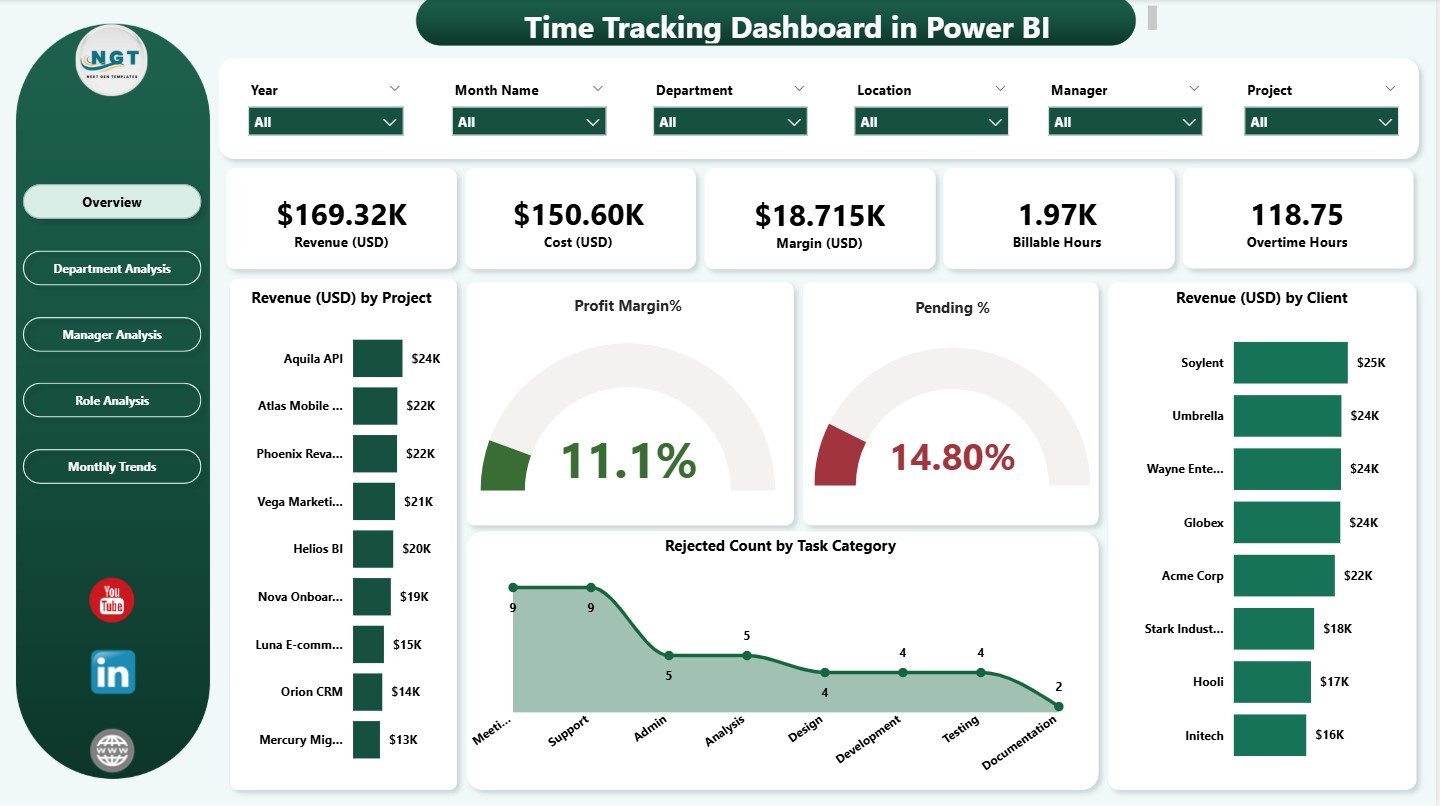
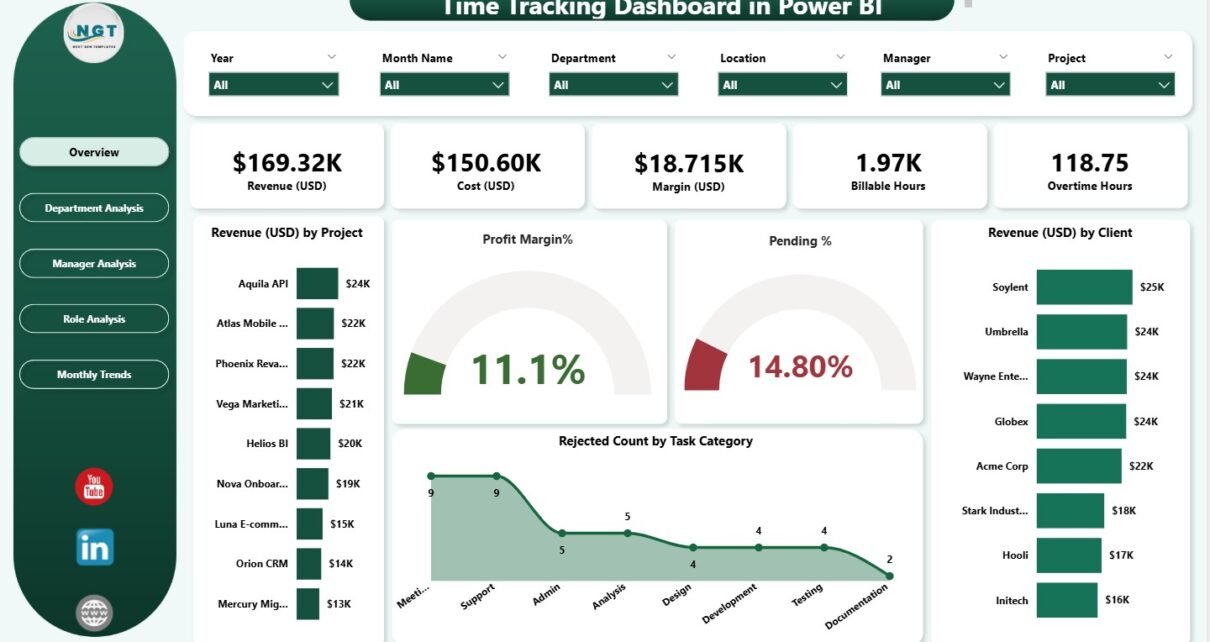
The Overview Page is the primary page of the dashboard. It provides a complete summary of time utilization and business performance.
This page includes:
🔹 Slicers
Slicers help you filter information by:
-
Project
-
Client
-
Task Category
-
Department
-
Manager
-
Role
-
Time Period
One click updates all visuals instantly.
Key KPI Cards on the Overview Page
There are five KPI cards:
-
Total Revenue (USD) – Shows revenue earned through billable work
-
Profit Margin % – Indicates the percentage of profit after cost
-
Pending Tasks – Displays the tasks awaiting approval or completion
-
Rejected Count by Task Category – Shows how many tasks were rejected
-
Revenue (USD) by Client – Highlights the top revenue-generating client
These cards help leaders evaluate overall business performance at a glance.
Primary Charts on the Overview Page
There are four major charts:
✔ Revenue USD by Project
Shows how much revenue each project contributes.
Helps identify:
-
High-value projects
-
Low-revenue projects
-
Workload distribution
✔ Profit Margin %
Shows profit generated by each project or client.
Helps in:
-
Pricing decisions
-
Project performance review
✔ Pending Tasks
Displays tasks that are not yet completed or approved.
Helps managers assign workloads more efficiently.
✔ Revenue USD by Client
Shows the contribution of different clients.
This helps monitor client dependency and revenue diversification.
✔ Rejected Count by Task Category
Displays categories with high rejection rates.
Helps teams:
-
Improve quality
-
Provide training
-
Identify root causes
2. Department Analysis
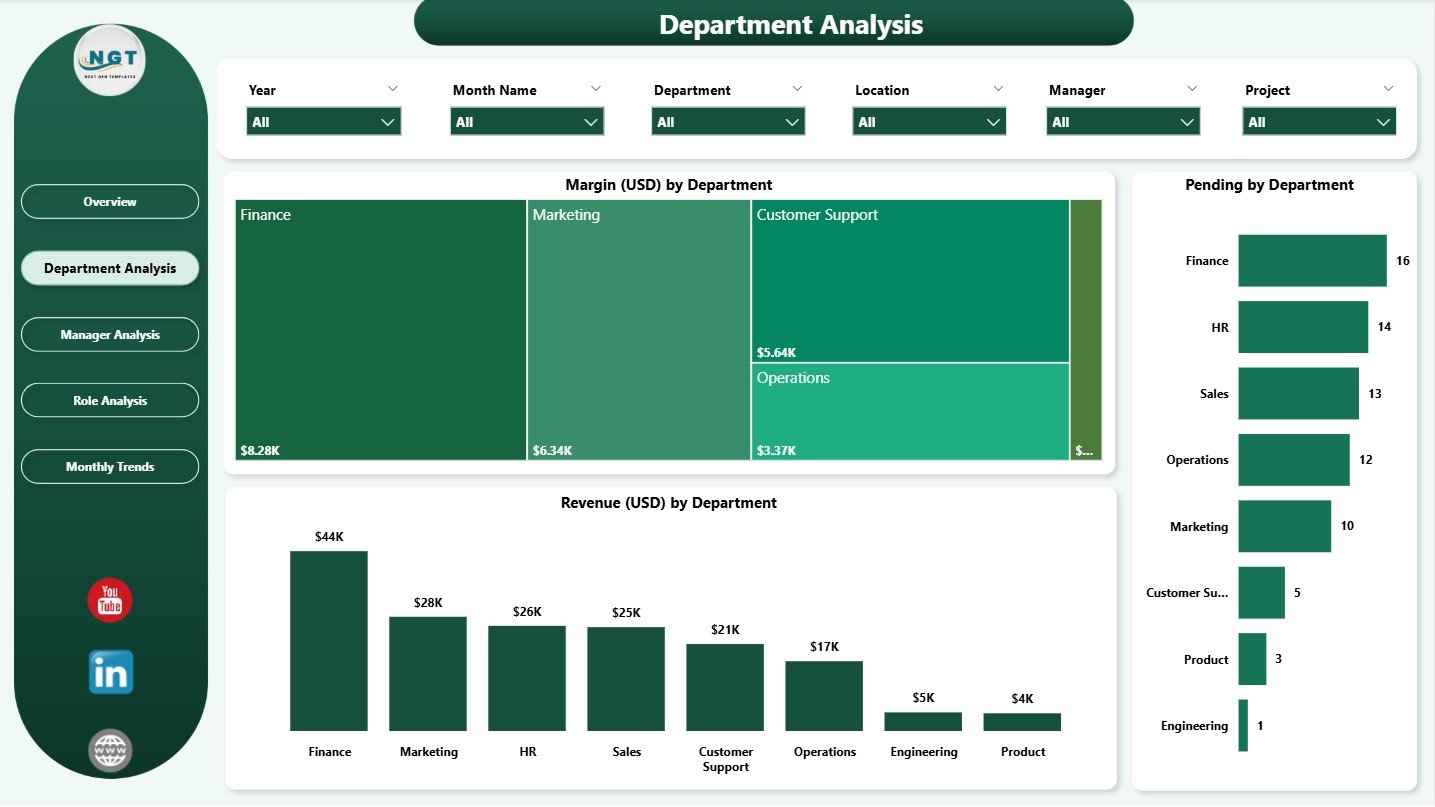
The Department Analysis Page helps evaluate time utilization and revenue at the department level.
This page includes:
🔹 Slicers
Allows department-specific filtering.
🔹 Three Charts
-
Margin USD by Department
-
Pending Tasks by Department
-
Revenue USD by Department
What Insights Does Department Analysis Provide?
This page helps answer questions such as:
-
Which department is generating the most revenue?
-
Which department has the highest pending tasks?
-
Which department maintains the highest margin?
-
How do workload and profitability compare across departments?
Managers can use these insights to improve staffing, planning, and cost control.
Click to Purchases Time Tracking Dashboard in Power BI
3. Manager Analysis
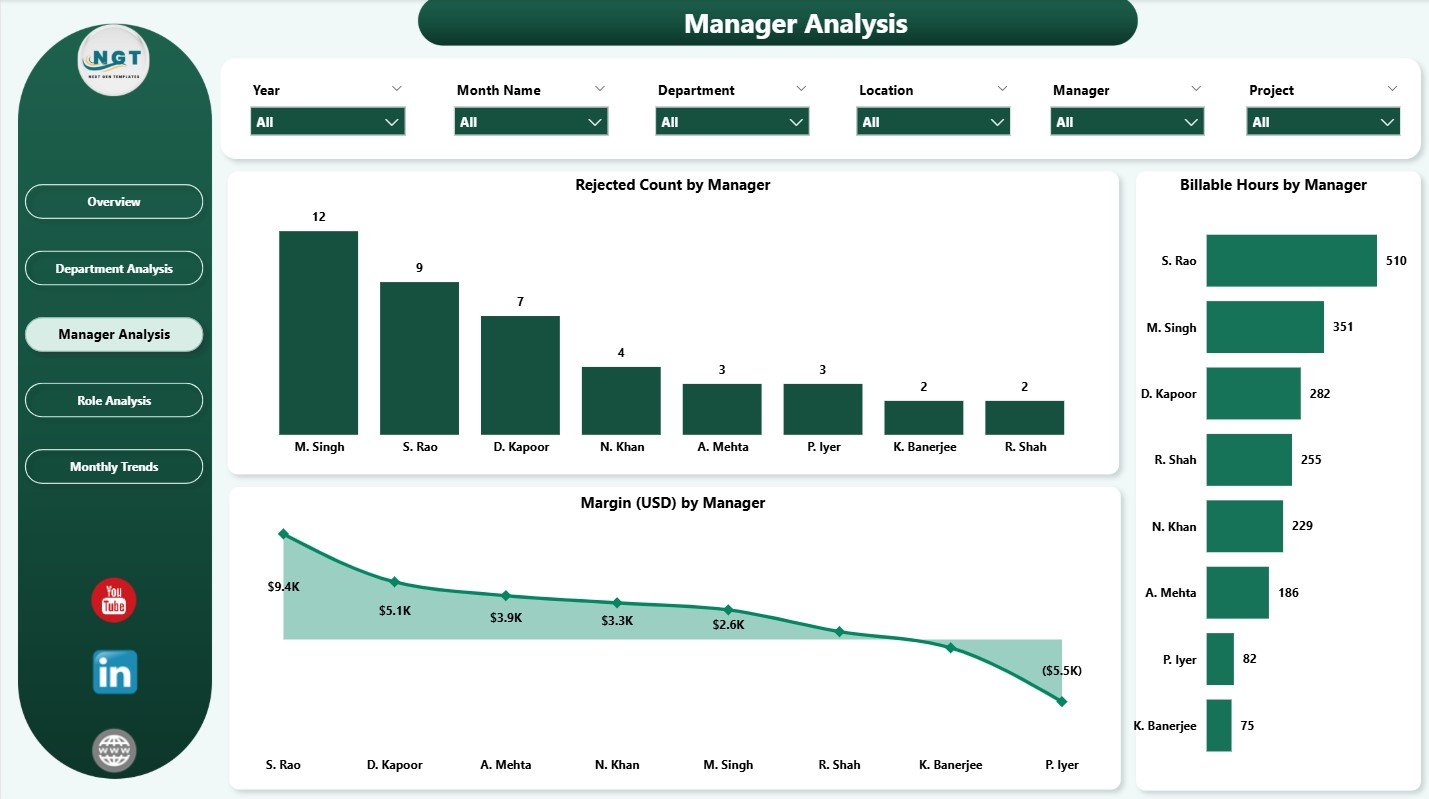
The Manager Analysis Page focuses on evaluating the performance of different managers.
This page includes:
🔹 Slicers
Filter by time range, task type, department, or project.
🔹 Three Visuals
-
Rejected Count by Manager
-
Billable Hours by Manager
-
Margin USD by Manager
How Does Manager Analysis Help?
This page helps identify:
-
Which manager leads the most profitable projects
-
Which manager has the highest number of rejected tasks
-
How billable hours vary among managers
-
Whether workloads are balanced
-
Which managers require support or training
These insights support better leadership decisions and resource allocation.
4. Role Analysis
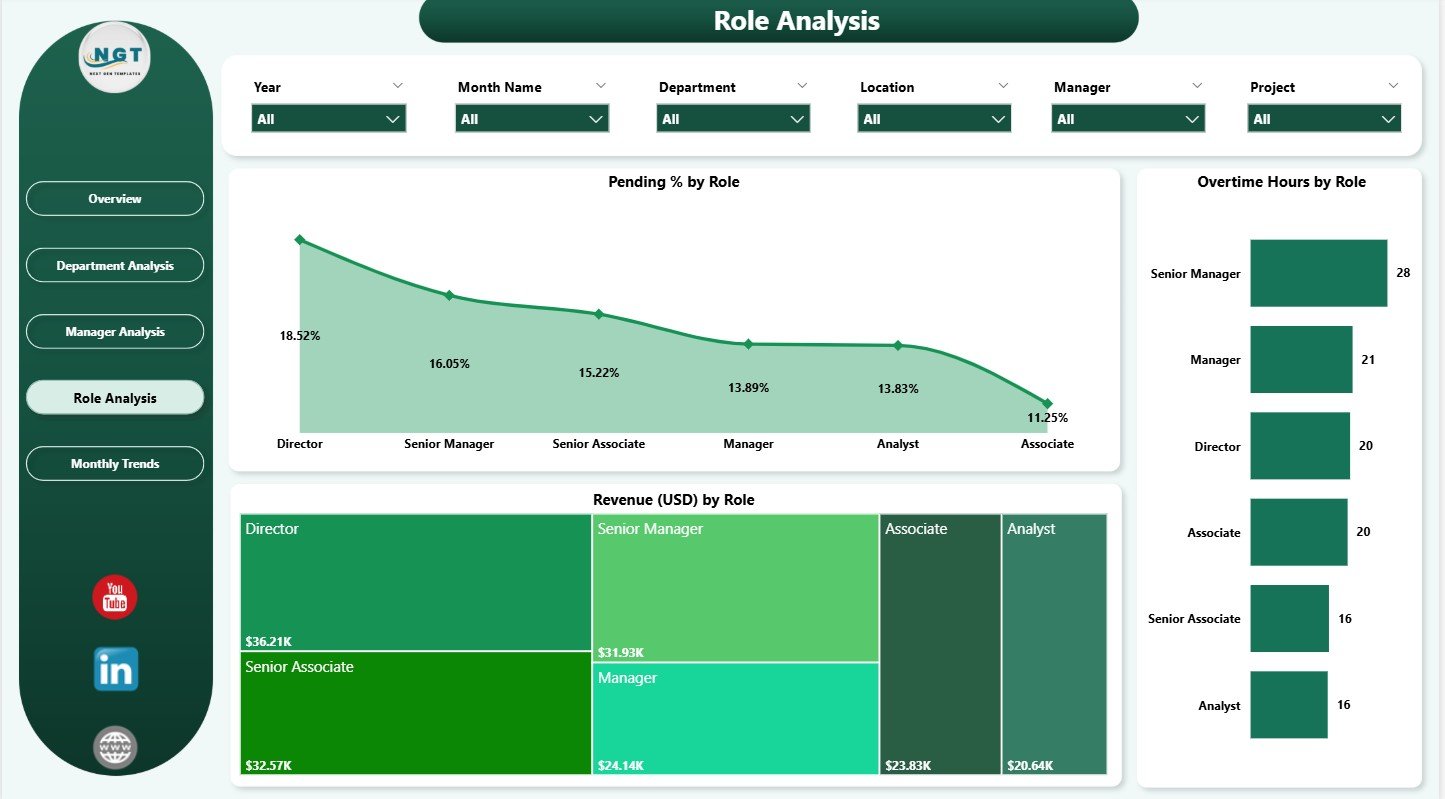
The Role Analysis Page compares performance across job roles in the organization.
This page includes:
🔹 Slicers
Filter by role, client, location, or time period.
🔹 Three Charts
-
Pending % by Role
-
Overtime Hours by Role
-
Revenue USD by Role
What Can You Learn from Role Analysis?
This page helps understand:
-
Which roles experience more delays
-
Which roles have high overtime workload
-
Which roles contribute maximum revenue
-
Whether the workload is balanced across roles
-
Whether any role faces performance challenges
This helps HR and operations teams improve job allocation and hiring decisions.
5. Monthly Trends
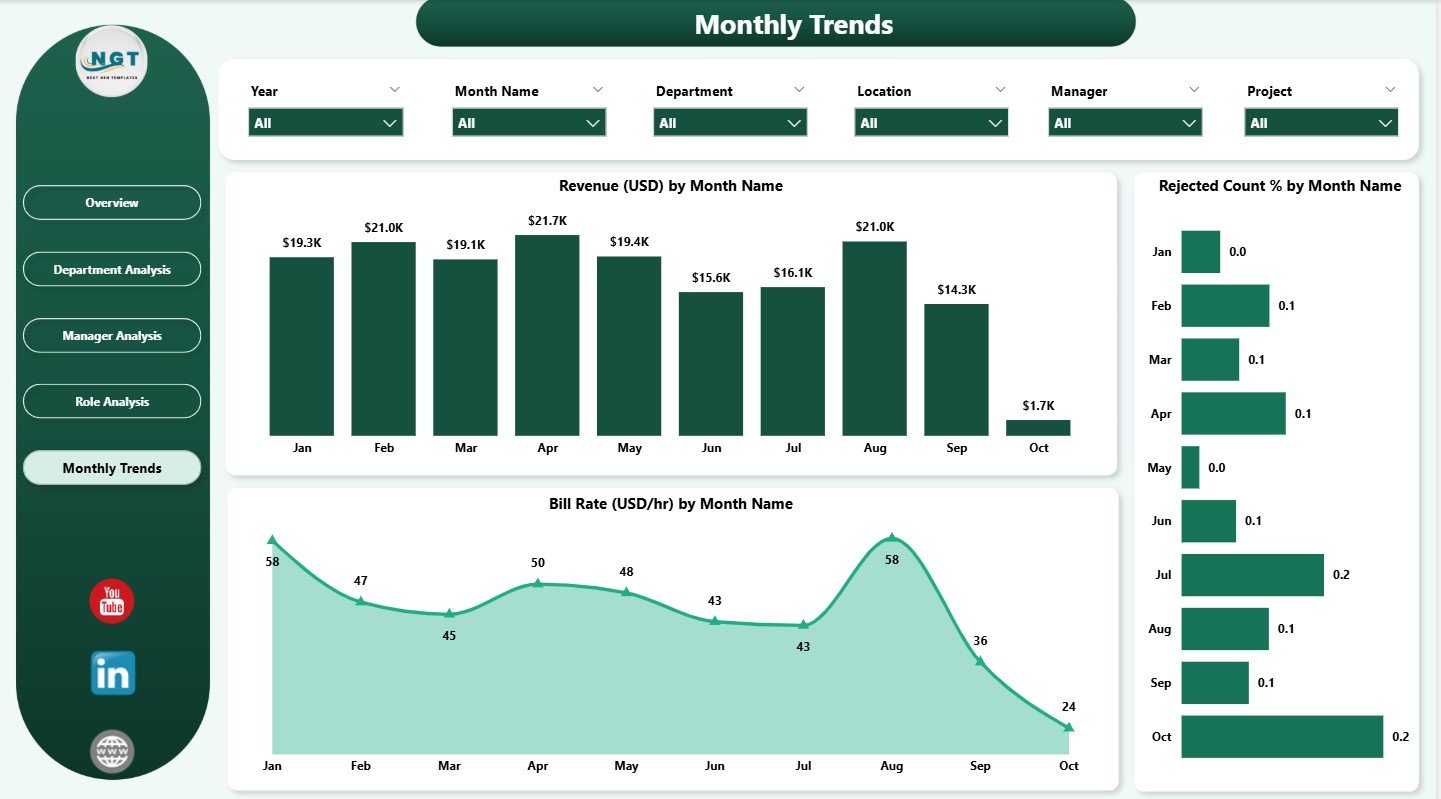
The Monthly Trends Page shows how performance changes month by month.
This page includes:
🔹 Three Trend Charts
-
Revenue USD by Month Name
-
Rejected Count % by Month Name
-
Bill Rate (USD/hr) by Month Name
Why Is the Trends Page Important?
It helps identify:
-
Seasonal trends
-
Fluctuations in revenue
-
Quality issues across months
-
Time periods with low or high bill rates
-
Rejection spikes
-
Overall performance consistency
Organizations can use these insights to plan hiring cycles, adjust workloads, and optimize pricing.
Click to Purchases Time Tracking Dashboard in Power BI
Advantages of Time Tracking Dashboard in Power BI
Here are the major benefits of this dashboard:
✔ Real-Time Insights
Instant updates help managers act fast.
✔ Better Resource Allocation
Helps identify overworked or underutilized employees.
✔ Revenue Optimization
Shows which projects and clients bring the most value.
✔ Improved Productivity
Tracks billable vs non-billable hours accurately.
✔ Reduced Errors
Avoids manual spreadsheet updates.
✔ Better Decision-Making
Clear visuals help leaders understand problems quickly.
✔ Complete Transparency
Tracks performance across managers, departments, roles, and months.
Click to Purchases Time Tracking Dashboard in Power BI
Best Practices for Using the Time Tracking Dashboard
To get the best results, follow these practices:
1. Update Data Frequently
Daily or weekly updates keep the dashboard accurate.
2. Review Monthly Trends Regularly
Helps predict performance cycles.
3. Check Manager-Wise Rejection Rates
Supports quality improvement.
4. Use Department Insights for Planning
Helps balance workload and budget.
5. Monitor Overtime Consistently
Protects employees from burnout.
6. Track Revenue Per Project & Role
Helps identify high-value roles and projects.
7. Keep KPIs Simple & Clear
Avoid clutter—use only meaningful metrics.
Conclusion
The Time Tracking Dashboard in Power BI brings together all essential performance metrics into one clean and interactive system. From revenue insights to rejected tasks, from department performance to overtime analytics, this dashboard helps organizations improve productivity, control costs, and strengthen decision-making.
With five powerful pages—Overview, Department Analysis, Manager Analysis, Role Analysis, and Monthly Trends—organizations gain a 360-degree view of time utilization and workforce performance.
Consistent use of this dashboard results in better planning, higher efficiency, and improved profitability.
Click to Purchases Time Tracking Dashboard in Power BI
Frequently Asked Questions (FAQs)
1. What is a Time Tracking Dashboard in Power BI?
It is a visual reporting tool used to analyze workforce hours, revenue, department performance, and monthly trends.
2. Can this dashboard track billable hours?
Yes, it tracks billable hours by manager, department, role, and project.
3. Does it show monthly performance patterns?
Yes, the Monthly Trends page shows month-wise patterns for revenue, rejection %, and bill rates.
4. Can I customize the dashboard?
Yes, all charts, slicers, and visuals can be modified as needed.
5. Who can use this dashboard?
Operations teams, project managers, HR teams, finance teams, and business leaders.
6. Is Power BI better than Excel for time tracking dashboards?
Yes, Power BI provides dynamic visuals, interactivity, faster insights, and automatic refresh capability.
Visit our YouTube channel to learn step-by-step video tutorials
Click to Purchases Time Tracking Dashboard in Power BI