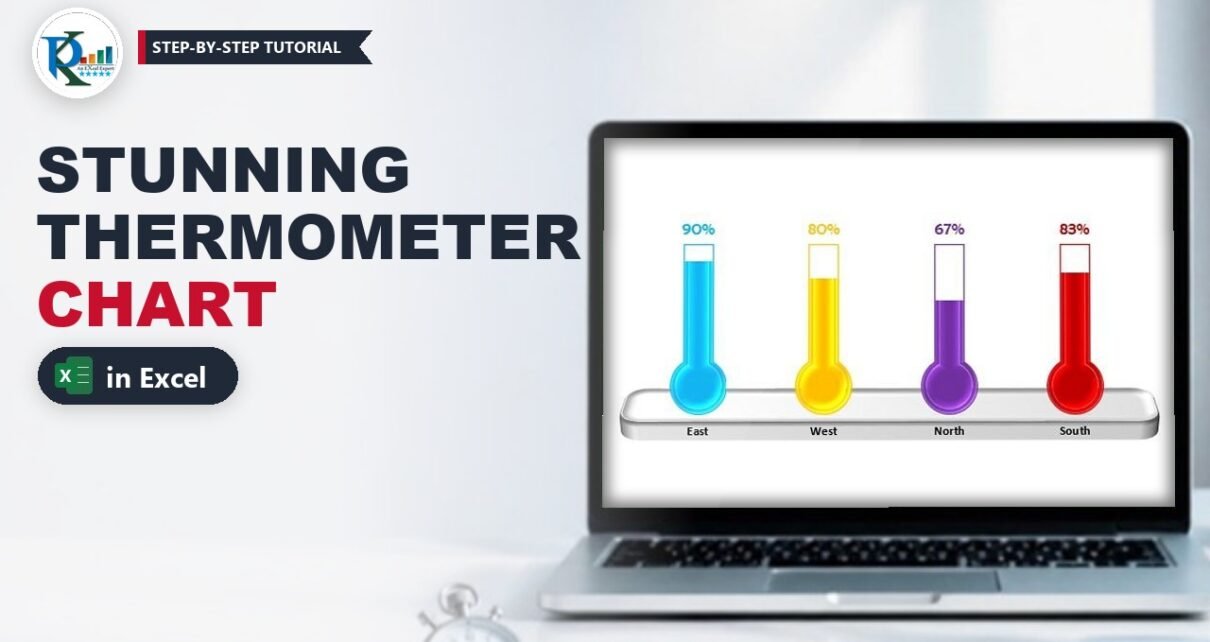
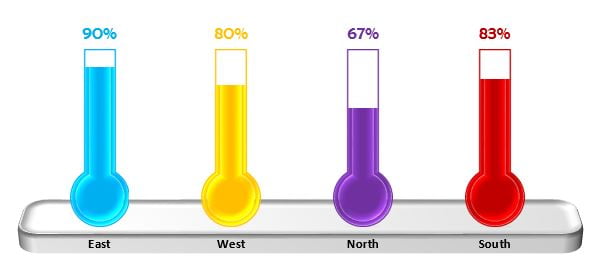
A thermometer chart in Excel is one of the clearest ways to show progress against a target: each bulb fills up to the actual value, and the empty glass above it shows how far there is to go. In this tutorial you build a stunning, infographic-style version that compares four zones side by side, with glossy coloured thermometers standing on a 3-D tray. It is a normal clustered column chart underneath, so it updates the moment your data changes. You only need a two-column data table, one helper column and two shapes that you make once and reuse.
Watch the Video Tutorial
PK builds the whole chart from a blank sheet: the helper column, the column chart, the thermometer shapes made in PowerPoint, the picture fills, the data labels and the 3-D tray.
What You Will Build
- A zone-wise KPI chart that shows the service level of East, West, North and South.
- Glossy thermometer shapes made with Merge Shapes and a shape-effect preset.
- Bars filled with shapes using Stack and Scale, so each thermometer fills to the exact percentage.
- Labels read from the sheet with Value From Cells, coloured to match each thermometer.
- A 3-D tray that the thermometers stand on, grouped with the chart into one object.
Step 1: Set Up the Data
Type the zones and their service levels in A1:B5, then add a helper column called Max Value in column C:
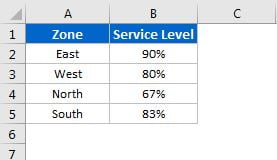
- A1:A5 – Zone: East, West, North, South.
- B1:B5 – Service Level as percentages (the video starts with 53%, 71%, 91% and 83%).
- C1:C5 – Max Value: type 100% in C2 and fill it down to C5.
The Max Value column draws the empty glass of each thermometer. Service levels top out at 100%, so that is the maximum here. If you track a different metric, put its own maximum in this column instead.
Step 2: Insert the Column Chart
Insert a clustered column chart
Select A1:C5 and go to Insert → Charts → 2-D Clustered Column. You get two bars per zone: Service Level and Max Value.
Fix the vertical axis
Right-click the vertical axis, choose Format Axis and set Minimum = 0 and Maximum = 1. 1 is 100% as a number, so every Max Value bar now reaches exactly the top of the plot area. Without this, Excel picks its own maximum (such as 120%) and the thermometers would not line up.
While you are here, turn off the sheet gridlines in View → Gridlines so the finished chart sits on a clean background.
Step 3: Draw the Thermometer Shape
PK draws the thermometer in PowerPoint because of its Merge Shapes command:
- Insert a tall, narrow Rectangle.
- Insert an Oval (hold Shift for a circle) and place it at the bottom of the rectangle to form the bulb.
- Select both shapes, then Format → Align → Align Center.
- With both still selected, go to Format → Merge Shapes → Union. The two shapes become one thermometer outline.
Copy the shape and paste it into your Excel sheet. It arrives as an editable shape, not a picture. Resize it and make a copy, so you have two identical thermometers.
Format the two shapes
- Shape 1 (the filled one): Shape Fill light blue, Shape Outline the same light blue, then Shape Effects → Preset → Preset 7 for the glossy look.
- Shape 2 (the empty glass): Shape Outline light blue and Shape Fill → No Fill.
Step 4: Fill the Thermometer Chart in Excel with the Shapes
Paste the shapes into single bars
Copy shape 1. In the chart, click the East Service Level bar once to select the series, then click it again so only that one bar is selected, and press Ctrl+V. The bar becomes a filled thermometer. Now copy shape 2, select only the East Max Value bar in the same way and press Ctrl+V.
Repeat for each zone with its own colour
Recolour the two shapes and paste them onto the next pair of bars. The video uses:
- East – light blue
- West – Gold, Accent 4
- North – purple
- South – dark red
Each time, change both the fill of shape 1 and the outline of shape 2, so the glass matches its liquid.
Use Stack and Scale so the shape is not squashed
A pasted shape is stretched to the bar by default, so a 25% bar would show a tiny, squashed thermometer. Fix it bar by bar: select a single bar, open Format Data Point → Fill & Line → Fill, choose Stack and Scale with and set the units per picture to 1. One full picture now represents 1 (100%), so a 25% bar shows the bottom quarter of the shape, bulb included. If your maximum is different, enter that number instead. Do this for all eight bars.
Overlap the bars
Right-click any bar, choose Format Data Series and set Series Overlap to 100%. The empty Max Value glass now sits exactly on top of the filled Service Level bar, and together they look like one thermometer. Because the glass has no fill, the colour shows through it.
Step 5: Clean Up the Chart
- Delete the vertical axis, chart title, legend and gridlines.
- In Format Data Series, set the Gap Width to around 120% so the thermometers are wider.
- Select the plot area and reduce its height a little, leaving room above the thermometers for the labels.
Step 6: Add Value From Cells Labels
Right-click the Max Value series and choose Add Data Labels. The labels appear above each glass, but they all show 100%, which is not what you want. Fix that:
- Right-click a label and choose Format Data Labels.
- Tick Value From Cells and select the service level range, B2:B5.
- Untick Value and Show Leader Lines.
The labels now show each zone’s real service level while staying at the top of the thermometers. On the Home tab PK sets the font to Berlin Sans FB, about size 14, then selects each label on its own and colours it like its thermometer.
Finally, select the chart area and set Shape Fill: No Fill and Shape Outline: No Outline. Select the horizontal axis, remove its outline and make the zone names bold and black.
Step 7: Build the 3-D Tray
- Go to Insert → Shapes → Rounded Rectangle and draw a long bar under the thermometers. Drag the yellow handle to adjust the corner radius.
- Set No Outline and a grey fill.
- Right-click → Format Shape → Effects → 3-D Rotation: choose the preset Perspective Relaxed and set the Y rotation to about 300°.
- Under 3-D Format, choose the Soft Round top bevel and a depth of about 12 pt.
- Place the tray under the bulbs, right-click it and choose Send to Back.
- Select the chart and the tray together, right-click and choose Group. They now move and resize as one object.
Change any service level in column B and the matching thermometer rises or falls straight away. In the video, setting East to 85% and then 25% updates the chart instantly.
Common Errors and Fixes
This section and the Tips below are additions from general Excel practice; they are not shown in the video.
Every bar turned into the same thermometer
You pasted while the whole series was selected. Press Ctrl+Z, click the bar once, wait, click it again so only one bar has handles, then paste.
The thermometer looks squashed or cut off
The bar still uses Stretch. Switch that data point to Stack and Scale with 1 unit per picture, and make sure the axis maximum is fixed at 1.
All the labels show 100%
The labels still show the Max Value series’ own value. Turn on Value From Cells with the service level range and turn Value off. Value From Cells is available in Excel 2013 and later.
Tips
- In Microsoft 365, Excel also offers Merge Shapes on the Shape Format tab, so you can draw the thermometer without leaving Excel.
- Keep the Max Value column as a real number, not a typed label, so the chart scale stays correct.
- Use colours that mean something: one colour per zone, or green and red for above and below target.
- Save the grouped chart and tray as part of a dashboard sheet and copy it whenever you need a new KPI card.
- Microsoft explains the column chart basics in Create a chart from start to finish.
Want It Ready-Made?
If you would rather start from the finished file, the Stunning Thermometer Chart in Excel template is available on NextGenTemplates.com, and you can browse more Excel charts and visualization templates. To learn charts, infographics and dashboards step by step, join the video course Excel Pivot Tables & Dashboards: Basic to Advanced on NextGenTemplates Academy.
Related Tutorials
- Candle Infographic Chart in Excel: Step-by-Step Tutorial
- Beer Mug Graph in Excel
- Slide Meter Chart in Excel: Solid KPI Bars
- Convert Your Boring Bar Chart into Stylish Charts
- One-Pager KPI Dashboard in Excel
Frequently Asked Questions
How do I make a thermometer chart in Excel?
Add a Max Value helper column next to your data, insert a clustered column chart, fix the axis from 0 to 1, fill the actual bars with a filled thermometer shape and the max bars with an empty one, then set Series Overlap to 100%.
Why do I need a Max Value column?
It draws the empty glass of each thermometer. Its bar always reaches 100%, so the filled bar in front of it shows how much of the target has been reached.
Why use Stack and Scale instead of Stretch?
Stretch squeezes the whole shape into each bar, so short bars look squashed. Stack and Scale with 1 unit per picture keeps the shape at full size and shows only the part that matches the value.
Can I show more categories, such as months?
Yes. Add rows to the table and paste a thermometer pair onto each new pair of bars. The same method works zone wise, month wise or for any category.
Does the chart update automatically?
Yes. It is a normal column chart, so changing a service level in column B resizes that thermometer and its label straight away.
About the Author
PK is a Microsoft Excel expert and trainer and the founder of PK: An Excel Expert and NextGenTemplates.com. He has been teaching Excel, Power Query and Power BI since 2016 on his YouTube channel.
Conclusion
A thermometer chart in Excel turns a plain KPI table into a visual that anyone understands at a glance. The trick is simple: a Max Value helper column, a fixed 0 to 1 axis, two reusable shapes with Stack and Scale, 100% overlap and labels taken from the cells. Add the 3-D tray, group everything and you have an infographic you can drop into any dashboard or presentation.