Managing insurance schedules without a structured system often creates confusion, missed deadlines, and poor coordination. However, when teams use a centralized calendar, they can plan activities clearly and execute tasks on time. Therefore, insurance companies, agents, and operations teams need a smart scheduling solution that simplifies event management.
The Insurance Scheduling Calendar in Excel provides exactly that advantage. This ready-to-use Excel calendar helps you manage annual plans, monthly activities, and daily events in one powerful workbook. Moreover, it offers automation, interactive controls, and user-friendly navigation that improves productivity instantly.
In this comprehensive guide, you will learn everything about the Insurance Scheduling Calendar in Excel, including its structure, features, advantages, best practices, and frequently asked questions.
Click to Purchases Insurance Scheduling Calendar in Excel
What Is an Insurance Scheduling Calendar in Excel?
An Insurance Scheduling Calendar in Excel is a dynamic planning tool that helps insurance professionals organize meetings, renewals, campaigns, and operational events in a structured calendar format.
Instead of relying on scattered notes or multiple files, teams can manage their entire schedule from one centralized Excel dashboard. Consequently, organizations gain better visibility, stronger coordination, and improved time management.
Furthermore, this ready-to-use template allows you to:
-
Plan yearly insurance activities
-
Track monthly schedules
-
Monitor daily events
-
Manage event details in a database
-
Highlight important dates automatically
Because of these capabilities, the calendar becomes an essential productivity tool for insurance teams.
Why Do Insurance Teams Need a Scheduling Calendar?
Insurance operations involve numerous time-sensitive activities such as policy renewals, client meetings, compliance reviews, and campaign launches. Without proper scheduling, teams often miss critical deadlines.
Here is why this Excel calendar becomes extremely valuable:
-
First, it centralizes event management
-
Next, it reduces scheduling conflicts
-
Additionally, it improves team coordination
-
Moreover, it enhances deadline visibility
-
Finally, it saves planning time
Therefore, organizations that want smooth insurance operations should adopt a structured scheduling calendar.
Key Features of the Insurance Scheduling Calendar Template
Click to Purchases Insurance Scheduling Calendar in Excel
This ready-to-use template includes five powerful worksheets that work together seamlessly. Let’s explore each one in detail.
🏠 1. Home Sheet Tab (Navigation Center)
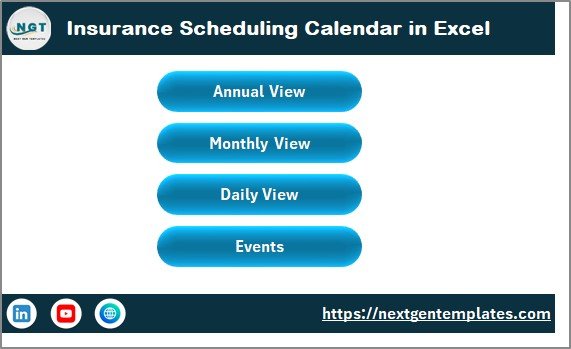
The Home sheet acts as the index page of the workbook. It allows users to navigate quickly between different calendar views.
🔹 Smart Navigation Buttons
The sheet includes four interactive buttons:
-
Annual View
-
Monthly View
-
Daily View
-
Events
Because of these buttons, users can jump to any section instantly without manual searching.
📅 2. Annual View Sheet Tab
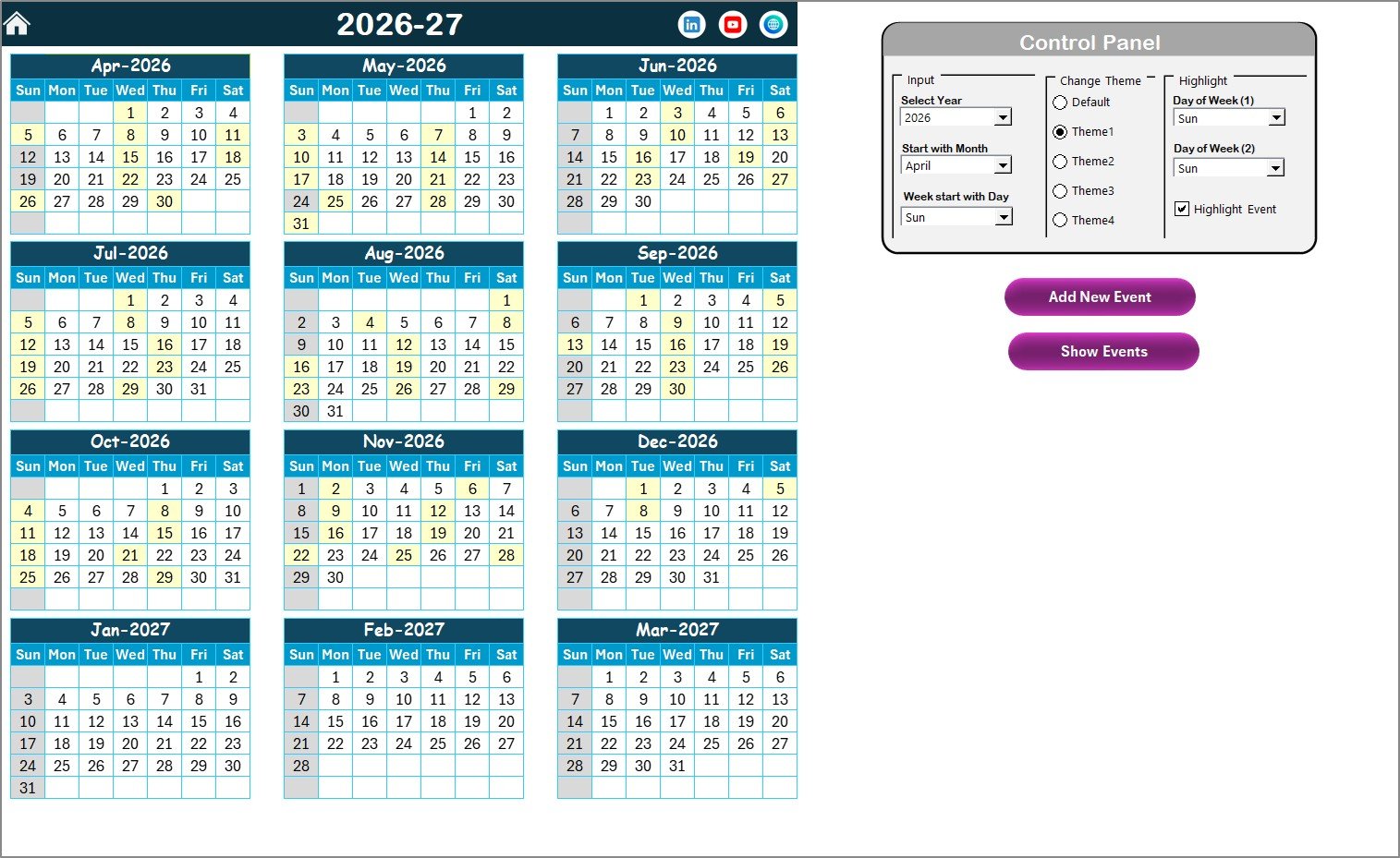
The Annual View sheet provides a complete 12-month calendar overview. This view helps managers plan long-term insurance activities effectively.
🎛️ Control Panel Overview
The Annual sheet includes a powerful control panel divided into three groups.
🔹 Input Group
This section allows you to customize the calendar dynamically.
You can:
-
Select the Year
-
Change the starting month
-
Modify the starting day of the week
As soon as you update these settings, the annual calendar adjusts automatically. Therefore, users can generate any year’s calendar within seconds.
🎨 Change Theme Group
The template includes five color themes. Users can apply any theme across the entire workbook.
Because of this feature:
-
The calendar looks visually appealing
-
Organizations can match brand colors
-
Users can improve readability
✨ Highlight Group
This smart feature helps emphasize important days.
You can:
-
Select Day of Week (1)
-
Select Day of Week (2)
-
Highlight weekends (for example, Saturday and Sunday)
-
Enable the Highlight Event checkbox
When enabled, events appear in yellow on the annual calendar. As a result, users can quickly identify important dates.
➕ Add New Event Button (Annual View)
Users can add events directly from the calendar.
How it works:
-
Select a date
-
Click Add New Event
-
Fill the form
-
Click Submit
Immediately, the event appears on the selected date.
👁️ Show Event Button
This button displays the list of events for the selected date. Therefore, users can review scheduled activities without opening the database.
Click to Purchases Insurance Scheduling Calendar in Excel
🗓️ 3. Monthly View Sheet Tab
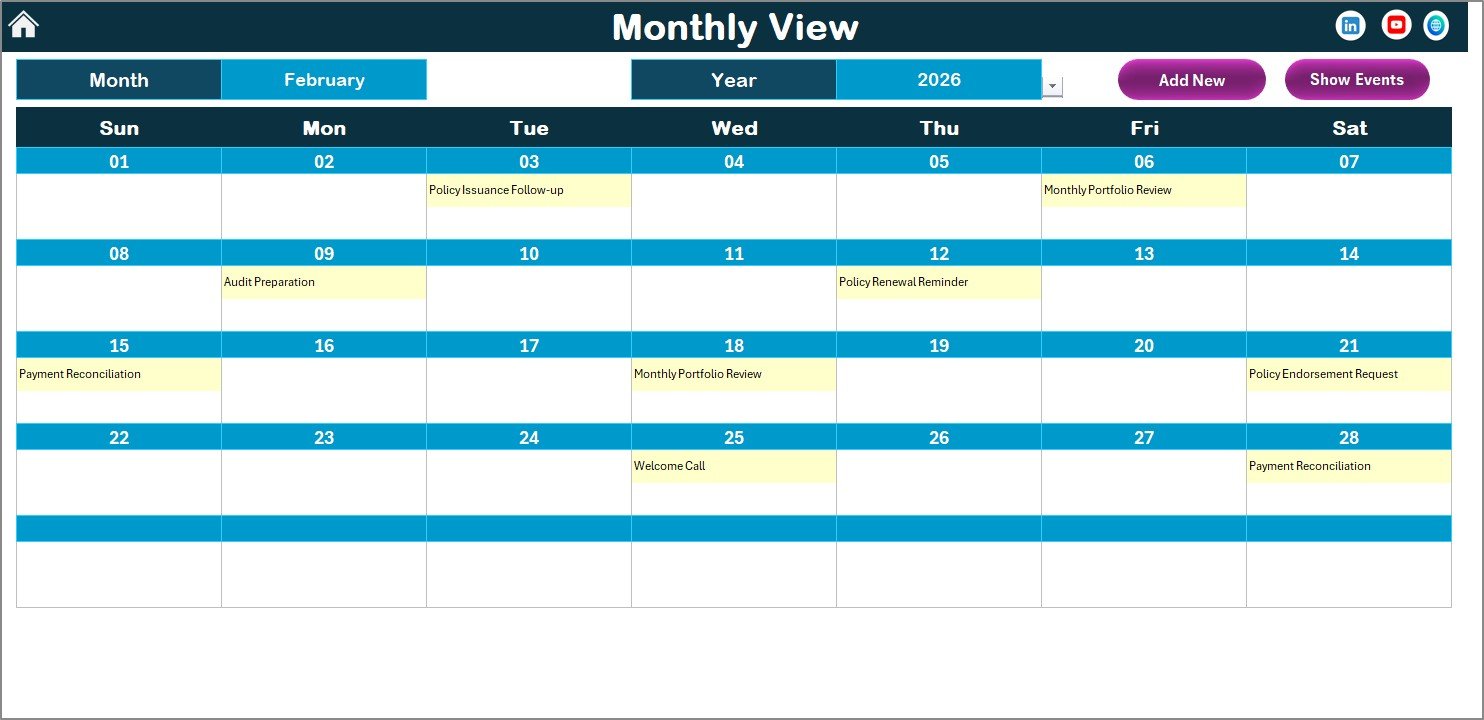
The Monthly View shows a focused calendar for the selected month and year.
🔹 Dynamic Month and Year Selection
Users can choose the Month and Year from the top controls. Consequently, the calendar updates automatically.
🔹 Smart Event Display
The calendar shows:
-
One event directly on the date
-
“More than 1…” when multiple events exist
Because of this intelligent display, the calendar remains clean and readable.
🔘 Monthly View Buttons
The sheet includes two key buttons:
➕ Add New Event
Works the same way as the Annual view.
👁️ Show Event
Displays all events for the selected date.
Click to Purchases Insurance Scheduling Calendar in Excel
📋 4. Daily View Sheet Tab
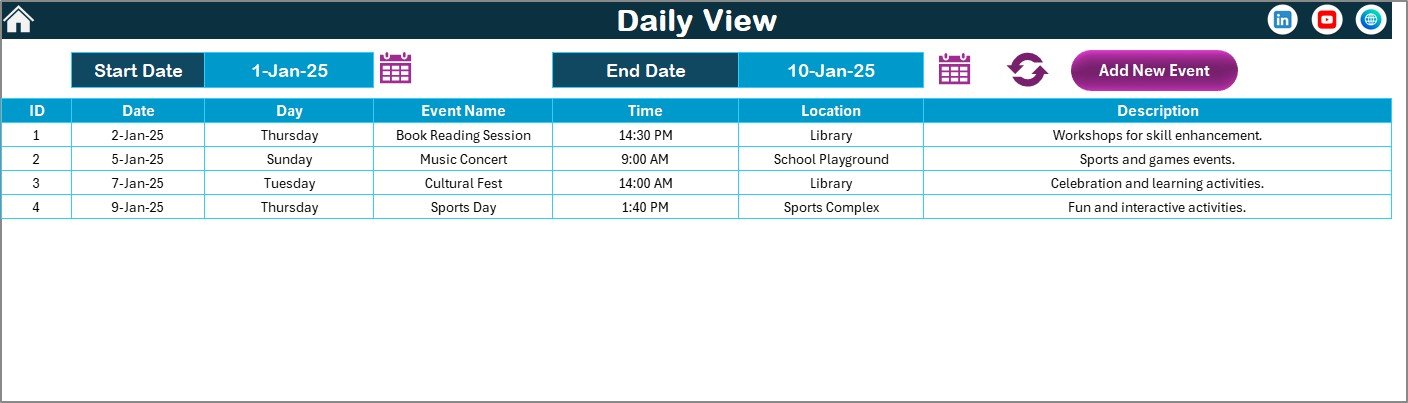
The Daily View provides a detailed list of events within a selected date range. This sheet is extremely useful for operational monitoring.
🔹 Date Range Selection
Users can enter:
-
Start Date
-
End Date
You can also use the calendar icon for quick selection.
🔄 Refresh Button
After selecting the date range, click Refresh to load the latest events.
Because of this feature, teams always see updated information.
➕ Add New Event Button
Users can also create new events directly from the Daily view using the event form.
Click to Purchases Insurance Scheduling Calendar in Excel
🗄️ 5. Events Sheet Tab (Database)
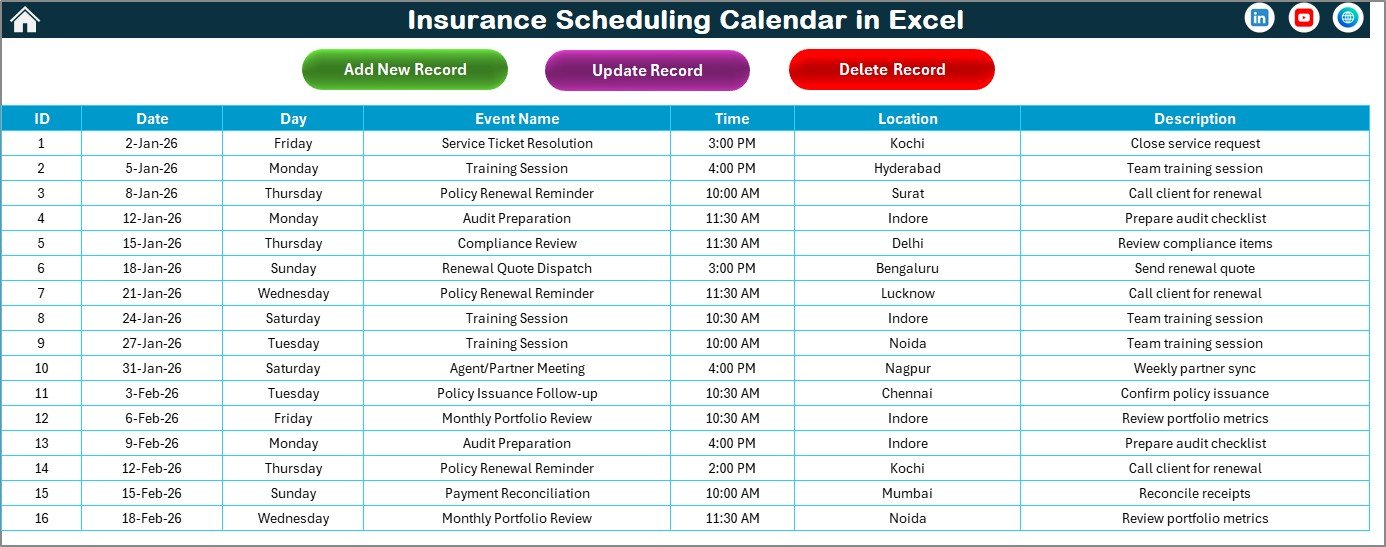
The Events sheet acts as the master database of the calendar.
🔹 Information Captured
The sheet stores the following fields:
-
ID (Auto-generated)
-
Date
-
Day
-
Event Name
-
Time
-
Location
-
Description
Because of this structured database, the calendar maintains accurate and searchable records.
🔘 Database Control Buttons
The Events sheet includes three powerful buttons.
➕ Add New Record
Opens the event form to create a new entry quickly.
✏️ Update Existing Record
Steps:
-
Select the ID
-
Click Update
-
Modify details
-
Submit
The system updates the record instantly.
🗑️ Delete Record
Select the ID and click Delete to remove the event safely.
How Does the Insurance Scheduling Calendar Work?
Many users worry about complexity. Fortunately, the workflow remains simple.
Step-by-Step Process
Step 1: Open Home sheet
Step 2: Navigate to desired view
Step 3: Add events using the form
Step 4: Monitor schedules
Step 5: Review daily activity
Because the template automates calculations and updates, users only focus on planning.
Click to Purchases Insurance Scheduling Calendar in Excel
Advantages of Insurance Scheduling Calendar in Excel
This template delivers strong operational benefits.
🚀 Centralized Planning
Teams manage all insurance events in one workbook. Therefore, coordination improves significantly.
🎯 Better Visibility
Annual, monthly, and daily views provide complete schedule transparency.
⏱️ Time Savings
Automation eliminates manual calendar creation.
📊 Improved Event Tracking
The database ensures no event gets lost.
🎨 Professional Appearance
Multiple themes create a polished look.
🔄 Easy Customization
Users can modify fields, colors, and layouts easily.
Who Should Use This Calendar?
This template serves many professionals.
Ideal users include:
-
Insurance Agents
-
Insurance Companies
-
Policy Renewal Teams
-
Operations Managers
-
Sales Teams
-
Compliance Teams
-
Financial Advisors
If your work involves insurance scheduling, this calendar will help you stay organized.
Best Practices for the Insurance Scheduling Calendar
To maximize results, follow these proven practices.
✅ Update Events Immediately
Enter events as soon as they are confirmed. This habit keeps the calendar reliable.✅ Use Consistent Naming
Maintain standard event names for better reporting.
✅ Review the Daily View Frequently
Daily monitoring helps detect conflicts early.
✅ Use Highlight Features
Highlight weekends or important days for quick visibility.
✅ Protect the Database Sheet
Lock formula areas to prevent accidental changes.
✅ Clean Old Records Periodically
Archive outdated events to maintain performance.
Common Mistakes to Avoid
Avoid these errors to maintain accuracy:
-
Forgetting to refresh the Daily view
-
Editing auto-generated IDs
-
Not using the event form
-
Overloading the calendar with unclear names
-
Ignoring theme consistency
How This Calendar Improves Insurance Operations
A structured calendar directly improves operational discipline.
It helps teams:
-
Track renewals on time
-
Plan client meetings efficiently
-
Monitor campaigns
-
Improve internal coordination
-
Reduce missed deadlines
Therefore, organizations move from reactive scheduling to proactive planning.
Click to Purchases Insurance Scheduling Calendar in Excel
Can You Customize the Insurance Calendar?
Yes, absolutely.
You can:
-
Add new fields
-
Change themes
-
Modify forms
-
Expand the database
-
Adjust highlights
-
Add reminders
Because Excel offers full flexibility, the calendar adapts to any insurance workflow.
Conclusion
Insurance operations demand precise scheduling and strong visibility. However, manual planning methods often create confusion and missed opportunities. Therefore, smart teams adopt automated and centralized tools.
The Insurance Scheduling Calendar in Excel provides a powerful yet simple solution. With its multi-view calendar, automated event management, and user-friendly controls, it helps insurance professionals stay organized and proactive.
Moreover, the template improves planning accuracy, enhances coordination, and saves valuable time. As a result, organizations can manage their insurance schedules with confidence and professionalism.
If you want better control over your insurance activities, this Excel calendar is the perfect tool to start with.
Click to Purchases Insurance Scheduling Calendar in Excel
Frequently Asked Questions (FAQs)
❓ What is the Insurance Scheduling Calendar in Excel?
It is a ready-to-use Excel calendar that helps insurance teams plan and track events across annual, monthly, and daily views.
❓ Do I need advanced Excel skills to use it?
No. The template uses simple buttons and forms, so beginners can use it easily.
❓ Can I add multiple events on the same date?
Yes. The system supports multiple events and shows “more than 1…” in the monthly view.
❓ Is the event ID generated automatically?
Yes. The template automatically assigns a unique ID to each event.
❓ Can I change the calendar year?
Yes. You can select any year from the control panel.
❓ Can teams share this calendar?
Yes. Teams can use the same workbook for centralized scheduling.
❓ Is the template customizable?
Absolutely. You can modify fields, themes, and layouts as needed.
Click to Purchases Insurance Scheduling Calendar in Excel
Visit our YouTube channel to learn step-by-step video tutorials