If your IT team is still tracking hardware upgrade requests in an Outlook folder, a shared OneDrive spreadsheet, or scattered Teams messages, you already know the pain. Requests get lost. Approvers complain they were never asked. Procurement budgets blow out because nobody has a clean view of what’s pending, what’s approved, and what’s already been bought. The IT Hardware Upgrade Request Tracker in Excel fixes all of that in one self-contained workbook — no SaaS subscription, no IT department politics, no API integration project.
This post walks through exactly what’s inside the template, how it compares to the Google Sheets and SaaS alternatives, who it’s built for, and how to roll it out in under five minutes.
IT Hardware Upgrade Request Tracker in Excel
What is the IT Hardware Upgrade Request Tracker?
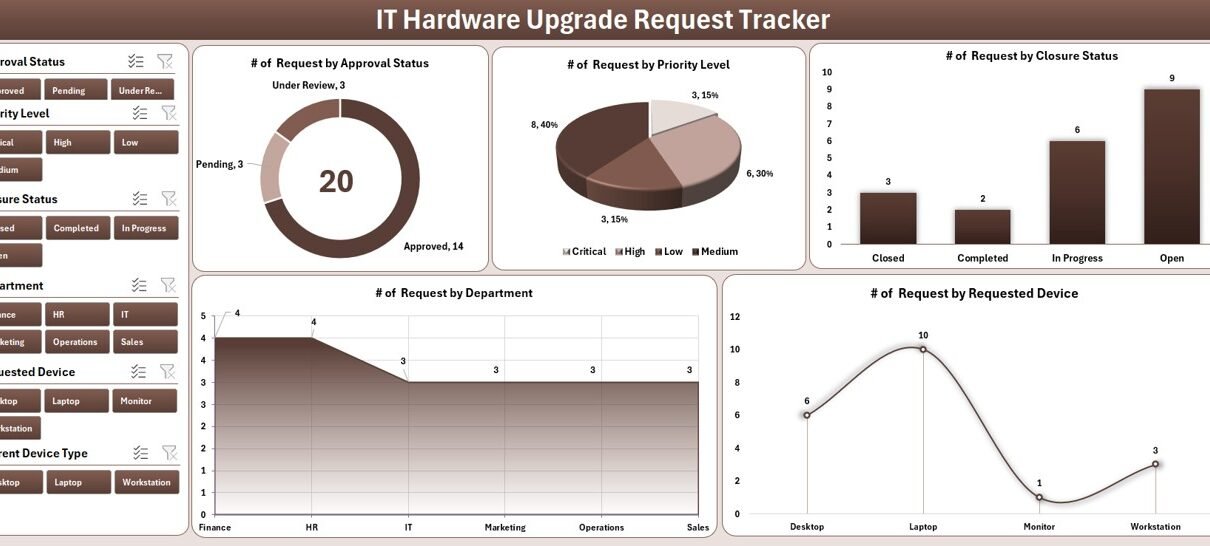
The Excel Hardware Upgrade Tracker is a VBA-powered Excel workbook that captures every IT hardware request — laptops, monitors, docking stations, GPUs, RAM upgrades, peripherals — and pushes the data through a structured approval workflow. The workbook ships with eight connected worksheets, a login system with role-based access, and a slicer-driven dashboard so IT managers can answer “what’s pending right now?” in two clicks.
You can grab it on NextGenTemplates.com for a one-time $6.99 (currently on sale from $12.99) — lifetime updates, unlimited users, no recurring fees.
Key features at a glance
- 🔐 Secure VBA login with Admin and Standard user roles
- 📊 Interactive Dashboard with 4 slicers and 5 connected charts
- 📝 Add / Update / Delete UserForms driven by VBA
- 📂 Centralized Data Sheet with 12+ fields per request
- ⚙️ Editable List Sheet for departments, hardware categories, approvers, and status values
- 👥 User Management Sheet for safely managing team access
- 🔄 Auto-refreshing dashboard after every Add / Update / Delete
- 📈 Cost, Approver, and Status tracking ready out of the box
Inside the workbook: 8 connected sheets
1. Login Form
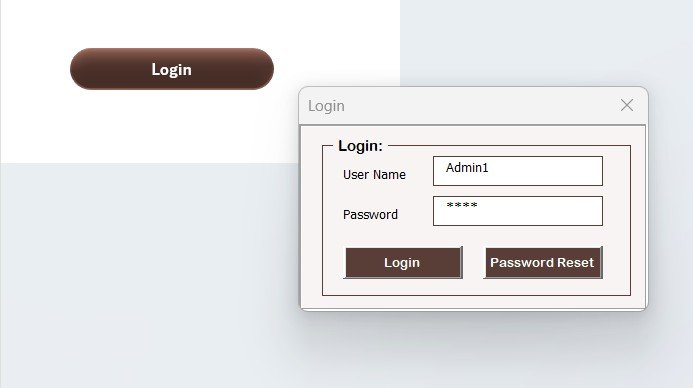
The workbook opens straight into a secure VBA UserForm. Credentials are checked against the User Management Sheet, so confidential cost and approval data stays inside the workbook. This is the same architecture used in our Office Key Access Request Tracker in Excel and our Vehicle Reservation Tracker in Excel.
2. Home Page
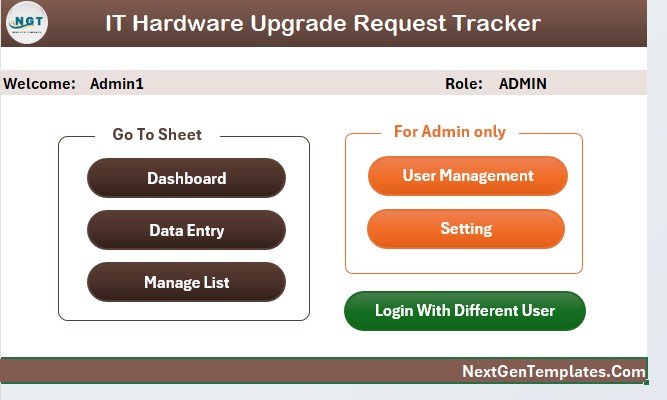
After login, the user lands on a clean navigation hub. Branded shape buttons jump to Dashboard, Data Sheet, List Sheet, Settings, and User Management — no tab-hunting, no confused new hires.
3. Dashboard
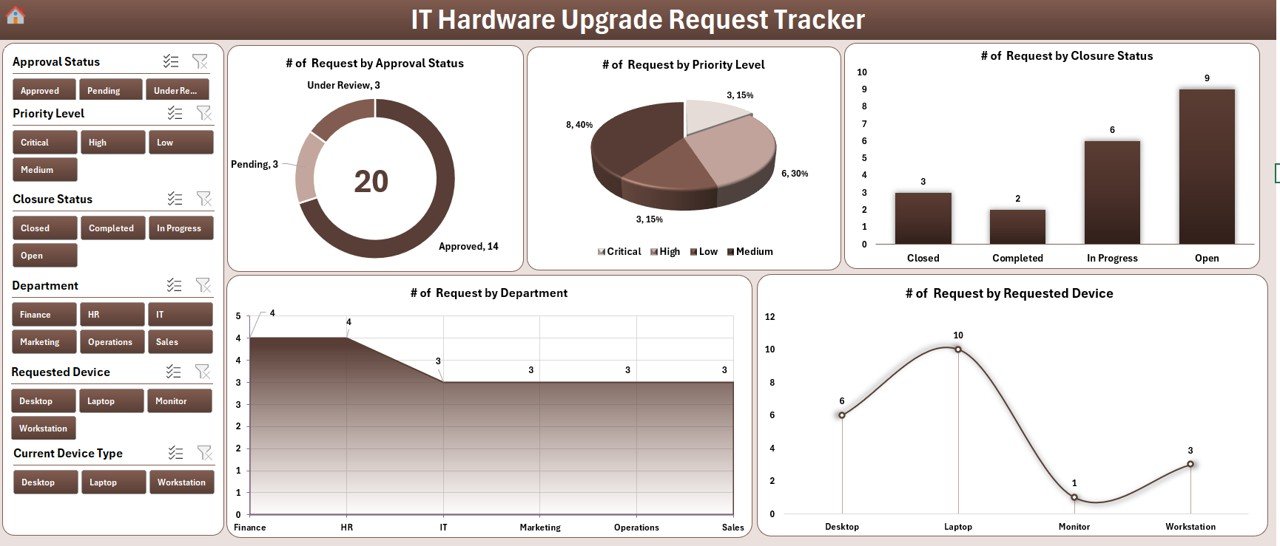
The dashboard is where IT leadership lives. Four slicers (Department, Hardware Type, Status, Approver) let you filter on the fly, while five connected charts visualise Request Status, Department-wise volume, Hardware Type distribution, Approver-wise breakdown, and Monthly trend. KPI cards surface counts for Pending, Approved, Rejected, and Completed.
4. Data Sheet
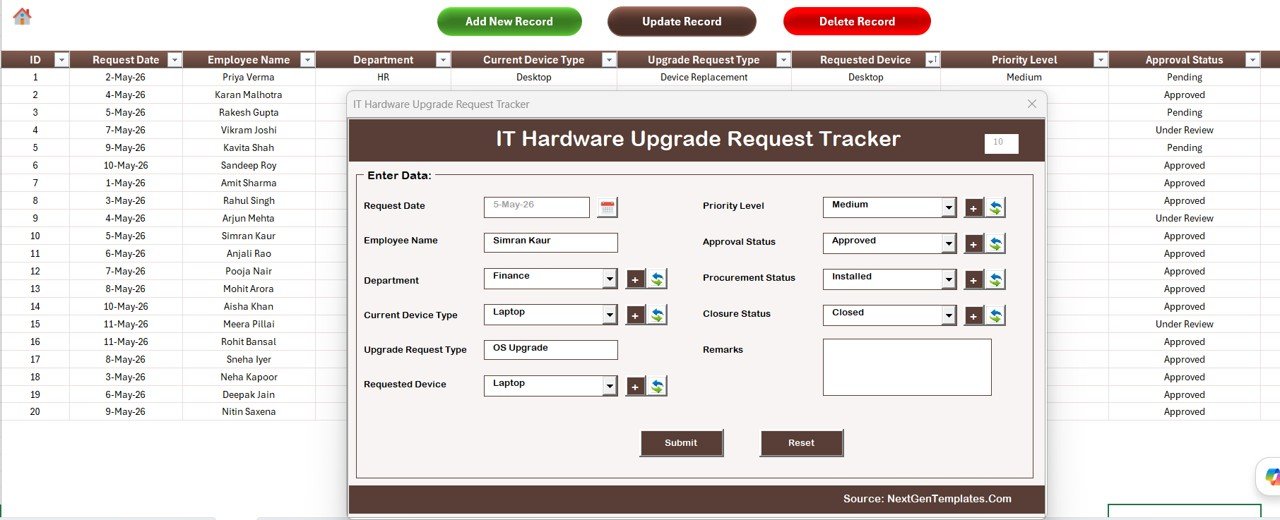
Every request lives here. Three action buttons sit at the top:
- Add New Record opens the VBA UserForm, validates input, and writes the row back to the sheet — then auto-refreshes the dashboard pivots.
- Update Record reopens the same form prefilled when you select an existing Request ID. Edits stay clean and traceable.
- Delete Record confirms before removing, preventing accidental data loss.
The captured fields cover Request ID, Requester Name, Department, Current Hardware, Requested Hardware, Reason, Approver, Status, Request Date, Approval Date, Estimated Cost, and Remarks. If you’ve ever used VBA UserForms in Excel before (Microsoft’s official UserForm reference is a good primer), you’ll feel at home.
5. List Sheet
Every dropdown in the data entry form pulls from this single list — departments, hardware categories, approvers, and status values. Update a value here and it propagates instantly across new requests, slicers, and charts.
6. Support Sheet
This is the engine room. Hidden pivot tables drive the dashboard charts and auto-refresh after every data change. You don’t touch this sheet — you can even hide it in production.
7. Settings Sheet
Customise organisation name, fiscal year start, default approver, date format, and theme colours. Configure once, and the change flows through the whole workbook.
8. User Management Sheet
Add, remove, or update users and assign Admin or Standard roles. All credentials live behind the login layer, so this is the one place to manage team access.
Excel vs Google Sheets vs Paid IT Asset SaaS
The big question before you adopt any tracker is: should you build this in Google Sheets, buy an ITSM platform, or stick with Excel? Here’s the honest comparison.
| Feature | This Excel Tracker ($6.99 one-time) | Google Sheets equivalent | Paid IT Asset SaaS (ServiceNow / Jira Service Management / Freshservice) |
|---|---|---|---|
| Total cost (50 users / 1 year) | $6.99 | Build cost (hours of Apps Script) | $12,000–$60,000+ |
| Login & role-based access | ✅ VBA login, Admin / Standard | ⚠️ Apps Script required | ✅ SSO & SAML |
| Add / Update / Delete forms | ✅ Native VBA UserForms | ⚠️ Google Forms hand-off | ✅ Native request portal |
| Slicer-based dashboard | ✅ 4 slicers, 5 charts ready | ⚠️ Native slicers limited | ✅ Pre-built analytics |
| Works offline | ✅ Yes | ❌ Internet required | ❌ Cloud-only |
| Setup time | Under 5 minutes | Hours–days | Days–weeks (implementation) |
| Customisable by your team | ✅ Open VBA & sheets | ✅ Apps Script | ⚠️ Vendor-locked |
| Recurring fees | ❌ None | ❌ None | ✅ Monthly / annual |
Translation: if you have fewer than ~500 hardware requests per quarter and you don’t need deep API integrations, Excel wins on cost and time-to-value. Once you cross 1,000+ tickets per quarter with multiple concurrent editors and SSO requirements, that’s when paid SaaS starts to make sense.
Who this template is for
Ideal for:
- IT managers running 10–500 employee environments
- Helpdesk leads tracking laptop and workstation refresh cycles
- IT procurement coordinators forecasting hardware spend
- MSPs managing client hardware on a per-account basis
- Small-business owners running their own IT
Not for: teams already on ServiceNow / Jira Service Management / Freshservice that need real-time API integration, or organisations needing simultaneous multi-user editing across continents (the Google Sheets variant of a similar tracker is a better fit there).
Real-world use cases
Priya — IT Manager at a 180-employee SaaS company: Priya replaced a chaotic Outlook folder of upgrade requests with this workbook. Her team submits via the form; Priya filters by Department and Status every Monday morning to plan that week’s procurement run.
Rohan — Helpdesk Lead at a hospital chain: Rohan tracks laptop and workstation upgrades across three campuses. The Approver slicer surfaces every pending decision sitting with the CIO, and he extended the workbook with a one-line follow-up macro on top of the existing VBA.
Sneha — Procurement Coordinator at a 60-person agency: Sneha uses the Estimated Cost column plus the monthly chart to forecast hardware spend a quarter ahead, then submits the totals to finance — a workflow that previously lived in three separate spreadsheets.
How to set it up in 5 minutes
- Buy and download the file from NextGenTemplates.com.
- Unzip and open in Microsoft Excel 2016 or later. Enable macros when prompted.
- Log in with the default admin credentials and immediately change the password on the User Management Sheet.
- Open the List Sheet and replace sample departments, hardware categories, approvers, and statuses with your own.
- Configure organisation name, date format, and theme accents on the Settings Sheet.
- Add team members on the User Management Sheet and assign Admin or Standard roles.
- Share the workbook (OneDrive / SharePoint / network drive) and start capturing requests through the Add New Record button.
FAQ
Q: Does it run on Mac?
Yes — Excel for Mac 2019 and later. VBA UserForms behave the same way once macros are enabled.
Q: Can multiple users edit at the same time?
Excel is single-writer by design. For concurrent editing, host on OneDrive / SharePoint and use “Open in Desktop App” one user at a time, or pick a Google Sheets variant.
Q: Can I add or rename columns in the Data Sheet?
Yes — the workbook is fully unlocked. Add columns and bind them to the UserForm by updating the textboxes and the save routine in the VBA module.
Q: Do I get future updates?
Yes, lifetime free updates. Re-download from your NextGenTemplates account whenever a new version drops.
Q: Is the VBA safe?
100% safe. The VBA code is unlocked and inspectable in the Visual Basic Editor (Alt + F11). No external connections, no telemetry.
About the author
Built by PK — Microsoft Certified Professional with 15+ years of experience designing Excel, VBA, Power BI, and Google Sheets tools for businesses across 40+ countries. PK runs three YouTube channels with 300,000+ combined subscribers: @PK-AnExcelExpert, @NextGenTemplates, and @NeoTechNavigators. Every paid template ships with a free walkthrough video.
Related templates
- IT Support Request Tracker in Excel
- IT Help Desk Dashboard in Excel
- Office Key Access Request Tracker in Excel
- Vehicle Reservation Tracker in Excel
- Employee Health Declaration Tracker in Excel
Get the IT Hardware Upgrade Request Tracker
One-time price $6.99 (regular $12.99) on NextGenTemplates.com. Instant download, lifetime updates, unlimited users, and a 14-day refund guarantee.
Last updated: May 2026 — reviewed for Excel 365 and Excel 2024 compatibility.