Managing email marketing activity becomes much easier when your campaigns, newsletters, launches, follow-ups, and promotional dates are visible in one calendar. The Email Marketing Campaign Calendar in Excel is a ready-to-use calendar template built for planning email campaigns directly inside Microsoft Excel.
This template helps you organize annual campaign plans, monthly email schedules, daily event details, and a complete event database in one workbook. It is especially useful for marketers, small business owners, content teams, agencies, and anyone who wants a simple Excel-based campaign calendar without using expensive marketing software.
Click here to get the Email Marketing Campaign Calendar in Excel
Key Features of This Calendar Template
Download the Email Marketing Campaign Calendar in Excel from NextGenTemplates
Below are the key features of this calendar:
- Ready-to-use Excel calendar template for email marketing campaign planning.
- 5 worksheet tabs for navigation, annual planning, monthly planning, daily event review, and event records.
- Annual calendar view showing all 12 months in one place.
- Monthly calendar view for focused campaign scheduling.
- Daily view to review events within a selected date range.
- Events database sheet to capture campaign dates, event names, times, locations, and descriptions.
- Control panel to change year, starting month, starting weekday, theme colors, and highlight settings.
- Buttons to add new events, show events, update records, and delete records.
- 5 built-in color themes that can be applied across the workbook.
- Useful for newsletters, product launches, promotional emails, webinar reminders, seasonal campaigns, and customer follow-up sequences.
Worksheets Included in This Template
In this template, we have 5 worksheets:
1. Home Sheet Tab
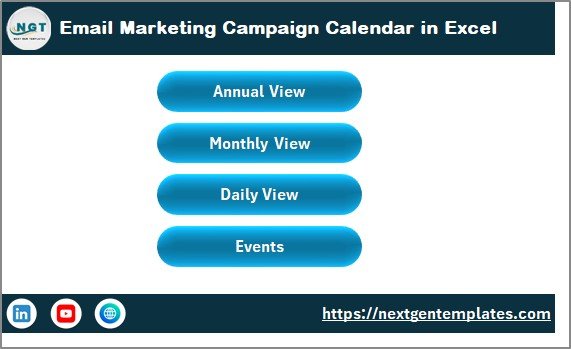
This is an index sheet where we have given 4 buttons to jump to the respective sheet:
- Annual View button
- Monthly View button
- Daily View button
- Events button
2. Annual View Sheet Tab
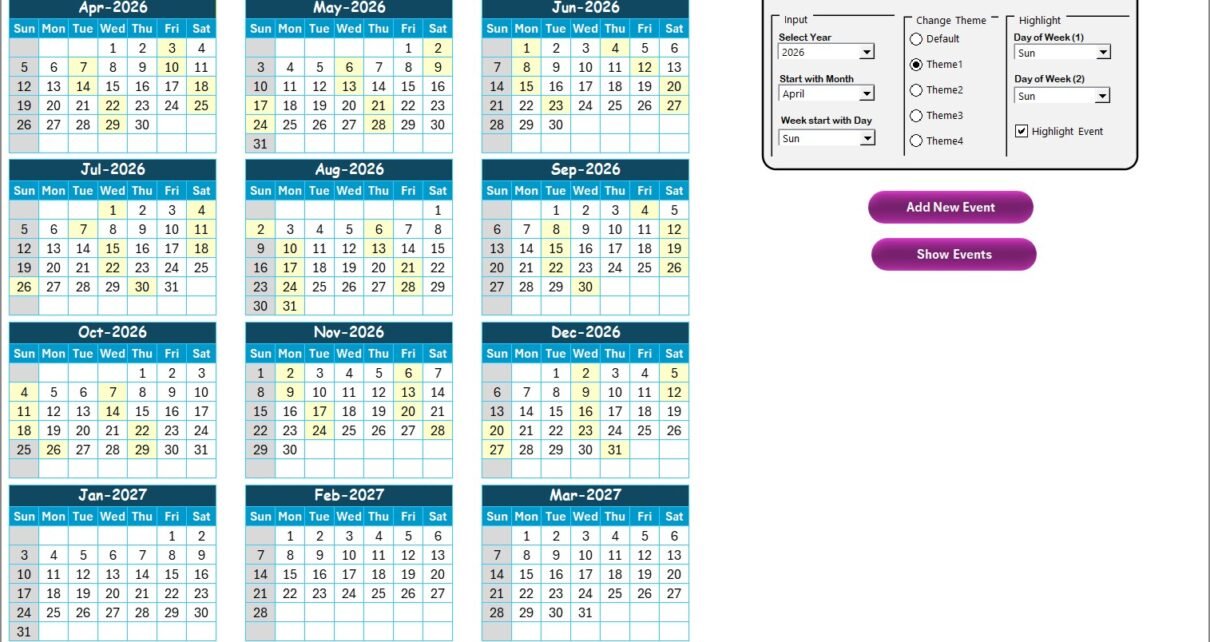
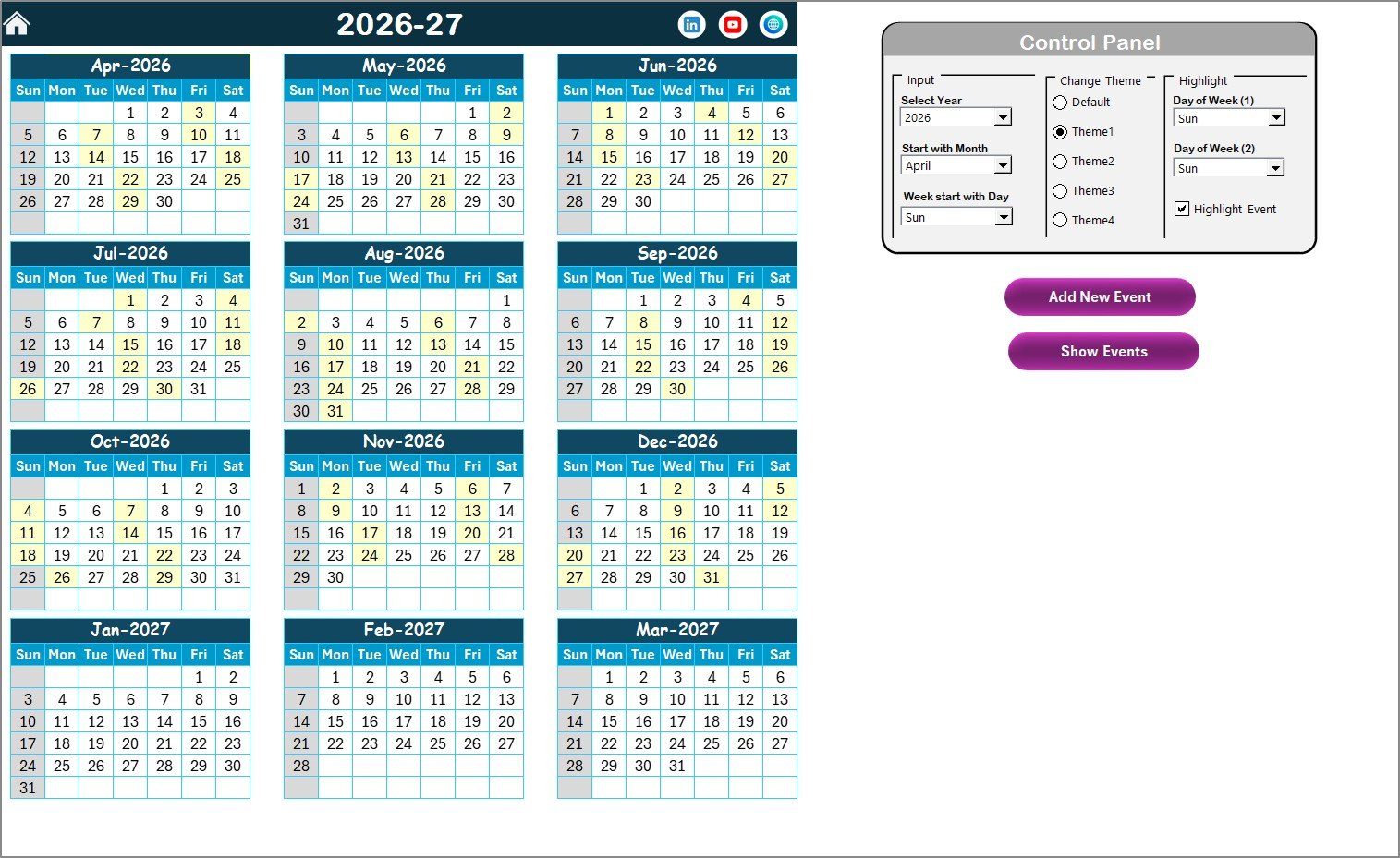
This is the Annual View Sheet. Here we are showing 12 months calendars in one worksheet, making it easier to plan the full year of email marketing campaigns.
Download the Email Marketing Campaign Calendar in Excel from NextGenTemplates
On this sheet we have given 1 control panel and 2 buttons. Below is the information:
Control Panel
In this control panel, we have 3 groups as given below:
- Input group: Here, you can select the year to change the annual calendar automatically. You can also change the starting month of the calendar and the starting day of the week.
- Change Theme group: We have given 5 color themes. You can select which theme you want to apply on the whole workbook.
- Highlight group: You can select Day of Week (1) and Day of Week (2) to highlight on the calendar. For example, if you want to highlight Saturday and Sunday in grey color, choose Sat in Day of Week (1) and Sun in Day of Week (2). We have also given the Highlight Event checkbox. You can check it to highlight events in yellow color on the Annual View sheet.
Add New Event Button
You can use this button to add a new event on a particular date. Just select the date on the calendar and click on this button. It will open the Add New Event form. Fill the information and click on Submit. That event will be added to the selected date.
Show Event Button
To see the list of events on the selected date, click on this button.
3. Monthly View Sheet Tab
It is a single calendar for the selected month. You can select the month and year from the top, and accordingly it will show the information in the calendar. We are showing 1 event on the calendar, and if there is more than 1 event on any date then it will show like more than 1 event.
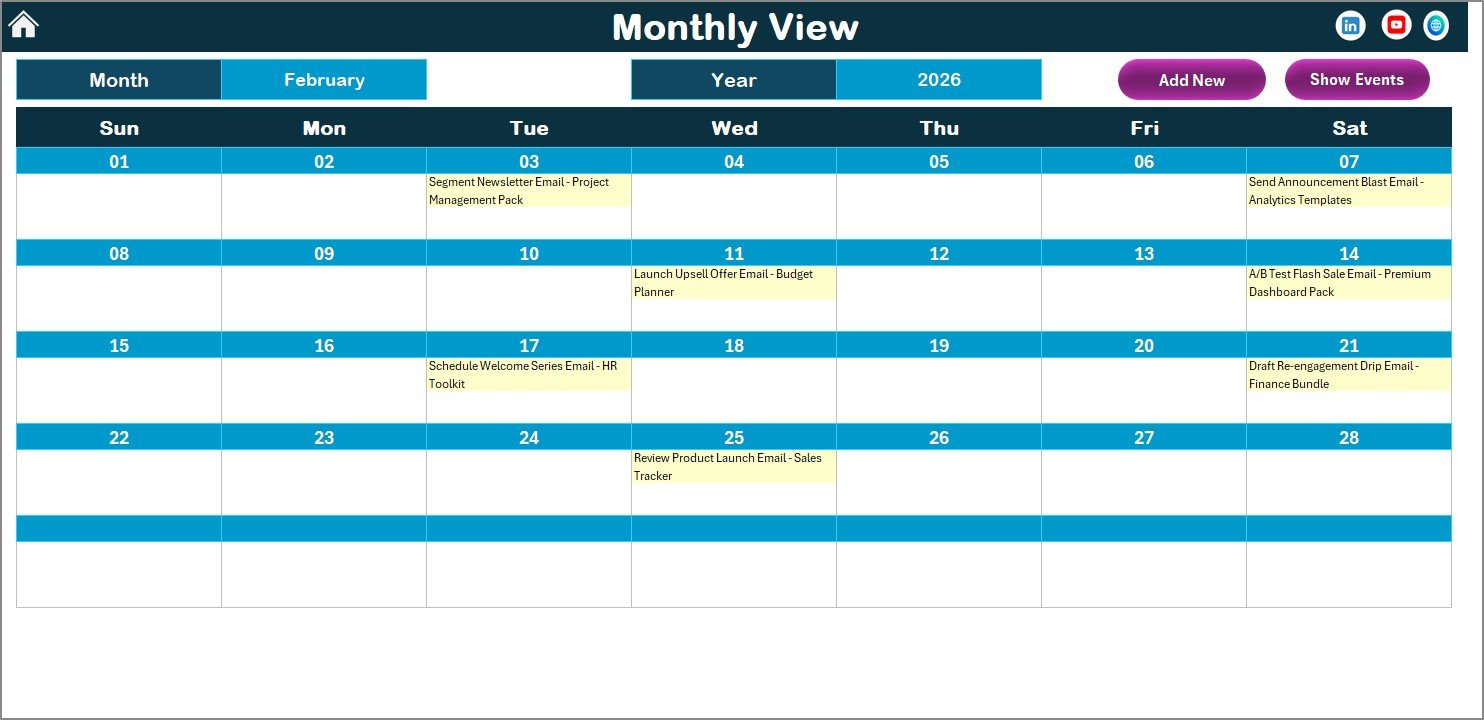
We have given the 2 buttons also on the top as below:
Add New Event Button
You can use this button to add a new event on the selected particular date. Just select the date on the calendar and click on this button. It will open the Add New Event form. Fill the information and click on Submit. That event will be added to the selected date.
Show Event Button
To see the list of events on the selected date, click on this button.
4. Daily View Sheet Tab
Here we are showing the list of events with details for the selected date range. You can put the date range on the top as Start Date and End Date. Use the calendar icon to select the date range. Click on the Refresh button to show the latest data for the selected date range.
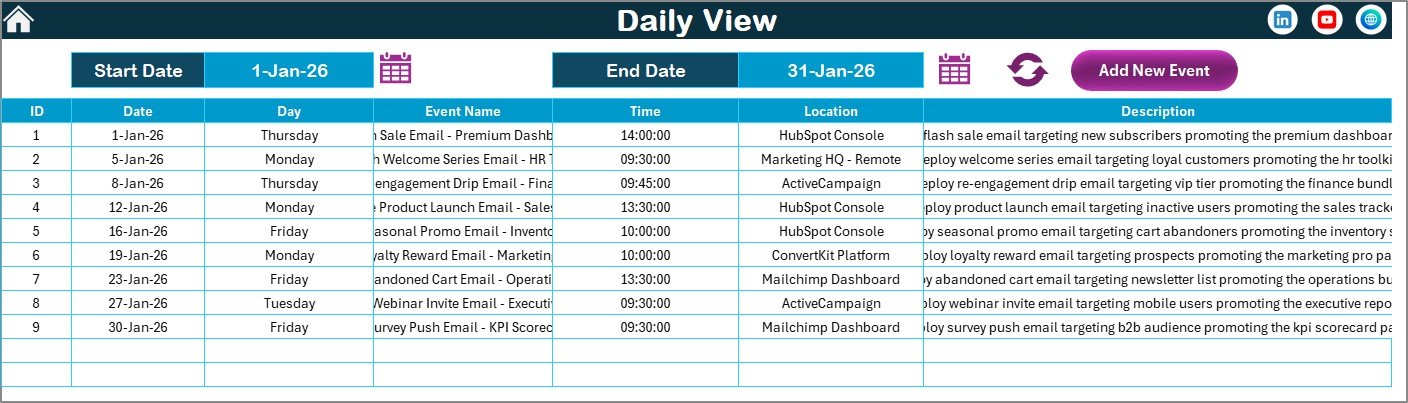
We have given Add New Event button on the top. You can use this button to add a new event. It will open the form to add the new event. Just fill the information and click on the Submit button.
5. Events Sheet Tab
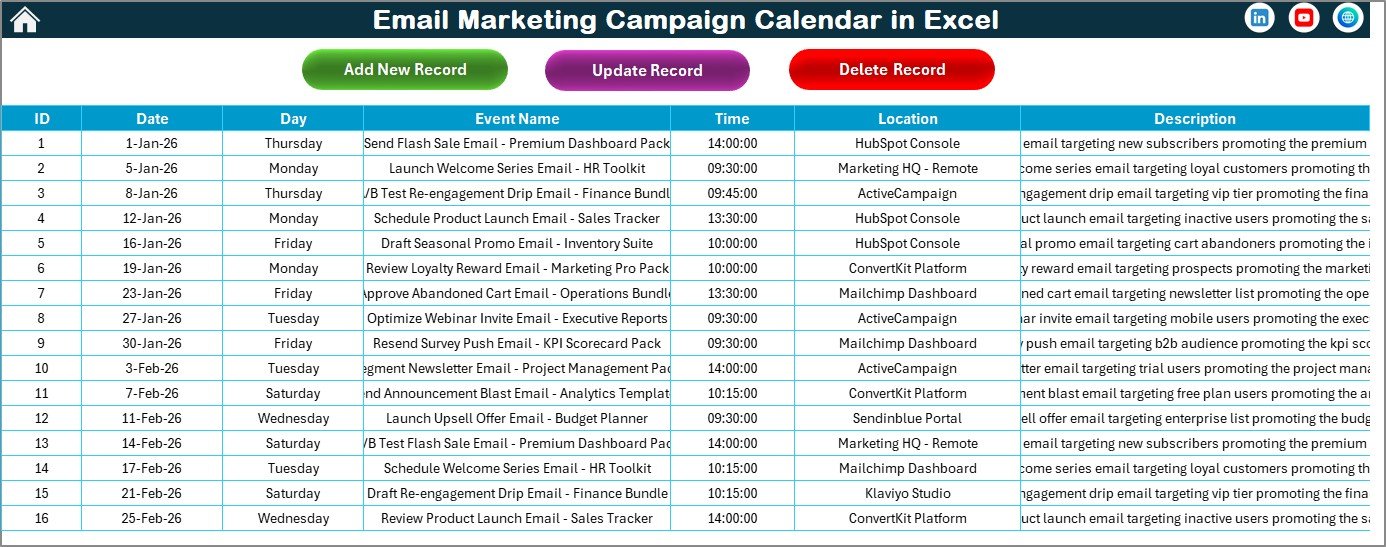
This is the database sheet. Here, we are capturing the details of all events.
Download the Email Marketing Campaign Calendar in Excel from NextGenTemplates
We are keeping here below information:
- ID: Auto generated number.
- Date: Date of event.
- Day: Day of event such as Sunday, Monday, etc.
- Event Name: Name of the event.
- Time: Time of the event.
- Location: Location of the event.
- Description: Short description about event.
On the top, we have 3 buttons as given below:
Add New Record Button
You can add new event using this button. It will open the Add Event form. Fill the information and click on Submit.
Update Existing Record Button
Select the ID of the record which you want to update, then click on this button. It will open the event form with prefilled data. Make the change in the form and submit. It will update the information.
Delete Record Button
Select the ID of the record which you want to delete. It will delete the record of that event.
Email Marketing Campaign Calendar in Excel vs Google Sheets Calendar vs Paid Email SaaS
| Feature | Email Marketing Campaign Calendar in Excel | Google Sheets Calendar | Paid Email SaaS Calendar |
|---|---|---|---|
| One-time cost | Yes | Usually free | No, usually monthly |
| Works offline | Yes | Limited | No |
| Annual campaign planning | Yes | Manual setup needed | Usually yes |
| Monthly campaign view | Yes | Manual setup needed | Usually yes |
| Daily event list | Yes | Manual setup needed | Usually yes |
| Built-in event database | Yes | Manual setup needed | Usually yes |
| Customizable in Excel | Yes | No, unless recreated | Limited by platform |
| Best for | Small teams, marketers, agencies, and Excel users | Simple shared planning | Larger teams needing integrated sending tools |
Who Should Use This Template?
- Email marketers planning newsletters, launch emails, and promotional campaigns.
- Small business owners who want to organize email communication in Excel.
- Marketing agencies managing campaigns for multiple clients.
- Content teams coordinating blog, email, and social media calendars.
- Ecommerce teams planning seasonal offers, product drops, and sale announcements.
- Freelancers who need a simple campaign scheduling workbook.
Real-World Use Cases
- Plan weekly newsletters for the full year.
- Track email promotions around holidays, sales events, and product launches.
- Schedule webinar announcement emails and reminder emails.
- Coordinate onboarding email sequences and follow-up campaigns.
- Maintain a searchable database of planned and completed email events.
- Review all campaign activity within a selected date range.
Advantages of Using an Excel Campaign Calendar
An Excel calendar gives you control, flexibility, and offline access. You can customize records, add new fields, filter your campaign details, and keep your marketing schedule in a familiar spreadsheet environment. For many small teams, this is faster and more affordable than setting up a full campaign management tool.
If your workbook uses Excel macros or VBA forms, make sure you enable macros only for files you trust. You can review Microsoft’s official guidance here: Enable or disable macros in Microsoft 365 files.
Opportunities for Improvement
Download the Email Marketing Campaign Calendar in Excel from NextGenTemplates
This template is built for planning and tracking. It does not send emails or connect directly to email marketing platforms. You can use it as your planning calendar and then transfer approved campaigns into tools like Mailchimp, Brevo, ConvertKit, HubSpot, or your preferred email service provider.
Best Practices for Using This Template
- Start by selecting the correct year, starting month, and starting weekday.
- Add all known campaign dates at the beginning of the planning cycle.
- Use event names that are easy to understand, such as Newsletter, Product Launch, Promo Email, or Follow-up.
- Review the Monthly View before each month begins.
- Use the Daily View during active campaign periods to check upcoming tasks.
- Keep the Events sheet updated so your calendar views stay accurate.
Explore Relevant Templates
- Email Marketing Campaign Calendar in Excel
- Blog Editorial and SEO Calendar in Excel
- Multi-Platform Social Media Calendar in Excel
- Digital Marketing Campaign Dashboard in Excel
Frequently Asked Questions
What is the Email Marketing Campaign Calendar in Excel?
It is a ready-to-use Excel calendar template for planning, tracking, and reviewing email marketing campaigns, newsletters, promotions, launches, and follow-up activities.
How many worksheets are included?
The template includes 5 worksheets: Home, Annual View, Monthly View, Daily View, and Events.
Can I change the year and month?
Yes. The Annual View sheet includes control panel options to change the year, starting month, and starting weekday.
Can I add new campaign events?
Yes. You can add new events using the Add New Event or Add New Record buttons, depending on the worksheet you are using.
Can I update or delete existing events?
Yes. The Events sheet includes buttons to update existing records and delete records.
Does this template send email campaigns?
No. This template is for planning and organizing campaigns. It does not send emails or connect directly to email service providers.
Do I need advanced Excel skills?
No. The template is designed to be easy to use. You can select dates, add records, and review calendar views using the built-in sheets and buttons.
About the Author
PK-AnExcelExpert creates practical Excel templates, dashboard tools, and business reporting solutions for professionals who want faster, cleaner, and more organized spreadsheet workflows. The goal is to make Excel templates simple enough for daily use and powerful enough for real business planning.
Conclusion
The Email Marketing Campaign Calendar in Excel is a useful planning workbook for organizing email marketing activity across annual, monthly, and daily views. With its event database, built-in buttons, theme controls, and flexible calendar views, it helps marketers keep campaign work structured and easy to review.
Download the Email Marketing Campaign Calendar in Excel from NextGenTemplates
You can also visit our YouTube channel for Excel template tutorials: PK-AnExcelExpert on YouTube.