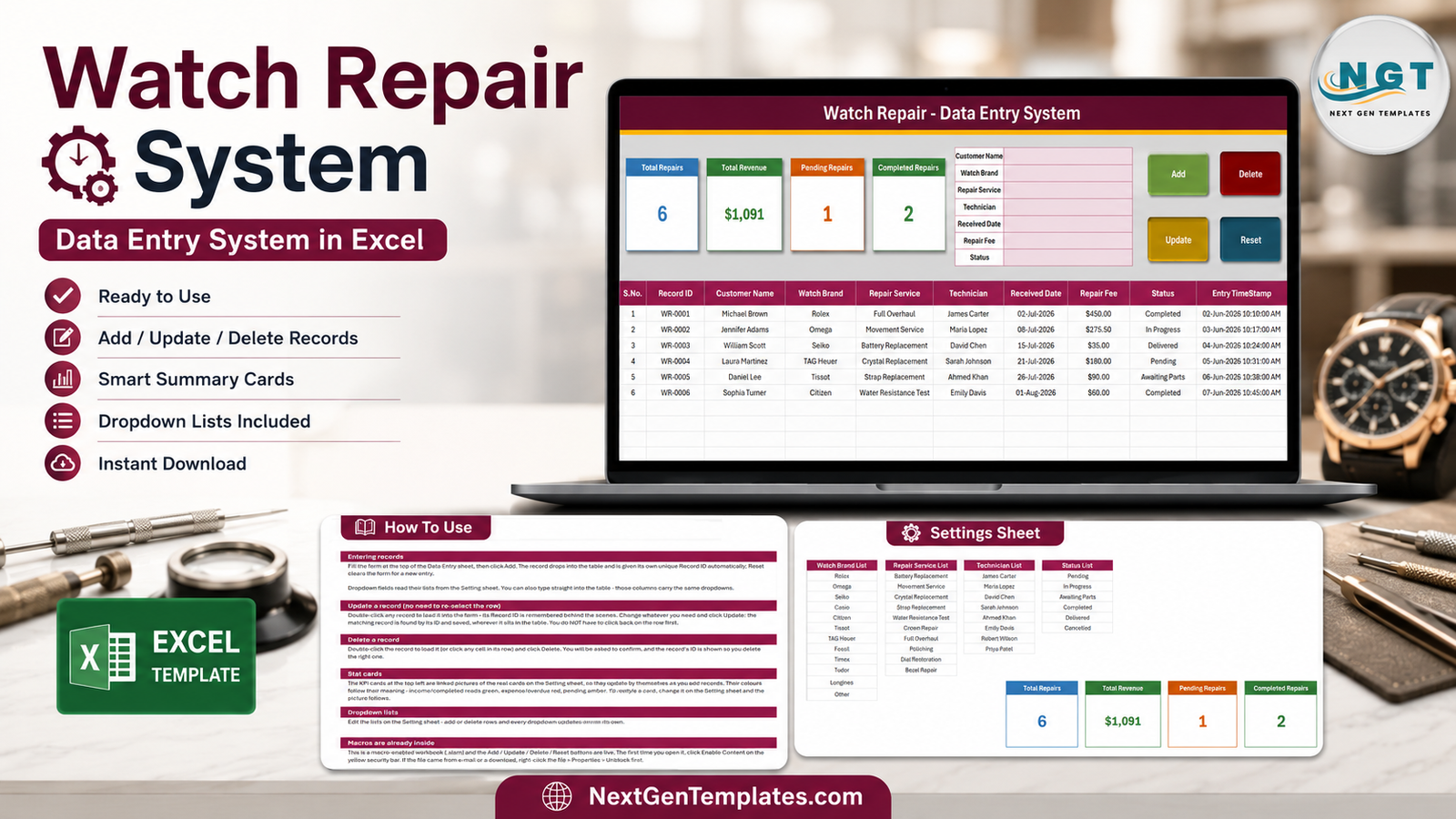
A paper repair book is easy to start and surprisingly hard to search. The Watch Repair Data Entry System in Excel puts each job into a consistent record with 7 intake fields, 10 stored columns, 4 live summary cards and an automatic Record ID. Its three sheets separate daily entry, editable lookup lists and instructions, while four VBA buttons handle adding, updating, deleting and clearing the form. The included six-row sample shows the complete workflow before you use real customer information. This is a desktop Excel tool, not a cloud service, so there is no recurring subscription and no external database to configure.
Key Features of the Watch Repair Data Entry System in Excel
- Seven-field repair form: customer name, watch brand, repair service, technician, received date, repair fee and status.
- Add, Update, Delete and Reset: the daily record cycle is available through four clearly labelled buttons.
- Automatic Record ID: new jobs receive an identifier such as WR-0001, making a customer follow-up easier than searching by name alone.
- Entry timestamp: the register records when a new row is created.
- Double-click to edit: load a row into the form, change the values and update the matching ID without reselecting it.
- Controlled dropdowns: brands, services, technicians and statuses come from editable lists on the Settings sheet.
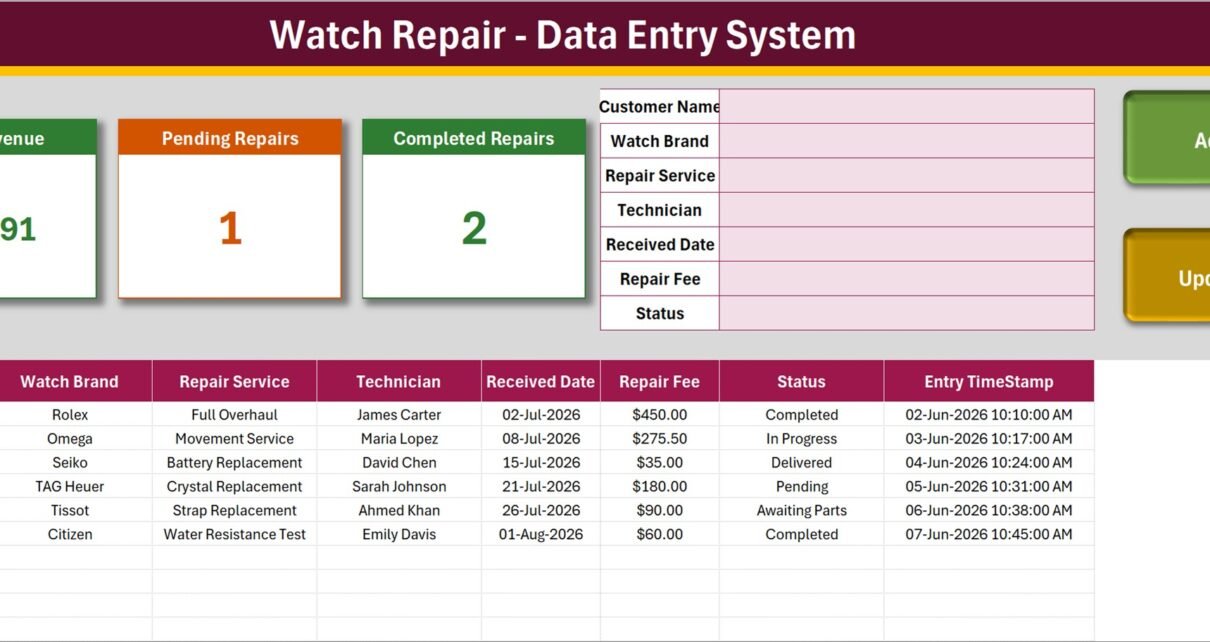
- Four summary cards: Total Repairs, Total Revenue, Pending Repairs and Completed Repairs respond to the register.
- Built-in help: the workbook includes instructions for its forms, dropdowns, summary cards and macro setup.
Workbook Pages Explanation
Data Entry sheet
The main sheet combines the input form, action buttons, summary cards and the stored table. The sample register contains six repair jobs and demonstrates different brands, technicians, services and stages: Completed, In Progress, Delivered, Pending and Awaiting Parts. The table stores S.No., Record ID, Customer Name, Watch Brand, Repair Service, Technician, Received Date, Repair Fee, Status and Entry TimeStamp.
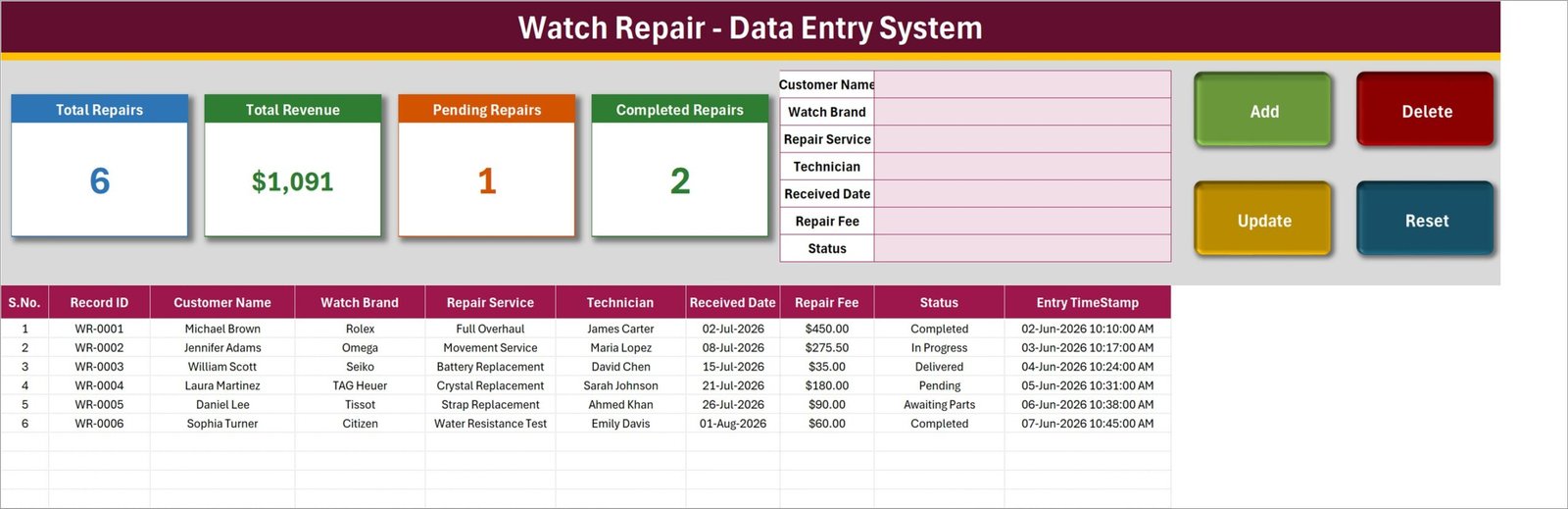
The form reduces inconsistent free-form entry. A service counter employee can choose from approved values, enter the date and fee, and add a row without scrolling across the database. When a job changes stage, a double-click loads the correct record back into the form for updating. Delete includes a confirmation step and displays the Record ID, reducing the risk of removing the wrong job.
Settings sheet
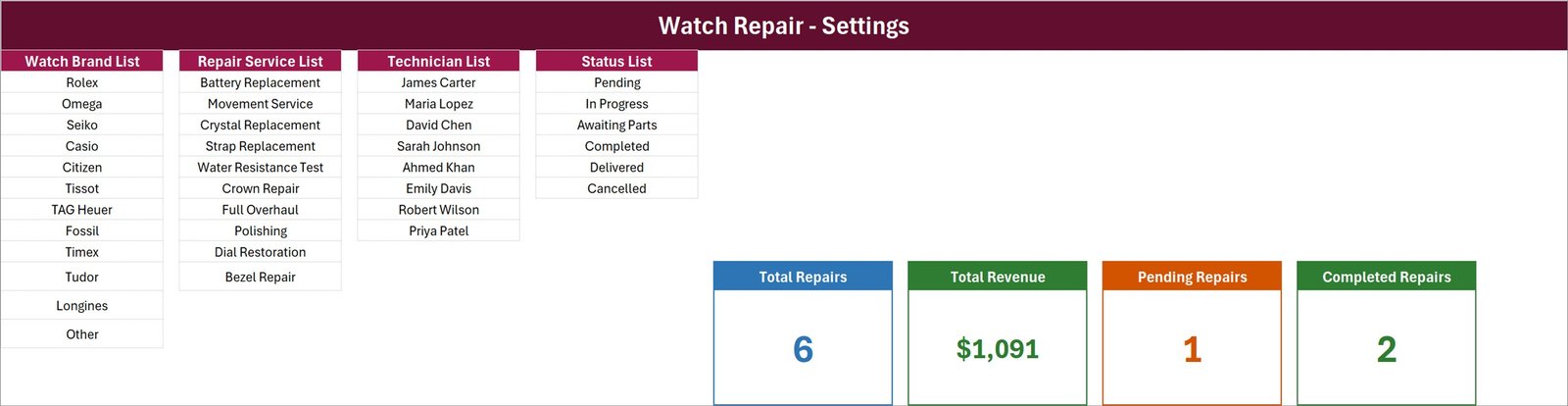
The Settings sheet holds four lookup areas. The preview shows 12 watch brands, 10 services, 8 technician names and 6 status choices. Those values are examples, not locked master data: replace them with the brands, services, staff and workflow used by your own shop. The four source summary cards also live here and feed linked pictures on the main page.
How To Use sheet
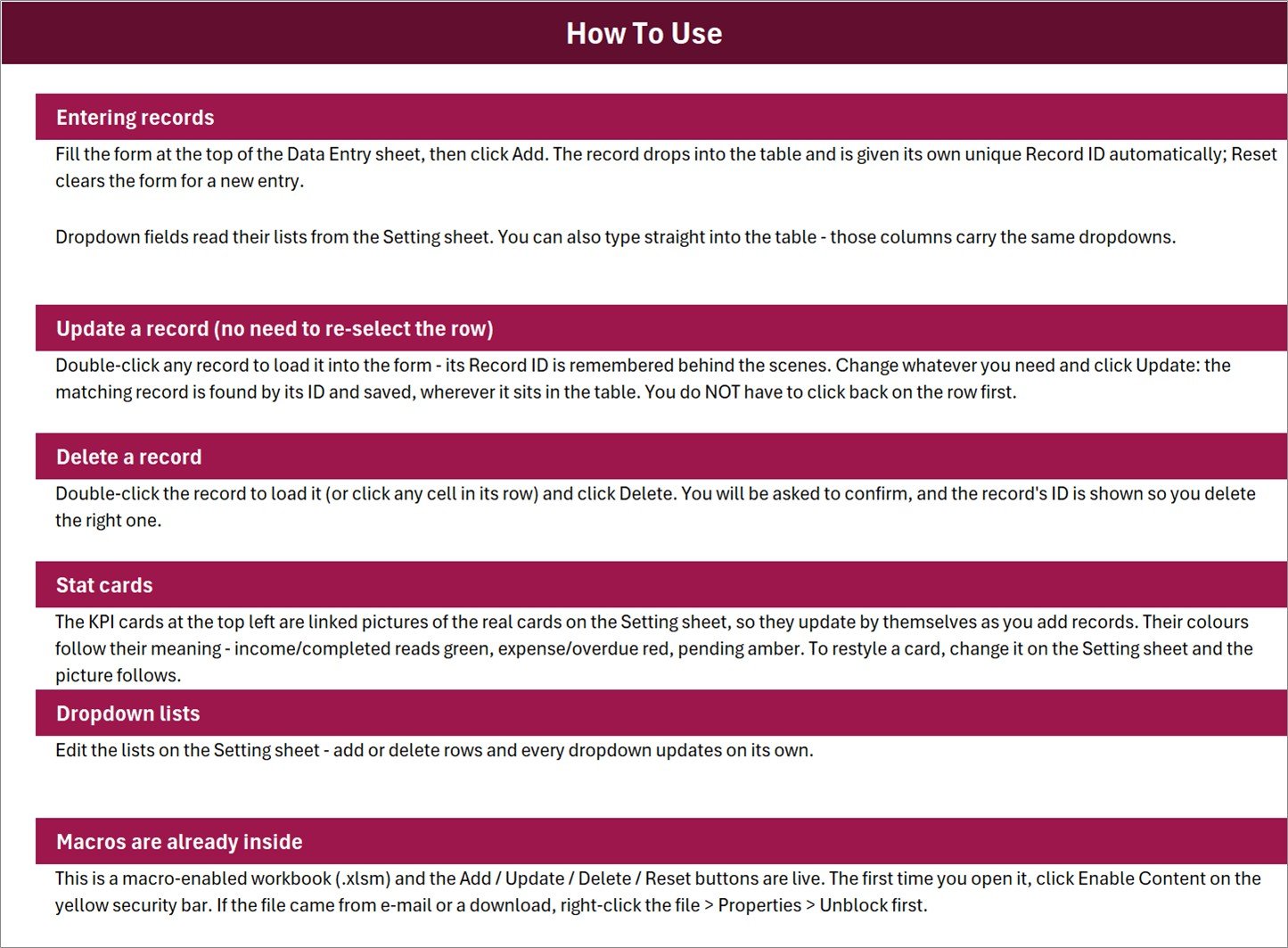
The instruction sheet documents each operation inside the file. It explains how Add assigns a unique ID, how Reset clears the form, how double-click editing remembers the Record ID, how deletion asks for confirmation and how dropdowns follow the Settings lists. It also states that macros are already inside the .xlsm workbook and must be enabled for the buttons to operate.
Watch Repair Data Entry System in Excel vs. Google Sheets vs. Paid Repair SaaS – Feature Comparison
| Feature | This Excel system | Google Sheets register | Paid repair SaaS |
|---|---|---|---|
| Pricing model | One-time template purchase | Free if self-built | Recurring subscription |
| Primary platform | Desktop Microsoft Excel | Web browser / mobile app | Vendor cloud |
| Setup time | Open, enable macros and edit lists | Build form and automation | Configure workspace, roles and imports |
| Form-based record entry | Included | Needs a form or script | Usually included |
| Automatic IDs | Included | Must be configured | Usually included |
| Simultaneous editing | Not designed for it | Yes | Yes |
| Editable lookup lists | Yes, inside the workbook | Yes | Depends on plan |
| Parts inventory and purchase orders | No | No by default | May be included |
| Customer portal, SMS and payments | No | No by default | May be included |
| Data location | Your local or managed file storage | Your Google Drive | Vendor environment |
The Excel option fits a small team with a single-file workflow. Google Sheets is better when real-time collaboration is essential and you are willing to build automation. Paid repair software is the better choice when you need integrated inventory, customer messaging, payments, appointments or several simultaneous users.
Who Should Use This Template
This workbook suits independent watchmakers, jewellery stores with a repair counter, small horology workshops, service administrators and training environments that need a repeatable intake log. It is especially useful when jobs are currently written in a notebook or an unstructured spreadsheet and the main questions are: what arrived, who is handling it, what service is required, what fee was recorded and what stage is it in?
It is not a custody-control system, appraisal tool, authentication service or technical diagnostic record. It does not test water resistance, value a watch, prove parts provenance, issue regulated invoices, calculate tax, maintain parts stock, notify customers or replace appropriate insurance, privacy and handover procedures.
Real-World Use Cases
Independent workshop intake
Aisha receives a watch, selects the brand and service, assigns a technician and clicks Add. The workbook creates the next Record ID. When the owner calls, Aisha searches that identifier, double-clicks the row and changes the status from Pending to In Progress.
Jewellery-store repair counter
Daniel’s store sends specialist work to an internal bench team. The counter records the received date and fee while the Settings list standardises common services such as movement service, crystal replacement and full overhaul. At closing time, the summary cards provide a quick operational check.
Small team handover
Meera uses the technician and status fields during the morning handover. Jobs marked Awaiting Parts remain visible beside completed and pending counts, while the full table preserves the fee and intake date for each record.
Advantages of the Watch Repair Data Entry System in Excel
The main advantage is focus. There are no accounts to create, servers to deploy or modules to switch off. The workbook opens to the daily job screen, and the Settings sheet keeps the vocabulary consistent. VBA removes several repetitive actions without hiding the underlying table, so an experienced Excel user can still filter, back up and adapt the file. The purchase is also portable: the working .xlsm file is delivered in a ZIP rather than tied to a vendor login.
Opportunities for Improvement
The workbook could be extended with a parts register, promised delivery date, customer phone number, serial number, warranty field, printable job receipt, technician workload view or ageing report. Those are not included in this version. Simultaneous editing and mobile entry would require a different architecture, such as a shared web app or database. Shops that hold valuable customer property may also need stronger custody controls, item photographs, acceptance signatures and role-based access beyond what a standalone Excel file provides.
Best Practices
- Inspect the download before enabling macros. Follow Microsoft’s guidance for enabling or disabling macros in Microsoft 365 files.
- Use desktop Excel. Excel for the web and Google Sheets do not run the VBA controls.
- Replace every sample list and row. The displayed people, jobs, fees and dates are demonstration data.
- Agree status definitions. Decide when Pending becomes In Progress, Awaiting Parts, Completed or Delivered so staff use the same language.
- Protect customer information. Store the file in an access-controlled location and collect only the information your business needs.
- Keep versioned backups. Save a dated backup before structural edits or bulk deletions.
- Use the Record ID in communication. It is more precise than relying on a customer name or watch brand.
Explore Relevant Templates
- Gift Register Data Entry System in Excel for a different structured register workflow.
- Harvest Record Data Entry System in Excel for another form-driven database example.
- Livestock Register Data Entry System in Excel for multi-field records and editable lists.
- Browse more Excel VBA tools and Excel tracker templates.
Frequently Asked Questions
What is included in the download?
The product ZIP contains the macro-enabled Watch_Repair_System.xlsm workbook.
Do I need desktop Microsoft Excel?
Yes. The four action buttons use VBA, which does not run in Excel for the web or Google Sheets.
Can I add my own brands and services?
Yes. Edit the four source lists on the Settings sheet; the dropdowns follow those lists.
Does the workbook generate Record IDs automatically?
Yes. The sample format is WR-0001, WR-0002 and so on.
Does it include customer reminders or SMS?
No. It records the repair status but does not send messages.
Does it manage spare parts?
No. There is no parts inventory or purchasing module in this version.
Can multiple users edit it at once?
It is intended as a desktop, file-based tool. For concurrent entry, use a shared database or web application.
About the Author
Built by PK – Microsoft Certified Professional with 15+ years of Excel, Google Sheets, and Power BI experience. Founder of NextGenTemplates, reaching 300K+ subscribers across YouTube channels. Every template is hand-built and tested before release.
Conclusion
The Watch Repair Data Entry System in Excel is a practical step between a paper notebook and a full repair-management platform. It standardises intake, makes existing jobs easier to revise, and gives a small workshop four immediate summary figures without hiding the underlying records. If that focused scope matches your process, view the product and download the template. Enable macros only after inspecting the file, replace the demonstration data, protect customer information and keep regular backups.
For more Excel and VBA tutorials, visit PK: An Excel Expert on YouTube.
Last updated: August 18, 2026.