Most small plants and workshops record maintenance twice: once in a paper job card and once, weeks later, in a spreadsheet nobody trusts. The Machine Maintenance Data Entry System in Excel collapses that into one macro-enabled workbook. Six fields go into a form, one button writes them into a nine-column register with an automatic Record ID and an entry timestamp, and four cards above the table recalculate on the spot. The download is a single 65 KB .xlsm inside a ZIP, with four sheets, 10 maintenance types, 10 technician names, 6 status values and six sample records already in place. It sells for $6.99 against a $11.99 regular price, which is roughly what one seat of entry-level CMMS software costs for four days.
This is deliberately the small end of maintenance tooling. It is a record keeper, not a scheduler, and it runs on Windows desktop Excel because the buttons are VBA. If you know that going in, it does one job well: it gives every machine a servicing history and a cost trail you can defend at budget time.
Key Features of the Machine Maintenance Data Entry System in Excel
- A six-field entry form. Machine ID, Maintenance Type, Technician, Service Date, Cost and Status. Three of the six are dropdowns, which is what keeps “Preventive”, “preventive” and “Prev.” from becoming three different job types in your data.
- Four working VBA buttons. Add appends and stamps the record, Reset clears the form, Delete asks for confirmation and shows the Record ID before it removes anything, and Update saves changes back to the right row.
- Update without re-selecting the row. Double-click any record to load it into the form. The workbook holds on to its Record ID, so after you change the cost or flip the status you just click Update – the record is found by ID wherever it now sits in the table.
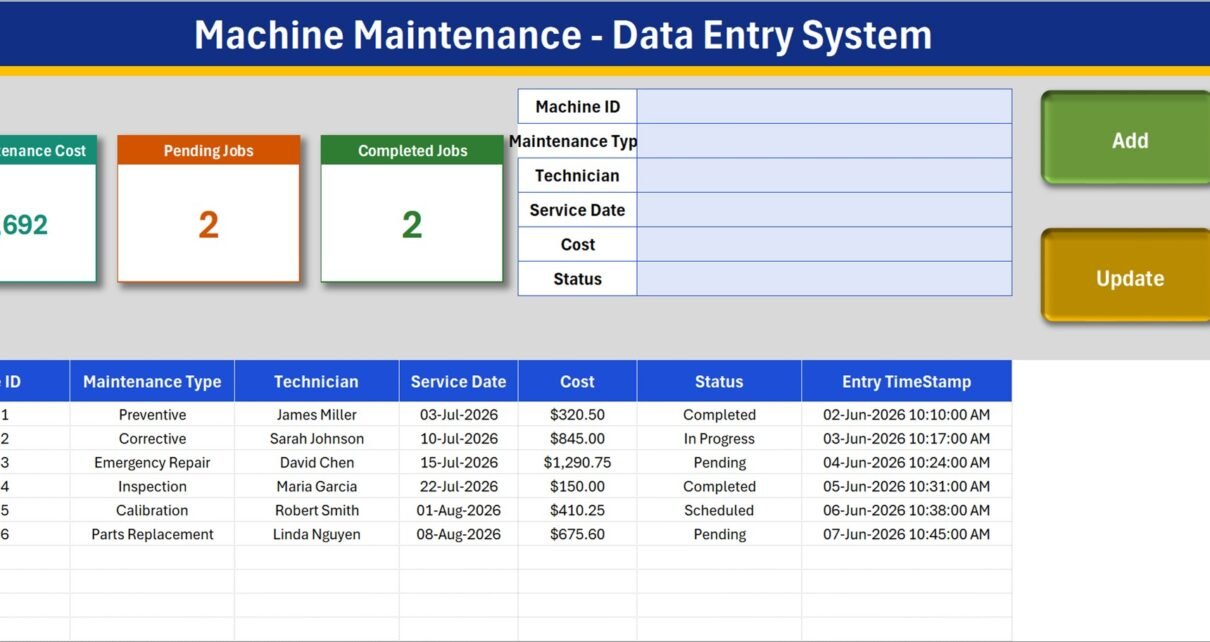
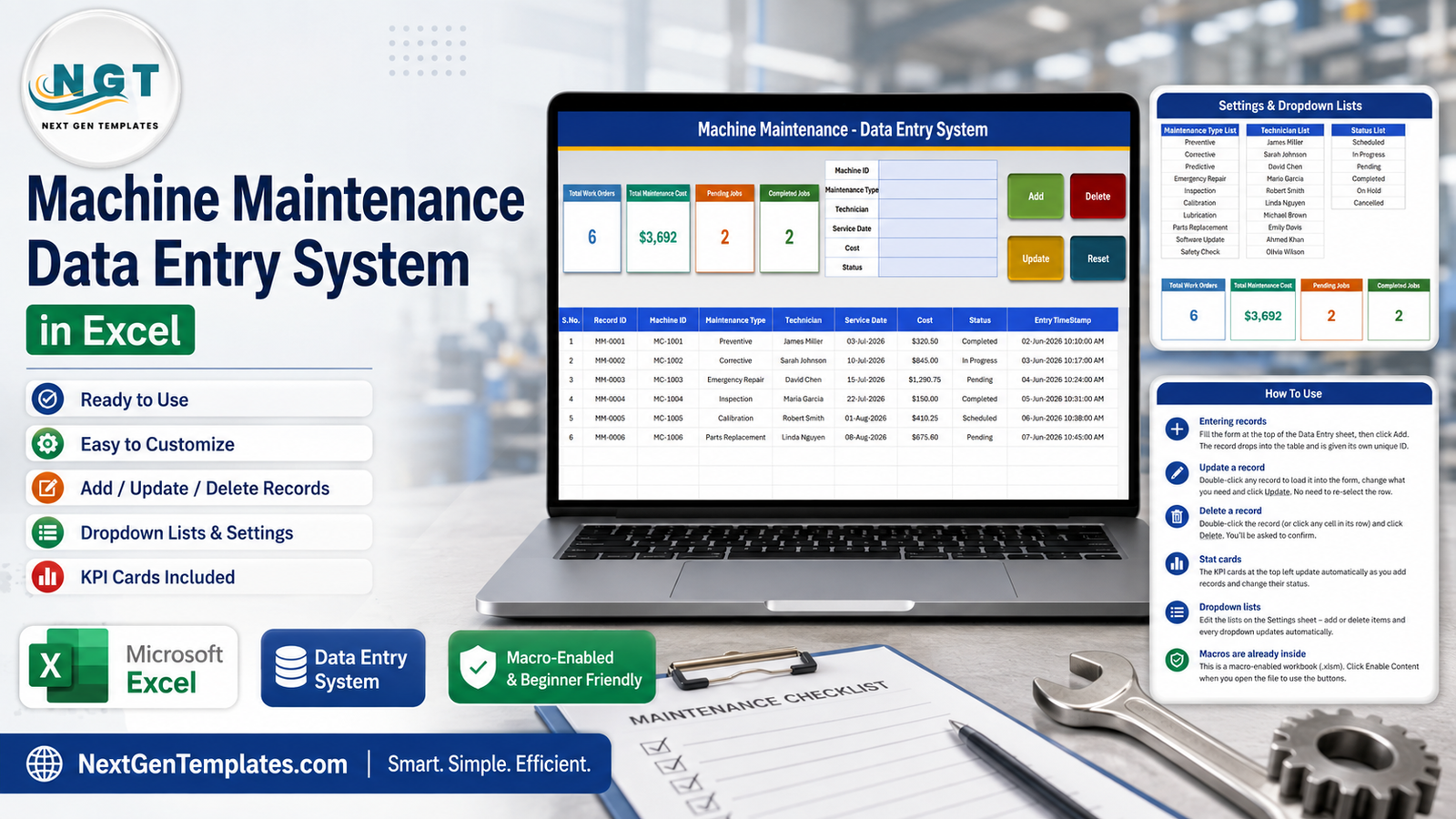
- Four live summary cards. Total Work Orders, Total Maintenance Cost, Pending Jobs and Completed Jobs. In the shipped sample they read 6, $3,692, 2 and 2.
- Automatic IDs and timestamps. Records number themselves MM-0001, MM-0002 and on, and each carries an Entry TimeStamp such as 02-Jun-2026 10:10:00 AM – so you can tell when a job was logged apart from when it was scheduled.
- A nine-column register. S.No., Record ID, Machine ID, Maintenance Type, Technician, Service Date, Cost, Status and Entry TimeStamp. Filter it by Machine ID and you have that machine’s whole history.
- Dropdown lists you control. The three lists live as plain rows on the Setting sheet. Add rows, delete rows, rename entries – the dropdowns follow with no formula editing.
- Direct table typing is safe too. The register columns carry the same validation as the form, so pasted history and bulk edits stay clean.
Workbook Sheets Explained
Data Entry – the working screen
A blue title banner across the top, then a grey band holding the four summary cards on the left, the six-field form in the middle and the four coloured buttons (Add, Delete, Update, Reset) on the right. Below that, the register. Six sample records ship with it – MC-1001 through MC-1006, covering Preventive, Corrective, Emergency Repair, Inspection, Calibration and Parts Replacement, with costs from $150.00 to $1,290.75 – so you can see a populated system before you clear it out.
Setting – the lists and the real cards
Three editable lists side by side. Maintenance Type ships with Preventive, Corrective, Predictive, Emergency Repair, Inspection, Calibration, Lubrication, Parts Replacement, Software Update and Safety Check. Technician holds ten sample names. Status holds Scheduled, In Progress, Pending, Completed, On Hold and Cancelled. The four KPI cards also live on this sheet as real cells; the ones you see on Data Entry are linked pictures of them, which is why changing a card’s colour here changes it there.
Instructions – the manual, inside the file
A single page covering entering records, updating without re-selecting a row, deleting safely, how the stat cards are built, how to edit the dropdown lists, and the macro-enable step. It is worth reading once before you start; it is where the “you do not have to click back on the row first” behaviour is explained.
Get More Templates
A short links sheet pointing back to the wider template library.
Machine Maintenance Data Entry System vs. Google Sheets vs. Paid CMMS Software – Feature Comparison
| This Excel system | Google Sheets maintenance log | Paid CMMS (UpKeep, Fiix) | |
|---|---|---|---|
| Cost | $6.99 once | Free, but you build it | $20-$45 per user per month |
| Platform | Desktop Microsoft Excel (Windows) | Any browser | Web plus mobile app |
| Setup time | Minutes | Hours of formula and validation work | Days, plus an asset import |
| Real-time team collaboration | No – one editor at a time | Yes | Yes |
| Mobile access | View only; macro buttons do not run | Yes | Yes, with offline sync |
| Customizable fields | Yes – lists and columns are open | Yes | Usually higher tiers only |
| Share with link | No – you send the file | Yes | Yes |
| Year-1 cost at 5 users | $6.99 | $0 | $1,200-$2,700 |
| Meter readings and auto-scheduling | No | No | Yes |
| Works with no internet connection | Yes | No | Partly |
The honest read: a blank Google Sheet costs nothing but you spend an afternoon building validation, ID generation and totals that this workbook already has. A CMMS does everything this does and far more, and bills you every month for it. This template is for the operation where one person owns the maintenance log and needs it to be tidy, not networked.
Who Should Use This Template
It fits maintenance supervisors in small plants and workshops, facilities managers logging HVAC, lift and generator visits, workshop owners who need a per-machine cost trail, and production or QA leads currently keeping this in a notebook.
It does not fit teams where several technicians must update the same register at once, shop-floor entry from a phone, scheduling driven by run hours or condition sensors, spare-parts inventory and purchase orders, approval routing or digital sign-off, or tamper-evident audit records. It also does not fit Mac Excel, Excel for the web or Google Sheets, because none of those run the VBA the buttons depend on.
Real-World Use Cases
A 40-machine packaging unit. Every preventive service and every breakdown is logged against the machine code. At month end the supervisor filters by Machine ID and can show that one machine consumed $1,290 in emergency repair alone – the kind of number that wins a replacement request.
Three office buildings under one facilities manager. Lifts, chillers and generators each get a Machine ID; the contractors become the technician list. The Pending Jobs card is the morning glance, and the Entry TimeStamp column settles “when did we actually report this” disputes with the service company.
A four-person CNC job shop. The owner wanted servicing history without a monthly bill. Calibration and Lubrication entries go in as they happen, Total Maintenance Cost gives a running spend figure, and the whole system is one file that backs up like any other.
Advantages of the Machine Maintenance Data Entry System
- Nothing to learn. Anyone who can fill a form and click a button can use it; the Excel skill required is close to zero.
- Clean data by construction. Dropdowns on three of the six fields, plus generated IDs and timestamps, remove the three most common sources of mess in a hand-kept log.
- It works offline. A plant floor with unreliable Wi-Fi is exactly where a browser tool is worst and a local workbook is best.
- It is completely open. No hidden sheets, no password protection. Add columns, change formats, restyle the cards.
- One-time cost. $6.99 buys the file outright. There is no seat count, no renewal and no data hostage situation if you stop paying.
Opportunities for Improvement
Two things are worth knowing before you buy, and neither is a bug.
First, the two status cards do not add up to the total, and should not. Pending Jobs counts records with status Pending and Completed Jobs counts records with status Completed. The sample has six records that also include In Progress and Scheduled, so the cards read 2 and 2 against a total of 6. If you want a card for every status, copy one of the existing cards on the Setting sheet and point it at the value you care about.
Second, there is no scheduling engine. Service Date is a field you type, not a trigger. Nothing in the workbook will tell you a machine is due. If you need the forward-looking half, run this alongside a maintenance calendar or dashboard rather than expecting it here.
Beyond those, the natural extensions are a Downtime Hours column, a Work Order Number column and a simple pivot on Machine ID. The first two you can add to the register yourself; extending the form means editing the VBA, which is easy if you write VBA and out of scope if you do not.
Best Practices
- Unblock before you open. If Windows flags the downloaded file, right-click it, choose Properties and tick Unblock. Then click Enable Content on the yellow bar – Microsoft explains the security bar and macro settings in its own guide to enabling or disabling macros in Microsoft 365 files.
- Rewrite the Setting sheet first. Your technicians, your job types, your status words. Do it before the first record goes in, not after fifty.
- Adopt a Machine ID convention and stick to it. MC-1001 style codes are fine; what matters is that the same machine is never entered two ways, because the register is only as good as that column.
- Delete the samples in one pass and click Reset, so your first real Record ID starts clean.
- Close jobs by double-clicking, not by retyping. Loading the record into the form and clicking Update is what keeps the ID, the timestamp and the totals consistent.
- Back it up on a schedule. A single-file register deserves a dated copy each month on OneDrive or a network share. It is the one real risk of this design.
- Split by year once it grows. A few thousand rows is comfortable; past that, archive last year into its own copy.
Explore Relevant Templates
- Maintenance Work Order Data Entry System in Excel – the ticket-raising half of the same workflow.
- Fleet Fuel Log Data Entry System in Excel – the same pattern for vehicles rather than fixed plant.
- Audit Findings and CAPA Data Entry System in Excel – for when a breakdown becomes a corrective action.
- Agro Machinery Rental Dashboard in Excel – the analytical view, if you want charts rather than a register.
Frequently Asked Questions
Do I have to enable macros to use it?
Yes. It is a .xlsm workbook and the Add, Update, Delete and Reset buttons are VBA. Click Enable Content the first time you open it, and unblock the file in Windows Properties if it arrived as a download or an e-mail attachment. Without macros the sheets still open, but the buttons do nothing.
Does it work on Mac, in Excel for the web, or in Google Sheets?
Treat it as a Windows desktop Excel template. Excel for the web does not run VBA, Google Sheets does not either, and Mac Excel handles this form-and-button layout inconsistently. You can read the file anywhere; the buttons belong on Windows.
Can two people use it at the same time?
No. It is a single-file record keeper with one editor at a time. Multi-user entry is where a proper CMMS or a web app takes over.
Can I add my own columns?
Yes – add columns to the register and type into them directly. Adding fields to the form means editing the VBA behind the buttons.
Will it remind me when a machine is due for service?
No. It records what was booked and done. There are no reminders, no calendar triggers and no run-hour rules.
How many records will it hold?
Excel’s row limits are enormous, so the practical ceiling is comfort rather than capacity – a few thousand records stays fast; beyond that, archive by year.
What is actually in the download?
One ZIP file containing a single 65 KB workbook, Machine_Maintenance_System.xlsm. No installer, no add-in, no account to create.
About the Author
Built by PK – Microsoft Certified Professional with 15+ years of Excel, Google Sheets, and Power BI experience. Founder of NextGenTemplates, reaching 300K+ subscribers across YouTube channels. Every template is hand-built and tested before release.
Conclusion
The Machine Maintenance Data Entry System in Excel is a small, honest tool: a six-field form, four buttons, a nine-column register and four cards that keep score. It will not schedule your maintenance, it will not run on your phone, and it will not let two technicians type at once. What it will do is give every machine a clean servicing history and a cost figure you can point at, in a file you own outright for $6.99 rather than rent by the seat.
Get the Machine Maintenance Data Entry System in Excel – $6.99, down from $11.99, instant ZIP download.
For step-by-step Excel and VBA walkthroughs, subscribe to youtube.com/@PKAnExcelExpert.