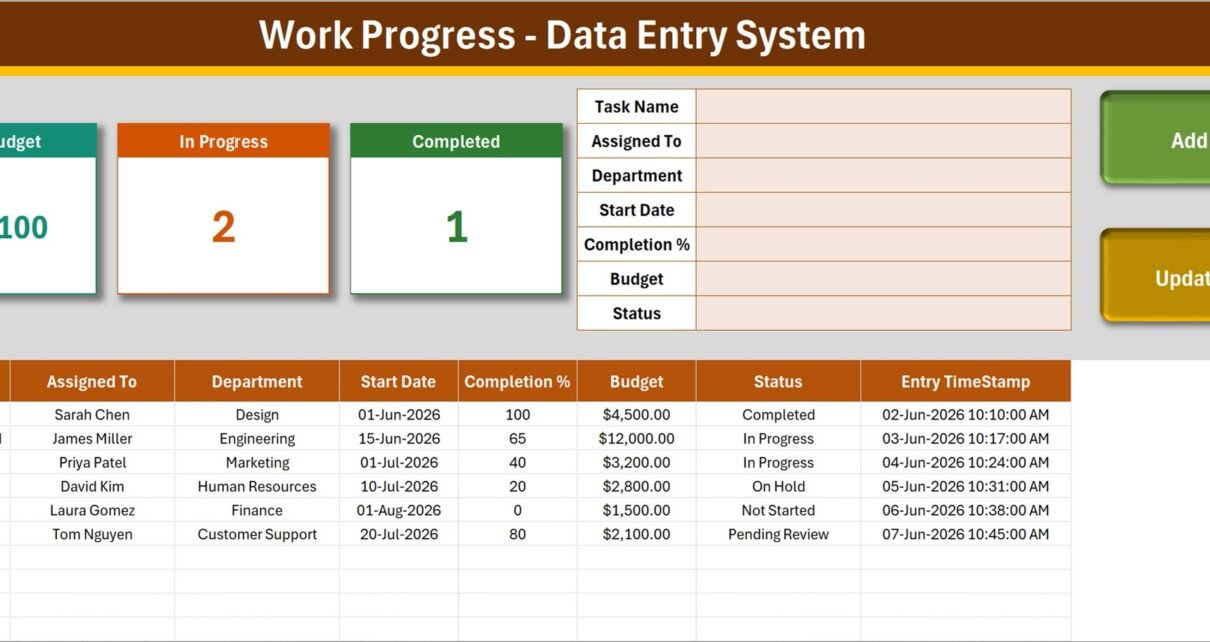
A task register becomes useful when it makes the next action obvious. The Work Progress Data Entry System in Excel puts 7 input fields, 4 VBA buttons, 4 live summary cards and a 10-column register on one working sheet. The supplied demo has 6 tasks, a $26,100 budget total, 2 tasks in progress and 1 completed task, so you can see the calculations before replacing the sample rows. It is built for a single person maintaining an offline master file – not for teams that need simultaneous editing, notifications or dependency planning.
Key Features of the Work Progress Data Entry System in Excel
- Seven fields in one form: Task Name, Assigned To, Department, Start Date, Completion %, Budget and Status.
- Add, Update, Delete and Reset: four included VBA buttons cover the full record lifecycle.
- Automatic identity: new rows receive a WP-0001 style Record ID and Entry TimeStamp.
- ID-based editing: double-click a row to load it, make changes and click Update without re-selecting the row.
- Four live cards: Total Tasks, Total Budget, In Progress and Completed refresh from the table.
- Ten-column register: the full audit trail remains visible and filterable as a normal Excel table.
- Editable dropdowns: 10 sample departments and 6 statuses can be replaced on the Setting sheet.
- Instructions inside the file: users do not need to find a separate manual before starting.
Workbook Sheets Explained
Data Entry sheet
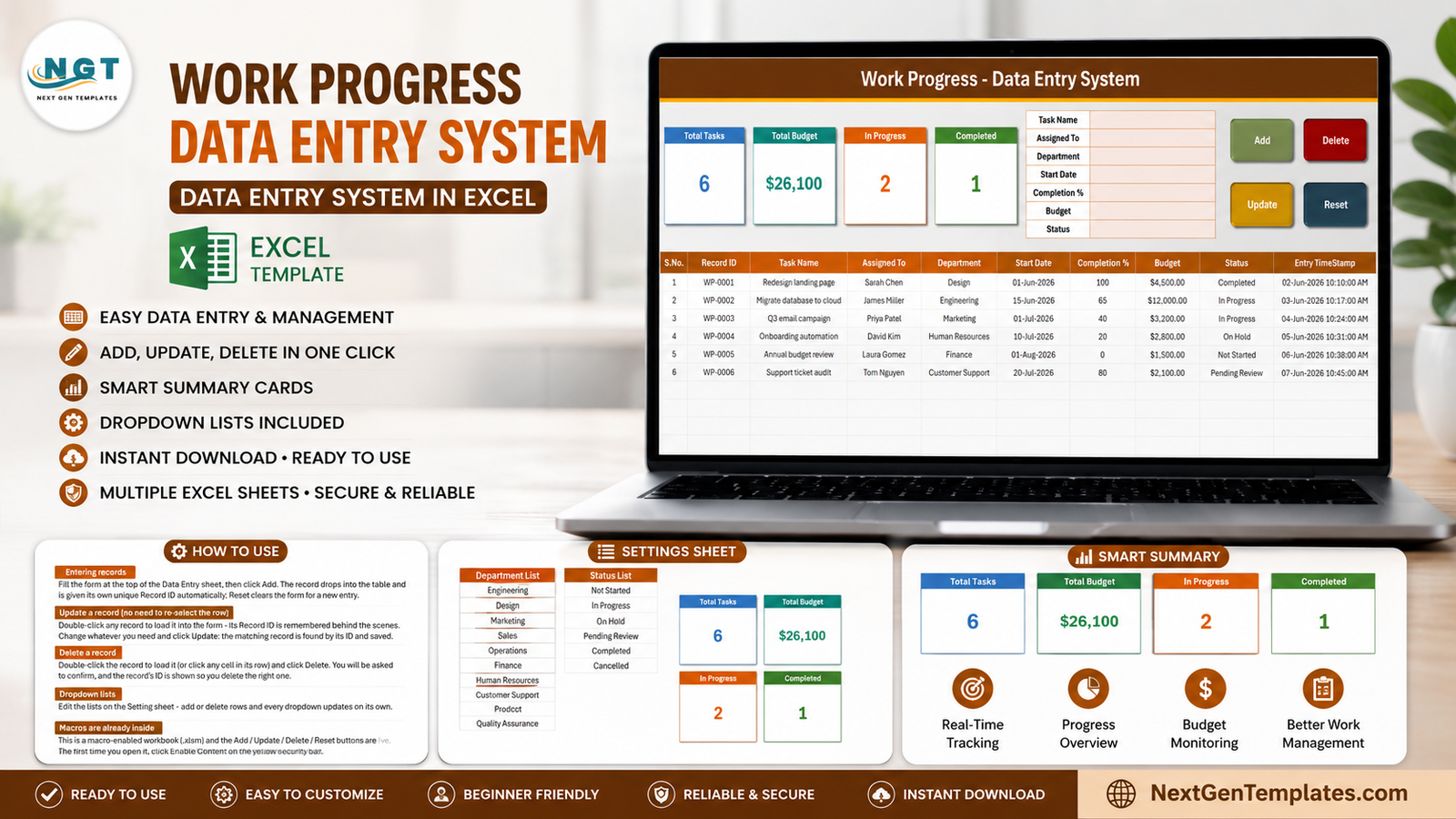
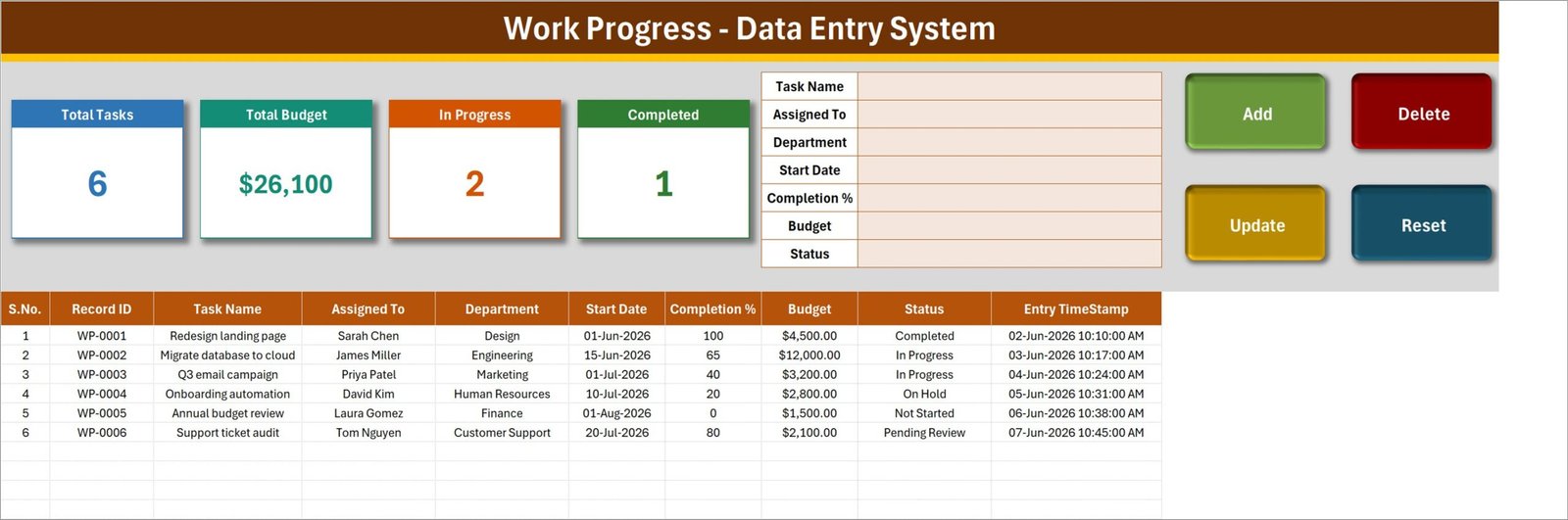
The main sheet combines the summary and the working area. On the left, four colour-coded cards show the number of tasks, total entered budget, tasks currently marked In Progress and tasks marked Completed. The seven-field form sits in the middle, and the four large buttons sit on the right. Beneath them, the register records S.No., Record ID, Task Name, Assigned To, Department, Start Date, Completion %, Budget, Status and Entry TimeStamp.
The six visible tasks are fictional examples: redesigning a landing page, migrating a database, running a campaign, automating onboarding, reviewing a budget and auditing support tickets. They exist to show different departments, percentages and statuses. Delete or overwrite them before using the workbook for real work.
Setting sheet
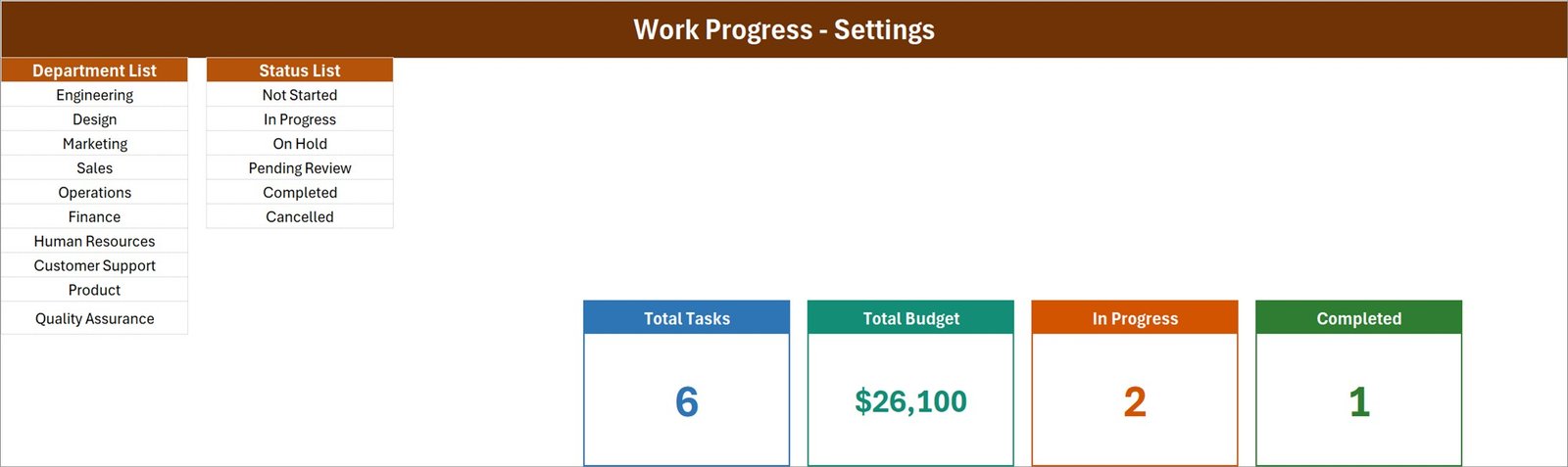
The department list includes Engineering, Design, Marketing, Sales, Operations, Finance, Human Resources, Customer Support, Product and Quality Assurance. The status list includes Not Started, In Progress, On Hold, Pending Review, Completed and Cancelled. These are ordinary cells, so a business can replace them with its own teams and workflow labels. The master summary cards also sit on this sheet and are displayed on the Data Entry sheet as linked pictures.
Instructions sheet
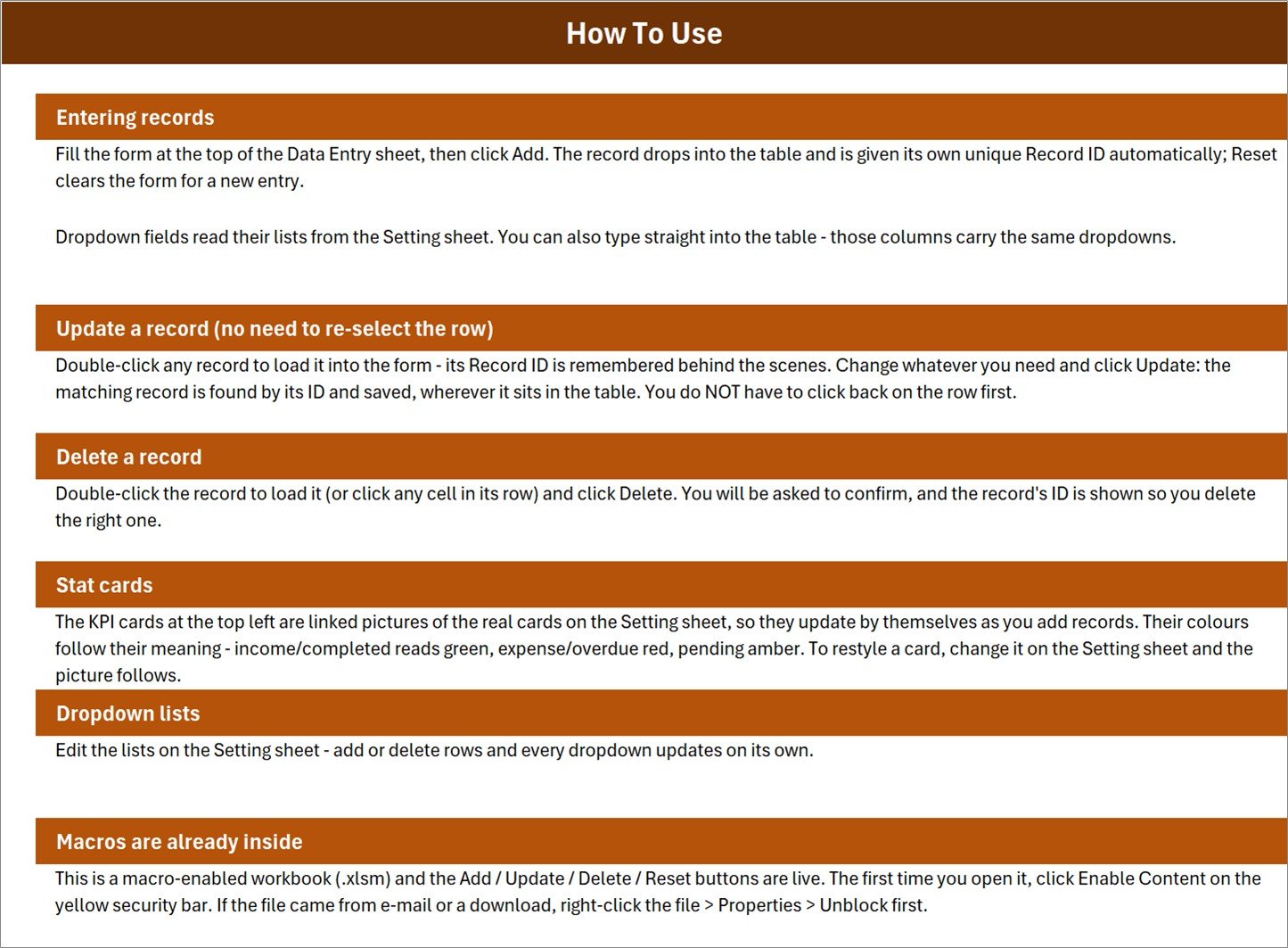
Six short sections explain entering a record, updating by remembered Record ID, deleting with confirmation, using stat cards, changing dropdown lists and enabling the included macros. The sheet also mentions the Windows Properties > Unblock step that can be necessary after downloading a macro-enabled file.
Get More Templates sheet
The fourth sheet is a small catalogue and tutorial link page. It does not hold task data or configuration settings.
Work Progress Data Entry System in Excel vs. Google Sheets vs. Paid Project-Management SaaS – Feature Comparison
| This Excel template | Google Sheets task log | Paid SaaS | |
|---|---|---|---|
| Price model | $6.99 once | Account cost plus build time | Recurring subscription |
| Primary platform | Desktop Excel | Browser and mobile | Browser and mobile apps |
| Setup | Edit two lists and clear demo rows | Build validation and automation | Configure users and workspace |
| Live multi-user editing | No | Yes | Yes |
| Offline use | Yes | Limited | Usually cloud-first |
| Custom fields | Full workbook access | Full sheet access | Plan-dependent |
| Share with a link | No – share the file | Yes | Yes |
| Five-user first-year cost | $6.99 total | Workspace cost plus build time | Five user subscriptions |
| Built-in record buttons | Yes, with VBA | Needs Apps Script or a form | Yes |
| Dependencies and alerts | No | Manual unless built | Usually included |
Who Should Use This Template
This workbook is suited to a freelancer managing client deliverables, a department coordinator consolidating weekly updates, a small consultancy tracking ownership and budget, or an operations administrator keeping one master action register. It works best when one trusted editor maintains the file and distributes read-only copies, PDFs or screenshots when needed.
It is a poor fit when several people must update tasks at the same time, when work has complex dependencies, or when users need assignments, reminders and approvals on their phones. In those cases, a browser-based tool such as the App Development Project Management System Web App or dedicated project-management SaaS will fit better.
Real-World Use Cases
Weekly campaign review
Maya, a marketing coordinator, records campaign tasks and owners before a Monday meeting. During the review she changes Completion %, moves finished items to Completed and filters Pending Review for approvals.
Client-delivery register
Arjun runs a small consultancy. He records every deliverable with its start date and internal budget, then uses Total Budget and In Progress as a quick workload check before accepting more work.
Cross-department action log
Elena coordinates process improvements across Finance, Operations and Human Resources. The Department dropdown makes filtering consistent, while WP-style IDs make discussions unambiguous.
Advantages of the Work Progress Data Entry System in Excel
The biggest advantage is focus. There is one form, one task table and one settings area. The workbook does not ask a small team to create accounts or learn a new platform. VBA also removes repetitive table editing: Add inserts a row, double-click loads an existing record, Update finds it by ID, Delete confirms the target and Reset prepares the next entry.
Because the lists and workbook structure remain editable, buyers can change workflow language without requesting vendor support. The file also works offline and keeps operational data on the user’s own device.
Opportunities for Improvement
This is a register, not a project-planning engine. A future version could add due dates, overdue counts, priority, notes, task dependencies, variance between planned and actual budget, charts and printable status reports. Real-time collaboration and notifications would require a cloud-based version.
There is also one cosmetic documentation issue in the shipped Instructions sheet: the stat-card paragraph uses generic wording about income, expense, overdue and pending colours, while this workbook’s cards are Total Tasks, Total Budget, In Progress and Completed. The actual card labels and calculations are correct; only that explanatory sentence should be rewritten in a future build.
Best Practices
- Save a clean master copy before entering live records.
- Replace the sample departments and statuses first so users do not create near-duplicate labels.
- Delete the six demo tasks after testing the buttons.
- Use one editor at a time and store backups with dated filenames.
- Keep Completion % numeric and agree what each status means.
- Enable macros only when you trust the source. Microsoft explains how notification-based macro settings and trusted documents work in its official macro security guidance.
Explore Relevant Templates
- Project Management Pro Bundle – nine templates across Excel and Google Sheets.
- Project Management Office Dashboard in Excel – portfolio charts and analysis.
- Project Management Office Dashboard in Google Sheets – a browser-based reporting option.
- Employee Document Data Entry System in Excel – another structured Excel VBA register.
- Class Schedule Data Entry System in Excel – a form-and-register workflow for timetables.
Frequently Asked Questions
Does the workbook run in Excel for the web?
No. Its buttons use VBA, which requires desktop Microsoft Excel.
Must macros be enabled?
Yes, if you want Add, Update, Delete and Reset to run. Review the source and use Excel’s notification-based security prompt rather than enabling all macros globally.
Can I rename departments and statuses?
Yes. Edit the lists on the Setting sheet; the dropdowns use those values.
Can several people update it simultaneously?
No. Use one editor at a time. Google Sheets or SaaS is more suitable for simultaneous changes.
Does it send reminders or calculate dependencies?
No. It records task data and updates summary cards; it does not send alerts or calculate a critical path.
Can I add more than six tasks?
Yes. Six is only the sample count. New tasks are added to the Excel table.
What does the download contain?
The ZIP contains Work_Progress_System.xlsm, a macro-enabled Excel workbook with four sheets.
About the Author
Built by PK – Microsoft Certified Professional with 15+ years of Excel, Google Sheets, and Power BI experience. Founder of NextGenTemplates, reaching 300K+ subscribers across YouTube channels. Every template is hand-built and tested before release.
Conclusion
The Work Progress Data Entry System in Excel is a sensible middle ground between an unstructured task list and subscription project software. It gives a single editor a consistent form, automatic IDs, four working buttons, four summary cards and a filterable register for a one-time price.
Get the Work Progress Data Entry System in Excel for $6.99, replace the demo data, tailor the two dropdown lists and start recording tasks. For more Excel automation tutorials, visit PK-AnExcelExpert on YouTube.
Last updated: 18 August 2026.