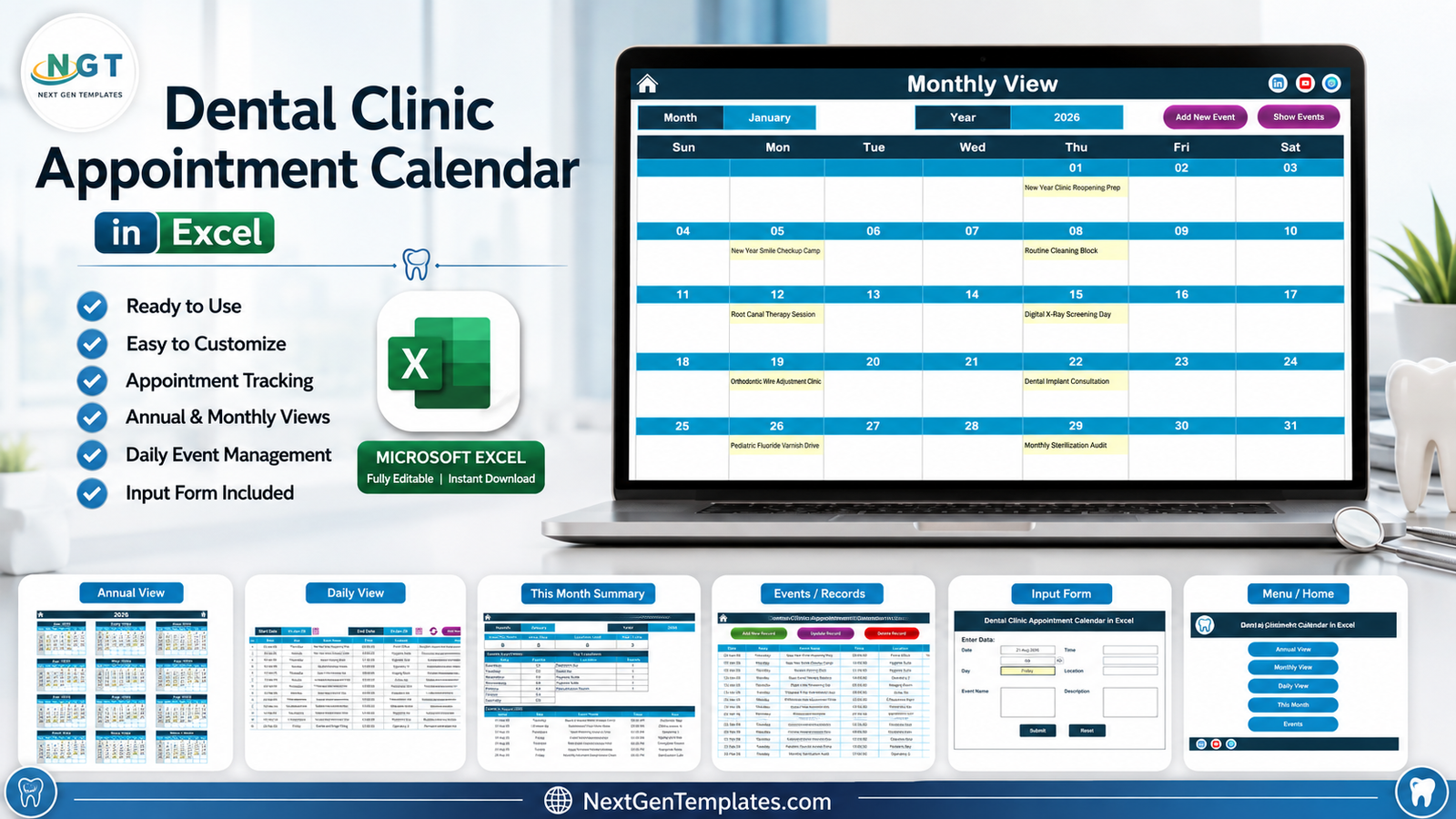
The Dental Clinic Appointment Calendar in Excel is a macro-enabled workbook that spreads clinic scheduling across 7 worksheet tabs, 4 calendar views, a 7-field event database, and 100 pre-loaded sample dental appointments. Every view reads from one list, so an entry typed once on the Events sheet appears in the Annual View, the Monthly View, the Daily View, and the This Month summary. Setup takes under 10 minutes and the file has 5 colour themes built in.
Most small practices plan chair time on a wall planner, a shared inbox, or three unconnected spreadsheets – and none of them answer the two questions that matter on a Monday morning: what is booked this week, and which rooms are carrying it. This template answers both from a single sheet of records. Before going further, one point that shapes everything below: the Dental Clinic Appointment Calendar in Excel is a scheduling calendar, not clinical software, and it is not a place to keep patient data.
What the Dental Clinic Appointment Calendar in Excel Is Not
It is worth being blunt, because a dental practice handles sensitive information and a spreadsheet is an easy thing to over-trust. This workbook is not a patient record, EHR, or EMR. It is not a practice management system. It is not HIPAA, GDPR, or any other health-data-protection compliant or certified, and buying it does not make your practice compliant with anything. It does not encrypt, secure, or protect what you type into it. It is not an online booking page, it sends no SMS or email reminders, it has no patient portal, and it connects to no clinical, insurance, or billing system. It offers no clinical decision support of any kind.
A workbook that gets emailed around a clinic and copied onto a shared drive is not an appropriate place to store patient-identifiable or clinical information. Name each entry by the procedure or session – “Root Canal Therapy Session”, “Periodontal Maintenance Visits” – and if you genuinely need to point at one person, use initials or an internal reference code that only your own system can resolve. The sample data that ships with the template follows exactly that pattern; there are no patient names in it.
Key Features of the Dental Clinic Appointment Calendar in Excel
- 7 connected worksheet tabs. Home, Annual View, Monthly View, Daily View, This Month, Events, and a Setting sheet that drives the whole workbook.
- One source of truth. The Events sheet holds every record with ID, Date, Day, Event Name, Time, Location, and Description; the four views are all built from it.
- 100 dental sample appointments. Hygiene recalls, root canal sessions, digital X-ray screening days, orthodontic wire adjustment clinics, implant consultations, pediatric fluoride varnish drives, whitening touch-ups, bone grafts, and monthly sterilization audits.
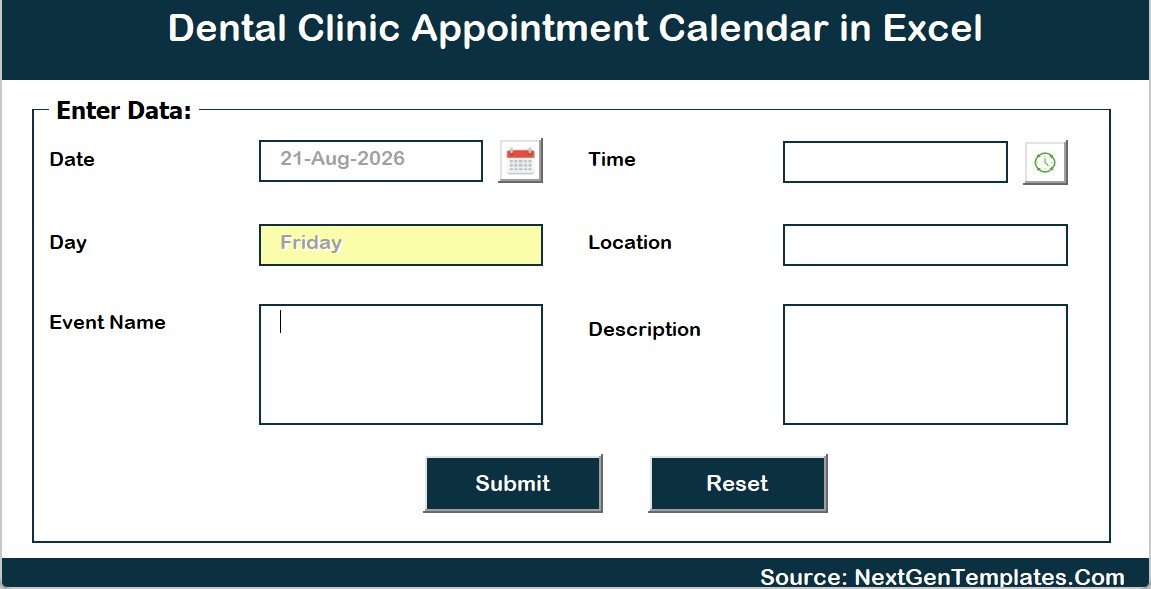
- Macro-driven entry form. Add New Event opens a form for Date, Day, Event Name, Time, Location, and Description with Submit and Reset buttons.
- Record management buttons. Add New Record, Update Record, and Delete Record sit on the Events sheet so nobody has to edit raw rows.
- 5 colour themes. Default, Blue, Red, Black, and Orange, switched from the Setting sheet.
- Configurable calendar. Set the year, the starting month, the first day of the week, and which two weekdays are highlighted.
- Room-level reporting. The Location column doubles as the operatory or suite, so the Top 5 Locations ranking effectively ranks chair usage.
- User manual included. The download is a ZIP containing the .xlsm workbook and an Excel Calendar user manual PDF.
Sheets Explanation
Home Sheet Tab
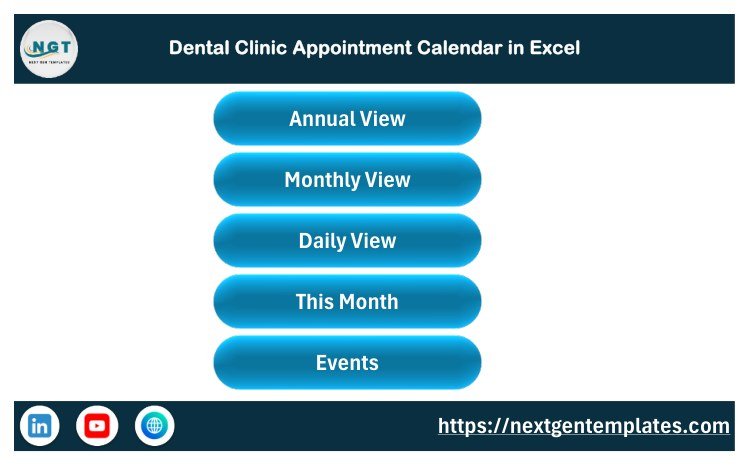
The Home sheet is the index page and the place the workbook opens. Five buttons – Annual View, Monthly View, Daily View, This Month, and Events – take you straight to each area, so nobody has to hunt through worksheet tabs.
Annual View Sheet Tab
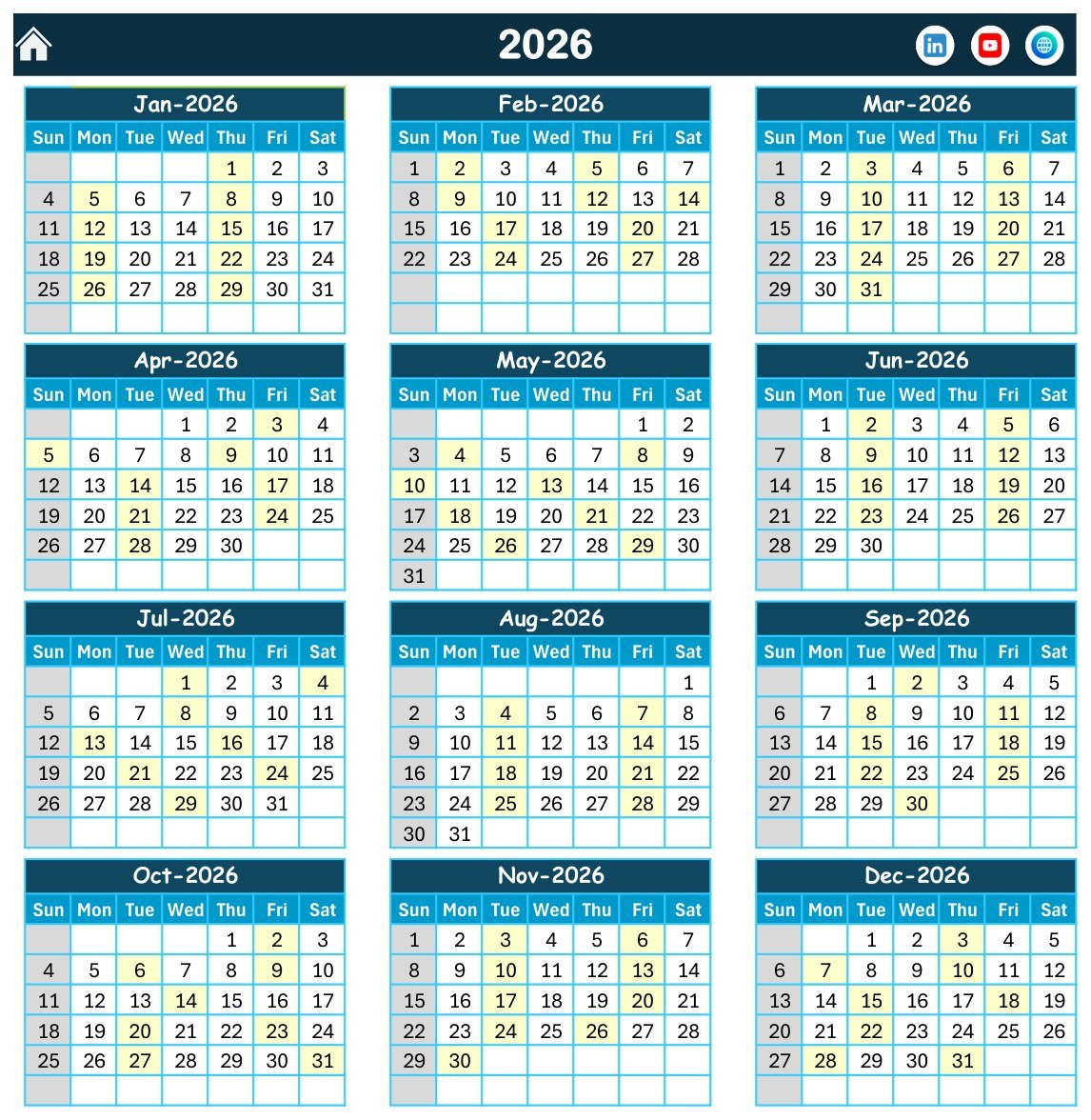
The Annual View prints all 12 months of the selected year on one page. Dates that carry an entry are highlighted and the two weekdays you nominate in the Setting sheet are shaded, which makes recall waves, seasonal campaigns, and genuinely quiet weeks visible without scrolling.
Monthly View Sheet Tab
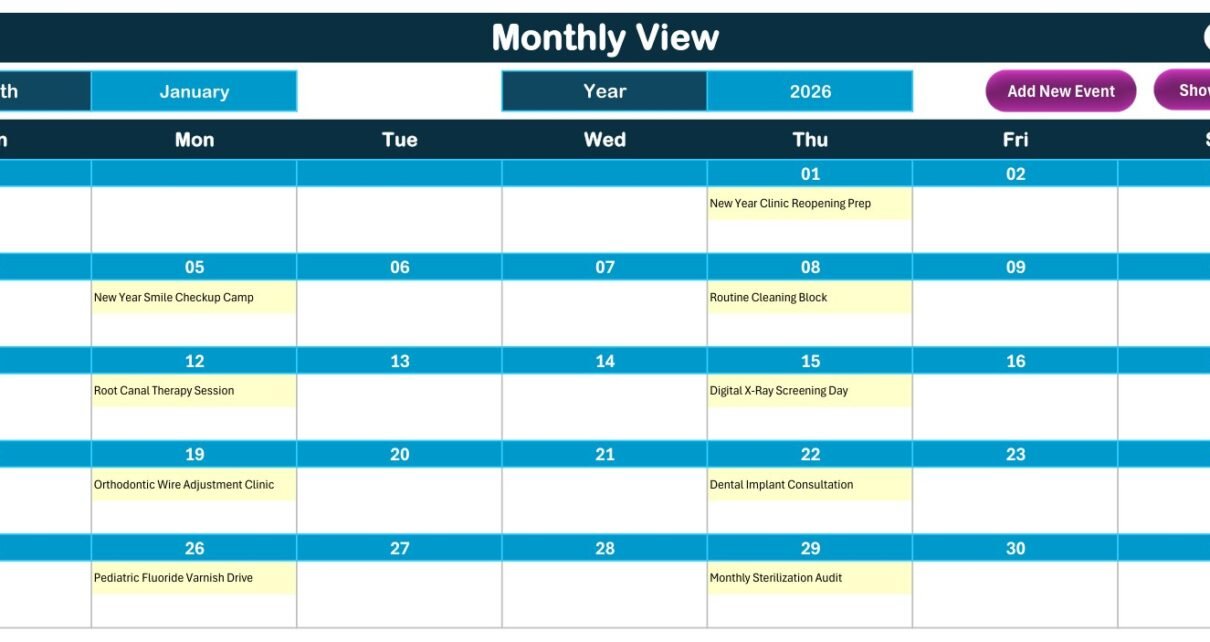
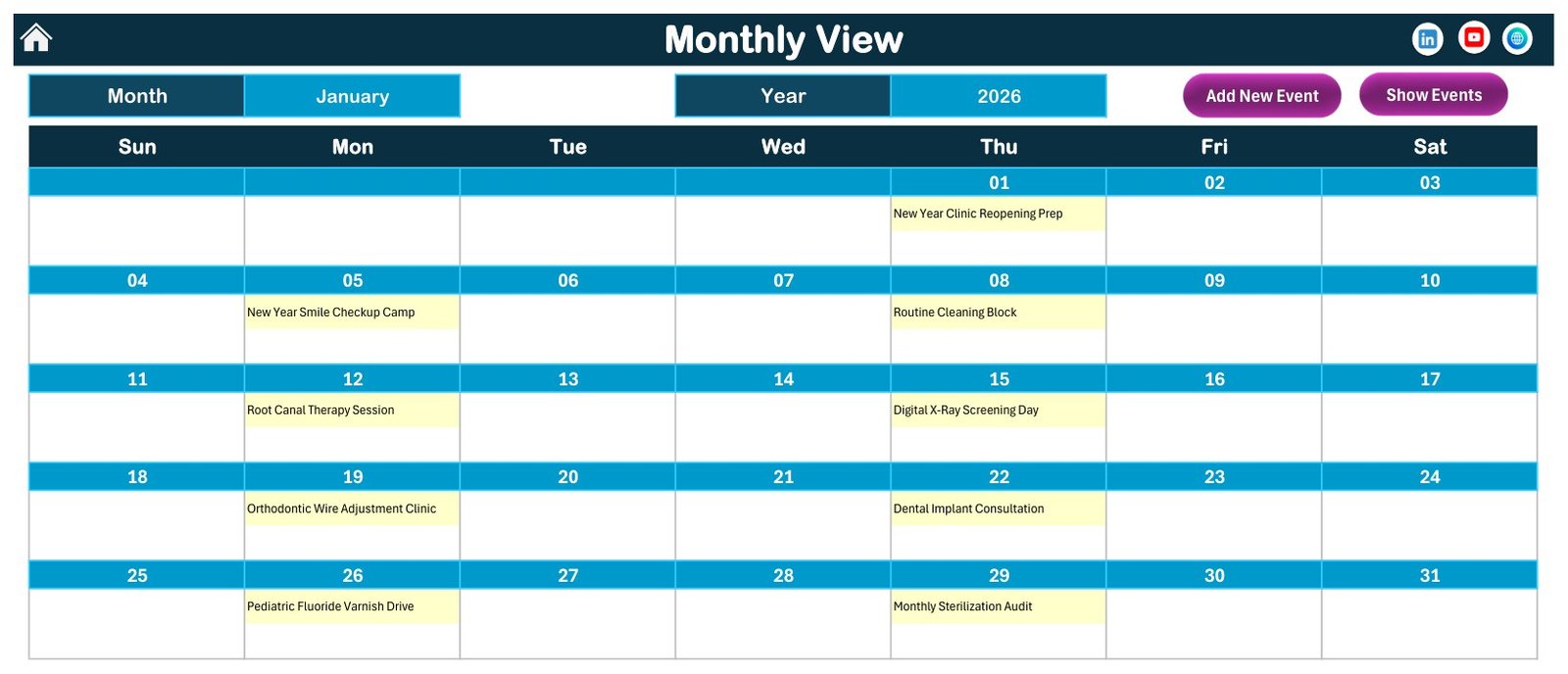
The Monthly View shows one month at a time, chosen from the Month and Year controls at the top. Each date cell carries the name of the entry booked against it, and the Add New Event and Show Events buttons sit on the same sheet so a session can be added without leaving the calendar.
Daily View Sheet Tab
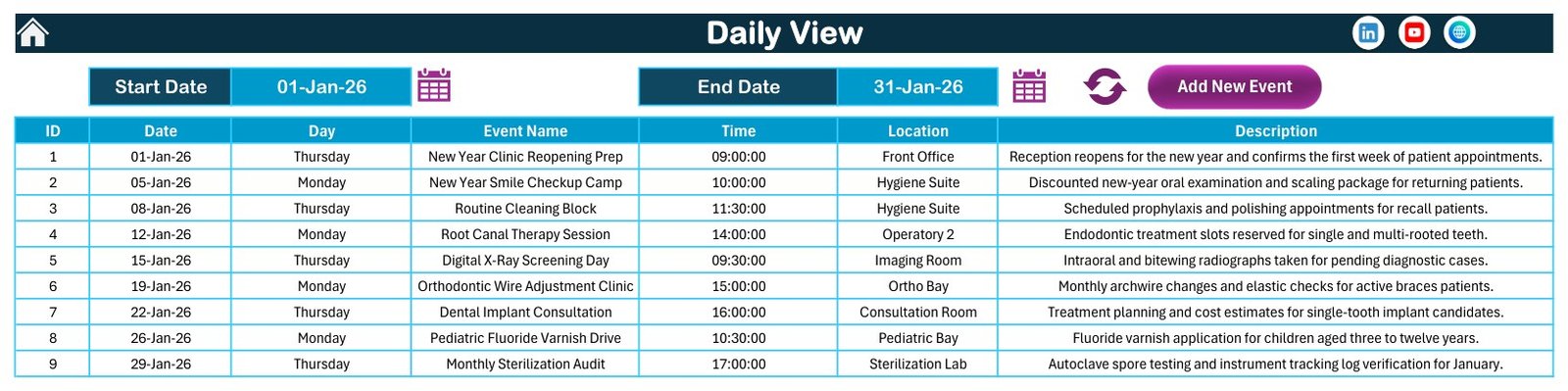
The Daily View is a date-range report rather than a single day. Set a Start Date and an End Date, press refresh, and the table returns the ID, Date, Day, Event Name, Time, Location, and Description of everything in that window. It is the sheet the front desk prints for the day or the week.
This Month Sheet Tab
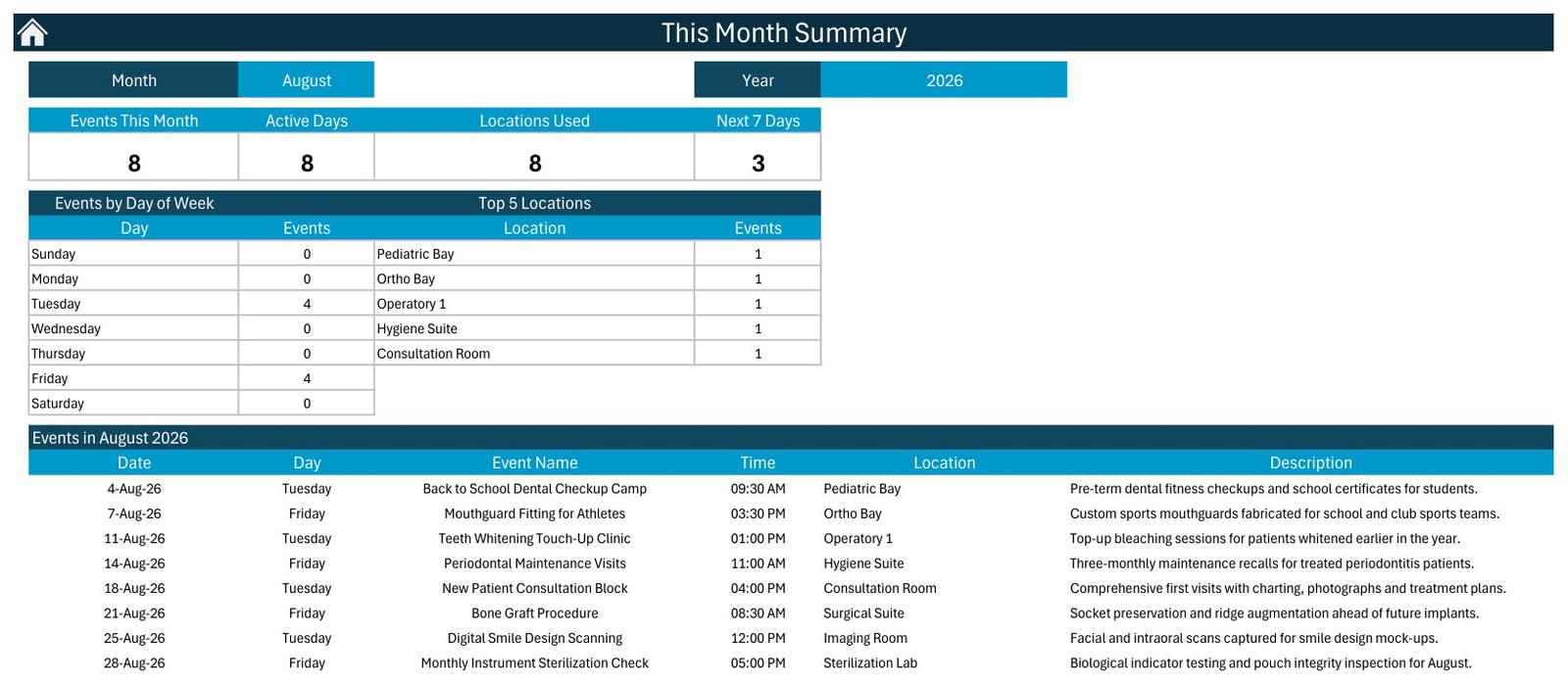
The This Month sheet summarises the month you pick. Events This Month, Active Days, Locations Used, and Next 7 Days appear as headline counts, followed by an Events by Day of Week table, a Top 5 Locations ranking, and the month’s full entry list with times, rooms, and descriptions.
Events Sheet Tab
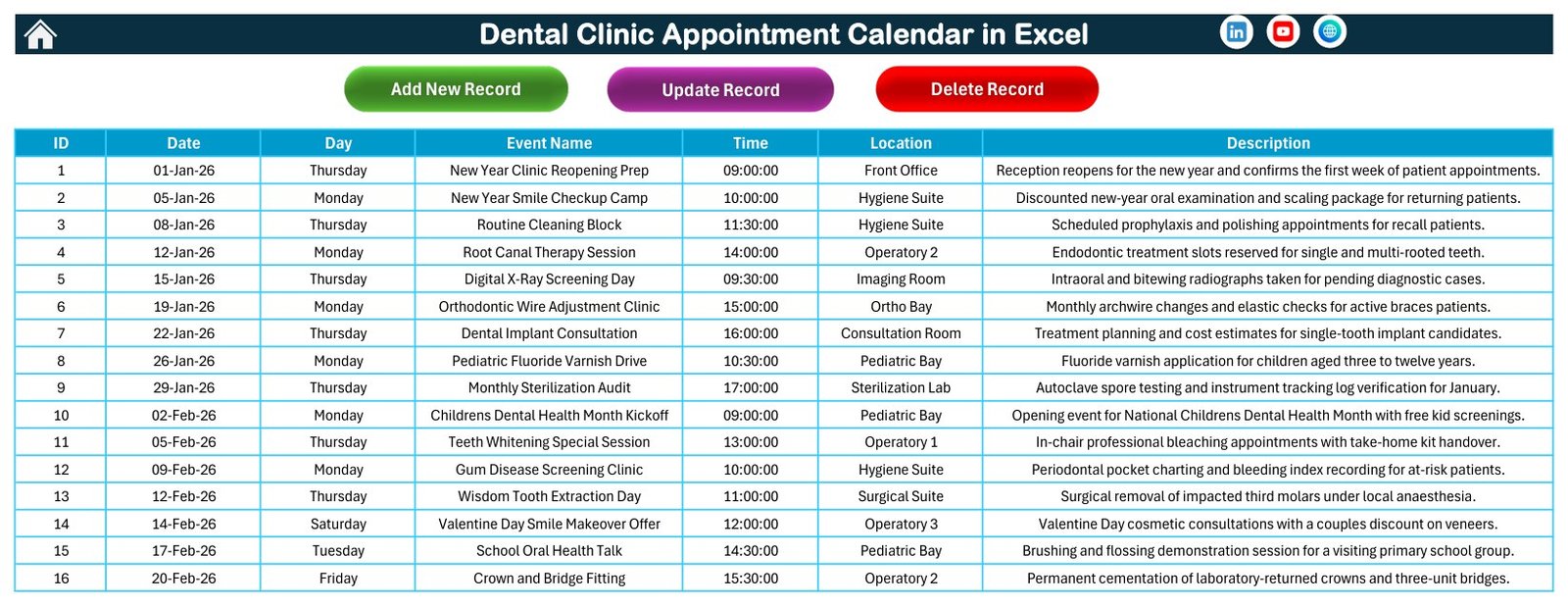
The Events sheet is the database everything else depends on. Each row is one session with an ID, Date, Day, Event Name, Time, Location, and Description, and the Add New Record, Update Record, and Delete Record buttons run across the top so records are maintained through the form rather than by typing over cells.
Add New Event Form
The entry form captures Date, Day, Event Name, Time, Location, and Description. Submit writes the record into the Events sheet, Reset clears the fields, and every calendar view reflects the change. Note what is absent: there is no patient name field, no chart number, and no clinical field – and none should be added.
Dental Clinic Appointment Calendar in Excel vs. Google Sheets Calendar vs. Paid Dental Practice Software – Feature Comparison
| Feature | Dental Clinic Appointment Calendar in Excel | Google Sheets calendar | Paid dental practice software |
|---|---|---|---|
| Cost | $4.99 one-time | One-time template, free Google account | Monthly per-chair or per-provider subscription |
| Platform | Excel for Windows desktop, macros enabled | Browser, any device | Vendor-hosted web app |
| Setup time | Under 10 minutes | Under 10 minutes | Days or weeks with onboarding |
| Works fully offline | Yes, the file lives on your PC | No, needs a connection | No, needs a connection |
| Real-time team collaboration | Only via OneDrive or a shared drive | Built in | Included by seat |
| Customizable fields and colours | Fully editable, 5 themes | Fully editable | Limited to vendor settings |
| Automated reminders, SMS, patient portal | No | No | Yes |
| Patient records, charting, claims, billing | No | No | Yes |
| Year-1 cost at 5 users | $4.99 total | Template cost only | Often thousands per year |
| Best fit | Small practices wanting clear chair-time visibility in Excel | Teams that must edit together in a browser | Practices that need records, claims, and reminders |
For a practice that wants the clinic year visible on one page without paying a per-chair subscription, the Dental Clinic Appointment Calendar in Excel sits in the sweet spot – and when you outgrow it, dedicated practice software is the right next step, not a bigger spreadsheet.
Who Should Use This Template
Perfect for:
- Dental practice owners laying out the clinic year – recall waves, campaigns, audits.
- Front-desk and reception teams who want a printable day or week sheet.
- Practice managers coordinating operatories, suites, and staff rotas.
- Hygienists mapping recall and periodontal maintenance blocks.
- Orthodontic and pediatric teams running fixed-rhythm adjustment and screening clinics.
- Consultants who want a tested calendar structure to hand a client.
Not a fit if:
- You need a patient record, EHR, EMR, or practice management system.
- You need HIPAA, GDPR, or any other health-data-protection compliance or certification.
- You need online booking, automated SMS or email reminders, or a patient portal.
- You need insurance claims, billing, charting, or clinical decision support.
- Your team works on Mac, iPad, or Excel for the web – the buttons and the form need Excel for Windows desktop with macros enabled.
- You need several people editing the same file at the same moment; a Google Sheets calendar handles that better.
Real-World Use Cases
Dr. Anita runs a three-chair family practice. She blocks recall weeks, whitening clinics, and the annual equipment service into the Annual View twelve months ahead, then opens This Month every Monday to see how many sessions are booked, how many days are active, and which operatories are carrying the load. Nothing about it is clever – it is simply visible, which the wall planner never was.
Ravi coordinates the front desk at a two-site clinic. Each morning he sets the Daily View to today’s date, refreshes, and prints. The printout carries session name, time, and room and no patient details at all, so it can sit on the counter without anyone worrying about what is on it.
Meera manages an orthodontic and pediatric practice. The wire-adjustment clinic and the fluoride varnish drive run on a fixed rhythm, so she lays them out in Monthly View a quarter at a time. The Top 5 Locations ranking is what she actually watches: when the Ortho Bay climbs and the Pediatric Bay empties, the rota needs rebalancing.
Advantages of the Dental Clinic Appointment Calendar in Excel
- One list, four views. No duplicate typing and no reconciling a monthly planner against a daily sheet.
- No subscription. $4.99 once, against a monthly per-chair fee for scheduling software you may not need yet.
- Works offline. The workbook lives on your PC, so a dropped connection does not take the day sheet with it.
- Fully editable. Change the room names, the session names, the colour theme, and the highlighted weekdays to match how your practice actually runs.
- Room-level insight for free. Because Location is a real column, chair and suite usage ranks itself.
- Low training cost. Anyone who can use Excel can use it, and the user manual PDF is in the download.
Opportunities for Improvement
An honest list, because this is a calendar and not a platform. It is Windows-only in practice – the entry form and refresh buttons are VBA, so Excel for the web and the mobile apps will show the sheets but will not run them. Collaboration is file-based: two people cannot comfortably edit at once unless you host it on OneDrive or SharePoint, and even then a Google Sheets calendar is smoother for simultaneous editing.
There is no conflict detection – the workbook will happily accept two sessions in the same operatory at the same time, so double-booking is caught by the person reading the calendar, not by the file. The Monthly View shows the entry name on a date but not the time, so overlapping sessions on a busy day are best checked in Daily View. And because macros are required, the workbook has to be saved in a trusted location or enabled each time; Microsoft’s own guide on enabling and disabling macros in Microsoft 365 files covers how to do that safely.
Best Practices
- Set the Setting sheet first – year, starting month, first day of the week, highlighted weekdays, colour theme – before you enter a single record.
- Delete the 100 sample rows once you have looked at how they are structured, rather than editing around them.
- Keep Event Name to procedure or session names. No patient names, no chart numbers, no clinical notes.
- Standardise the Location values – “Operatory 1”, not “Op 1” and “op1” – or the Top 5 Locations ranking will split the same room across several lines.
- Always add and edit through the buttons; typing over rows by hand is what breaks the IDs.
- Keep one workbook per year and archive the previous one, so the Annual View stays clean.
- Store the file where your practice already stores operational documents, with the same access rules.
Explore Relevant Templates
- Healthcare Task Calendar in Excel – the same calendar engine aimed at clinic tasks and compliance dates.
- Physiotherapy Session Calendar in Excel – the sister calendar for physiotherapy session planning.
- Dental Practice Dashboard in Excel – performance analysis once the schedule is running.
- Dental Patient Log Data Entry System in Excel – a form-driven log rather than a calendar.
- Patient Appointment Data Entry System in Excel – appointment entry with its own record form.
- Healthcare Administrator Toolkit – 9 Excel templates for healthcare administration in one bundle.
Also available as: the Medical Appointment Calendar in Google Sheets if your team would rather work in a browser and edit together. Browse more Excel calendar templates or the full MS Excel template library.
Frequently Asked Questions
Is the Dental Clinic Appointment Calendar in Excel a patient record, EHR, or HIPAA-compliant system?
No. The Dental Clinic Appointment Calendar in Excel is an offline scheduling calendar. It is not a patient record, EHR, EMR, or practice management system, it holds no HIPAA, GDPR, or other compliance certification, it does not encrypt or protect its contents, and it does not connect to any clinical, insurance, or billing system.
Can I put patient names in it?
We recommend you do not. A spreadsheet that circulates around a clinic is not an appropriate place for patient-identifiable or clinical information. Name entries by procedure or session, and if you must identify someone use initials or an internal reference code your own system can resolve.
Does it send appointment reminders or take online bookings?
No. The Dental Clinic Appointment Calendar in Excel has no reminder, SMS, email, or online booking feature and no patient portal. Entries are added and edited by your team inside the workbook. For automated reminders and self-service booking you need dedicated practice software.
How many worksheets and sample records are included?
The workbook contains 7 sheets: Home, Annual View, Monthly View, Daily View, This Month, Events, and Setting. The Events sheet ships with 100 sample dental appointments covering recalls, treatments, consultations, screenings, and sterilization audits, all of which can be deleted or overwritten.
Does it need macros, and does it work on Mac or Excel online?
Yes, it is a macro-enabled .xlsm workbook and macros must be enabled. The entry form and the refresh buttons are built for Excel on Windows desktop. Excel for the web and the mobile apps will display the sheets but will not run the buttons.
How long does setup take?
Under 10 minutes. Unzip, open the workbook, enable macros, choose the year and colour theme on the Setting sheet, then clear the sample rows from the Events sheet and start entering your own sessions.
How does this compare to paid dental practice software?
Paid platforms charge a monthly per-chair fee and give you records, charting, claims, reminders, and a patient portal. The Dental Clinic Appointment Calendar in Excel costs $4.99 once and does one job well – showing chair time and clinic activity across the year, the month, a date range, and a monthly summary.
About the Author
Built by PK – Microsoft Certified Professional with 15+ years of Excel, Google Sheets, and Power BI experience. Founder of NextGenTemplates, reaching 300K+ subscribers across YouTube channels. Every template is hand-built and tested before release.
Conclusion
The Dental Clinic Appointment Calendar in Excel does a narrow job properly: it turns one list of sessions into a year view, a month view, a date-range day sheet, and a monthly summary, with a form and buttons so the list stays tidy. For a small practice running on a wall planner it is a large step up, and for a practice already on dental software it is a useful planning layer that costs almost nothing. What it is not – a patient record, a booking engine, a compliance product – is stated plainly above so nobody buys it expecting otherwise.
Click here to purchase the Dental Clinic Appointment Calendar in Excel
Instant download – One-time payment – No subscription
For step-by-step Excel video tutorials, visit Youtube.com/@PK-AnExcelExpert.
Last updated: August 2026