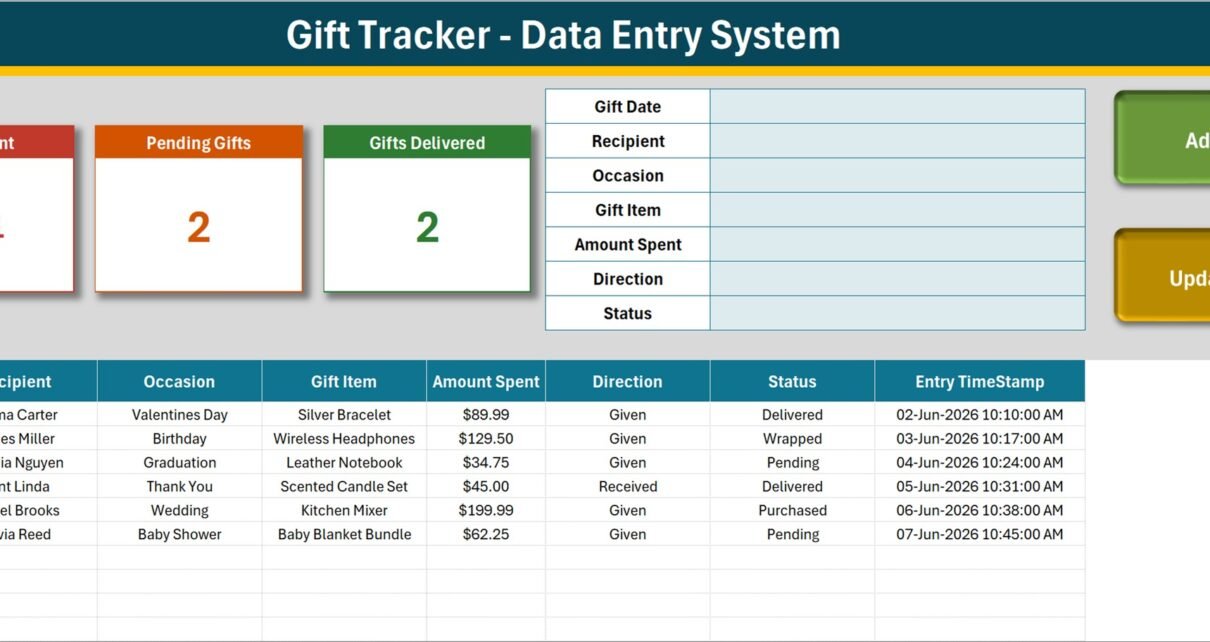
Most people track gifts twice and badly: a notes app in November, a bank statement in January, and a nagging feeling in between that something was bought for somebody twice. The Gift Tracker Data Entry System in Excel replaces both with one macro-enabled workbook – four sheets, a seven-field entry form, four live KPI cards, a ten-column record table and a status that runs from Idea all the way to Delivered. Six sample records ship inside it, and the Add, Update, Delete and Reset buttons are real VBA rather than formulas you have to drag down.
This walkthrough covers exactly what is in the file, what each of the four KPI cards actually calculates, where the arithmetic will surprise you, and who should skip it.
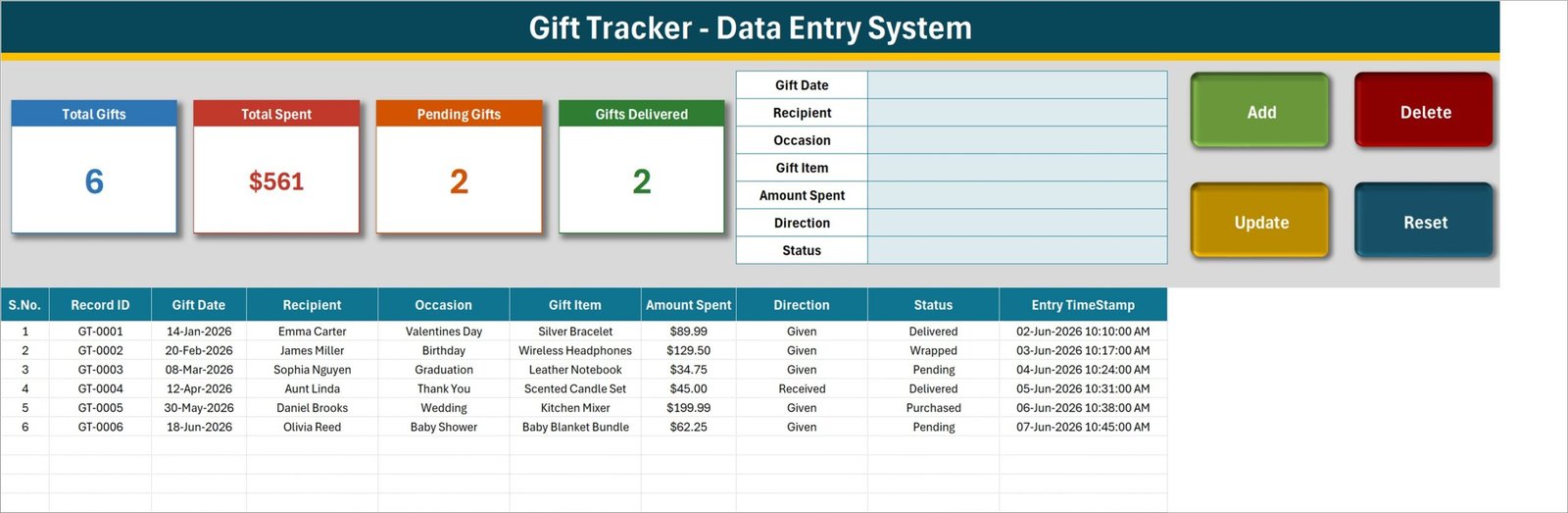
Key Features of the Gift Tracker Data Entry System in Excel
- A seven-field form holding Gift Date, Recipient, Occasion, Gift Item, Amount Spent, Direction and Status, each wired to a named range so the macros can read it.
- Four VBA buttons – Add, Update, Delete and Reset – sitting to the right of the form.
- Automatic Record IDs in the GT-0001 format. The macro tracks the highest number ever issued, so deleting rows never causes an ID to be reused.
- Double-click editing. Double-click a row and it loads into the form with its Record ID held in a hidden cell, so Update finds the row again even if sorting has moved it.
- A confirmed delete that shows you the Record ID before it removes anything.
- Eight statuses – Idea, Planned, Purchased, Wrapped, Shipped, Delivered, Given and Pending – all editable.
- A Direction field with Given and Received, so one sheet holds both halves of gift-giving.
- Fourteen occasions out of the box, from Birthday to Just Because.
- An Entry TimeStamp column recording when the row was saved, separately from the gift’s own date.
Inside the Workbook – Sheet by Sheet
1. Data Entry
This is the only sheet you work in. The layout splits into three blocks across the top: the four KPI cards on the left, the seven-field form in the middle, and the Add, Delete, Update and Reset buttons on the right. Underneath, the record table runs ten columns wide – S.No., Record ID, Gift Date, Recipient, Occasion, Gift Item, Amount Spent, Direction, Status and Entry TimeStamp – starting at row 15 and running as far down as you need.
The four cards are worth reading literally, because each one is a single formula:
- Total Gifts is
COUNTAover the Gift Date column. - Total Spent is
SUMover the Amount Spent column, unfiltered. - Pending Gifts is
COUNTIFon Status = “Pending”. - Gifts Delivered is
COUNTIFon Status = “Delivered”.
In the shipped sample the cards read 6, $561, 2 and 2. Those are correct for what they measure – and the “Opportunities for Improvement” section below explains why two of them will not mean quite what a first glance suggests.
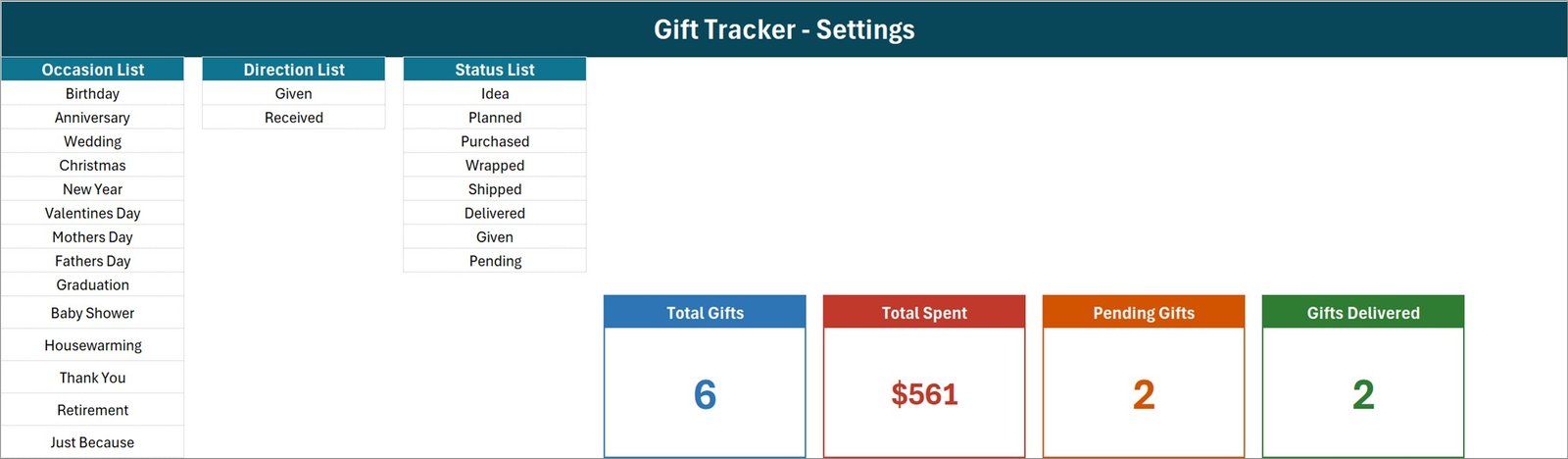
2. Setting
Three lists and the real KPI cards. Occasion List runs fourteen entries: Birthday, Anniversary, Wedding, Christmas, New Year, Valentines Day, Mothers Day, Fathers Day, Graduation, Baby Shower, Housewarming, Thank You, Retirement and Just Because. Direction List holds Given and Received. Status List holds the eight progress values. Each list is a named range that the data-validation dropdowns point at, so adding a row here immediately adds an option in the form and in the table column.
The four KPI cards on the Data Entry sheet are linked pictures of the cards that live here. That is a neat trick: it means you restyle a card once, on this sheet, and the picture on the working screen follows without touching the layout you type into.
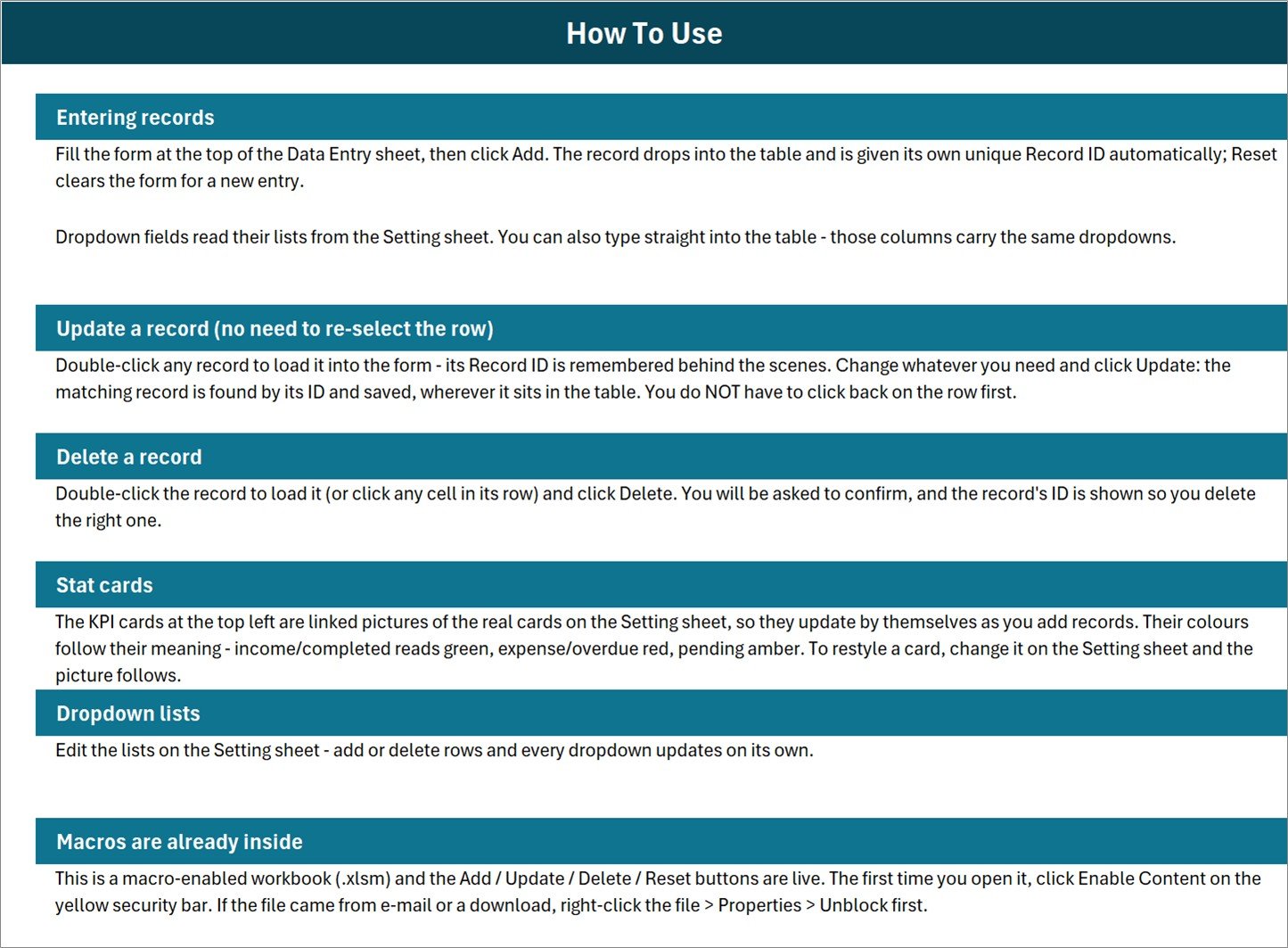
3. Instructions
A single-page How To Use sheet in six blocks: entering records, updating without re-selecting the row, deleting a record, how the stat cards work, editing the dropdown lists, and enabling macros. It is the sheet to read before you change anything.
4. Get More Templates
A links sheet pointing back to the wider catalogue. Nothing to configure.
Gift Tracker in Excel vs. Google Sheets vs. a Paid Gift-List App – Feature Comparison
| This Excel workbook | A Google Sheets gift list | Paid gift-list app or registry | |
|---|---|---|---|
| Cost | $6.99 once | Free, but you build it | $3 – $10 per month |
| Platform | Desktop Excel for Windows | Any browser | Web and phone |
| Setup time | Minutes – open, enable macros, clear six sample rows | Hours of formulas and validation | Sign up and invite people |
| Real-time collaboration | No | Yes | Yes |
| Mobile access | No – VBA does not run on mobile or web Excel | Yes | Yes |
| Customizable fields | Yes | Yes | Usually fixed |
| Share with link | No – you send the file | Yes | Yes |
| Tracks money spent | Yes, with a running total | Only if you build it | Often not – most are wish lists |
| Progress status from Idea to Delivered | Yes, eight values | Only if you build it | Rarely |
| Data stays on your PC | Yes | No | No |
| Year-1 cost at 5 users | $6.99 | $0 | $180 – $600 |
Who Should Use This Template
It suits anyone buying for a lot of people across a year who wants a single record of what was bought, for whom, for what occasion, and at what cost – and who is happy working on one Windows PC. It also suits people who deliberately want their family’s gift history off the cloud.
It does not suit shared editing, phone use, or anyone expecting registry-style behaviour. There is no store integration, no price lookup, no way for a guest to claim an item, and no reminder engine. If any of those matter, a hosted service is the honest answer.
Real-World Use Cases
The December shopper. Twenty-two names go in during October, all at Status “Idea” with no amount. Each purchase moves a row to “Purchased” and adds a price. By early December the Pending count and the running total tell her what is left and what it has cost.
The family record-keeper. Birthdays, anniversaries and housewarmings all live in one sheet. Gifts received go in with Direction set to “Received”, so last year’s presents from a sibling are one filter away.
The small-office administrator. Retirement gifts, work anniversaries and new-baby presents across forty staff. Three custom occasions get added to the Setting sheet, and the Amount Spent column produces a year-end figure for accounts.
Advantages of the Gift Tracker Data Entry System in Excel
- Nothing to break. Because Add, Update and Delete are macros rather than formulas, there is no fill-down to preserve and no array formula a paste can destroy.
- Update-by-ID rather than update-by-selection. Most home-made trackers make you find the row again before you can edit it. This one remembers the ID, which removes an entire class of “I overwrote the wrong record” mistakes.
- IDs never get recycled. Delete GT-0004 and the next new record is still GT-0007, so an ID always refers to one thing forever.
- The lists are genuinely yours. Every dropdown is a named range on the Setting sheet – no VBA edit needed to add an occasion or a status.
- Local by default. The file sits on your machine. Nothing syncs anywhere unless you put it in a synced folder yourself.
Opportunities for Improvement
Three things about the shipped build are worth knowing before you rely on the numbers. None of them stops the workbook working; all three are a few minutes’ editing if they matter to you.
Total Spent is unfiltered. The card sums the whole Amount Spent column with no condition, so rows whose Direction is “Received” are added to your spending, and so are rows still sitting at “Idea” or “Planned” that you have not paid for. In the sample data the card shows $561 – the underlying total is $561.48, and it includes $45.00 for a gift that was received. Money actually laid out on gifts given is $516.48. Swapping the SUM for a SUMIFS conditioned on Direction = “Given” fixes it.
Two statuses out of eight have cards. Pending and Delivered are counted; Idea, Planned, Purchased, Wrapped, Shipped and Given are not. So Pending (2) plus Delivered (2) will not add up to Total Gifts (6), and it is not meant to. Treat the two cards as spotlights, not as a breakdown.
Total Gifts counts the Gift Date column, not the Record ID column. The formula is COUNTA over column C. In practice the Add macro insists on Gift Date before it will save, so anything entered through the form is always counted. But the Instructions sheet also invites you to type straight into the table – and a row typed in without a date is stored, gets no place in the count, and looks like it vanished. Pointing the COUNTA at column B, which always carries a Record ID, makes the card robust either way.
Two smaller notes. The Add macro validates only the first field, so Recipient, Occasion, Gift Item, Amount Spent, Direction and Status can all be saved blank – useful when you are jotting an idea, worth knowing when you are trusting a total. And the Instructions sheet’s “Stat cards” paragraph carries some generic income/expense/overdue wording inherited from the shared template it was built from; the cards themselves are the four described above.
Best Practices
- Unblock the file before opening it. If it arrived by download or e-mail, right-click, choose Properties and tick Unblock. Otherwise Excel opens it in Protected View and the buttons stay dead. Microsoft explains the macro-security settings in its guide to enabling and disabling macros.
- Set the lists up first. Editing the Setting sheet before you have 200 rows is far easier than renaming a status afterwards.
- Delete the six sample rows. GT-0001 to GT-0006 are demonstration data, and leaving them in quietly corrupts every card.
- Use Idea and Planned honestly. They are what make the running total a forecast rather than a receipt – just remember the total includes them.
- Keep one file per household, not per person. There is no locking; two people editing a copy each means two divergent histories.
- Back it up. One .xlsm file is easy to lose. If you want to go further with VBA yourself, Microsoft’s Getting started with VBA in Office is the reference to start from.
Explore Relevant Templates
- Gift Tracker Data Entry System in Excel – the template this article walks through.
- Gift Register Data Entry System in Excel – the same idea aimed at thank-you notes instead of shopping.
- Gift Wrapping Checklist in Excel – for the week it all has to be wrapped.
- Holiday & Christmas Budget Tracker in Google Sheets – the whole season, not just the gifts.
- Corporate Gift Request Tracker in Google Sheets – the multi-user, browser-based alternative.
Frequently Asked Questions
Is this the same as the Gift Register Data Entry System?
No, and the difference is the seventh field. The Gift Register’s seventh field is Thank You Status and its cards report Gifts Received and Thank You Pending – it is about acknowledging. This tracker’s seventh field is a six-stage progress Status and its cards report Total Spent and Gifts Delivered – it is about buying. Both carry a Direction field, so either can hold gifts in both directions; choose by the question you ask most.
Does the “Shipped” status track a parcel?
No. Every status is a label you set by hand. There is no tracking number field, no carrier link and no delivery lookup.
Will the buttons work on a Mac, a phone or Excel for the web?
No. Add, Update, Delete and Reset are VBA, and VBA is unavailable in Excel for the web, on Excel mobile and in Google Sheets. The workbook will open and the data will display, but the automation will not run. Use desktop Excel for Windows.
How many records can it hold?
The card formulas reach to row 1,048,576, so the practical ceiling is the Excel sheet limit rather than anything in the design. Performance, not capacity, is what will stop you first.
Can I add my own columns?
You can add columns to the right of Entry TimeStamp safely. Inserting a column between the existing ten will shift the letters the card formulas and the macros depend on, so if you do that, re-check the four formulas on the Setting sheet.
Does it handle more than one currency?
No. Amount Spent is a single plain number column formatted as currency, and there is no rate table or conversion. If you buy across currencies, add your own converted-amount column.
About the Author
Built by PK – Microsoft Certified Professional with 15+ years of Excel, Google Sheets, and Power BI experience. Founder of NextGenTemplates, reaching 300K+ subscribers across YouTube channels. Every template is hand-built and tested before release.
Conclusion
The Gift Tracker Data Entry System in Excel does one thing properly: it gives a single, local, permanent record of every gift you plan, buy and hand over, with enough automation that entering a record takes a few seconds and editing one cannot go to the wrong row. The card arithmetic has quirks worth knowing – the running total counts received gifts and unbought ideas alongside real spending – but they are visible, documented and a formula away from being changed. For $6.99 once, with no account and no subscription, it is a fair trade against a monthly gift-list app you will forget to cancel in February.
Get the Gift Tracker Data Entry System in Excel for $6.99, down from $11.99.
For Excel and VBA video tutorials, subscribe at youtube.com/@PKAnExcelExpert.