A scrap yard that keeps its purchases in a paper diary usually ends up with the same three problems: two loads from the same supplier on the same day that nobody can tell apart, a page where the weight was written and the amount was not, and a “how much did we buy this month” question that gets answered by adding a column of figures on the back of a receipt. The Scrap Dealer Purchase Data Entry System in Excel fixes the first two properly and gives you an honest, if simple, answer to the third.
It is a macro-enabled workbook with exactly four sheets. One entry form of seven fields feeds a records table of ten columns. Every purchase gets its own ID in the SDP-0001 series and an entry timestamp written to the second. Four stat cards sit above the form and recalculate from the table itself – Total Purchases, Total Amount, Paid Records and Pending Records. Four dropdown lists ship pre-filled with 10 supplier names, 14 scrap materials, 8 payment modes and 5 statuses, and 200 record rows are already formatted and validated before you type anything. Four VBA macros – Add_Record, Update_Record, Delete_Record and Reset_Form – sit behind the four coloured buttons.
One thing to be clear about before anything else, because scrap is a regulated trade in a lot of places: this workbook is a purchase register and nothing more. It does not verify who you bought from, it holds no ID, address, phone number or vehicle registration, it produces no waste transfer or consignment note, it records no waste carrier or scrap metal dealer licence, it enforces no cash-transaction limit, it reports nothing to police or any regulator, and it is not a tax, accounting or audit record. Whatever your jurisdiction asks of you, this file provides none of it. Keep those records the way your own rules require and use this for the arithmetic.
This article walks through what is actually in the file, sheet by sheet, and is equally clear about what is not.
Key Features of the Scrap Dealer Purchase Data Entry System in Excel
- A seven-field form. Purchase Date, Supplier Name, Scrap Material, Weight Kg, Amount, Payment Mode, Status. That is the whole form – there is no hidden second page.
- Four working buttons. Add (green), Delete (red), Update (gold) and Reset (teal), each bound to a VBA routine in
Module1. - Record IDs generated for you. SDP-0001, SDP-0002, and onward. Two loads of copper from the same supplier on the same morning never merge.
- An Entry TimeStamp column. Written automatically when the record is added, to the second.
- Update finds the record by ID. Double-click any row to load it back into the form; the macro then locates it by its Record ID wherever it has been sorted to. You never have to click back onto the row first.
- Delete confirms with the ID. The prompt names the record it is about to remove.
- Four live stat cards. Linked pictures of real cells on the Setting sheet, so they update themselves as records go in.
- Four dropdown lists you control. Edited on the Setting sheet, and the table columns carry the same validation as the form does.
- A materials list built for the trade. Iron, Steel, Copper, Aluminum, Brass, Lead, Zinc, Stainless Steel, Cast Iron, Plastic, Paper, Electronic Waste, Batteries, Cardboard.
- 200 rows ready to type into. Rows 15 to 214 already carry the dropdowns, the dd-mmm-yyyy date format and the currency format.
Sheet-by-Sheet Walkthrough
1. Data Entry
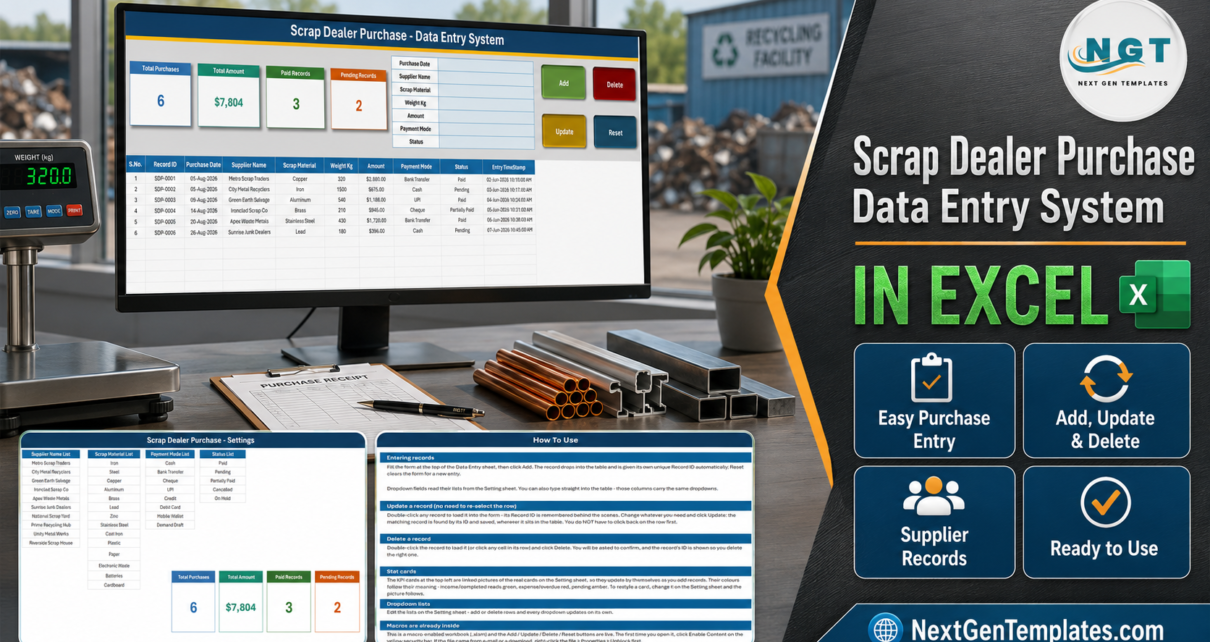
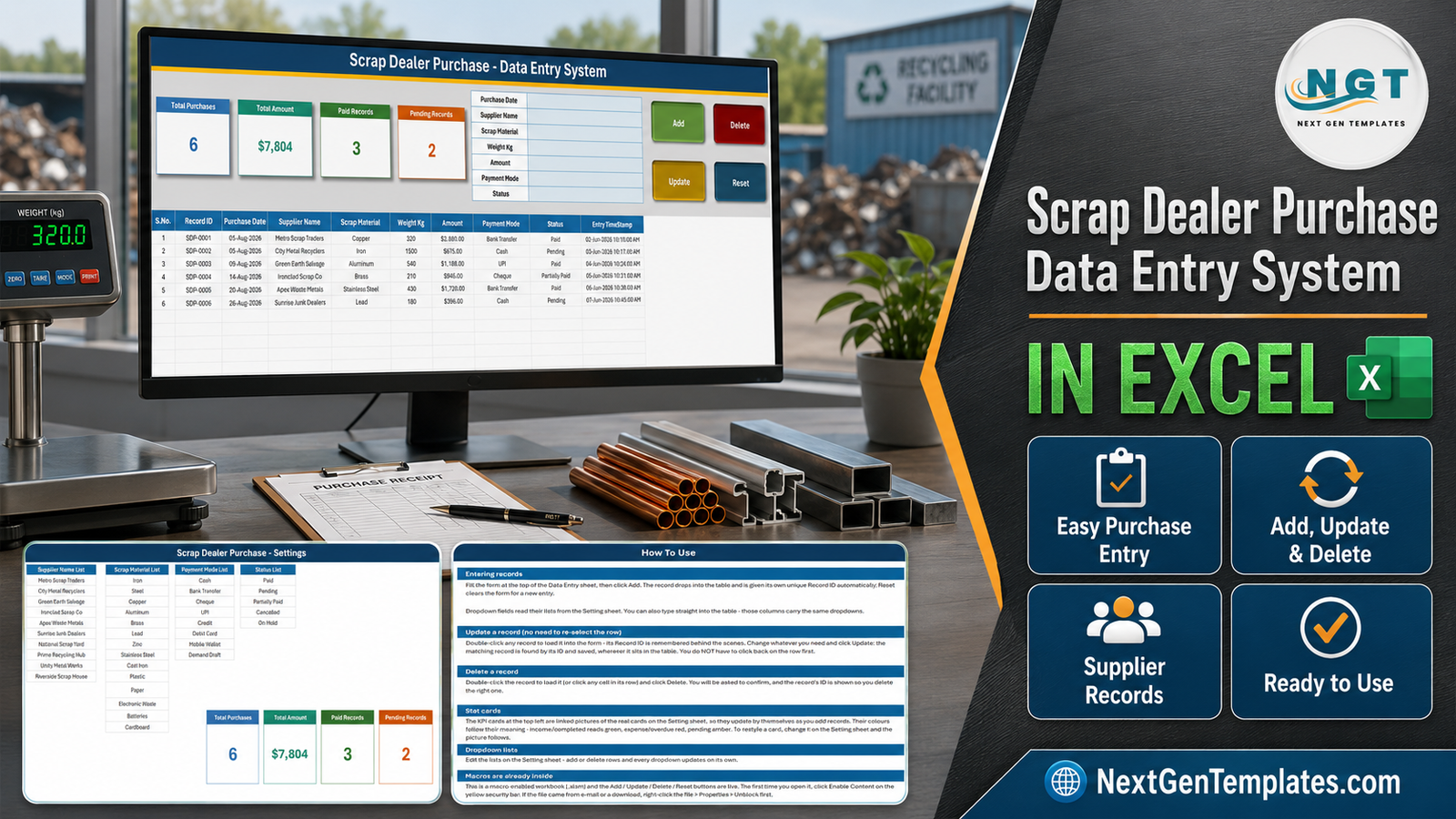
The working sheet, and the only one you touch day to day. A navy banner across the top reads “Scrap Dealer Purchase – Data Entry System”. Under it, on the left, are the four stat cards; in the middle, the seven-field form; on the right, the four buttons in two rows – Add and Delete on top, Update and Reset beneath.
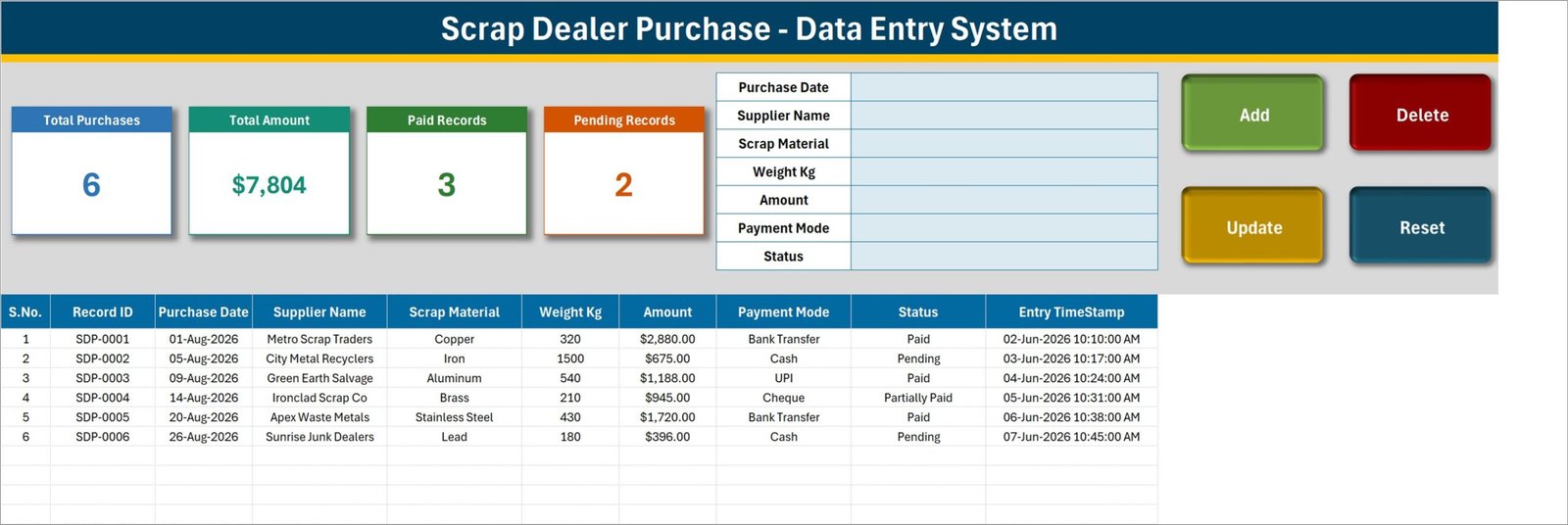
Below that is the records table, ten columns wide: S.No., Record ID, Purchase Date, Supplier Name, Scrap Material, Weight Kg, Amount, Payment Mode, Status, Entry TimeStamp. S.No. is a formula rather than a typed number, so it renumbers itself and never leaves a gap after a delete.
Six sample purchases ship in the file so you can watch the buttons work before you clear them out: 320 kg of Copper from Metro Scrap Traders at $2,880.00 by Bank Transfer, marked Paid; 1,500 kg of Iron from City Metal Recyclers at $675.00 in Cash, Pending; 540 kg of Aluminum from Green Earth Salvage at $1,188.00 by UPI, Paid; 210 kg of Brass from Ironclad Scrap Co at $945.00 by Cheque, Partially Paid; 430 kg of Stainless Steel from Apex Waste Metals at $1,720.00, Paid; and 180 kg of Lead from Sunrise Junk Dealers at $396.00 in Cash, Pending.
2. Setting
Two things live here: the four dropdown source lists and the four real stat cards that the pictures on Data Entry point at.
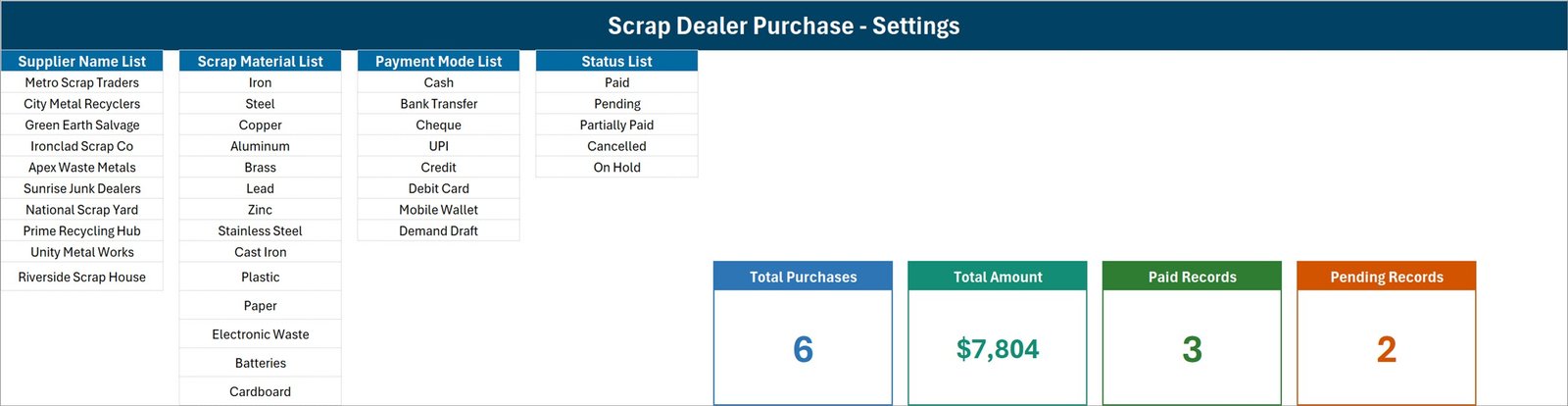
Supplier Name List (10): Metro Scrap Traders, City Metal Recyclers, Green Earth Salvage, Ironclad Scrap Co, Apex Waste Metals, Sunrise Junk Dealers, National Scrap Yard, Prime Recycling Hub, Unity Metal Works, Riverside Scrap House.
Scrap Material List (14): Iron, Steel, Copper, Aluminum, Brass, Lead, Zinc, Stainless Steel, Cast Iron, Plastic, Paper, Electronic Waste, Batteries, Cardboard.
Payment Mode List (8): Cash, Bank Transfer, Cheque, UPI, Credit, Debit Card, Mobile Wallet, Demand Draft.
Status List (5): Paid, Pending, Partially Paid, Cancelled, On Hold.
And the four cards, whose formulas are worth reading rather than assuming:
| Card | Formula on the Setting sheet | Sample value |
|---|---|---|
| Total Purchases | COUNTA of the Purchase Date column | 6 |
| Total Amount | SUM of the Amount column, no status filter | $7,804 |
| Paid Records | COUNTIF Status = “Paid” | 3 |
| Pending Records | COUNTIF Status = “Pending” | 2 |
3. Instructions
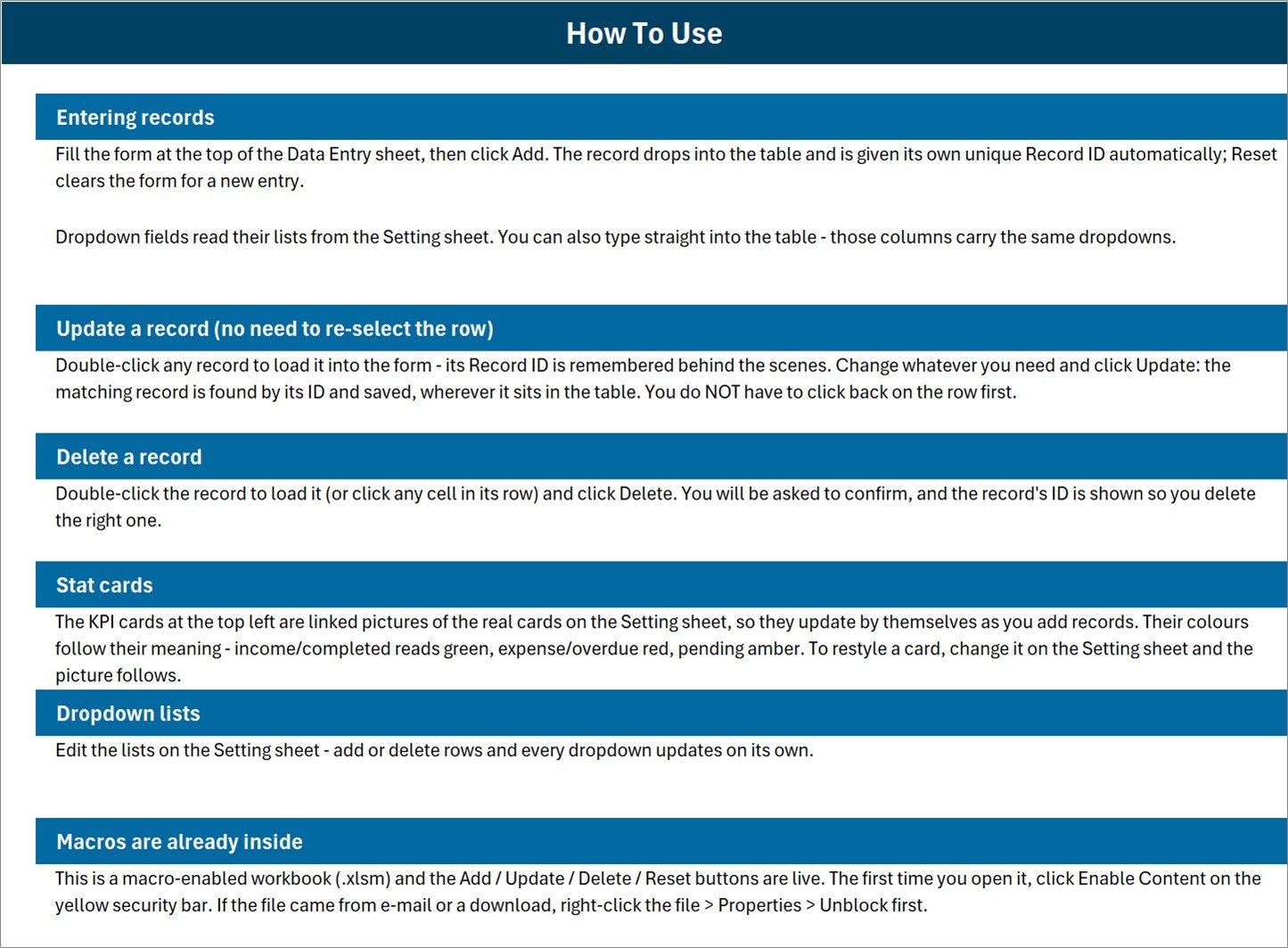
The sheet tab is named Instructions; the banner on it reads “How To Use”. Six sections: entering records, updating a record without re-selecting the row, deleting a record, how the stat cards work, editing the dropdown lists, and enabling macros.
4. Get More Templates
A short links page back to the NextGenTemplates store – data entry systems, Excel dashboards, Google Sheets templates, Power BI dashboards and Apps Script web apps.
Scrap Dealer Purchase Data Entry System in Excel vs. Google Sheets vs. Yard Management Software – Feature Comparison
| This Excel system | A Google Sheets form | Yard management software | |
|---|---|---|---|
| Cost | $6.99 once | Free, build it yourself | Typically $50-$500 per month |
| Platform | Excel for Windows, desktop | Browser, any device | Browser, often with a mobile app |
| Setup time | About 10 minutes to swap the four lists | Hours of building | Days, plus onboarding |
| Multiple people typing at once | No | Yes | Yes |
| Mobile access | No – the VBA buttons need the desktop app | Yes | Yes |
| Weighbridge or scale integration | No – Weight Kg is typed in | No | Usually yes |
| Seller ID, address or vehicle capture | No – no such field exists | Build it yourself | Often yes |
| Waste transfer notes, licences, regulator reporting | No | No | Sometimes, by region |
| Supplier balance or amount-owed ledger | No – Status is a label, not a balance | Build it yourself | Usually yes |
| Charts and trends | No – four number cards only | Build it yourself | Yes |
| Search or filter sheet | No – Excel’s own filters only | Build it yourself | Yes |
| Year-1 cost at 3 users | $6.99 | $0 | $600-$6,000 |
Who Should Use This Template
A small scrap yard or salvage dealer, a metal recycler, a waste-paper or e-waste buyer, or the purchase clerk in any business that buys material in by weight. One person, one file, on a Windows PC. If you are currently writing loads into a diary and adding them up at month end, this is a straight upgrade: a form, a unique ID per load, a timestamp you did not have to write, and four counts that cannot go stale.
It is the wrong tool if you need a compliance record, a supplier ledger showing what you still owe, charts, a search screen, several people typing at once, or anything on a phone. And if you are tracking scrap your own factory produced rather than scrap you bought, the sister workbook – Scrap Record Data Entry System in Excel – has the fields you actually want, Scrap Reason and Department, which this one does not have.
Real-World Use Cases
Farooq, a two-man yard. Eight or nine loads over the scale on a busy morning. Date, supplier, grade, weight off the display, the amount he settled at, Cash, Paid, Add. At close he reads Pending Records off the card to see who he still owes.
Anita, purchase clerk at a metal recycler. She swapped the ten shipped supplier names for the twenty-two yards her firm buys from, and uses Status to separate loads finance has released from those on hold. She added her own SUMIF beside the cards for paid-only spend.
Sam, a waste-paper and e-waste buyer. He kept Paper, Cardboard, Electronic Waste and Batteries from the shipped material list, deleted the metals, and files every collection with a timestamp so he can settle weekly.
Advantages of the Scrap Dealer Purchase Data Entry System in Excel
- Update and Delete work on the ID, not the row. Sort the table however you like; the macros still find the right record. This is the single feature that makes it safer than a plain worksheet.
- Nothing to install and nothing to log into. One 65 KB .xlsm, no add-in, no external links, no account.
- The dropdowns are on the table as well as the form. If you would rather type straight into a row than use the form, the same validation applies.
- The cards are ordinary formulas in ordinary cells. Nothing is hidden or protected, so a fifth card is a one-line addition on the Setting sheet.
- The materials and payment lists already match how scrap is actually bought – including Cash, UPI, Mobile Wallet and Demand Draft alongside the bank options.
- It is honest about its limits, which for a regulated trade matters more than another feature would.
Opportunities for Improvement
Four things are worth knowing before you rely on the numbers. None of them stops the workbook doing its job, and each has a short fix if it matters to you.
- Total Amount is unfiltered. It is a plain SUM of the Amount column, so Pending, Partially Paid, Cancelled and On Hold rows are all inside it. In the shipped sample the card reads $7,804 while only $5,788 sits on Paid rows – $1,071 is Pending and $945 is Partially Paid. If you want a paid-only figure, add
SUMIF(Status,"Paid",Amount)beside the cards. - Only two of the five statuses have a card. Paid and Pending are counted; Partially Paid, Cancelled and On Hold are not. So Paid plus Pending will not reconcile to Total Purchases whenever any of those three is in use – in the sample, 3 + 2 does not make 6, because SDP-0004 is Partially Paid and sits on neither card.
- Total Purchases counts the Purchase Date column, not the Record ID column. A row saved without a date is stored in the table but never counted. Pointing that COUNTA at column B instead makes the card count records rather than dated records.
- The dropdown ranges do not actually auto-extend. The How To Use sheet says adding a row to a list updates the dropdown on its own, but the four named ranges are sized exactly to what is already in them – Supplier_NameList A3:A12 (10 of 10), Scrap_MaterialList C3:C16 (14 of 14), Payment_ModeList E3:E10 (8 of 8), StatusList G3:G7 (5 of 5). Overtyping an existing value works instantly; adding an eleventh supplier below the tenth silently does nothing until you widen the range in Formulas > Name Manager.
Three smaller notes. Weight Kg is never totalled anywhere in the file – there is no tonnage card and no per-material or per-supplier summary, so a SUM of that column is worth adding on day one. The sample timestamps run backwards: the six purchases are dated 1 to 26 August 2026 but their Entry TimeStamps read 2 to 7 June 2026, as if the rows were filed two months before the purchases happened. That is only demo data and it disappears the moment you delete the sample rows, but it is worth knowing it is not how the macro behaves. And the Stat cards paragraph on the How To Use sheet is generic boilerplate – it talks about “income/completed”, “expense/overdue” and “pending” colours, and this workbook has no income, expense or overdue card at all.
Best Practices
- Do the Setting sheet first. Put your own suppliers and grades in before anyone types a live record, and widen each named range if your lists are longer than the shipped ones.
- Delete the six sample rows once you have watched Add, Update and Delete work, so no demo figure ever reaches a report.
- Add a paid-only total and a weight total next to the four cards on the Setting sheet. Two formulas, and the numbers you are asked for most are then on the screen.
- Use Update rather than editing the row directly when you change an amount or a status – it is the path the workbook was built for and it keeps the timestamp meaningful.
- Keep a dated backup copy. There is no undo history and no audit trail; a deleted record is gone. Save a copy at the end of each week.
- Keep whatever your regulator requires somewhere else. Seller identity, licence details, transfer notes and cash rules are not in this file and are not going to be. Treat it as the arithmetic layer, not the legal one.
- Treat the file as personal data if you make it personal. As shipped it holds trading names, weights and amounts. The moment you type an individual’s name or add a phone or vehicle column, it is an ordinary unencrypted workbook holding personal data – keep it on a controlled machine and use Excel’s own file password if you need one. This template makes no compliance claim under GDPR or any other regime.
- If macros are blocked by policy, read Microsoft’s own guidance on macros from the internet being blocked in Office before asking IT to change anything.
Explore Relevant Templates
- Scrap Record Data Entry System in Excel – the producer side, by scrap reason and department.
- Gate Pass Register Data Entry System in Excel – vehicles and visitors through the yard gate.
- Recycling Infrastructure Dashboard in Excel – charts and trends rather than a register.
- Steel & Metals Dashboard in Google Sheets – the wider metals market in one sheet.
Related Templates
More related walkthroughs on this blog: Scrap Record Data Entry System in Excel, Newspaper Subscription Data Entry System in Excel and Water Can Delivery Data Entry System in Excel. Each is a separate template with its own layout and sample data.
Frequently Asked Questions
Does this make me compliant with scrap metal dealer or waste carrier rules?
No. There is no seller identity field, no ID, address, phone or vehicle capture, no licence record, no waste transfer or consignment note, no cash-transaction limit and no reporting to police or any regulator. It is a purchase register. Whatever your jurisdiction requires, keep it separately and check it yourself.
Do I have to enable macros?
Yes. Add, Update, Delete and Reset are VBA routines. Without macros the buttons do nothing, although you can still type directly into the table because those columns carry the same dropdown lists.
Will it run on a Mac, in Excel for the web, or in Google Sheets?
It is built and tested for Microsoft Excel on Windows desktop. Excel for the web cannot run these macro buttons, and Google Sheets cannot run VBA at all.
Is Total Amount what I have actually paid out?
No. It is an unfiltered SUM of the Amount column and includes Pending, Partially Paid, Cancelled and On Hold rows. In the shipped sample it reads $7,804 against $5,788 on Paid rows. Add a SUMIF if you want the paid-only figure.
Does it total the weight I bought?
No. Weight Kg is stored and displayed per record, but nothing sums it – there is no tonnage card and no per-material or per-supplier breakdown.
How many purchases will it hold?
Rows 15 to 214 are pre-formatted and validated, which is 200 records. You can continue past row 214 but would need to extend the data validation yourself.
What happens if I sort the table after adding records?
Nothing breaks. S.No. is a formula that renumbers, and Update and Delete match on Record ID rather than row position, which is exactly why the ID exists.
About the Author
Built by PK – Microsoft Certified Professional with 15+ years of Excel, Google Sheets, and Power BI experience. Founder of NextGenTemplates, reaching 300K+ subscribers across YouTube channels. Every template is hand-built and tested before release.
Conclusion
The Scrap Dealer Purchase Data Entry System in Excel is a purchase register done properly: a seven-field form, four working VBA buttons, IDs and timestamps you do not have to type, four dropdown lists you control, and four counts that recalculate themselves. It is not a compliance system, not a supplier ledger, not a dashboard and does not pretend to be any of them – and the four card quirks above are written down here rather than left for you to find. If that is the trade you want, it is about ten minutes from download to your first filed load.
Get the Scrap Dealer Purchase Data Entry System in Excel on NextGenTemplates
For step-by-step Excel and VBA walkthroughs, subscribe to youtube.com/@PKAnExcelExpert.