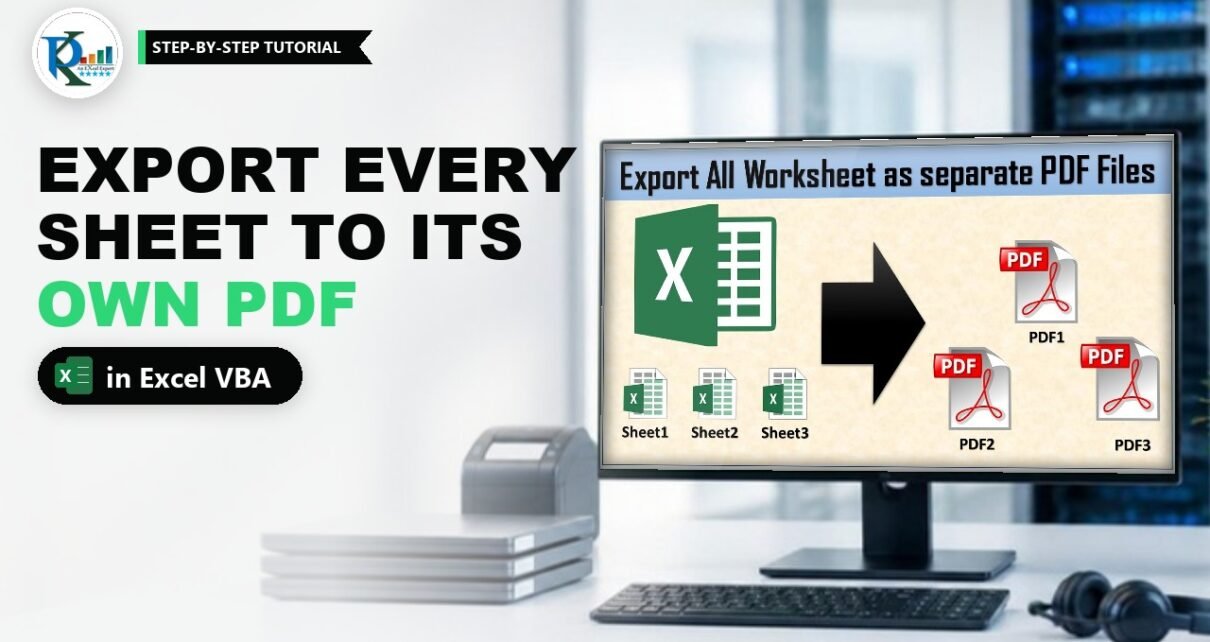
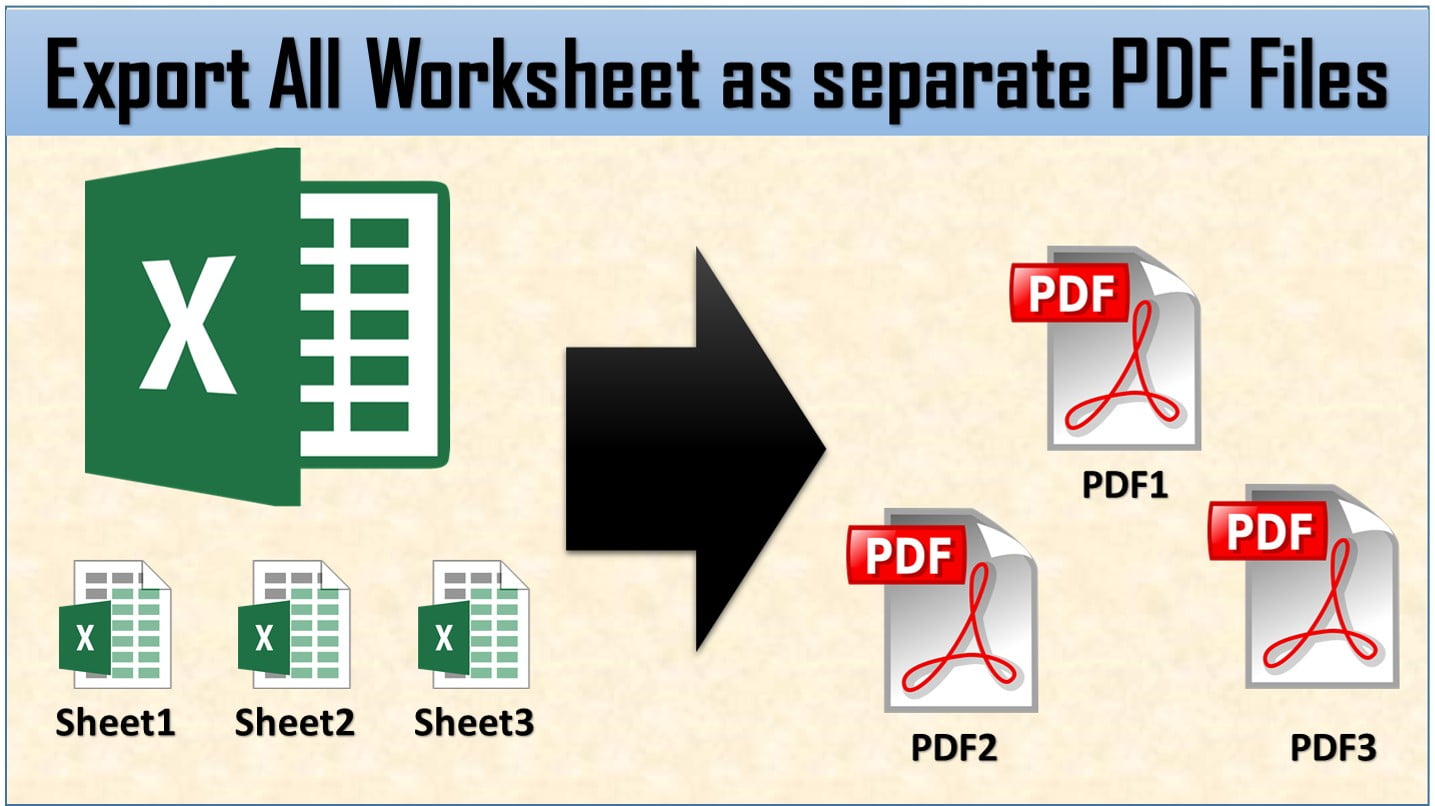
Need to export all Excel worksheets in separate PDF files? Doing it by hand means selecting each sheet, choosing Save As PDF and typing a file name, again and again. In this tutorial you build a short VBA macro that asks you for a folder, then saves every worksheet of the active workbook as its own PDF, named after the sheet. You store it in your Personal Macro Workbook and add it to the Excel ribbon, so it works on any workbook you open with one click.
Watch the Video Tutorial
The video shows the finished button exporting a four-sheet workbook, then writes the macro in the Personal Macro Workbook and adds it to the ribbon.
What You Will Build
- A folder picker that lets you choose where the PDFs go, using
FileDialog. - A loop that exports every worksheet of the active workbook with
ExportAsFixedFormat. - Automatic file names: each PDF gets the name of its sheet.
- A Personal Macro Workbook copy, so the macro is available in every workbook.
- A custom ribbon button that runs it with one click.
How It Works
In the video PK opens a workbook with four sheets: WK1 (Jan-19), WK2 (Jan-19), WK3 (Jan-19) and EMP Master. He clicks his custom Export Worksheets As PDF button, picks an empty folder called PDF File on the desktop and clicks OK. A “Done” message appears, and the folder now holds four PDF files, one per sheet, each with the same data as its sheet. Here is how to build that.
Part 1 – Prepare the Personal Macro Workbook
Step 1: Make PERSONAL.XLSB visible
The Personal Macro Workbook (PERSONAL.XLSB) opens hidden every time Excel starts, so macros stored there work in any file. If you don’t see it in the VBA project list yet, create it:
- Go to Developer > Record Macro (or View > Macros > Record Macro).
- In Store macro in, choose Personal Macro Workbook, not This Workbook or New Workbook, and click OK.
- Click Stop Recording straight away.
Now open Developer > Visual Basic. You will see VBAProject (PERSONAL.XLSB) with a new module holding the empty recorded macro. You can write your code in that module.
Part 2 – The Macro to Export All Excel Worksheets in Separate PDF Files
Step 2: Paste the code
This is the complete macro from the original tutorial:
Option Explicit

Sub ExportAsPDF()

Dim Folder_Path As String

With Application.FileDialog(msoFileDialogFolderPicker)
.Title = "Select Folder path"
If .Show = -1 Then Folder_Path = .SelectedItems(1)
End With

If Folder_Path = "" Then Exit Sub

Dim sh As Worksheet

For Each sh In ActiveWorkbook.Worksheets
sh.ExportAsFixedFormat xlTypePDF, Folder_Path & Application.PathSeparator & sh.Name & ".pdf"
Next

MsgBox "Done"

End Sub
How the code works: picking the folder
Application.FileDialog(msoFileDialogFolderPicker)opens Excel’s standard Browse window in folder mode. TheWith ... End Withblock saves you from typing the long object name on every line..Titlesets the text in the dialog’s title bar..Showdisplays the dialog and returns -1 only when you click OK. That is why the path is read only when.Show = -1..SelectedItems(1)is the folder you picked, for example a folder on your desktop.If Folder_Path = "" Then Exit Sub: if you click Cancel, the variable stays empty and the macro stops quietly instead of trying to save to nowhere.
Tip from the video: before writing the loop, add MsgBox Folder_Path and run the macro. Pick a folder and you see its path; click Cancel and you see a blank message. That proves the first half works.
How the code works: exporting each sheet
For Each sh In ActiveWorkbook.Worksheetsloops through every worksheet of the workbook you are looking at. ActiveWorkbook matters here: the code lives in PERSONAL.XLSB, but it should export the workbook that is open on screen.sh.ExportAsFixedFormat xlTypePDF, ...saves the sheet as a PDF. The first argument is the type:xlTypePDFfor PDF orxlTypeXPSfor XPS.- The second argument is the full file name: the folder path, then
Application.PathSeparator(the correct folder separator for your system), thensh.Nameand the.pdfextension. A sheet called EMP Master becomes EMP Master.pdf. MsgBox "Done"tells you the export has finished.
When you type sh.ExportAsFixedFormat and a space, the editor lists the other optional arguments too, such as Quality, IgnorePrintAreas, From, To and OpenAfterPublish. The macro only needs the first two.
Step 3: Test it
Open a workbook with a few sheets, click inside the macro and press F5 (or use Developer > Macros). Choose a folder, click OK, wait for Done and open the folder: you should see one PDF for each worksheet.
Step 4: Save PERSONAL.XLSB
In the VBA editor, select the PERSONAL.XLSB project and click Save. If you skip this, the macro is lost when you close Excel. Excel also asks whether to save the Personal Macro Workbook when you exit; answer Yes.
Part 3 – Add a Ribbon Button
- Go to File > Options > Customize Ribbon.
- On the right, expand the tab you want, for example Data as in the video, and click New Group. Use Rename to call it Export.
- On the left, set Choose commands from to Macros, select PERSONAL.XLSB!ExportAsPDF and click Add.
- Click Rename, type a clear display name such as Export All Worksheets as PDF, pick an icon and click OK twice.
Your new button now sits on the Data tab. Click it from any workbook, choose a folder and the PDFs appear.
Improved Version (Addition)
The original macro tries to export every worksheet, including hidden and blank ones. Those sheets have nothing to print, which can stop the macro with an error. This version, which is an addition to the original tutorial, exports only visible sheets that contain data and reports how many files it created:
Sub ExportVisibleSheetsAsPDF()

Dim Folder_Path As String
Dim sh As Worksheet
Dim n As Long

With Application.FileDialog(msoFileDialogFolderPicker)
.Title = "Select Folder path"
If .Show = -1 Then Folder_Path = .SelectedItems(1)
End With

If Folder_Path = "" Then Exit Sub

For Each sh In ActiveWorkbook.Worksheets
If sh.Visible = xlSheetVisible And Application.WorksheetFunction.CountA(sh.UsedRange) > 0 Then
sh.ExportAsFixedFormat xlTypePDF, Folder_Path & Application.PathSeparator & sh.Name & ".pdf"
n = n + 1
End If
Next

MsgBox n & " PDF files created"

End Sub
Note that a sheet holding only a chart or shapes has no cell values, so this version skips it. Use the original macro if you need those sheets too.
Common Errors and Fixes
Run-time error 1004 on ExportAsFixedFormat
Usually the sheet is empty, the target PDF with the same name is open in a PDF reader, or the folder is read-only. Close the open PDF, pick a folder you can write to, or use the improved version to skip empty sheets.
The PDF is cut across several pages
The export follows each sheet’s page setup. Set the print area, orientation and Fit Sheet on One Page scaling in Page Layout before you export.
Files are overwritten
Each PDF takes the sheet name, so exporting twice into the same folder replaces the earlier files. Choose a new folder, or add the date to the file name if you need to keep both.
The macro is missing after restarting Excel
PERSONAL.XLSB was not saved. Recreate the macro and click Save in the VBA editor, or answer Yes when Excel asks to save the Personal Macro Workbook on exit.
Tips
- Check the page setup of each sheet once; after that every export looks right.
- Keep sheet names short and meaningful, because they become your PDF file names.
- Need the whole workbook as a single PDF instead? Use File > Export > Create PDF/XPS and choose Entire workbook under Options.
- Microsoft explains how to store macros in the Personal Macro Workbook in more detail.
Want It Ready-Made?
If you would rather use a finished tool, the Export all Excel Worksheets in separate PDF files workbook on NextGenTemplates.com contains the ready-to-run macro shown in the video. To export only the sheets you choose, see the Excel to PDF Converter for Selected Worksheets, or browse all Excel templates.
Related Tutorials
- Excel to PDF Converter in VBA: Convert Multiple Files at Once
- Excel to PDF Converter for Selected Worksheets
- Quick Data Formatting with a Personal Macro
- Split Data into Separate Workbooks in Excel (VBA Macro)
- Check Folder Existence using VBA
Frequently Asked Questions
How do I save each Excel sheet as a separate PDF?
Loop through the worksheets with For Each and call ExportAsFixedFormat with xlTypePDF on each one, using the sheet name as the file name. The macro in Step 2 does this for every sheet of the active workbook.
Can I choose the folder where the PDFs are saved?
Yes. The macro opens a folder picker with Application.FileDialog and the msoFileDialogFolderPicker type. If you click Cancel, the macro stops without exporting anything.
How do I use this macro in every workbook?
Store it in the Personal Macro Workbook, PERSONAL.XLSB, which opens hidden whenever Excel starts. Then add it to the ribbon through File, Options, Customize Ribbon.
Can I export to XPS instead of PDF?
Yes. Change xlTypePDF to xlTypeXPS and the file extension from pdf to xps in the file name.
Why does the macro stop with an error on some sheets?
Blank sheets, a PDF with the same name that is already open, or a folder you cannot write to are the usual causes. The improved version skips hidden and empty sheets.
About the Author
PK is a Microsoft Excel expert and trainer and the founder of PK: An Excel Expert and NextGenTemplates.com. He has been teaching Excel, VBA, Power Query and Power BI since 2016 on his YouTube channel.
Conclusion
To export all Excel worksheets in separate PDF files, you only need a folder picker, a For Each loop and one ExportAsFixedFormat line. Put the macro in PERSONAL.XLSB, add a ribbon button, and every workbook you open can be split into PDFs, one per sheet, in seconds.