Part of the free Module 12: Excel VBA Course · Lesson 8 of 18 · Full Excel course
Updated on 5 September 2026 · Works in Excel 365, 2021, 2019 and 2016 unless noted.
The VBA Workbook object represents a single Excel file, and the Workbooks collection holds every file currently open in the application. With it you can open, create, save, save a copy, close, protect and unprotect files, read the name and path of a workbook, and check whether a file is already open before you touch it.
The Workbooks collection and the Workbook object
Workbooks is the collection of every open file. You address one member by name, Workbooks("Sales.xlsx"), or by position, Workbooks(1). Each member is a Workbook object, and almost everything else in Excel sits inside it: sheets, ranges, names, charts and queries.
The safest habit is to store the file you care about in a variable and use that variable everywhere. It removes any doubt about which file the next line acts on.
Option Explicit
'Option Explicit belongs on the first line of the module, above every procedure.

Sub Show_Open_Workbooks()
    Dim wb As Workbook

    For Each wb In Workbooks
        Debug.Print wb.Name, wb.Path
    Next wb
End Sub
Run this with the Immediate window open (Ctrl+G) and you get a list of every open file and its folder. A workbook that has never been saved returns an empty path.
ThisWorkbook and ActiveWorkbook are not the same
ThisWorkbook always means the file that contains the running code. ActiveWorkbook means whichever file is in front at that moment, and it changes the instant your macro opens or activates another file. Writing to the wrong one is the most common workbook bug in VBA.
| Reference | What it points to | Use it when |
|---|---|---|
ThisWorkbook | The file holding the macro | Almost always, and always for your own dashboard or tool |
ActiveWorkbook | The file currently in front | A tool that deliberately acts on whatever the user has open |
Workbooks("Name.xlsx") | A named open file | You know the exact file name |
Workbooks.Add result | The file you just created | Capture it with Set wb = straight away |
Open an existing workbook
Workbooks.Open loads a file from disk and makes it the active workbook. Give it the full path so the macro never depends on the current folder.
Sub Open_Workbook()
    Dim wb As Workbook

    Set wb = Workbooks.Open(Filename:="C:\Reports\Sample Data.xlsx")
    MsgBox wb.Name & " is open", vbInformation
End Sub
Two arguments are worth knowing. ReadOnly:=True opens the file without locking it, which is right for any macro that only reads data. UpdateLinks:=0 stops the link update prompt on files that point at other workbooks.
Sub Open_Workbook_ReadOnly()
    Dim wb As Workbook

    Set wb = Workbooks.Open(Filename:="C:\Reports\Sample Data.xlsx", _
                            ReadOnly:=True, UpdateLinks:=0)
    Debug.Print wb.FullName
End Sub
Create a new workbook with Workbooks.Add
Sub Workbook_Create()
    Dim wb As Workbook

    Set wb = Workbooks.Add
    wb.Sheets(1).Name = "Report"
    wb.Sheets(1).Range("A1").Value = "Created by VBA"
End Sub
Workbooks.Add is the equivalent of Ctrl+N and returns the new Book1, Book2 and so on. The new file exists only in memory until you save it, so its Path is empty and Workbooks("Book1") works without an extension until the first save.
Save, SaveAs and SaveCopyAs
Three methods write a workbook to disk and they behave very differently.
| Method | What it does | Which file stays open |
|---|---|---|
Save | Overwrites the current file, exactly like Ctrl+S | The same file |
SaveAs | Writes a new file and switches the open workbook to it | The new file |
SaveCopyAs | Writes a copy to disk and leaves the original untouched | The original file |
Sub Save_Workbook()
    ThisWorkbook.Save
End Sub

Sub SaveAs_Workbook()
    Application.DisplayAlerts = False
    ThisWorkbook.SaveAs Filename:="C:\Reports\Sales Report.xlsm", _
                        FileFormat:=xlOpenXMLWorkbookMacroEnabled
    Application.DisplayAlerts = True
End Sub

Sub Backup_Workbook()
    'A dated backup; the original file stays open and unchanged
    ThisWorkbook.SaveCopyAs Filename:=ThisWorkbook.Path & "\Backup " & _
                            Format(Date, "yyyy-mm-dd") & ".xlsm"
End Sub
Always pass FileFormat with SaveAs so the extension and the format agree: xlOpenXMLWorkbook for .xlsx, xlOpenXMLWorkbookMacroEnabled for .xlsm, xlCSV for .csv. Saving macro code into an .xlsx silently loses the code. Application.DisplayAlerts = False suppresses the overwrite prompt, and you must set it back to True on the next line.
Close a workbook
Sub Close_Workbook()
    Workbooks("Sample Data.xlsx").Close SaveChanges:=False
End Sub
The SaveChanges argument decides everything. True saves and closes silently, False discards edits without a prompt, and leaving it out makes Excel ask the user. Use ThisWorkbook.Close with care: it stops the macro, because the code is inside the file being closed.
Check whether a workbook is already open
Opening a file that is already open raises an error or steals the user’s unsaved work. This small function answers the question first, and you can paste it into any module.
Function IsWorkbookOpen(bookName As String) As Boolean
    Dim wb As Workbook

    On Error Resume Next
    Set wb = Workbooks(bookName)
    On Error GoTo 0

    IsWorkbookOpen = Not wb Is Nothing
End Function

Sub Use_IsWorkbookOpen()
    If IsWorkbookOpen("Sample Data.xlsx") Then
        Workbooks("Sample Data.xlsx").Activate
    Else
        Workbooks.Open Filename:="C:\Reports\Sample Data.xlsx"
    End If
End Sub
Workbook properties: Name, Path and FullName
| Property | Returns | Example result |
|---|---|---|
Name | File name with extension | Sales Report.xlsm |
Path | Folder only, no trailing separator | C:\Reports |
FullName | Folder and file name together | C:\Reports\Sales Report.xlsm |
Saved | False when there are unsaved changes | False |
ReadOnly | True when the file was opened read-only | True |
Build every file name from ThisWorkbook.Path rather than a hard-coded desktop folder. The macro then works on any machine and after the folder is moved.
Protect and unprotect a workbook
Sub Protect_Workbook()
    ThisWorkbook.Protect Password:="1234", Structure:=True, Windows:=False
End Sub

Sub UnProtect_Workbook()
    ThisWorkbook.Unprotect Password:="1234"
End Sub
Workbook protection with Structure:=True stops users adding, deleting, renaming, moving, hiding or unhiding sheets. It does not lock cells; that is sheet protection, covered in the worksheets lesson. Workbook protection is a deterrent, not encryption, so never treat it as security for sensitive data.
Workbook events in brief
Events are procedures Excel runs by itself when something happens to the file: it opens, is about to be saved, or is about to close. They live in the ThisWorkbook module, never in a standard module.
- Press Alt+F11 to open the Visual Basic Editor.
- Double-click ThisWorkbook in the Project Explorer.
- Change the left drop-down above the code window from (General) to Workbook.
- Pick the event from the right drop-down and Excel inserts the empty procedure for you.
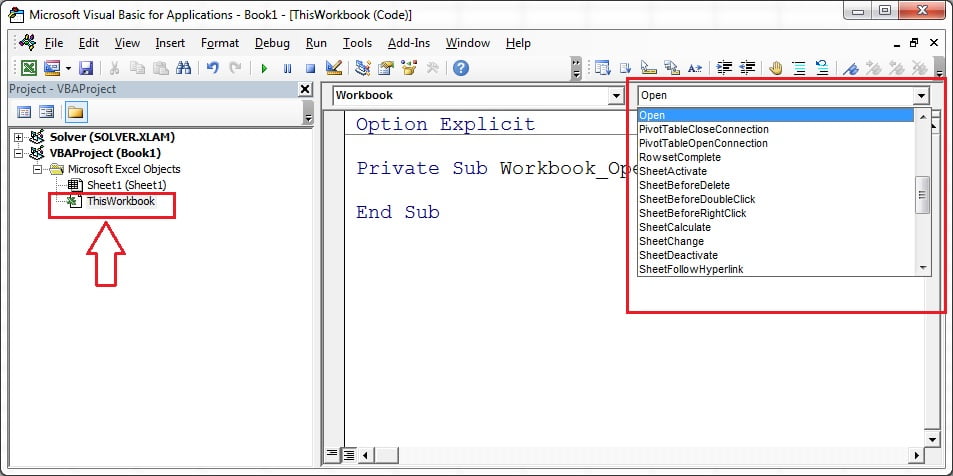
Private Sub Workbook_Open()
    ThisWorkbook.Sheets("Dashboard").Activate
End Sub

Private Sub Workbook_BeforeClose(Cancel As Boolean)
    ThisWorkbook.Save
End Sub
The full set of workbook and worksheet events, including BeforeSave, SheetChange and the EnableEvents switch, is covered in the events lesson.
Worked example: import a sales file safely
Suppose Sample Data.xlsx sits in the same folder as your macro file and holds this data on its first sheet.
| Region | Month | Sales |
|---|---|---|
| North | Jan | 12,400 |
| South | Jan | 9,850 |
| East | Feb | 15,300 |
The macro below checks the file exists, opens it read-only into a variable, copies the data onto an Import sheet, closes the source without saving and saves the macro file.
Sub Import_Sales_File()
    Dim src As Workbook
    Dim dest As Worksheet
    Dim filePath As String

    filePath = ThisWorkbook.Path & "\Sample Data.xlsx"

    If Dir(filePath) = "" Then
        MsgBox "File not found: " & filePath, vbCritical
        Exit Sub
    End If

    Set dest = ThisWorkbook.Sheets("Import")
    Set src = Workbooks.Open(Filename:=filePath, ReadOnly:=True)

    dest.Cells.Clear
    src.Sheets(1).UsedRange.Copy Destination:=dest.Range("A1")

    src.Close SaveChanges:=False
    ThisWorkbook.Save

    MsgBox "Import complete: " & dest.UsedRange.Rows.Count & " rows", vbInformation
End Sub
Result: the three data rows plus the header land in A1:C4 of the Import sheet, the source file closes, and the message box reports four rows.
Tips and common mistakes
- Capture the workbook in a variable.
Set wb = Workbooks.Open(...)is safer than relying on ActiveWorkbook two lines later. - Test with Dir before opening. A missing file raises run-time error 1004 and stops the macro dead.
- Names need extensions.
Workbooks("Book1")works only until the file is saved; after that use the full name with its extension. - Reset DisplayAlerts. Turn it back to True on the very next line, otherwise later prompts vanish for the rest of the session.
- SaveCopyAs for backups. SaveAs redirects the open file to the new name, which is rarely what a backup routine wants.
- ThisWorkbook.Close ends the macro. Put any cleanup code before it, never after.
- Events stay quiet when macros are disabled or
Application.EnableEventsis False.
Errors and how to fix them
| Error | Cause | Fix |
|---|---|---|
| Run-time error 1004: method Open of object Workbooks failed | Wrong path, wrong extension or the file is missing | Check with Dir(filePath) and print the path with Debug.Print |
| Run-time error 9: subscript out of range | Workbooks("Name") when that file is not open | Use the IsWorkbookOpen function above before addressing it |
| Run-time error 1004 on SaveAs | FileFormat does not match the extension, or the folder does not exist | Pass the matching FileFormat constant and verify the folder |
| Macros disappear after saving | Saved as .xlsx, which cannot store code | Save as .xlsm with xlOpenXMLWorkbookMacroEnabled |
| Object variable not set (error 91) | The workbook was closed before the variable was used again | Set the variable again, or reorder so the close comes last |
Watch the video tutorial
Click here to download the practice file.
Practice exercise
- Write a macro that lists the Name, Path and Saved status of every open workbook in the Immediate window.
- Create a new workbook with
Workbooks.Add, rename its first sheet Summary and save it as an .xlsx next to the macro file. - Add a backup macro that uses
SaveCopyAsto write a dated copy into the same folder, then confirm the original file is still the one open. - Paste the IsWorkbookOpen function into a module and use it so your import macro activates the file if it is open and opens it if it is not.
- Protect the workbook structure with a password, try to delete a sheet, then unprotect it again from code.
Key takeaways
ThisWorkbookis the file with the code;ActiveWorkbookis whatever is in front and can change under you.Workbooks.OpenandWorkbooks.Addboth return a Workbook, so assign the result to a variable.Saveoverwrites,SaveAsrenames and redirects,SaveCopyAswrites a copy and leaves the original open.Close SaveChanges:=True or Falseremoves the save prompt completely.Name,PathandFullNamelet you build portable file paths instead of hard-coded folders.- Workbook protection controls the structure of the file, not the contents of its cells.
Related lessons
- Excel VBA course hub
- Worksheets in VBA
- Cells and Range in VBA
- Error handling in VBA
- Workbook and worksheet events
- Excel dashboard course
- Workbooks.Open method on Microsoft Learn
Frequently asked questions
What is the difference between ThisWorkbook and ActiveWorkbook?
ThisWorkbook always refers to the file that contains the running code. ActiveWorkbook refers to the file currently in front, and it changes the moment a macro opens or activates another file. Use ThisWorkbook unless you deliberately mean whichever file the user has selected.
How do I close a workbook in VBA without the save prompt?
Pass the SaveChanges argument. wb.Close SaveChanges:=True saves and closes silently, while wb.Close SaveChanges:=False discards all changes without asking. If you omit the argument Excel shows the standard save prompt to the user.
What is the difference between SaveAs and SaveCopyAs?
SaveAs writes the file under a new name and the workbook you are looking at becomes that new file. SaveCopyAs writes a copy to disk and leaves the original file open and unchanged. Backup routines and archive folders should almost always use SaveCopyAs.
How do I check if a workbook is already open?
Try to set a Workbook variable to that name inside an On Error Resume Next block, then test whether the variable is Nothing. If it is Nothing the file is not open and you can open it; if it is not Nothing you can simply activate the file that is already loaded.
Why do my macros disappear after SaveAs?
The file was saved in .xlsx format, which cannot store VBA code. Pass FileFormat:=xlOpenXMLWorkbookMacroEnabled and use the .xlsm extension. Excel warns about this when you save by hand, but VBA can suppress the warning when DisplayAlerts is turned off.
Want the finished version? Ready-made Excel dashboards, trackers and VBA systems are available at NextGenTemplates.com.