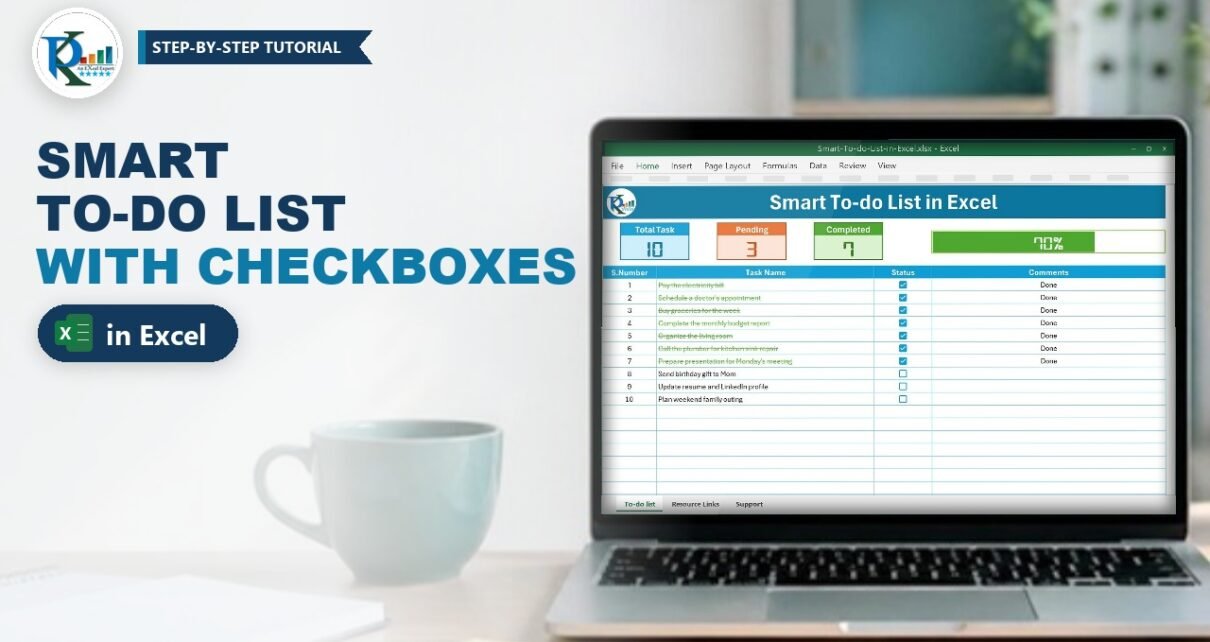
A to do list in Excel is far more useful when it counts for you. In this tutorial you build a smart to-do list with Excel’s in-cell checkboxes: tick a task and its name is struck through in green, the Total, Pending and Completed cards update, and a progress bar fills up to show how much of the list is done. The serial numbers even write themselves. In-cell checkboxes need Excel for Microsoft 365 on Windows or Mac; a classic-Excel version is included below.

⬇️ Download the Free Practice File
Smart-To-do-List-in-Excel.xlsx · 40 KB · Microsoft 365
Watch the Video Tutorial
The video walks through the whole file: the new checkbox, the automatic serial numbers, the strike-through rule, the three counters and the progress bar.
What You Will Build
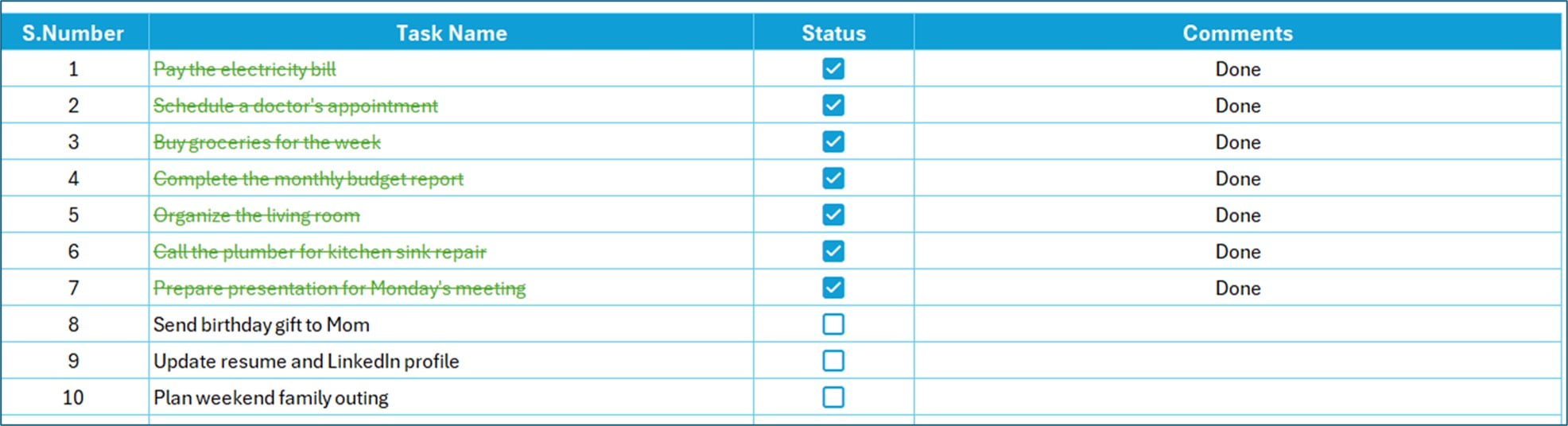
- A task table with S.Number, Task Name, Status and Comments columns.
- In-cell checkboxes in the Status column that store TRUE or FALSE.
- Automatic serial numbers with one SEQUENCE formula.
- A strike-through rule that crosses out finished tasks in green.
- Total, Pending and Completed cards plus a percentage progress bar.
How the Workbook Is Laid Out
The practice file has three sheets. To-do list holds the task table from row 5 down and the progress bar in D3. Support holds the three counter formulas. Resource Links is just a list of useful links. The fields are:
- S.Number (column A): generated automatically for every task you type.
- Task Name (column B): the task itself.
- Status (column C): the checkbox. Ticked means done.
- Comments (column D): any note you want, such as “Done” or a date.
Part 1 – Build the Task Table
Step 1: Add the in-cell checkboxes
Type the headers in A5:D5 and a few tasks in column B. Select the Status cells next to your tasks (C6:C15 in the file) and click Insert › Checkbox. Each cell now shows an empty box. Click a box, or select the cell and press the Space bar, to tick it.
The important part: a checkbox cell is just a cell holding TRUE (ticked) or FALSE (unticked). That is why ordinary formulas such as COUNTIF can read it. You can colour the box like text with the Font Color button. To remove checkboxes, select the cells and press Delete: ticked boxes are unticked first, and a second Delete removes them. Home › Clear › Clear Formats also removes them in one go.
Step 2: Serial numbers that write themselves
In A6 enter:
=SEQUENCE(COUNTA(B6:B1048576))COUNTA counts how many task names are in column B, and SEQUENCE spills the numbers 1, 2, 3 … down that many rows. Add an eleventh task and number 11 appears by itself. Keep the cells under A6 empty, or the formula shows #SPILL!.
Step 3: Strike through finished tasks
Select B6:B27, go to Home › Conditional Formatting › New Rule › Use a formula to determine which cells to format and enter:
=C6Click Format, tick Strikethrough on the Font tab and pick a green font colour. Because C6 is TRUE when the box is ticked, the rule needs no IF or comparison: a ticked task is struck through, an unticked one stays normal. The relative reference C6 moves down with each row.
Part 2 – Counters and Progress Bar
Step 4: Count total, pending and completed tasks
On the Support sheet, put the labels in B2, D2 and F2 and these formulas below them:
B3  =COUNTA('To-do list'!B6:B1048576)
D3  =COUNTIF('To-do list'!C6:C1048576,FALSE)
F3  =COUNTIF('To-do list'!C6:C1048576,TRUE)
Then name the three result cells with Formulas › Define Name: Total_Task for B3, Pending for D3 and Completed for F3. Names make the next formula easy to read.

Step 5: Show the counters as cards
The three coloured cards at the top of the list are linked pictures of Support!B2:B4, D2:D4 and F2:F4. Copy one range, go to the To-do list sheet and choose Home › Paste › Linked Picture. The picture is a live view of those cells, so it changes the moment you tick a box.
Step 6: The completion percentage and progress bar
In D3 of the To-do list sheet enter:
=IFERROR(Completed/Total_Task,"")Format it as a percentage. Then add Home › Conditional Formatting › Data Bars › More Rules with Minimum set to Number 0, Maximum set to Number 1 and a solid green fill. Fixing the scale at 0-1 means a 70% list fills exactly 70% of the cell.
How the formula works
Completedis the number of TRUE checkboxes (7 in the file).Total_Taskis the number of task names (10).7/10gives 0.7, shown as 70%.IFERROR(...,"")keeps the cell blank instead of #DIV/0! when the list is empty.
A second rule on D3, Cell Value ≥ 0.55, switches the font to white so the number stays readable once the green bar passes the middle of the cell.
Classic Excel Alternative (No Checkbox Feature)
If your Excel has no Insert › Checkbox button, you can still build the same list:
- Give C6:C27 a Data Validation List with the source
TRUE,FALSE. Every formula above keeps working, because the cells still hold TRUE or FALSE. - Or insert a Form Control checkbox from the Developer tab for each row and set its Cell link to the matching C cell.
- Replace the SEQUENCE formula, which needs Excel 2021 or Microsoft 365, with
=IF(B6="","",ROW()-5)in A6, filled down.
Common Errors & Fixes
- Pending counts tasks that do not exist. If you put checkboxes on empty rows, COUNTIF also counts their FALSE values. Only add checkboxes next to real tasks, or count pending tasks with
=COUNTIFS('To-do list'!C6:C1048576,FALSE,'To-do list'!B6:B1048576,"<>"). - #SPILL! in the S.Number column. Something is typed under A6. Clear those cells so SEQUENCE has room.
- The progress bar is full at 50%. The data bar is on Automatic minimum and maximum. Set them to Number 0 and Number 1.
- The checkboxes will not go away. The first Delete only unticks checked boxes. Press Delete again, or use Home › Clear › Clear Formats.
Tips
- Leave a few empty, formatted rows at the bottom so new tasks inherit the borders and the strike-through rule.
- Add a Due Date column and a rule such as
=AND($C6=FALSE,$E6<TODAY())to flag overdue tasks in red. - Sort or filter on the Status column to see only open tasks; TRUE and FALSE filter like any other value.
- Microsoft explains the feature in Using check boxes in Excel.
Want It Ready-Made?
If you need a checklist that also tracks KPIs, owners and due dates, see the KPI Tracking To-Do List Checklist in Excel on NextGenTemplates.com, or browse more Excel templates. To get comfortable with COUNTIF, SEQUENCE, named ranges and the rest of the formulas used here, join the video course Excel + AI Mastery: 100 Essential Formulas and Real-World Projects.
Related Tutorials
- Checkbox in an Excel Table
- Dynamic Conditional Formatting with a Check Box
- To-Do List for Multiple Projects with Summary
- Fully Functional To-Do List in Excel
- Colourful Progress Bars in Excel Cells
Frequently Asked Questions
How do I insert a checkbox in an Excel cell?
Select the cells and click Insert › Checkbox. The cells show a box you can tick with a click or the Space bar, and each cell holds TRUE when ticked and FALSE when not.
Which Excel versions have the in-cell checkbox?
The Insert › Checkbox button is part of Excel for Microsoft 365 on Windows and Mac. Excel 2021 and older do not have it; use a TRUE/FALSE dropdown or Form Control checkboxes instead.
How do I count checked boxes in Excel?
Use =COUNTIF(range,TRUE) for ticked boxes and =COUNTIF(range,FALSE) for unticked ones, because every checkbox cell stores TRUE or FALSE.
How do I strike through a task when its box is ticked?
Select the task names, add a conditional formatting rule with the formula =C6 (the first checkbox cell) and choose Strikethrough in the Format dialog.
How do I change the colour of the checkboxes?
Select the checkbox cells and change the Font Color on the Home tab. The box takes the font colour.
How do I remove checkboxes from cells?
Select the cells and press Delete. Ticked boxes are unticked first, so press Delete a second time to remove them, or use Home › Clear › Clear Formats.
About the Author
PK is a Microsoft Excel expert and trainer, and the founder of PK: An Excel Expert and NextGenTemplates.com. He has been sharing practical Excel templates and tutorials on his YouTube channel since 2016.
Conclusion
With in-cell checkboxes, a SEQUENCE formula, two COUNTIFs and a data bar, a plain to do list in Excel becomes a small dashboard that shows exactly where you stand. Download the practice file, replace the sample tasks with your own and tick your way through the week.