In the finance industry, customer service plays a crucial role in shaping long-term trust and satisfaction. Customers expect not only accurate financial services but also timely responses, organized interactions, and proactive communication. With businesses shifting to hybrid and remote models, the need for structured tools to manage customer interactions has never been higher. This is where the Finance Customer Service Customer Experience Calendar in Excel becomes invaluable.
This pre-built Excel calendar template helps finance teams organize tasks, track customer service activities, and manage events effectively. It eliminates the chaos of scattered schedules by providing a centralized system. The best part? It is ready to use, highly customizable, and requires no expensive software.
Click to Purchases Finance Customer Service Customer Experience Calendar
In this article, we will explore:
-
What this calendar is and how it works
-
The detailed structure of the template
-
The advantages of using it in financial customer service
-
Opportunities for improvement
-
Best practices for implementation
-
Answers to frequently asked questions
By the end, you will clearly see how this Excel-based tool can help finance teams enhance customer experience and streamline operations.
What Is the Finance Customer Service Customer Experience Calendar in Excel?
The Finance Customer Service Customer Experience Calendar in Excel is a dynamic scheduling tool designed specifically for finance teams. It allows managers and employees to plan, track, and monitor all customer-facing events and internal activities in one place.
Unlike traditional paper calendars or basic spreadsheets, this calendar template comes with automation features, interactive buttons, and built-in navigation. Finance professionals can easily switch between annual, monthly, and daily views, add or update events with a simple form, and ensure every commitment to customers is tracked.
The template supports activities like:
-
Client meetings and follow-ups
-
Customer support sessions
-
Financial wellness workshops
-
Training events for customer service staff
-
Team availability planning
-
Deadlines for reports and compliance
In short, this calendar improves visibility, saves time, and enhances accountability across the finance customer service function.
Key Features of the Finance Customer Service Customer Experience Calendar
This template includes five powerful worksheets, each serving a specific purpose. Let’s explore them one by one:
1. Home Sheet Tab
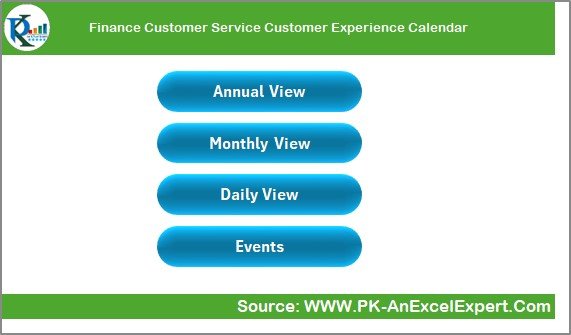
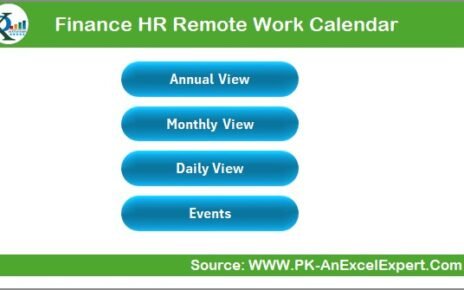
The Home sheet acts as the central index for the entire workbook. It provides quick navigation through four interactive buttons:
-
Annual View button – Takes you to the yearly calendar.
-
Monthly View button – Opens the selected month’s calendar.
-
Daily View button – Shows a detailed day-by-day breakdown.
-
Events button – Leads to the event database.
This layout ensures users do not waste time scrolling or searching. With one click, they land on the right sheet.
2. Annual View Sheet Tab
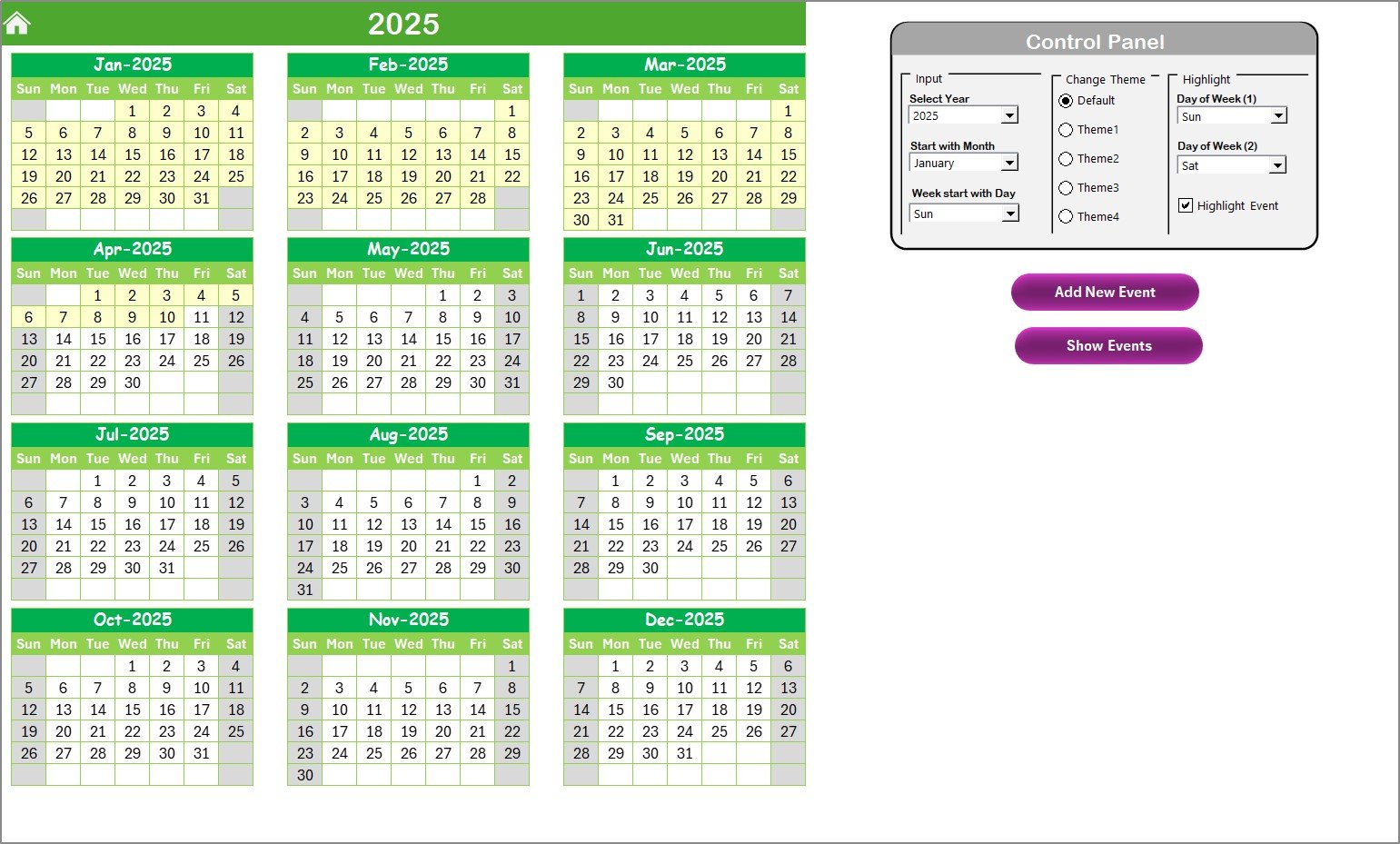
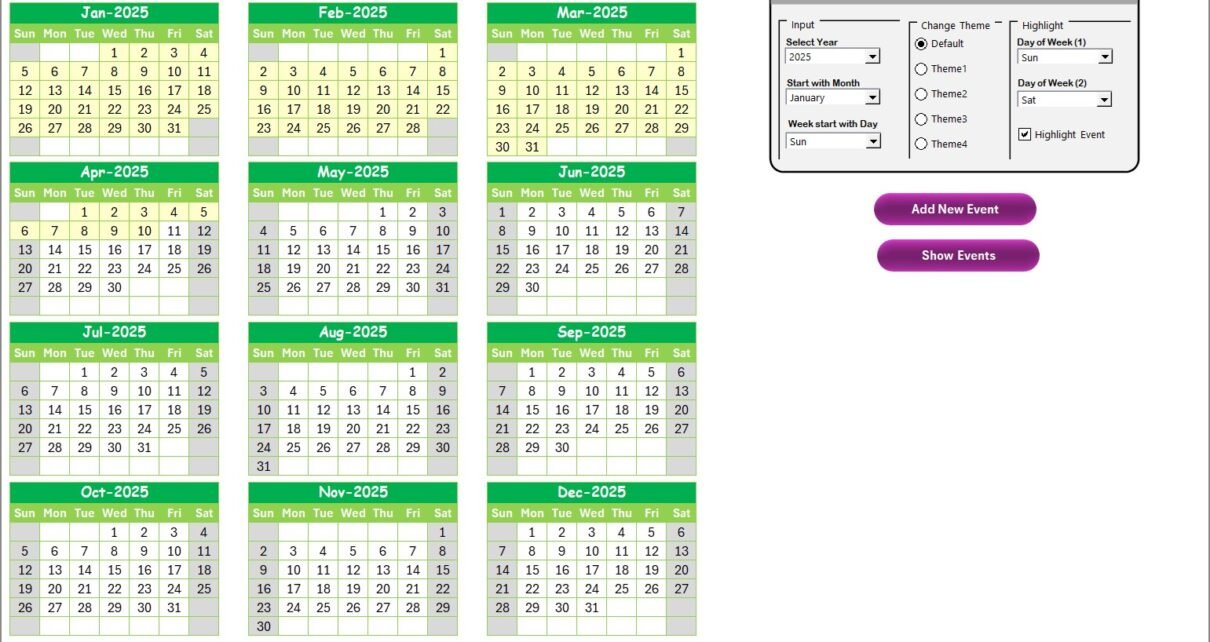
The Annual View sheet offers a big-picture perspective. It displays all 12 months of the year in a clean format.
Key features include:
-
Control Panel with three groups:
-
Input Group – Change the year, starting month, and week start day.
-
Change Theme Group – Apply one of five color themes to customize the look.
-
Highlight Group – Highlight weekends or specific days like Saturday and Sunday in grey. You can also highlight events in yellow.
-
-
Add New Event button – Click on a date to add an event.
-
Show Event button – View all events linked to a selected date.
This sheet is particularly helpful for planning annual goals, major financial campaigns, or customer awareness programs.
3. Monthly View Sheet Tab
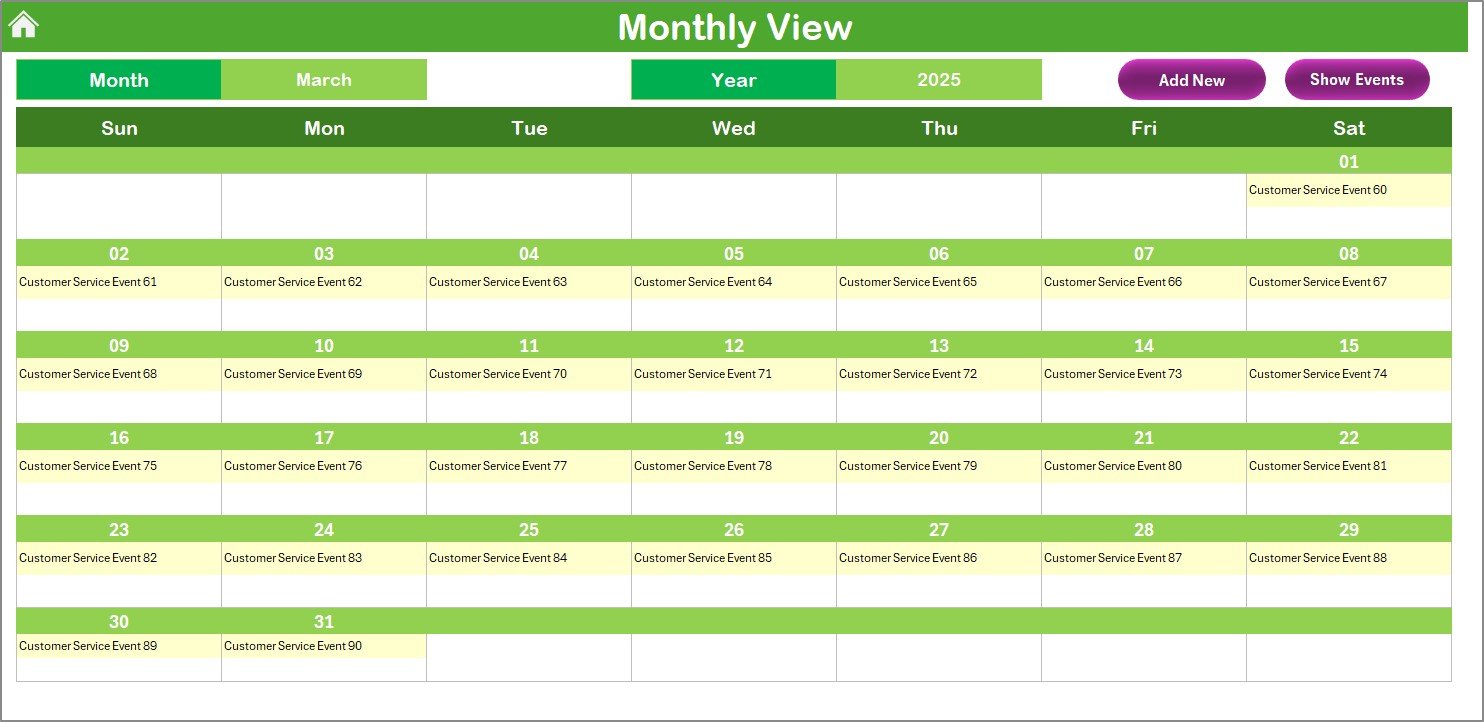
The Monthly View narrows the focus to one specific month.
Key features include:
-
Drop-down selection for Month and Year.
-
Clear visualization of customer service events scheduled for the month.
-
If multiple events exist on the same date, the cell displays a note like “more than 1…”.
Buttons available:
Click to Purchases Finance Customer Service Customer Experience Calendar
-
Add New Event – Quickly insert a new event.
-
Show Event – Display detailed records for that date.
This sheet is perfect for monthly planning meetings and customer service activity reviews.
4. Daily View Sheet Tab
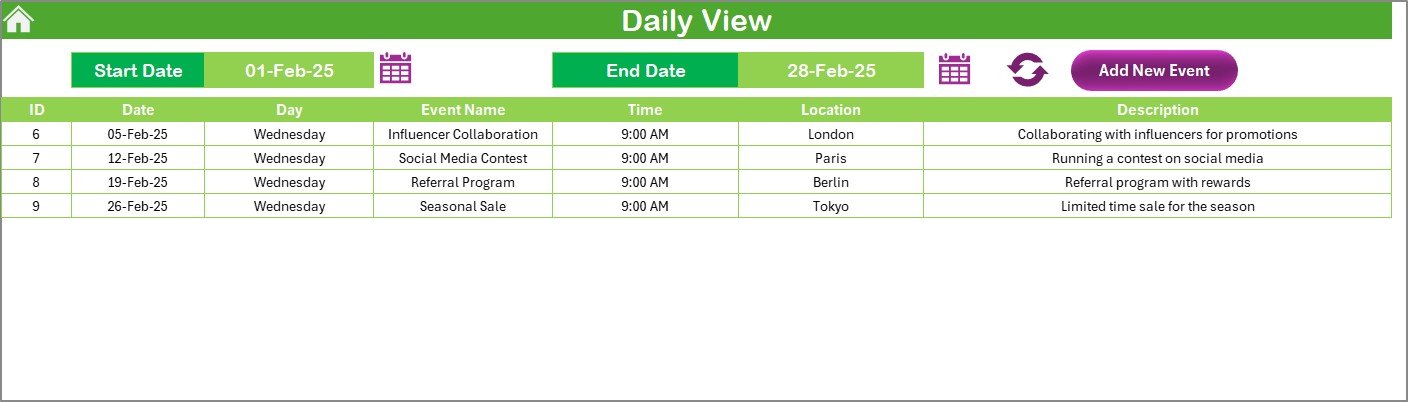
The Daily View sheet offers the most detailed level.
Key features:
-
Set a Start Date and End Date using the calendar icon.
-
Refresh button – Update the view to reflect the latest events.
-
Add New Event button – Insert new activities directly.
This sheet is highly useful for daily operations, customer call tracking, and service scheduling. Finance teams can ensure no commitments slip through the cracks.
Click to Purchases Finance Customer Service Customer Experience Calendar
5. Events Sheet Tab
The Events sheet is the heart of the calendar. It acts as the database of all records.
It captures:
-
ID (auto-generated)
-
Date
-
Day
-
Event Name
-
Time
-
Location
-
Description
Action buttons include:
-
Add New Record – Insert a new event.
-
Update Existing Record – Modify details of an existing event.
-
Delete Record – Remove an event by selecting its ID.
This sheet ensures finance teams maintain a complete history of customer service activities.
Advantages of the Finance Customer Service Customer Experience Calendar
Using this calendar template provides several advantages for finance teams:
✅ Centralized Scheduling – All events are stored in one place.
✅ Easy Navigation – Users can jump between annual, monthly, and daily views instantly.
✅ Improved Customer Experience – Customers get timely responses and well-organized service.
✅ Better Accountability – Each event is recorded with date, time, and responsible details.
✅ Cost-Effective Solution – No need to purchase expensive software; Excel does the job.
✅ Customizable Design – Themes, highlights, and input options make it flexible.
✅ Data History Tracking – Events remain logged for future reference.
Opportunities for Improvement
While the template is powerful, there are areas where enhancements could add even more value:
-
Integration with Outlook or Google Calendar – Syncing with external calendars would avoid duplicate entries.
-
Mobile-Friendly Version – A lightweight version for mobile users could improve accessibility.
-
Automated Reminders – Email or pop-up reminders would help teams avoid missed deadlines.
-
Analytics Dashboard – Adding charts to show trends in customer service activities could provide deeper insights.
-
Collaboration Features – Multi-user editing with role-based access would support larger teams.
Best Practices for Using the Finance Customer Service Customer Experience Calendar
To maximize results, finance teams should follow these best practices:
-
✔ Keep Events Updated – Always enter new events immediately to maintain accuracy.
-
✔ Use Color Themes Wisely – Highlight weekends, holidays, and major events for clarity.
-
✔ Review Weekly and Monthly – Regularly review the calendar to track progress.
-
✔ Train the Team – Ensure all customer service staff know how to use the template.
-
✔ Combine with KPIs – Track service performance metrics like response time or resolution rate alongside the calendar.
-
✔ Backup Regularly – Save copies of the workbook to prevent data loss.
-
✔ Encourage Collaboration – Assign responsibilities in the description field to improve accountability.
Conclusion
The Finance Customer Service Customer Experience Calendar in Excel is more than just a scheduling tool. It is a strategic asset that helps finance organizations manage customer interactions, streamline operations, and deliver consistent service quality.
With its user-friendly design, customizable features, and structured layout, it offers a cost-effective way to bring order and efficiency into finance customer service. When used consistently and aligned with best practices, this calendar can significantly improve customer satisfaction and team productivity.
Frequently Asked Questions (FAQs)
1. Who can use the Finance Customer Service Customer Experience Calendar?
This calendar is designed for finance professionals, customer service teams, and managers who need a structured way to organize events and client interactions.
2. Can I customize the calendar for my company’s needs?
Yes, the template is fully customizable. You can change themes, adjust the starting month, highlight specific days, and even modify event details.
3. Do I need advanced Excel skills to use it?
No. The calendar is ready to use with built-in buttons and forms. Basic Excel knowledge is enough.
4. How does it improve customer experience?
It ensures that no client meetings, follow-ups, or service deadlines are missed, leading to better trust and satisfaction.
5. Can I track multiple events on the same date?
Yes. In the monthly and daily views, you can add multiple events. If more than one event exists, the sheet displays a note.
6. Is this template suitable for remote work?
Absolutely. It helps remote teams stay coordinated and aligned by centralizing all schedules.
7. Can I update or delete an event after adding it?
Yes. The Events sheet allows you to update or delete records anytime.
Visit our YouTube channel to learn step-by-step video tutorials