Part of the free Module 9: Advanced Charts and Infographics · Lesson 5 of 8 · Full Excel course
Updated on 5 September 2026 · Works in Excel 365, 2021, 2019 and 2016 unless noted.
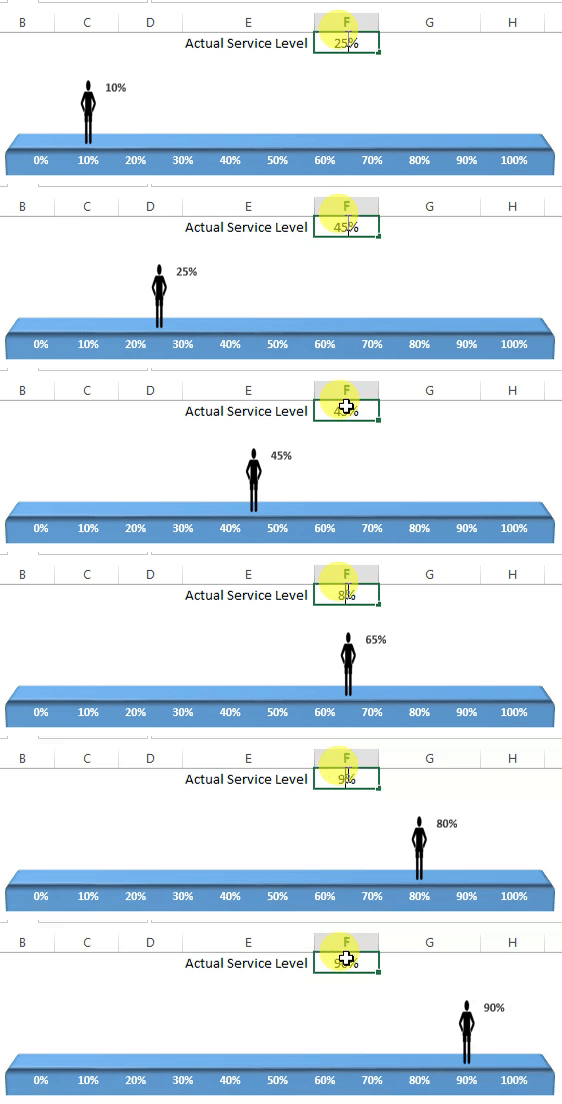
A moving man chart in Excel shows a single KPI, such as service level, as a small figure that walks along a horizontal track to the achieved percentage, with the value labelled above his head. It is built from a stacked bar chart, a Webdings symbol pasted as a picture, and a 3-D rectangle for the track. This lesson builds the infographic from a blank sheet and links it to a cell.
How a moving man chart works
The chart is a stacked bar with three values: the KPI position, a 5 percent image-width slice and the remainder. The first and last slices are made invisible, and the middle slice is filled with a picture of a man, so the picture sits exactly at the KPI value. A rectangle with a relaxed 3-D perspective is placed behind the chart as the road.
It is a presentation-style visual for a headline metric on a dashboard slide or infographic. The same picture-fill technique powers many Excel infographics, so once you know it you can swap the man for a truck, a runner or a company logo. It works in Excel 2013 through Microsoft 365 with no VBA.
The support data explained
| Cell | Entry | Purpose |
|---|---|---|
| F1 | 82% (the live KPI) | The value you want the man to reach; link it to your data |
| H1 | =F1-2.5% |
Invisible first slice; half the image width is subtracted so the centre of the man lands on the KPI |
| H2 | 5% | Width of the slice that holds the picture |
| H3 | =100%-H1 |
Invisible remainder that keeps the bar the same total length |
The three slices always total 105 percent, which is why the axis is fixed from 0 to 1.05 in Step 2. If you change the image width in H2, change the offset in H1 to half of the new width.
Step 1: set up the support data
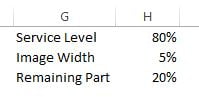
- In G1 type the metric name (Service Level). H1 will hold the plotted position; leave it for now, it gets a formula in Step 5.
- In G2 type Image Width and in H2 enter 5%.
- In G3 type Remaining Part and in H3 enter
=100%-H1.
Step 2: insert and shape the bar
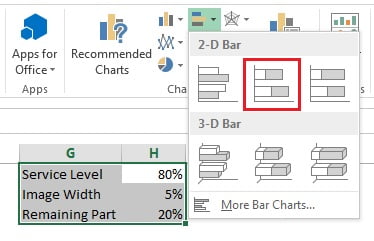
- Select G1:H3 and go to Insert > Charts > Insert Column or Bar Chart > 2-D Bar > Stacked Bar.
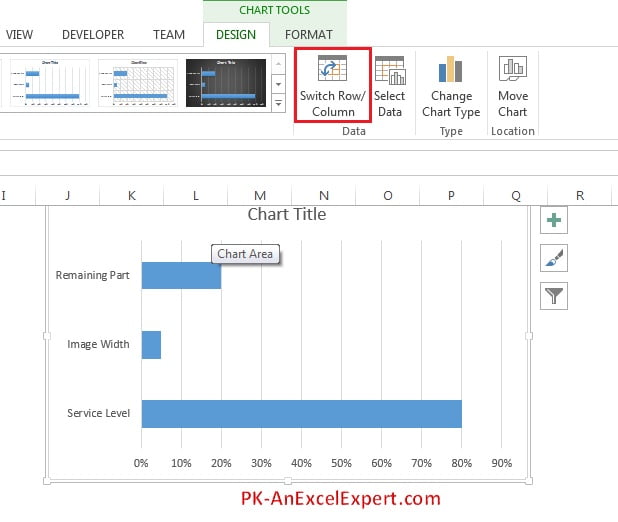
- On the Chart Design tab (Design under Chart Tools in Excel 2016 and 2019) click Switch Row/Column so the three values stack in one bar.
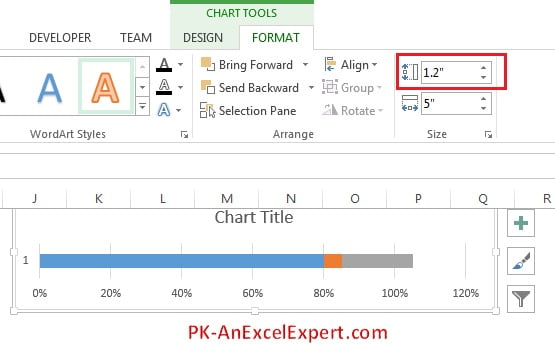
- On the Format tab set the chart Height to about 1.2 inches (3 cm).
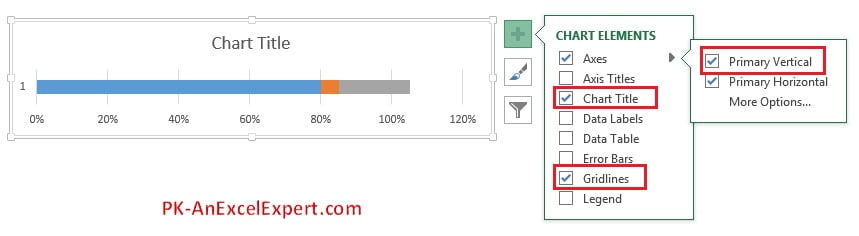
- Click the plus sign beside the chart and untick Chart Title, Gridlines and Axes > Primary Vertical.
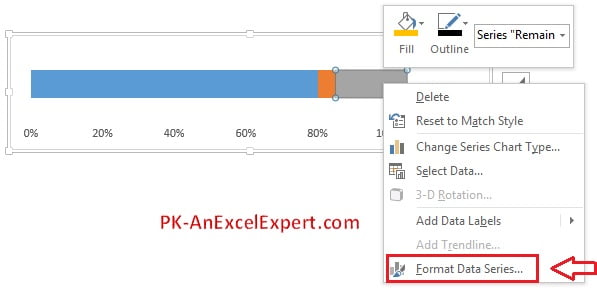
- Right-click the bar and choose Format Data Series.
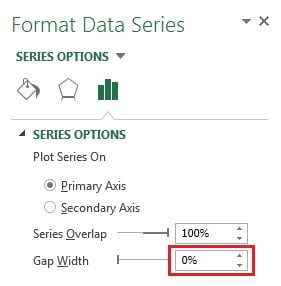
- Set Gap Width to 0%.
- Right-click the horizontal axis and choose Format Axis.
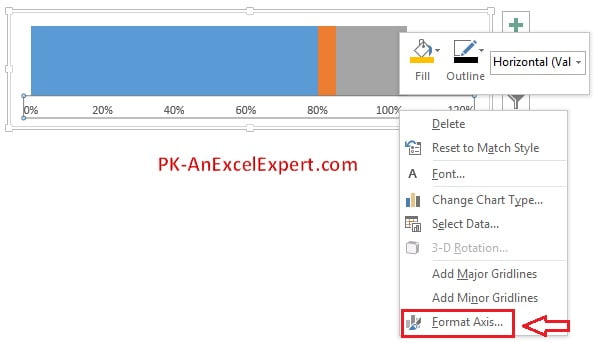
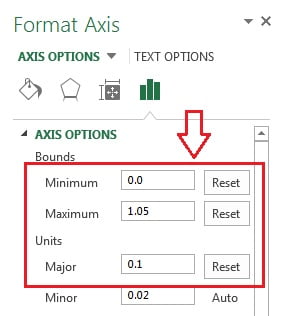
- Under Axis Options type 0 for Minimum, 1.05 for Maximum and 0.1 for Major units. Type the values even if they already show, so they change from Auto to Reset and stay fixed.
Step 3: hide the end slices and prepare the man picture
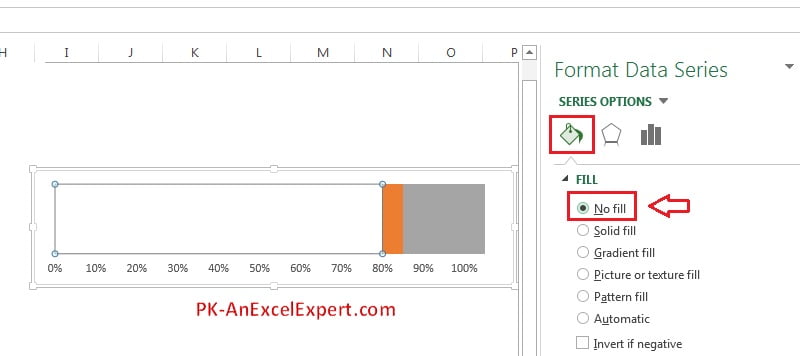
- Double-click the first slice (blue) and set its fill to No Fill.
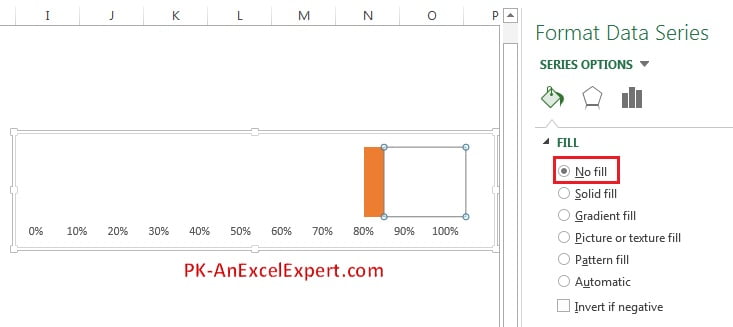
- Double-click the last slice (grey) and set it to No Fill as well. Only the 5 percent middle slice remains visible.
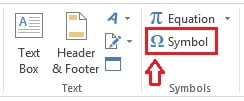
- Click any empty cell and go to Insert > Symbol.
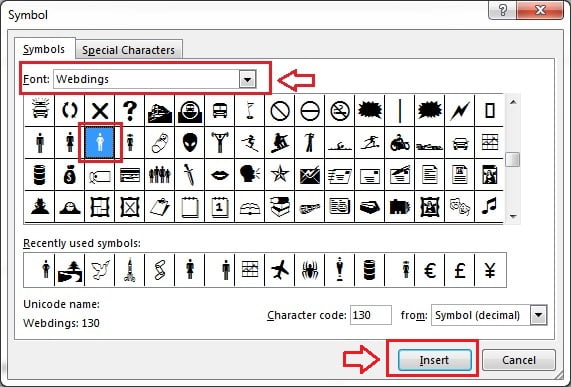
- Set the font to Webdings, scroll to character 130 (a walking man), click Insert and close the dialog.
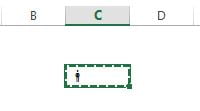
- Copy the cell that contains the symbol.
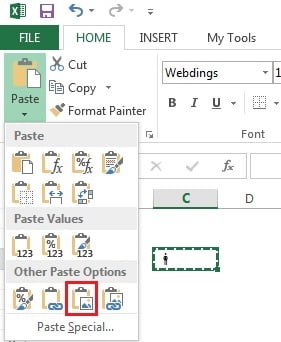
- Use Paste Special > Picture so the symbol becomes an image.
- Enlarge the picture so the man is clearly visible.
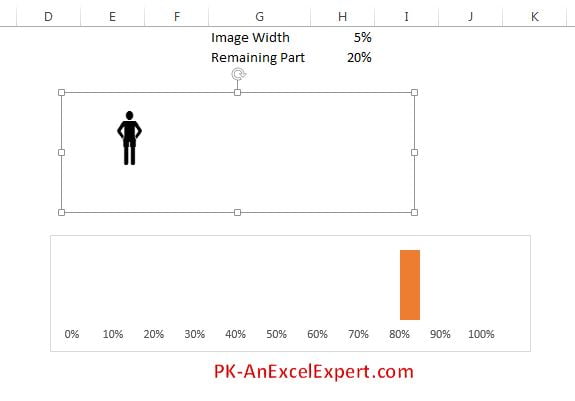
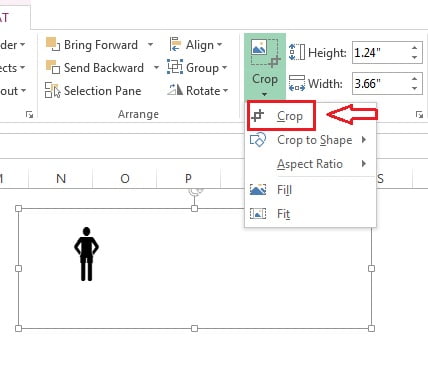
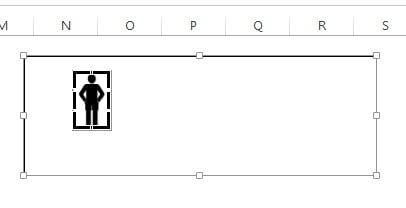
- Select the picture, go to Picture Format > Crop and crop away the blank area around the figure. Leave no margin, otherwise the man will not sit exactly on the KPI value.
- Copy the cropped picture (Ctrl+C), click the visible middle slice in the chart and paste (Ctrl+V). The slice is now filled with the man.
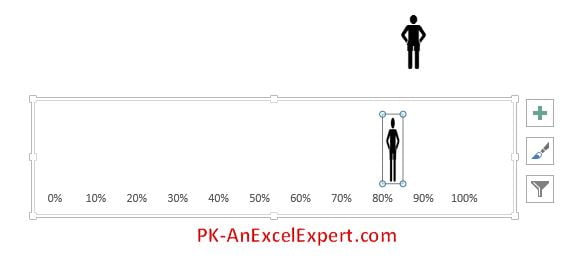
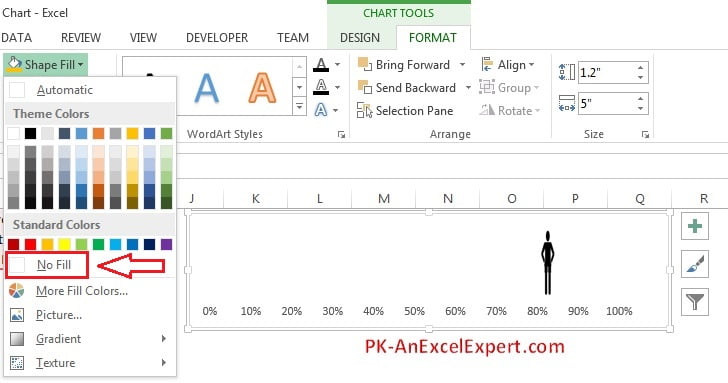
- Select the chart area and set Format > Shape Fill > No Fill.
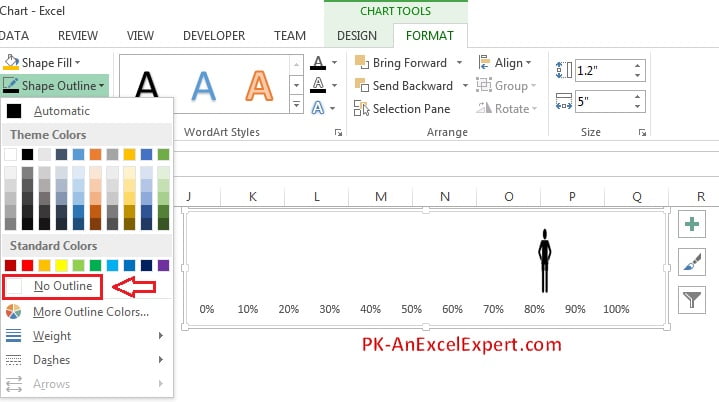
- Set Format > Shape Outline > No Outline for the chart area.
Step 4: build the 3-D track
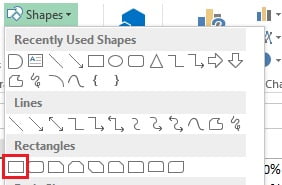
- Go to Insert > Shapes and draw a Rectangle.
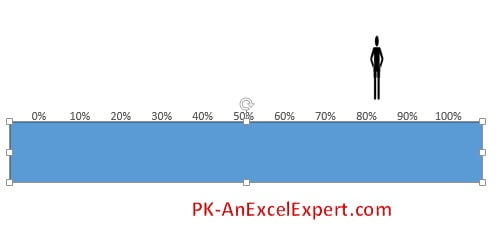
- Make the rectangle a little wider than the chart.
- Right-click the rectangle and choose Format Shape.
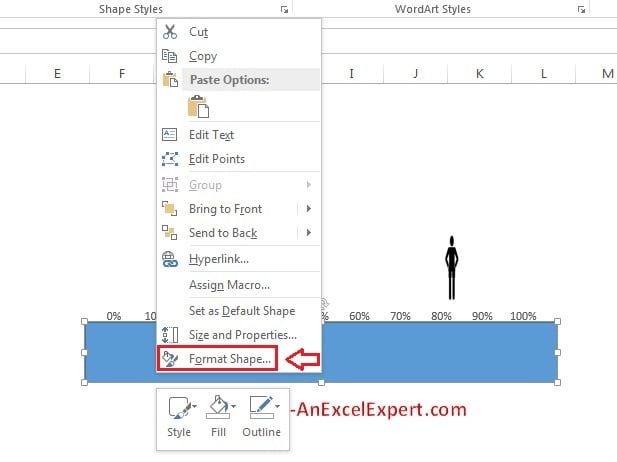
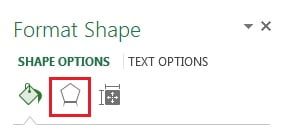
- Click the Effects icon in the Format Shape pane.
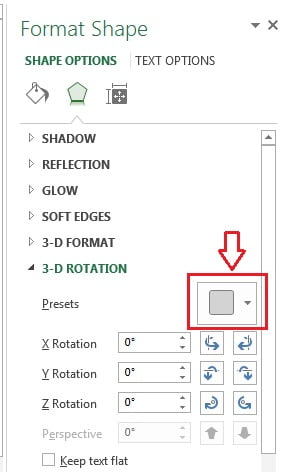
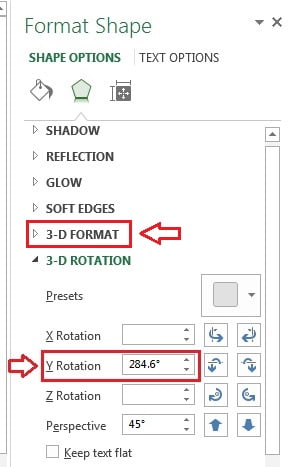
- Expand 3-D Rotation and open Presets.
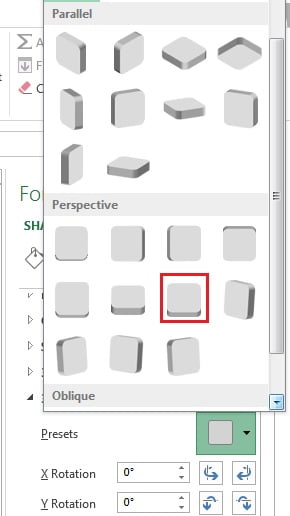
- Under Perspective choose Perspective Relaxed.
- Set Y Rotation to 284.6 degrees so the track appears to run away from the viewer, then expand 3-D Format.
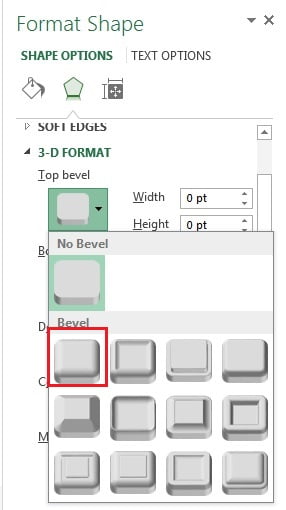
- Set Top bevel to Circle.
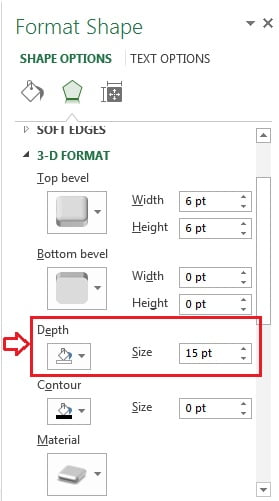
- Set Depth to 15 pt.
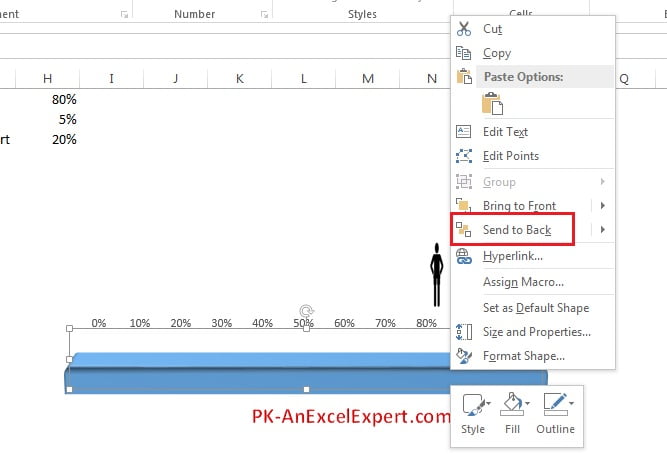
- Right-click the rectangle, choose Send to Back, and position it under the chart so the man appears to walk on the track.
Step 5: link the man to your KPI cell and add the label
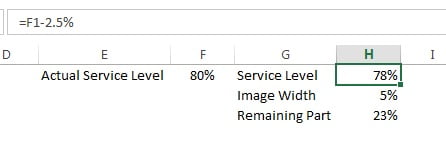
- Enter the actual KPI value (for example the live service level, 82%) in F1.
- In H1 enter
=F1-2.5%. The image slice is 5% wide, so subtracting half of that width places the centre of the man exactly on the KPI value.
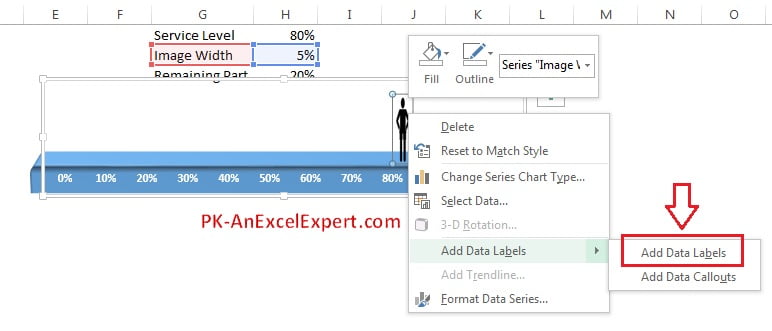
- Right-click the man picture inside the chart and choose Add Data Labels. Excel shows 5%, the value of the image slice.
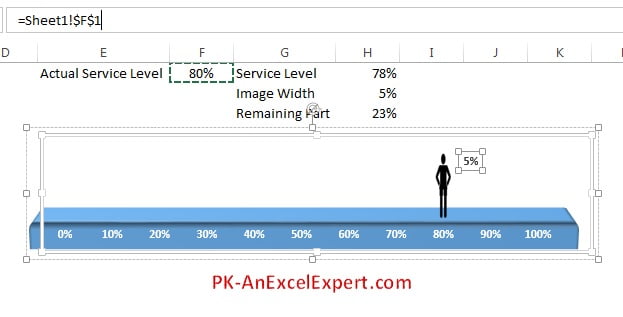
- Click the 5% label once to select it, click in the formula bar, type
=, click cell F1 and press Enter. The label now shows the real KPI value and updates whenever F1 changes.
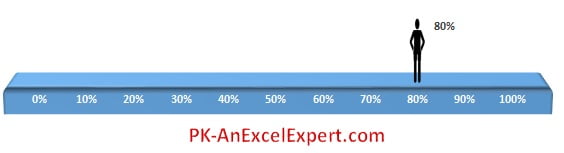
The moving man chart is ready. Change the value in F1 and the figure walks to the new position while the label above his head updates.
Worked example: a fundraising tracker with a target flag
A charity has raised 6,150 of a 10,000 target. Add a small table in K1:L3 and drive the chart from it.
| Cell | Label | Value or formula |
|---|---|---|
| L1 | Raised | 6150 |
| L2 | Target | 10000 |
| L3 | Progress | =MIN(L1/L2,100%) |
| F1 | KPI feed | =L3 |
- Point F1 at L3 so the man walks to 61.5 percent.
- Insert a small flag shape (Insert > Shapes > Stars and Banners) at the right end of the track to mark the 100 percent target, and group it with the rectangle.
- Change L1 to 9,800 and the man walks to 98 percent; change it to 12,000 and the MIN cap keeps him at the flag.
Result: an infographic that reads the live total, walks to the right position and never overshoots the track.
Download the free file and video
Click the finished chart below to download the practice workbook (Moving-Man-Chart.xlsx) with the support data, chart and 3-D track already built. A polished, ready-to-use version is also sold as the Moving Man Chart in Excel template.
Tips and common mistakes
- Crop tightly. Any blank margin around the figure shifts it off the true value, because the picture is stretched to fill the 5 percent slice.
- Fix the axis bounds. If the maximum stays on Auto, Excel rescales when the KPI changes and the track no longer lines up with the chart.
- Keep the offset in sync. If you change the image width in H2, change the formula in H1 to subtract half of the new width.
- Use Stretch, not Stack. In Format Data Point, the picture fill should be set to Stretch. Stack and scale repeats the man several times across the slice.
- Group the objects. Select the chart and the rectangle, then press Ctrl+G so they move together on a dashboard.
- Cap values above 100 percent. The axis stops at 1.05, so use
=MIN(F1,100%)-2.5%in H1 if the KPI can exceed 100 percent. - Mind the aspect ratio. If the man looks squashed, widen the chart or reduce its height; the slice is 5 percent of the plot width by whatever height the bar has.
Practice exercise
- Build the chart with 82 percent, then test 0, 50 and 100 percent to confirm the man stays on the track at both ends.
- Replace the Webdings man with a different symbol (a car from Webdings or a runner from Wingdings) and adjust the crop.
- Add a second bar for a second KPI so two figures race along the same track.
- Build the fundraising version from the worked example and add a linked text box showing the amount still to raise with TEXT for the currency format.
Key takeaways
- A moving man chart is a stacked bar with three slices: invisible position, a 5 percent picture slice and an invisible remainder.
- Fix the horizontal axis at 0 to 1.05 so the slices always total the same width.
- Any picture can be pasted into a chart slice; crop it tightly first.
- Subtract half the image width from the KPI so the centre of the figure lands on the value.
- The 3-D track is a plain rectangle with Perspective Relaxed, a circle bevel and 15 pt depth.
- Link the data label to the KPI cell from the formula bar so the number follows the figure.
Related lessons
- Advanced Charts and Infographics course hub
- Speedometer chart in Excel
- Progress circle chart in Excel
- Bullet chart in Excel (a formal alternative for actual against target)
- Stacked bar chart basics
- TEXT function for formatted labels
- Microsoft Support: Create a chart from start to finish
Frequently asked questions
Why does the man not sit exactly on the KPI value?
Either the picture was not cropped to the edges of the figure, or H1 does not subtract half of the image width. Re-crop the image so there is no transparent margin, and check that H1 is =F1-2.5% when H2 is 5 percent. Also confirm the axis maximum is fixed at 1.05.
Can I use a different picture instead of the Webdings symbol?
Yes. Any PNG with a transparent background works. Copy the picture, select the middle slice and paste, or use Format Data Point, Picture or texture fill, Insert. Keep the fill on Stretch so the picture fills the slice once. Company logos, vehicles and product icons are common choices.
Does the moving man chart work in Excel 2016 and Microsoft 365?
Yes. Stacked bar charts, picture fills, linked data labels and 3-D shape effects are available in Excel 2013, 2016, 2019, 2021 and Microsoft 365 on Windows and Mac. Excel for the web displays the finished chart but cannot apply picture fills or 3-D effects, so build it on the desktop.
How do I show two people racing on the same track?
Add a second row of support data (position, width, remainder) for the second KPI and select both rows when inserting the stacked bar. Do not switch rows and columns; each row becomes its own bar. Paste a different picture into each middle slice and reduce Gap Width so the two bars sit close together.
Can the man move automatically without me typing the value?
Yes. F1 can be any formula: a link to a data sheet, a SUMIFS over a date range, or a cell driven by a slicer or drop-down. Whenever the formula result changes, the chart redraws. See the dynamic chart with a drop-down lesson for that setup.
Want the finished version? Ready-made Excel infographic charts, dashboards and KPI templates are available at NextGenTemplates.com.