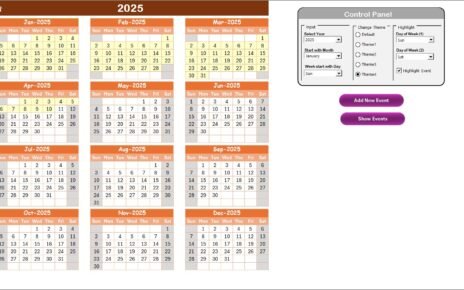
Managing customer service projects without a clear schedule often leads to missed deadlines, overlapping activities, and poor customer experience. However, when teams follow a structured calendar, they work with clarity, focus, and confidence. That is exactly where a Customer Service Project Calendar in Excel plays a critical role.
In this detailed guide, you will learn what a Customer Service Project Calendar in Excel is, why it matters, how it works, and how each worksheet supports daily operations. Moreover, you will explore the advantages, best practices, and frequently asked questions related to this ready-to-use Excel calendar.
This article uses simple language, clear explanations, and practical examples. As a result, you can easily apply the concepts to your own customer service projects.
Click to Purchases Customer Service Project Calendar in Excel
What Is a Customer Service Project Calendar in Excel?
A Customer Service Project Calendar in Excel is a structured and interactive scheduling tool designed to plan, track, and manage customer service–related activities in one place.
Instead of using scattered notes, emails, or disconnected spreadsheets, this calendar provides a centralized system to:
-
Plan customer service initiatives
-
Track important events and deadlines
-
Monitor daily, monthly, and annual activities
-
Maintain a structured events database
Because Excel remains widely used across organizations, teams can adopt this calendar without any learning curve. Moreover, Excel allows automation, customization, and easy updates, which makes this calendar highly practical.
Why Do Customer Service Teams Need a Project Calendar?
Customer service operations involve continuous activities such as training sessions, system upgrades, audits, campaigns, escalations, and customer engagement events. Without a calendar, teams often struggle to stay aligned.
A Customer Service Project Calendar in Excel helps because:
-
It improves visibility across teams
-
It prevents scheduling conflicts
-
It ensures timely execution of projects
-
It supports better workload planning
-
It enhances accountability
Therefore, customer service managers, team leads, and operations teams rely on calendars to stay organized and proactive.
Click to Purchases Customer Service Project Calendar in Excel
How Does a Customer Service Project Calendar in Excel Work?
This ready-to-use template works through five well-structured worksheets, each designed for a specific purpose. Together, these sheets provide a complete project planning and event management solution.
Let us explore each worksheet in detail.
What Is the Purpose of the Home Sheet Tab?
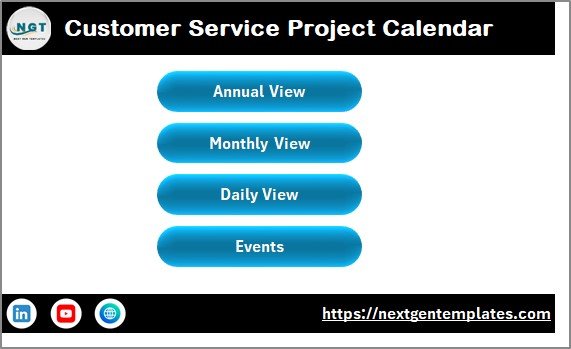
The Home Sheet acts as the index and navigation hub of the entire calendar.
Key Highlights of the Home Sheet
-
It provides quick access to all major views
-
It improves user experience through simple navigation
-
It reduces confusion for first-time users
Navigation Buttons Available
The Home Sheet includes four clearly labeled buttons:
-
Annual View – Jump directly to the yearly calendar
-
Monthly View – Open the selected month calendar
-
Daily View – View events within a date range
-
Events – Access the events database
Because of this layout, users do not waste time searching for sheets. Instead, they move directly to the required view with a single click.
How Does the Annual View Sheet Help in Planning?
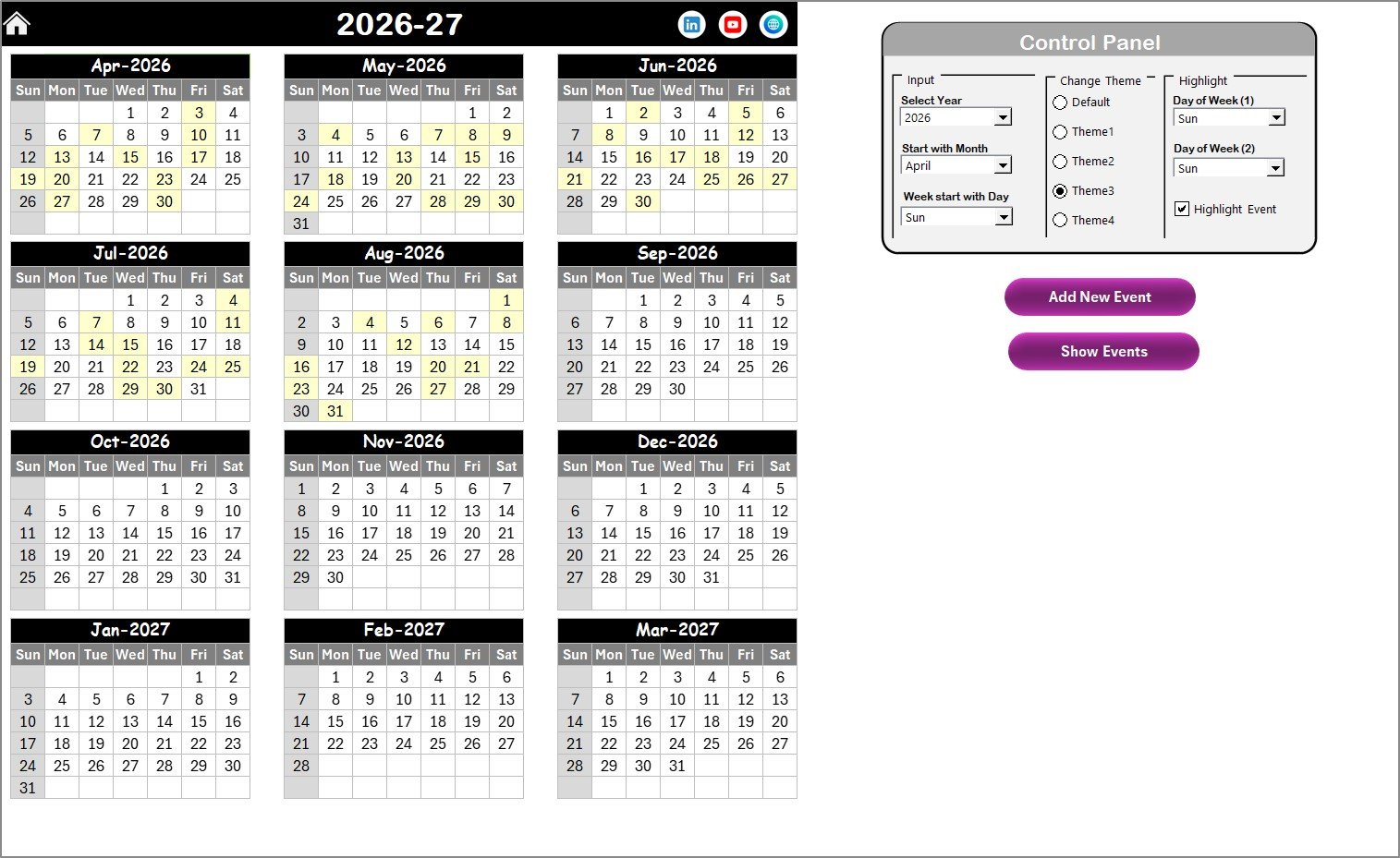
The Annual View Sheet provides a 12-month calendar view on a single screen. This sheet helps managers visualize the entire year at once.
What You See in the Annual View Sheet
-
All 12 months displayed together
-
Clear date alignment
-
Highlighted weekends and events
This view works perfectly for long-term planning, resource allocation, and annual reviews.
What Is Included in the Annual View Control Panel?
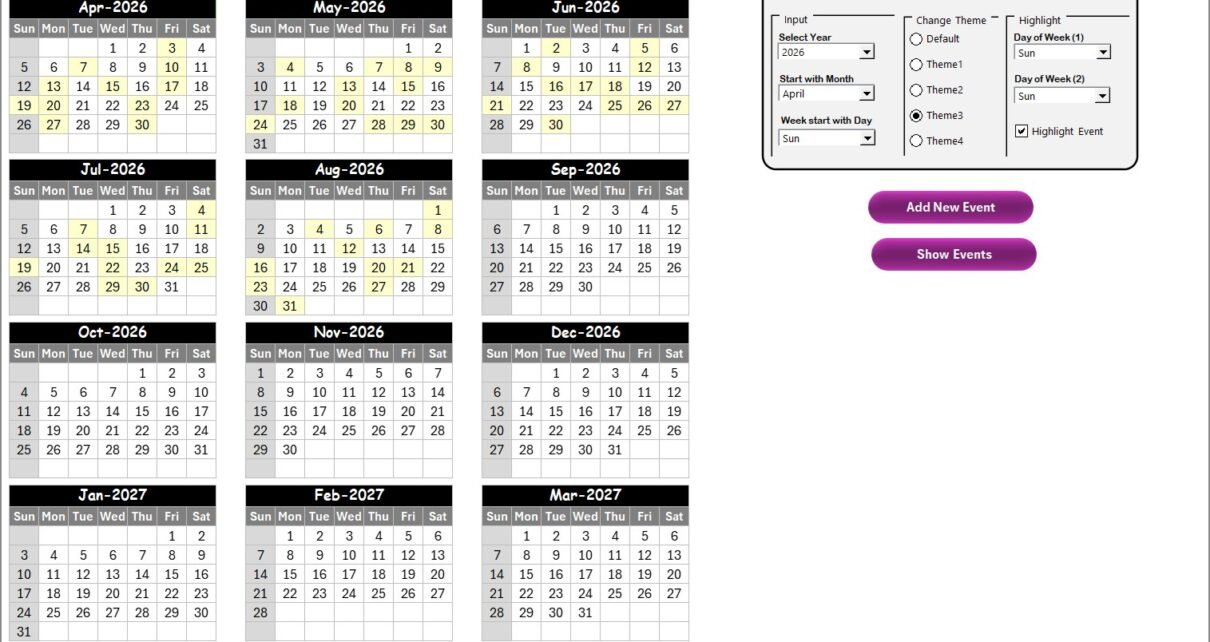
The Annual View includes a powerful Control Panel that allows full customization.
Input Group – Customize the Calendar
In the Input Group, you can:
-
Select the Year to update the calendar instantly
-
Change the starting month of the calendar
-
Define the starting day of the week
As a result, the calendar adapts to different fiscal years and regional preferences.
Change Theme Group – Apply Visual Styles
The Change Theme Group allows you to:
-
Choose from five predefined color themes
-
Apply the selected theme across the entire workbook
Because visual consistency improves readability, this feature helps teams quickly scan the calendar.
Highlight Group – Focus on Important Days
In the Highlight Group, you can:
-
Select Day of Week (1) and Day of Week (2)
-
Highlight specific days such as Saturday and Sunday
-
Enable the Highlight Event checkbox to mark events in yellow
This feature helps teams immediately identify weekends, non-working days, or critical dates.
How Do You Add and View Events in Annual View?
The Annual View includes two powerful action buttons.
Add New Event Button
You can add a new event by following these steps:
-
Select a date on the calendar
-
Click the Add New Event button
-
Fill in the event form
-
Click Submit
The event automatically appears on the selected date.
Show Event Button
To view events scheduled on a specific date:
-
Select the date
-
Click Show Event
-
Review the list of events
This approach ensures quick access to detailed information.
Click to Purchases Customer Service Project Calendar in Excel
What Is the Monthly View Sheet Used For?
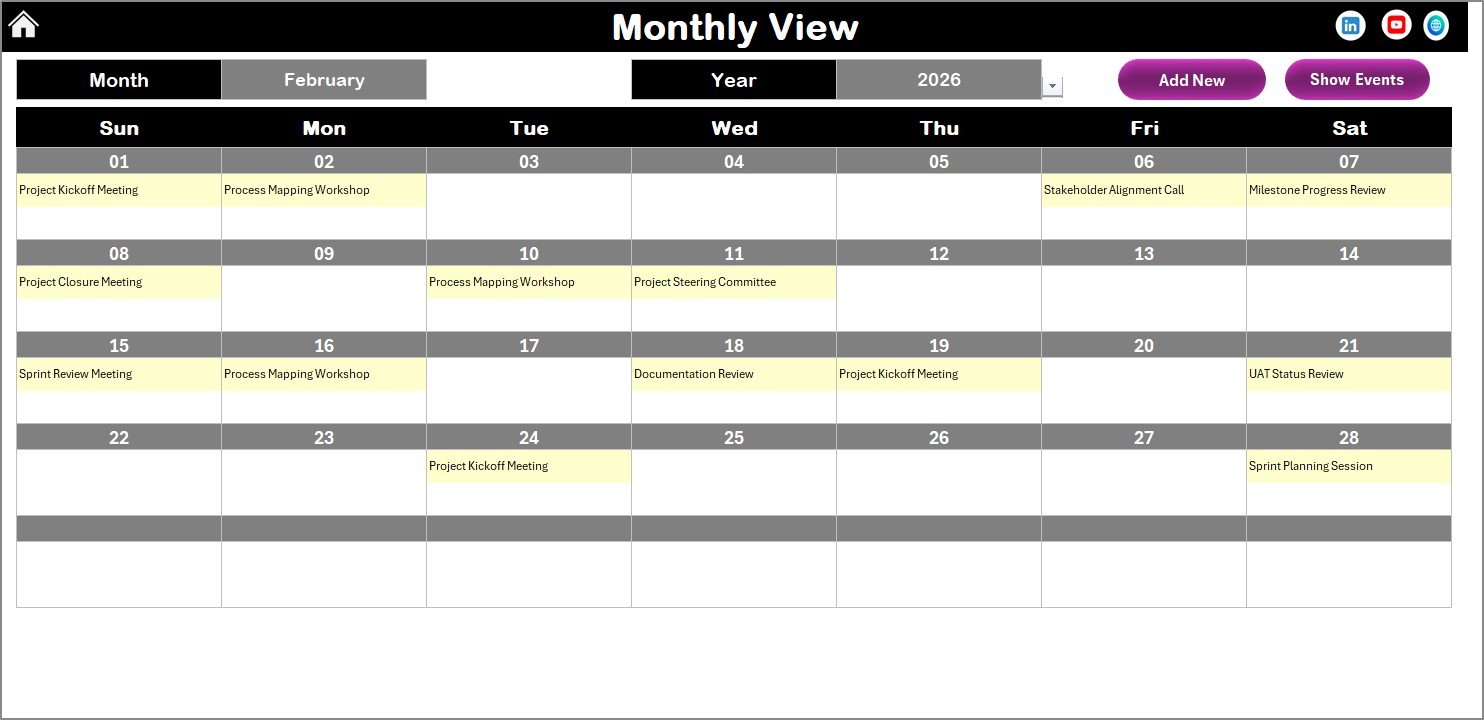
The Monthly View Sheet focuses on a single selected month, which helps teams manage ongoing activities more closely.
Key Features of Monthly View
-
Month and Year selectors at the top
-
Clean, single-month calendar layout
-
Event indicators displayed on dates
If more than one event exists on a date, the calendar displays “more than 1…”, which prompts users to check event details.
How Do Monthly View Buttons Improve Productivity?
The Monthly View includes two action buttons:
Add New Event Button
-
Select a date
-
Click Add New Event
-
Fill the form and submit
The event instantly reflects on the monthly calendar.
Show Event Button
-
Select a date
-
Click Show Event
-
Review all events scheduled for that day
This design allows teams to plan and adjust activities quickly.
Why Is the Daily View Sheet Important?
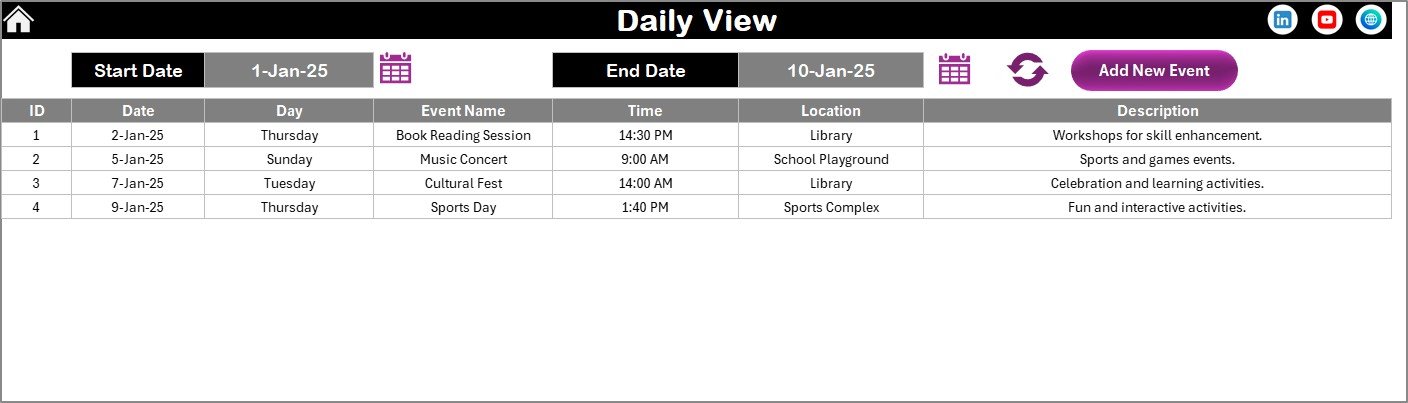
The Daily View Sheet supports detailed event tracking across a selected date range.
What the Daily View Shows
-
A list of events with full details
-
Flexible Start Date and End Date selection
-
Calendar icons for easy date picking
After selecting the date range, users simply click the Refresh button to load the latest data.
Adding Events from Daily View
The Daily View also includes an Add New Event button. This option allows users to add events without switching sheets, which saves time and improves workflow.
What Is the Role of the Events Sheet Tab?
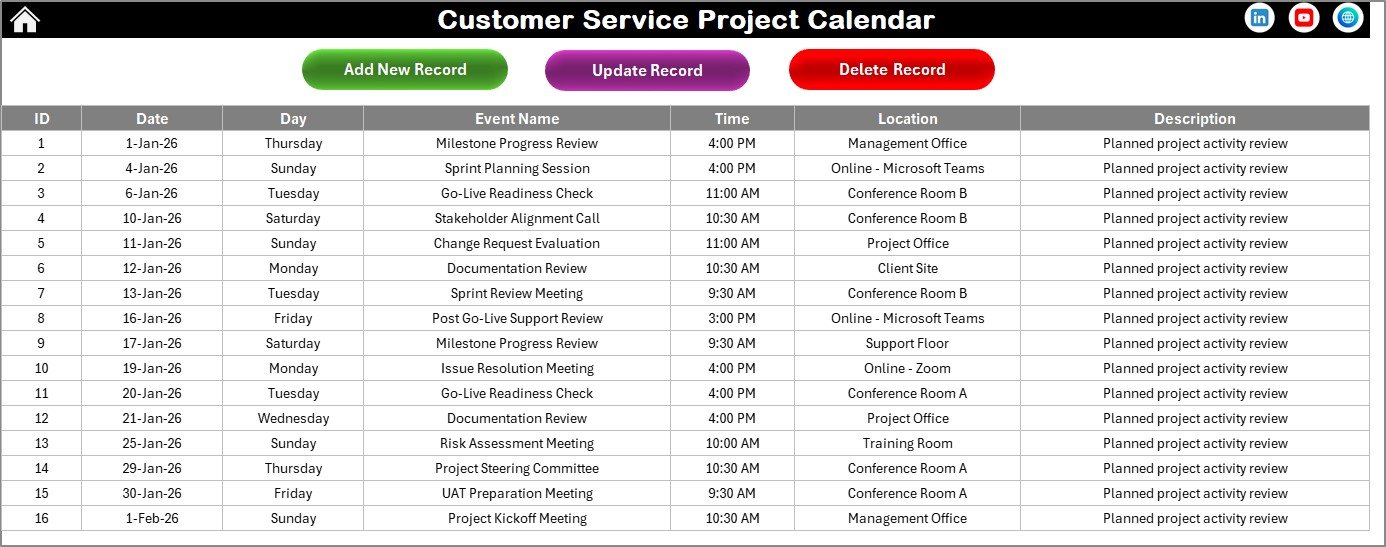
The Events Sheet works as the database of the entire calendar.
Information Stored in the Events Sheet
Each event includes the following fields:
-
ID – Auto-generated unique number
-
Date – Event date
-
Day – Day of the week
-
Event Name – Name of the activity
-
Time – Event timing
-
Location – Event location
-
Description – Short description
Because all views pull data from this sheet, data accuracy remains consistent across the workbook.
How Do Event Management Buttons Work?
The Events Sheet includes three essential buttons.
Add New Record
-
Opens the event form
-
Allows users to add a new event
-
Saves the event directly into the database
Update Existing Record
-
Select the ID of the event
-
Click Update Existing Record
-
Modify prefilled information
-
Submit changes
The system updates the record automatically.
Delete Record
-
Select the event ID
-
Click Delete Record
-
Remove the event permanently
This ensures clean and up-to-date data.
Click to Purchases Customer Service Project Calendar in Excel
Advantages of Customer Service Project Calendar in Excel
Using a Customer Service Project Calendar in Excel offers multiple benefits.
Key Advantages
-
📅 Centralized planning for all customer service activities
-
⚡ Quick navigation between annual, monthly, and daily views
-
🎯 Improved accountability through structured scheduling
-
🎨 Customizable themes and highlights for better readability
-
🔄 Easy event updates without technical skills
-
📊 Clear visibility of workload and deadlines
Because of these advantages, teams work more efficiently and avoid last-minute chaos.
Best Practices for the Customer Service Project Calendar in Excel
To get maximum value from the calendar, teams should follow these best practices.
Keep Event Data Updated
Always update events as soon as changes occur. This habit prevents confusion and outdated schedules.
Use Clear and Short Event Names
Short and descriptive event names improve readability across all views.
Review the Calendar Regularly
Daily and weekly reviews help teams stay proactive and avoid surprises.
Apply Themes Consistently
Choose one theme and stick with it. Visual consistency improves focus and usability.
Highlight Critical Days
Use the highlight feature to mark weekends, audits, launches, or service freezes.
Limit Manual Edits in the Database
Always use buttons and forms instead of manual changes. This practice protects formulas and automation.
Who Can Use a Customer Service Project Calendar in Excel?
This calendar suits multiple roles and industries.
-
Customer Service Managers
-
Support Team Leads
-
Operations Managers
-
Project Coordinators
-
Call Center Supervisors
-
Service Delivery Teams
Because Excel remains universal, organizations of all sizes can adopt this solution easily.
Click to Purchases Customer Service Project Calendar in Excel
Conclusion: Why Should You Use a Customer Service Project Calendar in Excel?
A Customer Service Project Calendar in Excel transforms the way teams plan and manage service activities. Instead of reacting to issues, teams gain control, clarity, and confidence.
With annual, monthly, and daily views, built-in automation, and a centralized event database, this ready-to-use calendar becomes a powerful operational tool. Moreover, it reduces errors, improves coordination, and supports consistent customer service delivery.
If your goal involves structured planning and better execution, this Excel calendar delivers exactly that.
Frequently Asked Questions (FAQs)
What is a Customer Service Project Calendar in Excel used for?
It helps plan, track, and manage customer service–related events, activities, and projects in one centralized Excel file.
Can non-technical users use this Excel calendar?
Yes. The calendar uses buttons, forms, and drop-downs, which makes it easy for any Excel user.
Does this calendar support multiple years?
Yes. You can select any year from the control panel, and the calendar updates automatically.
Can I customize the calendar layout and colors?
Yes. The template includes five color themes and flexible highlight options.
Where is event data stored?
All event data is stored in the Events Sheet, which acts as the database for the entire calendar.
Can I update or delete existing events?
Yes. You can update or delete events using the dedicated buttons in the Events Sheet.
Is this calendar suitable for large teams?
Yes. Because it centralizes planning and improves visibility, large teams benefit significantly from this calendar.
Click to Purchases Customer Service Project Calendar in Excel
Visit our YouTube channel to learn step-by-step video tutorials