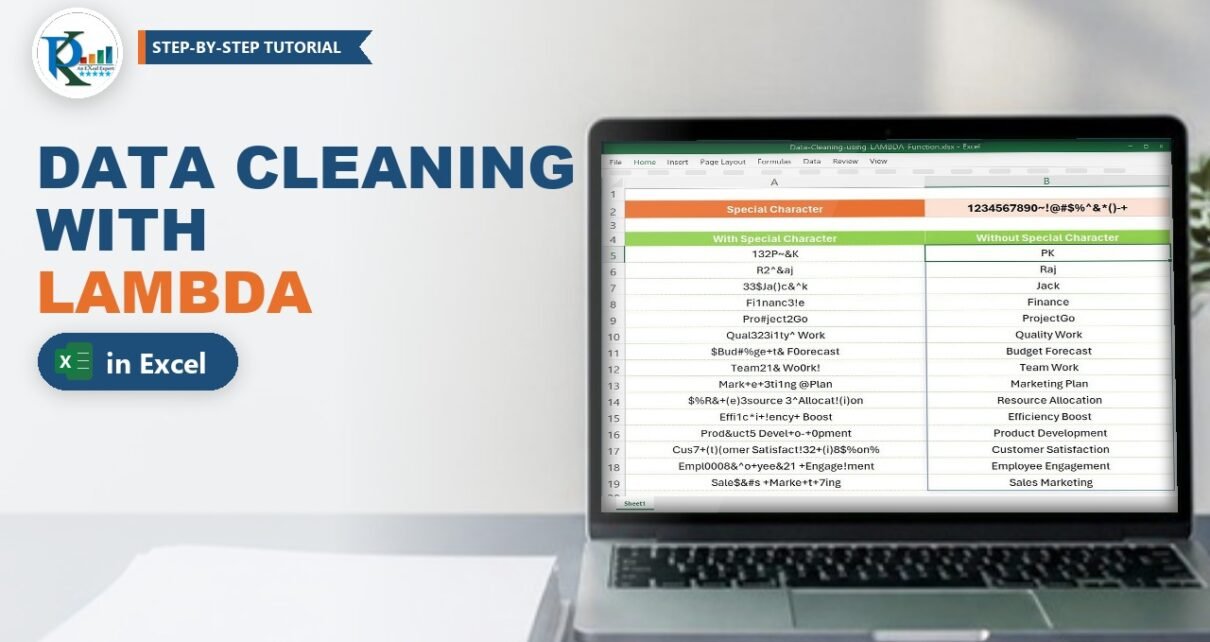
The LAMBDA function in Excel lets you build your own reusable function without VBA, and data cleaning is where it shines. In this tutorial you create a custom function called Remove_Char that strips every unwanted character, such as digits and symbols, from messy text in one formula: “33$Ja()c&^k” becomes “Jack” and “$Bud#%ge+t& F0orecast” becomes “Budget Forecast”. You list the characters to remove once, and one formula cleans the whole column. LAMBDA needs Excel for Microsoft 365 or Excel 2024; a Power Query route for older versions is included.
⬇️ Download the Free Practice File
Data-Cleaning-using-LAMBDA-Function.xlsx · 12 KB · Microsoft 365 / Excel 2024
Watch the Video Tutorial
The video builds the Remove_Char function in the Name Manager and uses it to clean a list of names that are full of numbers and symbols.
What You Will Learn
- What LAMBDA is and how its parameters and calculation fit together.
- How to save a LAMBDA as a named, reusable function in the Name Manager.
- How a recursive LAMBDA removes one character at a time until none are left.
- How one formula cleans a whole range and spills the results.
- A non-recursive version with REDUCE, and a Power Query route for older Excel.
What Is the LAMBDA Function in Excel?
LAMBDA turns a formula into a function you can name and call like SUM or VLOOKUP. The syntax is:
=LAMBDA([parameter1, parameter2, ...], calculation)The parameters are the inputs, such as a cell or a text string; you can have up to 253 of them. The calculation is the formula that uses those parameters and returns the result. On its own, a LAMBDA in a cell returns a #CALC! error, because it has nothing to work on yet. You either call it straight away with values in brackets, or you give it a name in the Name Manager, which is what makes it reusable across the workbook.
The Practice File
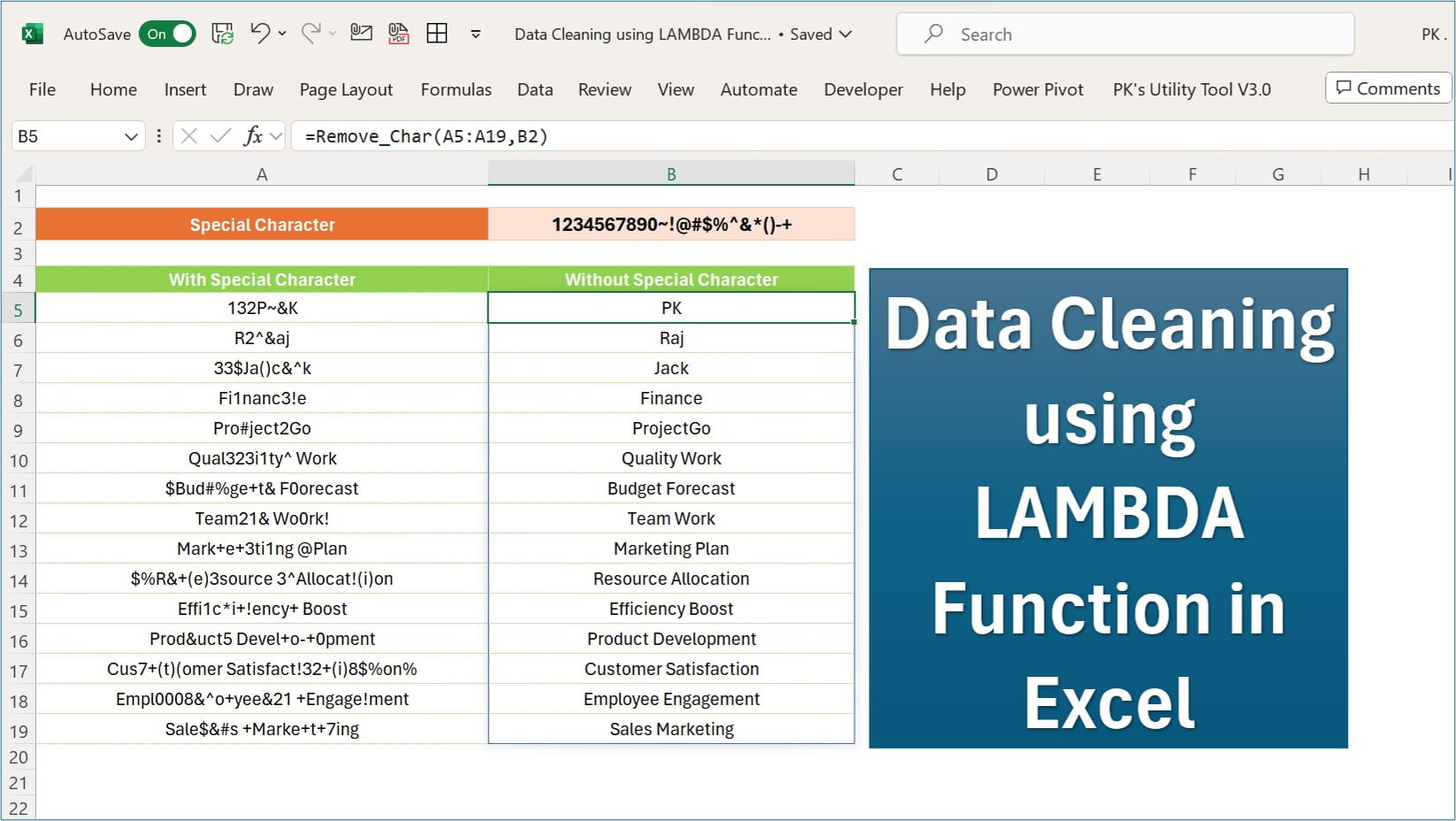
The download has one sheet. B2 holds the list of characters to remove: 1234567890~!@#$%^&*()-+. A5:A19 holds 15 dirty values such as “132P~&K”, “Fi1nanc3!e” and “Empl0008&^o+yee&21 +Engage!ment”. Column B, under the header “Without Special Character”, is where the clean text appears.
Build the Remove_Char Function Step by Step
Step 1: List the characters to remove
Type every character you want gone into one cell, B2 in the file. Keeping the list in a cell rather than inside the formula means you can add or remove a character later without touching the function.
Step 2: Create the name in the Name Manager
Go to Formulas › Name Manager › New. In Name type Remove_Char. In Refers to paste this formula and click OK:
=LAMBDA(main_text,Special_Char,
  IF(Special_Char="",
     main_text,
     Remove_Char(SUBSTITUTE(main_text,LEFT(Special_Char,1),""),
                 RIGHT(Special_Char,LEN(Special_Char)-1))))
The line breaks are only for reading; you can enter it on one line. Notice that the formula calls Remove_Char inside itself. That is recursion, and it only works once the LAMBDA has a name.
Step 3: Use it like any other function
In B5 enter:
=Remove_Char(A5:A19,B2)Because you passed a whole range, the result spills down to B19: PK, Raj, Jack, Finance, ProjectGo, Quality Work and so on. For a single cell you can also write =Remove_Char(A5,$B$2) and fill it down.
How the Formula Works
Take “R2^&aj” and the list 1234567890~!@#$%^&*()-+:
- IF(Special_Char=””, main_text, …) is the exit door. When no characters are left in the list, the function returns the text as it is now.
- LEFT(Special_Char,1) takes the first character of the list, “1”.
- SUBSTITUTE(main_text, “1”, “”) deletes every “1” from the text. “R2^&aj” has none, so nothing changes.
- RIGHT(Special_Char, LEN(Special_Char)-1) drops that first character, so the list becomes “234567890~!@…”.
- Remove_Char(…) calls itself with the shorter text and the shorter list. On the “2” pass the text becomes “R^&aj”, on “^” it becomes “R&aj”, on “&” it becomes “Raj”.
- After 23 passes the list is empty, the IF returns the text, and you get Raj.
Spaces are not in the list, so “Qual323i1ty^ Work” keeps its space and becomes “Quality Work”. To remove spaces as well, add a space to B2 or wrap the result in TRIM.
Modern Excel Alternative: REDUCE Without Recursion
If you prefer not to use a named recursive function, Microsoft 365 can do the same job in one cell with MAP, REDUCE and SEQUENCE:
=MAP(A5:A19,LAMBDA(t,
  REDUCE(t,MID($B$2,SEQUENCE(LEN($B$2)),1),
    LAMBDA(acc,ch,SUBSTITUTE(acc,ch,"")))))
MID($B$2,SEQUENCE(LEN($B$2)),1) splits the list into single characters. REDUCE starts with the original text and runs SUBSTITUTE once per character, carrying the result forward. MAP repeats that for every cell in A5:A19. The output is identical to Remove_Char.
If your Microsoft 365 has the newer REGEXREPLACE function, you can also keep only letters and spaces with =REGEXREPLACE(A5:A19,"[^A-Za-z ]",""). Be aware that this removes everything that is not A-Z or a space, including full stops and accented letters, so the character-list approach gives you more control.
Older Excel: Clean the Text with Power Query
Excel 2021 and older have no LAMBDA. Load the column with Data › From Table/Range, then add a custom column with:
Text.Remove([Text], {"0".."9","~","!","@","#","$","%","^","&","*","(",")","-","+"})Replace [Text] with your column name. Close & Load sends the cleaned list back to the sheet, and Refresh cleans new rows.
Common Errors & Fixes
- #NAME? when you use Remove_Char. The name is spelled differently in the Name Manager, or your Excel has no LAMBDA. Check the name and your version.
- #CALC! when you test the LAMBDA in a cell. A LAMBDA typed into a cell without arguments cannot return a value. Save it as a name first, then call it.
- #SPILL! in column B. A cell under B5 is not empty. Clear B6:B19 so the result can spill.
- A character is not removed. It is missing from B2, or it is a lookalike, such as a non-breaking space or a different dash. Copy the character from the data into B2.
Tips
- Keep one “characters to remove” cell per workbook and point every Remove_Char call to it with an absolute reference such as
$B$2. - Add a comment in the Name Manager’s Comment box explaining the two parameters; it shows up as a tooltip when you type the function.
- Paste the cleaned values as values (Ctrl + Alt + V, V) before you delete the dirty column.
- Microsoft’s LAMBDA function reference covers naming and recursion in detail.
Want It Ready-Made?
For ready-to-use workbooks built on the same formula skills, browse the Excel templates on NextGenTemplates.com. To master LAMBDA, LET, text functions and data cleaning step by step, join the video course Excel + AI Mastery: 100 Essential Formulas and Real-World Projects.
Related Tutorials
- LAMBDA Function in Excel with Examples
- Separate Numbers and Text from an Excel Column
- 4 Tips for Data Separation with Text to Columns
- How to Use the FILTER Function in Excel
Frequently Asked Questions
How do I remove special characters in Excel with a formula?
Save the Remove_Char LAMBDA in the Name Manager, put the unwanted characters in one cell, and use =Remove_Char(A5,$B$2). Without LAMBDA you need nested SUBSTITUTE functions or Power Query.
What is a recursive LAMBDA in Excel?
It is a named LAMBDA that calls itself. Remove_Char deletes one character, then calls itself with the rest of the list, until the list is empty and the IF returns the cleaned text.
Which Excel versions support LAMBDA?
Excel for Microsoft 365 and Excel 2024. Excel 2021, 2019 and older do not support LAMBDA, so use Power Query’s Text.Remove there.
Can I use a LAMBDA function in another workbook?
A named LAMBDA lives in the workbook where you created it. Copy a sheet that uses it into the other workbook and the name comes along, or create the name again in that file.
Does Remove_Char remove spaces?
Only if a space is in the list of characters. In the practice file it is not, so “Qual323i1ty^ Work” keeps its space and becomes “Quality Work”.
Is LAMBDA better than VBA for cleaning data?
For text clean-up like this, yes for most people: the file stays a normal .xlsx with no macros, and the function recalculates automatically when the data changes.
About the Author
PK is a Microsoft Excel expert and trainer, and the founder of PK: An Excel Expert and NextGenTemplates.com. He has been teaching Excel formulas, dashboards and automation on his YouTube channel since 2016.
Conclusion
The LAMBDA function in Excel turns a fiddly clean-up job into one named function: list the characters once, call Remove_Char on the column, and every value comes back clean. Download the practice file, try it on your own messy data, and keep the function for the next import.