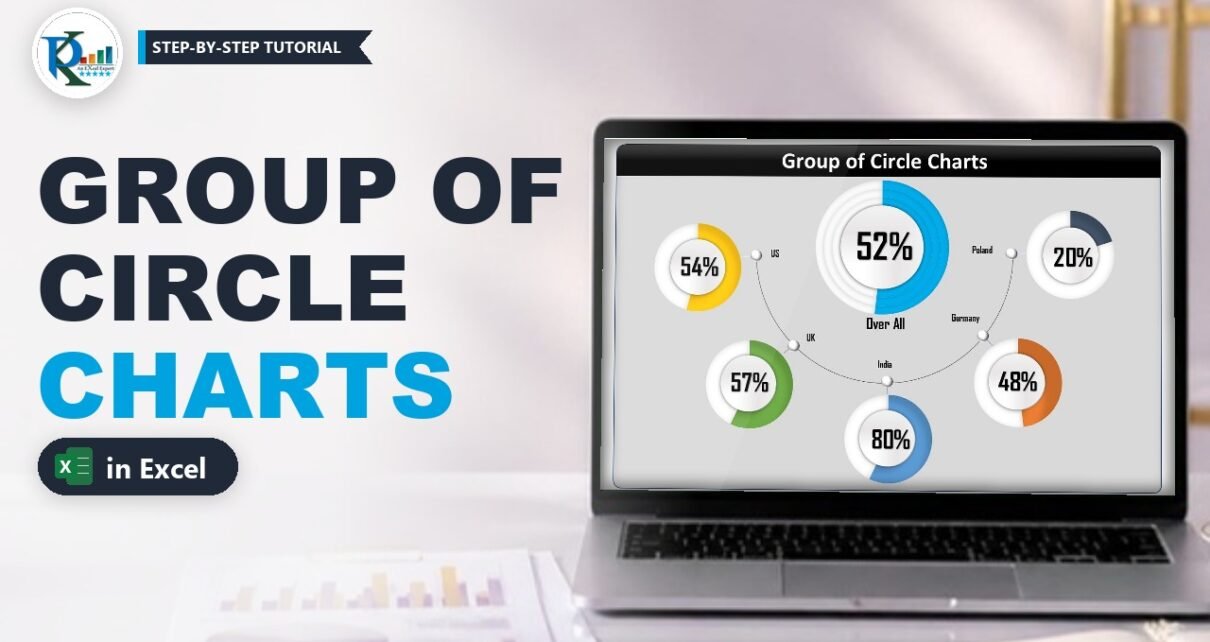
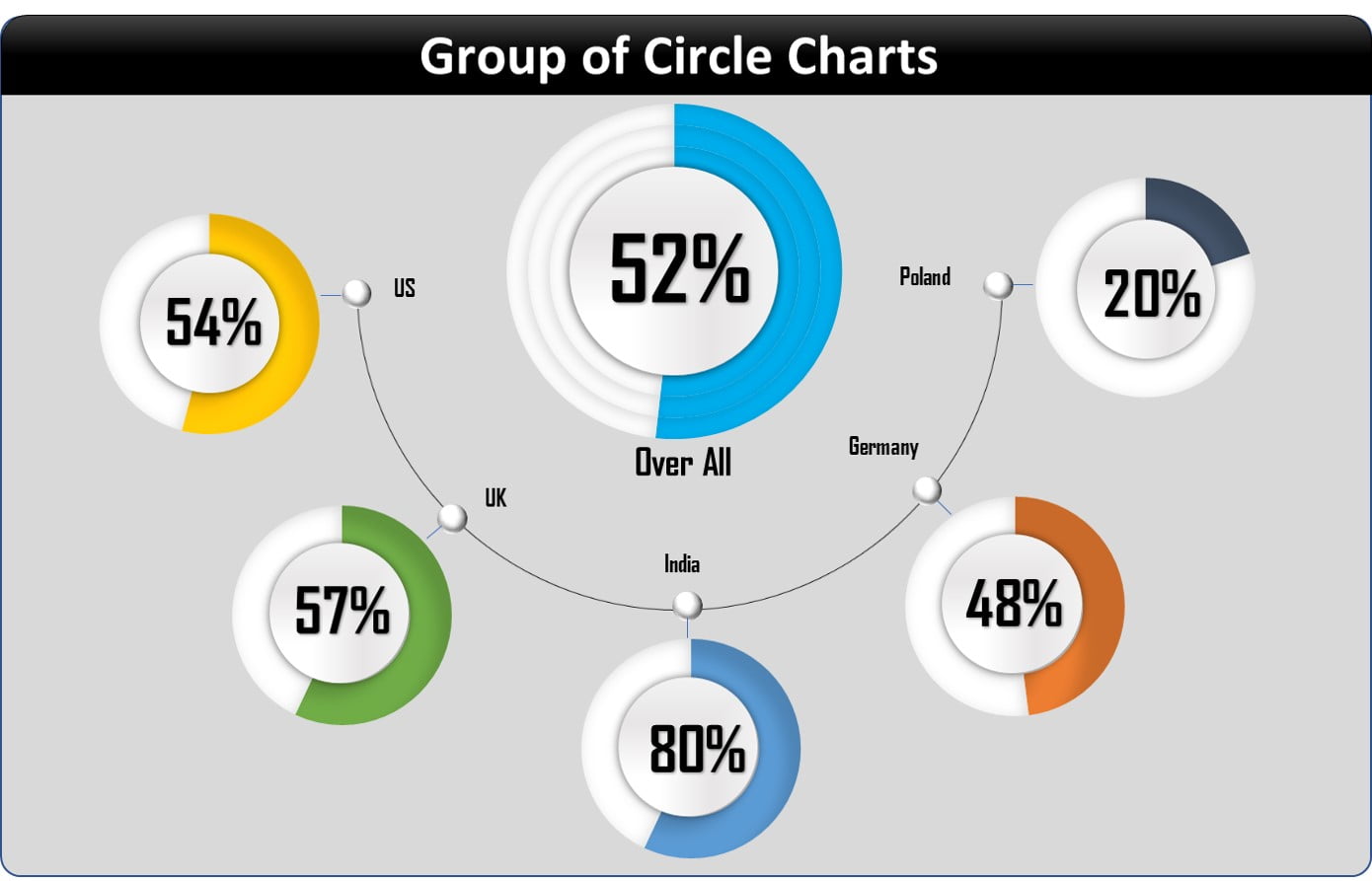
A group of circle charts in Excel shows one headline KPI and its breakdown in a single, dashboard-ready picture. In this tutorial you build one for service level: a large ringed circle for the overall figure and five smaller circles for the US, UK, India, Germany and Poland markets, joined by an arc with small pointer dots. Every circle is a doughnut chart with a glossy centre shape and a linked text box, so all six update when the numbers change. You need only one helper formula and no VBA.
Watch the Video Tutorial
In the video I build the whole layout from a blank sheet: the first doughnut, its glossy centre, copies for each market, the linked labels, the arc with pointers and the background panel.
What You Will Build
- One large ringed doughnut for the overall service level.
- Five smaller doughnuts, one per market, each in its own colour.
- Glossy centre circles made with a gradient-filled oval and a soft shadow.
- Live percentage and market labels from text boxes linked to cells.
- An arc connector with pointer dots on a rounded grey panel with a title band.
The Sample Data
The data is a small two-column table: Market in column A and Service Level in column B. Row 2 holds Over All, and rows 3 to 7 hold US, UK, India, Germany and Poland.
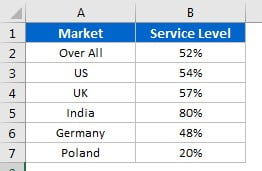
In my file the service levels come from RANDBETWEEN, so pressing F9 gives new numbers and you can watch every circle update. Use your own values or any other percentage KPI instead.
Part 1 – Prepare the Helper Column
Step 1: Add the remainder
A doughnut chart needs two slices: the value and the empty part. In C2 enter:
C2 =1-B2Fill it down to C7. With 60% in B2, C2 shows 40%, and together the two slices always make a full circle. Then turn off gridlines in View → Gridlines so the infographic sits on a clean sheet.
Part 2 – Build the First Circle Chart
Step 2: Insert the doughnut
Select A2:C2 (the Over All row) and go to Insert → Charts → Doughnut. Click the Chart Elements (+) button and untick Chart Title and Legend.
Step 3: Shape the ring
- Select the doughnut and set Format → Shape Outline → No Outline.
- Right-click it, choose Format Data Series and set Doughnut Hole Size to about 65%.
- Click the value slice once more to select only that point and give it a light blue solid fill. Fill the remainder slice white.
- Select the chart area and set Shape Fill → No Fill and Shape Outline → No Outline.
Step 4: Add depth with an inner shadow
Select the doughnut series, open Format Data Series → Effects → Shadow and pick an Inner preset. Then adjust it: Transparency about 85%, Blur around 12 pt, Angle 300° and Distance about 10 pt. The ring now looks slightly pressed into the page.
Part 3 – Make the Glossy Centre
Step 5: Insert an oval inside the chart
With the chart selected, go to Insert → Shapes → Oval and draw it inside the chart so it fits the doughnut hole. Because the chart was selected, the shape belongs to the chart and moves with it. Set its outline to No Outline.
Step 6: Apply a rectangular gradient
Right-click the oval, choose Format Shape → Fill → Gradient fill and set:
- Three gradient stops (delete the extra one) at about 30%, 65% and 100%.
- Type: Rectangular, with a direction of your choice.
- Colours: white, grey and light grey.
Finish with Shape Effects → Shadow → Outer → Offset Center. The centre now looks like a raised button.
Step 7: Add the extra rings
The big Over All circle has the layered ring look. Select its doughnut series, press Ctrl+C, select the chart and press Ctrl+V twice. You now have three copies of the same series, which Excel draws as concentric rings.
Step 8: Link the percentage label
Go to Insert → Text Box and draw it over the centre. With the text box selected, click in the formula bar, type = and click the service level cell:
=Sheet1!$B$2Give the text box No Fill and No Outline, centre the text horizontally and vertically, and use a bold condensed font. I use Agency FB, bold. The label now shows the live percentage.
Part 4 – Complete the Group of Circle Charts in Excel
Step 9: Create the US chart
Copy the chart and paste it. Select the copy, and the source range is highlighted on the sheet. Drag the highlighted range down one row so the chart reads row 3 (US). The new chart may lose its formatting when the range changes. To fix that, copy the first chart, select the second one and use Home → Paste → Paste Special → Formats. Pasting formats also brings a second centre oval, so delete the extra one.
Make the market charts slightly smaller than the Over All chart.
Step 10: Repeat for UK, India, Germany and Poland
Make four more copies of the small chart, point each one at its own row (4 to 7), and reapply the formats. After the first Paste Special, you can select the next chart and press F4 to repeat the action. Then give each value slice its own colour, for example yellow, green, blue, orange and dark slate.
Step 11: Link the market percentages
Copy the percentage text box onto each small chart and relink it to B3, B4, B5, B6 and B7. Use Agency FB, bold, around size 35.
Part 5 – Arc, Pointers and Background
Step 12: Draw the arc
Insert the Arc shape, drag its yellow handles until it becomes a half circle, then use Rotate → Rotate Right 90° so it curves under the big chart. Make the outline black, about 1 pt. In the video I copy the arc and use Paste as Picture, then delete the original, which makes the arc take up less space on the sheet.
Step 13: Add the background panel
Insert a Rounded Rectangle behind everything, drag its yellow handle to set the corner radius, give it a grey fill and a black outline, and choose Send to Back. Tip from the video: double-click any ribbon tab to collapse the ribbon and get more room to work.
Step 14: Add pointer dots and lines
Insert a small Oval of 0.2" x 0.2", with no outline, a white fill and Shape Effects → Bevel → Circle, which makes it look like a little ball. Copy it onto the arc, one per market. Add short black 1 pt Lines from each dot to its chart, setting the angle in Format Shape → Size → Rotation.
Step 15: Market labels, title and grouping
- Insert a text box next to each dot and link it to the market name, for example
=$A$5for India. Use Agency FB, bold, size 12, no fill and no outline. - Add one more label linked to
A2(Over All) under the big circle. - Add a second rounded rectangle at the top with a dark shape style as the title band, and type your title.
- Click any shape, press Ctrl+A to select all shapes and charts, right-click and choose Group. Now the whole infographic moves as one object.
Common Errors and Fixes
The new chart lost its colours and shadow
Changing a chart’s range can reset its style. Copy a finished chart and use Paste Special → Formats (or F4) on the new one, then delete the duplicate centre oval.
The centre oval does not move with the chart
It was drawn on the sheet, not in the chart. Delete it, select the chart first and insert the oval again.
The text box shows the formula as text
Type the = reference in the formula bar, not inside the text box itself.
The ring is not a full circle
My addition. Check that the helper column is =1-B2 and that the service level is a true percentage (0.52, not 52). A value of 52 makes the remainder negative.
Tips
- Use one colour per market and keep the same colours across your dashboard.
- Keep the helper column next to the data, or hide it. If you hide it, tick Show data in hidden rows and columns under Select Data → Hidden and Empty Cells.
- The same layout works for any percentage KPI: on-time delivery, target achievement, survey scores or utilisation.
- Agency FB is a Windows font. If it isn’t installed, a bold condensed font such as Bahnschrift Condensed gives a similar look (my suggestion).
- Microsoft’s overview of available chart types in Office explains when a doughnut chart is the right choice.
Want It Ready-Made?
If you’d rather start with the finished infographic, the Group of Circle Charts in Excel template on NextGenTemplates.com has all six circles, the arc and the linked labels ready to use with your data. For more ready-made KPI visuals, see the Excel Charts and Visualization collection. To learn charts, infographics and complete dashboards step by step, join the video course Excel Pivot Tables and Dashboards.
Related Tutorials
- Doughnut Chart in Excel: The Basics
- Dynamic Circle Chart in Excel
- 3D Doughnut Chart for KPI Metrics
- Half Circle KPI Charts Using Doughnut Charts
- Multilayered Doughnut Chart in Excel
Frequently Asked Questions
Which Excel chart is used for a circle progress chart?
A doughnut chart with two slices: the value and a helper slice equal to 1 minus the value. Remove the outline, enlarge the hole and colour the helper slice white or light grey.
How do I show the percentage in the middle of the circle?
Insert a text box over the doughnut hole, click in the formula bar, type an equals sign and click the value cell. The text box then always shows the live value.
How do I make several circle charts with the same formatting?
Copy the finished chart, point the copy at the next row, then use Paste Special with Formats from the original chart. Pressing F4 repeats that paste on the next chart.
Why does the overall circle have several rings?
The same series is pasted into the chart three times. Excel draws each copy as another ring, which gives the layered look.
Does the group of circle charts need VBA?
No. It uses doughnut charts, shapes and text boxes linked to cells. Change the data and every circle and label updates.
About the Author
PK is a Microsoft Excel expert and trainer and the founder of PK: An Excel Expert and NextGenTemplates.com. He has been teaching Excel, Power Query and Power BI since 2016 on his YouTube channel.
Conclusion
A group of circle charts in Excel is built from a few repeatable parts: a doughnut chart with a 1 – value helper slice, a gradient oval and shadow for depth, a text box linked to the value, and copies of the chart for each market joined by an arc and pointer dots. Group everything at the end and drop it into your next dashboard or presentation.