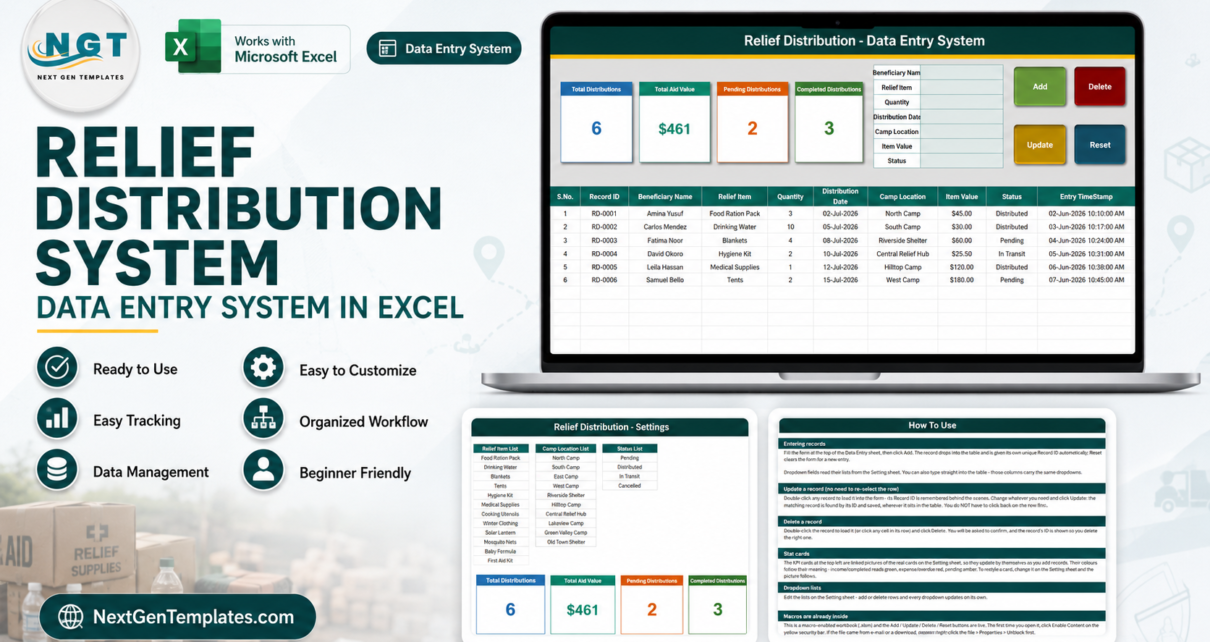
The Relief Distribution Data Entry System in Excel is a 4-sheet macro-enabled workbook that captures 7 fields per distribution record across a 10-column table, summarises them in 4 live KPI cards, and drives every action from 4 VBA buttons. It arrives with 12 relief items, 10 camp locations and 4 status values already loaded into its dropdown lists, plus 6 sample records so you can see the whole thing working before you touch it.
Most small organisations record distributions in a plain sheet that drifts within weeks – the same item spelled three ways, dates in two formats, and no reliable way to correct a record without breaking the row below it. This template fixes that by fixing the vocabulary: every item, location and status comes from a list you control, and every record gets a generated ID so edits and deletions find the right row every time.
One thing to be clear about at the top: this is a record-keeping workbook. It stores what your own staff typed about what your organisation distributed. It does not decide who should receive anything, does not assess need, and makes no claim about any humanitarian standard, donor framework or grant reporting format. Every figure in it is a number a person entered, not a verified one.
Key Features of the Relief Distribution Data Entry System in Excel
- A 7-field form that writes a 10-column record. You enter Beneficiary Name, Relief Item, Quantity, Distribution Date, Camp Location, Item Value and Status. The workbook supplies the S.No., the Record ID and the Entry TimeStamp itself.
- Generated Record IDs in the RD-0001 format. Update and Delete match on that ID rather than on row position, so you can sort or filter the table and the buttons still act on the correct record.
- Four KPI cards that recalculate on every entry. Total Distributions counts records, Total Aid Value sums the Item Value column, Pending Distributions counts rows marked Pending, and Completed Distributions counts rows marked Distributed.
- Four working VBA macros. Add appends, Update saves an edit, Delete removes a record after confirming its ID on screen, and Reset clears the form.
- Edit without hunting for the row. Double-click any record to load it back into the form; the workbook remembers which record you opened, so you can change fields and press Update immediately.
- Three dropdown lists you own outright. Relief Item, Camp Location and Status read from the Setting sheet. Add or delete rows there and every dropdown updates by itself, in the form and in the table columns.
- Fully offline. It is a single .xlsm file. Nothing is uploaded, nothing syncs, and no account is required.
Sheets Explanation
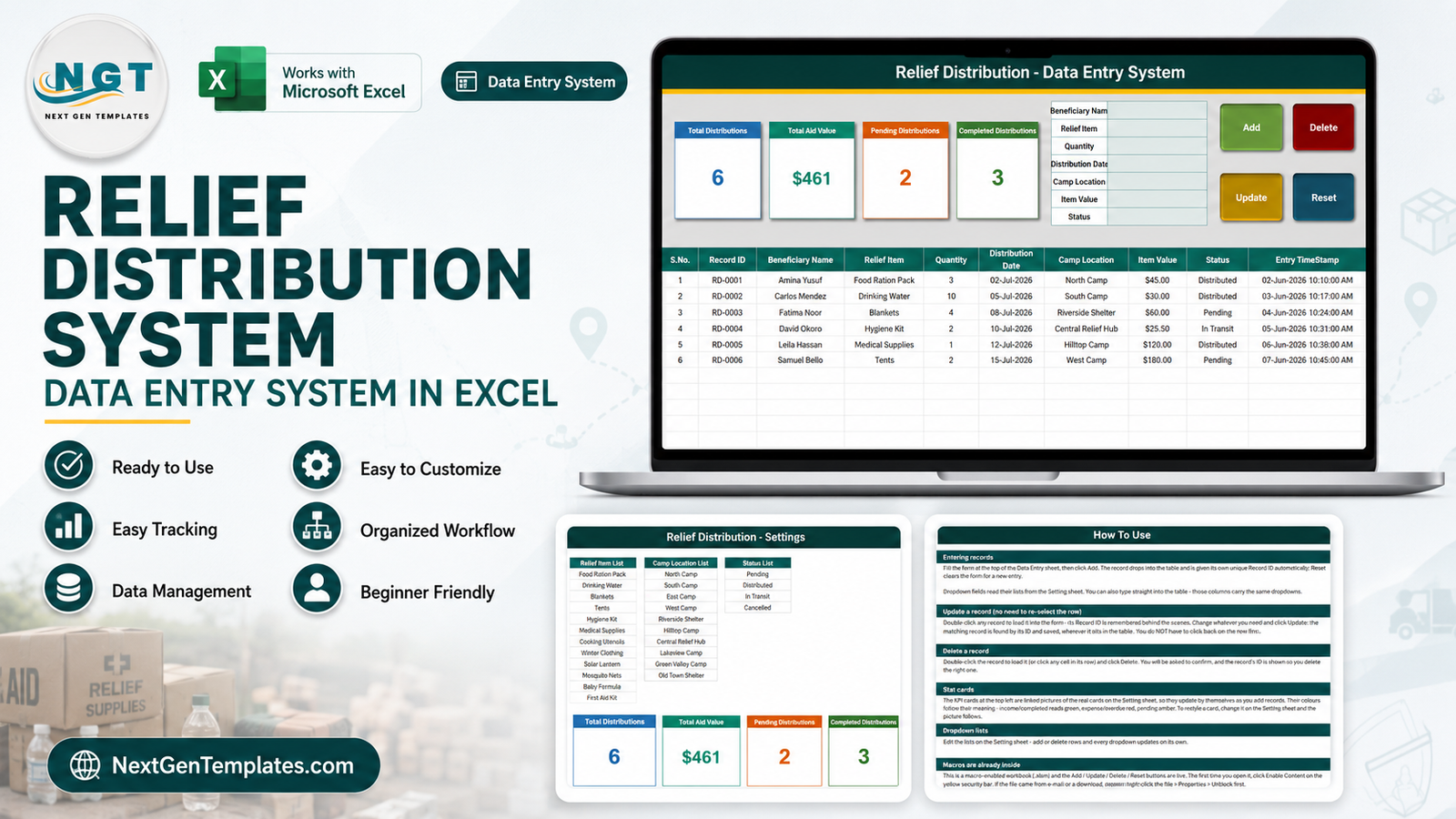
The workbook contains exactly four sheets. Three are shown below; the fourth is described in text.
Data Entry
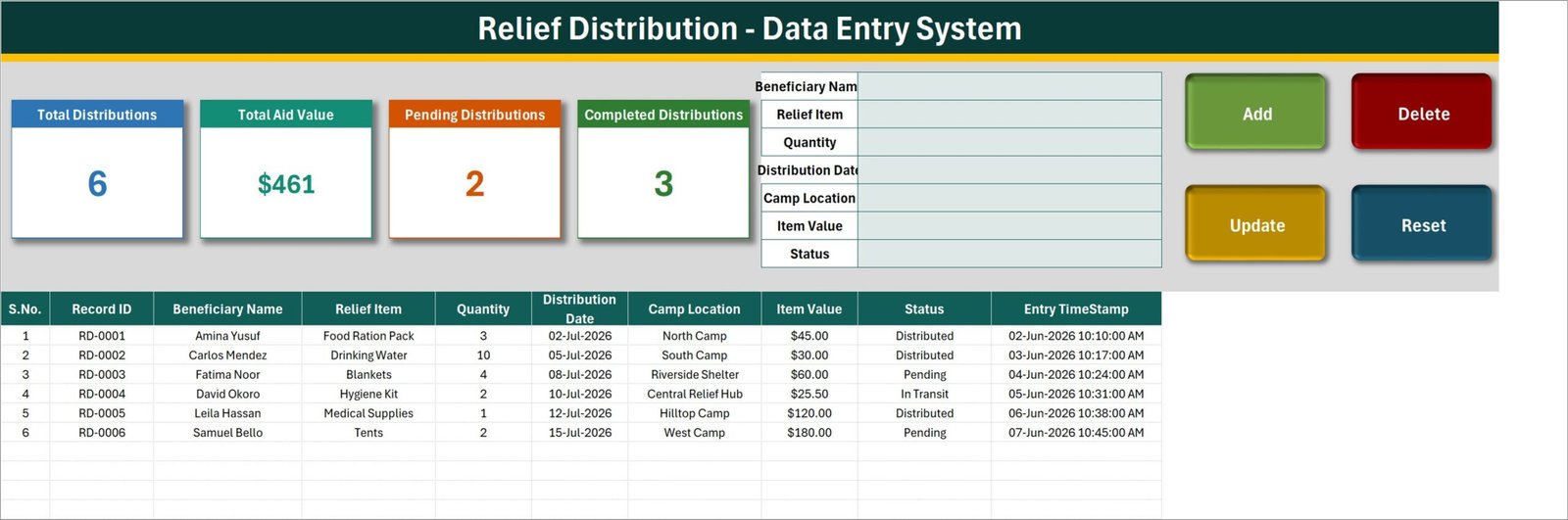
The working screen. Four KPI cards run across the top – Total Distributions, Total Aid Value, Pending Distributions and Completed Distributions – next to the 7-field entry form and the Add, Update, Delete and Reset buttons. Underneath, the records table spans ten columns: S.No., Record ID, Beneficiary Name, Relief Item, Quantity, Distribution Date, Camp Location, Item Value, Status and Entry TimeStamp. The six rows visible in the screenshot are demo data shipped with the file, not real records.
Setting
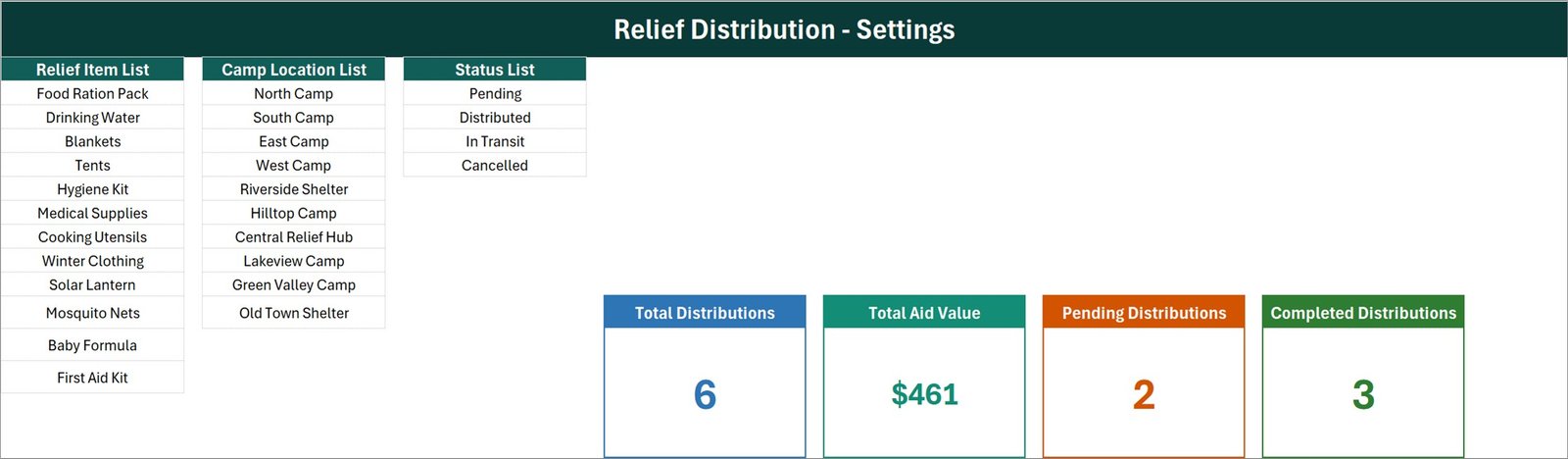
Holds the three dropdown lists side by side, plus the original KPI cards that the Data Entry sheet mirrors. The Relief Item List ships with 12 entries – Food Ration Pack, Drinking Water, Blankets, Tents, Hygiene Kit, Medical Supplies, Cooking Utensils, Winter Clothing, Solar Lantern, Mosquito Nets, Baby Formula and First Aid Kit. The Camp Location List holds 10 generic placeholder names, and the Status List holds 4 values: Pending, Distributed, In Transit and Cancelled. All of these are sample text meant to be replaced with your own item names and locations.
Instructions
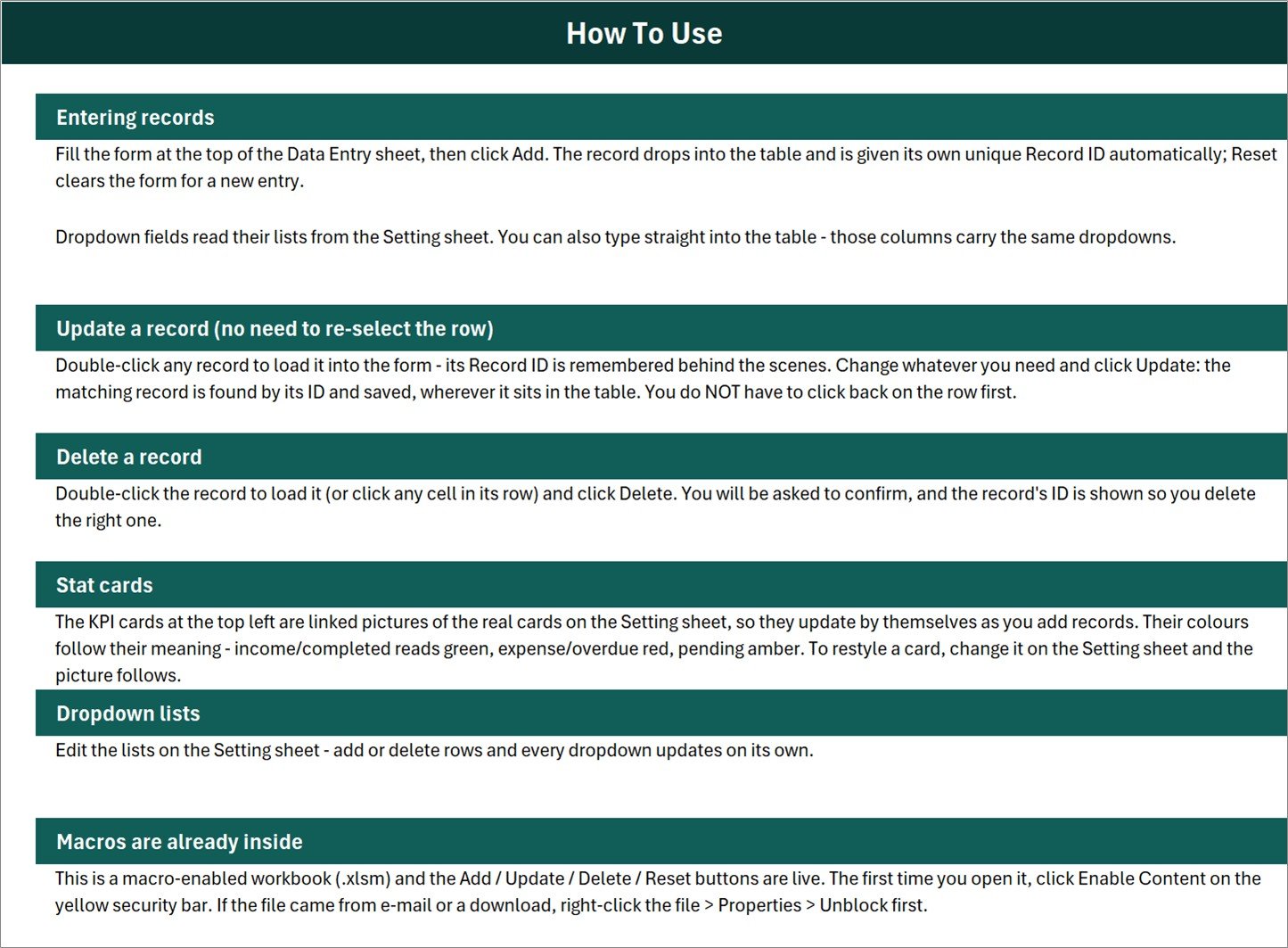
A single-page How To Use reference. It covers entering records, updating a record without re-selecting its row, deleting safely, how the stat cards are built as linked pictures of the Setting sheet originals, editing the dropdown lists, and enabling macros the first time the file opens.
Get More Templates
A short link sheet listing the wider NextGenTemplates catalogue – Data Entry Systems, Excel Dashboards, Google Sheets templates, Power BI dashboards and Apps Script web apps. There is no photograph of this sheet because it holds no data; it is purely navigational and can be deleted without affecting the rest of the workbook.
Relief Distribution Data Entry System vs. a Google Sheets Form vs. Paid Case-Management SaaS – Feature Comparison
| Feature | Relief Distribution Data Entry System in Excel | Google Sheets + Forms | Salesforce Nonprofit Cloud / Zoho Creator |
|---|---|---|---|
| Cost | $6.99 one-time | Free, but you build it | $25-150 / user / month |
| Platform | Desktop Microsoft Excel (.xlsm) | Browser | Browser / mobile app |
| Setup time | Under 10 minutes | 2-6 hours to build | Days to weeks |
| Works fully offline | Yes | No | No |
| Real-time team collaboration | No – one file, one editor | Yes | Yes |
| Edit a record without finding its row | Yes – matched by Record ID | Manual lookup | Yes |
| Customisable dropdown lists | Yes, on one sheet | Yes | Yes, via admin config |
| Data leaves your machine | Never | Stored in Google Drive | Stored on vendor servers |
| Year-1 cost at 5 users | $6.99 | $0 + your build time | $1,500-9,000 |
For a small team that needs a clean, offline distribution log without paying per user or waiting on an IT rollout, the Relief Distribution Data Entry System sits in the sweet spot.
Who Should Use This Template
Perfect for:
- Small charities and community groups recording what they handed out, item by item
- Store or field coordinators who want one tidy list rather than several loose spreadsheets
- Programme administrators who need a fixed vocabulary of item and location names so records stay consistent between volunteers
- Anyone working offline who wants records to stay on their own machine
Not a fit if:
- Several people must enter records simultaneously – this is a single desktop file with no multi-user editing
- You need compliance with a humanitarian standard, donor framework or grant reporting format – the workbook makes no such claim and produces no such report
- You want the tool to perform beneficiary targeting, eligibility screening or needs assessment – it records decisions rather than making them
- You use Excel for the web, Excel for Mac or Google Sheets, or cannot enable macros – the four buttons need desktop Excel VBA
- Your organisation cannot hold beneficiary names in a local spreadsheet under its own data-protection policy
Real-World Use Cases
Meera coordinates a small community food programme. She logs every ration pack handed out, the location it went to, and whether it is still pending or already distributed. Her monthly committee update is now one glance at the KPI cards instead of an evening spent counting paper slips.
Daniel manages a church storeroom. He rewrote the Relief Item List to match the twelve goods his group actually stocks, and the Camp Location List to name the four estates they serve. Every volunteer now picks from the same dropdowns, so item names across his records are finally consistent – which means a filter on “Blankets” actually returns every blanket record.
Priya runs a two-person charity office. She keeps the workbook on one laptop and enters records as receipts come back from the field, using the Status column to see what is still in transit. She gets a structured log without paying a per-seat monthly fee for a case-management platform her team would barely use.
Advantages of the Relief Distribution Data Entry System in Excel
- Consistency by construction. Because items, locations and statuses come from lists rather than free typing, your records are filterable and sortable from day one – the single biggest cause of unusable spreadsheets is removed by design.
- Safe edits. ID-based matching means an Update or Delete cannot silently hit the wrong record after a sort, which is the classic failure of a hand-built entry sheet.
- No recurring cost. One payment of $6.99 against roughly $1,500-9,000 a year for a five-seat case-management subscription.
- No IT dependency. There is no account to provision, no admin console and no rollout – a volunteer with Excel can be entering records the same afternoon.
- Your data stays put. Nothing is uploaded anywhere, which matters when the file contains beneficiary names.
Opportunities for Improvement
A few genuine limitations are worth knowing before you buy, all of them verified in the shipped workbook:
- Total Aid Value does not multiply by Quantity. The card sums the Item Value column exactly as typed. With the six demo records – quantities of 3, 10, 4, 2, 1 and 2 – the card reads $461, which is the sum of the six Item Value figures, not quantity times unit price. In practice this means you should enter Item Value as the total value of that record rather than as a per-unit price. Worth agreeing as a convention with everyone who enters data.
- The two status cards do not add up to the total. Pending Distributions counts only Status = Pending and Completed Distributions counts only Status = Distributed. Records marked In Transit or Cancelled sit outside both cards, so 6 total records can show as 2 pending and 3 completed. That is working as written, but it surprises people who expect the two to sum.
- Quantity is never totalled. Quantity is captured per record but no KPI card summarises it, so a total-units figure needs a SUM formula of your own on the Quantity column.
- Beneficiary Name is personal data. The workbook offers no encryption, no access control and no audit trail of who viewed it. Keep it somewhere access-controlled, be careful about e-mailing it, and pseudonymise names if your own data-protection policy requires that. This is on you, not the template.
- Single user, desktop only. One person edits at a time, and the buttons need desktop Excel with macros enabled. There is no web, Mac-safe or mobile path.
- The sample content is placeholder text. The six records, twelve item names and ten camp locations are demo data invented to demonstrate the layout. Delete and replace all of it.
Best Practices
- Rewrite the Setting sheet first, before anyone enters a real record. Changing a dropdown list later does not retro-fix records already typed under the old names.
- Agree what Item Value means – total per record, not unit price – and write it somewhere your volunteers will see it.
- Delete all six demo records before the first live entry, so no sample data survives into a real report.
- Keep one master copy. Because it is a single-user file, decide who owns it and have others send entries to that person rather than passing copies around.
- Back it up on a schedule. There is no cloud version history behind a local .xlsm; a weekly dated copy costs nothing.
- If macros do not run, check the file is unblocked – right-click, Properties, tick Unblock – and read Microsoft’s guidance on enabling macros in Office files.
Explore Relevant Templates
If you also record what gets consumed rather than handed out, the Fertilizer Usage Data Entry System in Excel uses the same form-and-KPI layout for consumable stock. The Livestock Register Data Entry System in Excel applies it to animal records, and the Petty Reimbursement Data Entry System in Excel covers small cash claims on the office side.
When you need charts rather than a log, look at the Disaster Relief KPI Dashboard in Excel, the Humanitarian Aid KPI Dashboard in Excel or the Community Development Dashboard in Power BI for programme-level reporting. Browse the full range in MS Excel Templates.
Frequently Asked Questions
What does the Relief Distribution Data Entry System in Excel record?
It records seven fields per distribution that your staff enter: Beneficiary Name, Relief Item, Quantity, Distribution Date, Camp Location, Item Value and Status. The Relief Distribution Data Entry System stores what your organisation says it distributed. Every number in it was typed by a person, not verified by the template.
Does this template meet humanitarian or donor reporting standards?
No. The Relief Distribution Data Entry System in Excel makes no claim about any humanitarian standard, donor requirement, grant framework or audit format, and it generates no compliance report. It is a plain record-keeping workbook, so check any external reporting obligation against that obligation directly.
How is Total Aid Value calculated?
Total Aid Value sums the Item Value column as entered and does not multiply by Quantity. Treat Item Value as the total value of that record rather than a unit price. Across the six demo rows the card reads $461, which is simply the sum of those six Item Value figures.
Can several people use it at once?
No. The Relief Distribution Data Entry System in Excel is one desktop file running VBA macros, so a single person edits at a time. If you need concurrent entry across devices, a browser-based tool is a better fit than this workbook.
How long does setup take?
Under 10 minutes. Enable macros, rewrite the three lists on the Setting sheet with your own items, locations and statuses, then delete the six sample records. All four KPI cards and every dropdown adapt to your lists automatically.
It holds beneficiary names – what about data protection?
The Beneficiary Name column is personal data, so the file falls under your own organisation’s data-protection policy. The Relief Distribution Data Entry System provides no encryption or access control of its own, so store it somewhere access-controlled and pseudonymise names if your policy requires it.
How does it compare with paid case-management software?
Salesforce Nonprofit Cloud and Zoho Creator offer multi-user access, mobile apps and workflow automation at roughly $25-150 per user per month. The Relief Distribution Data Entry System in Excel does none of that – it gives you one structured, offline log for a single $6.99 payment.
About the Author
Built by PK – Microsoft Certified Professional with 15+ years of Excel, Google Sheets, and Power BI experience. Founder of NextGenTemplates, reaching 300K+ subscribers across YouTube channels. Every template is hand-built and tested before release.
Conclusion
The Relief Distribution Data Entry System in Excel does one job properly: it turns scattered distribution notes into a consistent, ID-stamped, filterable record with four figures always visible at the top. It will not report to a donor for you, it will not decide anything, and it will not let two people type at once – but for a small team that just needs an honest log of what went out and where, it is ready in under ten minutes.
Click here to purchase the Relief Distribution Data Entry System in Excel
Instant download – One-time payment – No subscription
For step-by-step video tutorials, visit Youtube.com/@PK-AnExcelExpert.
Last updated: August 2026