Part of the free Module 6: Data Validation · Lesson 6 of 14 · Full Excel course
Updated on 5 September 2026 · Works in Excel 365, 2021, 2019 and 2016 unless noted.
Text length validation in Excel limits how many characters a cell accepts, for example exactly 10 characters for a mobile number or no more than 50 for a comment. You set it from Data > Data Validation by choosing Text length under Allow. Excel counts every character, including spaces and the digits of numbers, and rejects any entry outside your limits.
What text length validation does
The rule counts the characters in an entry, exactly as the LEN function does, and compares that count with the minimum, maximum or exact value you set. It does not care what the characters are: letters, digits, symbols and spaces all count as one each. That makes it the quickest way to enforce fixed-length codes such as employee IDs, PIN numbers, postcodes and tax numbers, or to cap free-text fields so they fit on a printed form.
Because the rule only checks length, a 10-character limit alone accepts “abcdefghij” as a phone number. The worked example below pairs it with a custom formula so that both length and content are checked.
How to apply text length validation step by step
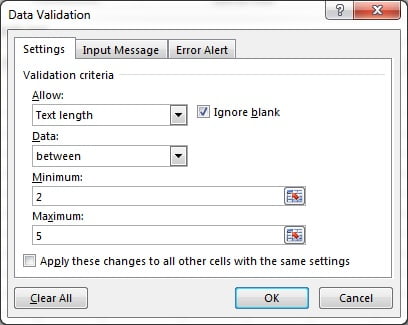
This example allows entries of 2 to 5 characters, the setting shown in the screenshots.
- Select the cells or column you want to validate.
- Go to Data > Data Tools > Data Validation and click Data Validation.
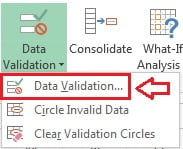
- On the Settings tab, open the Allow drop-down and choose Text length.
- Set Data to between. Type 2 in Minimum and 5 in Maximum. Both boxes take a number of characters, or a cell reference that holds one.
- Click OK.
- Test the cell. Entries of 2 to 5 characters are accepted. A single character, or six or more, triggers the error alert.
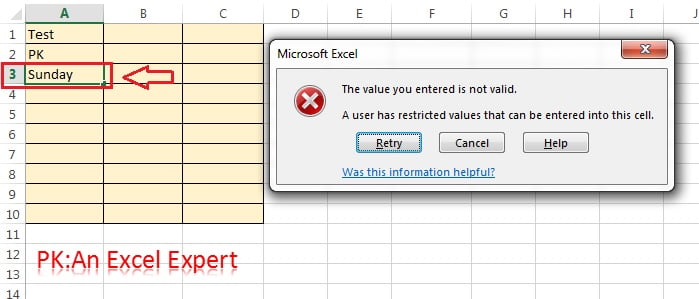
Replace the default alert with a message that states the rule, such as “Enter 2 to 5 characters”, on the Error Alert tab. Lesson 9 covers the Stop, Warning and Information styles.
The eight options in the Data drop-down
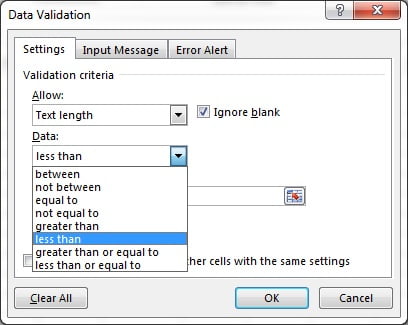
- between and not between: the count must fall inside, or outside, Minimum and Maximum. Both limits are inclusive.
- equal to: exactly the given number of characters. This is the choice for fixed-length codes.
- not equal to: any length except the one given.
- greater than and less than: strictly longer or strictly shorter than the count.
- greater than or equal to and less than or equal to: the count itself and longer, or the count itself and shorter. “Less than or equal to 50” is the usual maximum-50-characters rule.
Common fixed-length codes and the settings to use
| Entry | Data option | Length | Note |
|---|---|---|---|
| 4-digit PIN | equal to | 4 | Format the cell as Text so 0123 keeps its leading zero |
| 10-digit mobile number | equal to | 10 | Add a custom rule to block letters (see the worked example) |
| 6-character postcode | equal to | 6 | Use 7 or “between 6 and 8” if a space is typed inside the code |
| 10-character PAN | equal to | 10 | Letters and digits mixed, so Text length alone is a good fit |
| 12-digit Aadhaar-style ID | equal to | 12 | Format as Text; a 12-digit number shows as 1.23E+11 in a narrow General cell |
| 3-letter currency code | equal to | 3 | Combine with a List rule if only certain codes are valid |
| Comment on a printed form | less than or equal to | 100 | Spaces and line breaks count |
Two rules matter here. First, Text length counts the characters of numbers as well as text, so a rule of “equal to 10” accepts 9876543210 typed as a number. Second, leading zeros vanish in a General-formatted cell. Typing 007 stores the number 7, which has one character and fails a 3-character rule. Format the cells as Text (Home > Number > Text) before entry whenever a code can begin with zero.
How Excel counts characters
Every character counts once: letters, digits, spaces, punctuation and line breaks inserted with Alt+Enter. Numbers are counted from the stored value, not the displayed format, so 1234.50 is stored as 1234.5 and counts six characters, and a currency format adds nothing. A leading apostrophe is not counted. Formula results are never validated; the rule only checks values typed or picked in the cell.
Worked example: employee IDs and mobile numbers
An HR sheet has employee IDs in column A that must be exactly 6 characters, such as EMP042, and mobile numbers in column B that must be exactly 10 digits.
| Cell | Entry | Rule | Result |
|---|---|---|---|
| A2 | EMP042 | Text length equal to 6 | Accepted |
| A3 | EMP42 | Text length equal to 6 | Rejected, 5 characters |
| B2 | 9876543210 | Custom formula below | Accepted |
| B3 | 98765ABCDE | Custom formula below | Rejected, contains letters |
| B4 | 987654321 | Custom formula below | Rejected, 9 digits |
Employee ID (column A). Select A2:A100, open Data Validation, set Allow to Text length, Data to equal to and Length to 6. Click OK.
Mobile number (column B). Text length alone would accept B3. Select B2:B100, set Allow to Custom and enter this formula, written for the first cell of the selection:
=AND(LEN(B2)=10,ISNUMBER(B2*1))LEN(B2)=10 enforces the length and ISNUMBER(B2*1) confirms the entry converts to a number, which fails for letters. It works in General or Text formatted cells; format B2:B100 as Text first if numbers may start with zero. Custom rules are explained fully in Lesson 7.
Tips and common mistakes
- Use cell references for the limits. Type
=$F$1in the Minimum or Maximum box so a manager can change the allowed length without opening the dialog. - Format code columns as Text before entry. Leading zeros survive, long IDs stop switching to scientific notation and the character count matches what the user typed.
- Remember that spaces count. A trailing space turns a 5-character code into 6. Audit existing data with
=LEN(A2)and clean it with TRIM. - Text length checks quantity, not content. Combine it with a List rule for allowed values or a Custom formula for patterns.
- Pasting bypasses validation. A copied cell overwrites both the value and the rule. Use Circle Invalid Data (Lesson 10) to find entries that slipped through.
- Write an Input Message. Telling users “Enter the 10-digit mobile number without spaces” prevents most rejections before they happen.
- Do not rely on it for formulas. Cells filled by formulas are never checked, so validate the input cells instead.
Errors and how to fix them
| Problem | Cause | Fix |
|---|---|---|
| 0123 is rejected by an “equal to 4” rule | General format stores 123, which is three characters | Format the cells as Text before typing, or type an apostrophe first |
| A code that looks correct is rejected | Trailing space or non-printing character | Check with =LEN(A2); clean with TRIM or CLEAN |
| Letters are accepted in a phone number column | Text length does not check character type | Use the custom formula =AND(LEN(B2)=10,ISNUMBER(B2*1)) |
| Long numbers show as 9.88E+09 | General format displays 10+ digit numbers in scientific notation | Format as Text, or as a custom number format of ten zeros |
| Invalid entries exist although the rule is set | Values were pasted or typed before the rule was applied | Run Data Validation > Circle Invalid Data and correct them |
| “The Minimum must be less than or equal to the Maximum” | Limits entered the wrong way round | Swap the two values |
Practice exercise
- In a blank sheet, validate A2:A20 so that only entries of exactly 8 characters are accepted. Test with ABCD1234, ABC123 and ABCD12345.
- Format B2:B20 as Text, then validate it with “equal to 6”. Type 000123 and confirm the leading zeros are kept and the entry is accepted.
- Validate C2:C20 with the custom formula
=AND(LEN(C2)=10,ISNUMBER(C2*1)). Try a 10-digit number, a 9-digit number and 10 letters. - Put the number 12 in F1 and validate D2:D20 with “less than or equal to” and the reference
=$F$1. Change F1 to 5 and test again. - Paste a 20-character sentence into A5, then use Circle Invalid Data to find it.
Key takeaways
- Text length validation limits the number of characters, not what those characters are.
- Set it from Data > Data Validation, choose Text length, then pick one of eight comparison options.
- Numbers count by their stored digits, and leading zeros disappear unless the cell is formatted as Text.
- Spaces, punctuation and line breaks all count as characters.
- For phone numbers and numeric IDs, combine the length check with
ISNUMBERin a Custom formula. - Pasting and formulas bypass validation, so audit with Circle Invalid Data.
Related lessons
- Data Validation course hub
- Custom formula validation basics
- Prevent duplicates and enforce formats with custom formulas
- Error alert styles: Stop, Warning and Information
- LEN function and TRIM function
- Microsoft Support: Apply data validation to cells
Frequently asked questions
How do I limit a cell to a maximum number of characters in Excel?
Select the cells, go to Data > Data Validation, set Allow to Text length, set Data to “less than or equal to” and enter the maximum, for example 50. Click OK. Any entry longer than 50 characters, including spaces, is rejected with the error alert you define on the Error Alert tab.
How do I force exactly 10 digits for a mobile number?
Text length equal to 10 enforces the length but still allows letters. For a true digit check, choose Allow: Custom and enter =AND(LEN(B2)=10,ISNUMBER(B2*1)) for a selection starting at B2. Format the column as Text first if numbers may begin with zero or if you want to avoid scientific notation.
Does text length validation work on numbers?
Yes. Excel counts the characters of the stored value, so 2024 has four characters and 1234.5 has six. Leading zeros are dropped in General-formatted cells, so 007 becomes 7 with one character. Format the cell as Text if the zeros are part of the code.
Why is a correct-looking entry rejected by my text length rule?
Usually a hidden character. Trailing spaces, non-breaking spaces from web pages and line breaks all count. Type =LEN(A2) in a spare cell to see the real count, then clean the value with TRIM or CLEAN and re-enter it.
Can I set the allowed length from another cell?
Yes. In the Minimum, Maximum or Length box type a reference such as =$F$1. The rule then reads the limit from F1, so you can change the allowed length without editing the validation on every cell. Use absolute references so the limit does not shift across the range.
Video lessons: watch the free Excel tutorials on PK: An Excel Expert on YouTube.
Want the finished version? Ready-made Excel dashboards, trackers and VBA systems are available at NextGenTemplates.com.