Part of the free Module 5: Excel Formulas and Functions · Function 53 of 105 · Full Excel course
The Excel LEN function returns the number of characters in a text string, including spaces, punctuation and hidden characters. It returns a number, so it can be used directly in calculations and logical tests. LEN is the standard tool for checking field lengths, detecting extra spaces and supplying the length argument to LEFT, RIGHT and MID formulas.
Syntax
=LEN(text)Arguments
| Argument | Required / Optional | Meaning |
|---|---|---|
| text | Required | The text string, cell reference or expression whose length you want. Numbers are converted to text and counted as displayed in the formula bar, not as formatted in the cell. |
How LEN works
LEN counts every character position once. A space, a comma and a letter each add 1. A cell that looks empty but contains a single space returns 1, not 0, which is one of the most common reasons a lookup fails. Dates return the length of the serial number (5 for any date in this century), not of the formatted date. For double-byte languages such as Japanese, LENB counts bytes instead of characters; in English text LENB and LEN give the same result.
Step-by-step example
The screenshot shows LEN applied to a small list of text values in column A, with the results in column B.
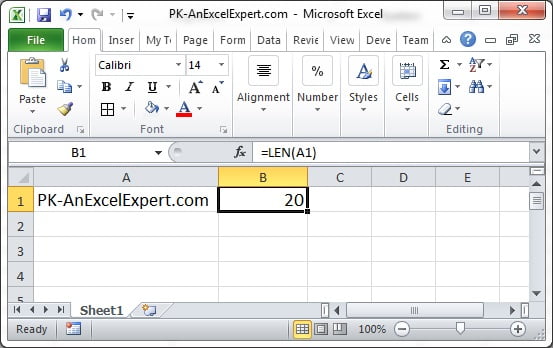
- Type
PK An Excel Expertin A2. - In B2 enter
=LEN(A2)and press Enter. The result is 18: fifteen letters plus three spaces. - Type
Excelfollowed by two spaces in A3 and copy B2 down. The result is 7, revealing the trailing spaces. - Enter
=LEN(TRIM(A3))in C3. The result is 5, so the difference between B3 and C3 is the number of surplus spaces.
Practical use cases
1. Validate field length
=IF(LEN(A2)<>10,"Invalid","OK")Flags phone numbers or product codes that are not exactly ten characters long. Use the same test in Data Validation to block bad entries.
2. Count words in a cell
=LEN(TRIM(A2))-LEN(SUBSTITUTE(TRIM(A2)," ",""))+1The number of spaces plus one equals the number of words. TRIM removes double spaces that would inflate the count.
3. Count occurrences of a character
=LEN(A2)-LEN(SUBSTITUTE(A2,",",""))Removing the commas and comparing lengths gives the comma count, which is one less than the number of items in a list.
4. Extract the text after a fixed prefix
=RIGHT(A2,LEN(A2)-4)Removes a four-character prefix such as “INV-” whatever the length of the rest of the string.
5. Find cells with hidden characters
=LEN(A2)<>LEN(TRIM(CLEAN(A2)))Returns TRUE where cleaning would change the text, so you can filter and fix those rows.
Common mistakes and tips
- Counting formatted numbers: LEN(1234.5) returns 6 regardless of the cell format. Use LEN(TEXT(A2,”#,##0.00″)) to count the displayed text.
- Blank cells: a truly empty cell returns 0; a cell with a formula returning “” also returns 0; a cell with a space returns 1.
- Line breaks count: each Alt+Enter break is one character (CHAR(10)).
- Errors propagate: LEN of a cell containing #N/A returns #N/A. Wrap the source in IFERROR when needed.
- Whole column at once: in Excel 365,
=LEN(A2:A100)spills a column of lengths, and=MAX(LEN(A2:A100))gives the longest entry for sizing a database field.
Related functions
- TRIM: removes extra spaces, often compared with LEN to detect them.
- SUBSTITUTE: removes characters so LEN can count them.
- RIGHT: extracts trailing characters using a LEN-based count.
- MID: extracts a middle section whose length LEN helps compute.
- See all lessons in the Excel Formulas course.
Frequently asked questions
Does the LEN function count spaces?
Yes. Every space, including leading, trailing and double spaces, counts as one character. Compare LEN(A2) with LEN(TRIM(A2)) to find surplus spaces.
Why does LEN return 5 for a date?
Dates are stored as serial numbers such as 46265, so LEN counts the digits of that number. Use LEN(TEXT(A2,”dd/mm/yyyy”)) to count the formatted date.
How do I count words in a cell with LEN?
Use =LEN(TRIM(A2))-LEN(SUBSTITUTE(TRIM(A2),” “,””))+1, which counts the spaces between words and adds one.
Need a ready-made template? Browse 7,000+ Excel, Power BI and Google Sheets templates at NextGenTemplates.com.