Part of the free Module 5: Excel Formulas and Functions · Function 5 of 105 · Full Excel course
The Excel AVERAGEIF function returns the arithmetic mean of the cells in a range that satisfy one condition, for example the average score of students who passed or the average sale in one region. AVERAGEIF in Excel ignores rows that fail the test and returns #DIV/0! when no cell qualifies.
AVERAGEIF syntax
=AVERAGEIF(range, criteria, [average_range])Arguments
| Argument | Required | Meaning |
|---|---|---|
| range | Required | The cells to test against the criteria. |
| criteria | Required | The condition: a number, text, a comparison in quotes (“>=50”), a wildcard (“A*”) or a cell reference. |
| average_range | Optional | The cells to average. If omitted, Excel averages the cells in range. |
Blank cells and text in average_range are ignored; they do not count as zero. Cells containing 0 are included.
Step-by-step example
A table lists Department in A2:A30 and Salary in C2:C30. To find the average salary in Sales:
=AVERAGEIF(A2:A30, "Sales", C2:C30)- Excel finds every row where A is “Sales”.
- It collects the Salary values from column C on those rows.
- It divides their sum by their count and returns the mean.
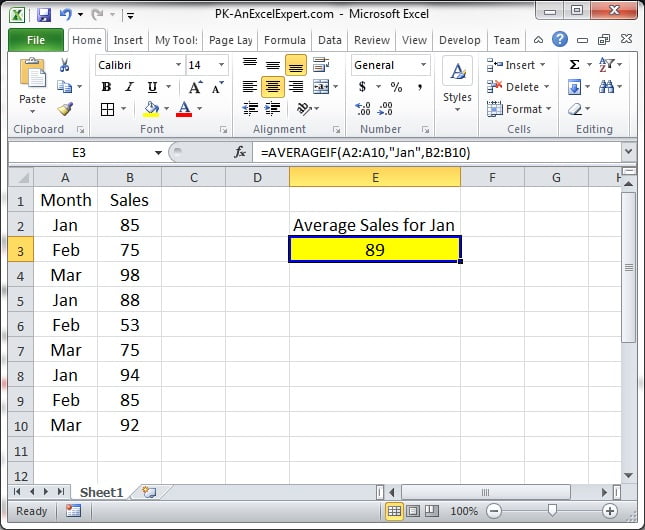
The screenshot below shows AVERAGEIF averaging a value column for one category selected from the data.
Practical use cases
1. Average of values above a threshold
=AVERAGEIF(C2:C30, ">50000")No average_range is needed because the tested cells are the ones being averaged.
2. Exclude zeros from an average
=AVERAGEIF(C2:C30, "<>0")Plain AVERAGE counts zeros and drags the mean down; this version skips them.
3. Criteria from a cell in a summary table
=AVERAGEIF($A$2:$A$30, F2, $C$2:$C$30)4. Wildcards for partial text
=AVERAGEIF(B2:B30, "*Manager*", C2:C30)5. Average for a month
=AVERAGEIFS(C2:C30, D2:D30, ">="&DATE(2025,1,1), D2:D30, "<"&DATE(2025,2,1))Two date bounds require two conditions, so use AVERAGEIFS, which follows the SUMIFS argument order (average_range first).
Common mistakes and errors
- #DIV/0! – no cell met the criteria, or every matching cell in average_range is blank or text. Wrap in IFERROR(…, 0) for clean reports.
- #VALUE! – criteria longer than 255 characters or a reference to a closed workbook.
- Wrong average from mismatched ranges – Excel aligns average_range to the top-left cell of range; keep both ranges the same size to avoid surprises.
- Numbers stored as text – they are skipped silently. Convert with VALUE or Paste Special > Multiply by 1.
- Multiple criteria – AVERAGEIF accepts one condition. Use AVERAGEIFS for more.
Tips and best practices
- Wrap in IFERROR for report cells that may have no matching rows; an unexpected #DIV/0! looks like a broken sheet to readers.
- Use AVERAGEIFS from the start in new work so a second condition can be added without rewriting the formula.
- Exclude zeros deliberately. Decide whether 0 means “no sale” (exclude with “<>0”) or a genuine zero (include); the two averages can differ a lot.
- Convert to an Excel Table so the formula reads AVERAGEIF(Data[Dept], F2, Data[Salary]) and expands automatically.
- Cross-check with a PivotTable average when validating a new report.
Related functions
- SUMIF and COUNTIF – the same criteria logic for sums and counts.
- SUMIFS – multi-criteria pattern that AVERAGEIFS follows.
- IFERROR – hides #DIV/0! when nothing matches.
- Browse the Excel Formulas hub or watch step-by-step videos on YouTube.com/@PKAnExcelExpert.
Frequently asked questions
What is the difference between AVERAGEIF and AVERAGEIFS?
AVERAGEIF tests one condition and takes the average range last. AVERAGEIFS tests one or more conditions and takes the average range as its first argument.
Why does AVERAGEIF return #DIV/0!?
No cell satisfied the criteria, so there is nothing to divide. Check spelling and spaces in the criteria, or wrap the formula in IFERROR to show 0 or a message.
Does AVERAGEIF include blank cells?
No. Blank and text cells in the average range are ignored. Only cells containing numbers, including zero, are averaged.
Need a ready-made template? Browse 7,000+ Excel, Power BI and Google Sheets templates at NextGenTemplates.com.