The insurance industry operates on deadlines, renewals, client meetings, compliance activities, and policy management schedules. Insurance professionals must handle multiple tasks every day, including policy renewals, claim follow-ups, customer meetings, audits, and internal reviews. Therefore, effective task scheduling becomes essential for maintaining productivity and delivering excellent customer service.
However, many insurance teams still rely on manual notes, scattered spreadsheets, or disconnected calendar tools. As a result, important deadlines get missed, communication gaps occur, and operational efficiency decreases.
So, how can insurance professionals organize tasks, events, and schedules efficiently without investing in expensive scheduling software?
The answer is simple — Insurance Task Calendar in Excel.
This article explains everything you need to know about the Insurance Task Calendar in Excel, including its features, structure, benefits, implementation steps, best practices, and frequently asked questions.
Click to Purchases Insurance Task Calendar in Excel
What Is an Insurance Task Calendar in Excel?
An Insurance Task Calendar in Excel is a ready-to-use scheduling and event management tool designed specifically to organize insurance-related activities using a structured calendar system.
Instead of managing tasks across multiple platforms, users can track all appointments, reminders, and insurance activities within one centralized Excel workbook.
The calendar helps users:
-
Plan insurance tasks efficiently
-
Track meetings and renewals
-
Manage deadlines and events
-
Monitor daily schedules
-
Maintain an organized workflow
Because Excel is widely available and easy to use, organizations can implement this solution immediately.
Click to Purchases Insurance Task Calendar in Excel
Why Do Insurance Professionals Need a Task Calendar?
Insurance operations involve time-sensitive activities. Agents must remember renewal dates, claim deadlines, compliance reviews, and customer interactions.
Without structured scheduling, teams face several issues.
Common Challenges Without a Calendar System
-
Missed policy renewal reminders
-
Overlapping appointments
-
Poor task visibility
-
Manual tracking errors
-
Difficulty monitoring workloads
Therefore, a structured calendar system becomes essential for operational success.
Click to Purchases Insurance Task Calendar in Excel
Key Features of the Insurance Task Calendar in Excel
This ready-to-use template includes five interactive worksheets that work together to provide complete scheduling management.
1. Home Sheet – Navigation Dashboard
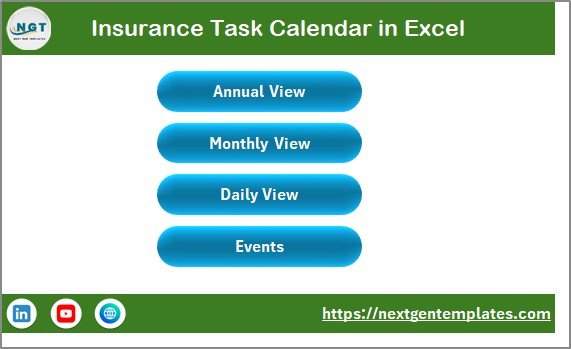
The Home Sheet acts as the central navigation hub.
Available Navigation Buttons
-
Annual View
-
Monthly View
-
Daily View
-
Events Database
These buttons allow users to move quickly between calendar views. Consequently, users save time and improve workflow efficiency.
2. Annual View Sheet – Full Year Planning
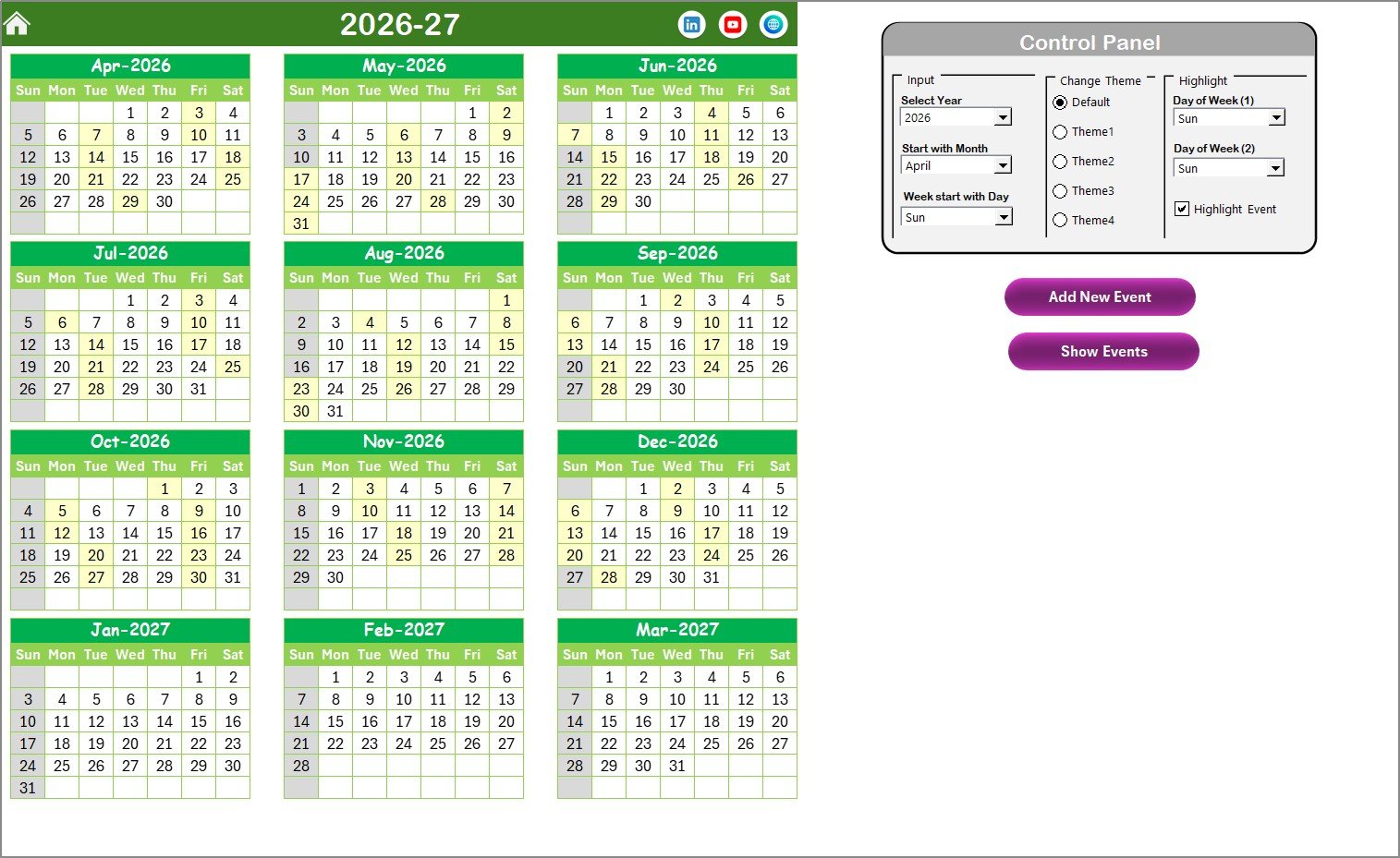
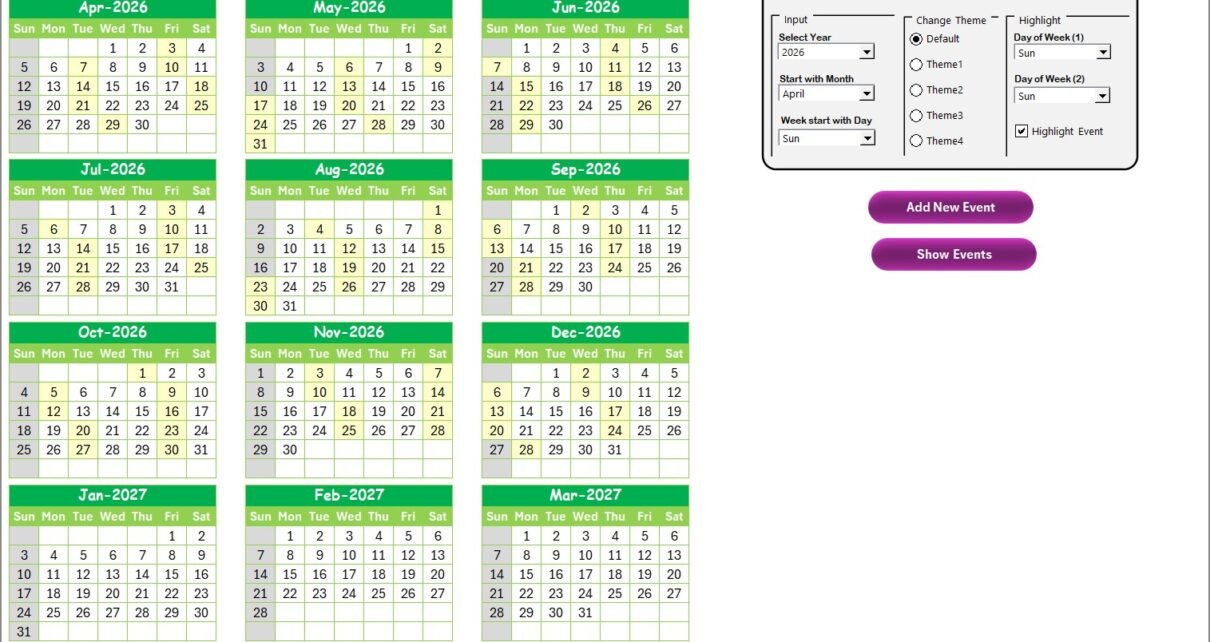
The Annual View Sheet displays all 12 months in one screen, which makes long-term planning simple.
Control Panel Features
The control panel contains three functional groups.
Input Group
Users can customize calendar settings easily:
-
Select Year
-
Change Starting Month
-
Modify Starting Day of Week
Once updated, the calendar adjusts automatically.
Change Theme Group
The template includes five color themes.
Users can:
-
Select preferred theme
-
Apply colors across the entire workbook instantly
Therefore, the calendar becomes visually customizable.
Highlight Group
Users can highlight specific weekdays.
For example:
-
Highlight Saturday and Sunday automatically
-
Mark weekends in grey color
Additionally, users can enable:
✅ Highlight Event Checkbox
This highlights event dates in yellow for quick visibility.
Add New Event Button
Users can add events directly from the calendar.
Steps:
-
Select a date.
-
Click Add New Event.
-
Fill event details in the form.
-
Click Submit.
The event automatically appears on the selected date.
Show Event Button
Users can view events scheduled for a selected date instantly.
This feature improves quick schedule checking.
Click to Purchases Insurance Task Calendar in Excel
3. Monthly View Sheet – Focused Monthly Planning
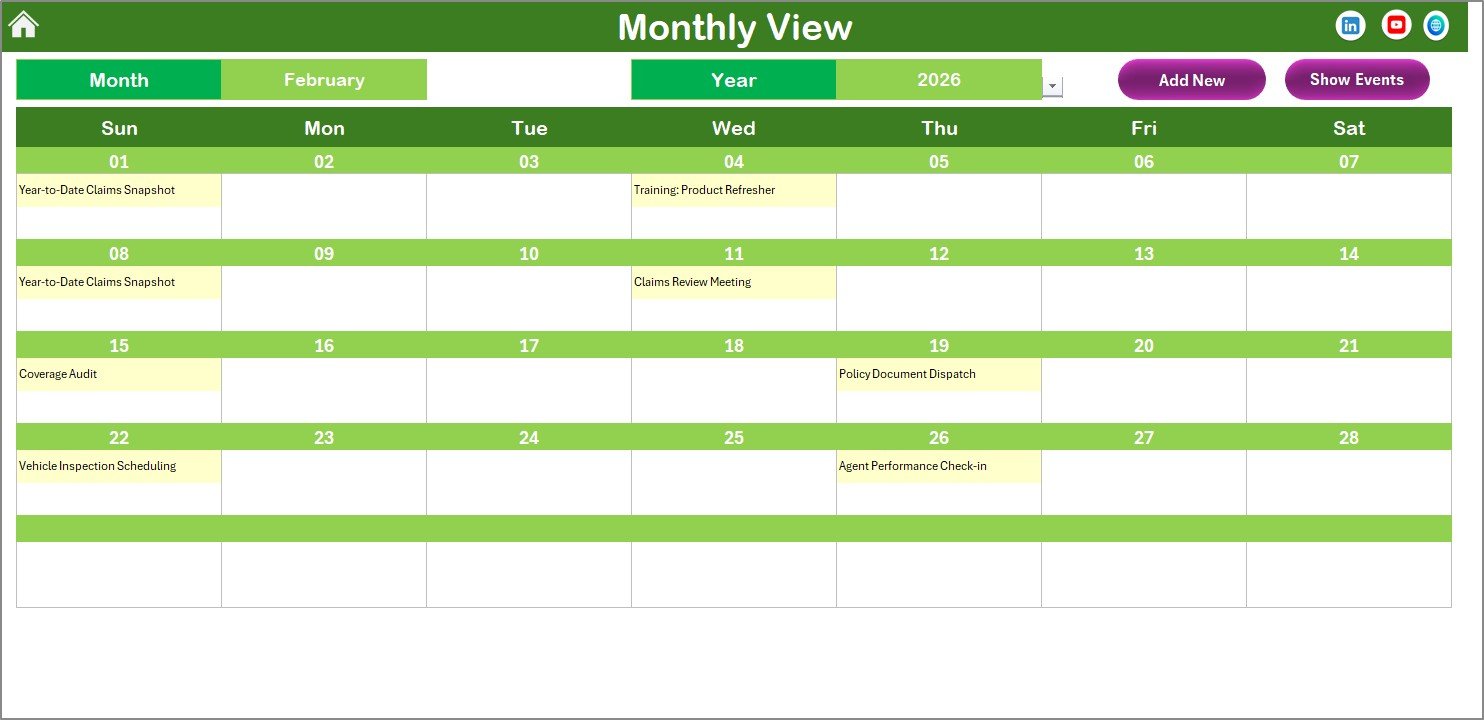
The Monthly View Sheet shows a single month calendar.
Users select:
-
Month
-
Year
The calendar updates automatically.
Event Display Logic
-
Shows one event directly on the date.
-
Displays “more than 1…” if multiple events exist.
Therefore, users immediately recognize busy days.
Monthly View Buttons
Add New Event
Adds events for the selected date using the event form.
Show Event
Displays all events for that date.
This functionality simplifies monthly planning.
4. Daily View Sheet – Detailed Event Tracking
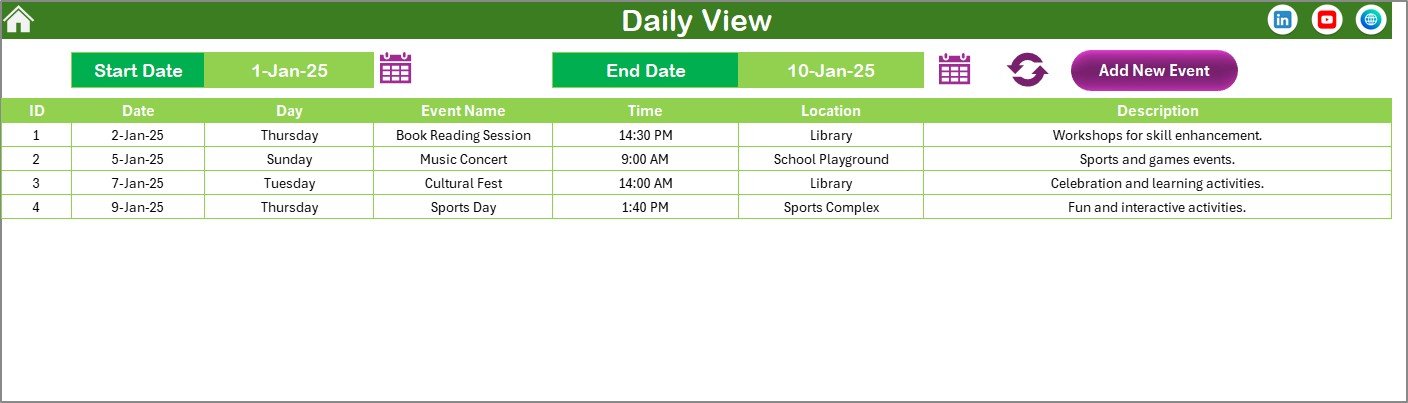
The Daily View Sheet provides detailed scheduling information.
Users define:
-
Start Date
-
End Date
Using the calendar picker, they select a date range.
After clicking Refresh, the sheet displays:
-
Event list
-
Time details
-
Location information
-
Descriptions
This view works perfectly for operational monitoring.
Add New Event Button
Users can add events directly from this page as well.
Therefore, event entry remains accessible from multiple views.
Click to Purchases Insurance Task Calendar in Excel
5. Events Sheet – Central Database
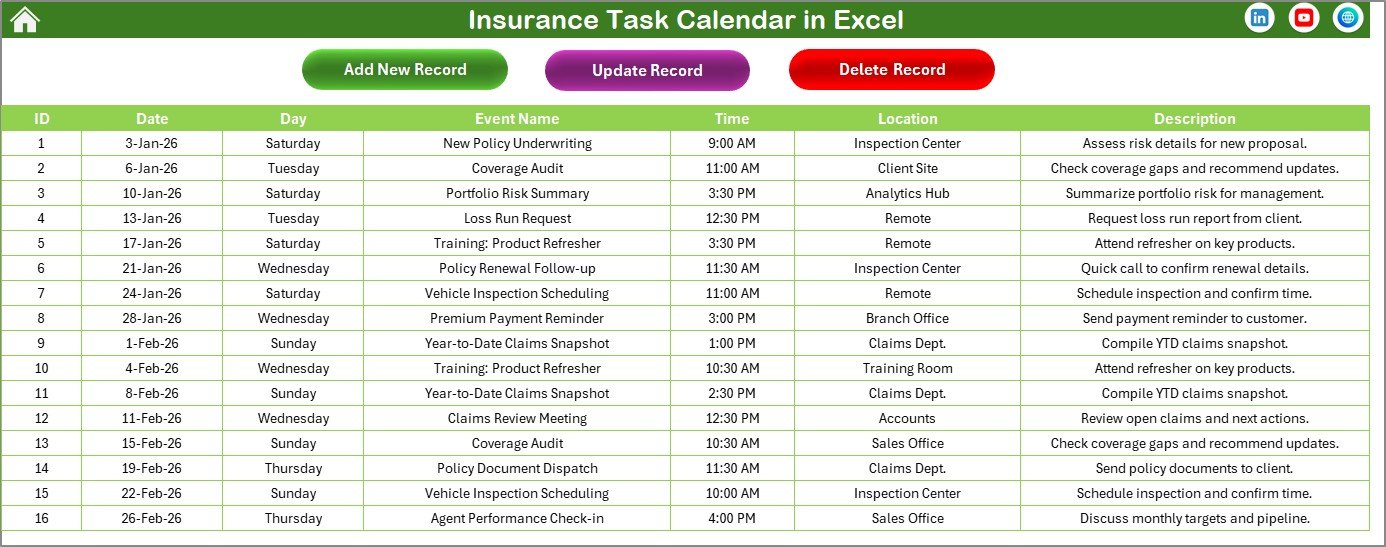
The Events Sheet serves as the backend database storing all event records.
Stored Information
-
ID (Auto-generated)
-
Date
-
Day
-
Event Name
-
Time
-
Location
-
Description
Because data remains centralized, reporting stays accurate.
Database Control Buttons
Add New Record
Opens event form to create a new entry.
Update Existing Record
Select ID → edit information → submit changes.
Delete Record
Removes selected event permanently.
These controls ensure full event management capability.
Click to Purchases Insurance Task Calendar in Excel
How Does the Insurance Task Calendar Improve Productivity?
A structured calendar transforms daily operations.
Better Task Organization
All events stay in one place.
Improved Deadline Tracking
Renewals and claims remain visible.
Faster Scheduling
Add events within seconds.
Reduced Errors
Automated data management prevents duplication.
Enhanced Team Coordination
Everyone follows a structured schedule.
Therefore, productivity improves significantly.
Click to Purchases Insurance Task Calendar in Excel
Advantages of Insurance Task Calendar in Excel
✅ Centralized Task Management
Track all insurance activities in one file.
✅ Easy Event Creation
Add or update events using simple forms.
✅ Multiple Calendar Views
Annual, monthly, and daily perspectives.
✅ Visual Highlighting
Quickly identify weekends and events.
✅ Custom Themes
Personalize dashboard appearance.
✅ No Subscription Cost
Excel-based solution requires no additional software.
Because of these advantages, insurance professionals manage schedules efficiently.
How to Use the Insurance Task Calendar Step-by-Step?
Step 1: Set Calendar Preferences
Choose year, start month, and weekday settings.
Step 2: Add Events
Use Add New Event button.
Step 3: Enter Event Details
Provide time, location, and description.
Step 4: Monitor Monthly Schedule
Review upcoming tasks.
Step 5: Track Daily Activities
Use daily view for detailed planning.
Step 6: Maintain Database
Update or delete events when required.
Following these steps ensures smooth workflow management.
Best Practices for the Insurance Task Calendar
To maximize effectiveness, follow these practices.
Update Calendar Regularly
Add events immediately after scheduling.
Use Clear Event Names
Avoid confusion by using descriptive titles.
Review Schedule Weekly
Identify upcoming deadlines early.
Highlight Important Days
Mark renewal deadlines clearly.
Maintain Data Accuracy
Avoid duplicate entries.
Train Team Members
Ensure consistent usage across departments.
Consistent usage guarantees better results.
Click to Purchases Insurance Task Calendar in Excel
Who Can Use This Insurance Task Calendar?
This template benefits:
-
Insurance Agents
-
Policy Managers
-
Claims Teams
-
Brokers
-
Compliance Officers
-
Customer Service Teams
Because the system remains simple, both individuals and teams can use it effectively.
Future Enhancements for Insurance Scheduling
As operations evolve, calendars may include:
-
Automated reminders
-
Email integration
-
Dashboard analytics
-
Mobile synchronization
-
Workflow automation
Organizations adopting structured scheduling today prepare for future automation.
Conclusion
Insurance operations demand strong time management and organized scheduling. Without a structured system, teams risk missing deadlines, delaying services, and reducing customer satisfaction.
The Insurance Task Calendar in Excel provides a practical and efficient solution. It combines annual planning, monthly tracking, daily monitoring, and centralized event management into one powerful workbook.
Moreover, customizable themes, automated forms, and multiple calendar views make scheduling simple and effective.
Therefore, insurance professionals can improve productivity, maintain compliance, and manage tasks confidently using this Excel-based calendar solution.
Click to Purchases Insurance Task Calendar in Excel
Frequently Asked Questions (FAQs)
1. What is an Insurance Task Calendar in Excel?
It is an Excel-based scheduling tool used to manage insurance tasks, appointments, and events.
2. Can I customize the calendar year?
Yes. You can select the year and starting month from the control panel.
3. Can multiple events be added on one date?
Yes. The calendar supports multiple events per day.
4. Is technical knowledge required?
No. Basic Excel knowledge is enough.
5. Can I update existing events?
Yes. Use the Update Record button.
6. Does the calendar support daily tracking?
Yes. The daily view shows detailed events within a selected date range.
7. Is this suitable for teams?
Yes. Insurance teams and individual agents both benefit from it.
Click to Purchases Insurance Task Calendar in Excel
Visit our YouTube channel to learn step-by-step video tutorials