Need to merge cells with same value in Excel without clicking Merge & Center a hundred times? A short VBA macro does it for you. Select the range, run the macro, and every run of identical values in a column becomes one merged, centred cell: months, supervisor names, regions, anything that repeats down a list. In this tutorial you will write PK’s Merge_Same_Cells macro line by line, understand why each line is there, and save it in your Personal Macro Workbook so it is ready in every workbook you open.
Watch the Video Tutorial
In the video PK runs the macro on two sample tables, then builds it from scratch in the VBA editor and steps through it with F8 to show exactly how each merge happens.
What You Will Build
- A reusable macro called
Merge_Same_Cellsthat works on whatever range you select. - Vertical merging of consecutive cells that hold the same value, in one or several columns at once.
- Centred results: each merged block is aligned to the middle both horizontally and vertically.
- No pop-ups: Excel’s merge warning is switched off while the macro runs.
- A personal macro stored in PERSONAL.XLSB, so you can use it in any workbook.
The Example Data
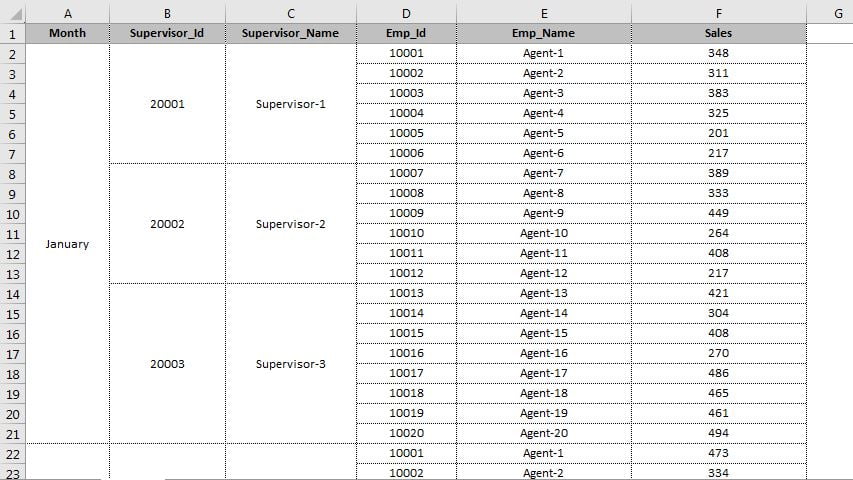
PK uses two tables in the video. The first is a small list in F5:G14 with a Name column and a Sales column, where PK appears three times, Joe twice and Rose four times. The second is a larger report with Month, Supervisor_Id, Supervisor_Name, Emp_Id, Emp_Name and Sales. Each supervisor has six or eight agents, so the month, supervisor ID and supervisor name repeat on every row.
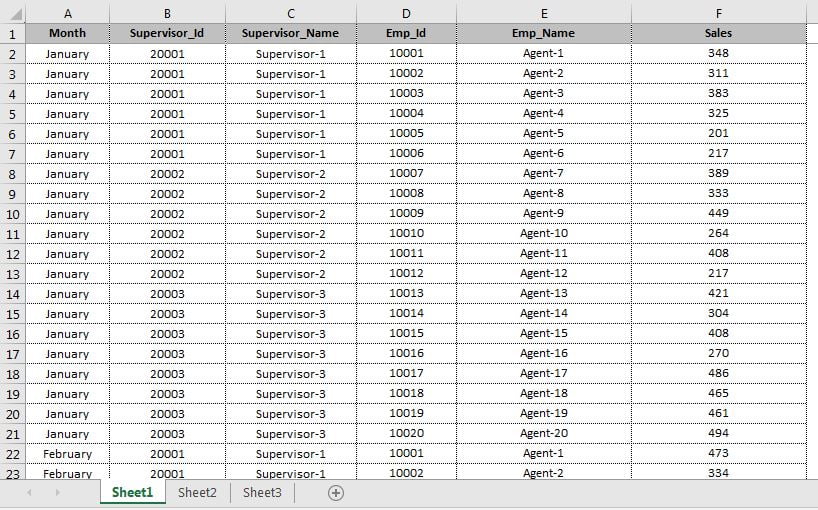
The goal is the layout in the first image: one merged cell per month and per supervisor, while the employee-level columns stay as they are. The data must be sorted or grouped so identical values sit next to each other, because the macro only merges neighbours.
Part 1 – Write the Merge Cells VBA Macro
Step 1: Open the VBA editor
Press Alt+F11 (or Developer › Visual Basic). If you want the macro in every workbook, follow Part 2 first and paste the code into the PERSONAL.XLSB module; otherwise insert a module in your current workbook with Insert › Module.
Step 2: Paste the code
This is the complete macro from the original post:
Option Explicit

Sub Merge_Same_Cells()

Application.DisplayAlerts = False

Dim rng As Range

MergeCells:

For Each rng In Selection

    If rng.Value = rng.Offset(1, 0).Value And rng.Value <> "" Then
        Range(rng, rng.Offset(1, 0)).Merge
        Range(rng, rng.Offset(1, 0)).HorizontalAlignment = xlCenter
        Range(rng, rng.Offset(1, 0)).VerticalAlignment = xlCenter
        GoTo MergeCells
    End If
Next

End Sub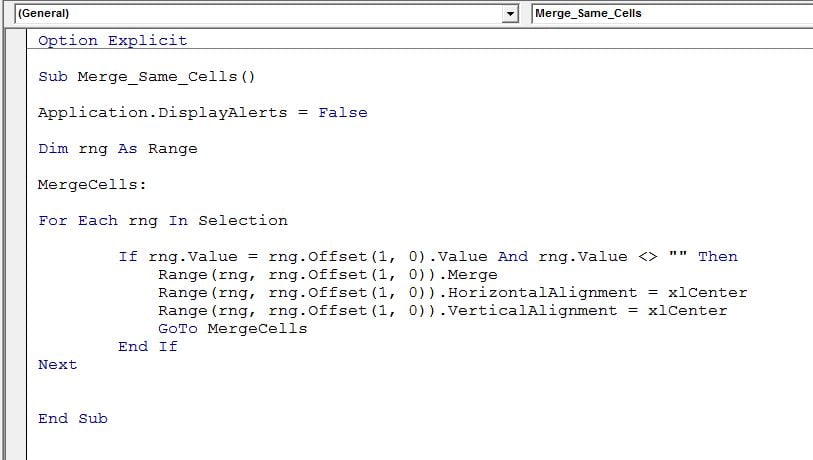
How the code works
Application.DisplayAlerts = False– every merge normally shows the warning that merging keeps only the upper-left value. PK shows that with the warning on you would have to click OK for every single merge. Switching alerts off lets the macro run without stopping. Because the cells being merged hold the same value, nothing useful is lost.Dim rng As Range– a variable that holds one cell at a time.For Each rng In Selection– loops through every cell you selected before running the macro.rng.Value = rng.Offset(1, 0).Value–Offset(1, 0)means one row down, same column. So this asks: is the cell below the same as this cell?And rng.Value <> ""– the cell must not be blank. Without this check, two empty cells would count as equal and get merged.Range(rng, rng.Offset(1, 0)).Merge– merges the current cell with the one below it.HorizontalAlignmentandVerticalAlignment = xlCenter– PK added these after the first test because the merged text was not centred. They put the value in the middle of the block.MergeCells:andGoTo MergeCells– a label and a jump. After each merge the loop starts again from the first cell of the selection.
Why the loop restarts after every merge
The macro merges only two cells at a time, so a value that repeats four times needs several passes. When PK steps through the code with F8, you can see what happens: after F6:F7 are merged, the next pass compares F6 with F8. If F8 holds the same name, the block grows to F6:F8, and so on until the value changes. Restarting with GoTo is what lets one short If block build merged blocks of any length.
Part 2 – Save It in Your Personal Macro Workbook
The Personal Macro Workbook (PERSONAL.XLSB) is a hidden workbook that opens with Excel, so any macro saved in it is available everywhere. If you have never used it, Excel creates it the first time you record a macro into it.
Step 3: Create PERSONAL.XLSB with a recorded macro
Go to View › Macros › Record Macro.
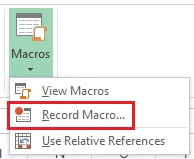
In the Record Macro window, choose Personal Macro Workbook in the Store macro in drop-down and click OK.
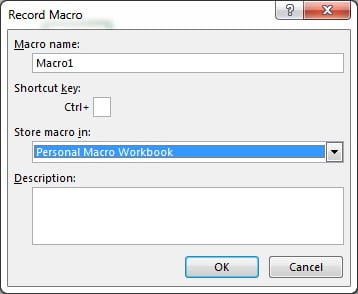
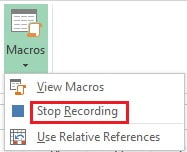
Then stop straight away with View › Macros › Stop Recording. You do not need to record any actions; this step only creates the file.
Step 4: Replace Macro1 with the merge code
Press Alt+F11. PERSONAL.XLSB now appears in the Project window, with the empty recorded Macro1 in Module1.
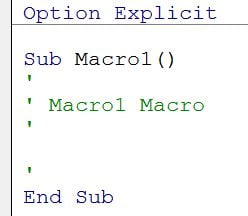
Delete everything in Module1, paste the Merge_Same_Cells code from Step 2 and press Ctrl+S. When you close Excel, click Save if it asks about the Personal Macro Workbook, otherwise the code is lost.
Part 3 – Run the Macro
Step 5: Select the range to merge
Select only the columns you want merged, without the header row. In the large example that is the Month, Supervisor_Id and Supervisor_Name cells. Leave out columns such as Emp_Id or Sales, where every row is different or where you still need each row’s value.
Step 6: Run Merge_Same_Cells
Go to View › Macros › View Macros (or Alt+F8), choose PERSONAL.XLSB in the Macros in drop-down, select Merge_Same_Cells and click Run.
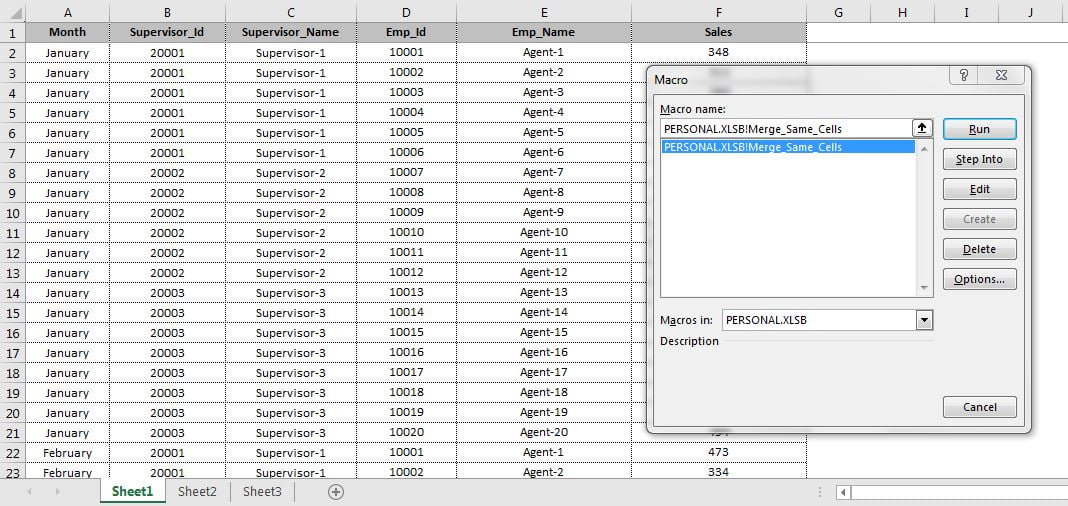
Each block of identical values is merged and centred, column by column, exactly like the result at the top of this page.
Common Errors and Fixes
Nothing gets merged
The macro works on the current selection. Select the cells first, then run it. Also check that identical values really are identical: a trailing space or a number stored as text makes two cells look the same but compare as different.
Values from different groups are merged together
The macro merges any neighbouring cells that match, and each column is handled on its own. If the last supervisor of January is also the first supervisor of February, those rows merge across the month boundary. Insert a separator or merge one group at a time if that happens (this is an added caution, not shown in the video).
The macro is not in the Macros list
Set Macros in to PERSONAL.XLSB or All Open Workbooks. If PERSONAL.XLSB is missing, you did not save it when closing Excel; repeat Part 2.
Macros are disabled
If the workbook holding the code shows a security warning, enable macros for that file, and save workbooks that contain the code as .xlsm.
Tips
These tips are general Excel advice added to PK’s method:
- Save a copy first. A macro cannot be undone with Ctrl+Z.
- Merge for reports, not for data. Merged cells get in the way of sorting, filtering and pivot tables, so run the macro on a final report copy and keep the raw data unmerged.
- Large ranges take longer. Because the loop restarts after every merge, a selection with thousands of rows can take a while. Select only the columns that need merging.
- Add a shortcut. In the Macro dialog, click Options and assign a key such as Ctrl+Shift+M to run it instantly.
- Microsoft documents both Range.Merge and Application.DisplayAlerts on Microsoft Learn. Excel sets DisplayAlerts back to True when the macro finishes.
The video also shows the same feature in PK’s free PK’s Utility Tool add-in, which includes a Merge Same Cells button and a Fill Down Blanks button to undo the effect.
Want It Ready-Made?
If you want the finished workbook with the macro already set up, get Quickly Merge Cells with Same Value in Excel on NextGenTemplates.com. For more time-saving macros in one download, see the Excel VBA Tools & Utilities Pack, or browse all Excel VBA tools.
Related Tutorials
- VBA Loops in Excel: For Next, For Each, Do While and Do Until
- Record a Macro in Excel: Macro Recorder Step by Step
- Personal Macro in Excel: Quick Data Formatting with Ctrl+M
- Delete All Blank Worksheets Using a Personal Macro
- Macro to Create Multiple Worksheets from a Selection
Frequently Asked Questions
How do I merge cells with the same value in Excel automatically?
Use the Merge_Same_Cells macro in this tutorial. Select the cells, run the macro, and every group of identical neighbouring values in each column is merged and centred.
Does the macro keep the value after merging?
Yes. A merge keeps the upper-left value of the block, and since every cell in the block holds the same value, the merged cell shows that value. The macro skips blank cells.
Can I merge several columns at once?
Yes. Select all the columns you want, for example Month, Supervisor ID and Supervisor Name. The macro checks each cell against the cell below it in the same column, so each column is merged independently.
Why does the macro use GoTo?
Each merge joins only two cells. Jumping back to the MergeCells label restarts the loop, so the merged block is compared with the next cell down and keeps growing until the value changes.
How do I use the macro in every workbook?
Save it in the Personal Macro Workbook. Record an empty macro into Personal Macro Workbook, open the VBA editor, replace Macro1 in Module1 with the code and save PERSONAL.XLSB when you close Excel.
About the Author
PK is a Microsoft Excel expert and trainer and the founder of PK: An Excel Expert and NextGenTemplates.com. He has been teaching Excel, VBA, Power Query and Power BI since 2016 on his YouTube channel.
Conclusion
With a dozen lines of VBA you can merge cells with same value in Excel in one click instead of selecting and merging every group by hand. The macro compares each cell with the one below it, merges matches, centres the result and restarts until every group is complete. Save it in PERSONAL.XLSB, add a shortcut key, and your next report will be tidy in seconds.