Employee Retention Scheduling Calendar In Excel
Employee Retention Scheduling Calendar In Excel is a ready-to-use Excel template designed to help HR and managers plan, track, and manage staff events, shifts, and retention activities across annual, monthly, and daily views.
Introduction
This template provides a clean, interactive calendar system inside Excel with four dashboard pages and a database sheet to store event details. It is ideal for HR teams to coordinate retention activities, training, interviews, and team events.
Click to Purchases Employee Retention Scheduling Calendar in Excel
Key Features of Employee Retention Scheduling Calendar In Excel
- Multiple views: Annual, Monthly, Daily and Events database.
- Interactive controls: Year, starting month, starting weekday, color themes and highlight options.
- Event management: Add, view, update, and delete events via forms/buttons.
- Prebuilt automation: Auto-generated IDs, date parsing (day, date), and event highlighting.
- Printable and export-friendly layout for sharing with stakeholders.
Dashboard Pages Explanation
Home Sheet
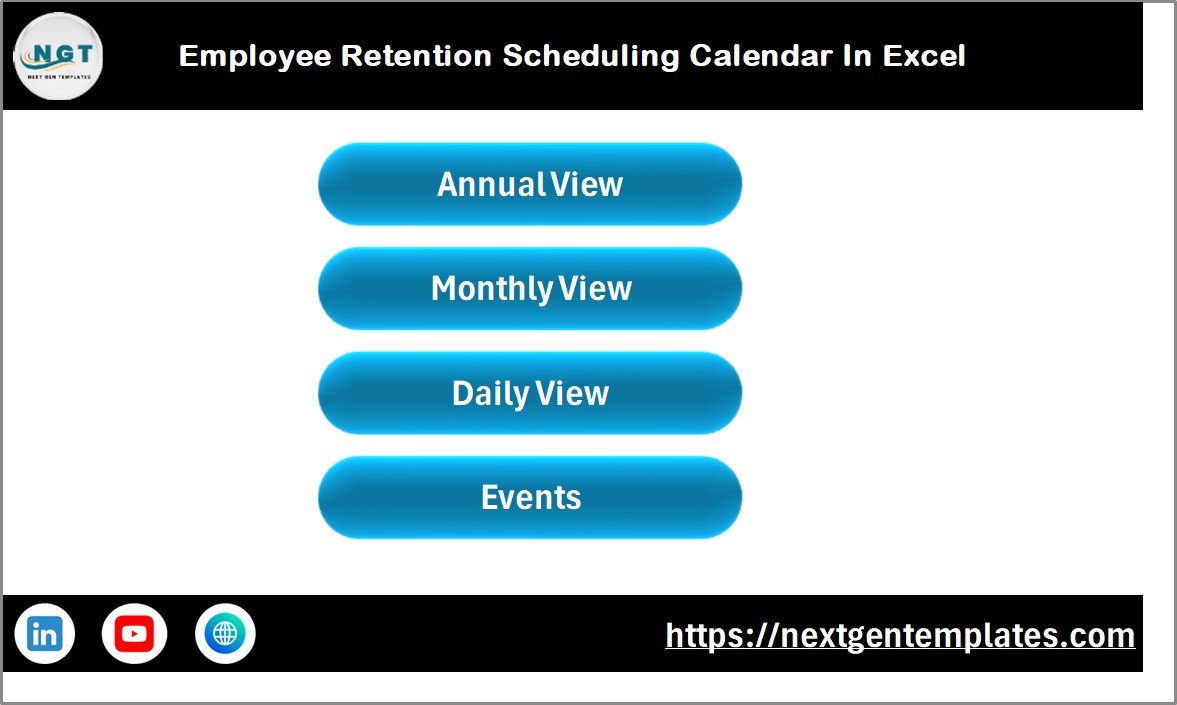
The Home sheet acts as an index with quick navigation buttons to each dashboard page for fast access.
Annual View Sheet
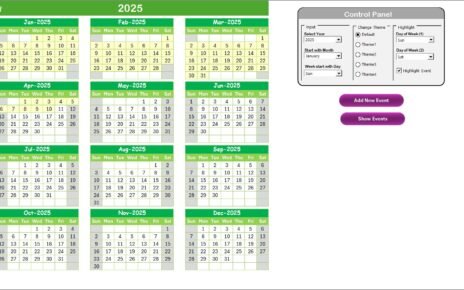
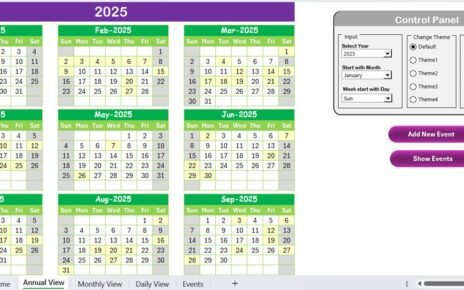
The Annual View displays 12 months at once and includes a compact control panel for global settings.
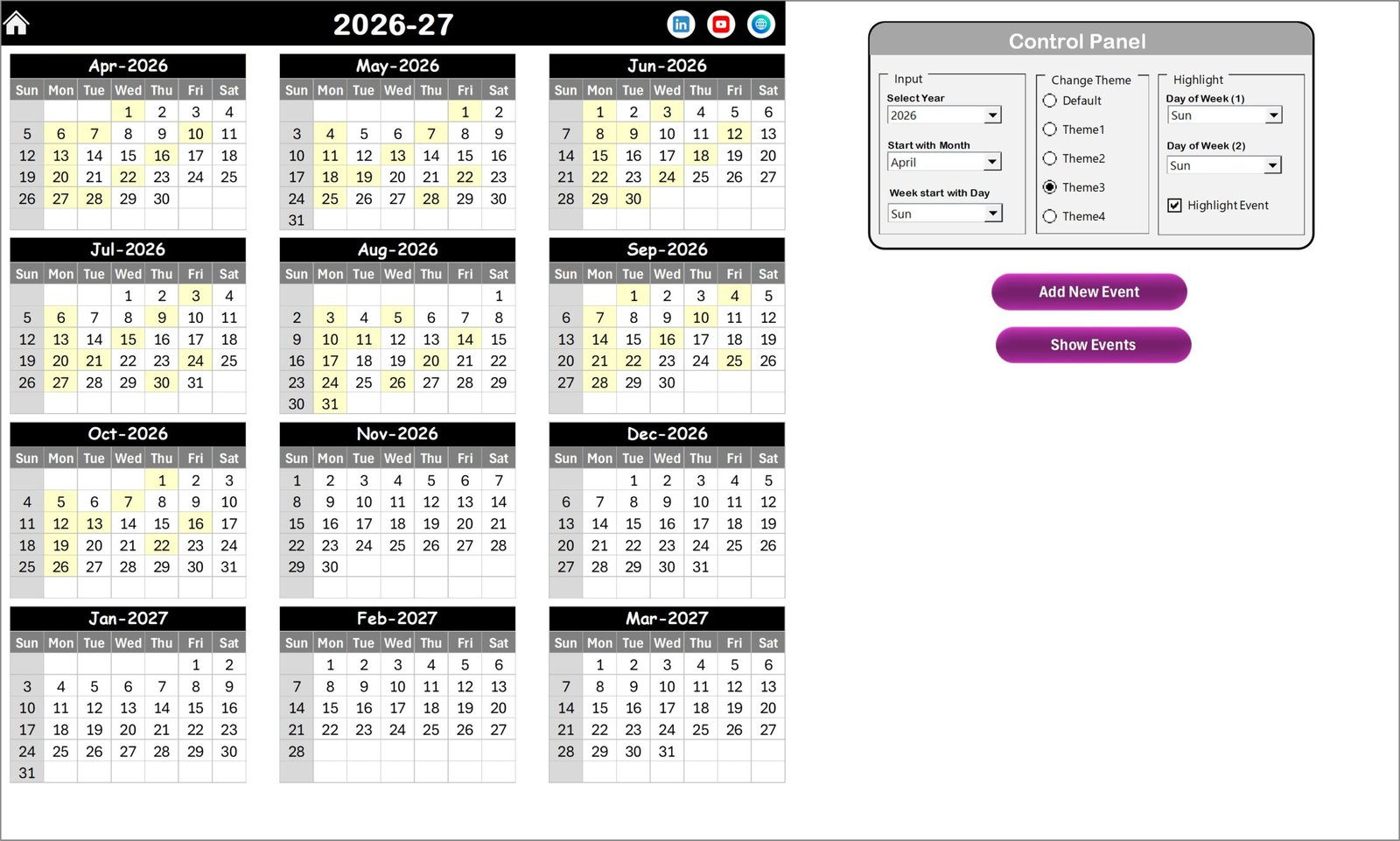
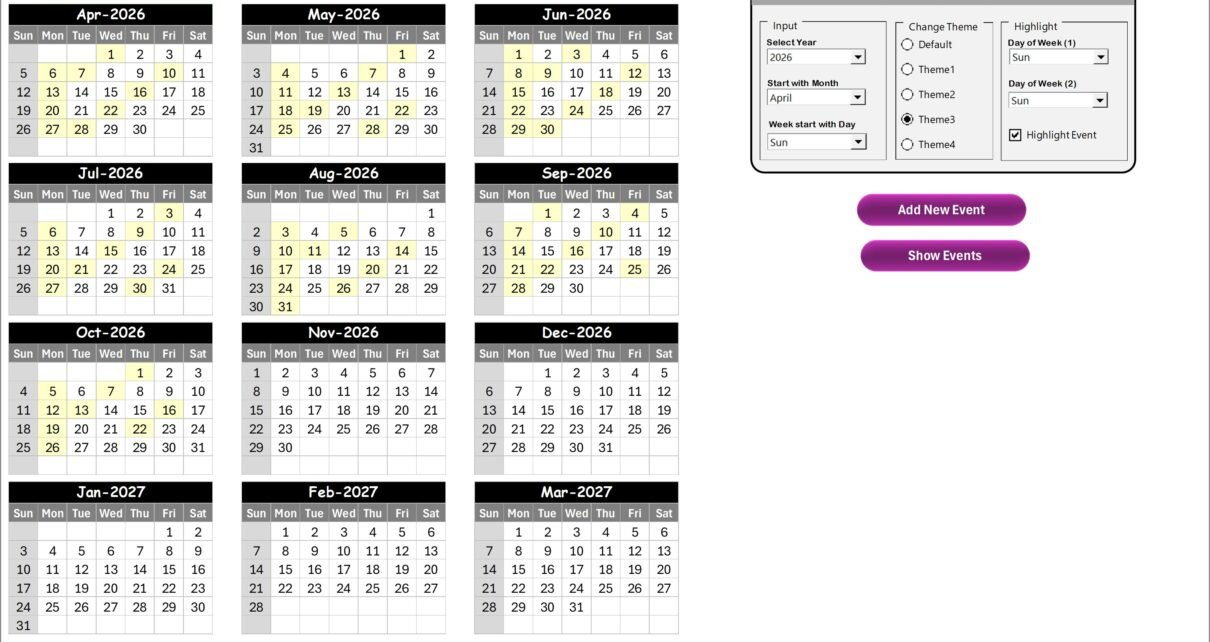
Control panel on the Annual View:
- Input group
- Select Year — calendar updates automatically.
- Change starting month — useful for fiscal calendars.
- Set starting weekday (e.g., Monday or Sunday).
- Change Theme Group
- Choose from 5 color themes to apply across the workbook.
- Highlight Group
- Pick two weekday highlights (e.g., Sat and Sun) and toggle event highlighting to show events in yellow on the annual grid.
- Add New Event button — select a date on the calendar, click Add New Event, fill the form and submit to add an event.
- Show Event button — view a list of events on the selected date.
Monthly View Sheet
The Monthly View shows a single month in detail and supports quick event indicators on each date.
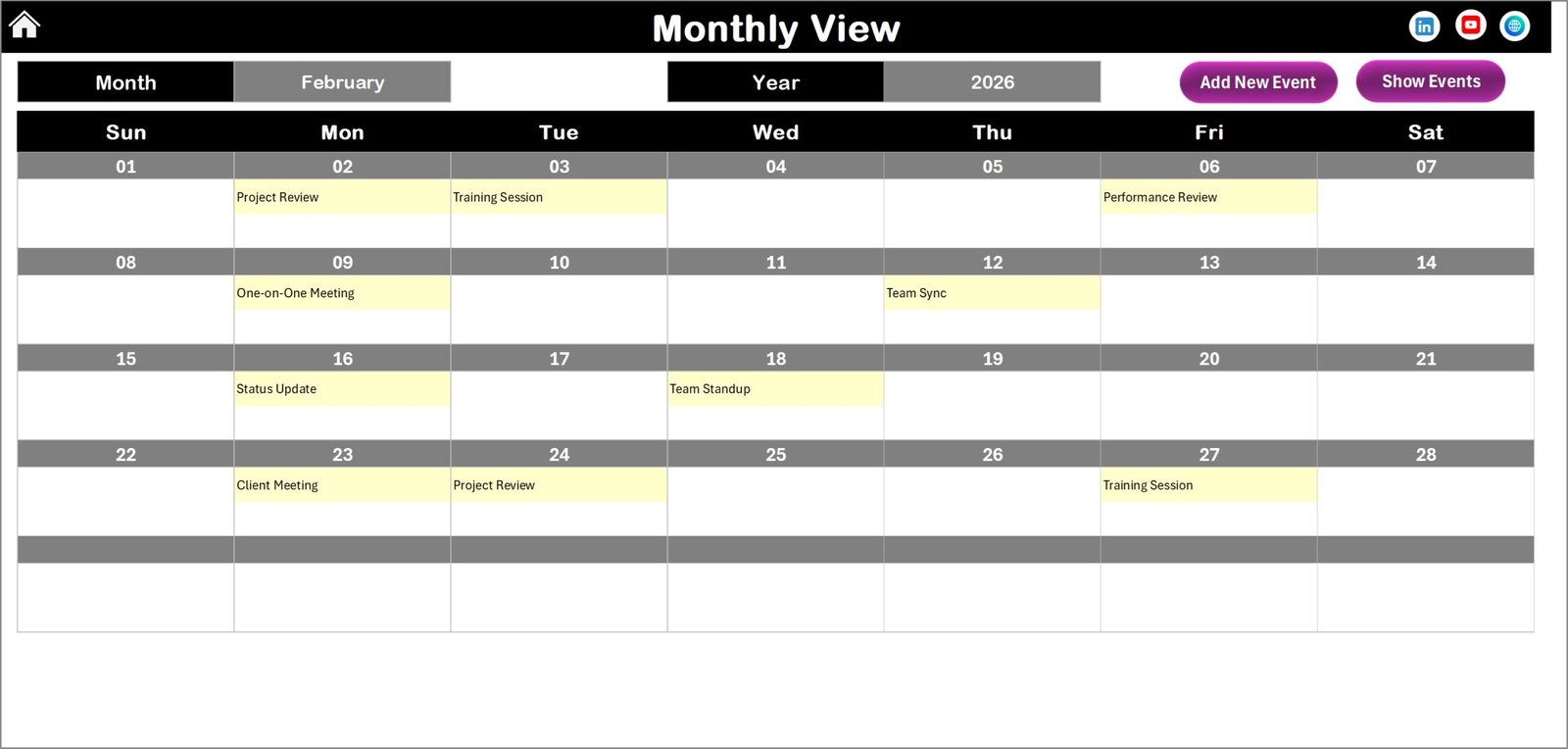
Top controls:
- Select Month and Year to change the displayed calendar.
- Event indicators show one event directly; when multiple events exist, a ‘more than 1…’ indicator appears.
- Add New Event button and Show Event button behave similarly to the Annual View.
Daily View Sheet
Daily View lists events with full details for a selected date range. Use the date pickers to set Start Date and End Date, then click Refresh.
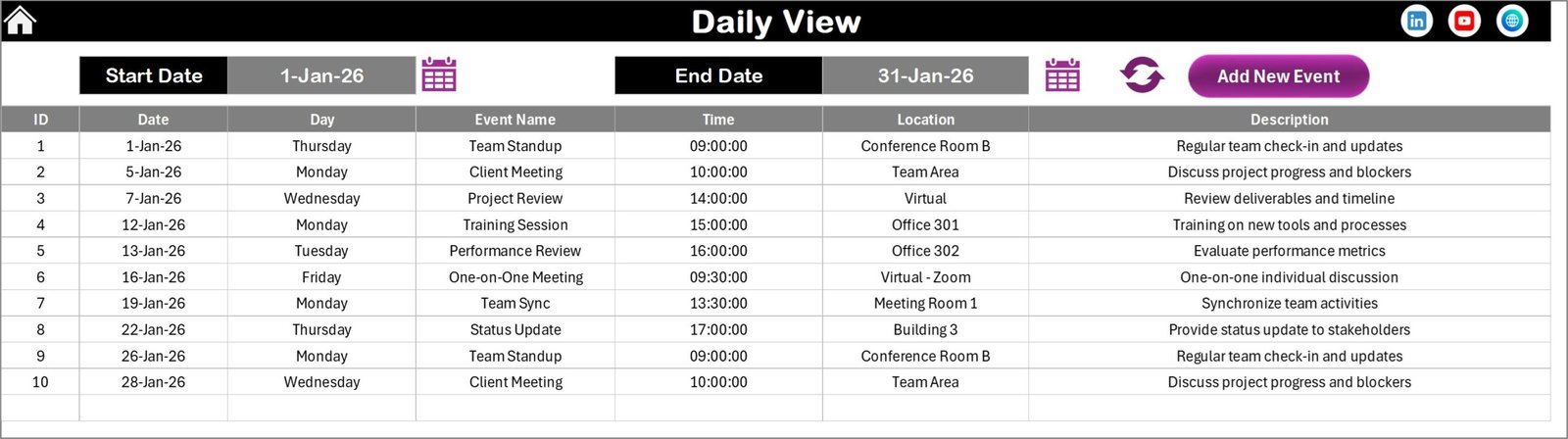
- Start Date and End Date fields with calendar icons for quick selection.
- Refresh button to load events for the chosen date range.
- Add New Event button opens the same form to create events quickly for a selected day.
Events Sheet (Database)
The Events sheet stores all event records in a structured table. It includes auto-generated IDs and fields for quick search and management.
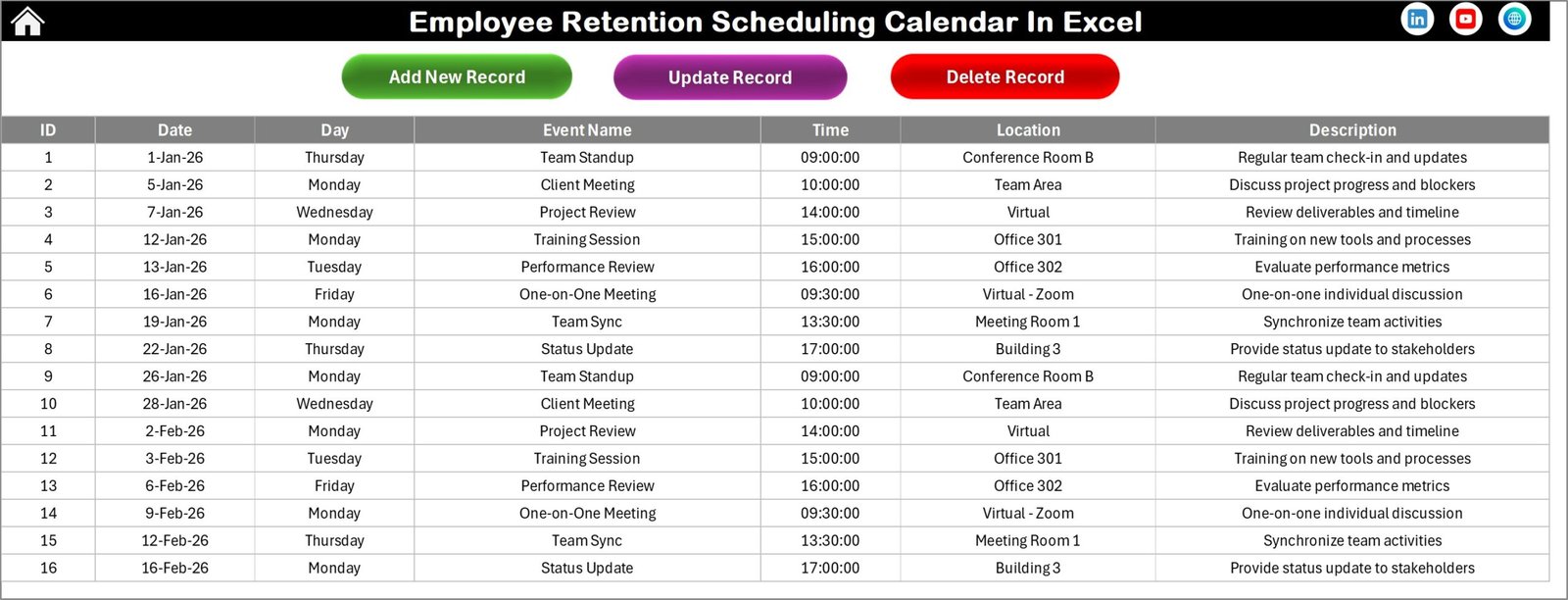
Fields captured in Events sheet:
- ID — auto generated number
- Date — date of event
- Day — weekday name (Sunday, Monday…)
- Event Name — title of the event
- Time — event time
- Location — where the event will occur
- Description — short description of the event
Top action buttons on Events sheet:
- Add New Record — opens the form to create a new event.
- Update Existing Record — select an ID to prefill the form, edit and submit to update.
- Delete Record — choose an ID and delete that event row.
Advantages of Employee Retention Scheduling Calendar In Excel
- Centralized event management inside Excel — no external apps required.
- Fast navigation between yearly, monthly, and daily perspectives.
- Customizable themes and highlights help match company branding and visibility needs.
- Scales with your team — database sheet keeps a clean historical record of events.
Opportunities for Improvement
- Enable multi-user editing via SharePoint or OneDrive to allow collaborative updates.
- Add export-to-PDF and export-to-CSV features for reports and backups.
- Integrate with Outlook or Google Calendar for automatic invites and reminders.
- Include role-based filters (e.g., by department) to show only relevant events.
Best Practices
- Keep the Events sheet as the single source of truth — always add/update via the form to ensure consistency.
- Back up the workbook regularly, especially before mass updates or theme changes.
- Use consistent naming conventions for Event Name and Location to improve searchability.
- Train HR or admin staff to use the Add/Update/Delete buttons to prevent accidental edits in the database table.
FAQs
How do I change the starting day of the week?
Use the Input group on the Annual View control panel to set the starting weekday (Sunday or Monday). The calendars will update automatically.
Can I highlight weekends or specific weekdays?
Yes. In the Highlight Group choose Day of Week (1) and Day of Week (2) to set the two weekdays to highlight. Optionally enable Highlight events to mark events in yellow.
How do I add recurring events?
This template handles single events by default. For recurring events, add each occurrence as an event or extend the template with macros or formulas that generate recurring entries in the Events sheet.
Is the template mobile friendly?
The template is optimized for desktop Excel. For mobile access, store it on OneDrive and use Excel mobile — but some form buttons and macros may be limited on mobile apps.
Click to Purchases Employee Retention Scheduling Calendar in Excel
Conclusion
Employee Retention Scheduling Calendar In Excel is a practical, ready-made solution to manage HR events and retention activities in a single, familiar Excel environment. It balances simplicity with useful features like multiple views, theme options, and an events database to keep teams organized.
External resources:
Visit our YouTube channel to watch the demo. Youtube.com/@NextGenTemplates