Employee Retention Project Calendar In Excel
The Employee Retention Project Calendar In Excel is a ready-to-use template designed to help HR teams and project managers plan, track and highlight staff retention activities across annual, monthly and daily views. This guide explains features, navigation, and best practices so you can get started quickly.
Click to Purchases Employee Retention Project Calendar in Excel
Introduction
The Employee Retention Project Calendar In Excel centralizes events, reminders and retention activities into a simple workbook with five sheets: Home, Annual View, Monthly View, Daily View and Events (database). Use theme controls, highlight rules and quick add/view buttons to manage retention events efficiently.
Key Features of Employee Retention Project Calendar In Excel
- Five-sheet workbook: Home, Annual View, Monthly View, Daily View, Events database.
- Quick navigation buttons from the Home sheet to jump to any view.
- Control panel for year, start month, week start day and theme selection.
- Highlighting rules for specific weekdays and event highlighting.
- Buttons to Add New Event and Show Events directly from calendar views.
- Events database with ID, Date, Day, Event Name, Time, Location, Description.
Dashboard Pages Explanation
Home sheet tab
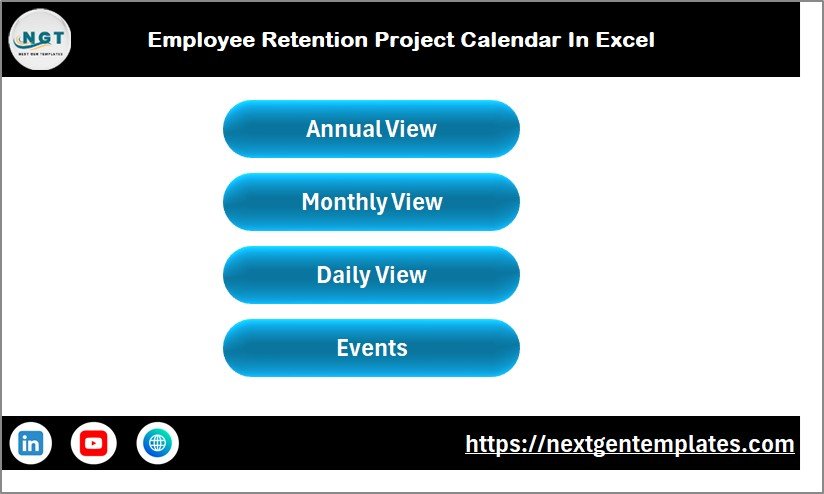
The Home sheet is an index with four navigation buttons to jump to the main dashboards.
Annual View Sheet tab
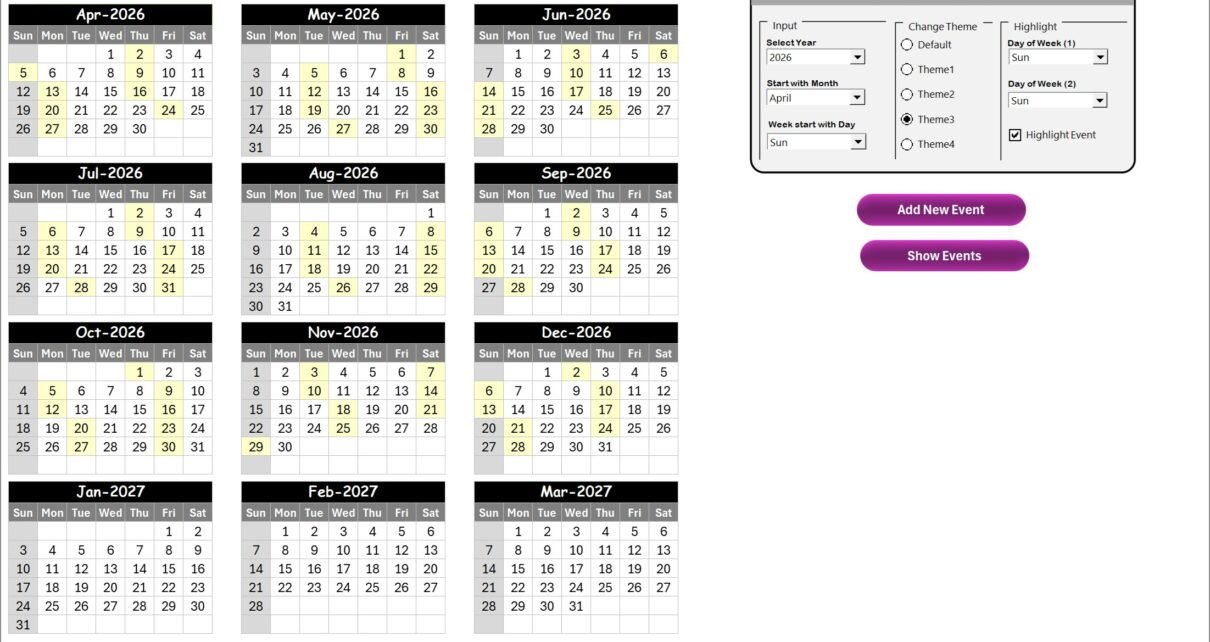
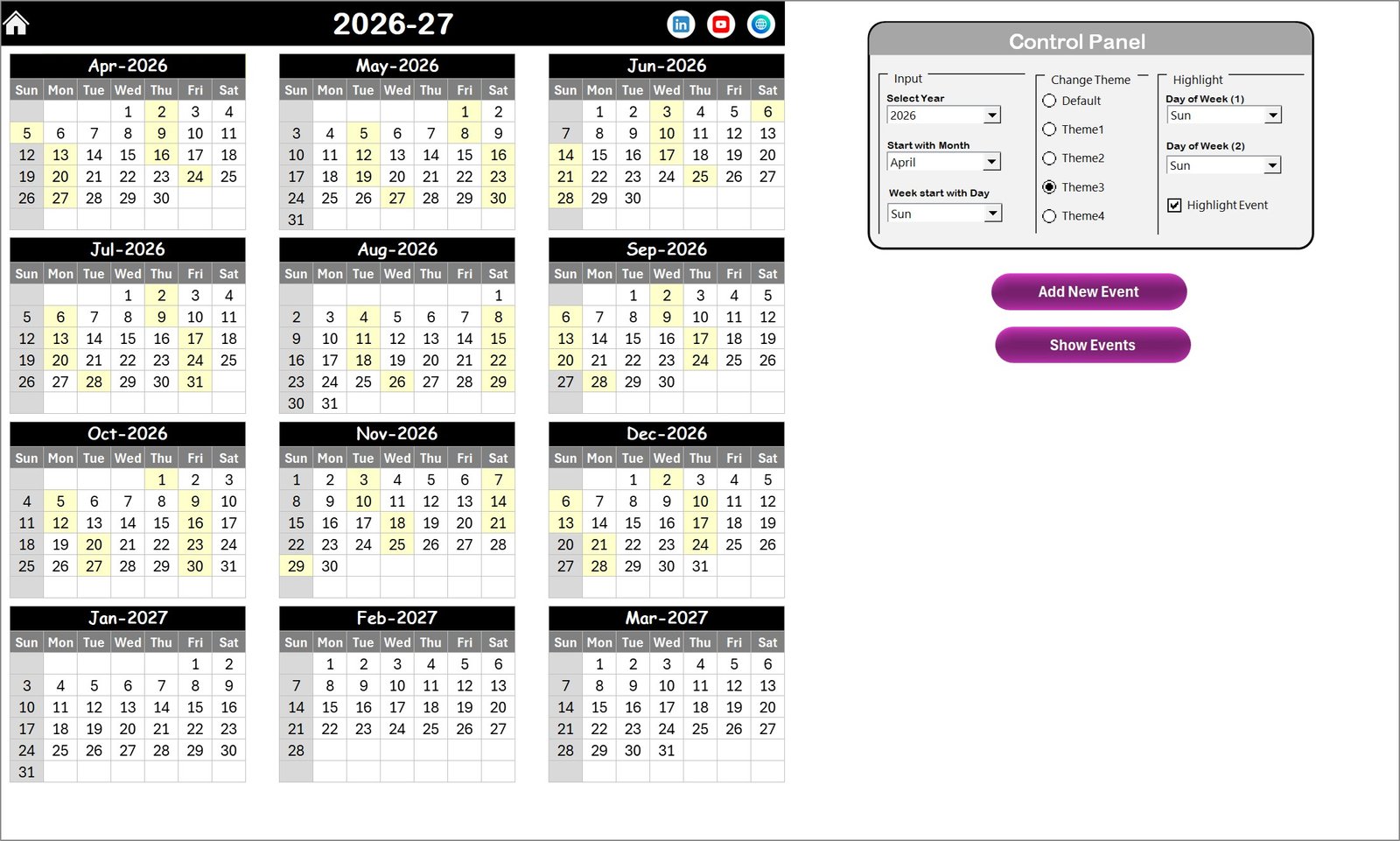
The Annual View sheet displays all 12 months at once and includes a control panel plus action buttons.
- Control panel groups:
- Input group: Select Year, starting month, and the week start day. The annual calendar updates automatically.
- Change Theme Group: Choose from five color themes that apply across the workbook.
- Highlight Group: Pick two weekdays to highlight (for example Sat and Sun) and enable event highlighting to color event dates.
- Add New Event button: Select a date on the calendar and click to open the event form and submit a new event.
- Show Event button: View all events for the selected date.
Monthly View Sheet tab
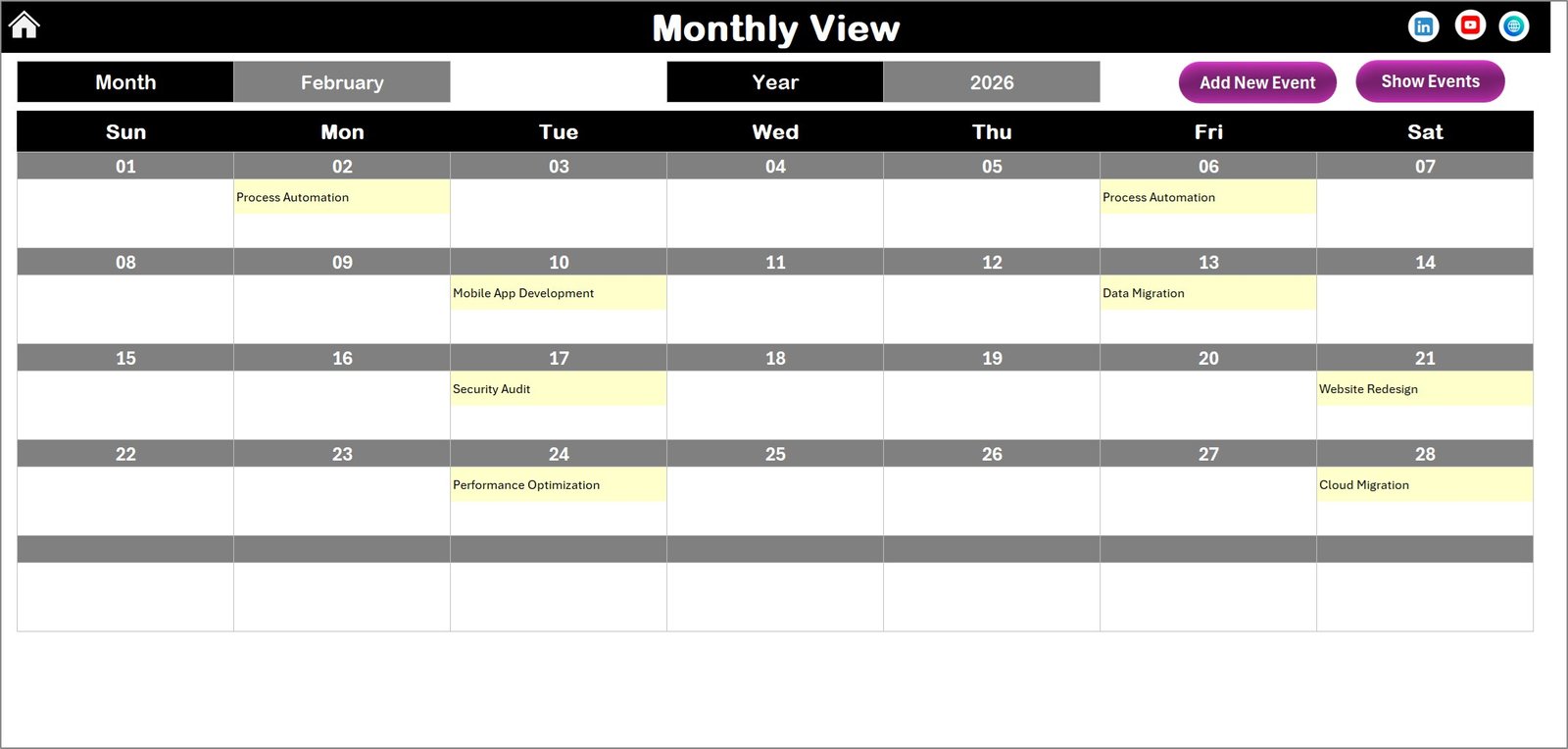
The Monthly View shows a single month calendar. Choose Month and Year at the top and the calendar updates. Single events display with time; if more events exist you will see an indicator like ‘more than 1…’ to open details.
- Add New Event: Select a date and use the button to add events via the form.
- Show Event: Click to list events on the selected date.
Daily View Sheet tab
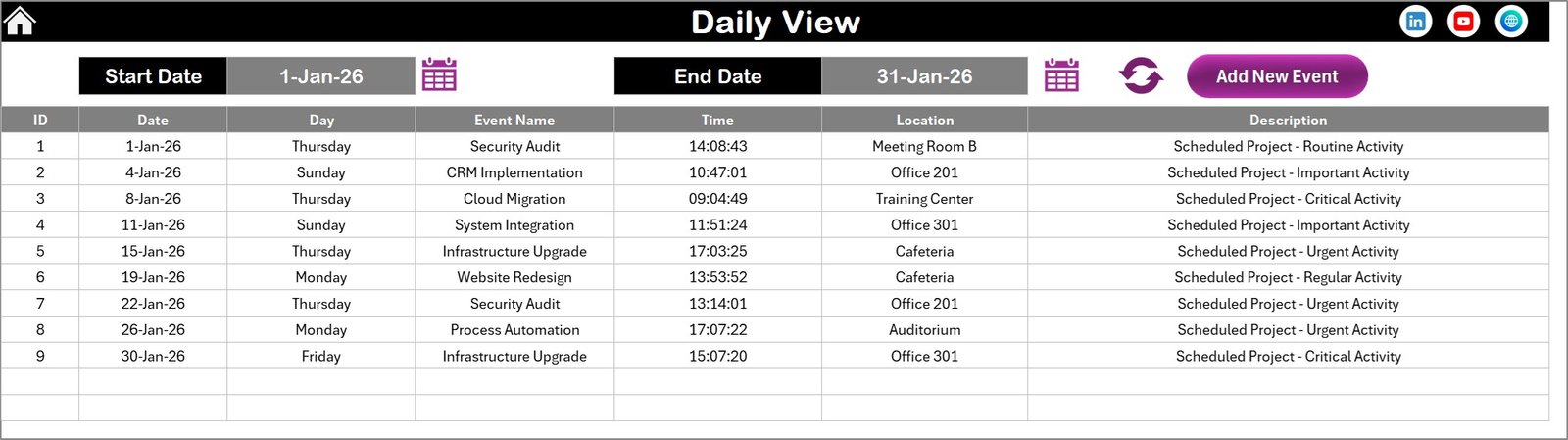
Daily View lists events with details for a selected date range. Enter Start date and End date (use the calendar icons), then click Refresh to show the latest events.
- Start / End: Choose date range for the report.
- Refresh: Update the displayed data for the chosen range.
- Add New Event: Opens the form to create a new event for the selected day.
Events Sheet tab (Database)
The Events sheet stores every event as a structured record. Use buttons on top to add, update or delete records.
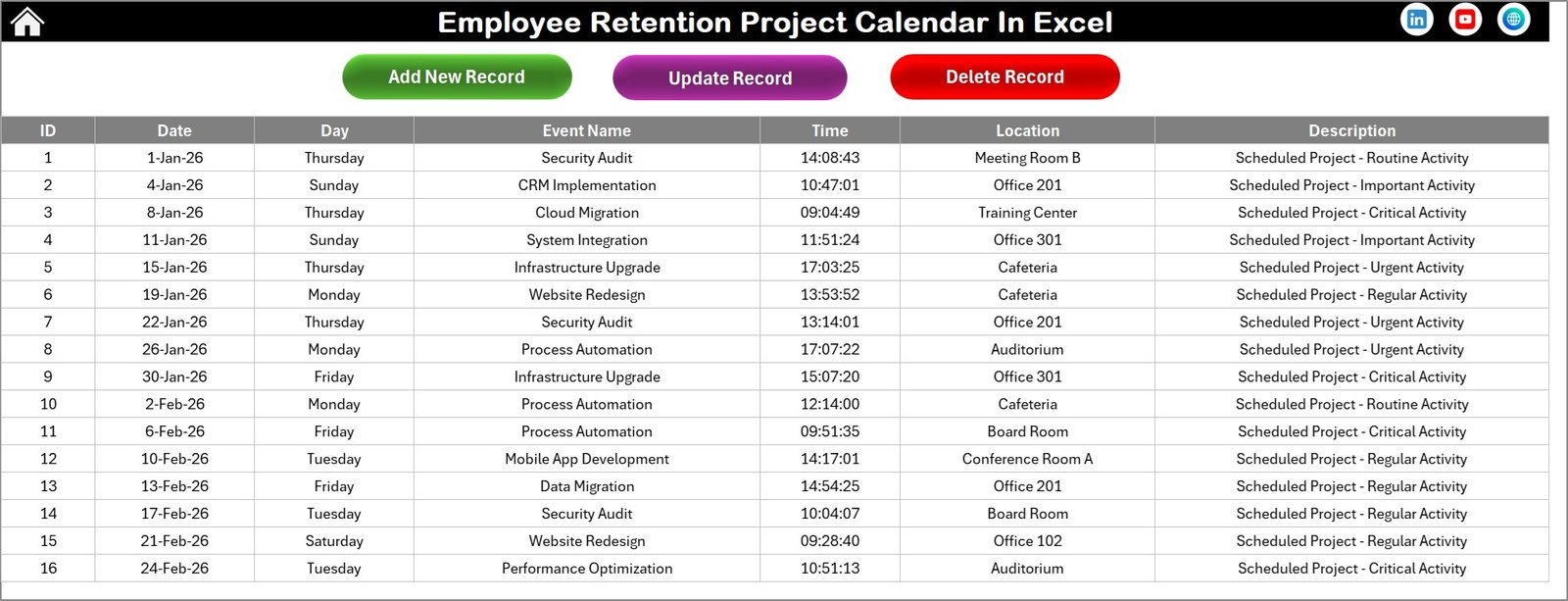
- Columns captured: ID (auto-generated), Date, Day, Event Name, Time, Location, Description.
- Add New Record: Opens form to create a record.
- Update Existing Record: Select ID, edit fields via the form and submit to update.
- Delete Record: Choose the ID to remove the event from the database.
Advantages of Employee Retention Project Calendar In Excel
- Centralized events database for HR and retention planning.
- Multiple calendar perspectives (annual, monthly, daily) for different planning needs.
- Theme and highlight controls make important days and events stand out.
- Quick add/view buttons streamline event management without navigating raw tables.
- Excel-native — no additional software required and easy to share across teams.
Opportunities for Improvement
- Integrate reminders via Outlook or Teams to push calendar notifications.
- Add filtering by event type (e.g., training, review, recognition) and color-code types.
- Provide import/export to iCal/CSV for syncing with other calendar systems.
- Consider a dashboard chart showing monthly event counts or retention-related KPIs.
Best Practices
- Keep the Events sheet as the single source of truth — always add/update through the form buttons.
- Use consistent event naming and category tags in the description for easy filtering and reporting.
- Back up the workbook regularly and use a shared drive or version control for team access.
- Standardize the week start and theme settings at the start of each fiscal year.
FAQs
How do I add a new event?
Select the date on any calendar view and click the ‘Add New Event’ button. Fill in the form fields and submit — the event is saved to the Events sheet.
Can I change the theme across the whole workbook?
Yes. Use the Change Theme Group on the Annual View control panel to apply one of five preset color themes across all sheets.
How do I highlight weekends or specific weekdays?
In the Highlight Group (Annual View), pick the two days you want highlighted — for example Saturday and Sunday — and the calendar colors will update accordingly.
Click to Purchases Employee Retention Project Calendar in Excel
Conclusion
Employee Retention Project Calendar In Excel is a practical, Excel-based solution for HR teams to plan, view and manage retention-related events. With multiple views, a central database and simple form-based interactions, it reduces manual overhead and improves visibility of retention activities.
Helpful resources:
Visit our YouTube channel to watch the demo. Youtube.com/@NextGenTemplates