Document Management Dashboard in Excel is built for admin teams, IT operations, compliance coordinators, records managers, and department leaders who need a clean way to monitor document volume, file size, downloads, storage cost, approvals, review status, access levels, and compliance. When document registers grow into hundreds or thousands of rows, it becomes hard to answer simple questions: Which department owns the most files? Which formats consume the most space? Where are approvals pending? Which access levels have the strongest compliance? This Excel dashboard turns those questions into 5 analysis pages, KPI cards, slicers, charts, and refreshable pivot-based reporting.
For Microsoft guidance on the application, see the official Microsoft Excel support documentation.
Key Features of Document Management Dashboard in Excel
- 5 analysis dashboard pages covering Overview, Department Analysis, Document Types, Storage & Format, and Compliance & Status.
- 5 high-level KPI cards showing Total Documents, Total File Size, Total Downloads, Total Storage Cost, and Approved Documents.
- Interactive slicers to filter the dashboard quickly and review selected departments, types, statuses, or other fields.
- Pivot-based dashboard design so charts and KPIs update after you replace data and click Refresh All.
- Document approval visibility through approved vs. pending views by department and approval percentage analysis.
- Storage cost analysis by department and storage location to help identify where file storage is growing.
- Compliance monitoring by access level, month, and document type for quick governance review.
- Data and Support sheets included so users can manage source records and keep the pivot layer separate from the main dashboard pages.
Dashboard Pages Explanation
1. Overview Page
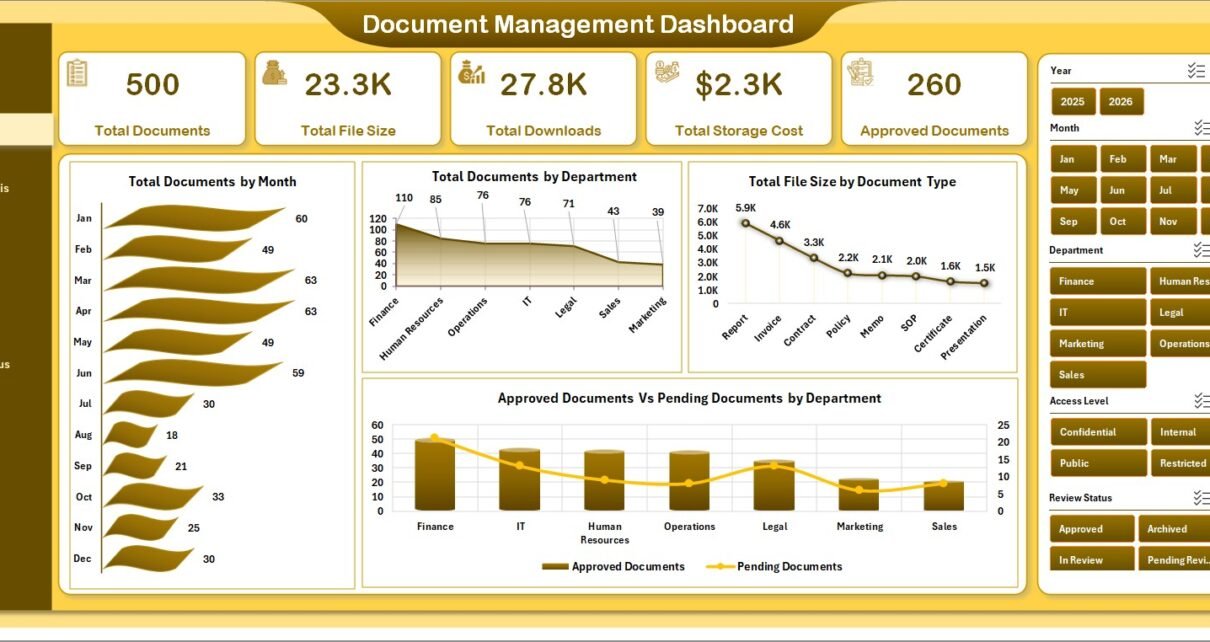
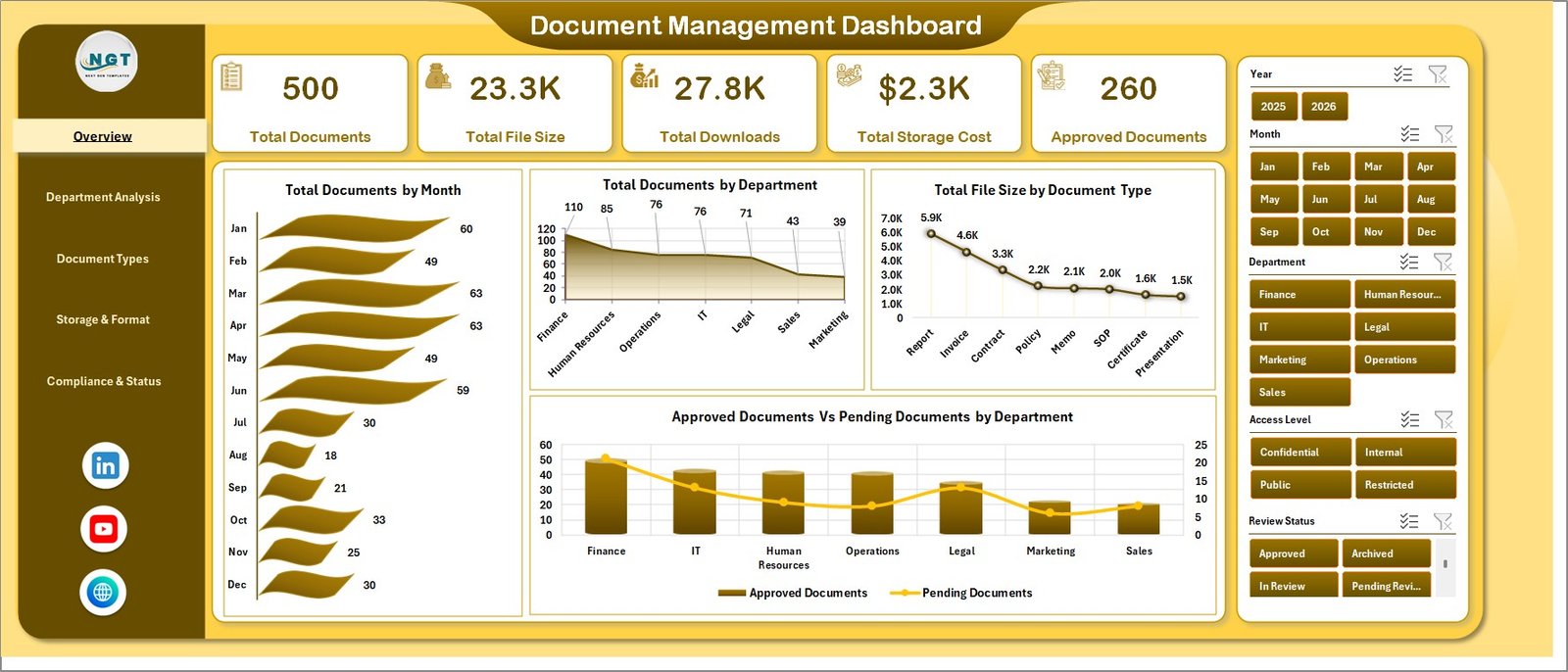
The Overview page gives a fast executive summary of the full document register. At the top, the dashboard displays KPI cards for Total Documents, Total File Size, Total Downloads, Total Storage Cost, and Approved Documents. These cards help managers understand the size, usage, cost, and approval health of the document library before they move into deeper analysis.
Total Documents by Month: This chart shows how document volume changes month by month. It helps identify upload spikes, seasonal activity, cleanup periods, and months where records increased sharply.
Total Documents by Department: This chart compares document ownership across departments. It helps leaders understand which teams create or manage the largest share of documents.
Total File Size by Document Type: This visual shows which document types consume the most storage. It helps teams review file categories that may need retention checks, compression, or archiving.
Approved Documents vs. Pending Documents by Department: This chart compares approval progress across departments. It makes bottlenecks visible when one team has many pending records compared with approved files.
2. Department Analysis
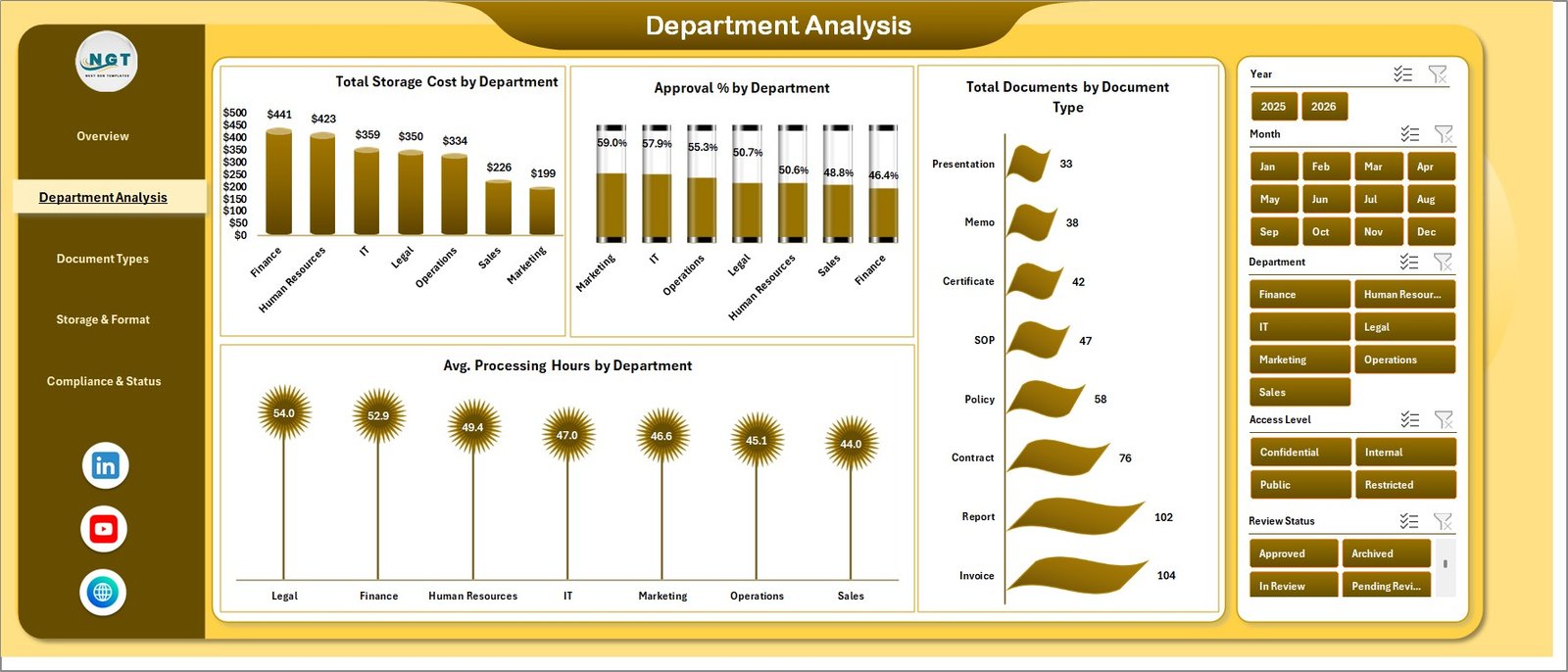
The Department Analysis page helps teams compare document activity by business area. It includes Total Storage Cost by Department, Approval % by Department, Total Documents by Document Type, and Avg. Processing Hours by Department. This page is useful for managers who need to identify high-cost departments, approval delays, and document categories that dominate each area.
Total Storage Cost by Department shows where document storage spend is concentrated. Approval % by Department highlights which teams are keeping approvals current. Total Documents by Document Type helps compare document mix, while Avg. Processing Hours by Department points to areas where document handling may be slower.
3. Document Types
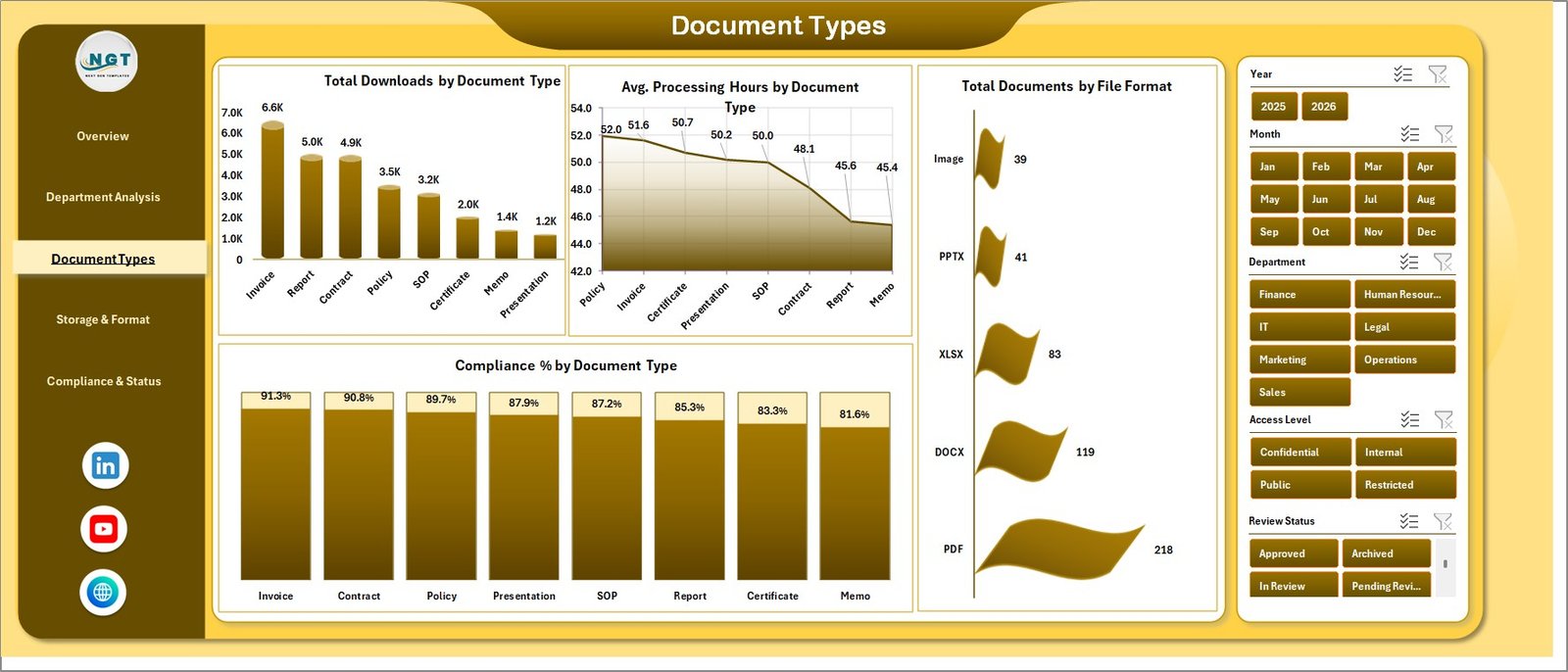
The Document Types page focuses on how different document categories behave. It includes Total Downloads by Document Type, Avg. Processing Hours by Document Type, Total Documents by File Format, and Compliance % by Document Type. This helps records teams identify the document types that users access most, process slowly, or treat with different compliance quality.
Total Downloads by Document Type shows the most-used categories. Avg. Processing Hours by Document Type helps find categories that need workflow improvement. Total Documents by File Format makes the file mix visible, and Compliance % by Document Type helps prioritize categories that need governance attention.
4. Storage & Format
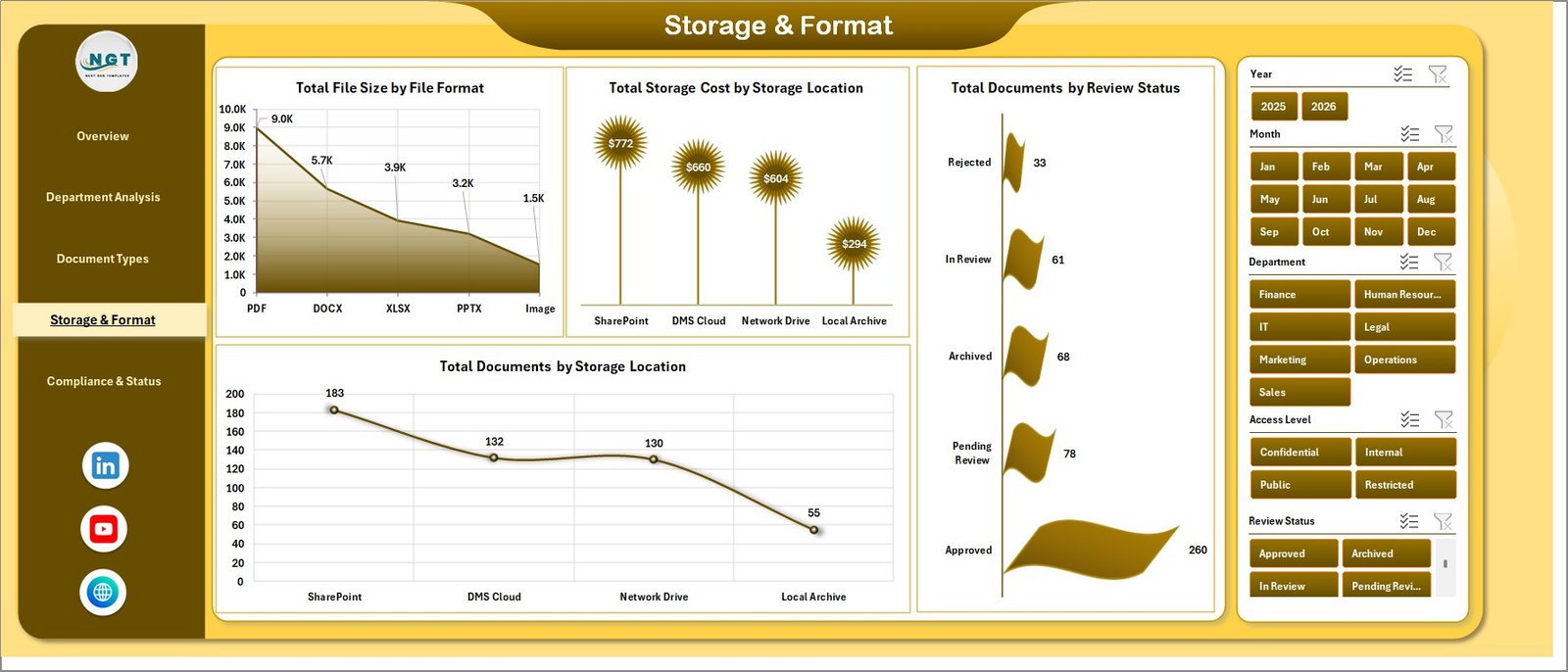
The Storage & Format page supports storage planning and file-format review. It includes Total File Size by File Format, Total Storage Cost by Storage Location, Total Documents by Review Status, and Total Documents by Storage Location. This page helps IT and document control teams see where files live, which formats are heavy, and how review status is distributed.
Total File Size by File Format identifies the formats that use the most capacity. Total Storage Cost by Storage Location compares cost across locations. Total Documents by Review Status shows review workload, and Total Documents by Storage Location clarifies where records are stored.
5. Compliance & Status
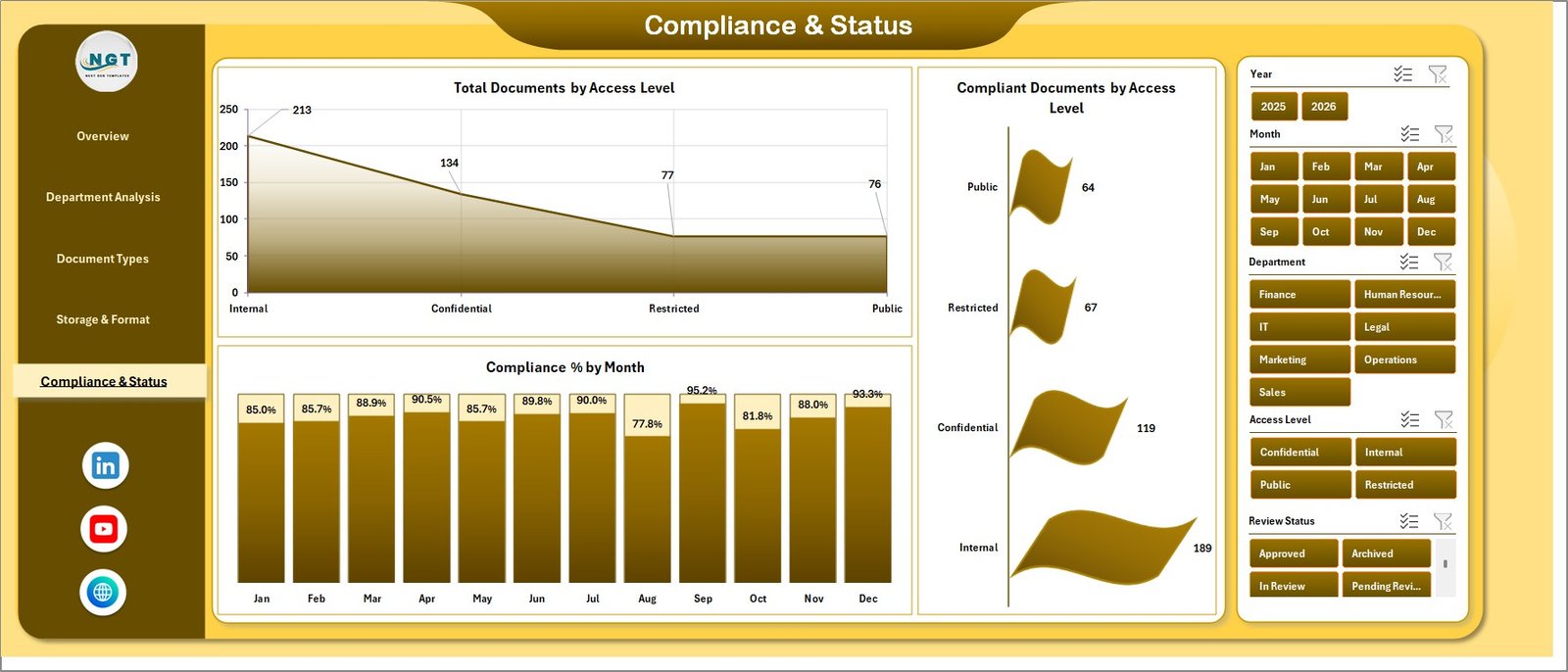
The Compliance & Status page focuses on governance. It includes Total Documents by Access Level, Compliant Documents by Access Level, and Compliance % by Month. This makes it easier to check whether restricted, internal, public, or other access groups are being managed correctly.
Total Documents by Access Level shows how documents are distributed by access type. Compliant Documents by Access Level highlights compliant files in each access group. Compliance % by Month shows whether compliance performance is improving or slipping over time.
6. Data Sheet Tab
The Data sheet is the source table for the dashboard. You can add your document records in the same format as the sample data. After updating this sheet, the dashboard can be refreshed so KPI cards, charts, slicers, and pivot tables reflect the latest records.

7. Support Sheet
The Support sheet contains the pivot tables used to build the dashboard dynamically. After updating the Data sheet, go to the Data tab in the Excel Ribbon and click Refresh All. The pivots and charts will refresh, and the Support sheet can be hidden for normal users.

Document Management Dashboard in Excel vs. Google Sheets vs. Paid Document Management SaaS – Feature Comparison
| Feature | Document Management Dashboard in Excel | Google Sheets alternative | Paid document management SaaS |
|---|---|---|---|
| Cost | $17.99 one-time | Free or template-based | Recurring subscription |
| Platform | Microsoft Excel | Browser-based spreadsheet | Vendor cloud platform |
| Setup time | Paste data and refresh | Import data and configure sharing | Requires onboarding |
| Customizable fields | Editable workbook structure | Editable sheet structure | Limited by vendor settings |
| Real-time team collaboration | Possible if stored in OneDrive/SharePoint | Built in | Built in |
| Mobile access | Possible through Excel mobile or web | Built in | Built in |
| Share with link | Possible through Microsoft sharing | Built in | Usually built in |
| Document analytics | Built in across 5 dashboard pages | Must be configured | Usually available on higher plans |
| Year-1 cost at 5 users | $17.99 plus existing Microsoft licensing | Depends on Workspace plan | Often hundreds or thousands |
Who Should Use This Template
This template is useful for document controllers, admin teams, IT teams, compliance coordinators, operations managers, quality teams, file storage reviewers, and Excel users who already maintain a document register. It is also helpful for consultants who need to present document status, approval backlog, storage cost, or compliance summaries to clients.
It is not meant to replace a full document management system. If you need version control, check-in/check-out, file permissions, e-signatures, legal hold, retention automation, or live SharePoint API sync, you will need a dedicated DMS or a custom system. This dashboard is best used as an analytics layer for structured document data.
Real-World Use Cases
Priya, compliance coordinator: Priya uses the Overview and Compliance pages before her weekly governance meeting. She checks pending approvals by department and uses the monthly compliance trend to show where controls are improving.
Daniel, IT operations manager: Daniel reviews total file size by format and storage cost by location. This helps him identify storage areas that need cleanup, compression, or retention-policy review.
Meera, admin lead: Meera uses downloads by document type to understand which files are used most often. She can also compare departments to see where document processing takes more time.
Advantages of Document Management Dashboard in Excel
The main advantage is speed. Instead of building pivot tables, charts, slicers, and summary cards from scratch, users get a ready workbook where the analysis pages are already structured. The dashboard also works in a familiar Excel environment, which makes adoption easier for teams that already maintain document lists in spreadsheets.
The second advantage is cost control. A one-time Excel template is not the same as enterprise document management software, but it can be the right reporting layer when teams only need visibility into documents, approvals, storage cost, access level, and compliance.
Opportunities for Improvement
Users should keep the source data clean for best results. Standard document IDs, consistent department names, clean document type values, and accurate status fields will make the dashboard more reliable. Teams can also customize the workbook by adding fields for owner, expiry date, document risk level, vendor, business process, retention category, or audit status.
Best Practices
- Keep one row per document so pivots and charts summarize records correctly.
- Use consistent naming for departments, document types, access levels, and storage locations.
- Refresh after every data update by clicking Refresh All in the Excel Data tab.
- Hide the Support sheet when sharing the workbook with business users.
- Review compliance monthly to catch declining access-level or document-type performance early.
- Archive old files after reviewing storage cost and file size patterns.
Explore Relevant Templates
- Document Management Dashboard in Excel – the product page for this downloadable template.
- Office Document Management Dashboard in Excel – related Excel dashboard for office document tracking.
- Document Management KPI Dashboard in Excel – KPI-focused document management tracker.
- Digital Twin Services Dashboard in Power BI – related IT and service analytics dashboard.
- Browse more Excel Dashboard Templates.
Frequently Asked Questions
What is included in the Document Management Dashboard in Excel?
The workbook includes Overview, Department Analysis, Document Types, Storage & Format, Compliance & Status, Data Sheet, and Support Sheet tabs.
What KPI cards are available on the Overview page?
The Overview page includes Total Documents, Total File Size, Total Downloads, Total Storage Cost, and Approved Documents.
Can I add my own document data?
Yes. Add or paste your data into the Data sheet using the same format, then refresh the workbook from the Excel Data tab.
What does the Support sheet do?
The Support sheet contains pivot tables used to drive the dashboard charts and cards. You can hide it after setup.
Does this dashboard manage actual document files?
No. It analyzes structured document data. It does not store files, manage file permissions, or replace SharePoint, Google Drive, OneDrive, or a full document management system.
Can I customize the charts and fields?
Yes. Because it is an Excel workbook, you can edit the data table, pivots, charts, formatting, and labels as needed.
About the Author
Built by PK – Microsoft Certified Professional with 15+ years of Excel, Google Sheets, and Power BI experience. Founder of NextGenTemplates, reaching 300K+ subscribers across YouTube channels. Every template is hand-built and tested before release.
Conclusion
The Document Management Dashboard in Excel gives teams a practical way to review document volume, storage cost, approvals, file formats, access levels, review status, and compliance without building the dashboard from scratch. It is especially useful when you already have a document register and need a clean reporting layer for management review.
Click here to purchase the Document Management Dashboard in Excel.
Instant download. One-time payment. Editable Excel dashboard. No subscription.
For step-by-step Excel tutorials and template walkthroughs, visit YouTube.com/@PK-AnExcelExpert.
Last updated: June 2026