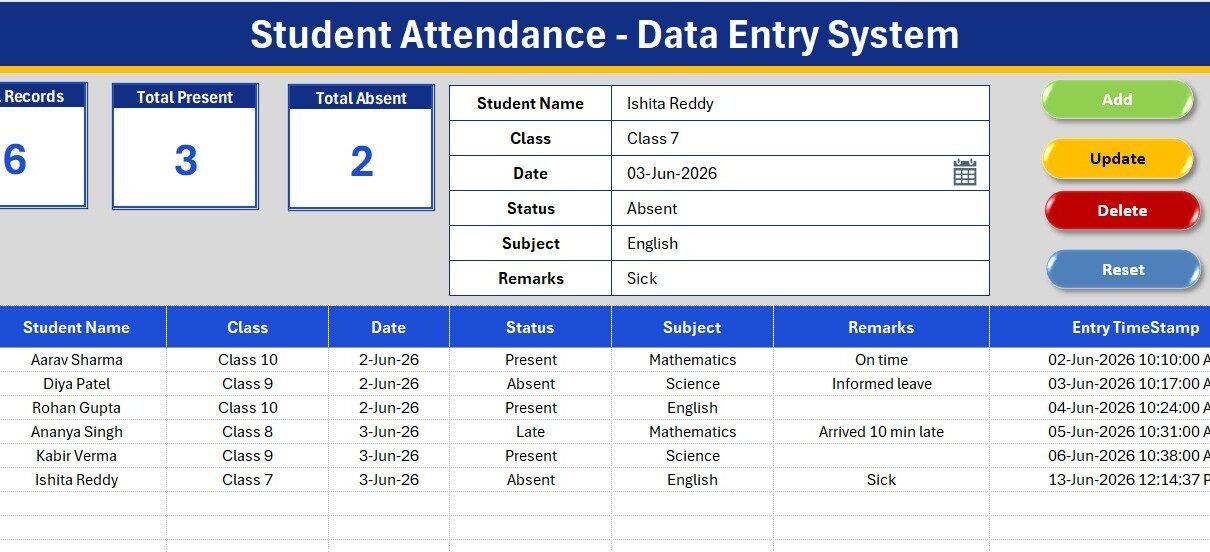
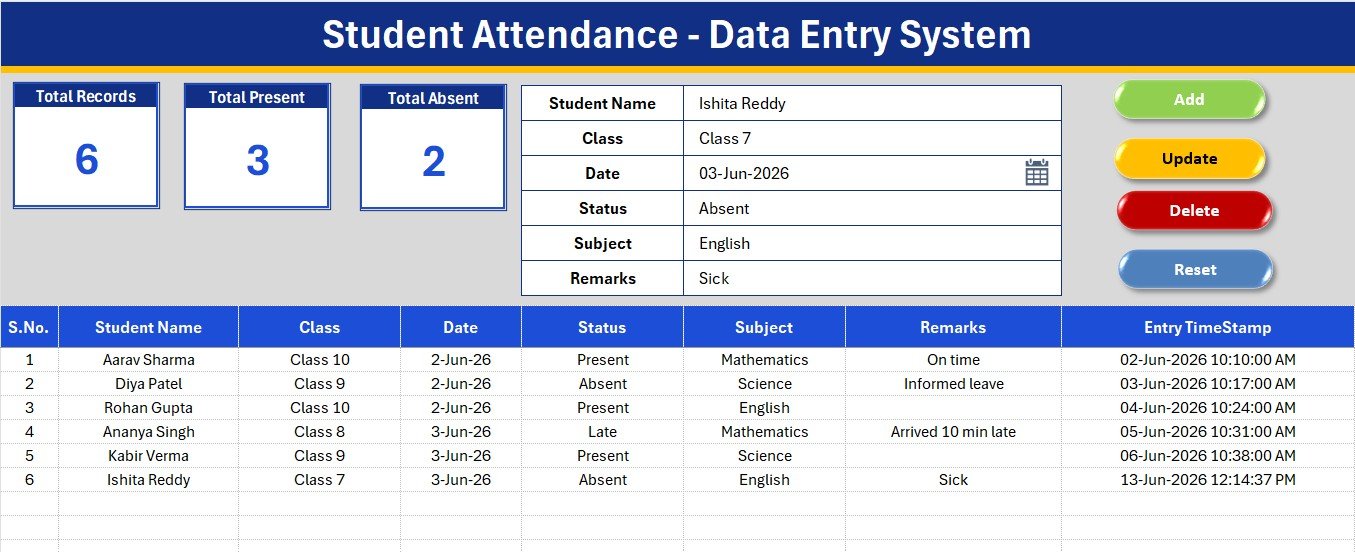
If you are still marking a register by hand or hunting through a messy spreadsheet at the end of the month, the Student Attendance Data Entry System in Excel gives you a single, structured screen to capture every record and see your numbers instantly. It is a small but complete Excel VBA tool: a 6-field form, four one-click buttons, three live KPI cards, and editable dropdown lists – all running offline in Microsoft Excel.
In this guide we will walk through what the template does, the sheets inside it, how to set it up in under five minutes, and who it is built for. By the end you will know exactly how this Excel student attendance tracker fits into a classroom or tuition workflow.
Why Track Student Attendance in Excel?
Attendance is the one record every school, college and tuition centre needs daily – and the one most likely to live in scattered notebooks or half-built spreadsheets. A dedicated data entry system fixes three common problems: inconsistent entries (free-typed class or subject names), no instant totals, and slow edits.
Excel is ideal for this because it works offline, you own the file, and there are no per-student fees. A small VBA layer turns a plain sheet into a proper form-driven tool, so a teacher can mark a student, click Add, and move on. You get the speed of software without the subscription.
What Is the Student Attendance Data Entry System in Excel?
The Student Attendance Data Entry System in Excel is a four-sheet workbook (Data Entry, Setting, Instructions, Get More Templates) that captures six fields per record – Student Name, Class, Date, Status, Subject and Remarks – and rolls them into three live KPI cards. Class, Status and Subject are dropdowns, so your data stays clean across hundreds of rows.
It belongs to the same family as our Appliance Service Data Entry System in Excel and pairs naturally with the Student Fee Collection System in Excel – same clean layout, same one-click VBA buttons, different purpose.
Key Features of the Excel Student Attendance Tracker
- One-screen entry form – All six fields sit at the top of the Data Entry sheet. Class, Status and Subject are dropdowns wired to the Setting sheet, so spelling stays consistent.
- Three live KPI cards – Total Records, Total Present and Total Absent recalculate the instant you add, update or delete a row.
- Four one-click buttons – Add appends a timestamped record, Update overwrites the selected row, Delete removes a record after a confirmation prompt, and Reset clears the form.
- Editable dropdown lists – Class (Class 5 to Class 12), Status (Present, Absent, Late, Half Day, Leave, Holiday) and 12 subjects, all stored on the Setting sheet as named ranges.
- Auto serial number and timestamp – Every saved record gets an automatic S.No and an Entry TimeStamp.
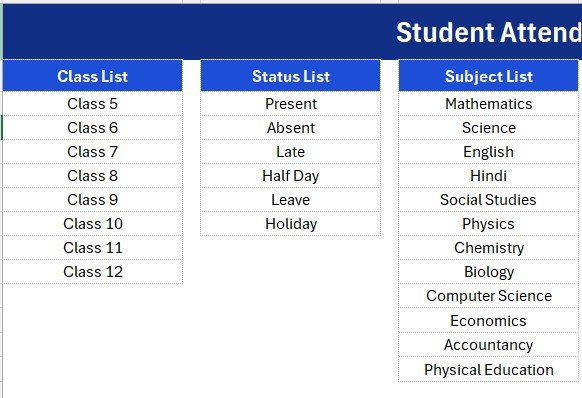
The Status list is what powers the KPI cards: Total Present counts rows marked Present and Total Absent counts rows marked Absent. Because attendance percentage is just Present divided by Total Records, you can add a single formula next to the cards to show the percentage for any period.
What’s Inside the Workbook
Data Entry Sheet
The main screen: a dark heading bar, the three KPI cards, the six-field form, the Add/Update/Delete/Reset buttons, and a clean records table with auto S.No, all six fields and an Entry TimeStamp column.
Setting Sheet
Holds the Class, Status and Subject lists that feed every dropdown, plus a duplicate set of the KPI cards you can copy and Paste Special as a linked picture into any report.
Instructions and Get More Templates
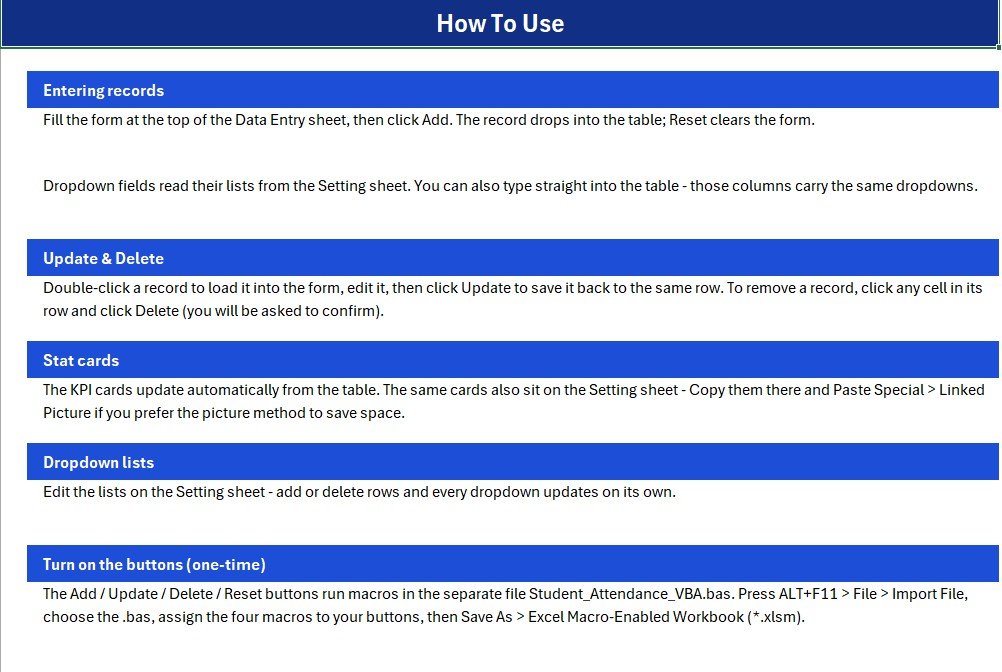
The Instructions sheet explains the one-time button setup, and the Get More Templates sheet links back to the NextGenTemplates store for related tools.
How to Set Up the Student Attendance Data Entry System
- Open the .xlsm file in Microsoft Excel and enable macros when prompted – the buttons need them.
- Go to the Setting sheet and edit the Class, Status and Subject lists to match your school or batch.
- On the Data Entry sheet, fill the form and click Add to save a timestamped record.
- Double-click any record to load it into the form, edit it, then click Update to write it back.
- Use Delete to remove a record (with confirmation) and Reset to clear the form.
The dropdown lists rely on Excel’s data validation feature; if you want to understand how those lists work under the hood, Microsoft’s own guide to creating drop-down lists is a good reference.
How It Compares to Other Attendance Methods
A paper register is free but gives you no totals and no search. A cloud student information system gives you everything but charges per student every year. This Excel tool sits in between: a one-time file you own, works offline, with instant Present and Absent counts. If your team prefers the cloud, the Attendance Tracker in Google Sheets covers the same need with real-time collaboration.
Who Should Use This Template?
It is built for school teachers and class coordinators marking daily subject-wise attendance, tuition centres and coaching classes logging presence per batch, and small institutes that want fast offline entry with live counts. If you also report on enrolment or performance, the Student Enrollment KPI Scorecard in Excel and our education dashboards are natural next steps.
Need the whole toolkit at once? The Education & School Management Bundle packs attendance, fees, assignments, progress and event tools into one download at 68% off.
Frequently Asked Questions
What fields does the Student Attendance Data Entry System capture?
It captures six fields per record: Student Name, Class, Date, Status, Subject and Remarks. Class, Status and Subject are dropdowns managed on the Setting sheet for consistent entries.
Which KPIs does it calculate automatically?
Three live KPIs – Total Records, Total Present and Total Absent – which update instantly each time you add, update or delete a record.
Can I see the attendance percentage?
Yes. Attendance percentage is Total Present divided by Total Records. Both are live KPI cards, so a one-cell formula displays the percentage for any period.
Do I need to enable macros?
Yes. The Add, Update, Delete and Reset buttons run on a small VBA module, so enable macros when Excel prompts you. You can still type into the table without macros, but the buttons will not work.
How long does setup take?
Under five minutes. Open the file, enable macros, edit the dropdown lists on the Setting sheet, and start marking attendance from the form.
Does it work on Google Sheets?
This version is built for Microsoft Excel and uses VBA. For a cloud option, use the Attendance Tracker in Google Sheets instead.
Get the Template
Ready to replace the paper register? Download the Student Attendance Data Entry System in Excel here – a one-time purchase with lifetime access and no per-student fees.
For step-by-step video tutorials on this and other Excel tools, visit our YouTube channel: YouTube.com/@PK-AnExcelExpert.
Last updated: June 2026