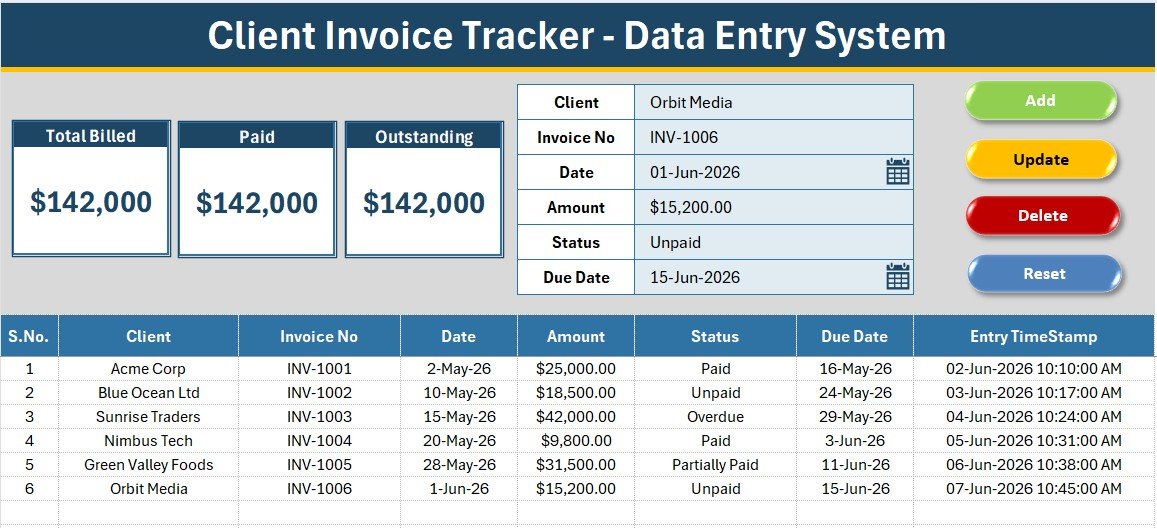
The Client Invoice Tracker Data Entry System in Excel turns invoice tracking into a 5-minute setup. It captures 6 fields per invoice — Client, Invoice No, Date, Amount, Status, and Due Date — and rolls them into three live KPI cards: Total Billed, Paid, and Outstanding. The sample workbook ships with 6 invoices worth $142,000 so you can see the totals working before you enter a single record.
Most small businesses track invoices in a plain spreadsheet with no structure, no validation, and no clear view of what is still owed. This Client Invoice Tracker fixes that with a proper VBA data-entry form, a validated Status dropdown, and automatic paid-versus-outstanding math — without a monthly SaaS bill Client Invoice Tracker Data Entry System in Excel.
Key Features of the Client Invoice Tracker Data Entry System
The Client Invoice Tracker Data Entry System is built around three live KPI cards. Total Billed sums every invoice amount, Paid sums invoices marked “Paid”, and Outstanding sums everything not yet paid — so Paid plus Outstanding always equals Total Billed.
- One-click VBA workflow: Add, Update, Delete, and Reset macros handle every action without touching a formula.
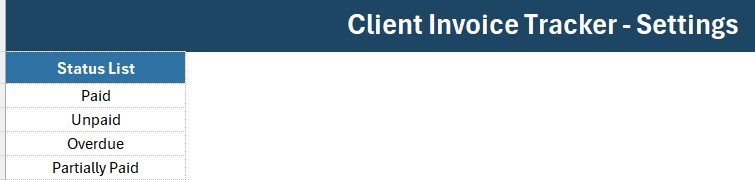
- Validated Status dropdown: Paid, Unpaid, Overdue, and Partially Paid options read from the Setting sheet.
- Automatic audit trail: every record gets a serial number and an Entry TimeStamp the moment it is added.
- Currency-formatted amounts and a clean navy-and-gold layout using the Aptos Narrow font.
Template Structure Explained
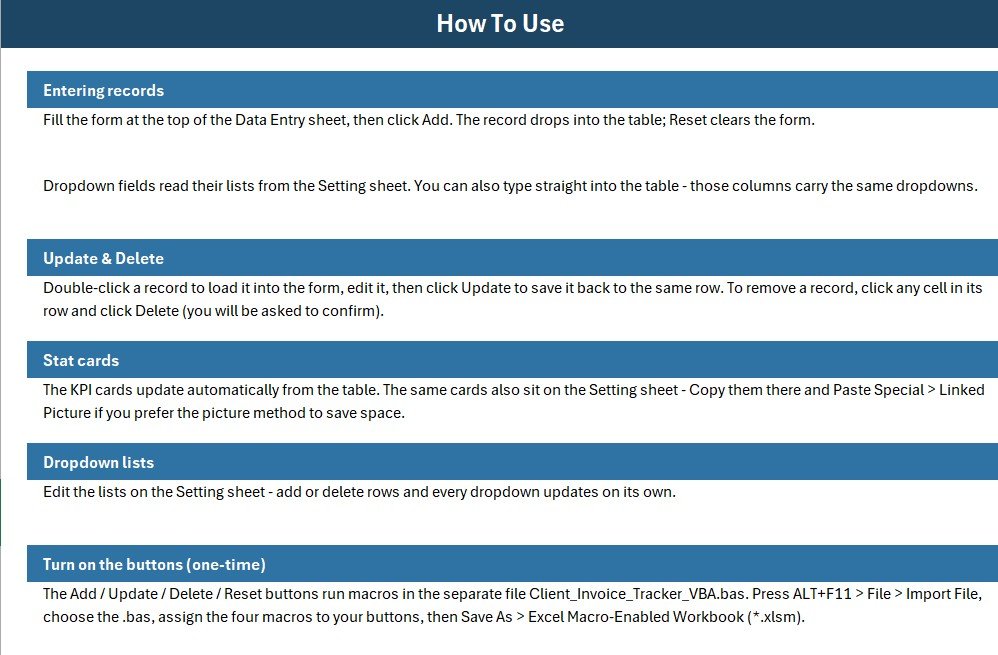
The workbook contains four sheets: Data Entry, Setting, Instructions, and Get More Templates. The three views below show how the Client Invoice Tracker fits together.
Data Entry Dashboard
The main sheet places the Total Billed, Paid, and Outstanding cards in a gray panel above the entry form, with Add, Delete, Update, and Reset buttons and the full records table underneath. Every card recalculates instantly as invoices are added or edited.
Setting Sheet and Records Table
The Setting sheet stores the Status dropdown list and a duplicated set of KPI cards you can paste as a linked picture. The records table auto-numbers rows, formats Amount as currency, and timestamps every entry for a reliable log.
How to Set Up the Client Invoice Tracker
Getting the Client Invoice Tracker running takes only a few steps, and no prior VBA knowledge is required.
- Open the workbook, press ALT+F11, and import the included VBA module file.
- Assign the Add, Delete, Update, and Reset macros to the four coloured buttons on the Data Entry sheet.
- Save the file as an Excel Macro-Enabled Workbook (.xlsm) and enable macros when prompted.
- Fill the form — Client, Invoice No, Date, Amount, Status, Due Date — and click Add to log each invoice.
- Double-click any invoice row to load it back into the form, edit the values, and click Update to save in place.
From there, the Total Billed, Paid, and Outstanding cards stay current on their own as your invoice list grows. Because the workflow mirrors a proper database form rather than free typing into cells, your invoice log stays consistent and easy to filter or sort Client Invoice Tracker Data Entry System in Excel.
Client Invoice Tracker vs. Google Sheets vs. Paid Invoicing SaaS — Feature Comparison
| Feature | Client Invoice Tracker (Excel) | Google Sheets Equivalent | QuickBooks / Zoho Invoice / FreshBooks |
|---|---|---|---|
| Cost | $5.99 one-time | $4-8 one-time | $15-35 / user / month |
| Platform | Microsoft Excel (offline) | Browser + Google account | Cloud only |
| Setup time | Under 5 minutes | Under 5 minutes | 1-3 hours onboarding |
| One-click Add/Update/Delete | Yes — VBA buttons | Manual or Apps Script | Yes |
| Live Paid vs Outstanding KPIs | Yes | Yes | Yes |
| Works fully offline | Yes | No | No |
| Own your data | Yes | Yes | No |
| Year-1 cost at 3 users | $5.99 total | $4-8 total | $540-1,260 |
For freelancers and small teams that want fast invoice tracking without paying $15-35 per user every month, the Client Invoice Tracker sits in the sweet spot. Client Invoice Tracker Data Entry System in Excel.
Who Should Use This Template
Perfect for:
- Freelancers and consultants tracking client invoices and outstanding balances
- Small business owners and solo accountants handling 10-500 invoices a month
- Agencies and service firms needing a simple paid-vs-outstanding view
Not a fit if:
- You need multi-user cloud access with role permissions and audit logs
- You require automated payment collection or gateway integration
- You need legally formatted GST/tax invoice generation
Real-World Use Cases
Neha runs a 4-person design studio. She logs each client invoice as she sends it, marks the status as Paid or Overdue, and checks the Outstanding card every Monday to see exactly how much is still owed — without paying $23 a month for FreshBooks.
Arjun is a freelance consultant. He records retainer and project invoices, flags overdue ones, and reads his Total Billed for the quarter at a glance before filing taxes with the help of the Tax Deadline and GST Filing Calendar in Excel.
Priya handles accounts at a small trading firm. She replaced a messy manual register with this system so every invoice carries a timestamp and a clean paid-vs-outstanding split for month-end reporting.Client Invoice Tracker Data Entry System in Excel.
Advantages of the Client Invoice Tracker
The biggest advantage is cost: a one-time $5.99 purchase replaces $180-420 per year in SaaS fees per user. Because it runs in Excel, it works offline, keeps your data on your own machine, and never locks you into a vendor. The VBA form removes manual copy-paste errors, and the live KPIs give you an instant read on cash owed. It builds naturally on the same approach as our Purchase Entry Data Entry System in Excel.
Opportunities for Improvement
Being an Excel-based tool, the Client Invoice Tracker is single-user by design — two people cannot edit the same file at once without a shared-drive setup. It does not send automatic payment reminders or collect payments, and it relies on macros, so the file must be saved as .xlsm and macros enabled. Teams needing real-time collaboration may prefer a Google Sheets version, while those needing automated dunning will still need a dedicated invoicing platform.
Best Practices
- Update each invoice’s Status the moment payment arrives so the Outstanding card stays accurate.
- Use the Due Date field to sort and spot overdue invoices quickly.
- Keep the Setting sheet tidy — add only the statuses you actually use.
- Back up the .xlsm file weekly, since all data lives locally.
- Learn the underlying VBA from the official Microsoft Excel VBA documentation if you want to customize the macros.
Explore Relevant Templates
Pair the tracker with the Vendor Invoice Submission Tracker in Excel for incoming bills and the Supplier Payment Request Tracker in Excel for payables. For budgeting, see the Monthly Budgeting Calendar in Excel. To get this and 11 other tools together, grab the Small Business Owner Essentials — 12 Premium Templates bundle.
Frequently Asked Questions
What does the Client Invoice Tracker Data Entry System track?
The Client Invoice Tracker records 6 fields per invoice — Client, Invoice No, Date, Amount, Status, and Due Date — and shows Total Billed, Paid, and Outstanding as live KPI cards that update automatically whenever you add or edit an invoice.Client Invoice Tracker Data Entry System in Excel
How long does setup take?
Setup takes under 5 minutes. Import the included VBA module, assign four macros to the buttons, and save as .xlsm. Sample invoice data is already inside the Client Invoice Tracker to show how everything works.
How does this compare to QuickBooks or FreshBooks?
The Client Invoice Tracker is a one-time $5.99 purchase versus $15-35 per user every month for QuickBooks or FreshBooks. It works offline in Excel and you keep full ownership of your data, though it does not automate payment collection.
Do I need to know VBA to use it?
No. The Client Invoice Tracker ships with the VBA already written. You import the module once and assign the macros to buttons — no coding is needed to add, update, or delete invoices.
Can I add my own invoice statuses?
Yes. The Status dropdown reads from the Setting sheet, so editing that list — for example adding “Sent” or “Cancelled” — updates every dropdown in the Client Invoice Tracker automatically.
About the Author
Built by PK — Microsoft Certified Professional with 15+ years of Excel, Google Sheets, and Power BI experience. Founder of NextGenTemplates, reaching 300K+ subscribers across YouTube channels. Every template is hand-built and tested before release. Subscribe at YouTube.com/@PK-AnExcelExpert.
Conclusion
The Client Invoice Tracker Data Entry System in Excel gives freelancers and small teams a fast, offline, one-time-purchase way to log invoices and always know what is paid and what is outstanding. 👉 Click here to Purchase the Client Invoice Tracker Data Entry System in Excel.
Instant download · One-time payment · No subscription
Last updated: July 2026