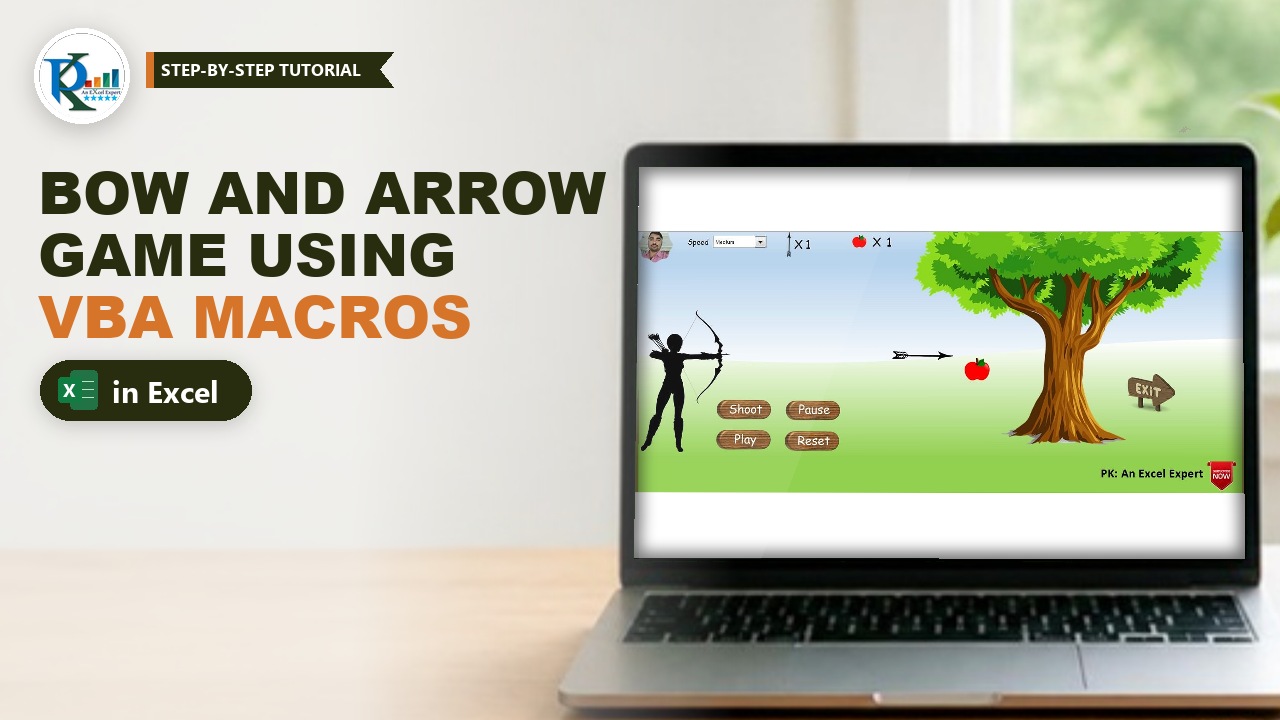
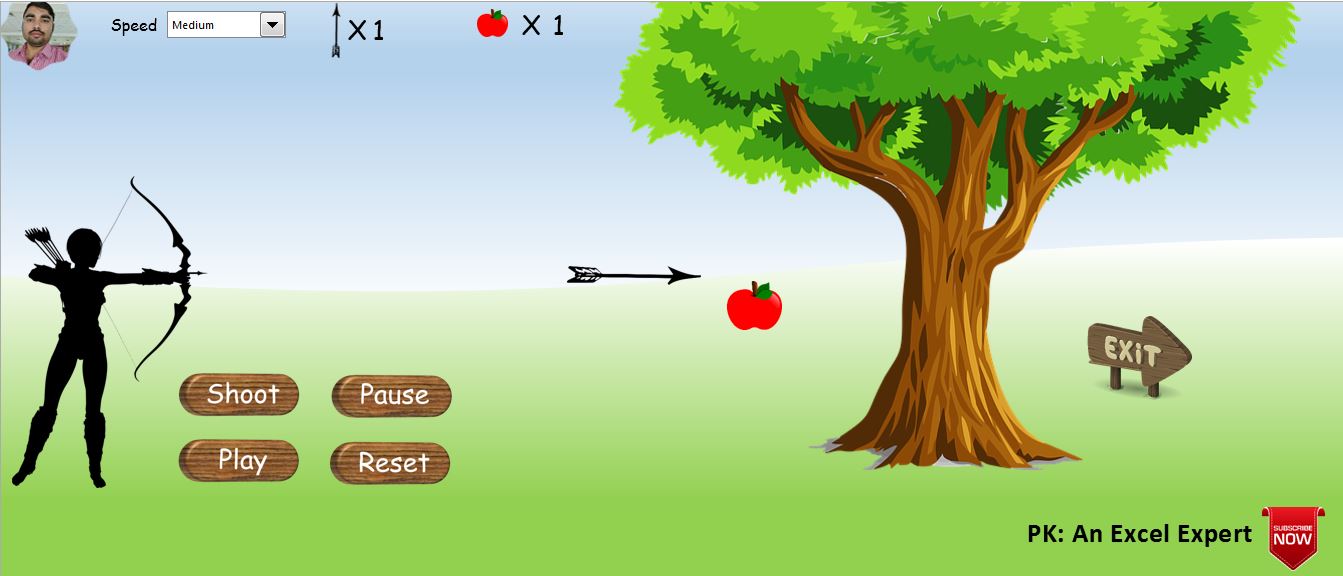
A bow and arrow game in Excel is the most fun way I know to learn how VBA moves objects on a worksheet. In this game an apple keeps dropping from a tree, and you get 10 arrows to shoot it down. A Speed drop-down switches between Low, Medium and High, and four buttons let you Play, Shoot, Pause and Reset. Everything is built from Excel shapes, a few free images, one Form Control combo box and six short macros. You can download the finished file and follow the five-part video series step by step.
⬇️ Download the Bow and Arrow Game
Excel binary workbook · .xlsb with VBA macros (enable macros to play) · about 950 KB
Watch the Video Tutorial
The game is built in five short parts, from a blank sheet to the protected, finished game.
Part 1 – Design the game screen
Part 2 – Settings table, speed drop-down and Reset macro
Part 3 – Play and Pause macros
Part 4 – Shoot macro and hit detection
Part 5 – Drop the apple, add checks and protect the sheet
What You Will Build
- A game screen made with a gradient sky shape, a filled ground area, a tree, an archer and wooden buttons.
- A Speed drop-down (Form Control combo box) with Low, Medium and High.
- Live counters – text boxes linked to cells that show arrows left and apples hit.
- Six macros: Play_Game, Pause_Game, Shoot, Drop_apple, Reset and Exit_Game.
- Simple hit detection that compares the Top and Left positions of the arrow and the apple.
- A protected sheet so players can only use the buttons and the drop-down.
How the Workbook Is Laid Out
The Game sheet holds the artwork, buttons and counters. A hidden Settings sheet holds the small control table that the macros read and write (the download also has a hidden Images sheet with spare artwork):
      A       B (Speed)   C (Status)   D (Count)        H
1             Speed       Status       Count            Low
2     Apple   2           Stop         0                Medium
3 Arrow =B2*1.5 Stop 10 High- B2 is the apple speed. It is the cell link of the drop-down, so Low gives 1, Medium 2 and High 3.
- B3 is the arrow speed, always 150% of the apple speed: 1.5, 3 or 4.5.
- C2/C3 hold
StoporMove; D2 counts apples hit and D3 arrows left.
Part 1 – Design the Bow and Arrow Game Screen in Excel
Step 1: Create the workbook and the two sheets
Press Ctrl+N, rename the first sheet Game and add a sheet named Settings. The macros use these exact names.
Step 2: Prepare the images
Some artwork was drawn with Excel shapes and pasted as a picture so it behaves as one object; the archer, tree, arrow, apple and Exit sign are free images from pixabay.com. Place the archer left, the tree right, the arrow on the bow and the four buttons under the archer.
Step 3: Paint the ground
Merge the lower block of cells, then right-click → Format Cells → Fill → Fill Effects: Color 1 white, Color 2 light green, and pick a shading variant.
Step 4: Add the sky
Go to Insert → Shapes and draw the Flowchart: Document shape across the top. Its wavy edge makes a horizon. In Format Shape set Line to No line and Fill to Gradient fill, pick a light blue preset gradient and set the direction to Linear Up. Right-click the shape and choose Send to Back. Finally untick Gridlines and Headings on the View tab.
Step 5: Add the labels, counters and the drop-down
- Insert a text box with a capital X (a Comic font, size 20, no fill, no outline) next to a small arrow icon and copy it next to a small apple icon.
- Add a
Speedlabel and draw a Developer → Insert → Combo Box (Form Control) next to it. - Add two more text boxes next to the X signs. They will show the arrow count and the apple count.
Step 6: Name the moving shapes
Select each moving picture and type its name in the Name Box: Arrow, Apple and Apple with Arrow (the picture shown after a hit). The code finds the shapes by these exact names.
Part 2 – Settings, Speed Drop-Down and Counters
Step 7: Build the Settings table
Type the table shown above on the Settings sheet, with =B2*1.5 in B3 and Low, Medium, High in H1:H3.
Step 8: Connect the drop-down
Right-click the combo box → Format Control → Control and set Input range to Settings!$H$1:$H$3 and Cell link to Settings!$B$2. The combo box returns the position of the chosen item, so Low, Medium and High become speeds 1, 2 and 3.
Step 9: Link the counter text boxes
Select the arrow-count text box, click in the formula bar, type = and click Settings!D3. Do the same for the apple-count text box with Settings!D2. The counters now update whenever a macro changes the cells. Format Painter copies the style of the X signs.
Part 3 – The VBA Code
Open the VBA editor with Developer → Visual Basic (or Alt+F11) and choose Insert → Module. Save the file as an Excel Binary Workbook (.xlsb) or a Macro-Enabled Workbook (.xlsm), otherwise the code is lost. All code below is copied from the download file.
Step 10: Module-level variables
Dim sh As Worksheet
Dim gamesh As Worksheet

Dim arrow As Shape
Dim apple As Shape
sh points to the Settings sheet, gamesh to the Game sheet, and the two Shape variables to the moving pictures.
Step 11: The Reset macro
Sub Reset()
Set sh = ThisWorkbook.Sheets("Settings")
Set gamesh = ThisWorkbook.Sheets("Game")

Set arrow = gamesh.Shapes("Arrow")
Set apple = gamesh.Shapes("Apple")

Dim sp As Shape
Set sp = gamesh.Shapes("Apple with Arrow")

arrow.Top = 194
arrow.Left = 36

apple.Left = 546
apple.Top = 15

sp.Left = 513
sp.Top = 523

sh.Range("C2:C3").Value = "Stop"
sh.Range("D2").Value = 0
sh.Range("D3").Value = 10

End Sub
Reset returns the arrow and apple to their start, parks the Apple with Arrow picture out of sight, stops both objects and restores 0 apples and 10 arrows.
Where do 194, 36 and 546 come from? In the video I place each shape and run MsgBox arrow.Top or MsgBox apple.Left. The message shows the position (194.25 for the arrow top), and I type it into the code. Measure your own layout the same way.
Step 12: Play and Pause
Sub Play_Game()

Set sh = ThisWorkbook.Sheets("Settings")
Set gamesh = ThisWorkbook.Sheets("Game")

Set arrow = gamesh.Shapes("Arrow")
Set apple = gamesh.Shapes("Apple")

Dim sp As Shape
Set sp = gamesh.Shapes("Apple with Arrow")

sh.Range("C2").Value = "Move"

x:

VBA.DoEvents

If sh.Range("C2").Value = "Stop" Then Exit Sub

apple.Top = apple.Top + sh.Range("B2").Value
If apple.Top > 400 Then apple.Top = 15

GoTo x

End Sub

Sub Pause_Game()

Set sh = ThisWorkbook.Sheets("Settings")

sh.Range("C2:C3").Value = "Stop"

End Sub
How the game loop works
x:is a line label andGoTo xjumps back to it, so the block runs again and again.VBA.DoEventshands control back to Excel on every pass, so you see the apple move and can click Pause or Shoot while the macro runs.- Each pass adds the speed in B2 to
apple.Top, so the apple falls 1, 2 or 3 points at a time. - When the apple passes 400 (the ground) it jumps back to 15, inside the tree.
- Pause writes
Stopinto C2:C3, and the next pass leaves withExit Sub.
Step 13: The Shoot macro
Sub Shoot()

Set sh = ThisWorkbook.Sheets("Settings")
Set gamesh = ThisWorkbook.Sheets("Game")

If sh.Range("C2").Value = "Stop" Then
    MsgBox "Please click on play first"
    Exit Sub
End If

If sh.Range("D3").Value = "0" Then
MsgBox "You don't have any arrow" & vbLf & vbLf & "Please click on Reset button"
Exit Sub
End If

Set arrow = gamesh.Shapes("Arrow")
Set apple = gamesh.Shapes("Apple")

Dim sp As Shape
Set sp = gamesh.Shapes("Apple with Arrow")

sh.Range("C2").Value = "Move"
sh.Range("C3").Value = "Move"

x:

VBA.DoEvents

''''' apple move
If sh.Range("C2").Value = "Stop" Then Exit Sub
apple.Top = apple.Top + sh.Range("B2").Value
If apple.Top > 400 Then apple.Top = 15

''''' arrow move
If sh.Range("C3").Value = "Stop" Then Exit Sub

arrow.Left = arrow.Left + sh.Range("B3").Value

If arrow.Left > 455 And arrow.Left < 460 Then

    If apple.Top > 172 And apple.Top < 195 Then

        Call Drop_apple
        MsgBox "Hit"
        Call Play_Game

    End If

End If

If arrow.Left > 1000 Then
    sh.Range("C3").Value = "Stop"
    sh.Range("D3").Value = sh.Range("D3").Value - 1
    arrow.Top = 194
    arrow.Left = 36
    MsgBox "Missed Target!!!"

End If

GoTo x

End Sub
How the hit detection works
- The two checks at the top block shooting before Play (C2 must be
Move) and with 0 arrows left. - In the loop the apple keeps falling while the arrow moves right by the arrow speed in B3.
- When the arrow reaches the tree (Left between 455 and 460), an apple Top between 172 and 195 means the apple is in its path: a hit, so
Drop_appleruns andPlay_Gamerestarts the apple. - Past 1000 the arrow missed: it stops, D3 loses one arrow and the arrow returns to the bow.
These limits were measured with MsgBox too, so re-measure them if you move the tree.
Step 14: Drop the apple after a hit
Sub Drop_apple()

Set sh = ThisWorkbook.Sheets("Settings")
Set gamesh = ThisWorkbook.Sheets("Game")

Set arrow = gamesh.Shapes("Arrow")
Set apple = gamesh.Shapes("Apple")

Dim sp As Shape
Set sp = gamesh.Shapes("Apple with Arrow")

sh.Range("C2:C3").Value = "Stop"

arrow.Top = 194
arrow.Left = 36

apple.Left = 546
apple.Top = 15

sp.Top = 218
sp.Left = 528

x:

VBA.DoEvents

sp.Top = sp.Top + sh.Range("B2").Value
sp.Left = sp.Left + sh.Range("B3").Value

If sp.Top > 500 Then
    sh.Range("D2").Value = sh.Range("D2").Value + 1
    sh.Range("D3").Value = sh.Range("D3").Value - 1
    Exit Sub
End If

GoTo x

End Sub
On a hit, the arrow and apple jump back to their start and the Apple with Arrow picture appears where they met (Top 218, Left 528). It moves down by the apple speed and right by the arrow speed, so it falls in a slant. Past 500, D2 gains an apple and D3 loses an arrow (the D3 line was added in Part 5, after a hit was not using up an arrow).
Step 15: The Exit button
Sub Exit_Game()

ThisWorkbook.Close False

End Sub
Close False closes the game without saving.
Part 4 – Assign the Macros and Finish
Step 16: Assign each macro to its button
Right-click each picture button → Assign Macro: Play → Play_Game, Shoot → Shoot, Pause → Pause_Game, Reset → Reset and the Exit sign → Exit_Game.
Step 17: Make the apple come out of the tree
In the video I copy the tree picture, crop the copy to its top strip of leaves and lay it over the original, so the apple at Top 15 appears from inside the tree.
Step 18: Protect the Game sheet
Go to Review → Protect Sheet, untick every option and click OK (no password in the video). Players can no longer touch cells, but the buttons and drop-down still work. Hide the Settings sheet.
Common Errors and Fixes
The buttons do nothing
Macros are disabled. Click Enable Content on the yellow bar. If Excel shows a red bar saying macros are blocked because the file came from the internet, close the file, right-click it in File Explorer → Properties, tick Unblock and open it again. (General Excel guidance, not shown in the video.)
Run-time error on a Set line
The shape name in the code does not match the name on the sheet. Select the picture, check the Name Box and make it exactly Arrow, Apple or Apple with Arrow.
The arrow passes through the apple but no hit is counted
Your layout differs from mine, so the hit window is in the wrong place. Measure it with MsgBox arrow.Left and MsgBox apple.Top and update the numbers.
Tips
- Keep speeds, status and counts in the Settings table; tweaking a cell beats editing code.
- Name every moving shape in the Name Box before you write the code.
- Save as .xlsb to keep the macros and a small file size.
- Microsoft’s reference for the DoEvents function explains how it yields control while a loop runs.
Want It Ready-Made?
The game itself is free to download above. If you enjoy what VBA can automate and want finished, business-ready tools instead of building them from scratch, browse the Excel VBA tools on NextGenTemplates.com, or pick up the Excel VBA Tools & Utilities Pack with eight premium VBA templates in one bundle.
Related Tutorials
- Loop Through Worksheets, Sheets and Charts in VBA
- Protect an Excel Worksheet as UserInterfaceOnly
- Excel Form Controls: Combo Box, Spin Button and Option Buttons
- Make Selected Shapes, Charts and Pictures the Same Size with One Click
- 33 Useful VBA Shortcut Keys
Frequently Asked Questions
Can you make a game in Excel?
Yes. Excel shapes and pictures can be moved with VBA by changing their Top and Left properties inside a loop. This bow and arrow game uses exactly that, plus a small settings table and six macros.
Why does the game use DoEvents?
Without DoEvents the loop would keep Excel busy and the screen would not redraw, so you would not see the apple move and you could not click Pause or Shoot. DoEvents gives control back to Excel on every pass.
How do I change the speed of the apple and the arrow?
Pick Low, Medium or High in the Speed drop-down. It writes 1, 2 or 3 into Settings B2 for the apple, and B3 multiplies it by 1.5 for the arrow.
Do I need a password to protect the game sheet?
No. In the video the sheet is protected with every option unticked and no password. Add a password only if you do not want players to unprotect it.
About the Author
PK is a Microsoft Excel expert and trainer and the founder of PK: An Excel Expert and NextGenTemplates.com. He has been teaching Excel, VBA, Power Query and Power BI since 2016 on his YouTube channel.
Conclusion
A bow and arrow game in Excel shows how far a few lines of VBA can go: a settings table for the state, a DoEvents loop to animate shapes and simple Top and Left checks to detect a hit. Download the file, set the speed to High and see how many apples you can hit with 10 arrows.

Related Articles