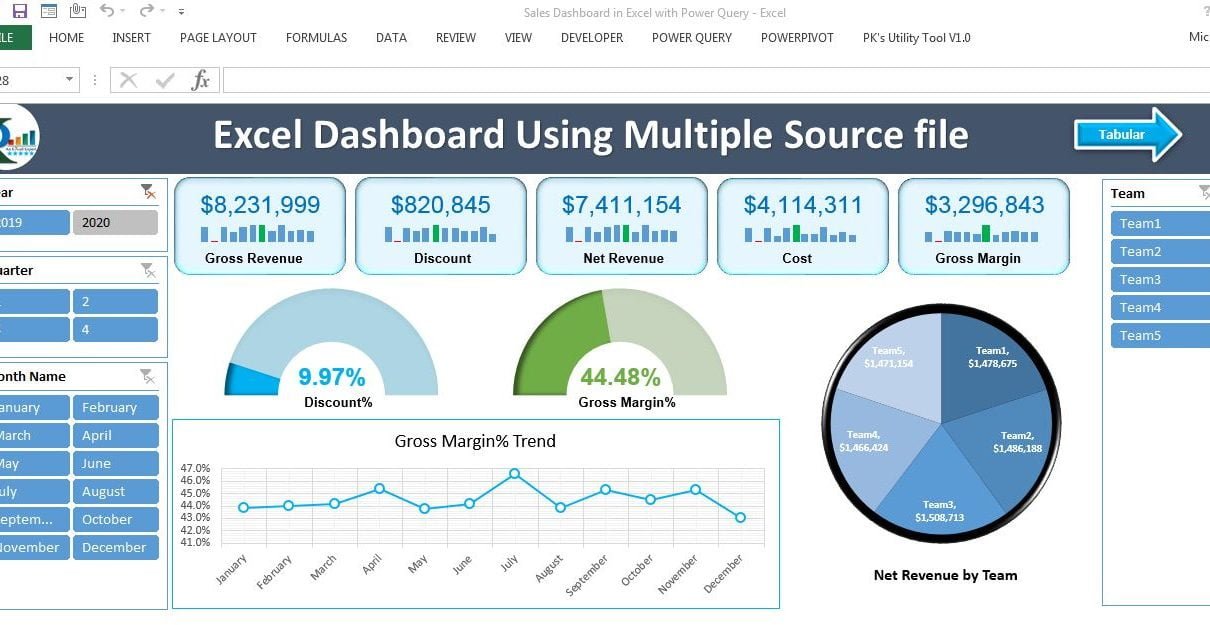
This Excel dashboard combines data from multiple source workbooks and worksheets in a folder using Power Query. It presents the consolidated results in a dashboard and a tabular view, with revenue, discount, cost and margin metrics.
Version context: Power Query is available through Get & Transform Data in supported Excel versions. Microsoft deprecated the separate Excel 2010/2013 Windows add-in in 2019; the original download link below is retained as a historical reference. Check Microsoft’s Power Query availability guidance for your platform.
How the Consolidation and Reporting Fit Together
- Keep the source workbooks in the folder used by the query and review the expected worksheet structure.
- Use the Power Query connection to combine the relevant worksheet data.
- Refresh the query when source data changes, then check the dashboard and tabular results.
For a folder-combine workflow, Microsoft recommends consistent schemas across the source files. Review its guidance for combining files with Power Query before adding files with different columns or layouts. “Automated” here refers to reusing query transformations; it does not mean that every source-file edit appears instantly without refresh.
What do the two views show?
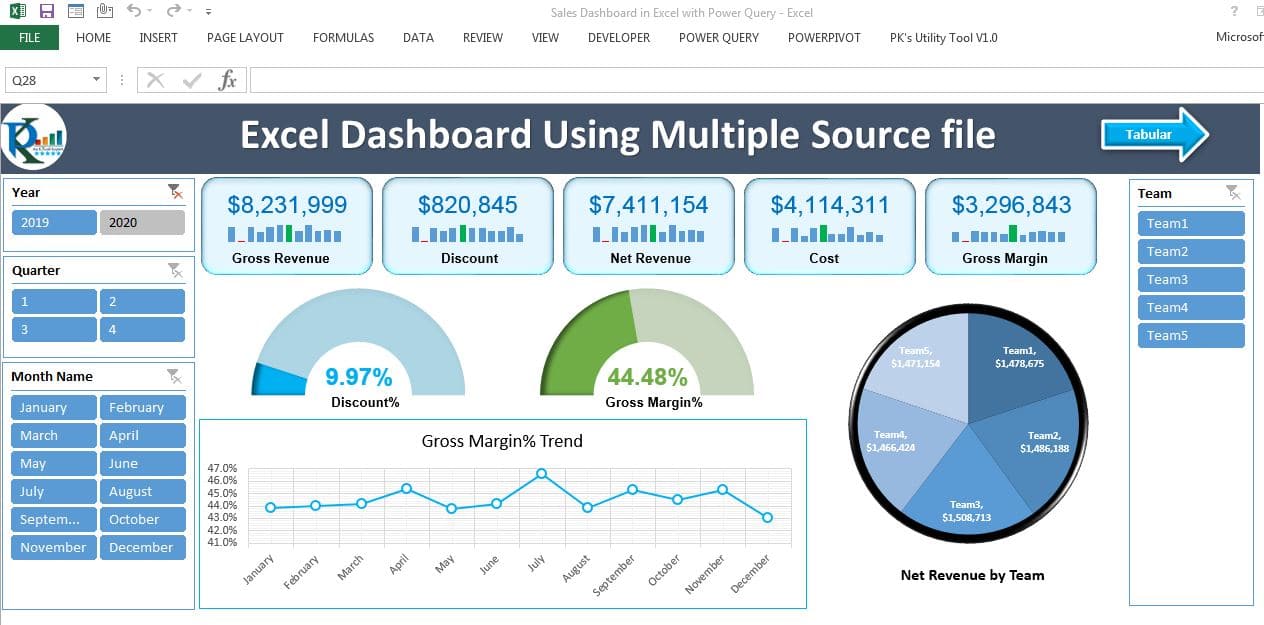
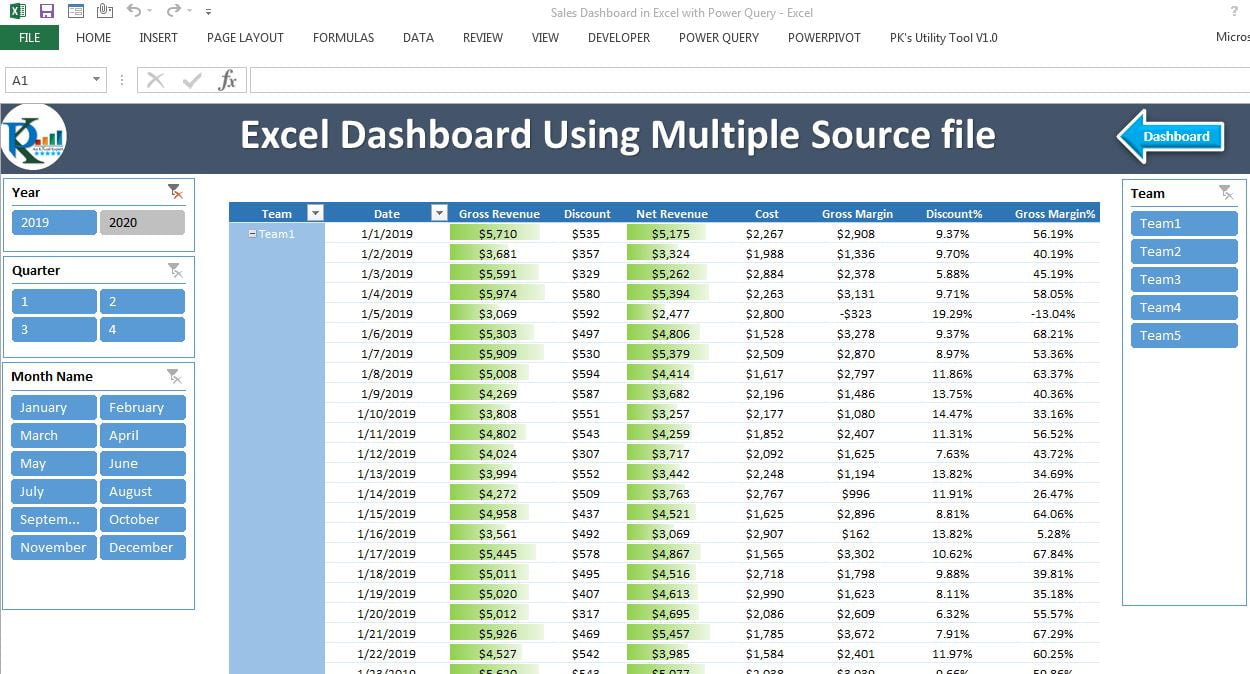
The dashboard presents Gross Revenue, Discount, Net Revenue, Cost, Gross Margin, Discount% and Gross Margin%. The tabular view presents the metrics in a PivotTable by date and team. Slicers provide filters for both views.
https://www.microsoft.com/en-in/download/details.aspx?id=39379
The Power Query connection consolidates data from multiple worksheets and workbooks in a folder.
Click to buy Fully Automated Excel dashboard with multiple source files
Click here to learn the Power Query for Excel
Watch the step by step video tutorial:
Click to buy Fully Automated Excel dashboard with multiple source files
We have created 2 pages in this dashboard using power query connection.
Dashboard View:
In the dashboard view, we have displayed the different metrics like – Gross Revenue, Discount, Net Revenue, cost, Gross Margin, Discount% and Gross Margin% using different charts and visualization. To slice the data we have used multiple slicers.
Click to buy Fully Automated Excel dashboard with multiple source files
Click to buy Fully Automated Excel dashboard with multiple source files
Tabular View:
In the tabular view, we have displayed all metrics in a Pivot table by date and Team. To slice the data we have used multiple slicers.
Click to buy Fully Automated Excel dashboard with multiple source files