To rename multiple files in one go, you don’t need a paid utility. A small Excel VBA tool can do it for you. You list the current file names of a folder in an Excel sheet, type the new names next to them and click one button. Every file in the folder is renamed in seconds, whether you have 10 files or 1,000. The tool uses the File System Object (FSO) and two short macros: one reads the file names from the folder, and the other renames each file through a VLOOKUP on your list. It works in Excel 2010, 2013, 2016, 2019, 2021 and Microsoft 365 for Windows.
⬇️ Download the File Rename Tool
.zip with one macro-enabled workbook (.xlsm) · Excel 2010 and later for Windows · enable macros after opening
Watch the Video Tutorial
In the video, PK renames ten Report files (eight Word and two Excel) to PK-1, PK-2 and so on with one click, then walks through both macros line by line.
What You Will Build
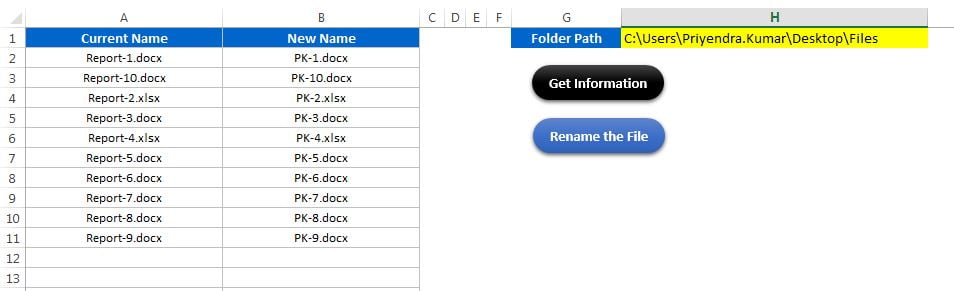
- A folder path cell (H1) that tells the macros which folder to work on.
- A Get Information button that lists every file name of that folder in column A.
- A New Name column (column B) where you type, or Flash Fill, the new name of each file.
- A Rename the File button that renames every file in the folder to the name you typed next to it.
- A “Done” message so you know when each macro has finished.
How the Workbook Is Laid Out
The download has a single sheet named Sheet1. The macros refer to it by that name, so keep it or update the code if you rename it.
- A1: the header Current Name. The file names start in A2.
- B1: the header New Name. Each new name sits in the same row as the old one.
- G1: the label Folder Path; H1: the full path of the folder, for example
C:\Users\YourName\Desktop\Files. - Two shapes: Get Information runs
Get_Files_Informationand Rename the File runsRename_Files.
In the sample, A2:A11 holds Report-1.docx to Report-10.docx (two of them are .xlsx files), and column B holds PK-1.docx to PK-10.docx with the same extensions.
Part 1: Set Up the File System Object
Step 1: Save the workbook as macro-enabled
Save your file as Excel Macro-Enabled Workbook (*.xlsm), otherwise Excel drops the code when you close it. Then press Alt + F11 to open the Visual Basic editor and insert a module with Insert > Module.
Step 2: Add the Microsoft Scripting Runtime reference
Both macros declare FileSystemObject, Folder and File variables directly. Those types come from the Microsoft Scripting Runtime library, so VBA needs a reference to it. In the editor go to Tools > References, tick Microsoft Scripting Runtime and click OK.
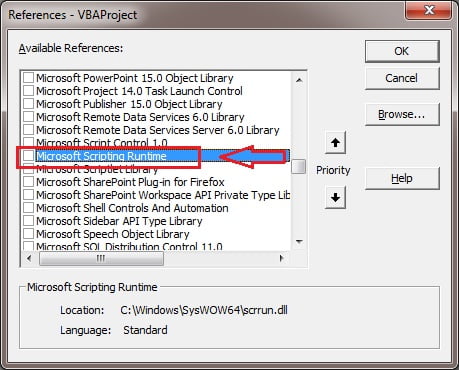
Without this reference you get Compile error: User-defined type not defined on the first Dim fso As New FileSystemObject line.
Part 2: Get the Current File Names
Step 3: Add the Get_Files_Information macro
This is the same method PK used in the File System Object tutorial for getting file information in Excel, reduced to the file name only. Paste it into the module:
Option Explicit

Sub Get_Files_Information()

Dim sh As Worksheet
Set sh = ThisWorkbook.Sheets("Sheet1")

Dim fso As New FileSystemObject
Dim fo As Folder
Dim f As File

Set fo = fso.GetFolder(sh.Range("H1").Value)

Dim last_raw As Integer

For Each f In fo.Files
     last_raw = sh.Range("A" & Application.Rows.Count).End(xlUp).Row + 1
     sh.Range("A" & last_raw).Value = f.Name
Next

MsgBox "Done"

End Sub
How the code works
Set sh = ThisWorkbook.Sheets("Sheet1")stores the sheet in a short variable, so the rest of the code can saysh.fso.GetFolder(sh.Range("H1").Value)opens the folder whose path you typed in H1 and stores it info.For Each f In fo.Filesloops through every file in that folder. Subfolders are not included.Range("A" & Application.Rows.Count).End(xlUp).Row + 1jumps to the last row of the sheet, goes up to the last filled cell in column A and adds 1. That is the first empty row, so each name lands below the previous one.f.Nameis the file name with its extension, for example Report-1.docx.
Step 4: Run it and type the new names
Paste your folder path into H1 and click Get Information. Column A fills with the names and a “Done” message appears. Now type the new name of each file in column B, in the same row. Always include the extension (.docx, .xlsx and so on), because the macro uses exactly what you type.
For a pattern like the sample (Report-1.docx to PK-1.docx), type the first new name and let Flash Fill (Ctrl + E) do the rest. In the video the status bar shows Flash Fill changed nine cells. Check the result before you rename, because Flash Fill guesses the pattern.
Part 3: Rename Multiple Files with One Click
Step 5: Add the Rename_Files macro
Paste the second macro below the first one:
Sub Rename_Files()

Dim sh As Worksheet
Set sh = ThisWorkbook.Sheets("Sheet1")

Dim fso As New FileSystemObject
Dim fo As Folder
Dim f As File

Dim new_name As String

Set fo = fso.GetFolder(sh.Range("H1").Value)

For Each f In fo.Files
      new_name = Application.VLookup(f.Name, sh.Range("A:B"), 2, 0)
      f.Name = new_name
Next

MsgBox "Done"

End Sub
How the code works
- The first lines are the same as in the first macro: the sheet, the File System Object, and the folder from H1.
Application.VLookup(f.Name, sh.Range("A:B"), 2, 0)looks up the current file name in column A and returns the value from the 2nd column (column B), with an exact match (0). For Report-1.docx it returns PK-1.docx.f.Name = new_nameis the actual rename. The FSONameproperty is read and write, so assigning a new value renames the file on disk.- When the loop ends, the “Done” message appears and the folder shows the new names.
Step 6: Assign the macros to buttons
Insert two shapes (Insert > Shapes), type Get Information and Rename the File on them, then right-click each shape, choose Assign Macro and pick Get_Files_Information or Rename_Files. Click Rename the File and every file in the folder takes its new name in one click.
A Safer Version (Optional Addition)
This version is not in the original file or video. The original macro expects every file in the folder to be listed with a new name. The version below loops through your list instead of the folder. It skips empty rows, unchanged names, missing files and names that already exist, and tells you how many files it renamed. It needs the same Scripting Runtime reference.
Sub Rename_Files_Safe()

Dim sh As Worksheet
Set sh = ThisWorkbook.Sheets("Sheet1")

Dim fso As New FileSystemObject
Dim fo As Folder
Dim r As Long, done_count As Long
Dim old_name As String, new_name As String

Set fo = fso.GetFolder(sh.Range("H1").Value)

For r = 2 To sh.Range("A" & sh.Rows.Count).End(xlUp).Row
    old_name = Trim(sh.Range("A" & r).Value)
    new_name = Trim(sh.Range("B" & r).Value)
    If old_name <> "" And new_name <> "" And old_name <> new_name Then
        If fso.FileExists(fo.Path & "\" & old_name) And _
           Not fso.FileExists(fo.Path & "\" & new_name) Then
            fso.GetFile(fo.Path & "\" & old_name).Name = new_name
            done_count = done_count + 1
        End If
    End If
Next r

MsgBox done_count & " file(s) renamed"

End Sub
Windows file names are not case-sensitive, so a change that only alters upper or lower case (report-1.docx to Report-1.docx) is skipped by this version.
Common Errors and Fixes
Run-time error 13: Type mismatch
A file in the folder is not listed in column A, so Application.VLookup returns an error value that cannot go into the new_name string. Run Get Information again so the list matches the folder, give every file a new name, or use the safer version above.
Run-time error 58: File already exists
Two rows have the same new name, or a file with that name is already in the folder. Make every new name unique.
Run-time error 76: Path not found
The path in H1 is wrong or the folder no longer exists. Copy the path from the File Explorer address bar and paste it into H1 without quotes.
Compile error: User-defined type not defined
The Microsoft Scripting Runtime reference is missing. Add it in Tools > References (Step 2).
Tips
- Copy the folder first and test the tool on the copy. A rename cannot be undone with Ctrl + Z.
- Clear column A before you click Get Information again, otherwise the new names are added below the old list.
- Close the files before renaming them. Windows will not rename a file that is open in Word or Excel.
- For more than 32,767 files, change
Dim last_raw As IntegertoAs Longto avoid an overflow error. - Microsoft documents the Name property of the File System Object on Microsoft Learn.
Want It Ready-Made?
If you manage folders and files every day, the Folder Automation Tool V1.0 in Excel on NextGenTemplates.com is a finished VBA tool for folder tasks, and you can browse all Excel VBA tools for other ready-made automation.
Related Tutorials
- File System Object: Get Files Information in Excel
- Check Folder Existence Using VBA
- Create Multiple Folders from an Excel Range
- Bulk File Creator in Excel VBA
- How to Automate VLOOKUP in Excel with VBA
Frequently Asked Questions
Can Excel rename files in a folder?
Yes, with VBA. The File System Object gives each file a Name property, and assigning a new value to it renames the file on disk. This tool reads the names into column A and renames them from column B.
Do I need to keep the file extension in the new name?
Yes. The macro uses the new name exactly as you type it, so leave out the extension and the file loses its type. Type PK-1.docx, not PK-1.
Why do I get a type mismatch error when I click Rename?
One of the files in the folder is not in column A, so VLOOKUP finds no match. Refresh the list with Get Information and give every file a new name, or use the safer version that skips unlisted files.
Does the macro rename files in subfolders?
No. It loops through the Files collection of the folder in H1 only. Subfolders and their files are not touched.
Can I undo the rename?
Not with Ctrl + Z. To go back, swap the contents of columns A and B and click Rename again. Testing on a copy of the folder first is the safest habit.
About the Author
PK is a Microsoft Excel expert and trainer and the founder of PK: An Excel Expert and NextGenTemplates.com. He has been teaching Excel, VBA, Power Query and Power BI since 2016 on his YouTube channel.
Conclusion
To rename multiple files with Excel VBA, you only need two macros: one that lists the file names of a folder with the File System Object, and one that looks up each name in your list and assigns the new one. Add the Scripting Runtime reference, type or Flash Fill the new names and click one button. Download the workbook, point H1 at a test folder and watch it rename everything in seconds.