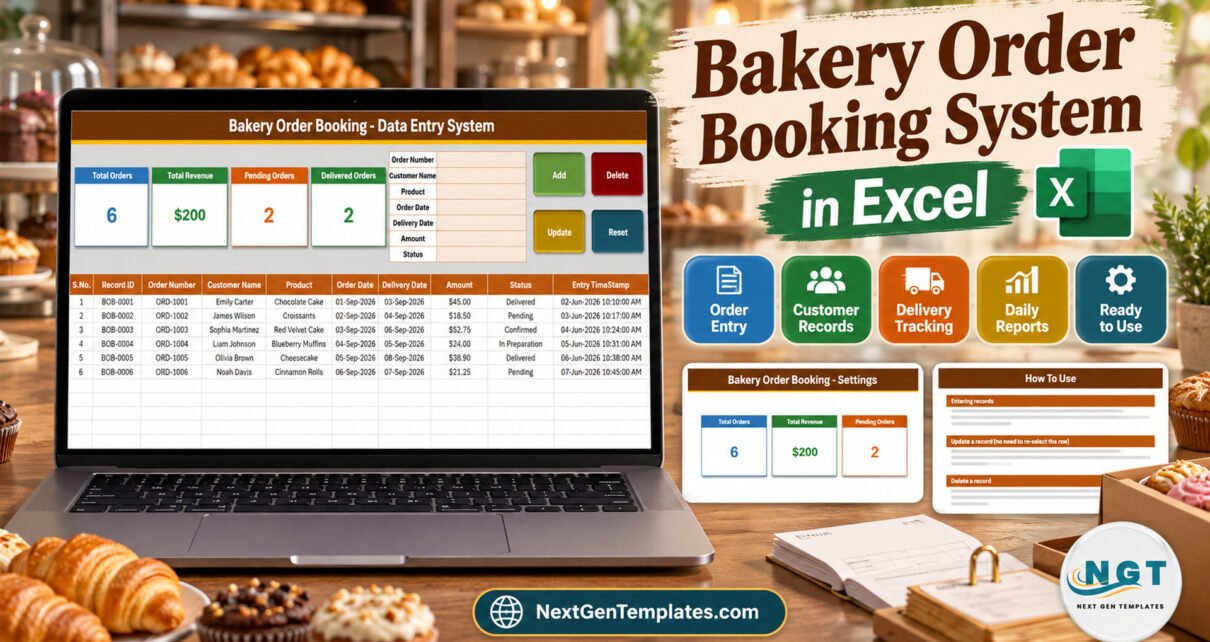
The Bakery Order Booking Data Entry System in Excel turns a paper order book into one macro-enabled workbook: a 7-field order form, 4 VBA buttons, 4 live stat cards, 12 preloaded bakery products and 7 order statuses from Pending to Delivered. It ships with 6 fictional sample orders worth $200.40, so every card has something to count the first time you open it.
Custom cakes, weekend bread pre-orders and cupcake boxes are usually booked days before they are baked. When those bookings live on slips and in a diary, it is hard to answer simple questions: how many orders are still pending, what is due tomorrow, and how much order value is on the books. This guide walks through each sheet, explains exactly what the four cards count, shows how the buttons behave in the macro, and is honest about the limits.

Key Features of the Bakery Order Booking Data Entry System in Excel
- Seven-field order form – Order Number, Customer Name, Product, Order Date, Delivery Date, Amount and Status, entered at the top of the Data Entry sheet.
- Add, Update, Delete and Reset buttons – four VBA macros already wired to the buttons inside the .xlsm file.
- Automatic Record IDs – BOB-0001, BOB-0002 and onward in column B, separate from your own order numbers.
- Double-click to edit – double-clicking an order loads all seven fields back into the form, and Update saves them to the row with that Record ID.
- Four live stat cards – Total Orders, Total Revenue, Pending Orders and Delivered Orders.
- Two editable dropdown lists – 12 products and 7 statuses, stored on the Setting sheet.
- Entry timestamp – column J records when each row was last saved.
- Open design – four readable sheets and one VBA module you can inspect and change.
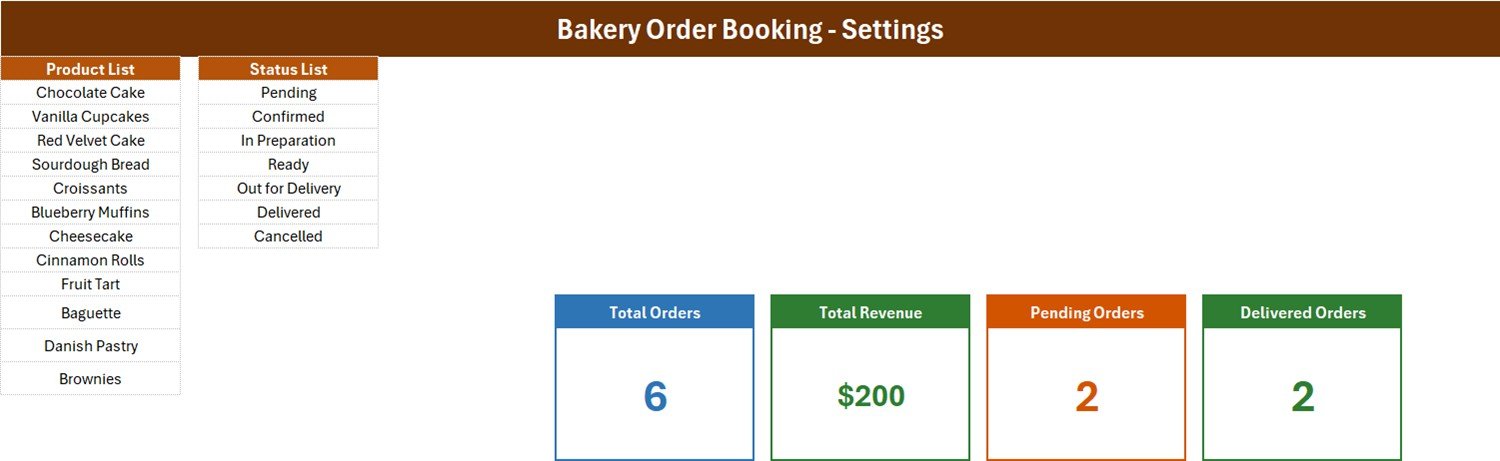
Three facts worth quoting: the order table has ten columns, the Product dropdown offers 12 bakery items from Chocolate Cake to Brownies, and the Status dropdown offers seven stages – Pending, Confirmed, In Preparation, Ready, Out for Delivery, Delivered and Cancelled.
Sheets Explanation
Data Entry Sheet
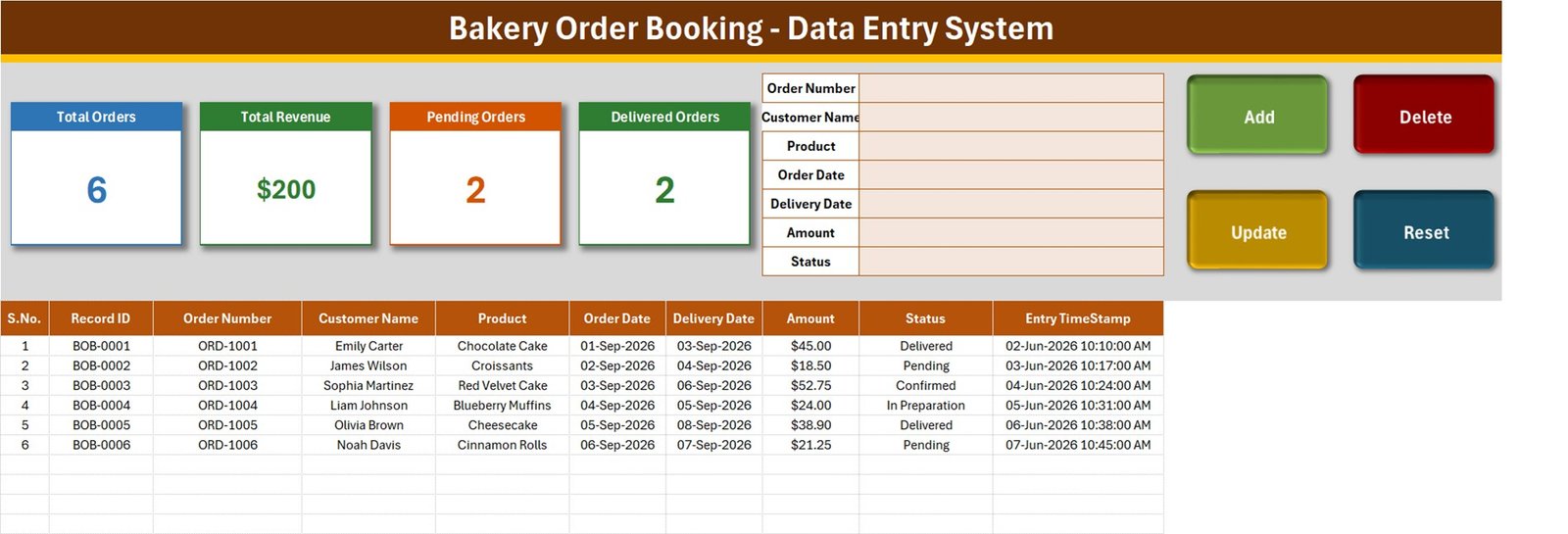
The top band holds the four stat cards on the left, the seven-field form in the middle and the Add, Delete, Update and Reset buttons on the right. The order table starts on row 15 with S.No., Record ID, Order Number, Customer Name, Product, Order Date, Delivery Date, Amount, Status and Entry TimeStamp. Product and Status have dropdowns in the form and in the table.
Setting Sheet
The Product List and Status List that feed every dropdown sit here, next to the four original stat cards and their formulas. The cards on the Data Entry sheet are linked pictures of these cards, so restyling a card here changes it there too.
Instructions Sheet
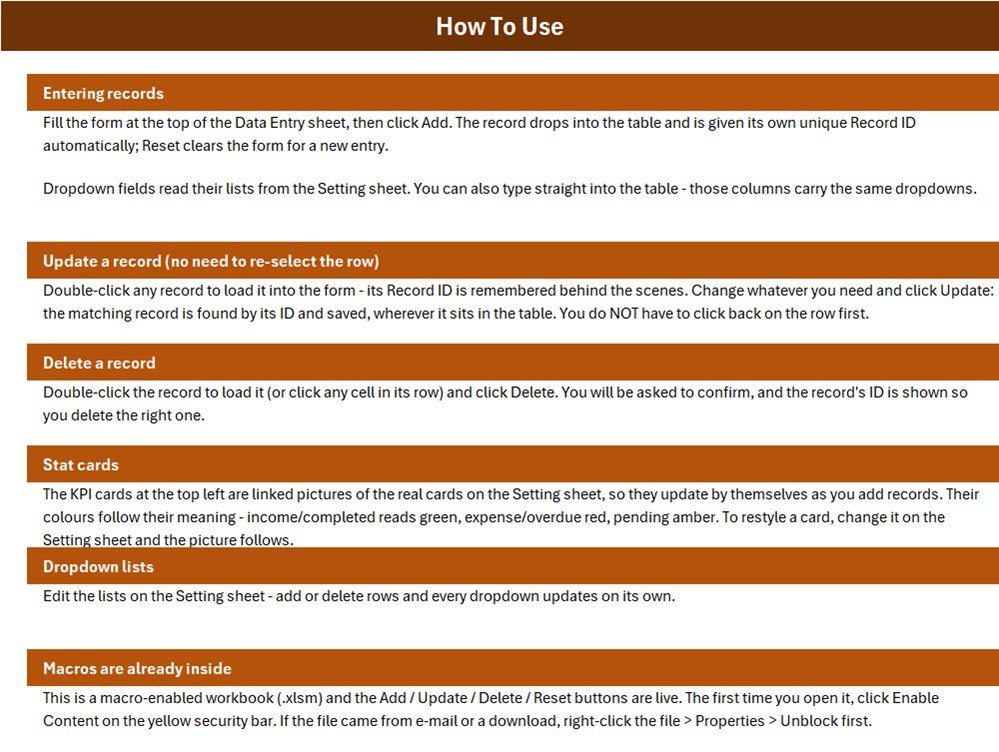
A How To Use page with six sections: entering records, updating a record without re-selecting the row, deleting a record, the stat cards, the dropdown lists, and enabling the macros.
Get More Templates Sheet
A short page of links to other NextGenTemplates collections.
What the Four Stat Cards Count
Each card is a single formula on the Setting sheet. Knowing them prevents surprises:
- Total Orders = COUNTA of the Order Number column. Every order counts, Cancelled included.
- Total Revenue = SUM of the Amount column. It adds every order whatever its status, so it is order value booked, not cash collected.
- Pending Orders = COUNTIF Status is “Pending”. Confirmed, In Preparation, Ready and Out for Delivery are not included.
- Delivered Orders = COUNTIF Status is “Delivered”.
With the sample data the cards show 6, $200, 2 and 2. The two orders that are Confirmed and In Preparation appear only in Total Orders and Total Revenue. To count revenue from delivered orders only, change Setting!I13 to =SUMIFS('Data Entry'!$H$15:$H$1048576,'Data Entry'!$I$15:$I$1048576,"Delivered") – Microsoft’s SUMIFS function guide explains the arguments.
How the Buttons Behave – Details From the Macro
- Add refuses an empty Order Number, writes the order to the row below the last Record ID, gives it the next ID, stamps the time and clears the form.
- Update needs a record loaded by double-click. It finds the row by Record ID and rewrites all fields, including a fresh Entry TimeStamp.
- Delete uses the loaded Record ID, or the row of the active cell if nothing is loaded, shows the ID and asks for confirmation before deleting the whole row.
- Reset blanks the seven inputs and the hidden Record ID holder and returns the cursor to Order Number.
- Dates: if Order Date or Delivery Date is blank or not a valid date, the macro saves today’s date in its place.
- IDs: the next ID is one more than the highest ID still in the table, so deleting the newest order lets the next order reuse that number.
Excel Order Book vs. Google Sheets Log vs. Paid Bakery Order Software – Feature Comparison
| Feature | Bakery Order Booking (Excel) | Google Sheets order log | Paid bakery order software |
|---|---|---|---|
| Cost | $6.99 one-time | Free, but you build it | Monthly subscription |
| Platform | Excel for Windows desktop | Any browser | Browser or app |
| Setup time | About 10 minutes | Hours to design | Account setup and onboarding |
| Form with Add / Update / Delete buttons | Included | Not by default | Yes |
| Automatic Record IDs | Yes | Manual | Yes |
| Real-time team collaboration | No | Yes | Yes |
| Mobile access | No | Yes | Yes |
| Customizable fields and lists | Fully editable | Fully editable | Vendor settings only |
| Payments, deposits, invoices | No | No | Usually |
| Year-1 cost at 5 users | $6.99 once | Free plus build time | Recurring fees |
For a small bakery that wants a structured order book on one office PC without a monthly fee, this workbook sits in the sweet spot; for online ordering or card payments, pick dedicated software.
Who Should Use This Template
Perfect for:
- Home bakers and cake studios that take custom orders by phone or message
- Neighbourhood bakeries booking bread and pastry orders ahead of pickup
- Pastry and cafe counters that want pending and delivered counts at a glance
Not a fit if:
- You need a till, card payments, deposits, receipts or invoices
- Several staff must enter orders on different devices at once
- You need production scheduling, recipe costing, ingredient stock or delivery routes
- You work on a Mac, in Excel Online or on a phone – the buttons are Windows desktop VBA
Real-World Use Cases
Maria runs a two-person cake studio. Every birthday and wedding cake is booked with its delivery date. She sets the status to Confirmed once the design is agreed, In Preparation the day before, and Delivered when the cake leaves the studio, so the Pending Orders card always reflects cakes still waiting for confirmation.
Daniel manages a neighbourhood bakery counter. Weekend pre-orders for sourdough, croissants and cinnamon rolls go into the form while the customer is on the phone. On Saturday morning he filters the Status column for Pending, Confirmed and Ready to see what still has to be packed.
Aisha sells cupcakes and brownies from home. She watches Total Revenue as a running figure of order value and filters out Cancelled rows at month end when she needs a cleaner total.
Advantages
- One-time cost – no subscription for a task a single table handles well.
- Consistent records – dropdowns keep product and status names identical, so filters and COUNTIF cards work.
- Safe edits – Update and Delete act on the Record ID, not on whichever cell happens to be selected.
- Fast to adapt – rename the products once and the form, table and cards are ready for your menu.
Opportunities for Improvement
- Amount is typed; there are no quantity, unit price, deposit or balance fields.
- Total Revenue adds every status, and only Pending and Delivered have cards out of seven statuses.
- Blank or invalid dates are silently replaced with today’s date.
- Order Number is not checked for duplicates.
- Update overwrites the Entry TimeStamp, so the original booking time is lost.
- Deleting the newest order allows its Record ID to be reused.
- Both named lists are already full – insert rows inside a list to extend it – and the in-table dropdowns stop at row 214.
- No phone number, address, pickup-or-delivery choice or notes field for cake messages.
Best Practices
- Rename the products on the Setting sheet before the first real order.
- Always type both dates in a format Excel recognises, such as 12-Oct-2026.
- Use your own unique order numbers and check the table before reusing one.
- Keep statuses current – the Pending and Delivered cards are only as accurate as the Status column.
- Save a dated backup copy every week, and keep the file on a secured PC because it holds customer names.
Macros and Compatibility
The workbook is a .xlsm file for Excel for Windows desktop. Click Enable Content the first time it opens; Microsoft explains the setting in Enable or disable macros in Microsoft 365 files. Files downloaded from the internet can be blocked by Mark of the Web – see Macros from the internet are blocked by default – so right-click the file, open Properties and tick Unblock.
Explore Relevant Templates
If you record counter sales rather than advance orders, read our guide to the Bakery Sales Register Data Entry System in Excel. It is a different workbook: it logs completed sales with quantity, unit price, category and payment method, while this one books orders with a delivery date and seven statuses. Online sellers may prefer the Online Order Tracker Data Entry System in Excel, and once you have months of data the Bakery Business Dashboard in Excel turns it into charts.
- Bakery Sales Register Data Entry System in Excel (product page)
- Bakery POS Web App – when you need a till and payments
- Bakery Production Planning Management System Web App – for baking schedules
Frequently Asked Questions
What does the Bakery Order Booking Data Entry System in Excel record?
Each order’s Order Number, Customer Name, Product, Order Date, Delivery Date, Amount and Status, plus an automatic Record ID and an entry timestamp. Four cards summarise the table: Total Orders, Total Revenue, Pending Orders and Delivered Orders.
How long does setup take?
About ten minutes. Enable macros, rename the 12 products on the Setting sheet, review the seven statuses, delete the six sample orders and start booking. There are no formulas to write.
Can I add more products or statuses?
Yes. Insert a row inside the Product List or Status List on the Setting sheet so the named range grows, then type the new item. If you rename Pending or Delivered, update the matching card formula too.
How does it compare with paid bakery order software?
Paid tools add online ordering, payments and multi-device access for a recurring fee. This workbook is a one-time purchase that keeps a structured order book on one PC, without payments, invoices or shared access.
Does it work on a Mac or in Excel Online?
The buttons are VBA macros written for Excel for Windows desktop. Excel Online and mobile Excel do not run them, so use a Windows PC with desktop Excel.
Is it a POS or production planning system?
No. It is an order register. It does not take payments, print receipts, schedule baking, cost recipes or track ingredients, and the sample orders are fictional in US dollars.
About the Author
Built by PK – Microsoft Certified Professional with 15+ years of Excel, Google Sheets and Power BI experience and founder of NextGenTemplates. Every template is hand-built and tested before release.
Conclusion
If your bakery still books orders on paper, this workbook gives every order a row, an ID and a status, and tells you at a glance how many are pending and delivered. Read the limits above, adjust the Total Revenue formula if you need delivered value only, and you have a practical order book for a few dollars.
Click here to Purchase the Bakery Order Booking Data Entry System in Excel
Instant download · One-time payment · No subscription
Video tutorials: Youtube.com/@PKAnExcelExpert
Last updated: September 2026