In this article, you will learn how to Create Auto Table of Contents in Excel for any active workbook using VBA. We have created VBA code which you can put in your personal macro.
Create Auto Table of Contents in Excel
Below is the code to create the Table of Contents –
Option Explicit

Sub Create_TableOfContents()

'Check is workbook is protected

If ActiveWorkbook.ProtectStructure = True Or ActiveWorkbook.ProtectWindows = True Then
MsgBox "Workbook is protected. Please unprotect it first", vbCritical
Exit Sub
End If

Dim sh As Worksheet
Set sh = ActiveWorkbook.Sheets.Add(before:=ActiveWorkbook.Sheets(1))

sh.Range("A1").Value = "Table of Contents"
sh.Range("A2").Value = "S.No."
sh.Range("B2").Value = "Worksheet"

Dim lr As Integer

Dim i As Integer

For i = 2 To ActiveWorkbook.Worksheets.Count
If ActiveWorkbook.Worksheets(i).Visible = xlSheetVisible Then
lr = sh.Range("A" & Application.Rows.Count).End(xlUp).Row
sh.Range("A" & lr + 1).Value = lr - 1
sh.Range("B" & lr + 1).Value = ActiveWorkbook.Sheets(i).Name
sh.Hyperlinks.Add Anchor:=sh.Range("B" & lr + 1), Address:="", SubAddress:="'" & ActiveWorkbook.Sheets(i).Name & "'!A1", ScreenTip:="Click to go to " & ActiveWorkbook.Sheets(i).Name, TextToDisplay:=ActiveWorkbook.Sheets(i).Name
End If
Next i

ActiveWindow.DisplayGridlines = False

sh.Range("A:A").ColumnWidth = 7
sh.Range("B:B").ColumnWidth = 30

With sh.Range("A1:B1")
.Merge
.HorizontalAlignment = xlCenter
.VerticalAlignment = xlCenter
.Font.Size = 12
.Font.Bold = True
End With

With sh.Range("A2:B" & i)
.HorizontalAlignment = xlLeft
.VerticalAlignment = xlCenter
.Font.Size = 9
End With

sh.Range("A2:B2").Interior.ColorIndex = 15

On Error Resume Next
sh.Name = "Table of Contents"
On Error GoTo 0

End Sub
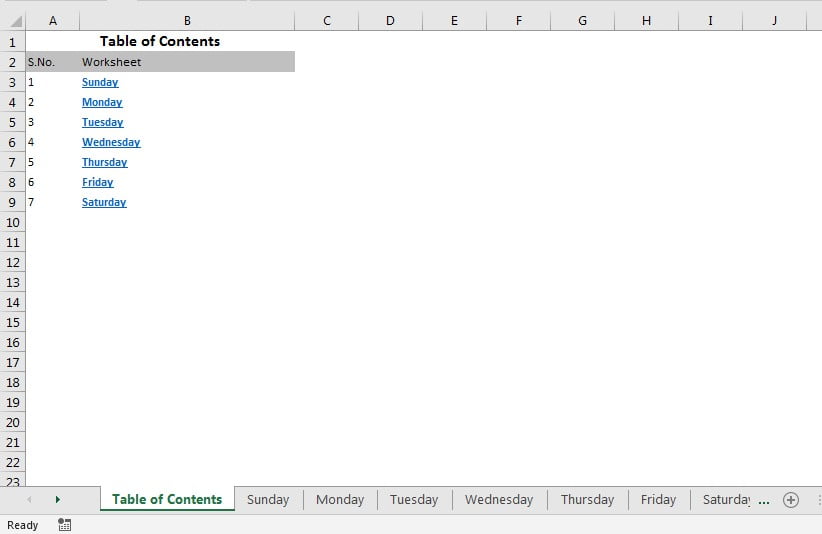
Below is the example of Table of Contents.
Click here to download the Practice file-
Watch the step by step video tutorial:
Visit our YouTube channel to learn step-by-step video tutorials