Customer feedback helps businesses improve products, services, and customer experience. However, many teams struggle to manage feedback schedules properly. When feedback follow-ups remain scattered across emails or notes, deadlines get missed and improvements slow down.
That is exactly where a Customer Feedback Schedule Checklist in Excel becomes extremely useful.
In this detailed article, you will learn what a Customer Feedback Schedule Checklist in Excel is, how it works, its key features, advantages, best practices, and how organizations can use it effectively to schedule and complete customer feedback actions on time.
Click to Purchases Customer Feedback Schedule Checklist in Excel
What Is a Customer Feedback Schedule Checklist in Excel?
A Customer Feedback Schedule Checklist in Excel is a ready-to-use Excel template designed to schedule, track, and monitor customer feedback activities in a structured way.
Instead of handling feedback tasks informally, this checklist allows teams to:
-
Schedule feedback-related actions
-
Assign owners clearly
-
Track deadlines
-
Monitor completion status
-
Measure progress visually
Because the checklist works in Excel, teams can use it instantly without additional software.
Why Is Scheduling Customer Feedback Important?
Customer feedback actions often depend on timing. Therefore, missing deadlines can reduce the impact of feedback initiatives.
A feedback schedule checklist helps businesses:
-
Plan feedback activities in advance
-
Ensure timely follow-ups
-
Improve accountability
-
Maintain consistency in feedback handling
-
Build trust with customers
When teams manage feedback schedules properly, customer satisfaction improves naturally.
How Does a Customer Feedback Schedule Checklist in Excel Work?
This template works using two well-structured worksheets. Together, they create a simple yet powerful feedback scheduling system.
Let us explore each worksheet in detail.
Click to Purchases Customer Feedback Schedule Checklist in Excel
Customer Feedback Schedule Checklist Sheet: Main Working Sheet
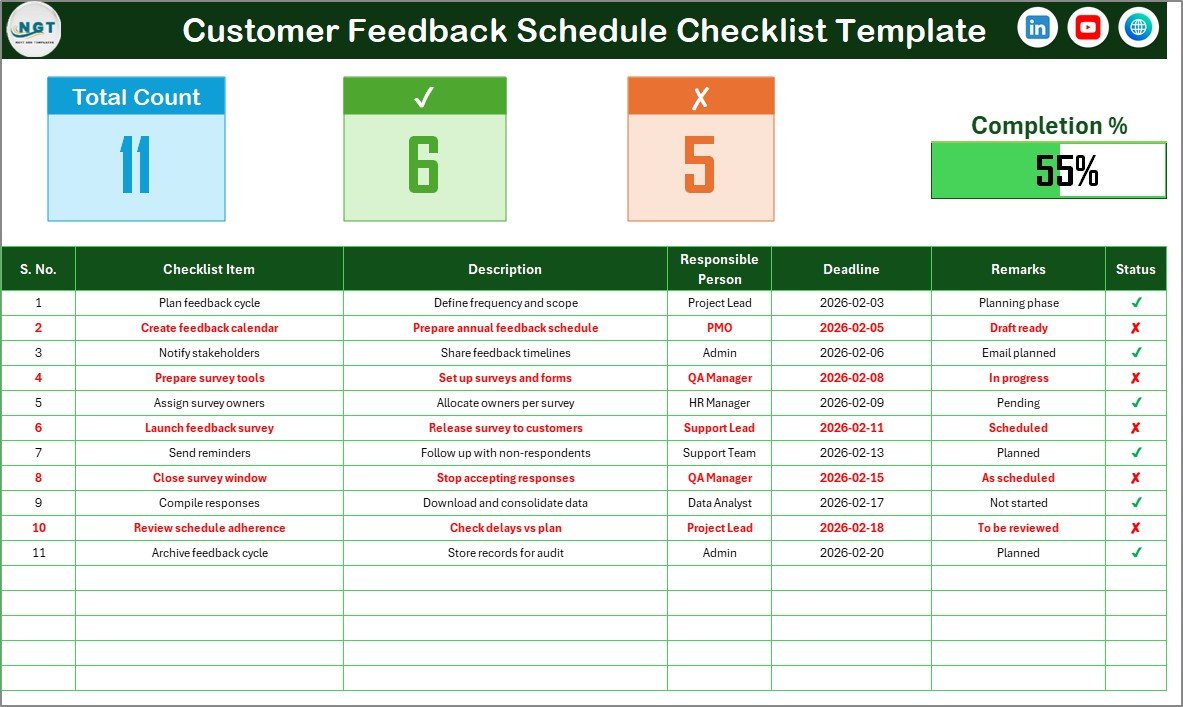
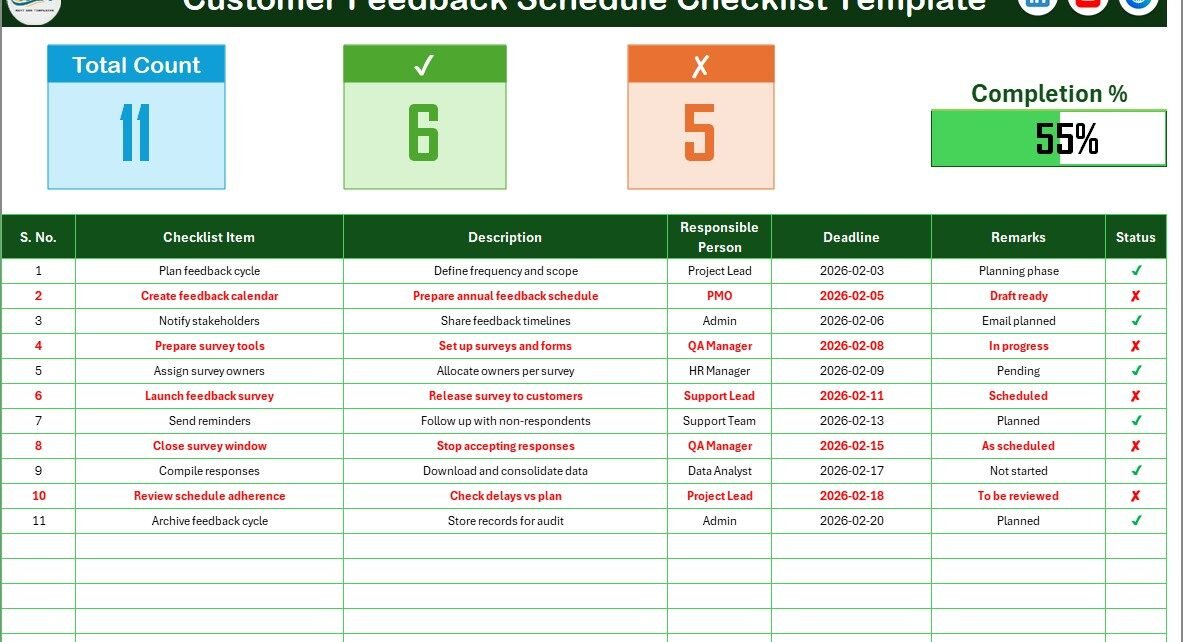
The Customer Feedback Schedule Checklist sheet is the primary worksheet where users capture and track scheduled feedback tasks.
Top Section: Schedule Summary and Progress Tracking
At the top of the sheet, the template displays a summary section that provides instant insights into feedback scheduling status.
This section shows:
-
Total Count – Total number of scheduled checklist items
-
Checked Count – Number of completed feedback tasks
-
Crossed Count – Number of pending or missed tasks
-
Progress Bar – Visual indicator of completion percentage
Because of this summary, managers can quickly understand progress without scanning the entire table.
Importance of the Progress Bar
The progress bar visually reflects how well feedback schedules are being followed. Moreover, it motivates teams to complete tasks on time and highlights delays early.
Checklist Table: Core Scheduling Area
The checklist table forms the core of the Customer Feedback Schedule Checklist in Excel.
Here, users update the Status column using:
-
✔ for completed tasks
-
✘ for pending or missed tasks
Based on these inputs, the summary metrics update automatically.
Columns in the Checklist Table
The checklist table includes the following columns:
-
Serial No. – Unique number for each scheduled task
-
Checklist Item – Name of the feedback activity
-
Description – Short explanation of the task
-
Responsible Person – Task owner
-
Deadline – Scheduled completion date
-
Remarks – Notes or follow-up comments
-
Status – ✔ or ✘ to indicate completion
Because each column has a clear purpose, scheduling stays transparent and easy to manage.
How to Use the Checklist Table Effectively
To use the table efficiently:
-
List all scheduled feedback activities
-
Assign one responsible person per task
-
Set clear deadlines
-
Update the status regularly
-
Add remarks for follow-ups
As a result, feedback schedules remain clear and actionable.
Click to Purchases Customer Feedback Schedule Checklist in Excel
List Sheet: Responsible Person Drop-Down Support
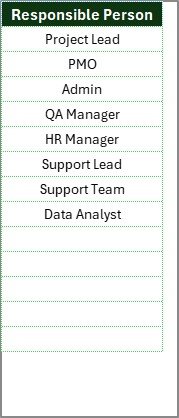
The List sheet supports clean and consistent data entry.
In this sheet, users maintain a unique list of Responsible Persons. This list creates a drop-down menu in the main checklist table.
Why the List Sheet Matters
The List sheet helps by:
-
Avoiding name spelling errors
-
Keeping responsibility assignments consistent
-
Making task ownership selection faster
As teams grow, this feature becomes increasingly valuable.
How This Checklist Improves Feedback Scheduling
A Customer Feedback Schedule Checklist in Excel improves scheduling by bringing structure and visibility to feedback tasks.
First, it ensures that feedback activities are planned.
Second, it assigns clear ownership.
Third, it tracks progress visually.
Finally, it supports timely completion.
Because everything stays in one Excel file, coordination becomes easier.
Click to Purchases Customer Feedback Schedule Checklist in Excel
Advantages of Customer Feedback Schedule Checklist in Excel
Using this checklist provides several benefits.
Structured Feedback Scheduling
All feedback activities follow a clear schedule, which reduces delays.
Easy to Use
Because the template runs in Excel, users do not need advanced skills or training.
Visual Progress Monitoring
The progress bar and summary metrics make tracking quick and intuitive.
Improved Accountability
Assigned responsible persons ensure that tasks do not get ignored.
Better Follow-Ups
Deadlines and remarks help teams follow up on feedback actions effectively.
Cost-Effective Solution
This Excel-based checklist works without subscriptions or additional tools.
Click to Purchases Customer Feedback Schedule Checklist in Excel
Best Practices for Customer Feedback Schedule Checklist in Excel
To maximize the value of this checklist, teams should follow these best practices.
Schedule Tasks Realistically
Set achievable deadlines to maintain consistency and motivation.
Update Status Frequently
Regular updates keep progress tracking accurate.
Assign Clear Ownership
Always assign one responsible person per task to avoid confusion.
Review the Checklist Weekly
Weekly reviews help detect delays early and improve follow-up rates.
Maintain the Responsible Person List
Update the List sheet whenever team members change.
Who Should Use a Customer Feedback Schedule Checklist in Excel?
This checklist suits many teams and industries, including:
-
Customer support teams
-
Customer success teams
-
Quality assurance teams
-
Operations managers
-
Small and medium businesses
-
Service-based organizations
Because of its flexible design, it adapts easily to different feedback processes.
Common Use Cases for This Checklist
Organizations can use this checklist for:
-
Scheduled customer follow-ups
-
Post-service feedback reviews
-
Survey response tracking
-
Complaint resolution scheduling
-
Customer experience improvement plans
How Does This Checklist Support Continuous Improvement?
Continuous improvement depends on timely action. This checklist supports improvement by:
-
Turning feedback into scheduled tasks
-
Tracking completion clearly
-
Highlighting delays early
-
Encouraging accountability
As a result, feedback leads to real improvements instead of remaining unused.
Click to Purchases Customer Feedback Schedule Checklist in Excel
Conclusion: Why Use a Customer Feedback Schedule Checklist in Excel?
A Customer Feedback Schedule Checklist in Excel helps businesses plan, track, and complete feedback activities in a structured way. Instead of reacting late, teams can schedule feedback actions proactively.
With features like checkbox-based status tracking, progress bar, summary metrics, and responsible person drop-downs, this template simplifies feedback scheduling and improves execution.
If you want better control over customer feedback timelines, this Excel checklist is a practical and effective solution.
Frequently Asked Questions (FAQs)
What is a Customer Feedback Schedule Checklist in Excel?
It is an Excel-based checklist template used to schedule and track customer feedback activities, deadlines, and completion status.
Can I customize the checklist items?
Yes, you can easily add, edit, or remove checklist items based on your feedback schedule.
How does the progress bar work?
The progress bar updates automatically based on ✔ and ✘ entries in the Status column.
Can multiple users work on this checklist?
Yes, teams can share the Excel file and collaborate with proper access permissions.
Do I need advanced Excel skills to use it?
No, basic Excel knowledge is enough to use this template.
Can I track overdue feedback tasks?
Yes, by reviewing deadlines and status, teams can quickly identify overdue tasks.
Is this checklist suitable for small businesses?
Yes, small and medium businesses benefit greatly from this simple and cost-effective tool.
Click to Purchases Customer Feedback Schedule Checklist in Excel
Visit our YouTube channel to learn step-by-step video tutorials