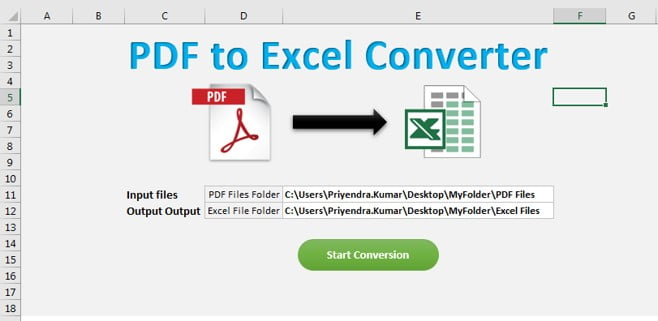
In this article, you will learn how to create a PDF to Excel converter using Excel VBA. We have created a Setting worksheet wherein we are taking 2 folders inputs on range E11 and E12 respectively.
PDF to Excel Converter in Excel VBA
You need to enter the below information:
- PDF Files Folder: Wherein all the PDF files are available
- Excel File Folder: Wherein Excel files will be saved after conversion.
Click to buy PDF to Excel Converter in Excel VBA
Add the Microsoft Scripting Runtime Reference in your VBA project then paste below given code in your module.
Below is the code to convert PDF to excel.
Option Explicit

Sub PDF_To_Excel()

Dim setting_sh As Worksheet
Set setting_sh = ThisWorkbook.Sheets("Setting")

Dim pdf_path As String
Dim excel_path As String

pdf_path = setting_sh.Range("E11").Value
excel_path = setting_sh.Range("E12").Value

Dim fso As New FileSystemObject
Dim fo As Folder
Dim f As File

Set fo = fso.GetFolder(pdf_path)

Dim wa As Object
Dim doc As Object
Dim wr As Object

Set wa = CreateObject("word.application")

'Dim wa As New Word.Application
wa.Visible = True
'Dim doc As Word.Document

Dim nwb As Workbook
Dim nsh As Worksheet
'Dim wr As Word.Range

For Each f In fo.Files
Set doc = wa.documents.Open(f.Path, False, Format:="PDF Files")
Set wr = doc.Paragraphs(1).Range
wr.WholeStory


Set nwb = Workbooks.Add
Set nsh = nwb.Sheets(1)
wr.Copy

nsh.Paste
nwb.SaveAs (excel_path & "\" & Replace(f.Name, ".pdf", ".xlsx"))

doc.Close False
nwb.Close False
Next

wa.Quit

MsgBox "Done"

End Sub
Click to buy PDF to Excel Converter in Excel VBA
Visit our YouTube channel to learn step-by-step video tutorials
Watch the step by step video tutorial:
Click to buy PDF to Excel Converter in Excel VBA