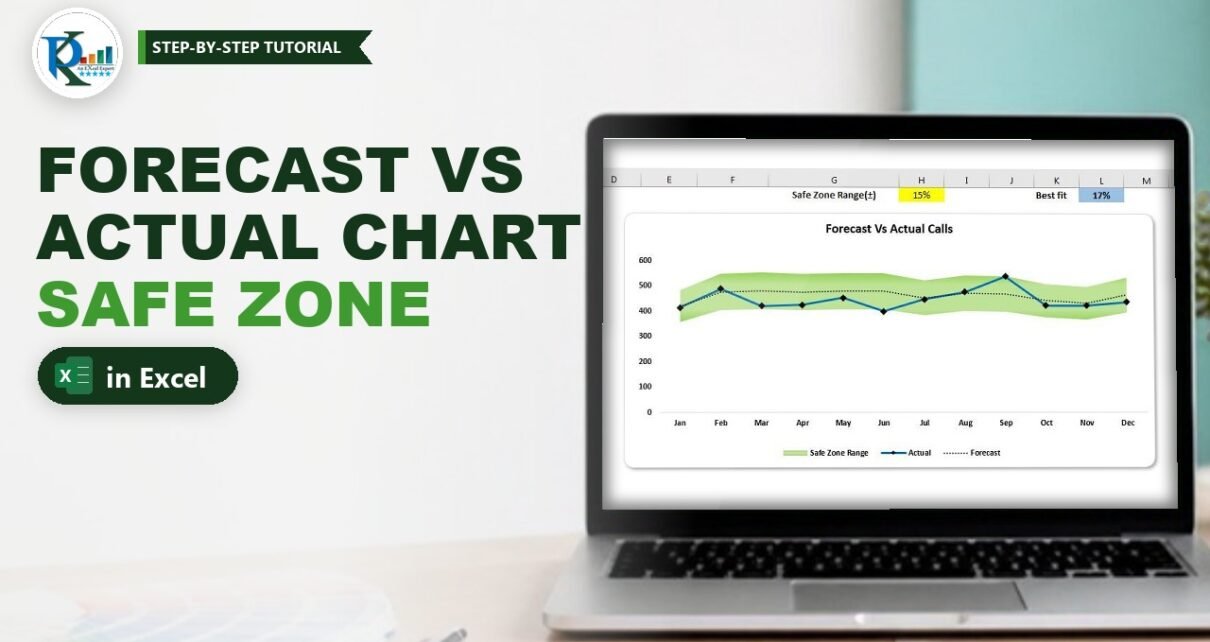
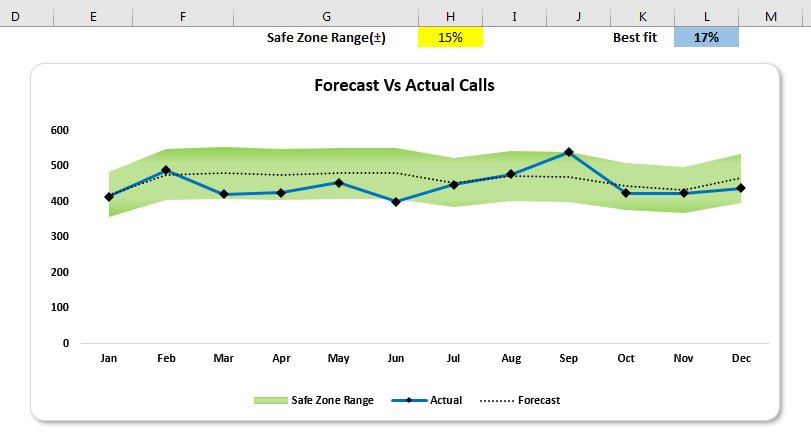
A forecast vs actual chart with a safe zone range in Excel shows at a glance whether your real numbers stay close to plan. The actual values run as a solid line, the forecast as a dotted line, and a green band marks the tolerance around the forecast, for example plus or minus 10%. Any month where the actual line leaves the band needs attention. You will build it step by step, exactly as in PK’s video.
Watch the Video Tutorial
In the video PK adds three helper columns, turns a line chart into a combo of lines and stacked areas, and writes a Best Fit formula for the smallest safe zone that covers every month.
What You Will Build
- An input cell for the safe zone percentage (plus or minus), highlighted in yellow.
- Three helper columns: Lower Limit, Upper Limit and Safe Zone Range, all driven by that one cell.
- A combo chart with Actual as a blue line with markers, Forecast as a dotted line and the safe zone as a green stacked area band.
- A Best Fit formula that returns the largest actual vs forecast gap, so you know which percentage covers all months.
Part 1 – Prepare the Data and Safe Zone Formulas
Step 1: Enter the monthly actual and forecast data
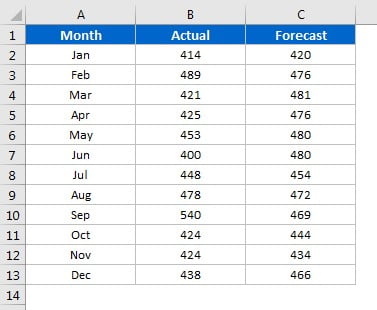
Put the data in A1:C13 with three headers: Month, Actual and Forecast. In the video the numbers are monthly calls received by a call center, from January to December. Turn off gridlines from View > Gridlines for a cleaner sheet.
Step 2: Add the safe zone input cell
In I1 type the label Safe Zone Range(±) and in J1 type 10%. Fill J1 yellow so everyone knows it is an input. PK recommends 10% as the default, because plus or minus 10% of forecast is the usual tolerance, but you can use any value. (In the finished file shown in the first image, the input sits in H1 and Best Fit in L1; this tutorial follows the cells used in the video.)
Step 3: Calculate the Lower Limit
Add the headers Lower Limit (D1), Upper Limit (E1) and Safe Zone Range (F1). In D2 enter:
=C2-C2*$J$1This is the forecast minus the safe zone percentage of the forecast. For January, 420 – 420 x 10% = 378. Press F4 on J1 so it becomes $J$1; that keeps the reference fixed when you fill the formula down.
Step 4: Calculate the Upper Limit
In E2 use the same formula with a plus sign:
=C2+C2*$J$1For January this returns 462. So with a forecast of 100 and a 10% safe zone, the band runs from 90 to 110.
Step 5: Calculate the Safe Zone Range (the band height)
In F2 subtract the lower limit from the upper limit:
=E2-D2January gives 84. Select D2:F2 and fill down to row 13.
How the formulas work
- The chart cannot draw a band between two lines directly, so you stack two areas. The Lower Limit is the invisible bottom layer and the Safe Zone Range (upper minus lower) is the visible layer on top of it. Together they reach exactly up to the Upper Limit.
- So the Upper Limit column is a helper only and is not charted.
- Every limit refers to
$J$1, so one change in J1 recalculates all 12 months and the chart follows.
Part 2 – Build the Forecast vs Actual Chart
Step 6: Insert a line chart with markers
Select Month (A1:A13), hold Ctrl and add Lower Limit (D1:D13), Safe Zone Range (F1:F13), Forecast (C1:C13) and Actual (B1:B13). Leave Upper Limit out. Go to Insert > Line and choose Line with Markers.
Step 7: Change the two limit series to stacked area
Right-click the chart and choose Change Series Chart Type. For Lower Limit and for Safe Zone Range pick Stacked Area. Keep Actual and Forecast as lines and click OK. You will see a big grey area (the lower limit) with a coloured strip on top of it (the safe zone).
Now select the Lower Limit area, right-click, choose Format Data Series and set Fill to No fill. The grey block disappears and only the band is left, floating at the right height.
Step 8: Format the band, the lines and the axes
- Safe Zone Range: Format Data Series > Fill > Gradient fill with green stops, a darker and a lighter shade. Add a little transparency if you like, so the lines stay easy to read.
- Actual: Line > Solid line in blue. Under Marker choose a built-in marker (the finished chart uses a diamond) and set the marker fill to solid black.
- Forecast: Marker > None. Line > Solid line in black, a thin width, and set Dash type to Round Dot. This gives the dotted forecast line.
- Delete the horizontal gridlines.
- Click the legend, then the Lower Limit entry, and press Delete.
- Make the horizontal axis, the vertical axis and the legend text black and bold, and give the chart a title such as Forecast Vs Actual Calls.
- Right-click the vertical axis, choose Format Axis and fix the Minimum bound at 0. Otherwise Excel rescales the axis every time the band changes, which makes the chart jump.
Test it: type 25% in J1 and the band gets thicker at once. In the sample data at 10%, March, April and June fall below the band and September rises above it.
Part 3 – Find the Best Fit Safe Zone
Step 9: Calculate the largest gap with helper columns
Which percentage would cover every month? PK first works it out with two helper columns. In Q2 divide actual by forecast:
=B2/C2In R2 turn that ratio into a gap from 100% and remove the minus sign:
=ABS(1-Q2)Fill both down and take the largest value with =MAX(R2:R13). 1-Q2 is negative when actual beats forecast, so ABS drops the sign: 15% over and 15% under count the same.
Step 10: Make Best Fit a single dynamic formula
You do not need the helper columns. Type Best Fit in M1 and in N1 enter:
=MAX(ABS(1-$B$2:$B$13/$C$2:$C$13))In the video (Excel 2013) this is an array formula, so confirm it with Ctrl+Shift+Enter. Format N1 as a percentage. With the sample data it returns 17%: June received 400 calls against a forecast of 480, about 16.7% below plan, the biggest gap of the year. Type 17% into J1 and every month sits inside the green band.
The formula is fully dynamic. In the video PK changes May’s actual from 453 to 600, the line jumps out of the band, and Best Fit updates to 25% straight away.
How the Best Fit formula works
$B$2:$B$13/$C$2:$C$13divides each actual by its forecast and returns 12 ratios at once.1-...converts each ratio into the gap from plan, positive or negative.ABS(...)drops the sign, andMAX(...)returns the largest gap.
Modern Excel Alternative (Addition)
This section is an addition to the video, based on current Excel features. In Excel 365 or Excel 2021 the Best Fit formula works with a normal Enter, no Ctrl+Shift+Enter needed. Because N1 is formatted with no decimals, 16.7% shows as 17%. If you want the cell to return a value you can type straight into J1 without leaving a month just outside the band, round it up to whole percent:
=ROUNDUP(MAX(ABS(1-B2:B13/C2:C13)),2)You can also flag the months outside the band in the table. Select B2:B13, choose Home > Conditional Formatting > New Rule > Use a formula and enter =ABS(1-B2/C2)>$J$1 with a red fill.
Common Errors and Fixes
The band starts at zero instead of around the forecast
The Lower Limit area still has a fill, or it was changed to a normal Area instead of Stacked Area. Both limit series must be Stacked Area, and Lower Limit must be set to No fill.
The band is twice as high as expected
You charted the Upper Limit column instead of Safe Zone Range (=E2-D2). Plot only Lower Limit and Safe Zone Range.
The band does not move when you change J1
J1 was entered without dollar signs, so the filled formulas point to J2, J3 and so on. Use $J$1 and fill down again.
Tips
- Keep 10% as your default safe zone and use Best Fit only to understand how far the worst month was from plan.
- The same layout works for budget vs actual or target vs actual.
- Microsoft’s reference for the ABS function explains how absolute values work.
Want It Ready-Made?
If you would rather start from a finished file, the Forecast Vs Actual Chart with Safe Zone Range in Excel on NextGenTemplates.com has the helper formulas, the dynamic band and the Best Fit cell already set up. For a full planning view, the Budget Forecasting Dashboard in Excel takes the same idea further, and you can browse more Excel charts and visualization templates. To learn charts and dashboards from the ground up, see the Excel Pivot Tables and Dashboards course on NextGenTemplates Academy.
Related Tutorials
- Target vs Actual Sales Dynamic Chart in Excel
- Conditional Formatting in a Line Chart
- Highlight a Specific Data Point in a Line Chart Dynamically
- Yesterday vs Today Sales Chart in Excel
- Chart Templates in Excel
Frequently Asked Questions
What is a safe zone range in a forecast vs actual chart?
It is a shaded band around the forecast line that shows the tolerance you accept, for example 10 percent above and below the forecast. If the actual line stays inside the band, the month is on plan. If it leaves the band, the actual result is too far from the forecast and needs a closer look.
How do I change the width of the safe zone band?
Type a new percentage in the yellow input cell J1. The Lower Limit, Upper Limit and Safe Zone Range columns all refer to J1, so the band on the chart becomes wider or narrower immediately. No chart editing is needed.
Why is the band built with a stacked area chart?
A stacked area chart adds the second series on top of the first. The Lower Limit series is filled with nothing, so it is invisible and only lifts the band off the axis. The Safe Zone Range series, which is the difference between the upper and lower limit, sits on top of it and becomes the visible green band.
What does the Best Fit percentage tell me?
Best Fit is the largest gap between actual and forecast in any month, shown as a percentage. If you type that percentage into the safe zone cell, every month fits inside the band. In the sample data it is 17 percent because June came in about 16.7 percent below forecast. Steps 9 and 10 show the formulas.
Can I buy the finished chart instead of building it?
Yes. The ready-made Forecast Vs Actual Chart with Safe Zone Range is available on NextGenTemplates.com with the formulas, the dynamic band and the formatting already set up.
About the Author
PK is a Microsoft Excel expert and trainer and the founder of PK: An Excel Expert and NextGenTemplates.com. He has been teaching Excel, VBA, Power Query and Power BI since 2016 on his YouTube channel.
Conclusion
A forecast vs actual chart with a safe zone range in Excel needs only three helper columns and one combo chart. The Lower Limit and Safe Zone Range columns become a stacked area band, the forecast becomes a dotted line and the actual values become a bold line with markers. Link everything to one percentage cell, add the Best Fit formula, and you have a chart that tells your team in seconds which months stayed on plan and which did not.