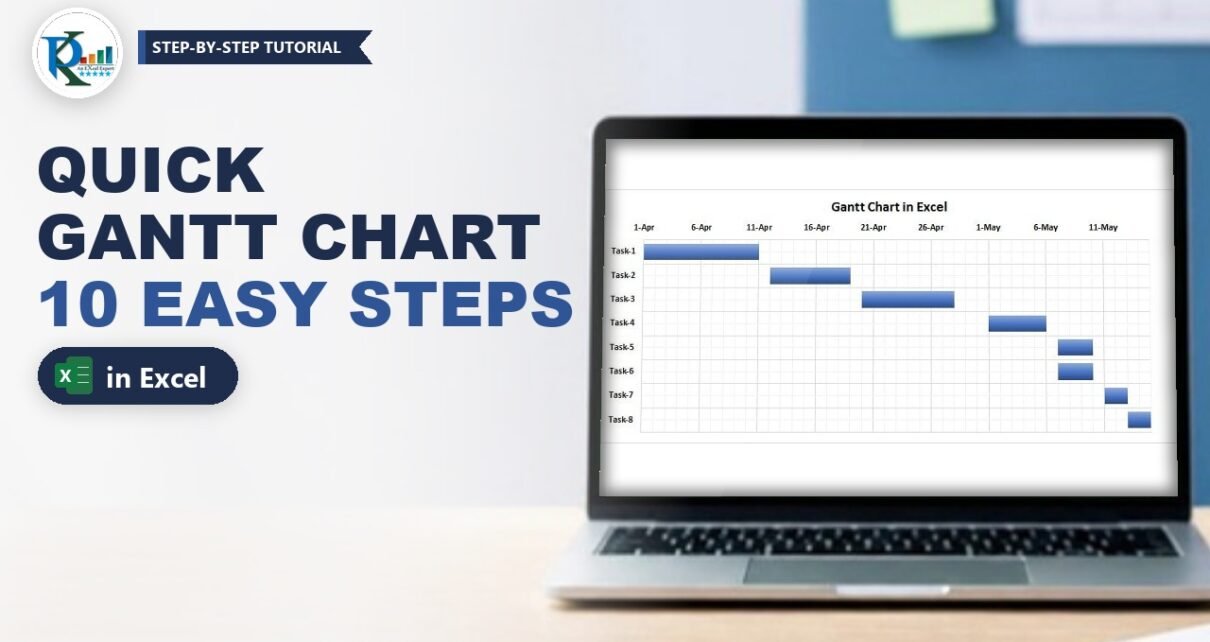
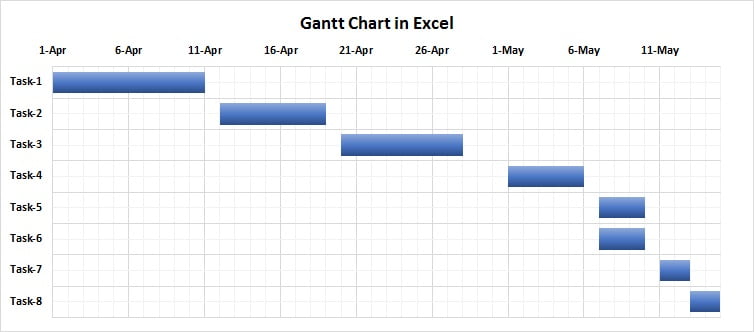
A Gantt chart in Excel shows your project plan as a row of horizontal bars: where each bar starts tells you when a task begins, and how long it is tells you how many days the task takes. Excel has no ready-made Gantt chart type, but you can build a clean one in a few minutes from a normal Stacked Bar chart. In this tutorial you take a simple table of tasks, start dates and durations, hide the first bar series, fix the date axis and style the task bars. It works in Excel 2010, 2013, 2016, 2019, 2021 and Microsoft 365.
Watch the Video Tutorial
In the video PK plans a house build (foundation, walls, roof, windows and doors, plumbing, electric, painting and flooring) and turns it into a Gantt chart with the same stacked bar technique described below.
What You Will Build
- A project timeline with one horizontal bar per task, in the same order as your table.
- Bars that start on the right date – an invisible Start Date series pushes each bar to its start.
- Bar length equal to the duration in days.
- A date axis across the top that begins on the first task and ends on the last day of the project.
- A clean look: no legend, light gridlines for each day and gradient task bars.
How a Gantt Chart in Excel Works with Stacked Bars
A stacked bar chart puts two values end to end on the same bar. Here the first value is the Start Date and the second is the Duration. Excel stores dates as serial numbers (1-Apr-2018 is 43191), so the Start Date part of the bar runs from zero all the way to the start of the task. When you make that part invisible, only the Duration part is left, and it begins exactly on the start date.
Part 1 – Prepare the Gantt Chart Data
Step 1: Enter tasks, start dates and durations
You need three columns. In the example the table sits in A1:C9:
- Column A – Activity: Task-1 to Task-8.
- Column B – Start Date: 1-Apr, 12-Apr, 20-Apr, 1-May, 7-May, 7-May, 11-May and 13-May.
- Column C – Duration (in days): 10, 7, 8, 5, 3, 3, 2 and 2.
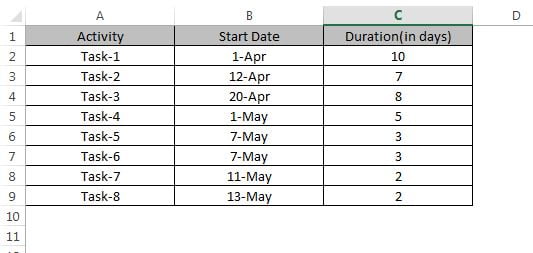
Task-5 and Task-6 have the same start date and duration on purpose: in the finished chart you will see two identical bars, which is exactly how parallel work looks on a Gantt chart.
Step 2: Show the start dates as numbers
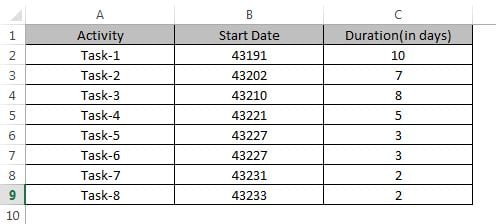
Select column B and press Ctrl+Shift+~ to apply the General format. The dates now show as serial numbers, for example 43191 for 1-Apr. You need these numbers in Step 5 to set the axis bounds, and you will switch the dates back to a date format at the end.
Part 2 – Insert the Stacked Bar Chart
Step 3: Insert a 2-D Stacked Bar chart
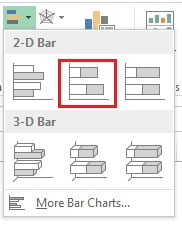
Select the whole table A1:C9 and go to Insert › Charts › Insert Bar Chart, then pick Stacked Bar (the middle icon under 2-D Bar). Excel creates two series: Start Date (blue) and Duration (orange), with the task names on the vertical axis.
Video variation: in the video PK inserts an empty stacked bar chart and adds the series himself with Select Data › Add: first Start Date (series values =Sheet1!$B$2:$B$9), then Duration (in days), and the Activity range as the horizontal (category) axis labels. This route helps when Excel guesses the series wrongly.
Step 4: Put the tasks in the right order
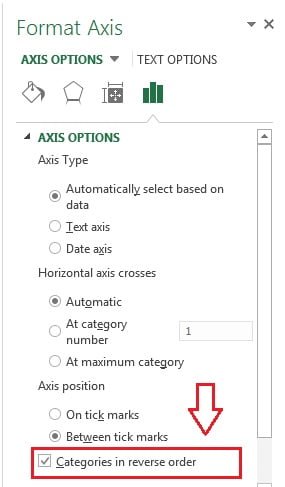
A bar chart draws the first row of your table at the bottom, so Task-1 ends up last. Right-click the vertical axis (the task names), choose Format Axis and tick Categories in reverse order. Task-1 moves to the top, and the date axis jumps to the top of the chart, just like a classic project plan.
Part 3 – Fix the Date Axis
Step 5: Set the minimum and maximum bounds
Right-click the horizontal axis (the dates) and choose Format Axis. Under Axis Options › Bounds enter:
- Minimum:
43191– the start date of Task-1 (1-Apr). - Maximum:
43235– the start date of Task-8 plus its duration (13-May + 2 days = 15-May).
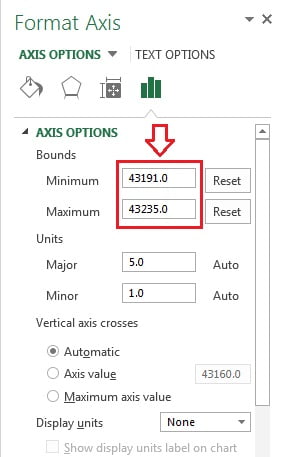
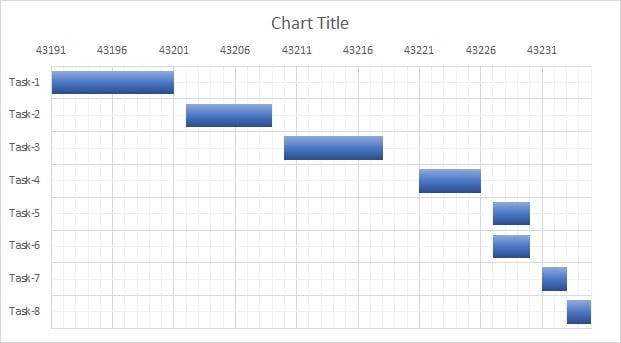
In the screenshot the Major unit is 5 and the Minor unit is 1, so a date label appears every 5 days and a minor gridline marks every single day. In the video PK uses a Major unit of 7 instead, which gives one label per week – pick whichever reads better for your project length.
How the numbers work: the maximum is simply the finish date of the last task:
Finish date = Start Date + Duration
43235       = 43233 (13-May) + 2
If another task finishes later, use that finish date instead.
Part 4 – Turn the Bars into a Gantt Chart
Step 6: Make the bars thicker
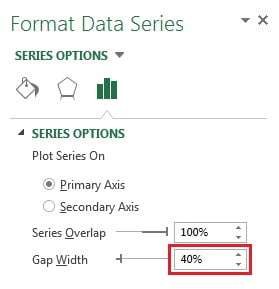
Click one of the blue Start Date bars to select the series, right-click and choose Format Data Series. Under Series Options set Gap Width to 40%.
Step 7: Hide the Start Date series
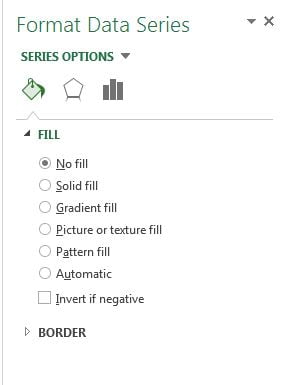
With the Start Date series still selected, open Fill & Line in the same pane and choose No fill under Fill. The blue bars vanish, and each orange Duration bar now floats at its own start date. This single step is what turns a stacked bar chart into a Gantt chart.
Step 8: Remove the legend and add gridlines
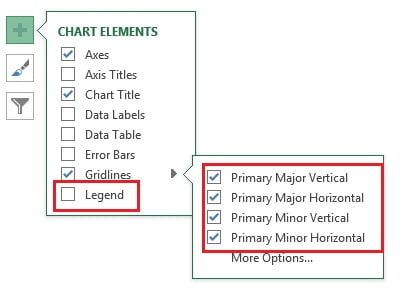
Click the Chart Elements button (the + next to the chart). Untick Legend, then open Gridlines and tick all four: Primary Major Vertical, Primary Major Horizontal, Primary Minor Vertical and Primary Minor Horizontal. The minor vertical gridlines draw one line per day, so you can count durations at a glance.
Step 9: Style the task bars
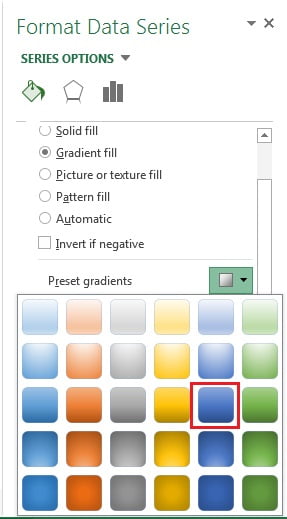
Select the orange Duration bars, right-click and choose Format Data Series › Fill & Line. Choose Gradient fill and pick a blue option from Preset gradients. In the video PK simply picks a solid green from the Fill colour menu instead.
At this point the chart is nearly done, but the axis still shows serial numbers:
Step 10: Show the dates again
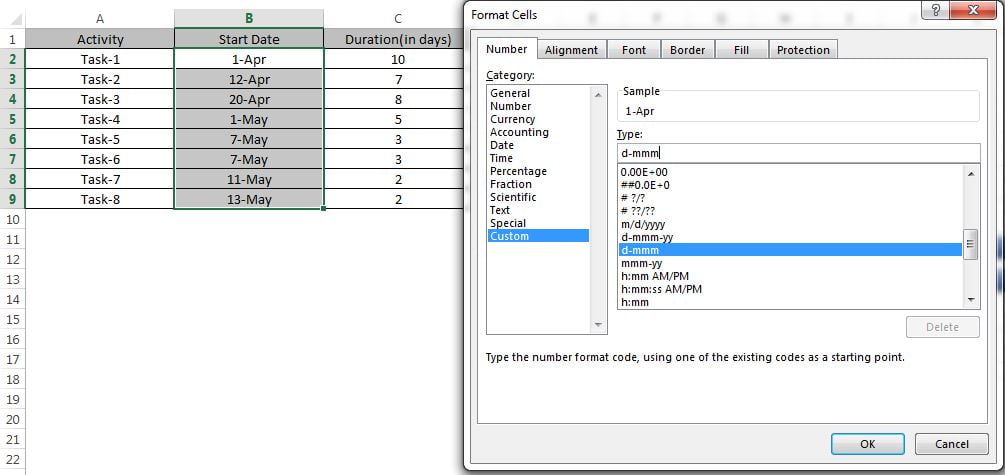
Select column B, press Alt+O+E to open Format Cells (Ctrl+1 does the same), go to Number › Custom and type d-mmm in the Type box. The cells show 1-Apr, 12-Apr and so on, and because the axis is linked to the source format, the chart axis switches to dates too. The video uses dd-mmm, which shows 01-Apr.
Add a chart title such as Gantt Chart in Excel and your quick Gantt chart is ready, exactly like the image at the top of this page.
Modern Alternative: Conditional Formatting Gantt (Addition)
This method is not part of the original tutorial; it is a common alternative you may find useful. Instead of a chart you can colour cells. Put dates across a header row (for example E1 = 1-Apr, F1 = E1+1 and so on), select the grid starting at E2 and add a conditional formatting rule with this formula:
=AND(E$1>=$B2,E$1<$B2+$C2)E$1is the date of the column, locked to row 1.$B2is the task start, locked to column B.$B2+$C2is the finish, so a cell is coloured from the start date up to the day before start plus duration – the same number of days as the bar.
Common Errors and Fixes
The tasks appear in reverse order
You skipped Step 4. Format the vertical axis and tick Categories in reverse order.
All bars are squeezed to the right
The axis still starts at an automatic value. Set the Minimum bound to the first start date serial number, as in Step 5.
The bars start at zero and look stacked, not floating
The Start Date series still has a fill. Select it and choose No fill. Start Date must also be the first series in Select Data.
The axis shows numbers like 43191
The axis follows the format of column B. Apply a date format such as d-mmm to the start dates, or set the number format in Format Axis › Number.
Tips
- To find the bounds without switching formats, type
=B2in an empty cell and format it as General; for the end date use=B9+C9(or the latest finish date of all tasks). - Add data labels to the Duration series to print the number of days inside each bar.
- Microsoft’s guide Present your data in a Gantt chart in Excel covers the same stacked bar idea.
Want It Ready-Made?
If you would rather start from a finished file, the Quick Gantt Chart template on NextGenTemplates.com is the ready-to-use version of this chart, and the Power Gantt Chart in Excel adds a fuller project planner. You can also browse all Excel templates. To get confident with charts, formatting and dashboards step by step, join the video course Excel Pivot Tables & Dashboards: Basic to Advanced.
Related Tutorials
- Stacked Bar Chart in Excel: Totals and Breakdown in One
- Chart Elements in Excel: Titles, Labels, Legend and Axes
- Funnel Chart in Excel: Built-in Funnel and Stacked Bar Methods
- Waterfall Chart in Excel: Built-in and Stacked Column Methods
- Excel Formatting Shortcuts: Ctrl+1 and the Number Format Keys
Frequently Asked Questions
Does Excel have a built-in Gantt chart?
No. Excel has no Gantt chart type, so you build one from a Stacked Bar chart: the Start Date series is hidden with No fill and the Duration series becomes the visible task bars.
Why do I hide the Start Date series?
In a stacked bar the Start Date part runs from zero to the task start. Hiding it leaves only the Duration part, which then begins exactly on the start date.
What numbers go in the axis Minimum and Maximum?
The Minimum is the serial number of the first start date, 43191 for 1-Apr-2018 in this example. The Maximum is the latest finish date, start plus duration, which is 43235 here.
Why are my tasks shown upside down?
Bar charts plot the first category at the bottom. Format the vertical axis and tick Categories in reverse order to put Task-1 at the top.
Can I show parallel tasks?
Yes. Two tasks with the same start date and duration, like Task-5 and Task-6, simply appear as two identical bars on separate rows.
Is there a ready-made Gantt chart template?
Yes. The Quick Gantt Chart template on NextGenTemplates.com is the finished version of this chart, ready to fill with your own tasks.
About the Author
PK is a Microsoft Excel expert and trainer and the founder of PK: An Excel Expert and NextGenTemplates.com. He has been teaching Excel, Power Query and Power BI since 2016 on his YouTube channel.
Conclusion
A quick Gantt chart in Excel needs only a three-column table and a stacked bar chart. Reverse the task order, set the axis bounds to your project dates, hide the Start Date series and style the Duration bars – ten short steps and your project plan is easy to read for anyone. Try it with your own tasks and dates and watch the timeline take shape.