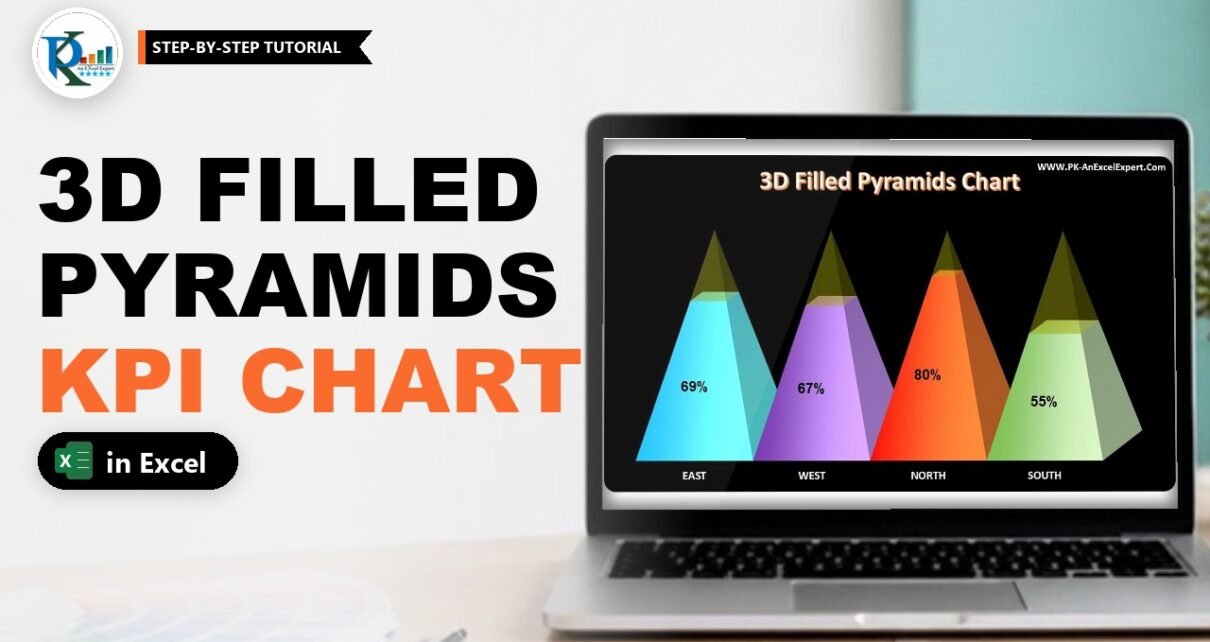
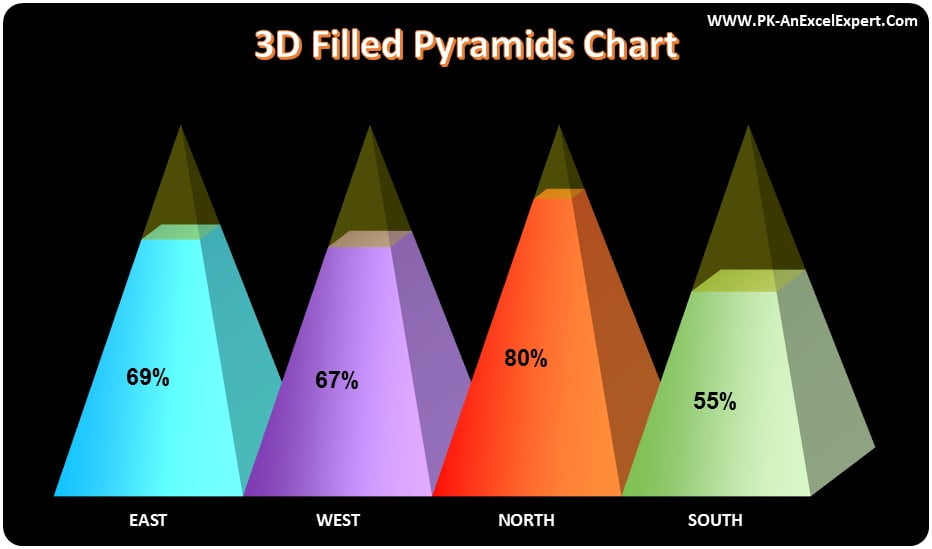
A 3D filled pyramids chart in Excel turns a KPI percentage into a pyramid that fills up from the bottom, like liquid in a glass. Each category gets its own colourful pyramid, the filled part shows the actual value and the translucent tip shows what is left to reach 100%. It works for any KPI measured in percent, such as sales conversion or service level. In this tutorial you build it for four zones (EAST, WEST, NORTH and SOUTH) with a 3-D stacked column chart, the Full Pyramid column shape and gradient fills, without any add-in or VBA.
Watch the Video Tutorial
In the video, PK builds the zone-wise sales conversion pyramids from a small table: a helper column, a 3-D stacked column chart turned into full pyramids, a gradient for each zone and a translucent yellow tip.
What You Will Build
- A two-column data table: the KPI percentage and a helper “Transparent Slice” that completes it to 100%.
- A 3-D stacked column chart converted into four full pyramids.
- A different two-colour gradient for each zone: blue, purple, red to orange, and green.
- A translucent yellow tip that shows the gap to 100%.
- A dark chart style with touching pyramids, bold data labels and rounded corners.
Part 1: Prepare the Data
Step 1: Enter the KPI values
Put the headers Zone, Sales Conversion% and Transparent Slice in A1:C1, and the four zones EAST, WEST, NORTH and SOUTH in A2:A5. Enter the conversion percentages in B2:B5 and format them as percentages.
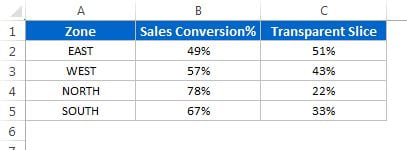
In the video PK uses random sample numbers made with the RANDBETWEEN function, so the chart changes every time the sheet recalculates. That is handy for testing. As an example (an addition, not taken from the file), =RANDBETWEEN(40,90)/100 returns a value between 40% and 90%. For a real report, type or link your actual KPI values instead.
Step 2: Calculate the transparent slice
The transparent slice is whatever is left up to 100%. In C2 enter:
=1-B2Fill it down to C5. Because 1 equals 100%, the two columns always add up to 100%, so every pyramid has exactly the same height. If EAST converts 72%, its transparent slice is 28%.
Why the helper column matters
- A pyramid shape is drawn from the base to the peak of the whole stack. Without the second series, each pyramid would have a different height and its peak would sit at the KPI value.
- With the KPI at the bottom and the remainder on top, all pyramids reach 100%, and the KPI becomes a filled band at the bottom of each pyramid. That is the “filled” effect.
Part 2: Create the 3D Filled Pyramids Chart in Excel
Step 3: Insert a 3-D stacked column chart
Turn off the sheet gridlines with View > Gridlines. Select A1:C5 and go to Insert > Column Chart > 3-D Column > 3-D Stacked Column. You get four columns, each split into the conversion value and the transparent slice.
Step 4: Remove the clutter
Click the gridlines and the legend in the chart and press Delete. You will delete the vertical axis later, once the pyramids are formatted.
Step 5: Change the columns to full pyramids
Right-click a column and choose Format Data Series. Under Series Options > Column shape, pick Full Pyramid (the second option). Now the four columns are four pointed pyramids, each made of a lower part (the KPI) and an upper part (the slice).
Part 3: Colour Each Pyramid with a Gradient
Step 6: Select one pyramid only
Click the lower part of the EAST pyramid once to select the whole series, then click it again (PK double-clicks) so that only this one data point is selected. The pane title changes to Format Data Point.
Step 7: Add a two-stop gradient
Go to Fill & Line > Fill > Gradient fill and set:
- Type: Linear.
- Gradient stops: keep only two. Select the extra stops and click Remove gradient stop (or drag them off the bar).
- First stop colour: Light Blue from the Standard Colors.
- Second stop colour: the same Light Blue, made lighter. Open More Colors > Custom and drag the small black triangle on the brightness slider upward, then click OK.
- Direction: Linear Right, so the colour runs from strong on the left to light on the right.
The two shades of one colour give the pyramid face a soft 3D shine.
Step 8: Repeat for the other zones
Select each lower part on its own and apply the same gradient with a different colour:
- WEST: purple, with a lighter purple as the second stop.
- NORTH: red as the first stop and Orange, Accent 2 as the second.
- SOUTH: green, with a lighter green as the second stop.
Step 9: Make the tips translucent
Click once on any upper part so that all four tips (the Transparent Slice series) are selected. Choose Fill > Solid fill, pick yellow and set Transparency to 80%. The tips now look like an empty glass top, and the coloured fill below reads as the KPI level.
Part 4: Finish the Chart
Step 10: Delete the axis and apply a dark style
Select the vertical axis and press Delete. Then select the chart and on the Format tab pick a dark preset from Shape Styles. The black background makes the bright gradients and the translucent tips stand out.
Step 11: Remove the gaps between the pyramids
Right-click a pyramid and choose Format Data Series. Under Series Options set both Gap Depth and Gap Width to 0%. The pyramids become bigger and stand side by side, and you can resize the chart to taste.
Step 12: Add data labels and a title
Right-click the lower series (the KPI values) and choose Add Data Labels. Select the labels and on the Home tab set the font to Arial Rounded MT Bold, black, a little bigger. Only the KPI series gets labels, so you see 72%, 49% and so on, not the slices. Type a chart title such as Zone Wise Sales Conversion.
Step 13: Round the chart corners
Right-click the chart area and choose Format Chart Area. Under Border select Automatic, scroll down and tick Rounded corners. The chart now has the soft card look of the finished example and is ready for a dashboard or a presentation slide.
How the Chart Stays Dynamic
The chart reads B2:C5 directly. Change a conversion value, or let RANDBETWEEN recalculate with F9, and C2:C5 updates through the =1-B2 formulas, so the filled level of each pyramid moves while every pyramid keeps its full height. You can link B2:B5 to a summary table or a pivot table to drive the chart from your real data.
Common Errors and Fixes
The pyramids have different heights
The transparent slice is missing or not equal to 100% minus the value. Check that C2:C5 use =1-B2 and that both series are in the chart.
All pyramids change colour together
You formatted the whole series. Click the part once, then once more so that only one data point is selected before you set the gradient.
There is no Column shape option
The chart is a 2-D column chart. Column shapes such as Full Pyramid exist only for 3-D column and bar charts, so change the chart type to 3-D Stacked Column.
Labels show on the tips too
Data labels were added to both series. Select the labels on the tips and press Delete.
Tips
- Use the same layout for any percentage KPI: service level, target achievement, on-time delivery or survey score.
- Keep the colours meaningful, for example one colour per zone that you also use in the rest of your dashboard.
- If a KPI can go above 100%, cap it with MIN in a helper column so the slice never turns negative.
- Microsoft explains how RANDBETWEEN works if you want sample data for testing charts.
Want It Ready-Made?
If you want the finished, formatted workbook shown in this tutorial, the 3D Filled Pyramids Chart in Excel is available on NextGenTemplates.com, along with more Excel chart templates. To learn infographic charts and dashboard design step by step, the Excel Pivot Tables and Dashboards course covers it in detail.
Related Tutorials
- 3D Glass Chart in Excel
- Quick 3D Container Chart in Excel
- 3D Doughnut Chart for KPI Metrics
- Beautiful 3D Visualization in Excel
- One Pager KPI Dashboard in Excel
Frequently Asked Questions
How do I make a pyramid chart in Excel?
Insert a 3-D column or 3-D stacked column chart, open Format Data Series and choose Full Pyramid under Column shape. Every column turns into a pyramid.
How do I show a percentage as a filled pyramid?
Add a helper column equal to 100% minus the value and plot both in a 3-D stacked column chart with the Full Pyramid shape. Give the value a solid colour and make the helper part mostly transparent.
Why does each pyramid need two series?
The two series always add up to 100%, so all pyramids have the same height. The lower series shows the KPI and the upper series shows the remainder.
How do I give each pyramid a different colour?
Select a single data point by clicking it twice, then apply a gradient fill in Format Data Point. Repeat for every pyramid with a different colour.
Can I use this chart for KPIs other than sales conversion?
Yes. Any KPI measured between 0% and 100%, such as service level or target achievement, works the same way.
About the Author
PK is a Microsoft Excel expert and trainer and the founder of PK: An Excel Expert and NextGenTemplates.com. He has been teaching Excel, VBA, Power Query and Power BI since 2016 on his YouTube channel.
Conclusion
The 3D filled pyramids chart in Excel is a simple 3-D stacked column chart with a clever helper column. Add 100% minus the KPI as a second series, switch the column shape to Full Pyramid, give each zone its own two-stop gradient, make the tips translucent yellow, and finish with a dark style, zero gaps, bold labels and rounded corners. Swap in your own KPI values and the pyramids fill up on their own.