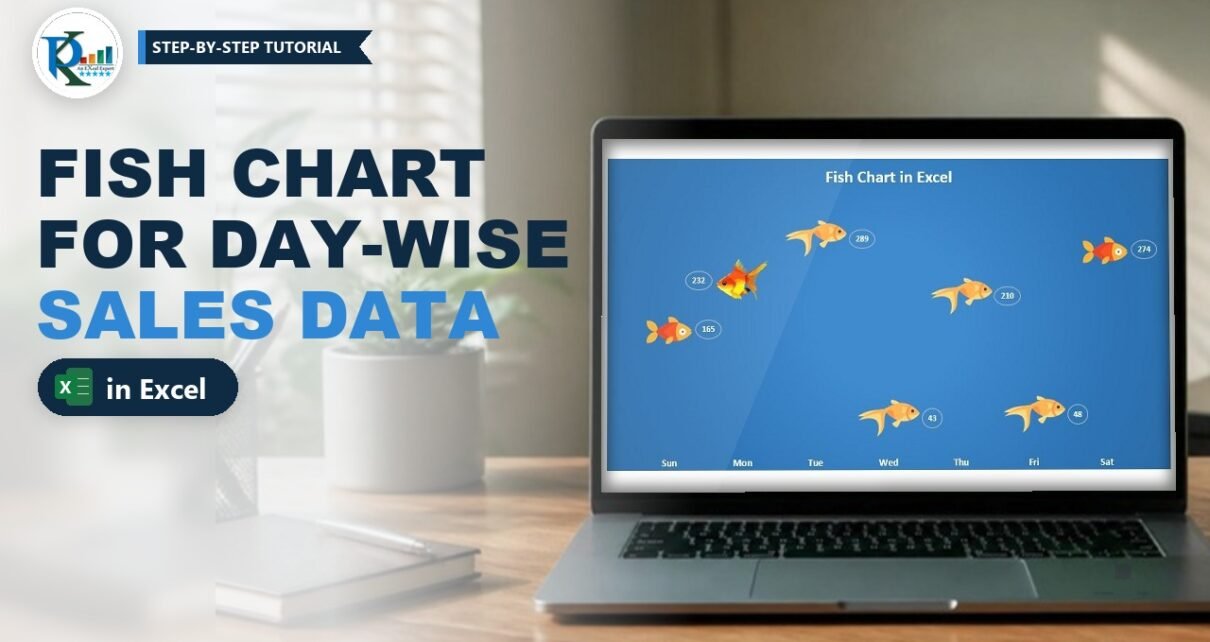
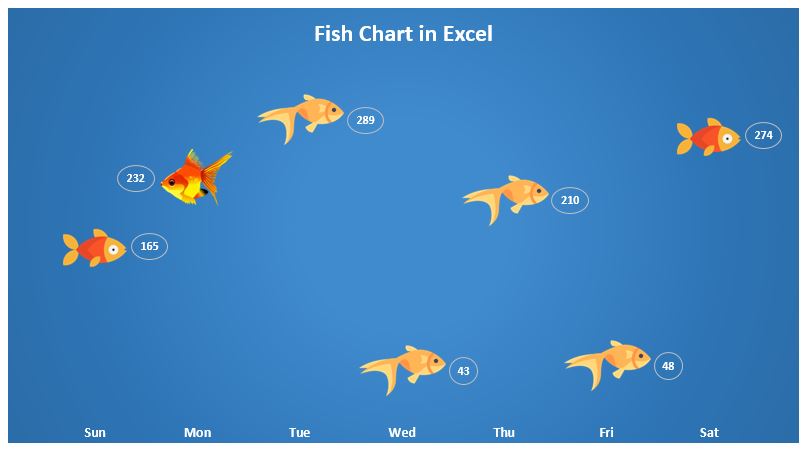
A fish chart in Excel turns a plain day-wise sales report into a small aquarium. Each day’s sales value is shown by a fish that swims at the height of the number, and the value sits in a white bubble in front of the fish’s mouth. The fun part: there are three different fish, and Excel picks one at random for every day each time the sheet recalculates. Press F9 and the fish change while the numbers stay the same. You build it with a line chart, three helper columns, RANDBETWEEN and IF, and no VBA at all.
Watch the Video Tutorial
In the video, PK builds the chart from scratch on a new sheet: random number column, three fish columns, a line chart with markers, then pastes a fish picture onto each series and turns the data labels into oval bubbles.
What You Will Build
- A day-wise sales table (Sunday to Saturday) that drives the chart.
- A Random Number column that picks fish 1, 2 or 3 for each day.
- Three Fish columns that show the sales value only for the fish that was picked, and #N/A for the others.
- A line chart with markers where the markers are replaced by fish pictures and the lines are hidden.
- Bubble data labels: oval, no fill, white outline and white font, placed in front of each fish’s mouth.
Part 1: Prepare the Data for the Fish Chart in Excel
Step 1: Enter the sales data
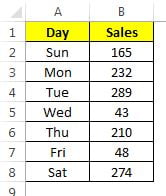
Put Day in A1 and Sales in B1. In the video the data is Sun to Sat in A2:A8 with these sales values: 165, 232, 289, 43, 210, 48 and 274. Turn off the sheet gridlines from View > Gridlines so the finished chart looks clean on the page.
Step 2: Add the helper column headers
The fish change at random, so you need support columns. Type Fish1 in C1, Fish2 in D1, Fish3 in E1 and Random Number in F1. The three Fish columns become the three chart series, one per fish picture.
Step 3: Pick a random fish for each day
In F2 enter this formula and fill it down to F8:
=RANDBETWEEN(1,3)RANDBETWEEN returns a whole number between the bottom (1) and the top (3) value, so every day gets fish 1, 2 or 3. Because it is a volatile function, it gives a new number every time the worksheet recalculates. If you want to use more than three fish, raise the top value and add one more Fish column for each extra fish.
Step 4: Show the sales value only in the picked fish column
In C2 enter:
=IF(F2=1,B2,NA())Now put the same formula in D2 and E2. In the video PK does not copy the cell C2. He clicks in the formula bar of C2, selects the whole formula text and copies it (Ctrl + C), leaves edit mode, and then pastes that text into D2 and E2. Because text is pasted, not a cell, the references stay exactly the same: both cells still test F2 and return B2.
Then he edits only the number being tested: 2 in D2 and 3 in E2.
D2: =IF(F2=2,B2,NA())
E2: =IF(F2=3,B2,NA())
Finally, select C2:E2 and drag the fill handle down to row 8. Filling down keeps the columns and only changes the row number, so row 3 tests F3 and returns B3, and so on.
How the formula works
F2=1asks whether today’s random number picked fish 1.- If yes, the cell returns
B2, the real sales value, so this series gets a point at the right height. - If no,
NA()returns the #N/A error. A line chart does not plot #N/A as a point, so that fish does not appear on that day. - Exactly one of the three columns holds a number in every row. That is why each day shows exactly one fish.
Why copy the text and not the cell? If you copy the cell C2 and paste it into D2, the relative references move one column to the right and D2 would test G2 and return C2, which is wrong. Copying the text from the formula bar avoids that. Alternatively, write C2 as =IF($F2=1,$B2,NA()) with the columns locked, and then you can copy the cell itself to D2 and E2 safely.
Part 2: Create the Line Chart
Step 5: Insert a line chart with markers
Select the Day column (A1:A8), hold Ctrl and select the Fish1 to Fish3 columns (C1:E8). Then go to Insert > Charts > Line > Line with Markers. You get three series, each with gaps where the values are #N/A. Make the chart bigger, so the fish pictures will be visible properly.
Step 6: Clean up and colour the chart
- Delete the horizontal gridlines and the vertical axis. The bubble labels will show the numbers, so the axis is not needed.
- Right-click the chart, choose Format Chart Area > Fill > Gradient fill and pick a blue preset. In the video the gradient type is Radial, which gives the water look.
- Make the day axis labels white and bold and increase the font size a little.
- Delete the legend.
Part 3: Replace the Markers with Fish Pictures
Step 7: Paste a fish onto each series
You need three fish pictures in PNG format, so the background is transparent. Put them on the sheet next to the chart. Copy the first fish (Ctrl + C), click once on one of the lines in the chart to select that series, and press Ctrl + V. Every marker of that series becomes the fish picture.
Now right-click the series, choose Format Data Series > Fill & Line and set Line to No line. Only the fish remain. Repeat for the other two series, with a different fish each time.
Step 8: Add bubble data labels
Right-click the series and choose Add Data Labels. Then right-click a label, choose Format Data Labels and set the Label Position:
- Right for a fish that faces right, so the number sits in front of its mouth.
- Left for a fish that faces left. In the video one of the three fish faces left, so its labels go on the left.
Right-click the label again and choose Change Data Label Shapes > Oval. On the Format tab set Shape Fill to No Fill and Shape Outline to white, and make the font white. The label now looks like a small water bubble. Do the same for the other two series.
Step 9: Final touches and test
Click the plot area and resize it so no bubble is cut off at the edges. Add a chart title (PK uses Day wise Sales in the video and Fish Chart in Excel in the finished file) and make it white and bold. Now press F9 or Formulas > Calculate Now: the fish change, but every value stays the same.
Modern Excel Alternative (Addition)
This section is not in the original video. In Excel 2021 or Microsoft 365 you can create all seven random numbers with one formula in F2:
=RANDARRAY(7,1,1,3,TRUE)It spills seven whole numbers from 1 to 3 into F2:F8. The Fish columns work exactly as before. Delete any old values in F3:F8 first, otherwise you get a #SPILL! error.
If you would rather have the fish mean something instead of being random, test the sales value in the Fish columns, for example big fish for 250 and above, medium fish from 100 to 249 and small fish below 100. Write the conditions so exactly one column has a number in each row.
Common Errors and Fixes
A day shows two fish or no fish
The IF formulas do not test 1, 2 and 3 exactly once. Check that C, D and E test different numbers and all point at the same F cell in the row.
The fish do not change when I press F9
The random numbers were pasted as values, or the formula is not RANDBETWEEN. Put the formula back in F2:F8. In Manual calculation mode, nothing changes until you press F9.
The fish has a white box around it
The picture is a JPG with a white background. Use a PNG with a transparent background.
Ctrl + V pasted a picture on the chart instead of replacing the markers
The whole chart was selected, not a series. Click once on a line until all its markers are selected, then paste.
Tips
- Use fish of similar size, so a big picture does not hide the next day’s fish.
- Keep the helper columns next to the data or hide them, but do not delete them: the chart reads from them.
- The same trick works with any picture: cars, rockets or birds for other reports.
- Random fish change on every recalculation, including when you edit any cell. That is the point of the chart, but it is not ideal for a printed report.
- Microsoft documents the RANDBETWEEN function on Microsoft Support.
Want It Ready-Made?
If you want the finished workbook with the fish pictures, chart formatting and helper columns already set up, you can get the Fish Chart in Excel template on NextGenTemplates.com, and browse more Excel charts and visualization templates. To learn charts, infographics and dashboards in a structured way, the Excel Pivot Tables and Dashboards course covers them step by step.
Related Tutorials
- Line Chart in Excel: The Basics
- RANDBETWEEN Function in Excel with Examples
- Candle Infographic Chart in Excel
- Beer Mug Graph in Excel
- Truck Graph in Excel for Occupancy and Workload
Frequently Asked Questions
How does the fish chart change the fish automatically?
RANDBETWEEN gives each day a random number from 1 to 3, and three IF formulas send the sales value to the matching fish column. Every recalculation picks new numbers, so different fish appear while the values stay the same.
Why does the formula use NA() and not an empty text?
A line chart skips #N/A and draws no marker for it, so only the picked fish appears on each day. Empty text or zero would be plotted as a point at the bottom of the chart.
Which chart type is used for the fish chart?
A Line with Markers chart. The markers are replaced by pasted PNG fish pictures and the lines are set to No line.
Can I use more than three fish?
Yes. Raise the top value of RANDBETWEEN, add one more Fish column for each new fish with the next number in its IF test, and include the new column in the chart.
Does the fish chart need VBA?
No. It uses only formulas and chart formatting, so it works in a normal .xlsx file.
About the Author
PK is a Microsoft Excel expert and trainer and the founder of PK: An Excel Expert and NextGenTemplates.com. He has been teaching Excel, VBA, Power Query and Power BI since 2016 on his YouTube channel.
Conclusion
A fish chart in Excel is a simple line chart with a clever twist: a random number picks a fish for every day, IF and NA() send the value to the right series, and pasted PNG pictures with bubble labels do the rest. Build it once with your own data, press F9 and watch the fish swim. It is a great way to make a small sales report stand out in a presentation.