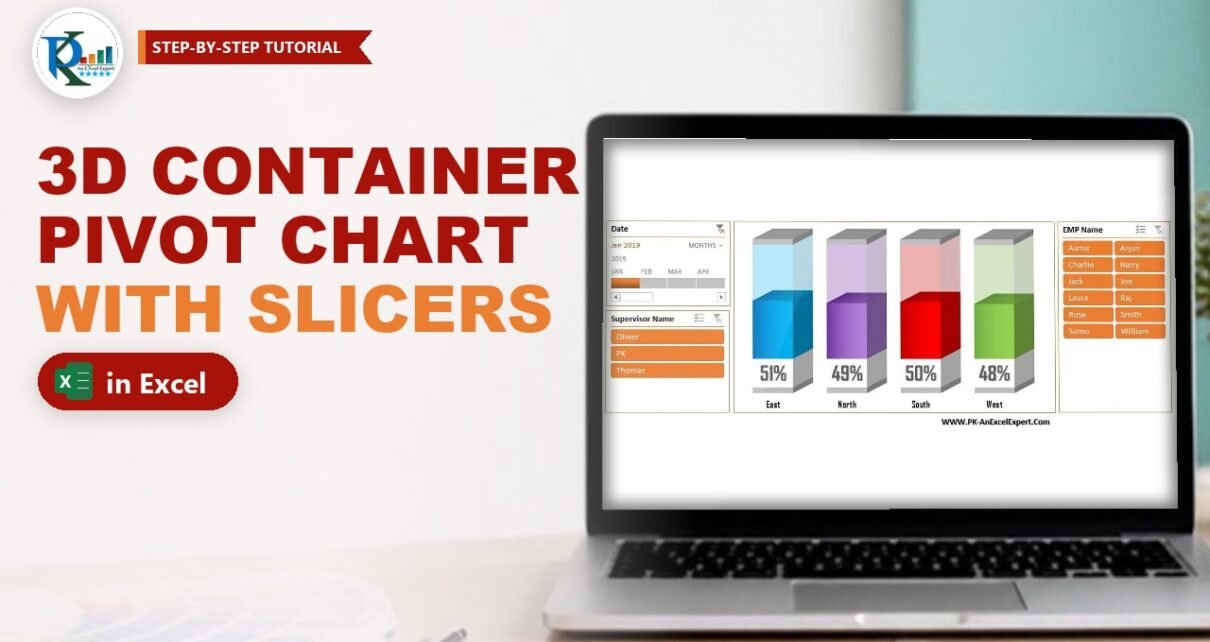
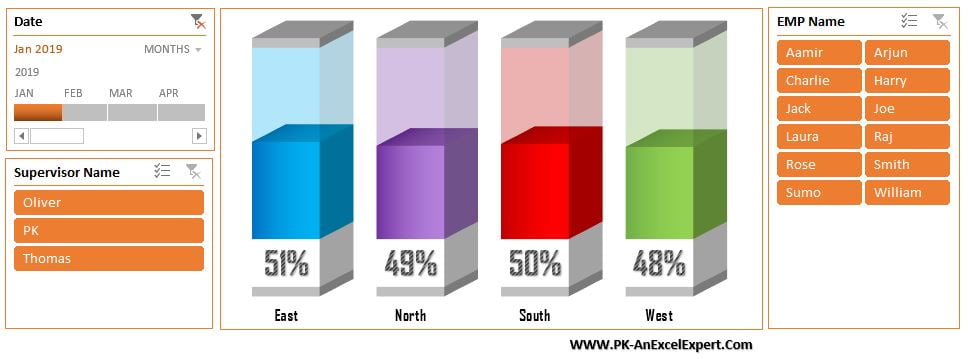
A 3D container pivot chart shows a percentage as a liquid level inside a glass-like box: the solid part is what you achieved and the see-through part is what is still missing to reach 100%. In this tutorial you build one in Excel for sales conversion by zone (sales divided by calls handled), drive it from a PivotTable with five calculated fields, and connect it to a Date timeline plus Supervisor and Employee slicers. No VBA is needed.
Watch the Video Tutorial
In the video PK builds the chart from scratch: calculated fields, the 3-D stacked column, gradient and transparent fills, data labels, then the timeline and slicers.
What You Will Build
- A PivotTable that summarises calls and sales by Zone and calculates the conversion rate itself.
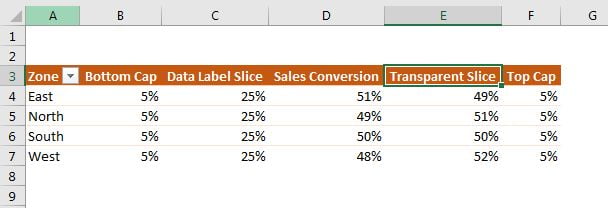
- Five calculated fields – Sales Conversion, Top Cap, Bottom Cap, Data Label Slice and Transparent Slice – that become the layers of each container.
- A 3D container chart made from a 3-D stacked column pivot chart, with grey caps, a coloured gradient “liquid” and a 70% transparent glass top.
- Big percentage labels in the white slice at the bottom of each container, using Value From Cells.
- A Date timeline and Supervisor Name and EMP Name slicers on a clean chart sheet.
The Source Data
The data sheet is a simple call-centre log with one row per employee per date. It has six columns:
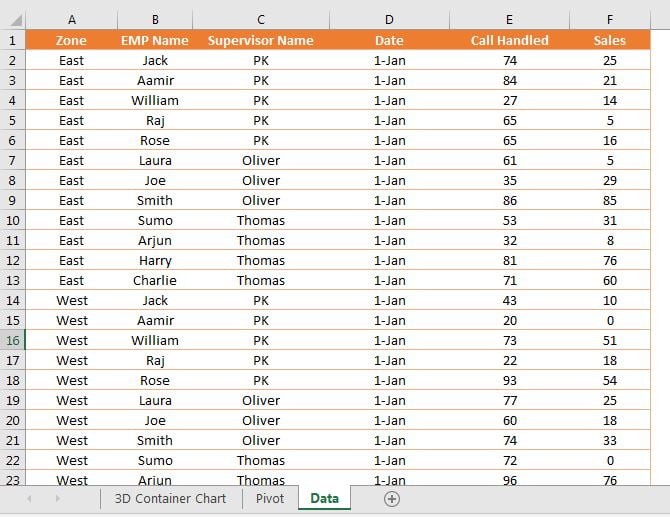
Zone becomes the chart axis, EMP Name and Supervisor Name feed the slicers, Date feeds the timeline (it must hold real dates, not text), and Call Handled and Sales are the numbers behind the conversion rate.
Part 1 – Build the PivotTable and Calculated Fields
Step 1: Insert the PivotTable
Click inside the data, go to Insert › PivotTable and place it on a new worksheet. Drag Zone into Rows. That is the only row field you need.
Step 2: Add the Sales Conversion calculated field
Sales conversion is the number of sales divided by the number of calls handled – in other words, how many calls turned into a sale. Click inside the pivot and go to PivotTable Analyze › Fields, Items & Sets › Calculated Field. Type the name Sales Conversion and build the formula by double-clicking the fields in the list:
Sales Conversion = Sales/'Call Handled'Click Add. Because a calculated field works on the summed values of each zone, you get a properly weighted rate, not an average of individual percentages.
Step 3: Add the four layer fields
In the same dialog add four more fields. Three of them are fixed sizes and one fills the container up to 100%:
Top Cap            = 5%
Bottom Cap         = 5%
Data Label Slice   = 25%
Transparent Slice  = 100%-'Sales Conversion'
Click Add after each one and then OK. All five fields now appear in the PivotTable Fields list and in the Values area.
How the layers work
- Bottom Cap and Top Cap (5% each) are the thin grey lid and base of the container.
- Data Label Slice (25%) is a white band at the bottom, tall enough to hold a big percentage label.
- Sales Conversion is the coloured “liquid”. Its height is the real result.
- Transparent Slice is 100% minus the conversion, so the liquid plus the glass above it always add up to 100%. Only the level inside changes.
Step 4: Format and tidy the pivot
- Double-click each value header to open Value Field Settings, click Number Format, choose Percentage with 0 decimal places.
- Select the headers, press Ctrl+H, and replace Sum of with nothing so the headers read Sales Conversion, Top Cap and so on.
- Right-click the pivot, open PivotTable Options › Totals & Filters and untick both grand total boxes. A grand total would add a fifth container to the chart.
Step 5: Put the values in stacking order
A stacked column draws the first value at the bottom. Drag the fields in the Values area into this order:
- Bottom Cap
- Data Label Slice
- Sales Conversion
- Transparent Slice
- Top Cap
Part 2 – Turn the Pivot into a 3D Container Pivot Chart
Step 6: Insert a 3-D stacked column chart
Select the pivot and go to Insert › Column Chart › 3-D Stacked Column. Excel creates a pivot chart with five coloured blocks per zone.
Step 7: Remove the clutter
- With the chart selected, go to PivotChart Analyze › Field Buttons › Hide All.
- Click and delete the legend, the gridlines and the vertical (value) axis.
Step 8: Colour the caps and the label slice
Select the Bottom Cap series and give it a grey fill from Format › Shape Fill; do the same for the Top Cap. Select the Data Label Slice series and fill it white. The container now has a frame.
Step 9: Give each zone its own liquid colour
Click the Sales Conversion block once to select the series, then click the East block again so only that one data point is selected. In Format Data Point › Fill:
- Choose Gradient fill, type Linear, angle 180°.
- Keep two gradient stops: a darker and a lighter shade of the same colour. To get a lighter shade, open More Colors and drag the slider up.
Now select the East Transparent Slice point, choose Solid fill with the same colour and set Transparency to 70%. That is the glass. Repeat for the other zones – the video uses blue for East, purple for North, dark blue for South and green for West.
Step 10: Close the gaps
Right-click any series, choose Format Data Series and set Gap Depth to 0, then reduce the Gap Width so the containers are nicely spaced. Make the zone names on the horizontal axis bold, a little bigger and black.
Part 3 – Show the Real Percentage as the Label
Step 11: Move the chart to its own sheet
Select the chart, press Ctrl+X, add a new worksheet (PK names it Chart), turn off gridlines in the View tab and press Ctrl+V.
Step 12: Use Value From Cells for the label
Right-click the white Data Label Slice and choose Add Data Labels. The labels show 25%, which is just the slice size – not what you want. Right-click a label, open Format Data Labels, tick Value From Cells and select the Sales Conversion values in the pivot (the four zone cells). Then untick Value. Each white band now shows the real conversion rate.
Finish the labels from the Home tab: font Agency FB, size 25 to 28, bold, then pick a pattern-fill WordArt style from Format › WordArt Styles for the stencilled look.
Part 4 – Add the Timeline and Slicers
Step 13: Insert the Date timeline
Click the pivot, go to PivotTable Analyze › Insert Timeline, tick Date and click OK. Choose a timeline style, then cut it with Ctrl+X and paste it on the Chart sheet. Clicking one month (or dragging across two or three) refilters the pivot and the containers refill immediately.
Step 14: Insert the Supervisor and Employee slicers
Back on the pivot, choose PivotTable Analyze › Insert Slicer and tick EMP Name and Supervisor Name. Cut both and paste them next to the chart. For the EMP Name slicer open Slicer › Columns and set it to 2 so the twelve names fit in a compact box. Apply one slicer style to both and give the chart border the same colour so everything matches.
Because the timeline and both slicers were created from the same pivot, they are already connected to it – and through it, to the chart.
Common Errors and Fixes
- Insert Timeline is greyed out or Date is missing. The Date column contains text. Convert it to real dates (for example with Text to Columns) and refresh the pivot. (Addition: general Excel guidance.)
- A fifth container called Grand Total appears. Turn grand totals off in PivotTable Options › Totals & Filters (Step 4).
- Labels show the wrong numbers after filtering. Value From Cells points to fixed cells. If a slicer removes a whole zone, the pivot shrinks and the labels shift. This setup works because every employee filter still leaves all four zones in the pivot; if your own data can drop a zone completely, re-select the label range after filtering or use plain value labels instead. (Addition.)
- Excel says the PivotTable field name already exists when you rename a header to exactly the field name. Replace Sum of without its trailing space, or add a trailing space to the new name. (Addition.)
Tips
- Value From Cells for data labels needs Excel 2013 or later. In older versions link each label to a cell manually.
- Keep the Top Cap, Bottom Cap and Data Label Slice values in the calculated fields – change 25% to 30% if your label font is bigger and needs more room.
- To learn more about calculated fields, see Microsoft’s guide Calculate values in a PivotTable.
Want It Ready-Made?
If you would rather start from the finished workbook, the 3D Container Pivot Chart with Slicer and Timeline template on NextGenTemplates.com is the exact file from this tutorial, and the Quick 3D Container Chart in Excel is a simpler formula-based version. You can also browse all Excel charts and visualization templates. To master pivot tables, slicers, timelines and dashboard charts step by step, join the video course Excel Pivot Tables and Dashboards.
Related Tutorials
- Calculated Fields in a Pivot Table
- How to Use Slicers in a Pivot Table
- How to Use a Timeline in a Pivot Table
- Quick 3D Container Chart in Excel
- Stylish Pivot Chart with Slicer in Excel
Frequently Asked Questions
What is a 3D container chart in Excel?
It is a 3-D stacked column chart formatted to look like a glass box. The coloured part shows the actual percentage and a transparent part fills the rest up to 100%, so each column looks like a container filled to its result.
Why are calculated fields used instead of helper columns?
Calculated fields work on the summed values after filtering. When you click a slicer or timeline, Sales Conversion is recalculated from the filtered sales and calls, and the Transparent Slice adjusts with it. Helper columns in the source data would not do that.
How do I show the real percentage instead of 25% in the label?
Add data labels to the Data Label Slice, open Format Data Labels, tick Value From Cells and select the Sales Conversion cells in the pivot, then untick Value. Step 12 shows the details.
Can I connect the timeline and slicers to more than one chart?
Yes. Any pivot chart built on the same PivotTable is filtered by its slicers and timeline. For charts on different pivots, use Report Connections on the slicer to link them.
Which Excel versions support this chart?
Timelines and Value From Cells labels need Excel 2013 or later, including Excel 2016, 2019, 2021 and Microsoft 365 for Windows.
About the Author
PK is a Microsoft Excel expert and trainer and the founder of PK: An Excel Expert and NextGenTemplates.com. He has been teaching Excel, Power Query and Power BI since 2016 on his YouTube channel.
Conclusion
A 3D container pivot chart turns a plain conversion rate into a visual that anyone can read at a glance. The whole trick is in the pivot: five calculated fields build the caps, the label band, the liquid and the glass, and a 3-D stacked column stacks them into a container. Add Value From Cells labels, a timeline and two slicers, and your chart becomes an interactive mini dashboard that refills with every click.