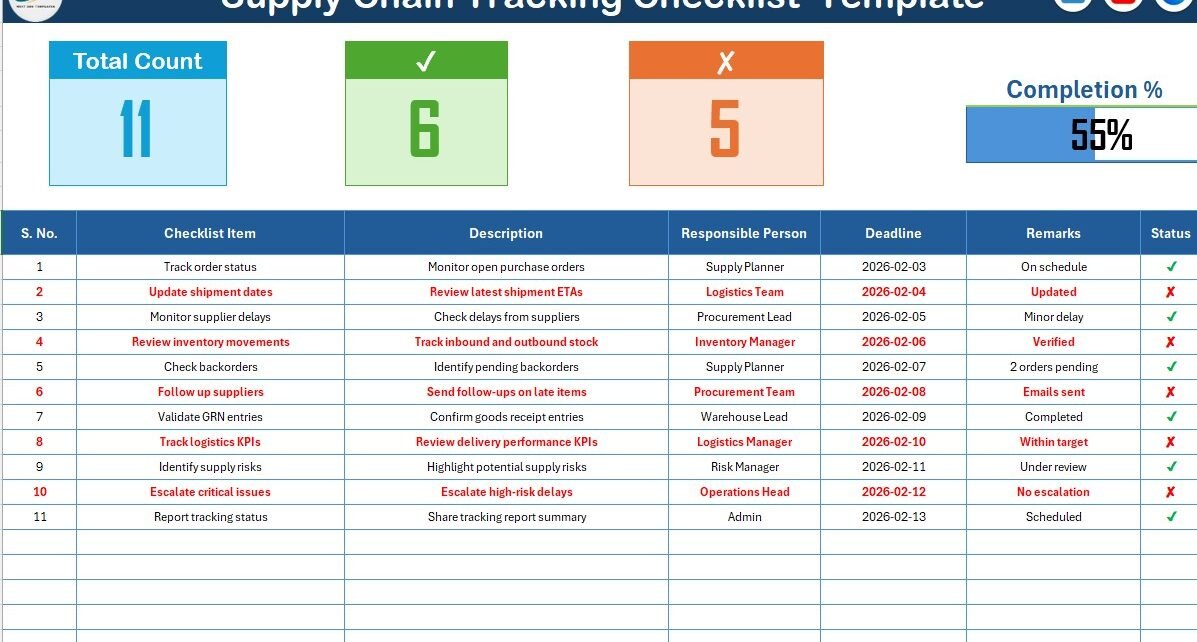
Supply chain management plays a critical role in business success. Every delay, missed task, or communication gap directly impacts costs, customer satisfaction, and operational efficiency. However, many organizations still rely on emails, manual notes, or scattered spreadsheets to track supply chain activities. As a result, teams lose visibility, miss deadlines, and struggle to measure progress.
That is exactly where a Supply Chain Tracking Checklist in Excel becomes a powerful and practical solution.
In this detailed blog post, you will learn what a Supply Chain Tracking Checklist in Excel is, why organizations need it, how it works, its structure, key features, advantages, best practices, and frequently asked questions. By the end of this article, you will clearly understand how this ready-to-use Excel checklist helps you track supply chain tasks accurately and efficiently.
Click to Purchases Supply Chain Tracking Checklist in Excel
What Is a Supply Chain Tracking Checklist in Excel?
A Supply Chain Tracking Checklist in Excel is a structured and interactive checklist template designed to track, monitor, and manage supply chain activities in a simple and organized way.
Instead of following tasks through emails or verbal updates, teams record every supply chain activity in one centralized Excel file. They then update the task status using simple ✔ or ✘ symbols.
Because Excel supports formulas, drop-downs, and visual elements like progress bars, this checklist instantly shows task completion levels and pending actions. As a result, managers gain clarity and control over daily supply chain operations.
Why Do Businesses Need a Supply Chain Tracking Checklist?
Supply chain processes involve multiple stakeholders, deadlines, and dependencies. Therefore, even a small gap can cause serious disruptions.
A Supply Chain Tracking Checklist in Excel helps because it:
-
Centralizes all supply chain tasks
-
Clearly defines responsibilities
-
Tracks deadlines and status
-
Shows progress visually
-
Improves accountability
Moreover, Excel remains familiar to most users. Therefore, teams can adopt this checklist quickly without additional training or software costs.
How Does a Supply Chain Tracking Checklist in Excel Work?
The checklist works by capturing supply chain tasks in a structured table and automatically summarizing progress at the top.
Here is how the workflow looks:
-
List all supply chain tasks
-
Assign responsible persons
-
Set deadlines for each task
-
Update task status using ✔ or ✘
-
Review progress through counts and a progress bar
Because calculations happen automatically, users always see real-time progress without manual effort.
Click to Purchases Supply Chain Tracking Checklist in Excel
What Are the Key Features of the Supply Chain Tracking Checklist in Excel?
This ready-to-use Supply Chain Tracking Checklist template includes multiple features that simplify task tracking and monitoring.
Key Highlights
-
Centralized checklist table
-
Task ownership and deadlines
-
Simple ✔ / ✘ status tracking
-
Auto-calculated counts
-
Visual progress bar
-
Drop-down for responsible persons
Each feature works together to create a clear and actionable tracking system.
What Worksheets Are Included in the Supply Chain Tracking Checklist Template?
This Excel template includes two well-designed worksheets, each serving a specific purpose.
Click to Purchases Supply Chain Tracking Checklist in Excel
1. What Is the Supply Chain Tracking Checklist Sheet?
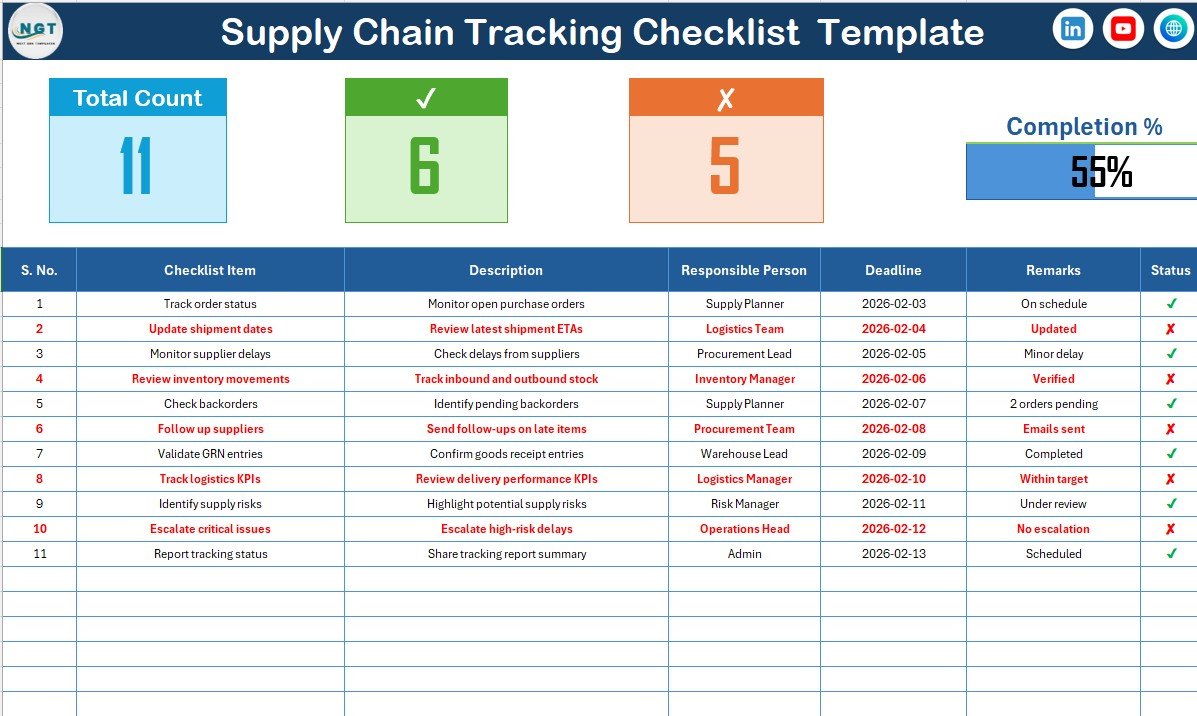
The Supply Chain Tracking Checklist sheet acts as the main working area of the template.
What Does the Top Section Show?
At the top of the sheet, you see a quick summary of checklist performance.
🔹 Total Count
This metric shows the total number of checklist items in the table.
🔹 Checked Count
This value shows how many tasks are marked as completed (✔).
🔹 Crossed Count
This value shows how many tasks remain incomplete or failed (✘).
🔹 Progress Bar for Checked %
The progress bar visually displays the percentage of completed tasks. As more tasks get checked, the progress bar fills automatically.
Because visuals communicate faster than numbers, managers can quickly understand the overall supply chain status.
What Is the Checklist Table and How Does It Work?
The Checklist Table forms the core of the Supply Chain Tracking Checklist in Excel.
Columns Included in the Checklist Table
The table includes the following structured columns:
-
Serial No. – Unique sequence number for each task
-
Checklist Item – Name of the supply chain activity
-
Description – Brief explanation of the task
-
Responsible Person – Person accountable for the task
-
Deadline – Due date for completion
-
Remarks – Notes or comments
-
Status – ✔ for completed, ✘ for pending or failed
How Do You Update the Checklist?
Users simply change the Status column to ✔ or ✘. As soon as they update the status:
-
Counts update automatically
-
Progress bar refreshes instantly
-
Overall completion percentage changes
Because of this automation, teams avoid manual tracking errors.
Click to Purchases Supply Chain Tracking Checklist in Excel
2. What Is the List Sheet and Why Is It Important?
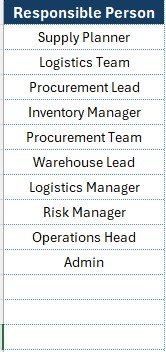
The List sheet supports the main checklist by managing dropdown values.
What Does the List Sheet Contain?
This sheet captures a unique list of Responsible Persons.
Why Does This Matter?
-
It creates a clean drop-down list in the main checklist
-
It avoids spelling errors and duplicate names
-
It keeps responsibility assignments consistent
As a result, reporting remains clean and reliable.
What Types of Supply Chain Activities Can You Track Using This Checklist?
A Supply Chain Tracking Checklist in Excel supports a wide range of activities, such as:
-
Procurement tasks
-
Supplier follow-ups
-
Inventory checks
-
Logistics coordination
-
Quality inspections
-
Documentation verification
-
Delivery confirmations
Therefore, organizations across industries can adapt this checklist to their specific needs.
Click to Purchases Supply Chain Tracking Checklist in Excel
How Does This Checklist Improve Supply Chain Visibility?
This checklist improves visibility because it:
-
Shows task status in one place
-
Highlights pending items clearly
-
Displays progress visually
-
Clarifies ownership and deadlines
As a result, managers no longer chase updates or depend on informal communication.
How Does Excel Make This Checklist More Powerful?
Excel adds power through:
-
Automatic calculations
-
Conditional logic
-
Visual progress indicators
-
Structured data entry
Because of these features, Excel transforms a simple checklist into a smart tracking tool.
Click to Purchases Supply Chain Tracking Checklist in Excel
Advantages of Supply Chain Tracking Checklist in Excel
Using a Supply Chain Tracking Checklist in Excel offers several practical benefits.
✔ Centralized Task Management
All supply chain activities stay in one structured file.
✔ Improved Accountability
Each task has a clearly assigned responsible person.
✔ Real-Time Progress Tracking
Counts and progress bars update instantly.
✔ Easy to Use
Users only change ✔ or ✘ without complex formulas.
✔ Cost-Effective
Excel eliminates the need for expensive task management software.
✔ Customizable
Teams can easily add or modify checklist items.
✔ Better Communication
Everyone works from the same source of truth.
Best Practices for the Supply Chain Tracking Checklist in Excel
To get the best results from this checklist, follow these best practices.
📌 Define Checklist Items Clearly
Write clear and specific checklist items to avoid confusion.
📌 Assign One Responsible Person Per Task
Single ownership improves accountability and follow-up.
📌 Set Realistic Deadlines
Deadlines should align with operational realities.
📌 Update Status Regularly
Frequent updates keep progress accurate and meaningful.
📌 Review the Checklist Daily or Weekly
Regular reviews help identify delays early.
📌 Use Remarks Effectively
Capture reasons for delays or special notes in the remarks column.
📌 Maintain the List Sheet Properly
Keep the responsible person list clean and updated.
Who Should Use a Supply Chain Tracking Checklist in Excel?
This checklist suits:
-
Supply chain managers
-
Operations teams
-
Procurement departments
-
Logistics coordinators
-
Warehouse managers
-
Small and mid-sized businesses
Because of its flexibility, both simple and complex operations can use it effectively.
Click to Purchases Supply Chain Tracking Checklist in Excel
How Is This Checklist Better Than Manual Tracking?
Manual tracking often causes:
-
Missed updates
-
Duplicate work
-
Poor visibility
-
Delayed decisions
In contrast, a Supply Chain Tracking Checklist in Excel:
-
Automates progress tracking
-
Improves clarity
-
Reduces errors
-
Saves time
Therefore, teams focus more on execution instead of administration.
Conclusion: Why Should You Use a Supply Chain Tracking Checklist in Excel?
A Supply Chain Tracking Checklist in Excel provides a simple, structured, and visual way to manage supply chain activities. Because it combines task tracking, responsibility assignment, and progress monitoring in one Excel file, it eliminates confusion and improves efficiency.
Moreover, its ready-to-use design allows teams to implement it immediately without setup complexity. If your goal involves improving visibility, accountability, and operational control, this checklist becomes an essential supply chain management tool.
Click to Purchases Supply Chain Tracking Checklist in Excel
Frequently Asked Questions (FAQs)
1. What is a Supply Chain Tracking Checklist in Excel?
It is an Excel-based checklist used to track supply chain tasks, responsibilities, deadlines, and completion status.
2. Can beginners use this Excel checklist?
Yes, the checklist uses simple ✔ / ✘ status updates and remains easy to understand.
3. Does the checklist show progress automatically?
Yes, counts and progress bars update automatically based on task status.
4. Can I customize checklist items?
Yes, you can add, remove, or modify checklist items as needed.
5. How does the responsible person dropdown work?
The dropdown pulls names from the List sheet to maintain consistency.
6. Is this checklist suitable for small businesses?
Absolutely. Small and mid-sized organizations benefit the most from its simplicity.
7. How often should the checklist be updated?
You should update it daily or weekly depending on activity volume.
8. Can this checklist replace project management tools?
While advanced tools offer more features, this Excel checklist provides a practical and cost-effective alternative for many teams.
Click to Purchases Supply Chain Tracking Checklist in Excel
Visit our YouTube channel to learn step-by-step video tutorials