• Excel and VBA
    • VBA Course
    • Shortcut Keys
    • Useful Formulas
    • Basic Charts
    • Advanced Chart
    • Sort and Filter
    • Pivot Table
    • Data Validation
    • Conditional Formatting
    • Auto Fill and Flash Fill
    • Find and Replace
  • DownloadsPopular
    • Excel VBA Tools
    • Dashboard
      • Excel Dashboard
      • KPI Dashboard
      • Power BI Dashboard
    • Charts
      • Progress Charts
      • Info-graphics
      • Animated Charts
      • Comparisons
      • Gantt Charts
      • Heatmaps
      • Speedometers
      • Timelines
    • Inventory Management
    • HR and Payrolls
    • VBA Automation
    • Utilities and Converters
    • Checklist
    • Calendars
    • Data Analysis
    • Excel Templates
    • Financial Tools
    • Project Management
    • Sales and Marketing
    • Productivity
  • Excel Dashboard
  • Templates
  • Tutorials
    • Charts and Visualization
    • VBA
    • Excel Tips and Tricks
  • Power BI
  • Template StoreNew
  • CoursesNew
  • About Us
  • Contact Us

PK: An Excel Expert

Transforming Data into Decisions

Home>Blogs>Dashboard>Partner Alliances Dashboard in Excel
Dashboard

Partner Alliances Dashboard in Excel

11 Feb 2026
0Comments Off on Partner Alliances Dashboard in Excel

Strategic partnerships drive growth. However, many businesses still track alliances using scattered Excel files, email reports, and manual summaries. As a result, leaders struggle to measure partner performance, revenue contribution, contract value, and customer satisfaction clearly.

So, how can you monitor all partner activities in one structured system?

The answer is simple.

You need a Partner Alliances Dashboard in Excel.

Table of Contents

Toggle
    • Click to Purchases Partner Alliances Dashboard in Excel
  • What Is a Partner Alliances Dashboard in Excel?
  • Why Do Businesses Need a Partner Alliances Dashboard?
  • Structure of the Partner Alliances Dashboard in Excel
  • 1️⃣ Overview Page – What Does It Show?
    • KPI Cards on Overview Page
    • Charts on Overview Page
  • 2️⃣ Partner Type Analysis – Which Partner Type Performs Best?
    • Charts on Partner Type Analysis
  • 3️⃣ Partnership Tier Analysis – How Do Tiers Impact Revenue?
    • Charts on Partnership Tier Analysis
    • Click to Purchases Partner Alliances Dashboard in Excel
  • 4️⃣ Industry Analysis – Which Industry Drives Growth?
    • Charts on Industry Analysis
  • 5️⃣ Month Analysis – How Does Performance Change Over Time?
    • Charts on Month Analysis
  • What Data Should You Capture in the Data Sheet?
    • Important Columns in Data Sheet:
  • Support Sheet – Why Is It Important?
  • Advantages of Partner Alliances Dashboard in Excel
  • Best Practices for the Partner Alliances Dashboard
    • Click to Purchases Partner Alliances Dashboard in Excel
  • How Can You Build This Dashboard Using Pivot Tables?
  • Who Can Benefit from Partner Alliances Dashboard in Excel?
  • How Does This Dashboard Improve ROI?
  • Conclusion
  • Frequently Asked Questions with Answers
    • Click to Purchases Partner Alliances Dashboard in Excel
    • Watch the step-by-step video tutorial:

Click to Purchases Partner Alliances Dashboard in Excel

This ready-to-use Excel dashboard helps you track revenue, leads, contract value, active alliances, and satisfaction scores in one interactive file. Moreover, it allows you to analyze performance by partner type, partnership tier, industry, region, and month — all using Pivot Tables and Pivot Charts.

In this detailed guide, you will learn:

  • What a Partner Alliances Dashboard in Excel is

  • Why businesses need it

  • A complete explanation of all 5 dashboard pages

  • What data you should track

  • Advantages of Partner Alliances Dashboard in Excel

  • Best Practices for the Partner Alliances Dashboard

  • Frequently Asked Questions with Answers

Let us explore everything step by step.

What Is a Partner Alliances Dashboard in Excel?

A Partner Alliances Dashboard in Excel is a structured performance tracking system that helps organizations monitor strategic partnerships in a clear and visual way.

Instead of reviewing raw data, you get:

  • KPI Cards

  • Dynamic Pivot Charts

  • Slicers for filtering

  • Automated summaries

  • Multi-page analysis

Because Excel supports Pivot Tables, you can build powerful analytics without complex tools. Therefore, teams can update data in the Data Sheet, and the dashboard automatically reflects changes.

As a result, decision-makers gain real-time insights without spending hours preparing reports.

Why Do Businesses Need a Partner Alliances Dashboard?

Strategic alliances influence revenue, market expansion, and customer growth. However, if you do not measure them properly, you lose control over performance.

Businesses need this dashboard because:

  • Partnerships generate significant revenue.

  • Account managers require clear performance visibility.

  • Leaders must identify high-performing partner types.

  • Companies want to monitor satisfaction levels.

  • Teams need monthly growth analysis.

Moreover, without structured tracking, you cannot compare partnership tiers or industries effectively. Therefore, this dashboard ensures complete transparency.

Structure of the Partner Alliances Dashboard in Excel

This dashboard contains 5 interactive analytical pages along with Support and Data Sheets. Additionally, a Page Navigator on the left side allows easy movement across all pages.

Let us understand each page in detail.

1️⃣ Overview Page – What Does It Show?
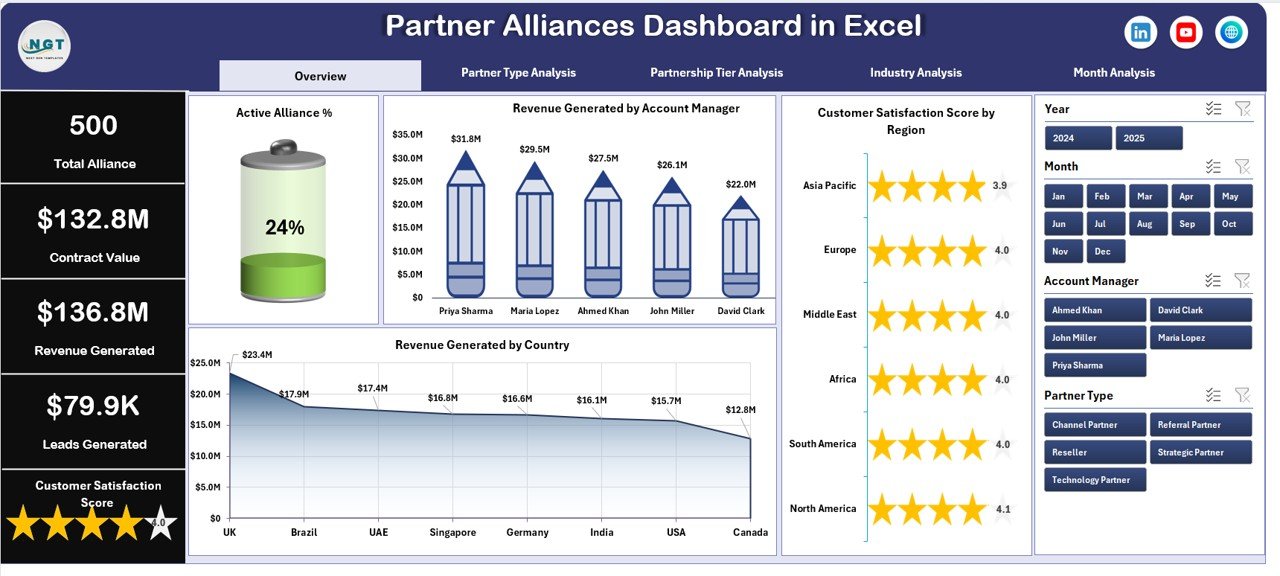
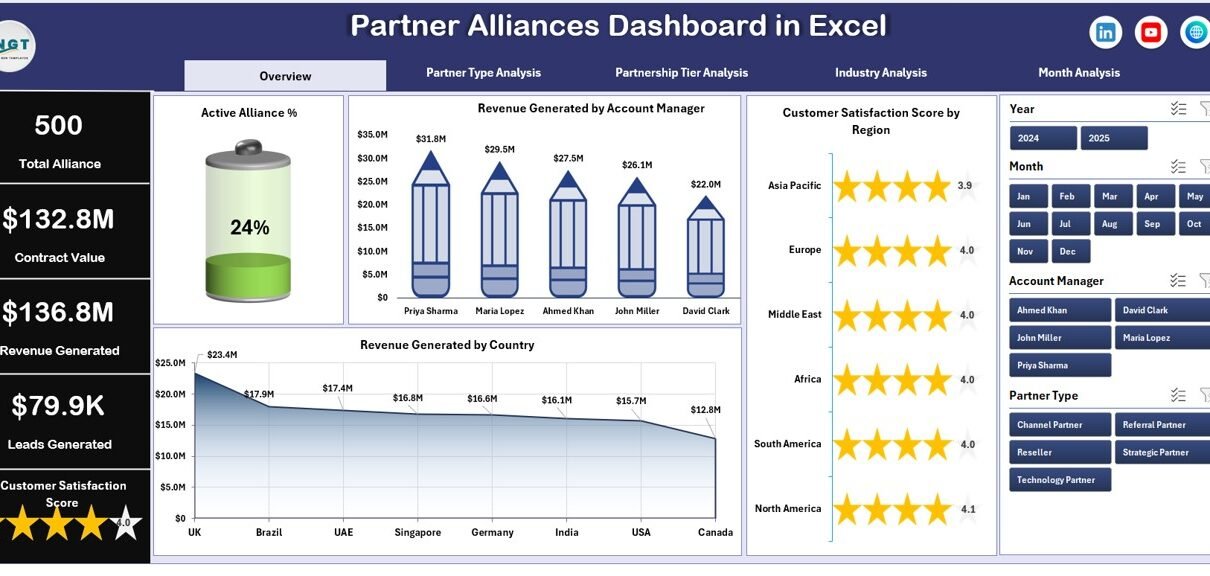
Partner Alliances Dashboard

The Overview Page acts as the command center of the dashboard.

On the right side, you will find slicers (filters). These allow you to filter data by:

  • Month

  • Region

  • Account Manager

  • Partner Type

  • Industry

KPI Cards on Overview Page

The dashboard includes 4 KPI cards, such as:

  • Active Alliance %

  • Total Revenue Generated

  • Average Customer Satisfaction Score

  • Total Contract Value

These cards provide instant insights. Therefore, executives can understand performance within seconds.

Charts on Overview Page

The page includes 4 Pivot Charts:

  1. Active Alliance %
    Shows percentage of active partnerships.

  2. Revenue Generated by Account Manager
    Helps evaluate manager performance.

  3. Customer Satisfaction Score by Region
    Identifies high-performing regions.

  4. Revenue Generated by Country
    Shows geographical revenue contribution.

As a result, leadership teams can quickly spot trends and gaps.

2️⃣ Partner Type Analysis – Which Partner Type Performs Best?
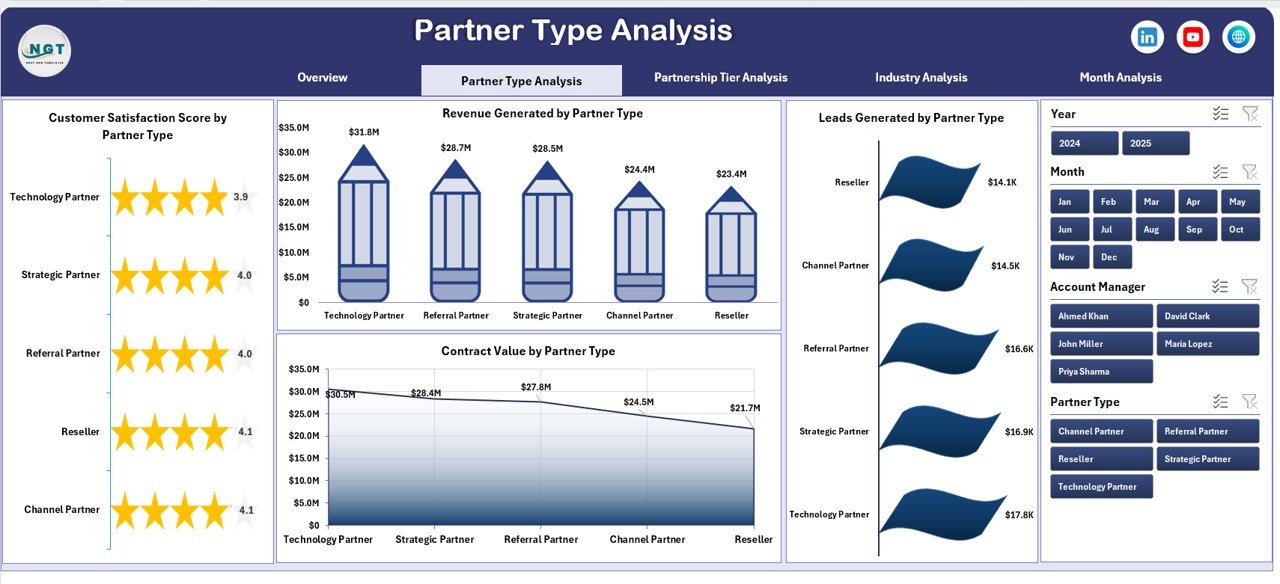
Partner Type Analysis

Not all partner types deliver equal value. Therefore, this page analyzes performance by partner category.

On the right side, slicers allow dynamic filtering.

Charts on Partner Type Analysis

  1. Revenue Generated by Partner Type

  2. Customer Satisfaction Score by Partner Type

  3. Leads Generated by Partner Type

  4. Contract Value by Partner Type

Because of this breakdown, you can identify:

  • Resellers generating high revenue

  • Technology partners driving leads

  • Strategic partners with strong contract values

Consequently, businesses can adjust partner strategies accordingly.

3️⃣ Partnership Tier Analysis – How Do Tiers Impact Revenue?
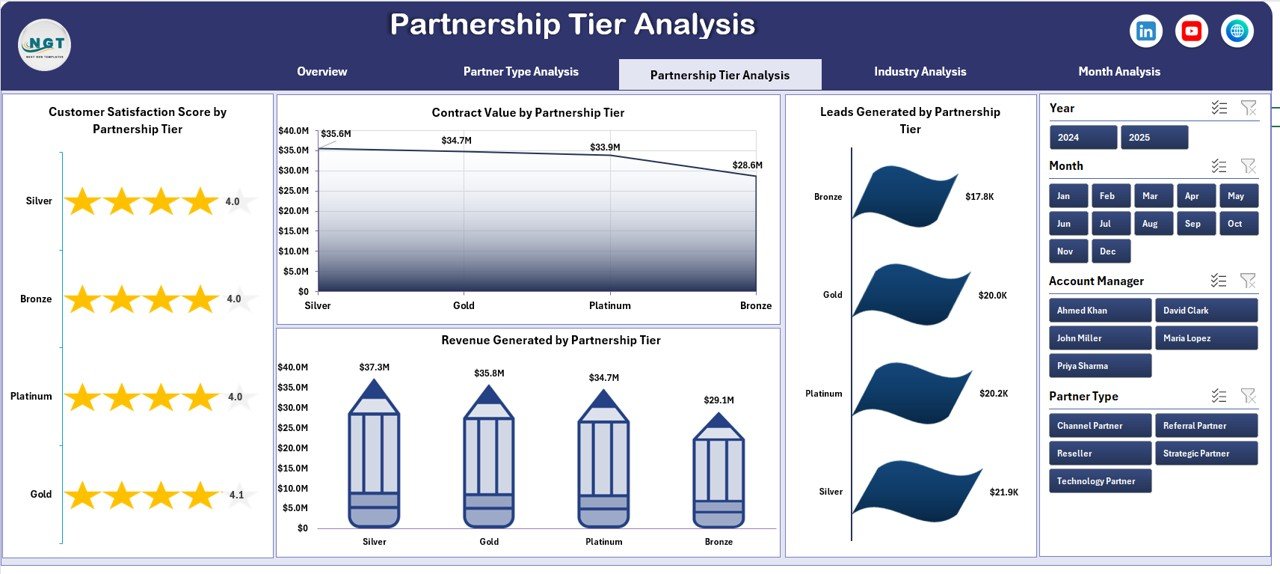
Partnership Tier Analysis

Most companies classify partners into tiers such as:

  • Platinum

  • Gold

  • Silver

  • Bronze

However, leaders often fail to analyze performance by tier. Therefore, this page solves that problem.

Charts on Partnership Tier Analysis

  1. Revenue Generated by Partnership Tier

  2. Customer Satisfaction Score by Partnership Tier

  3. Leads Generated by Partnership Tier

  4. Contract Value by Partnership Tier

This page helps you:

  • Reward top-tier partners

  • Improve low-tier performance

  • Design better incentive plans

As a result, you create a balanced partner ecosystem.

Click to Purchases Partner Alliances Dashboard in Excel

4️⃣ Industry Analysis – Which Industry Drives Growth?
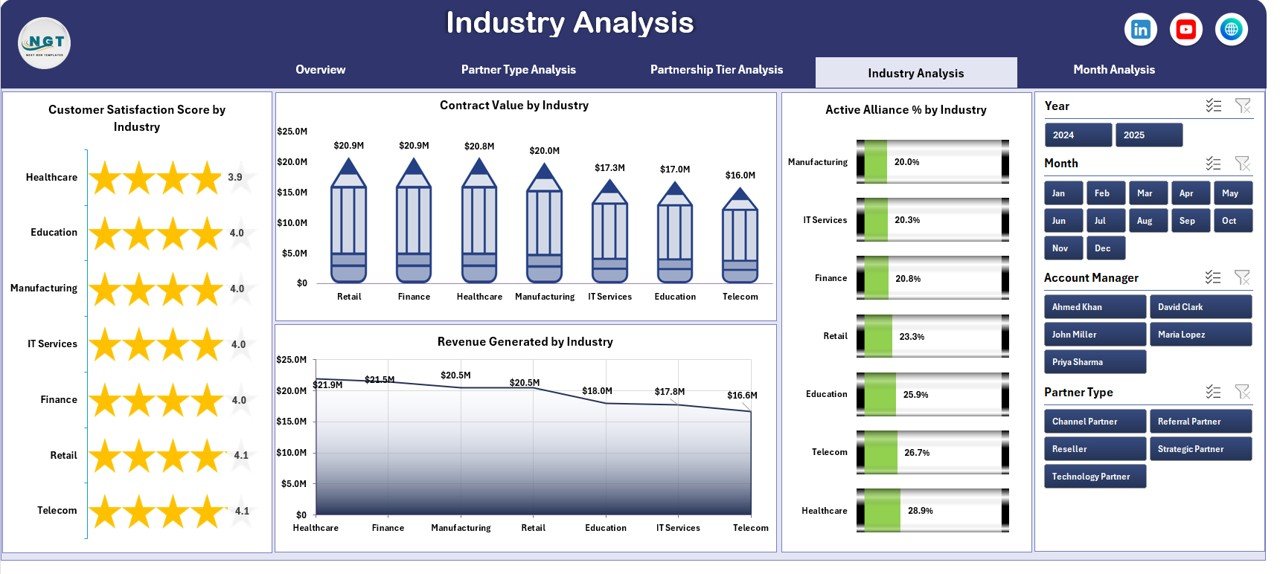
Industry Analysis
Industry Analysis

Different industries generate different levels of revenue and engagement. Therefore, this page focuses on industry-based performance.

Charts on Industry Analysis

  1. Revenue Generated by Industry

  2. Customer Satisfaction Score by Industry

  3. Contract Value by Industry

  4. Active Alliance % by Industry

Because of this analysis, businesses can:

  • Target high-performing industries

  • Improve low-engagement sectors

  • Allocate resources wisely

Thus, you build stronger market positioning.

5️⃣ Month Analysis – How Does Performance Change Over Time?
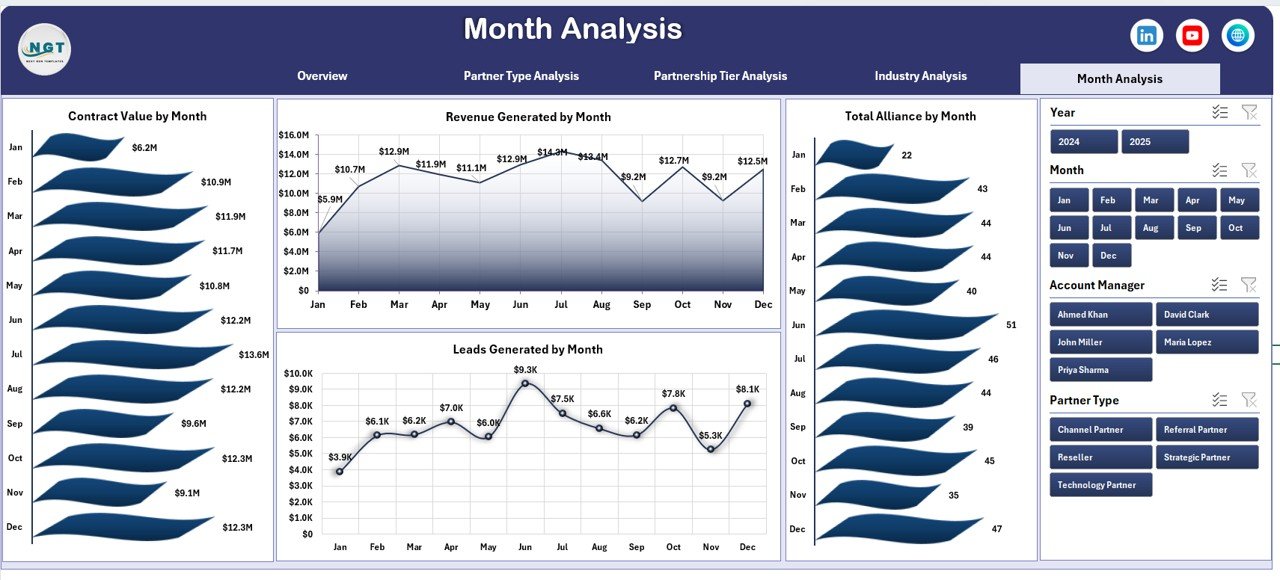
Month Analysis
Month Analysis

Growth trends matter. Therefore, this page tracks monthly performance.

Charts on Month Analysis

  1. Revenue Generated by Month

  2. Total Alliances by Month

  3. Contract Value by Month

  4. Leads Generated by Month

With this page, you can:

  • Identify seasonal growth

  • Monitor campaign impact

  • Evaluate monthly targets

As a result, you maintain steady growth tracking.

What Data Should You Capture in the Data Sheet?

The Data Sheet acts as the foundation of the dashboard. You must structure it properly.

Important Columns in Data Sheet:

  • Date

  • Month

  • Year

  • Partner Name

  • Partner Type

  • Partnership Tier

  • Industry

  • Country

  • Region

  • Account Manager

  • Revenue Generated

  • Contract Value

  • Leads Generated

  • Customer Satisfaction Score

  • Alliance Status (Active/Inactive)

Once you update this sheet, Pivot Tables refresh automatically.

Support Sheet – Why Is It Important?

The Support Sheet stores:

  • Master lists

  • Drop-down values

  • KPI definitions

  • Calculation formulas

Because of this structure, the dashboard remains clean and organized.

Advantages of Partner Alliances Dashboard in Excel

Now let us explore the key advantages.

1️⃣ Improves Decision-Making

Leaders make faster decisions because the dashboard shows visual insights instantly.

2️⃣ Saves Reporting Time

Instead of preparing monthly reports manually, you refresh Pivot Tables in seconds.

3️⃣ Enhances Transparency

Everyone sees the same numbers. Therefore, accountability improves.

4️⃣ Tracks Revenue Clearly

You identify which partners generate maximum revenue.

5️⃣ Improves Partner Management

You reward high-performing partners and support low-performing ones.

6️⃣ Supports Growth Strategy

You analyze industries, tiers, and regions effectively.

Best Practices for the Partner Alliances Dashboard

Click to Purchases Partner Alliances Dashboard in Excel

To maximize results, follow these best practices.

1️⃣ Keep Data Clean

Remove duplicates and errors before updating the Data Sheet.

2️⃣ Update Data Monthly

Regular updates ensure accurate reports.

3️⃣ Use Consistent Naming

Avoid spelling variations in partner names.

4️⃣ Protect Formula Cells

Lock dashboard formulas to avoid accidental edits.

5️⃣ Use Slicers Properly

Encourage users to filter data instead of editing charts.

6️⃣ Review KPIs Quarterly

Adjust KPIs according to business goals.

How Can You Build This Dashboard Using Pivot Tables?

Follow these steps:

  1. Create a structured Data Table.

  2. Insert Pivot Tables for each analysis page.

  3. Insert Pivot Charts for visual presentation.

  4. Add slicers for filtering.

  5. Create KPI cards using GETPIVOTDATA formulas.

  6. Design a Page Navigator using hyperlinks.

Because Excel offers flexibility, you can customize the layout easily.

Who Can Benefit from Partner Alliances Dashboard in Excel?

This dashboard helps:

  • Business Development Teams

  • Alliance Managers

  • Sales Leaders

  • Strategic Partnership Teams

  • Executives and Directors

  • Channel Sales Managers

Therefore, any organization managing partnerships can use it.

How Does This Dashboard Improve ROI?

When you track:

  • Revenue

  • Contract value

  • Leads

  • Satisfaction

You improve strategy. Consequently, you increase ROI through better partner selection and performance tracking.

Conclusion

Strategic partnerships shape business growth. However, without structured tracking, you lose visibility and control.

The Partner Alliances Dashboard in Excel solves this problem. It centralizes revenue tracking, partner analysis, industry insights, and monthly performance into one powerful system.

Moreover, it simplifies reporting, improves transparency, and supports strategic decisions.

If you want clarity, growth, and control over your alliances, this dashboard becomes your ultimate management tool.

Frequently Asked Questions with Answers

1️⃣ What is a Partner Alliances Dashboard in Excel?

It is an Excel-based performance tracking tool that monitors revenue, leads, contract value, and partner performance using Pivot Tables and charts.

2️⃣ Do I need advanced Excel skills to use this dashboard?

No. You only need basic Excel knowledge to update data and refresh Pivot Tables.

3️⃣ Can I customize the KPIs?

Yes. You can modify KPI cards and Pivot Tables according to your business needs.

4️⃣ How often should I update the data?

You should update data monthly. However, you can update it weekly if required.

5️⃣ Can small businesses use this dashboard?

Yes. Small and medium businesses can use it easily because Excel provides flexibility.

6️⃣ Does this dashboard support multi-country analysis?

Yes. The Country and Region columns allow global performance tracking.

7️⃣ Why should I use Excel instead of complex BI tools?

Excel offers flexibility, low cost, and easy customization. Therefore, many businesses prefer it for partnership tracking.

Visit our YouTube channel to learn step-by-step video tutorials

Youtube.com/@PKAnExcelExpert

Click to Purchases Partner Alliances Dashboard in Excel

Watch the step-by-step video tutorial:

Tagged account manager performance, Alliance Management, Business Analytics Excel, Channel Partner Performance, Excel Dashboard, Excel KPI Dashboard, Excel Reporting Tool, Industry Analysis Dashboard, Monthly Performance Dashboard, Partner Alliances Dashboard, Partner Revenue Tracking, Partnership Analysis, pivot table dashboard, Sales Performance Dashboard, Strategic Partnerships
PK
Meet PK, the founder of PK-AnExcelExpert.com! With over 15 years of experience in Data Visualization, Excel Automation, and dashboard creation. PK is a Microsoft Certified Professional who has a passion for all things in Excel. PK loves to explore new and innovative ways to use Excel and is always eager to share his knowledge with others. With an eye for detail and a commitment to excellence, PK has become a go-to expert in the world of Excel. Whether you're looking to create stunning visualizations or streamline your workflow with automation, PK has the skills and expertise to help you succeed. Join the many satisfied clients who have benefited from PK's services and see how he can take your Excel skills to the next level!
https://www.pk-anexcelexpert.com

Related Articles

Dashboard

Rail Passenger Transport Dashboard in Excel

December 2, 2025December 2, 2025 PK
The rail transport industry handles thousands of passengers every day. Trains run across multiple routes, ticket types vary, delays occur,
Dashboard

Shipping & Cargo KPI Dashboard in Excel

October 16, 2025October 16, 2025 PK
In today’s fast-moving logistics industry, success depends on how well you manage fleet utilization, shipping accuracy, and delivery costs. Without
Dashboard

Photography Business KPI Dashboard in Excel

December 22, 2024March 10, 2025 PK
In the fast-paced world of photography, keeping track of your business’s performance is crucial. A well-structured Key Performance Indicator (KPI)

Post navigation

Policy Advocacy Groups KPI Dashboard in Power BI
Digital Transformation Dashboard in Excel

Number of items in cart: 0

  • Your cart is empty.
  • Total: $0.00
  • Checkout

Join Our Course

  • Excel Pivot Tables for Data Analysis

Top Categories

  • Charts and Visualization (155)
  • Dashboard (2,035)
  • Excel Tips and Tricks (185)
  • Power BI (885)
  • Power Pivot (88)
  • Power Point Visualization (4)
  • Power Query (1)
  • Predictive Analytics (5)
  • Productivity (2)
  • Templates (1,256)
  • VBA (203)

Download Categories

  • Calendars (54)
  • Charts (131)
    • Animated Charts (5)
    • Comparisons (53)
    • Gantt Charts (7)
    • Heatmaps (1)
    • Info-graphics (44)
    • Progress Charts (32)
    • Speedometers (4)
    • Timelines (2)
  • Checklist (229)
  • Dashboard (513)
    • Excel Dashboard (25)
    • KPI Dashboard (366)
    • Power BI Dashboard (122)
  • Data Analysis (12)
  • Excel Templates (73)
  • Excel VBA Tools (44)
  • Financial Tools (9)
  • HR and Payrolls (19)
  • Inventory Management (6)
  • Product (9)
  • Productivity (1)
  • Project Management (15)
  • Sales and Marketing (13)
  • Utilities and Converters (6)
  • VBA Automation (27)
instant= new adsenseLoader( '#quads-ad1-place', { onLoad: function( ad ){ if (ad.classList.contains("quads-ll")) { ad.classList.remove("quads-ll"); } } });

Latest Articles

Digital Transformation Dashboard in Power BI

February 11, 2026February 11, 2026 PK

Partner Alliances Dashboard in Power BI

February 11, 2026February 11, 2026 PK

Digital Transformation Dashboard in Excel

February 11, 2026February 11, 2026 PK

Partner Alliances Dashboard in Excel

February 11, 2026February 11, 2026 PK

Policy Advocacy Groups KPI Dashboard in Power BI

February 11, 2026February 11, 2026 PK

Popular Articles

Travel Authorization Tracker in Excel

January 8, 2025February 21, 2025 PK

Human Resources Growth Metrics KPI Dashboard in Excel

April 29, 2025April 29, 2025 PK

Healthcare Compliance Sustainability Calendar in Excel

September 19, 2025September 19, 2025 PK

Marketing KPI Scorecard in Excel

October 8, 2025October 8, 2025 PK

Stylish Doughnut Charts in Excel

June 19, 2018March 8, 2025 PK

Read More about..

  • Advanced Excel
  • VBA Course
  • Dashboard
  • Chart and Visualization
  • VBA Tips
  • Excel Tips and Trics
  • Our Excel Products
  • About US
  • Contact Us


Subscribe to our Newsletter


Download Dashboards

  • Project Management Dashboard
  • Zonal Dashboard
  • Sales Dashboard
  • Outbound Dashboard
  • A Quick Dashboard
  • C-SAT Dashboard
  • Performance Dashboard
  • Process Dashboard
  • Incentive Dashboard
instant= new adsenseLoader( '#quads-ad2-place', { onLoad: function( ad ){ if (ad.classList.contains("quads-ll")) { ad.classList.remove("quads-ll"); } } });

Popular Tags

Business Analytics business intelligence checklist template Customer Satisfaction data analysis Data Analytics Data visualization Event Management event tracker Excel excel-kpi-template Excel calendar Excel Calendar Template excel checklist Excel Dashboard Excel dashboard template Excel Formula Excel KPI Dashboard Excel Template Excel Templates Excel Tips Excel tools Excel Tutorial healthcare analytics HR Analytics Info-graphics KPI Dashboard KPI dashboard Excel KPI tracking MTD YTD analysis MTD YTD dashboard MTD YTD KPIs performance dashboard Performance Metrics performance tracking Power BI Power BI dashboard Power BI KPI Dashboard Power BI Reporting Power BI reports Power BI Templates Project Management Task Management Task Tracker VBA
  • Excel and VBA
    • VBA Course
    • Shortcut Keys
    • Useful Formulas
    • Basic Charts
    • Advanced Chart
    • Sort and Filter
    • Pivot Table
    • Data Validation
    • Conditional Formatting
    • Auto Fill and Flash Fill
    • Find and Replace
  • DownloadsPopular
    • Excel VBA Tools
    • Dashboard
      • Excel Dashboard
      • KPI Dashboard
      • Power BI Dashboard
    • Charts
      • Progress Charts
      • Info-graphics
      • Animated Charts
      • Comparisons
      • Gantt Charts
      • Heatmaps
      • Speedometers
      • Timelines
    • Inventory Management
    • HR and Payrolls
    • VBA Automation
    • Utilities and Converters
    • Checklist
    • Calendars
    • Data Analysis
    • Excel Templates
    • Financial Tools
    • Project Management
    • Sales and Marketing
    • Productivity
  • Excel Dashboard
  • Templates
  • Tutorials
    • Charts and Visualization
    • VBA
    • Excel Tips and Tricks
  • Power BI
  • Template StoreNew
  • CoursesNew
  • About Us
  • Contact Us
Copyright © 2023 PK-AnExcelExpert.com - Privacy Policy
This website uses cookies to improve your user experience, analyze site traffic and serve targeted ads in accordance with our Privacy Policy ACCEPT
Privacy & Cookies Policy

Privacy Overview

This website uses cookies to improve your experience while you navigate through the website. Out of these cookies, the cookies that are categorized as necessary are stored on your browser as they are essential for the working of basic functionalities of the website. We also use third-party cookies that help us analyze and understand how you use this website. These cookies will be stored in your browser only with your consent. You also have the option to opt-out of these cookies. But opting out of some of these cookies may have an effect on your browsing experience.
Necessary
Always Enabled
Necessary cookies are absolutely essential for the website to function properly. This category only includes cookies that ensures basic functionalities and security features of the website. These cookies do not store any personal information.
Non-necessary
Any cookies that may not be particularly necessary for the website to function and is used specifically to collect user personal data via analytics, ads, other embedded contents are termed as non-necessary cookies. It is mandatory to procure user consent prior to running these cookies on your website.
SAVE & ACCEPT