Office seating logistics is one of the most under-tracked admin functions in modern workplaces. According to JLL’s 2024 Workplace Performance research, hybrid offices generate 3–7 seating-change requests per 100 employees per month — yet most teams still manage these through email threads or scattered spreadsheets. The Office Seating Arrangement Request Tracker in Excel replaces that chaos with 8 structured worksheets, a VBA-powered data entry form with full Add/Update/Delete functionality, an interactive dashboard featuring 5 charts and 4 slicers, and a built-in login system with user management — all in a one-time $6.99 Excel download.
🌍 Trusted by 8,400+ teams across 40+ countries. ✅ Instant download · One-time payment · No subscription · Works fully offline.
Click here to Purchase the Office Seating Arrangement Request Tracker in Excel
Key Features of the Office Seating Arrangement Request Tracker in Excel
The Office Seating Arrangement Request Tracker in Excel contains 8 purpose-built worksheets designed to handle the complete lifecycle of a seating request — from submission to resolution. Here is what makes it stand out:
VBA-Powered Data Entry Form: A structured UserForm launches from the Data Sheet with three buttons — Add New Record, Update Record, and Delete Record. The form uses dropdown menus populated from the List Sheet (departments, locations, priority levels, request reasons, status options), validates input before saving, and automatically refreshes the dashboard on submit. No manual row editing is needed at any step.
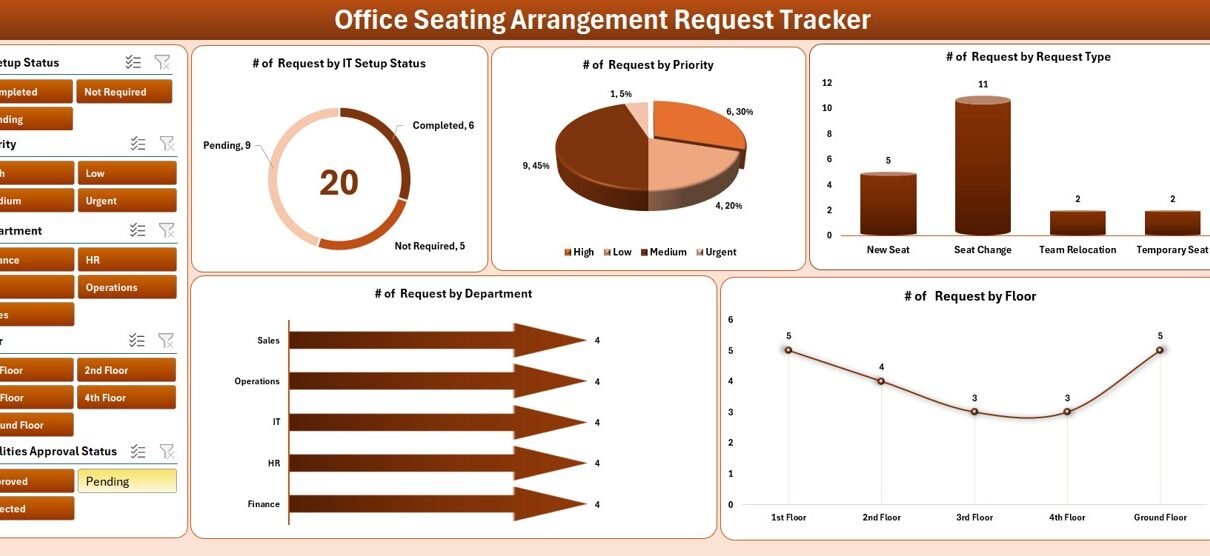
Interactive Dashboard with 5 Charts and 4 Slicers: The Dashboard sheet provides a real-time visual view of all seating requests. Five pre-built charts cover Status Breakdown (Pending, In-Progress, Completed, Rejected), Priority Distribution (Low/Medium/High/Urgent), Requests by Department, Requests by Location, and Request Reason Analysis. Four slicers — Department, Location, Priority, and Status — filter all charts simultaneously for instant data cuts without writing a single formula.
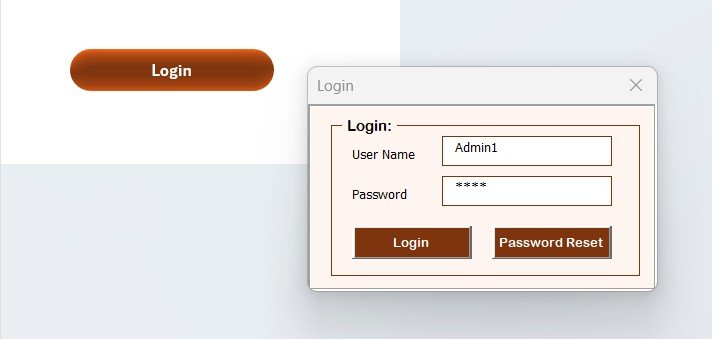
Login Form and User Management: The tracker includes a login screen before any user can access the Data Sheet or Dashboard. Administrators manage users through the User Management Sheet — adding, editing, or removing credentials without opening the VBA editor. This makes the tracker suitable for shared HR-admin environments where not every staff member should have full edit access.
Customizable List Sheet: Every dropdown in the data entry form is driven by entries in the List Sheet. Adding a new department, office location, priority level, or request reason takes seconds — just type it in the sheet and it immediately appears in the form. No VBA knowledge required.
Settings Sheet: Configure company name, date display format, and other system preferences in the Settings Sheet without touching any code.
Support Sheet: Hidden pivot tables that power the Dashboard charts sit in the Support Sheet. You never need to interact with this sheet — the VBA handles all pivot refreshes automatically after each form submission.
Dashboard and Sheets Explanation
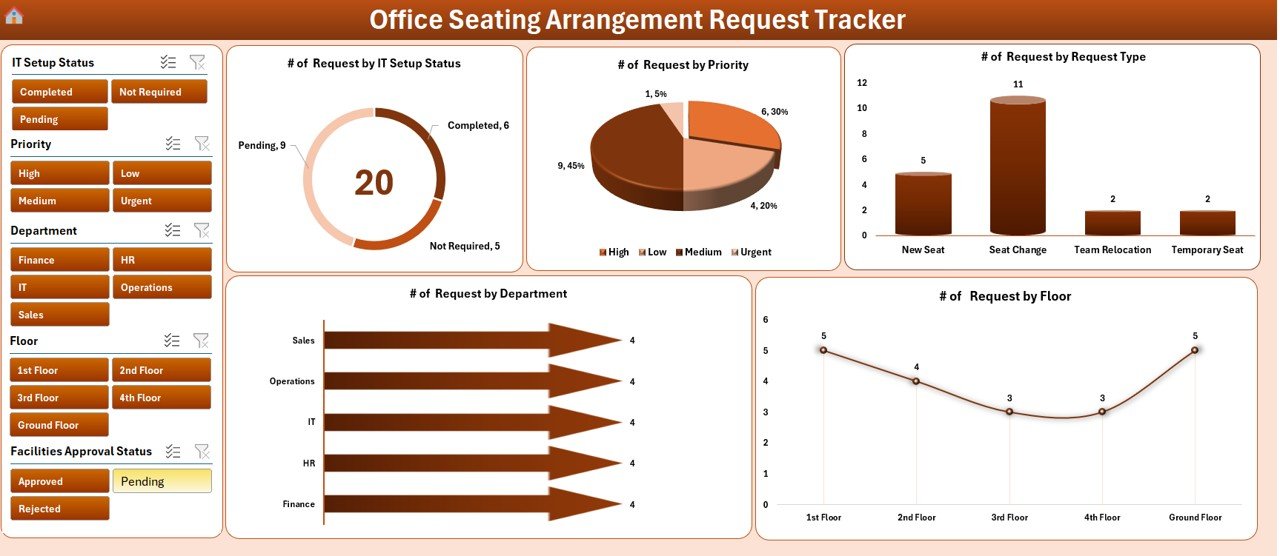
Dashboard — 5 interactive charts with 4 slicers for instant filtering
Login Form: The tracker opens to the Login Form. Users enter their credentials and, upon verification against the User Management Sheet, are granted access. Invalid login attempts are blocked automatically by the VBA code.
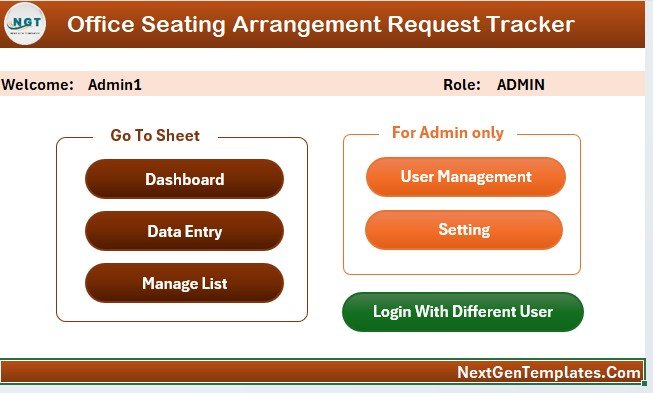
Home Page — navigation hub linking every worksheet
Home Page: A navigation hub with buttons or links to quickly jump between the Dashboard, Data Sheet, List Sheet, Settings, and User Management Sheet without scrolling through tabs.
Dashboard Sheet: The visual command center of the tracker. All 5 charts — Status Breakdown, Priority Distribution, Requests by Department, Requests by Location, Request Reason — update automatically when data is added or modified. The 4 slicers (Department, Location, Priority, Status) are positioned at the top for one-click filtering across all charts simultaneously.
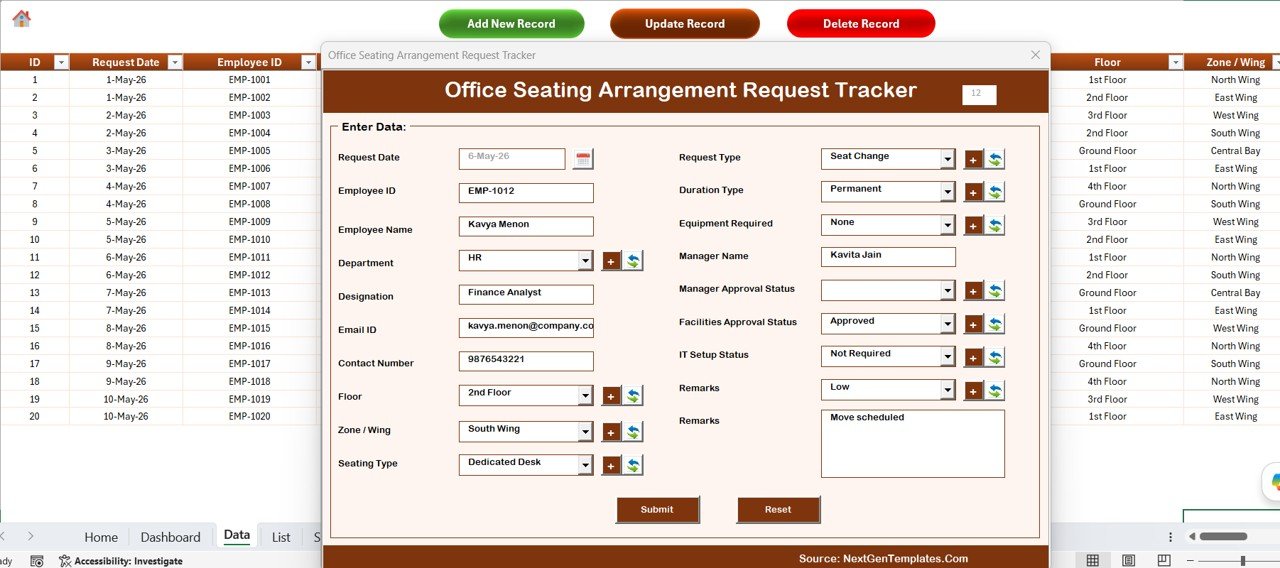
Data Sheet — Three VBA buttons control all record operations
Data Sheet: The operational core of the tracker. Each row represents one seating request with columns for Request ID, Date, Employee Name, Department, Current Location, Requested Location, Manager Name, Reason for Request, Priority, Status, Resolution Date, and Remarks. The three VBA buttons at the top — Add New Record, Update Record, Delete Record — handle all data operations through the UserForm.
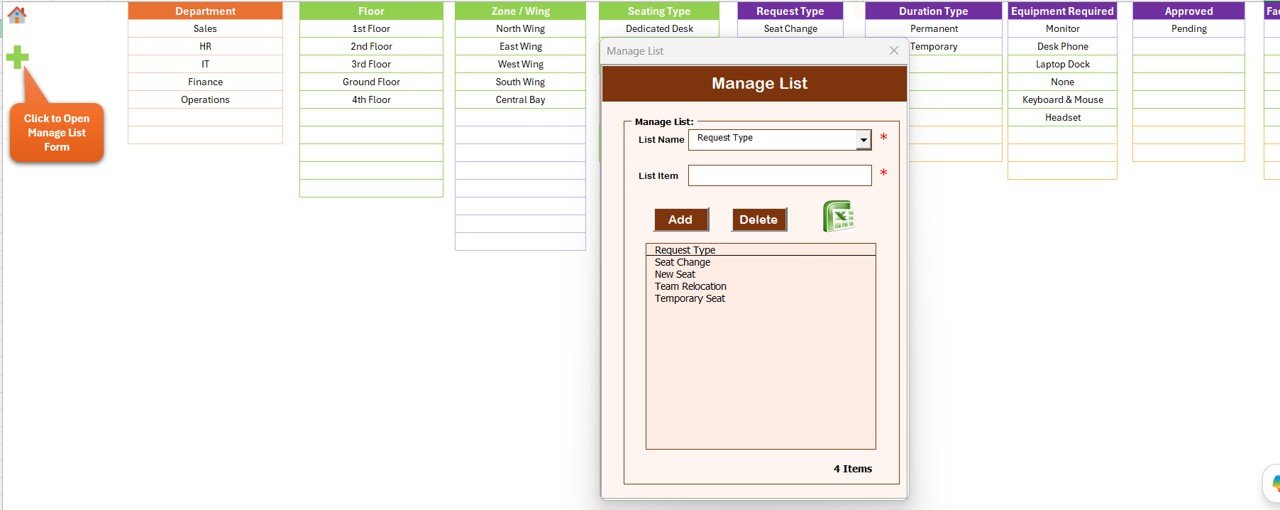
List Sheet — controls every dropdown in the VBA UserForm
List Sheet: The configuration layer. Edit columns for Departments, Office Locations, Priority Levels, Request Reasons, and Status Options to match your organization. All changes sync to the UserForm dropdowns immediately — no macro editing needed.
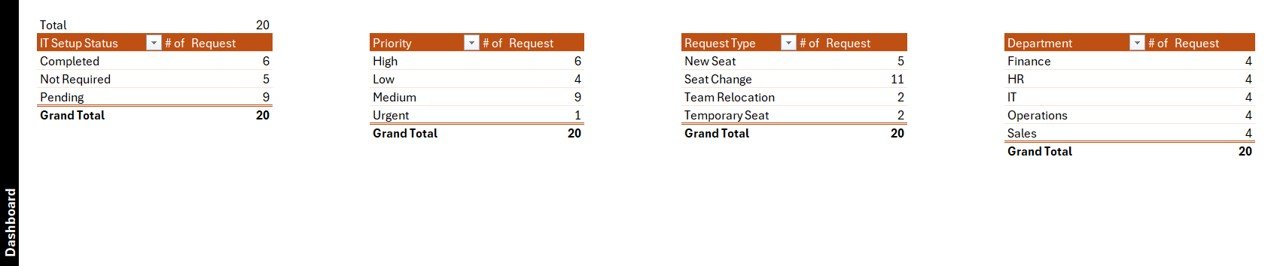
Support Sheet — hidden pivot tables that power the Dashboard charts
Support Sheet: Contains the pivot tables that feed the Dashboard charts. This sheet is best kept hidden after initial setup. The VBA refreshes it automatically on every form submission.
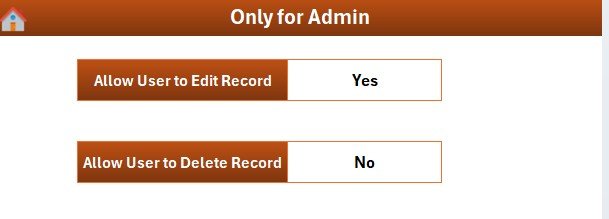
Settings Sheet — organizational preferences and date formats
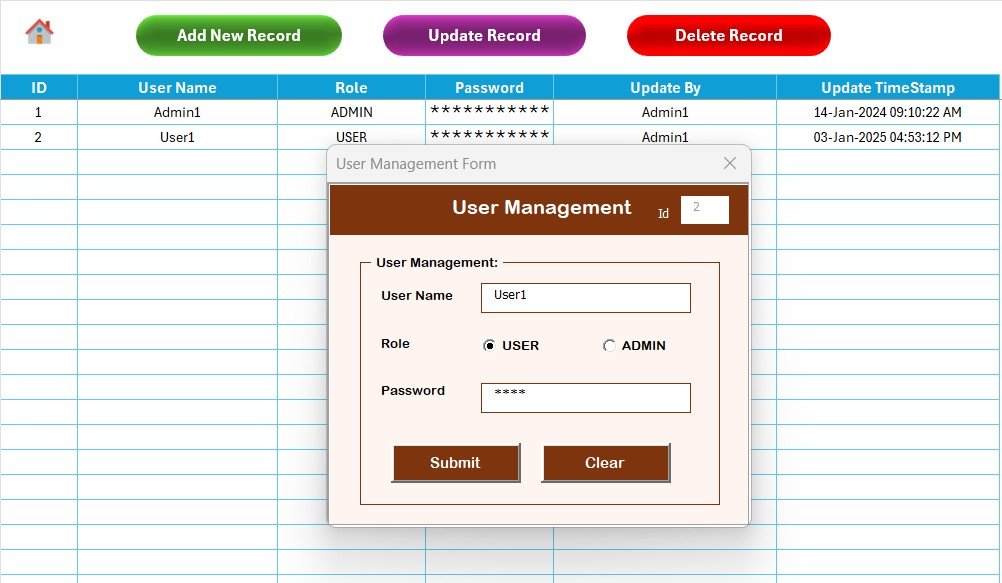
User Management Sheet — add or revoke access for authorized users
Settings Sheet and User Management Sheet: The Settings Sheet handles organizational preferences. The User Management Sheet holds all authorized user credentials and allows administrators to add or revoke access.
Office Seating Arrangement Request Tracker in Excel vs. Google Sheets vs. Robin / OfficeRnD — Feature Comparison
| Feature | Office Seating Arrangement Request Tracker in Excel | Google Sheets Seating Tracker | Robin / OfficeRnD / Eptura (Workplace SaaS) |
|---|---|---|---|
| Cost | $6.99 one-time | $0–$9.99 one-time | $2.50–$10 / desk / month |
| Platform | Microsoft Excel — offline + online | Browser only, Google account required | Cloud only |
| Setup time | Under 10 minutes | 5–10 minutes | 2–5 days onboarding + floor plan upload |
| Login & User Control | ✅ Built-in login + user management | ❌ Google sharing only | ✅ SSO + role-based access |
| Data Entry Form | ✅ VBA UserForm with validation | ❌ Manual entry or Google Forms | ✅ Web form (paid) |
| Offline access | ✅ 100% offline | ❌ Internet required | ❌ Cloud-dependent |
| Customizable dropdowns | ✅ List Sheet, no coding | ✅ Column editing | Limited by plan tier |
| Year-1 cost at 100 desks | $6.99 total | ~$0–$50 | $3,000–$12,000 |
For HR coordinators and facility admins who need structured seating request management without paying per-desk SaaS fees, the Office Seating Arrangement Request Tracker in Excel delivers the core capabilities at a fraction of the cost.
Who Should Use This Template
Perfect for:
- HR coordinators and admin officers at 20–500 person companies who receive multiple weekly seating requests during onboarding, project ramps, or department reshuffles
- Facility managers tracking hot-desk swaps, hybrid-schedule seat allocation, and dedicated-desk requests across one or several locations
- Office managers at corporate offices, coworking spaces, schools, and hospitals managing employee seat moves and workspace reassignments
- Operations teams that already run on Microsoft Excel and want to avoid $2,500+ annual subscriptions for workplace management SaaS
Not a fit if:
- Your team needs interactive floor plans, IoT desk sensors, or mobile desk-booking apps
- You require simultaneous editing by more than 10 users at the same time (consider a cloud workplace platform)
- Your organization exclusively uses Google Workspace — use the Office Seating Arrangement Request Tracker in Google Sheets instead
Real-World Use Cases
Anita runs HR-Admin at a 250-employee fintech. She receives 5–10 weekly seating requests — new hires needing desks, project teams asking to sit together, employees requesting moves away from noisy zones near the kitchen. Previously she tracked these in scattered email threads where requests were lost or forgotten. With the Office Seating Arrangement Request Tracker in Excel, each request is logged through the VBA form in under 30 seconds, assigned a priority, and her quarterly workspace review uses the department chart to show that Engineering and Sales generated 62% of all moves — prompting a permanent reshuffle to put both teams on the same floor.
Rohit manages facilities at a coworking space with 4 floors and 220 hot-desks. His 2-person admin team handles 30+ weekly seat-change requests from member companies. The Login Form ensures only authorized staff can update records, the List Sheet holds all floor zones (Quiet Zone, Collab Zone, Phone Booth Cluster, Window Row), and the priority distribution chart helps him batch-process low-priority requests every Friday instead of one-by-one — freeing up 4 hours of admin time each week.
A school operations officer switched from a paper-based seating request log to this tracker after spending 2 hours weekly reconciling handwritten staff requests across faculty rooms. The Delete Record confirmation popup replaced accidental overwriting that had previously erased a month of records. Within the first month, the Request Reason chart revealed that “noise complaints” accounted for 40% of all requests — leading to a permanent quiet-zone designation on the second floor and a 65% drop in subsequent seating complaints.
Advantages of the Office Seating Arrangement Request Tracker in Excel
The tracker eliminates the three biggest pain points of manual seating request management: lost requests (solved by the VBA form’s auto-save), data overwrites (solved by the confirmation prompt on Delete), and reporting gaps (solved by the always-refreshed 5-chart dashboard). Unlike a generic spreadsheet, the Login Form and User Management Sheet add an access control layer that most Excel trackers lack entirely. And unlike workplace SaaS tools that charge per desk, this is a one-time purchase with no ongoing cost, no internet dependency, and no seat licensing. For an HR-admin team managing 200 seats, the year-one savings can exceed $5,000 compared to a typical workplace management subscription.
Opportunities for Improvement
Like any Excel-based tool, the Office Seating Arrangement Request Tracker in Excel has some limitations worth knowing. It is designed for sequential use rather than true simultaneous multi-user access — two people editing the same file at the same time on a shared drive can cause data conflicts. For teams requiring real-time collaboration from multiple locations, a browser-based tool or the Google Sheets version is a better fit. The VBA macros also require Excel on Windows (Excel 2016 or later); Mac users will find UserForm functionality unreliable due to limited VBA support on macOS. For enabling macros in Microsoft 365, follow Microsoft’s official guidance.
Best Practices
Set up the List Sheet before logging your first request — entering all departments, office locations, priority levels, and request reasons upfront ensures the dropdown menus are accurate from day one. Use the Settings Sheet to enter your company name and preferred date format immediately after setup. Keep the Support Sheet hidden once the dashboard is working to prevent accidental pivot table disruption. Review the department workload chart monthly during HR-admin meetings and use the request reason analysis to identify systemic seating issues (noise, accessibility, team adjacency) that warrant permanent layout changes rather than one-off moves. Export the Data Sheet to a PDF quarterly for records retention and audit trails.
Explore Relevant Templates
If you prefer Google Sheets over Excel, the Office Seating Arrangement Request Tracker in Google Sheets offers the same core functionality with real-time browser-based collaboration. For tracking general office workspace allocation, the Office Space Allocation Tracker in Google Sheets is a complementary tool. For closely-related office admin workflows, see the Office Cleaning Request Tracker in Excel and the Office Safety Inspection Tracker in Excel — both share the same VBA UserForm + dashboard pattern. HR teams may also want the Employee Satisfaction Survey Tracker in Excel to measure how workspace changes affect team sentiment over time.
Frequently Asked Questions
What does the Office Seating Arrangement Request Tracker in Excel include?
The Office Seating Arrangement Request Tracker in Excel includes 8 worksheets: Login Form, Home Page, Dashboard (5 charts, 4 slicers), Data Sheet (VBA Add/Update/Delete), List Sheet, Support Sheet, Settings Sheet, and User Management Sheet. All VBA macros are included in the single .xlsm download file.
Do I need VBA programming knowledge to use this tracker?
No VBA knowledge is required. The Office Seating Arrangement Request Tracker in Excel comes fully pre-built and tested. Open it in Microsoft Excel, click Enable Content to activate macros, and begin logging seating requests immediately. Customization is limited to entering your own data in the List Sheet and Settings Sheet — no code editing needed.
Which version of Microsoft Excel is needed?
Microsoft Excel 2016 or later on Windows is required. Microsoft Excel 365 (desktop, Windows) is the recommended version. Excel for Mac is not recommended because macOS has limited support for VBA UserForms and ActiveX controls.
Can I customize the departments, locations, and priorities in the form?
Yes. Open the List Sheet and edit the entries for Departments, Office Locations, Priority Levels, Request Reasons, and Status Options. All dropdown menus in the VBA data entry form update automatically with no code changes needed. There is no limit on the number of entries you can add.
How does the Office Seating Arrangement Request Tracker in Excel compare to workplace SaaS platforms?
Workplace SaaS platforms like Robin, Tactic, OfficeRnD, and Eptura cost $2.50–$10 per desk per month, require onboarding, and depend on internet connectivity. The Office Seating Arrangement Request Tracker in Excel costs $6.99 once, runs 100% offline, and covers all core seating request logging and reporting needs for small-to-medium offices — with no recurring fees and no per-desk cost.
Is the .xlsm file safe to open?
Yes. The Office Seating Arrangement Request Tracker in Excel is a macro-enabled Excel workbook (.xlsm) built and tested by NextGenTemplates. The Enable Content prompt when opening the file is standard behavior for any macro-enabled workbook in Excel. The VBA code handles form input, data saving, and dashboard refresh — nothing else.
Can the tracker be used by multiple people at the same time?
The tracker is designed for single-user or sequential use. Multiple people can use it by saving it to a shared network folder and opening it one at a time. For simultaneous multi-user editing, the Google Sheets version supports real-time collaboration.
About the Author
Built by PK — Microsoft Certified Professional with 15+ years of Excel, Google Sheets, and Power BI experience. Founder of NextGenTemplates, reaching 300K+ subscribers across YouTube channels. Every template is hand-built and tested before release.
Conclusion
The Office Seating Arrangement Request Tracker in Excel gives HR coordinators, facility managers, and office administrators a structured, VBA-powered system to log, track, and analyze every seating request — without spreadsheet chaos or expensive workplace SaaS subscriptions. Eight dedicated worksheets, full CRUD operations through a data entry form, a 5-chart dashboard with 4 slicers, and built-in login and user management make this one of the most complete Excel-based seating request solutions available.
✅ Instant download · One-time payment · No subscription · Lifetime access
📅 Last updated: May 2026
Visit our YouTube channel for step-by-step video tutorials:
Youtube.com/@PK-AnExcelExpert