Content teams that publish consistently usually work from a written calendar, yet many small businesses still plan blog ideas in scattered notes, chats, and ad hoc spreadsheets. The result is missed publishing dates, duplicated topics, weak internal linking, and SEO work that happens too late. The Blog Editorial and SEO Calendar in Excel solves that problem with a ready-to-use 5-worksheet calendar template built for blog planning, SEO tasks, publishing deadlines, campaign dates, and daily editorial execution.
In this article we have created a Blog Editorial and SEO Calendar in Excel. This is a ready to use Calendar template in Excel. Below are the key features of this calendar.
Click here to purchase the Blog Editorial and SEO Calendar in Excel
Key Features of Blog Editorial and SEO Calendar in Excel
Click here to purchase the Blog Editorial and SEO Calendar in Excel
The Blog Editorial and SEO Calendar in Excel is designed for people who need a practical publishing calendar without paying monthly software fees. It combines annual planning, monthly execution, daily task review, and a structured event database in one Excel workbook.
- 5 connected worksheets: Home, Annual View, Monthly View, Daily View, and Events.
- Annual 12-month calendar: Plan campaigns, topic clusters, seasonal content, launches, and SEO refresh cycles across the full year.
- Monthly calendar view: Select a month and year to focus on immediate publishing activity.
- Daily date-range view: Review tasks and events for any selected start and end date.
- Events database: Store ID, Date, Day, Event Name, Time, Location, and Description for every blog or SEO activity.
- Control panel: Change the year, starting month, starting weekday, color theme, weekday highlights, and event highlighting.
- Button-based workflows: Add new events, show events, update existing records, and delete old records from the workbook interface.
In this template, we have 5 worksheets:
1. Home Sheet Tab
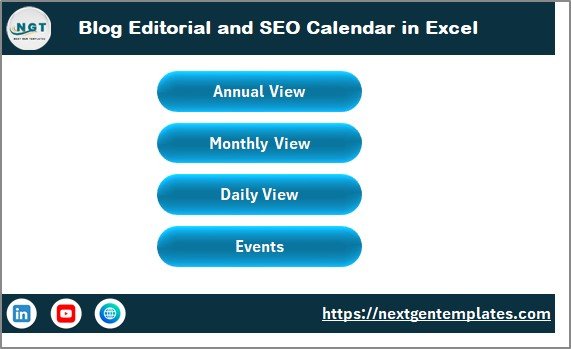
This is an index sheet where we have given 4 buttons to jump to the respective sheet: Annual View button, Monthly View button, Daily View button, and Events. For a content manager, this Home tab acts like the command center. During a planning meeting, you can jump directly to the year plan, monthly schedule, daily execution list, or database without looking for sheet tabs manually.
Blog Editorial and SEO Calendar in Excel
2. Annual View Sheet Tab
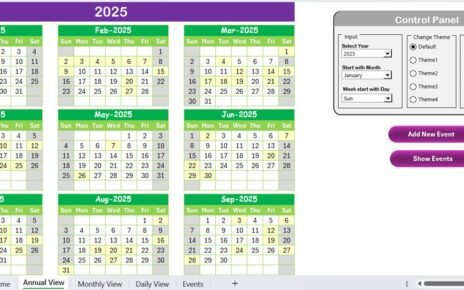
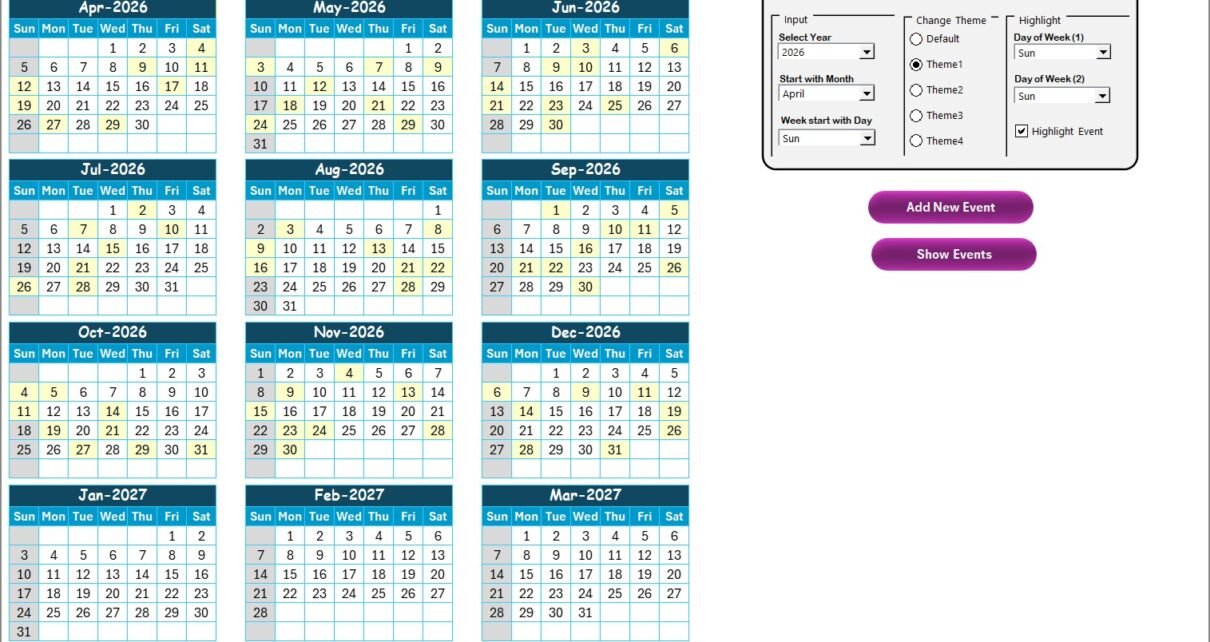
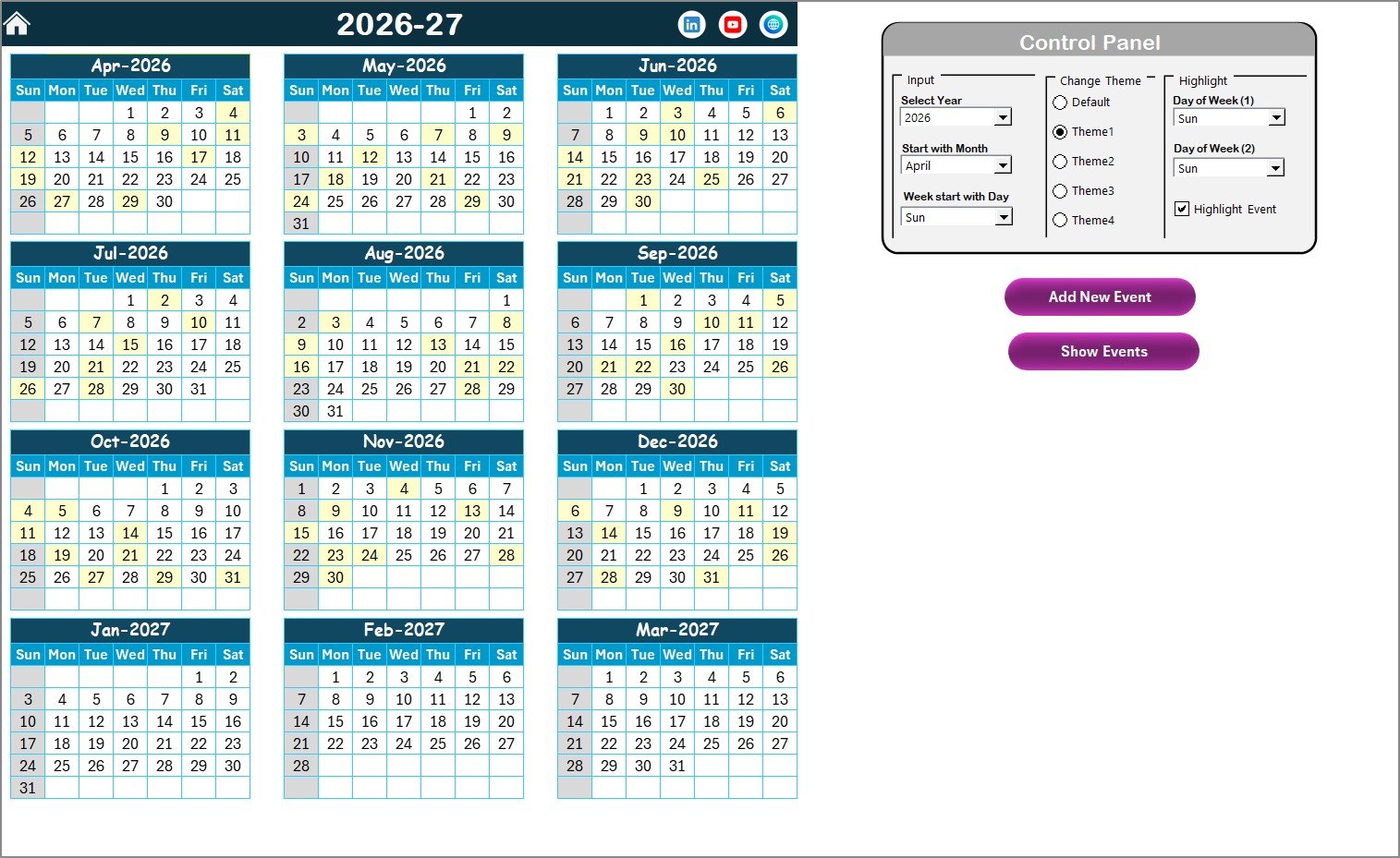
This is Annual View Sheet. Here we are showing 12 months calendars. The Annual View is the best place to map big content themes: product launches, seasonal campaigns, keyword cluster rollouts, quarterly refresh dates, affiliate content pushes, and newsletter themes.
Annual View Sheet tab
On this sheet we have given 1 control panel and 2 buttons. Below is the information:
Control panel: In this control panel, we have 3 groups: Input, Change Theme, and Highlight.
- Input group: Select the Year to change the annual calendar automatically. You can change the starting month of the calendar and the starting day of the week from here.
- Change Theme group: The workbook includes 5 color themes. Select the theme you want to apply across the whole workbook.
- Highlight group: Select Day of Week (1) and Day of Week (2) to highlight on the calendar. For example, choose Sat and Sun to highlight weekends in grey. The Highlight Event checkbox can be used to highlight events in yellow on the Annual View sheet.
Add New Event button: You can use this button to add a new event on a particular date. Select the date on the calendar and click this button. It opens the Add New Event form. Fill in the information and click Submit. The event will be added to the selected date.
Show Event button: To see the list of events on the selected date, click this button.
Download the Blog Editorial and SEO Calendar in Excel
3. Monthly View Sheet Tab
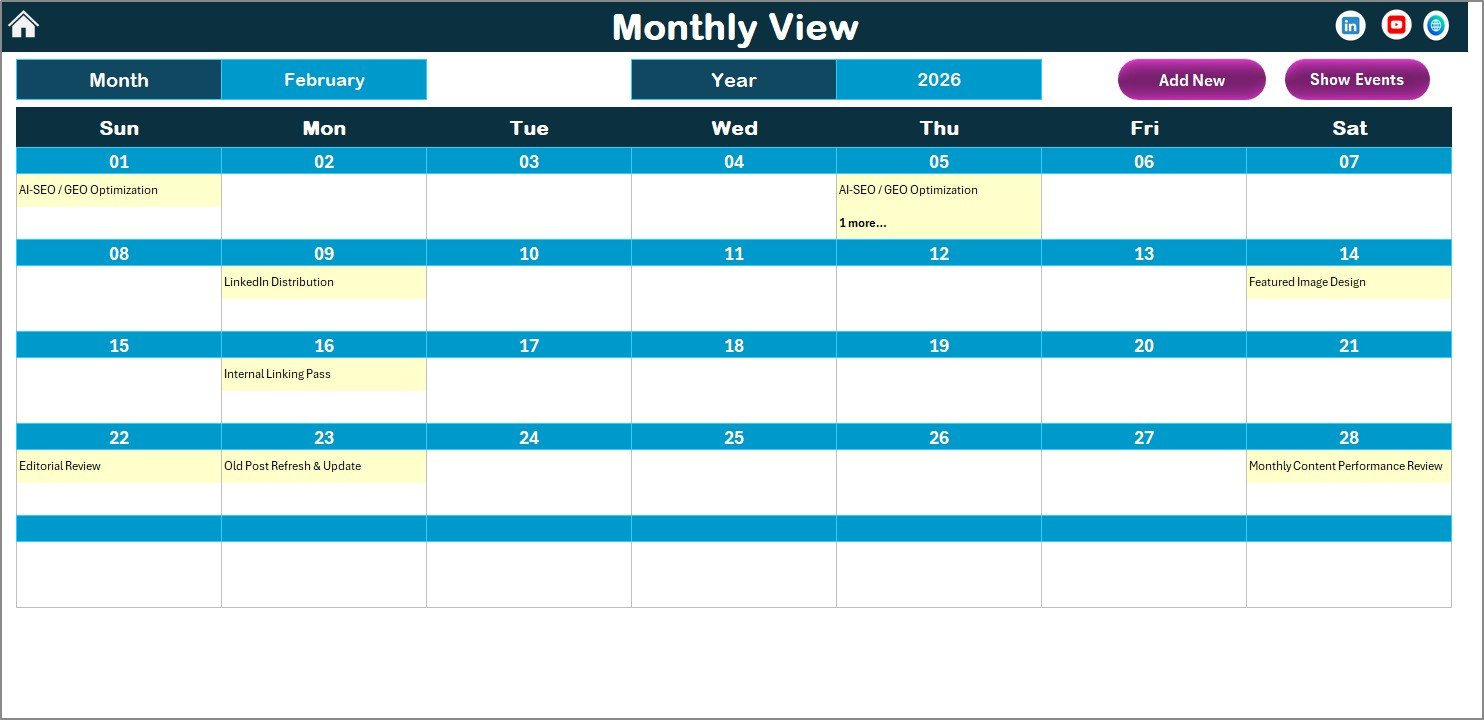
It is a single calendar for selected month. You can select the Month and Year from the top, and the calendar will show the related information. It shows 1 event on the calendar. If there is more than 1 event on any date, it will show a more than one event indicator, so you know to open the event details.
Monthly View Sheet tab
The Monthly View is useful for weekly publishing cadence. You can see whether you have too many blog posts scheduled in one week, whether SEO updates are spread evenly, and whether promotional content conflicts with evergreen content.
We have given the 2 buttons also on the top as below:
Add New Event button: You can use this button to add a new event on selected particular date. Select the date on the calendar and click this button. It will open the Add New Event form. Fill the information and submit.
Show Event button: To see the list of events on the selected date, click this button.
4. Daily View Sheet Tab
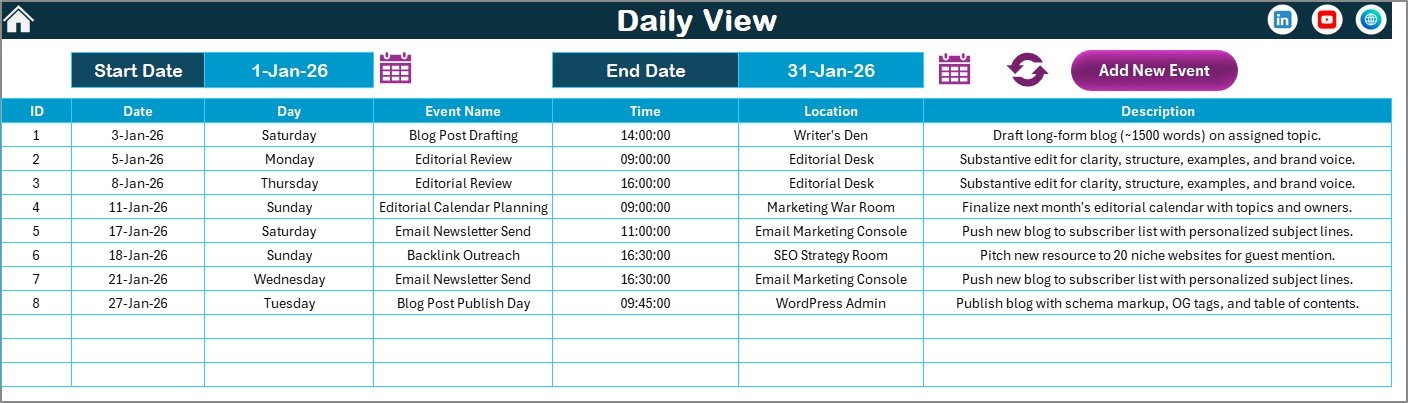
Here we are showing the list of events with details on selected date range. You can put the date range on the top as Start Date and End Date. Use the calendar icon to select the date range. Click on Refresh button to show the latest data for selected date range.
Daily View Sheet tab
The Daily View is especially useful for editorial standups. A content lead can filter the next 7 days and see what is due: keyword research, first draft, editing, image creation, WordPress upload, SEO review, internal linking, and final publish.
We have given Add New Event button on the top. You can use this button add new event. It will open the form to add the new event. Fill the information and click on the submit button.
5. Events Sheet Tab
This is the database sheet. Here, we are capturing the details of all events. We are keeping here below information:
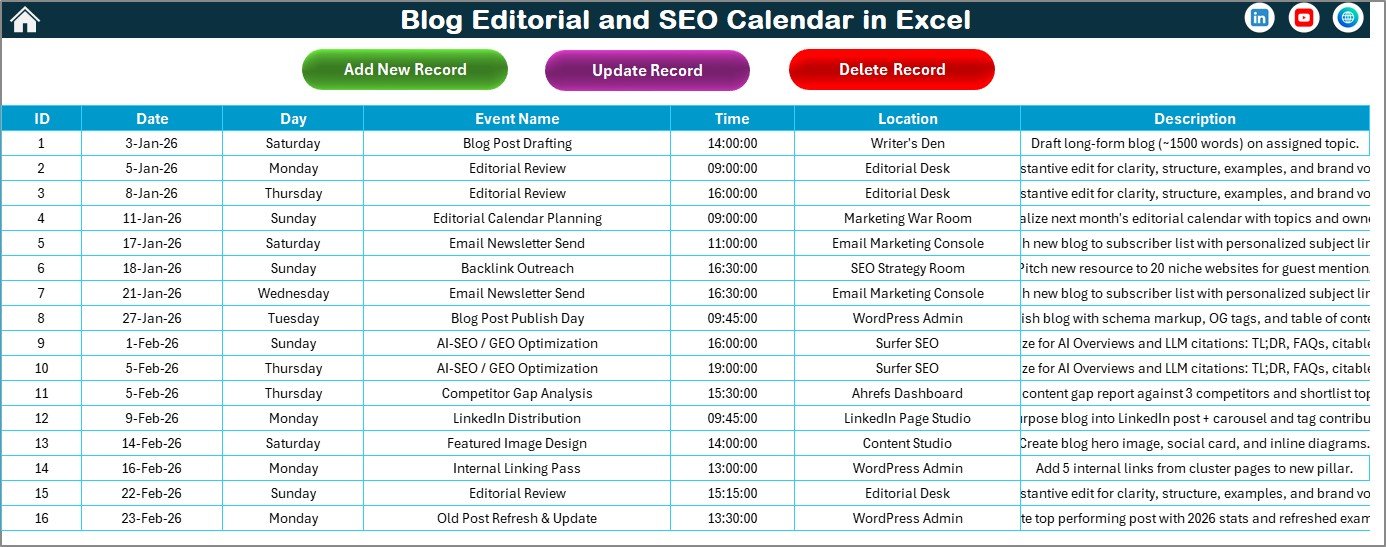
Events Sheet tab
- ID: Auto generated number.
- Date: Date of event.
- Day: Day of event such as Sunday, Monday etc.
- Event Name: Name of the event.
- Time: Time of the event.
- Location: Location of the event. For content teams, this can also be used for platform, content owner, website section, or campaign location.
- Description: Short description about event.
On the top, we have 3 buttons as given below:
- Add New Record button: Add a new event using this button. It opens the Add Event form. Fill the information and click Submit.
- Update Existing Record: Select the ID of the record that you want to update, then click this button. It opens the event form with prefilled data. Make the change and submit.
- Delete Record: Select the ID of the record you want to delete. It deletes the record of that event.
Blog Editorial and SEO Calendar in Excel vs. Google Sheets Calendar vs. Paid Content SaaS – Feature Comparison
Click here to purchase the Blog Editorial and SEO Calendar in Excel
| Feature | Blog Editorial and SEO Calendar in Excel | Google Sheets Calendar | CoSchedule / Airtable / Content SaaS |
|---|---|---|---|
| Cost | $4.99 one-time | Free if you build it yourself | $10-$49+ per user/month |
| Platform | Microsoft Excel | Google Sheets | Cloud SaaS |
| Setup time | Under 10 minutes | Several hours to design well | 1-3 hours plus onboarding |
| Annual 12-month view | Included | Manual build | Usually included |
| Monthly and daily views | Included | Manual build | Included |
| Event form workflow | Included | Requires Apps Script | Included |
| Works offline | Yes | Limited | No |
| Customizable fields | Yes | Yes | Often limited by plan |
| Year-1 cost at 5 users | $4.99 | $0 plus build time | $600-$2,940+ |
The Blog Editorial and SEO Calendar in Excel is the right fit when you need planning clarity, structured event entry, and flexible Excel ownership. It is not trying to replace enterprise content workflow software; it gives small teams a low-cost, editable calendar they can own immediately.
Who Should Use This Template
- Bloggers planning weekly or monthly article calendars.
- SEO specialists tracking keyword research, optimization, internal linking, and content refresh dates.
- Marketing teams planning blog posts, newsletters, campaign launches, and promotional content.
- Agencies managing content calendars for multiple clients.
- Small businesses that want a clear editorial process without subscription software.
- Creators who already work inside Excel and prefer an offline planning workbook.
Real-World Use Cases
Priya, SEO content manager: Priya is building a 90-day content sprint around five keyword clusters. She uses Annual View to map the campaign, Monthly View to check publishing density, and Daily View to run weekly editorial meetings.
Carlos, agency owner: Carlos creates one workbook per client. The Events sheet stores article titles, draft dates, publish dates, and reviewer names. The Monthly View gives clients a clean visual schedule during review calls.
Meera, solo blogger: Meera uses the workbook to plan blog topics, YouTube companion posts, newsletter dates, and old-post refresh reminders. She avoids monthly SaaS fees and keeps her editorial plan inside one Excel file.
Advantages of Blog Editorial and SEO Calendar in Excel
Click here to purchase the Blog Editorial and SEO Calendar in Excel
- Low-cost ownership: Pay once and use the file as often as needed.
- Excel familiarity: No new software environment for users who already know spreadsheets.
- Multiple planning levels: Annual, monthly, and daily views support strategy and execution.
- Cleaner event entry: Form-based workflows reduce messy manual row edits.
- SEO-friendly planning: Track content refreshes, internal linking, publishing, optimization, and review dates.
- Custom theme control: Five color themes help match the workbook to your preferred planning style.
Opportunities for Improvement
This template is built for planning, not publishing automation. It does not automatically publish to WordPress, push posts to social media, or manage approval workflows. If you need multi-user permissions, audit trails, comments, or direct CMS integration, a paid content operations platform may be more suitable.
Because the workbook uses event forms and button workflows, users should open it in Microsoft Excel and enable macros when prompted. Microsoft explains macro security and enablement in its official guide here: Enable or disable macros in Microsoft 365 files.
Best Practices
- Plan topic clusters quarterly in the Annual View before adding individual article dates.
- Use consistent naming for event types such as Draft, Edit, SEO Review, Publish, Refresh, and Internal Links.
- Review the next 7 to 14 days in the Daily View during weekly editorial meetings.
- Use the Events sheet as the master source of truth and avoid duplicate planning files.
- Add content refresh reminders 90 to 180 days after publishing important SEO posts.
- Use the Highlight options to mark weekends, non-publishing days, or high-priority editorial days.
Explore Relevant Templates
- Technology Marketing Remote Work Calendar in Excel – useful for campaign and remote marketing schedule planning.
- Multi-Platform Social Media Calendar in Excel – plan content across multiple social channels.
- Influencer Campaign Dashboard in Excel – analyze campaign performance after content goes live.
- Editorial Calendar in Excel – related walkthrough for a general editorial planning workbook.
- Browse the full Excel Calendar Templates library.
Frequently Asked Questions
Click here to purchase the Blog Editorial and SEO Calendar in Excel
What does the Blog Editorial and SEO Calendar in Excel include?
It includes 5 worksheets: Home, Annual View, Monthly View, Daily View, and Events. These sheets let you plan content across the year, manage a selected month, review date-range tasks, and store all event records in one database.
Is this template only for blogs?
No. It is designed for blog editorial planning, but you can also use it for SEO refreshes, newsletter schedules, campaign deadlines, product launches, and social content planning.
Does the template require Microsoft Excel?
Yes, Microsoft Excel is recommended, especially because the workbook includes button and form workflows. For best results, open it in desktop Excel and enable macros if prompted.
Can I track multiple events on the same date?
Yes. The Events database can store multiple records for the same date. The Monthly View indicates when a date has more than one event, and the Show Event button lets you review the details.
Can I change the calendar year and starting month?
Yes. The Annual View control panel allows you to select the year, starting month, and first day of the week.
Does this auto-publish to WordPress?
No. The template is a planning and tracking workbook. It helps you organize what needs to be published, when it should happen, and what tasks are attached to the publishing process.
Is it a one-time purchase?
Yes. The template is available as a one-time purchase with no recurring subscription or per-user fee.
About the Author
Built by PK – Microsoft Certified Professional with 15+ years of Excel, Google Sheets, and Power BI experience. Founder of NextGenTemplates, reaching 300K+ subscribers across YouTube channels. Every template is hand-built and tested before release.
Conclusion
The Blog Editorial and SEO Calendar in Excel gives bloggers, marketers, SEO specialists, and small agencies a practical way to organize content strategy without subscription software. With annual, monthly, daily, and database views, it supports both long-range planning and day-to-day execution. If your team needs a simple Excel-first editorial calendar for blog posts and SEO activity, this template is a strong low-cost fit.
Click here to purchase the Blog Editorial and SEO Calendar in Excel
Visit our YouTube channel to learn step-by-step video tutorials.
Last updated: May 16, 2026.