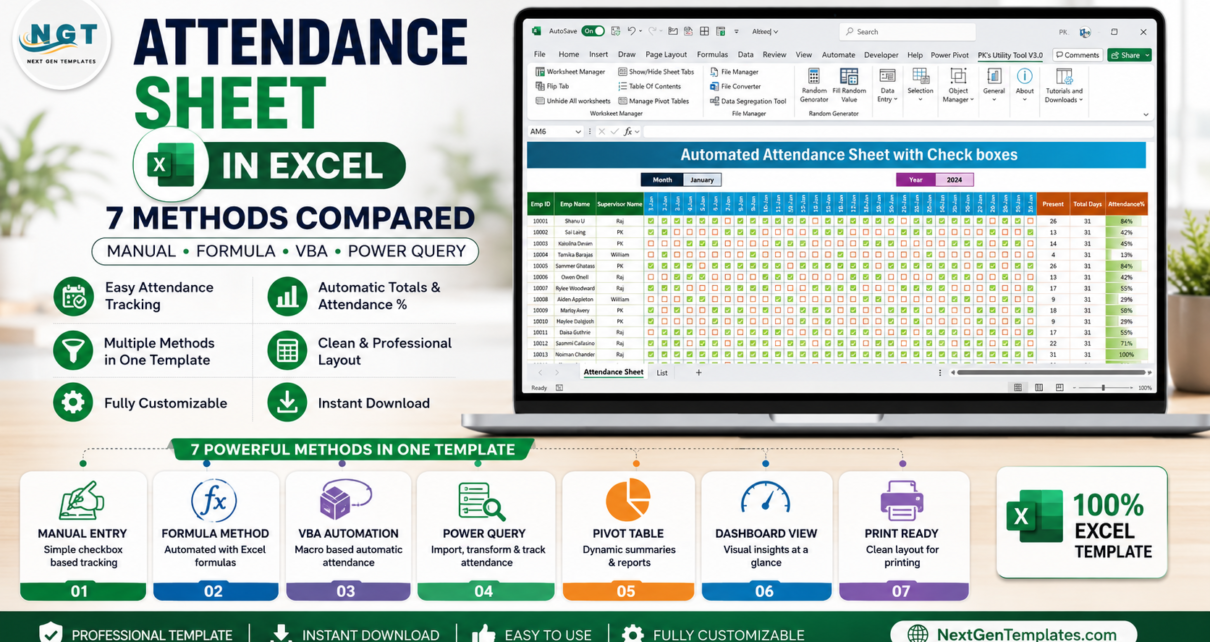
Need an attendance sheet Excel setup, but not sure whether to build it manually, with formulas, VBA, Power Query, or a ready-made dashboard? This tutorial compares seven practical ways to create an attendance tracker in Excel, from a simple checkbox sheet to an automated attendance Excel system with dashboards and refreshable reporting.Attendance Sheet in Excel
The stakes are bigger than a tidy spreadsheet. In the U.S. Bureau of Labor Statistics’ 2025 annual absence table, full-time wage and salary workers had a 3.2% total absence rate, with illness or injury accounting for 2.2%. That makes attendance tracking a real operational workflow, not just a monthly admin task. Source: BLS annual absence rates table.
Below are seven build methods, when to use each one, and the matching template variant if you want to start from a working file instead of building from scratch.
Quick Comparison: 7 Excel Attendance Methods
| Method | Best For | Automation Level | Product Variant |
|---|---|---|---|
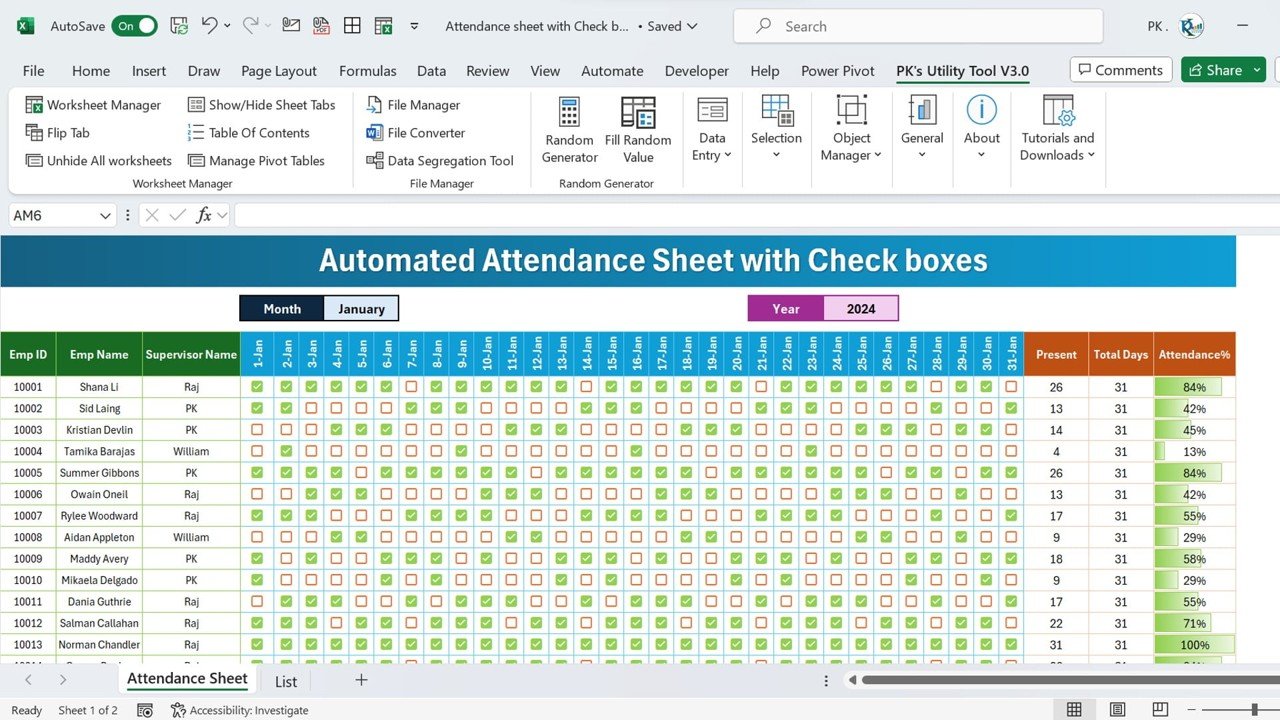
| Manual checkbox sheet | Small teams, classes, monthly roll call | Low | Monthly Attendance Sheet in Excel with Check Boxes |
| Formula-based tracker | Reusable monthly attendance with totals | Medium | Attendance Tracker in Excel |
| Automated workbook | Fast marking, summaries, and repeat use | Medium-High | Automated Attendance Sheet in Excel |
| VBA attendance manager | Forms, buttons, protected workflows | High | Smart Attendance Manager in Excel VBA |
| Power Pivot model | Large history, measures, and trend analysis | High | Dynamic Attendance Sheet Using Power Pivot |
| Event attendance system | Meetings, workshops, sessions, registrations | High | Attendance Tracking System for Events and Meetings in Excel |
| Power Query-style dashboard | Office event reporting and dashboard refreshes | High | Office Event Attendance Dashboard in Excel |
Method 1: Manual Checkbox Attendance Sheet
A manual checkbox layout is the fastest way to create an attendance sheet in Excel. You create one row per employee, student, attendee, or member, then use date columns for the month. Each cell can hold a checkbox, a symbol, or a simple status code such as P, A, L, H, or WFH.
This method works well when the attendance process is simple and the person updating the file already knows the group. It is also useful for printable sheets, classroom attendance, small office rosters, and monthly sign-off files.
Basic build steps:
- Create columns for ID, name, department or class, and month.
- Add one column per day or session.
- Use checkboxes, symbols, or short attendance codes.
- Add totals with
COUNTIF,COUNTIFS, orSUM. - Add conditional formatting so absences, leave, and late marks are easy to scan.
Use this method when you need speed and clarity more than automation. A good starting template is Monthly Attendance Sheet in Excel with Check Boxes.
Method 2: Formula-Based Attendance Tracker
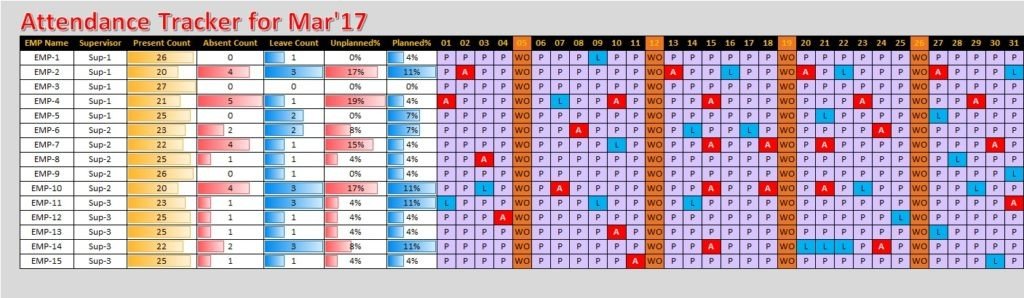
A formula-based tracker adds structure. Instead of manually counting attendance marks, Excel calculates present days, absences, leave days, late marks, total working days, and attendance percentages.
This is where an attendance formula becomes useful. Common formulas include:
=COUNTIF(range,"P")to count present days.=COUNTIF(range,"A")to count absences.=COUNTIFS(status_range,"P",department_range,"Sales")for conditional summaries.=present_days/working_daysfor attendance percentage.
For a more reliable workbook, convert your raw attendance range into an Excel Table. Microsoft explains that structured references use table and column names and adjust as data changes, which makes formulas easier to read and maintain. See Microsoft’s guide to structured references in Excel tables.
This method is best for teams that need repeatable monthly tracking without jumping straight into macros. The matching product variant is Attendance Tracker in Excel.
Method 3: Automated Attendance Excel Workbook
An automated attendance Excel workbook keeps the spreadsheet familiar but reduces repetitive work. Instead of only entering and counting marks, the workbook can include quick-entry sections, monthly summaries, status controls, and dashboard-style outputs.
Automation does not always mean VBA. Many attendance systems use formulas, data validation, named ranges, dropdowns, dynamic arrays, conditional formatting, and protected sheets. The goal is to make the correct workflow easier than the wrong workflow.
This method is useful when users update the file often and need cleaner outputs for payroll, HR, coaching, event operations, or school administration. It also reduces the risk of broken formulas because the workbook design guides the user through the entry process.
If you want an automation-first template, use Automated Attendance Sheet in Excel.
Method 4: VBA Attendance Manager
VBA is best when the attendance process needs buttons, forms, protected logic, or repeatable actions that are awkward with formulas alone. For example, a VBA attendance manager can open an entry form, validate required fields, save a record, clear the form, update summaries, and prevent users from typing into sensitive calculation areas.
Choose VBA when you need:
- User forms for data entry.
- Buttons for marking attendance, saving records, or generating reports.
- Protected sheets with controlled edit points.
- Multi-step workflows that should run the same way every time.
- A more app-like Excel experience for non-technical users.
The trade-off is maintenance. VBA workbooks need macro-enabled files, trusted locations, and careful testing after major Excel updates. If your team is comfortable with macro-enabled files, Smart Attendance Manager in Excel VBA is the corresponding template variant.
Method 5: Power Pivot Attendance Model
Power Pivot is the better choice when attendance becomes historical data instead of a single monthly sheet. A model-based workbook separates the raw attendance log from employees, dates, departments, sessions, and reporting measures.
A strong Power Pivot attendance setup usually includes:
- An attendance log table with one row per person per date or session.
- An employee or participant master table.
- A calendar table for month, quarter, week, and year analysis.
- Measures for present count, absent count, leave count, attendance rate, and trend changes.
- Pivot tables or dashboards connected to the model.
This method is ideal when you need trend analysis, departmental comparisons, or multi-period reporting. The matching template is Dynamic Attendance Sheet Using Power Pivot.
Method 6: Event and Meeting Attendance System
Event attendance is different from employee attendance. Instead of tracking daily presence, you may need events, sessions, attendees, registrations, check-ins, no-shows, departments, organizers, and post-event reporting.
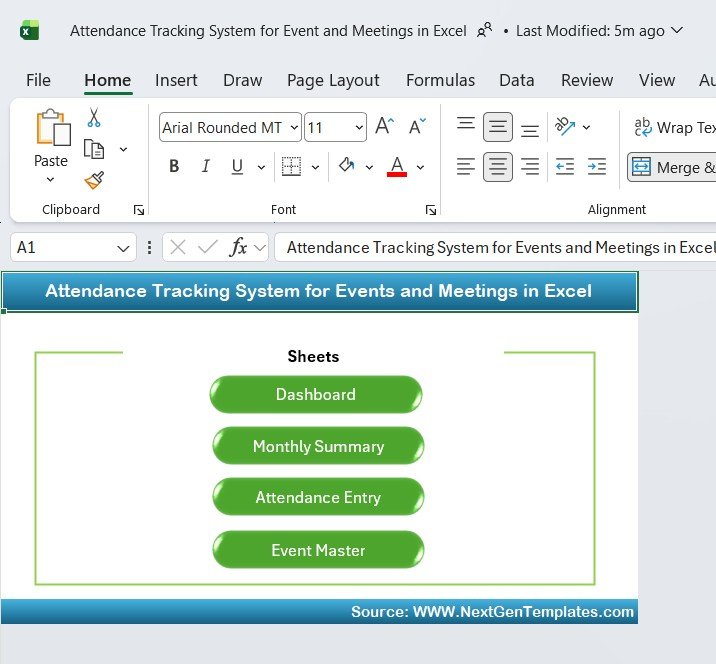
An event attendance system should include an event master table, attendee list, check-in status, session details, and summary dashboards. This structure works well for workshops, trainings, office events, conferences, webinars, recurring meetings, and community programs.
Use this approach when the key question is not “Was this person present every day?” but “Who attended which event, and what did participation look like?” For this workflow, use Attendance Tracking System for Events and Meetings in Excel.
Method 7: Power Query-Style Office Event Dashboard
Power Query is a strong option when attendance data comes from multiple files, exports, forms, or event sources. Microsoft describes Power Query as a data connectivity and preparation technology used to import and reshape data across Microsoft products, including Excel and Power BI. See Microsoft’s Power Query documentation.
For attendance reporting, Power Query can help clean names, combine monthly files, remove duplicates, standardize departments, split date fields, and prepare data for dashboards. Once the query is built, the user can refresh the report instead of repeating manual cleanup.
This method is best for office event reporting, HR analytics, recurring meeting reports, and attendance dashboards where source data changes often. The matching dashboard product is Office Event Attendance Dashboard in Excel.
Recommended Build Workflow
- Choose the attendance grain. Decide whether one row means a person-day, person-event, person-session, or person-month.
- Create master lists. Keep employee, student, attendee, department, event, and date data in separate clean tables.
- Pick an entry style. Use checkboxes, dropdowns, forms, event check-ins, or imported source data.
- Add formulas or measures. Calculate present days, absences, leave, late marks, attendance rate, and participation counts.
- Protect the workflow. Use validation, locked formula cells, and clear input areas.
- Build reporting views. Add summary tables, slicers, dashboards, charts, and month selectors.
- Review monthly. Check missing dates, duplicate records, inconsistent codes, and unusual absence patterns.
Which Method Should You Choose?
Choose the manual checkbox sheet if the file is small, temporary, or printable. Choose formulas if you want a reusable tracker with automatic totals. Choose an automated workbook if the same person updates attendance repeatedly and needs fewer manual steps.
Choose VBA when you want an app-like workflow inside Excel. Choose Power Pivot when the attendance history is large enough to analyze over time. Choose an event attendance system when the core unit is a meeting or session. Choose a Power Query-style dashboard when you need to clean and refresh source data regularly.
Explore the Template Variants
- Monthly Attendance Sheet in Excel with Check Boxes
- Attendance Tracker in Excel
- Automated Attendance Sheet in Excel
- Smart Attendance Manager in Excel VBA
- Dynamic Attendance Sheet Using Power Pivot
- Attendance Tracking System for Events and Meetings in Excel
- Office Event Attendance Dashboard in Excel
Best Practices for an Excel Attendance Sheet
- Keep one raw data table. Do not scatter attendance entries across unrelated sheets unless you have a clear consolidation process.
- Use IDs, not names alone. Names change, repeat, and get typed differently.
- Separate entry from reporting. Input sheets should be simple; dashboards should summarize.
- Standardize attendance codes. Define Present, Absent, Leave, Late, Holiday, and Work From Home before users start entering data.
- Lock formulas. Protect summary formulas and helper columns so the tracker survives daily use.
- Use validation lists. Dropdowns reduce spelling differences and reporting errors.
- Archive completed months. Keep historical files or tables clean so trends remain trustworthy.
Frequently Asked Questions
What is the best way to make an attendance sheet in Excel?
The best method depends on scale. Use a manual checkbox sheet for small groups, formulas for monthly tracking, VBA for app-like automation, and Power Query or Power Pivot for larger reporting workflows.
Which attendance formula should I use in Excel?
The most common attendance formula is COUNTIF. For example, =COUNTIF(B2:AF2,"P") counts present marks across a monthly row. Use COUNTIFS when you need multiple conditions, such as department, month, or status.
Can Excel automate attendance tracking?
Yes. Excel can automate attendance with formulas, data validation, conditional formatting, tables, Power Pivot, Power Query, and VBA. The right automation level depends on whether you need simple totals, repeatable data entry, or refreshable dashboards.
Do I need VBA for an automated attendance Excel file?
No. VBA is useful for buttons, forms, and protected workflows, but many automated attendance Excel trackers can be built with formulas, structured tables, dropdowns, and dashboard summaries.
Can Power Query be used for attendance reports?
Yes. Power Query is helpful when attendance data comes from multiple exports, forms, or monthly files. It can clean, combine, and reshape the data before it flows into Excel reports and dashboards.
Which template should I start with?
Start with Monthly Attendance Sheet in Excel with Check Boxes for a simple manual file, Attendance Tracker in Excel for formulas, or Office Event Attendance Dashboard in Excel for event reporting.
Author
Built by PK – Microsoft Certified Professional with 15+ years of Excel, Google Sheets, and Power BI experience. Founder of NextGenTemplates, reaching 300K+ subscribers across YouTube channels. Every template is hand-built and tested before release.
Conclusion
An attendance sheet in Excel can be as simple as checkboxes or as advanced as a refreshable dashboard. The safest choice is the method that matches your real workflow: daily attendance, monthly HR tracking, classroom roll call, meeting participation, or event reporting.
If you want to save build time, start with the matching template variant above and customize it to your team, school, department, or event process. For more templates and walkthroughs, visit the NextGenTemplates YouTube channel.