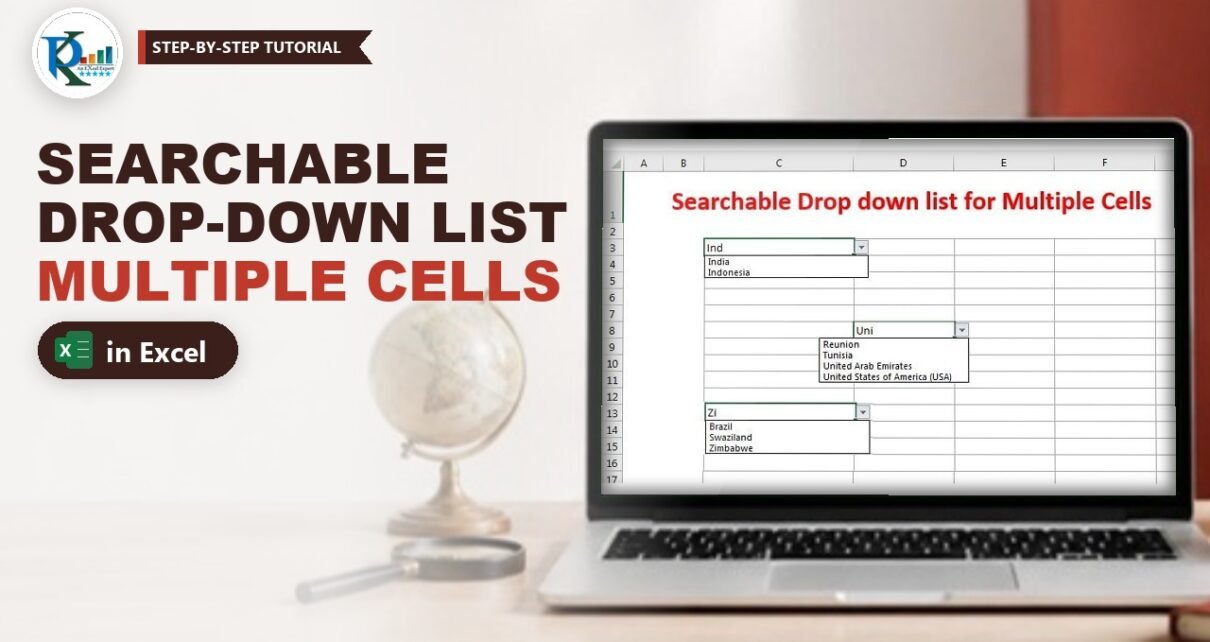
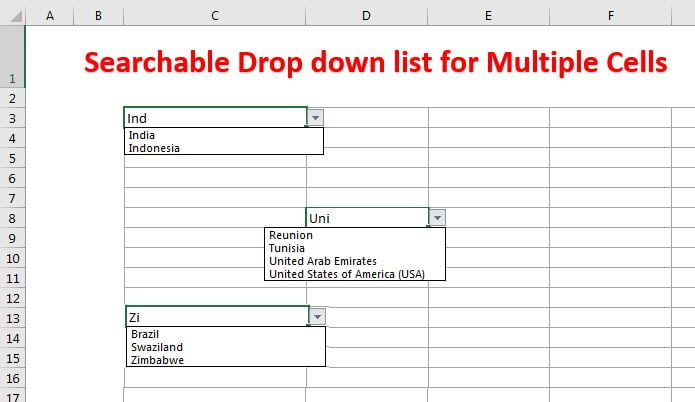
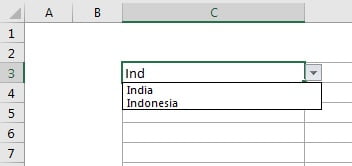
A searchable drop down list in Excel saves you from scrolling through hundreds of items to find the one you need. Type a few letters in the cell, click the drop-down arrow and only the matching items appear – type ind and you see India and Indonesia. In this tutorial you build one that works in any number of cells, even on a different sheet, using three helper columns, one dynamic named range, data validation and a two-line macro. It works in Excel 2010, 2013, 2016, 2019, 2021 and Microsoft 365.
⬇️ Download the Searchable Drop-Down File
Two-sheet workbook · .xlsm (enable macros) · Excel 2010 and later
Watch the Video Tutorial
In the video PK builds the whole thing from a blank workbook: the three helper formulas, the dynamic name, the data validation and finally the one-line macro that fixes the recalculation problem.
What You Will Build
- A country list on Sheet1 with three helper columns: Search, Frequency and Final List.
- A dynamic named range, Country_List, that grows and shrinks with the matches.
- Drop-downs on a whole range (C3:I20 on Sheet2) that all use the same list.
- Contains-search: uni finds United Arab Emirates but also Reunion and Tunisia.
- A tiny macro that recalculates the list every time you select a cell.
How the Searchable Drop Down List in Excel Works
The trick is that the drop-down source is not a fixed list. The helper formulas read whatever is typed in the active cell, keep only the countries that contain that text and stack them at the top of column D. The named range then picks up exactly those rows. So every cell with the drop-down shows a list filtered by its own keyword.
Part 1 – Prepare the List and Helper Columns
Step 1: Enter the source list
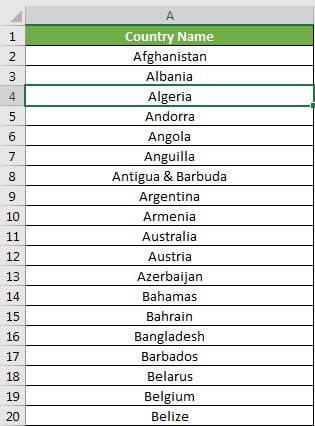
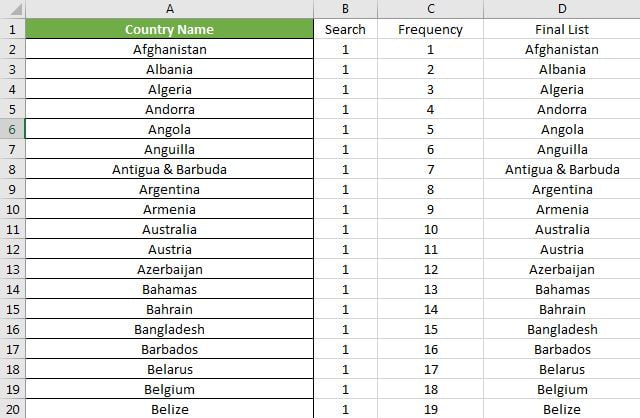
On Sheet1 put the header Country Name in A1 and the countries from A2 down (the download file has 198 countries in A2:A199). Add three more headers: Search in B1, Frequency in C1 and Final List in D1.
Step 2: Search column (B2)
=IFERROR(SEARCH(INDIRECT(CELL("address")),A2),0)CELL("address")without a reference returns the address of the active cell as text, for example$C$3. Excel updates it when the sheet calculates.INDIRECT(...)turns that text into a real reference, so the formula reads the keyword you typed in that cell.SEARCH(keyword,A2)returns the position of the keyword inside the country name (not case-sensitive). ind in India returns 1.IFERROR(...,0)returns 0 when the keyword is not found.
When the active cell is empty, SEARCH finds the empty text at position 1 for every row, so the full list appears.
Step 3: Frequency column (C2)
=IF(B2=0,"",COUNTIF($B$2:B2,">0"))For every match this gives a running number 1, 2, 3 and so on, and a blank for rows that do not match. The first $B$2 is locked and the second B2 is not, so the counted range grows as you fill down.
Step 4: Final List column (D2)
=IFERROR(INDEX(A:A,MATCH(ROW(B1),C:C,0)),"")ROW(B1) returns 1 in D2, 2 in D3 and so on. MATCH finds that running number in the Frequency column and INDEX returns the country on the same row. The result is a clean list of matches at the top of column D with no gaps. When the numbers run out MATCH fails and IFERROR shows a blank.
Fill B2:D2 down to the last row of your list.
Part 2 – Create the Dynamic Named Range
Step 5: Define the name Country_List
Go to Formulas › Define Name. In the New Name window enter the name Country_List, keep the scope as Workbook and type this in Refers to:
=OFFSET(Sheet1!$D$2,,,COUNTIF(Sheet1!$D:$D,"*?")-1)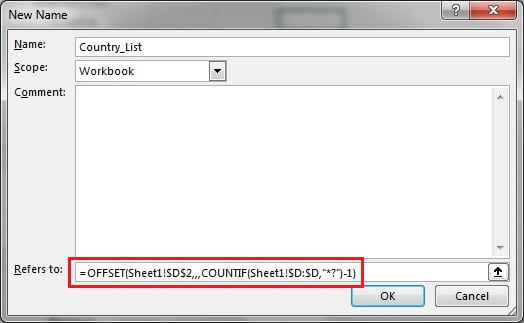
How the formula works: COUNTIF(Sheet1!$D:$D,"*?") counts the cells in column D that contain at least one character. The empty strings returned by IFERROR are not counted, but the header Final List is, so you subtract 1. OFFSET starts at D2 and makes the range exactly that many rows tall. Type ind and Country_List becomes D2:D3 (India and Indonesia).
Part 3 – Add the Drop-Downs to Many Cells
Step 6: Select the target range
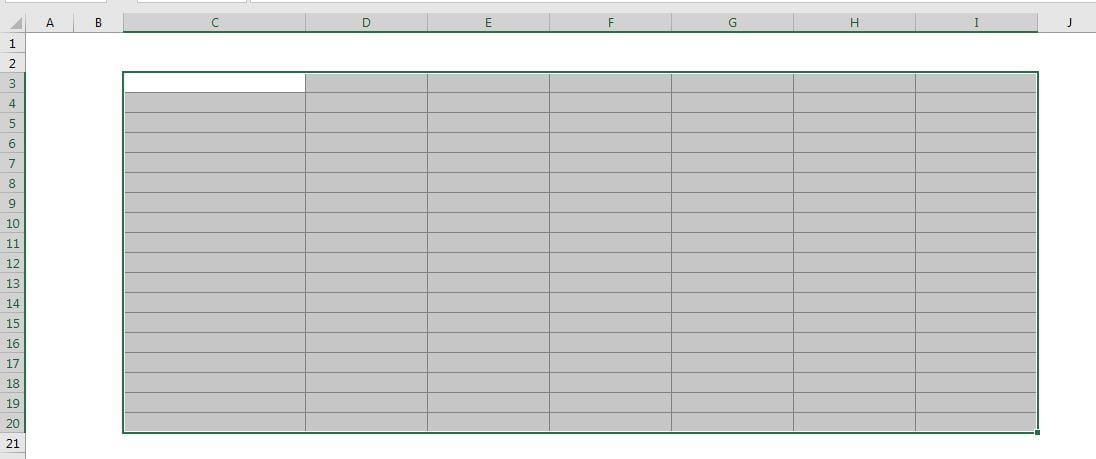
Go to Sheet2 and select every cell that should get a searchable drop-down. In the example that is C3:I20.
Step 7: Apply the data validation list
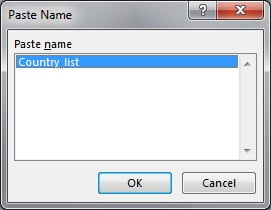
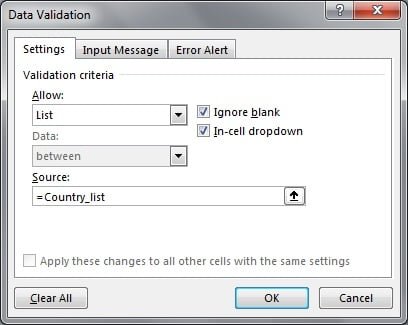
Open Data › Data Validation (shortcut Alt+D+L). On the Settings tab choose List in Allow, click in the Source box and press F3 to open the Paste Name window. Pick Country_List and click OK. You can also simply type =Country_List in the Source box.
Step 8: Turn off the error alert
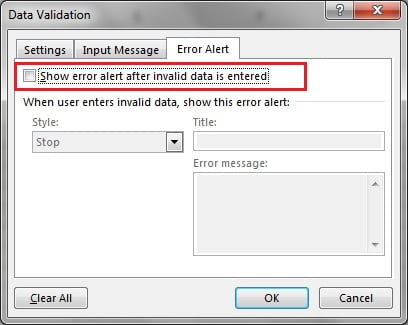
Stay in the dialog and open the Error Alert tab. Untick Show error alert after invalid data is entered and click OK. This step is essential: your keyword, such as ind, is not in the list, and with the alert on Excel would reject it before you can search.
Part 4 – Add the Recalculation Macro
Step 9: Recalculate on every selection
CELL("address") only updates when Excel calculates. Without help, the list in a cell can still show the matches of the keyword you typed last somewhere else. In the video PK types Zim in one cell and UK in another, goes back to the Zim cell and still sees UK countries until he clicks Calculate Now. A two-line macro fixes that.
Press Alt+F11, double-click Sheet2 (the sheet with the drop-downs) in the Project window and paste:
Private Sub Worksheet_SelectionChange(ByVal Target As Range)
Application.Calculate
End Sub
Now each time you select a cell on Sheet2, Excel recalculates, CELL(“address”) points to that cell and the list matches its keyword. Save the workbook as Excel Macro-Enabled Workbook (*.xlsm).
Step 10: Use it
Click a cell with no text and open the arrow: you see the complete list. To search, type a keyword such as ind, press Enter, click the same cell again and open the arrow – only India and Indonesia remain. Pick one and the keyword is replaced by the full name.
Modern Excel Alternative (Addition)
This is general guidance, not part of the original file. In Excel 2021 and Microsoft 365 you can replace columns B to D with one spilling formula in D2 and change the Country_List name so it refers to the spill range, =Sheet1!$D$2#. The drop-downs keep using =Country_List as their source:
=FILTER(A2:A199,ISNUMBER(SEARCH(INDIRECT(CELL("address")),A2:A199)),"")The selection macro is still needed for the multi-cell version. Microsoft has also started adding search-as-you-type to ordinary drop-down lists in Excel for the web and newer Microsoft 365 versions. If your Excel already filters a plain drop-down while you type, you may not need the helpers at all.
Common Errors and Fixes
“This value doesn’t match the data validation restrictions”
The error alert is still on. Select the drop-down cells, press Alt+D+L and untick the option on the Error Alert tab.
The list shows matches for a different keyword
The sheet has not recalculated. Check that the macro is in the module of the sheet that holds the drop-downs, that macros are enabled, and click the cell again after typing.
The drop-down is empty or shows blanks at the end
Check the name in Formulas › Name Manager. The COUNTIF must use "*?" and -1 for the header, and the helper formulas must be filled down to the last row of the list.
The list looks wrong after working on another sheet
CELL(“address”) follows the active cell of whichever sheet you used last. Simply click the drop-down cell again so the macro recalculates for that cell.
Tips
- Use the same method for products, employees or customers: change column A and the name, nothing else.
- To match only items that start with the keyword, change
B2to=IF(IFERROR(SEARCH(INDIRECT(CELL("address")),A2),0)=1,1,0). - Hide the helper columns or the whole Sheet1 once everything works.
- Keep the list sorted A to Z so the filtered results are easy to scan.
- Microsoft’s guide Create a drop-down list covers the data validation basics.
Want It Ready-Made?
If you want this without building the helpers yourself, the Universal Searchable Drop-down List in Excel on NextGenTemplates.com is a ready-to-use version, and the Smart Data Entry Form with Minimum VBA is a good next step for fast data entry. You can also browse all Excel templates. To master SEARCH, INDEX, MATCH, OFFSET, FILTER and other formulas step by step, join the video course Excel + AI Mastery: 100 Essential Formulas and Real-World Projects.
Related Tutorials
- Drop-Down List in Excel: Data Validation List Rule
- Error Alert in Excel Data Validation: 3 Styles
- Excel CELL Function: Syntax, info_type and Examples
- Excel OFFSET Function: Syntax, Examples and Tips
- Excel SEARCH Function: Syntax, Examples and Tips
Frequently Asked Questions
Can I make a drop-down list searchable in Excel?
Yes. Helper formulas filter the source list by the text typed in the active cell, a dynamic named range picks up the matches and data validation uses that name as its list.
Does it work for many cells at once?
Yes. Every cell uses the same name, and CELL with the address info type always reads the active cell, so each cell is filtered by its own keyword. The example uses C3:I20.
Why do I need the macro?
CELL only updates when Excel calculates. Application.Calculate in the SelectionChange event recalculates every time you select a cell, so the list always matches the selected cell.
Can the drop-downs be on a different sheet from the list?
Yes. In the file the list and helpers are on Sheet1 and the drop-downs are on Sheet2. Put the macro in the module of the sheet that holds the drop-downs.
Is the search case-sensitive?
No. SEARCH ignores case, so ind, IND and Ind all find India and Indonesia.
Why does the list show items that do not start with my text?
SEARCH finds the text anywhere in the name, so uni also returns Reunion and Tunisia. Use the starts-with variation in the Tips section if you prefer.
About the Author
PK is a Microsoft Excel expert and trainer and the founder of PK: An Excel Expert and NextGenTemplates.com. He has been teaching Excel, VBA, Power Query and Power BI since 2016 on his YouTube channel.
Conclusion
A searchable drop down list in Excel needs just three helper formulas, one OFFSET name, a data validation list with the error alert switched off and a two-line macro. Apply it to as many cells as you like and your users can find any item by typing a few letters. Download the file, type a keyword and try it.