This tutorial explores Power BI decomposition trees, key influencers, Q&A and contextual Analyze insights with the original sample report. These tools help examine a metric across categories, identify influential factors and investigate changes between data points. The screenshots show the 2020 interface.
Current setup and lifecycle notes
- Decomposition tree: Current setup starts from the Decomposition tree icon in Visualizations. Add a measure or aggregate to Analyze and dimensions to Explain by. The preview checkbox instructions below are historical. See Microsoft’s decomposition tree guide.
- Q&A: As checked on 19 September 2026, Microsoft’s current English documentation says Q&A experiences are scheduled to retire in February 2027. The original example remains below for reference. See Q&A lifecycle guidance for Microsoft’s recommended alternatives and their requirements.
- Analyze: Explain increase/decrease compares the selected point with the previous point. It is unavailable for the first point and has model and visual limitations, including DirectQuery and RLS/OLS scenarios. See Microsoft’s Analyze limitations.
In this article, we have explained the various Artificial Intelligence based visuals in Power BI. Using these visuals you can make your Power BI dashboard more powerful.
What is an Artificial Intelligence?
Artificial intelligence (AI) makes it possible for machines to learn from experience, adjust to new inputs and perform human-like tasks
Below are the AI based visual available in Power BI-
Decomposition Tree:
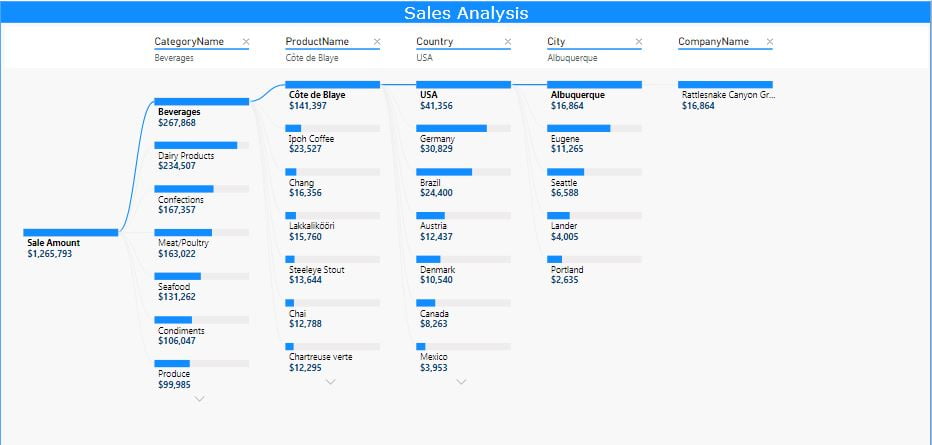
Decomposition Tree is an AI based visual available in Power BI. It lets you visualize data across multiple dimensions. It automatically aggregates data and enables drilling down into your dimensions in any order. It is also an artificial intelligence (AI) visualization, so you can ask it to find the next dimension to drill down into based on certain criteria. This makes it a valuable tool for ad hoc exploration and conducting root cause analysis. For example, when drilling into the tree, you can choose “High value” or “Low value”. Selecting one of these tells the visual to perform an “AI split”, which will then identify the next field to drill into and display the highest or lowest value, respectively. The original March 2020 tutorial used the public-preview version of Decomposition Tree.
Historical setup in the version shown in this tutorial:
File >> Option and Settings >>Options>> Preview Features>> Check the Decomposition Tree Visual
Key Influencers:
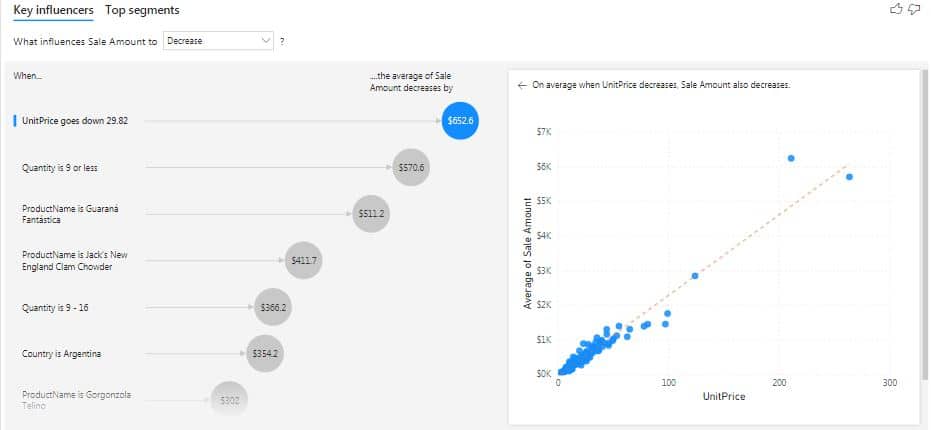
The key influencers visual helps you understand the factors that drive a metric you’re interested in. It analyzes your data, ranks the factors that matter, and displays them as key influencers. For example – suppose you want to figure out what influences Sales amount. Factors might be quantity sold, Discount, unit price etc.
When to use key influencers?
The key influencers visual is a great choice if you want to:
- See which factors affect the metric being analyzed.
- Contrast the relative importance of these factors
Q&A:
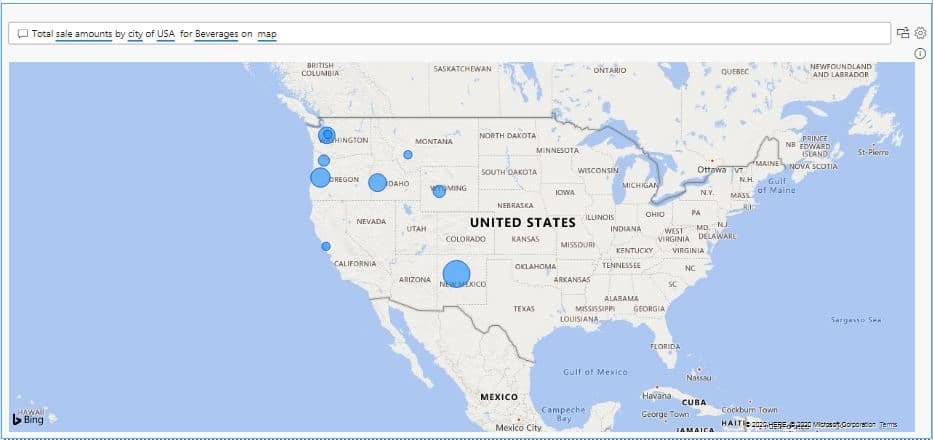
The Q&A visual can be both used as a tool to allow consumers to quickly get answers to their data, and by designers to create visuals in report by simply double-clicking anywhere on a report and using natural language to get started. As it behaves like any other visual, the Q&A visual can be cross-filtered/cross-highlighted and also supports bookmarks. The Q&A visual also supports themes and other default formatting options available inside Power BI.
The Q&A visual consists of four core components;
- The question box: This is where users type in their question and are shown suggestions to help them complete their question.
- A pre-populated list of suggested questions.
- Icon to convert the Q&A visual into a standard visual.
- Icon to open Q&A tooling which allows designers to configure the underlying natural language engine.
Contextual Analyze insights:
The last feature of data visualizations we’ll mention is “Insights” which allows AI-powered analysis within traditional visuals like line chart. we’re all already familiar with.
Explain the Increase/Decrease:
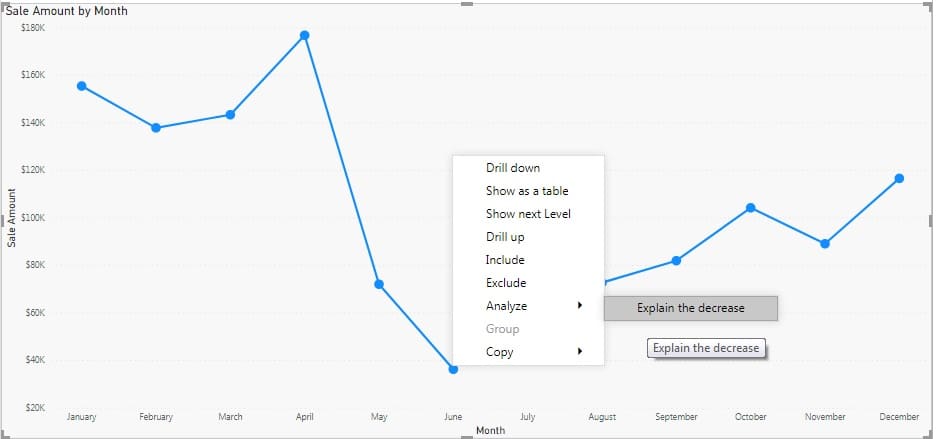
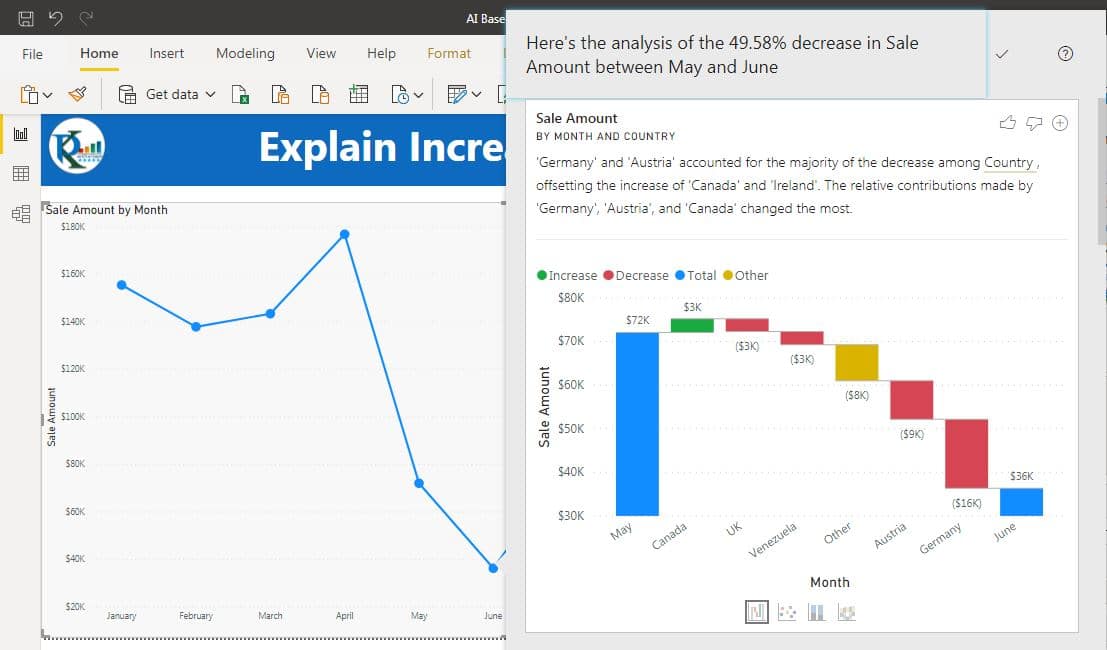
This feature can be used to have Power BI identify and explain the increase or decrease between two data points. For example, perhaps you see a large decrease in sales between two months. Rather than performing a manual analysis to explain the decrease in sales, Power BI can perform that analysis for you!
In the below line chart we are seeing a decrease in sales in Jun Month. Just Right click on Jun >> Analyze>> Explain the decrease
It will run the AI algorithm and will give the Insights
Watch the step by step video tutorial:
Click here to download Power BI file.
Visit our YouTube channel to learn step-by-step video tutorials