Part of the free Module 6: Data Validation · Lesson 9 of 14 · Full Excel course
Updated on 5 September 2026 · Works in Excel 365, 2021, 2019 and 2016 unless noted.
The error alert in Excel data validation is the message box that appears when someone types a value that breaks a validation rule. On the Error Alert tab you write your own title and message and pick one of three styles: Stop rejects the entry, Warning lets the user keep it after a confirmation, and Information accepts it and simply notes the exception.
What the Error Alert tab controls
The Data Validation dialog has three tabs. Settings defines the rule, Input Message shows a hint before the user types, and Error Alert decides what happens after an invalid entry. The tab has four controls:
- Show error alert after invalid data is entered: the master switch. Ticked by default. Untick it and Excel accepts any value without a dialog, although the rule stays attached to the cell.
- Style: Stop, Warning or Information. This is the only setting that changes how strict the rule is.
- Title: the text in the dialog’s title bar, up to 32 characters. Leave it blank and Excel prints “Microsoft Excel”.
- Error message: the body text, up to 225 characters. Leave it blank and Excel prints the default sentence “This value doesn’t match the data validation restrictions defined for this cell”, which tells the user nothing about what is allowed.
The dialog and its limits are identical in Excel 2016, 2019, 2021 and Excel 365, so everything on this page applies to every current desktop version. Excel for the web shows the same three styles.
How to set a custom error alert step by step
- Select the cells you want to validate, for example B2:B200.
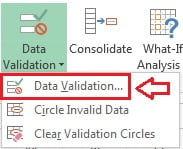
- Go to Data > Data Tools > Data Validation and click Data Validation.
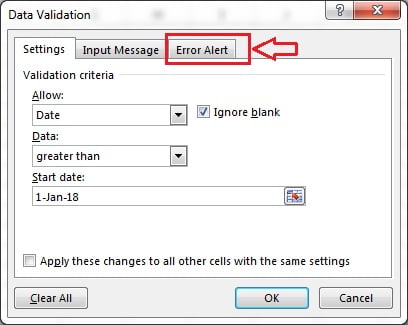
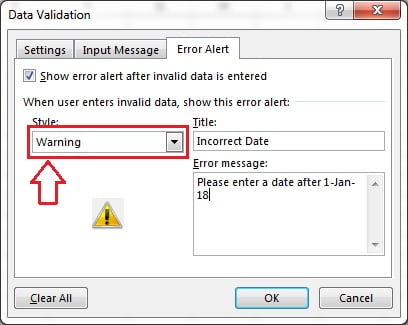
- On the Settings tab define the rule. The screenshot uses Allow: Date, Data: greater than, Start date: 01-01-2018.
- Click the Error Alert tab.
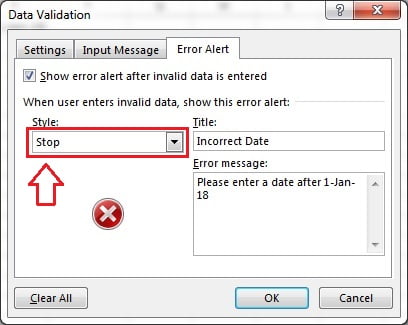
- Keep Show error alert after invalid data is entered ticked.
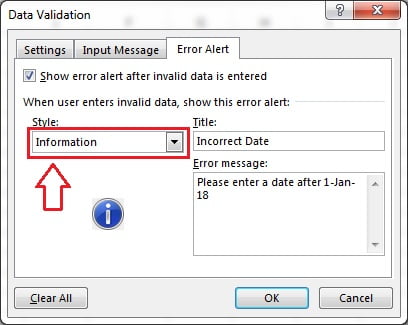
- Choose a Style: Stop, Warning or Information.
- Type a short Title (32 characters maximum) and an Error message (225 characters maximum) that says what is allowed.
- Click OK, then type an invalid value into one of the cells to test the alert.
To edit the alert later, select any validated cell and open the same dialog; Excel loads the existing settings. Tick Apply these changes to all other cells with the same settings on the Settings tab if the rule covers several ranges.
Stop, Warning and Information compared
| Style | Icon | Buttons | Is the invalid entry kept? | Best for |
|---|---|---|---|---|
| Stop (default) | Red circle with a white cross | Retry, Cancel, Help | No. Retry returns to editing; Cancel restores the old value | Hard rules: IDs, dates in range, values from a list |
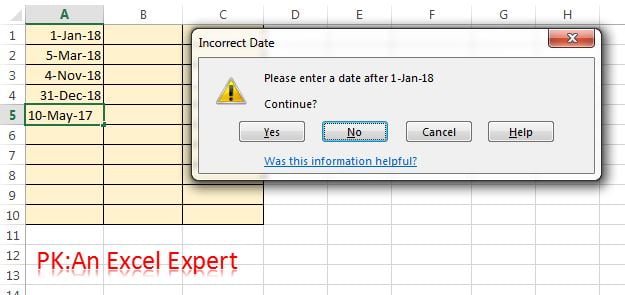
| Warning | Yellow triangle | Yes, No, Cancel, Help | Only if the user clicks Yes | Soft rules with legitimate exceptions, such as an unusual discount |
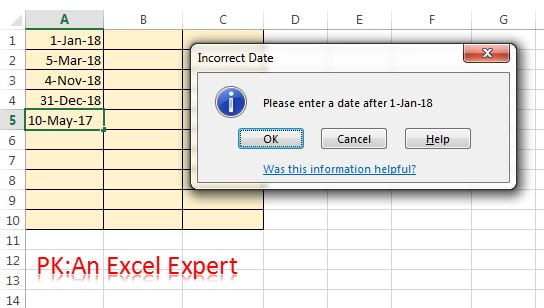
| Information | Blue circle with an i | OK, Cancel, Help | Yes when the user clicks OK; Cancel discards it | Reminders and guidance that should not slow data entry |
Stop: the entry is rejected
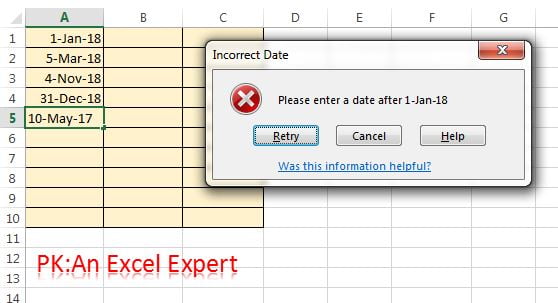
Stop is the strictest style and the one Excel selects by default. The invalid value never reaches the cell. Retry puts the cell back into edit mode with the rejected text still selected, and Cancel restores whatever was there before. Use Stop whenever downstream formulas, lookups or reports would break on a bad value.
Warning: the user decides
Warning shows a yellow triangle, adds the question “Continue?” under your message and offers Yes, No and Cancel. Yes writes the invalid value into the cell, No returns to editing and Cancel restores the previous value. Choose Warning when exceptions are real but should be deliberate, and plan to review them later with Circle Invalid Data.
Information: the entry is accepted
Information shows a blue “i” icon with OK and Cancel. OK accepts the value exactly as typed; Cancel discards it. Nothing is blocked, so treat this style as a polite reminder: “Amounts above 10,000 are unusual, please double-check the invoice”.
Turning the alert off but still flagging bad data
Sometimes you want to record whatever people type and audit it afterwards, for example during a data migration. Untick Show error alert after invalid data is entered and Excel accepts every value silently. The rule is still stored, so you can find the exceptions later with Data > Data Validation > Circle Invalid Data, which draws a red oval around each cell that fails its rule. Clear the ovals with Clear Validation Circles when you are done. The same audit works for values that slipped through a Warning or Information alert.
What the error alert does not catch
An error alert only fires when a value is typed into a cell and confirmed with Enter or Tab. It does not fire for:
- Pasting: a normal paste replaces the cell, including its validation rule. Paste Special > Values keeps the rule but still skips the alert.
- Fill handle and Ctrl+D: values copied down are not checked.
- Formulas: a formula that returns an out-of-range result is not flagged, because the formula was valid when it was entered.
- Existing values: anything typed before the rule was created stays as it is.
- VBA and Power Query: code that writes to the cell bypasses the dialog.
Circle Invalid Data catches all five cases, so use it as a regular check on any validated sheet.
Worked example: a Stop alert and a Warning alert
A small staff form has an Age column that must contain 18 to 65 and a Discount column that should normally be 0 to 20 percent but can go higher with a manager’s approval.
| Row | A: Name | B: Age | C: Discount |
|---|---|---|---|
| 2 | Anita | 34 | 10% |
| 3 | Rahul | 17 | 15% |
| 4 | Priya | 52 | 25% |
Age column (Stop): select B2:B100, open Data Validation, set Allow: Whole number, Data: between, Minimum 18, Maximum 65. On the Error Alert tab choose Style: Stop, Title Invalid age, Error message Enter a whole number between 18 and 65. Typing 17 in B3 now opens the Stop dialog and the cell keeps its previous value until a valid age is entered.
Discount column (Warning): select C2:C100, set Allow: Decimal, Data: between, Minimum 0, Maximum 0.2 (format the cells as Percentage first so 20% reads as 0.2). On the Error Alert tab choose Style: Warning, Title Discount above 20%, Error message Discounts above 20% need manager approval. Click Yes to keep this value. Typing 25% in C4 shows the yellow Warning dialog; clicking Yes keeps 25% and clicking No lets the user correct it.
Result: the Age column can never hold a value outside 18 to 65 by typing, while the Discount column records approved exceptions that you can list at any time with Circle Invalid Data.
Writing error messages people understand
A good message states the rule, gives an example and fits in 225 characters. Compare:
| Weak message | Better message |
|---|---|
| Invalid entry | Enter a whole number between 18 and 65. |
| Wrong date | Enter a date after 01-Jan-2018 in the form DD-MM-YYYY. |
| Not in list | Choose a region from the drop-down: North, South, East or West. |
| Error | Employee ID must be 6 digits, for example 104522. |
Tips and common mistakes
- Lead with the fix. Say what is allowed, not just that the entry is wrong, and match the wording of your Input Message.
- Do not rely on Warning or Information for critical data. Both styles let the value through; only Stop rejects it.
- Keep the Title under 32 characters. Excel truncates anything longer, and the Error message stops accepting text at 225 characters.
- Count the characters when limits change. The message is static text, so update it whenever you change the Minimum or Maximum on the Settings tab.
- Protect pasted data separately. Because paste bypasses the alert, either protect the sheet or schedule a Circle Invalid Data review.
- Test every style with a real invalid value before sharing the file; a blank message box after a Stop alert usually means the message field was left empty.
- Pair the alert with an Input Message so users see the rule before they type and rarely trigger the alert at all.
Errors and how to fix them
| Problem | Likely cause | Fix |
|---|---|---|
| No alert appears for an invalid entry | Show error alert is unticked, or the cell has no rule (the range was pasted over) | Re-open Data Validation, tick the checkbox, and re-apply the rule to the full range |
| Message is cut off | Title longer than 32 characters or message longer than 225 | Shorten the text; put the example in the Input Message instead |
| Alert fires on values that are valid | A custom formula uses relative references written for the wrong active cell, for example =A2>0 applied while A5 was active |
Select the range from the top-left cell and write the formula for that first cell, or use absolute references where the comparison cell is fixed |
| Alert shows the default Microsoft Excel text | Title and Error message were left blank | Type a title and a message on the Error Alert tab |
| Invalid values are already in the sheet | They were entered before the rule, pasted or filled | Run Data > Data Validation > Circle Invalid Data and correct the circled cells |
| User clicked Yes on a Warning and the bad value stayed | Warning is designed to allow it | Switch the style to Stop if the rule is not negotiable |
Practice exercise
- Create a column of quantities with a rule of whole numbers between 1 and 500 and a Stop alert. Confirm that 0 and 501 are rejected.
- Add a unit price column with a rule of decimals between 0 and 1000 and a Warning alert. Enter 1500, click Yes, then run Circle Invalid Data to find it.
- Add a notes column with a text length limit of 100 and an Information alert reminding users to keep notes short.
- Untick Show error alert on the quantity column, type 999, and use Circle Invalid Data to prove the rule still exists.
- Paste a block of values over the quantity column and check which cells lost their validation rule.
Key takeaways
- The Error Alert tab has a master switch, a Style, a Title (32 characters) and an Error message (225 characters).
- Stop rejects the entry with Retry and Cancel; Warning asks Yes, No or Cancel and can keep the value; Information accepts it with OK.
- Left blank, Excel shows the unhelpful default message, so always write your own.
- Alerts only check typed entries; paste, fill, formulas, macros and older values slip through.
- Circle Invalid Data finds everything the alert missed, including values kept after a Warning.
Related lessons
- Data Validation course hub
- Input message in data validation: show entry hints
- Circle invalid data: find entries that break validation
- Custom data validation with formulas
- Copy, find and remove data validation
- COUNTIF function for rules that reject duplicates
- Conditional formatting with a formula to highlight exceptions
- Microsoft Support: Apply data validation to cells
Visit our YouTube channel for step-by-step video tutorials.
Frequently asked questions
Which error alert style should I use in Excel data validation?
Use Stop for rules that must never be broken, such as IDs, dates and list values that feed lookups. Use Warning when exceptions are allowed but should be confirmed, for example a discount above the usual limit. Use Information for advice that should not interrupt data entry. When in doubt, choose Stop; it is the default.
Why did an invalid value get into a validated cell?
Either the style is Warning or Information and the user clicked Yes or OK, or the value did not arrive by typing. Pasting, the fill handle, formulas, macros and Power Query all bypass the alert, and values entered before the rule are never checked. Run Circle Invalid Data to find every cell that currently fails its rule.
What is the maximum length of a data validation error message?
The Title accepts up to 32 characters and the Error message up to 225 characters. Excel stops accepting text at those limits, so longer instructions should go into the Input Message, which allows 255 characters and appears before the user types.
Can the error message include the allowed range automatically?
No. The Title and Error message are static text and cannot contain formulas or cell references. Type the limits into the message and update it whenever you change the rule. If limits change often, put them in an Input Message that you edit alongside the Settings tab, or use a custom formula rule so the logic lives in one place.
Does the error alert work if I paste a value into the cell?
No. A normal paste replaces the cell and its validation rule, and Paste Special > Values keeps the rule but skips the alert. To guard against pasting, protect the worksheet, or run Circle Invalid Data after each batch of edits to circle any value that breaks a rule.
Want the finished version? Ready-made Excel dashboards, trackers and VBA systems are available at NextGenTemplates.com.